


A Helpful Guide to Edit PDF in Photoshop
 347
347
 0
0


Adobe Photoshop is a powerful raster graphics editor developed by Adobe, available on Windows and Mac. It is designed for photographers, designers and creative professionals, and has a wide range of uses in creating images, editing photos, and designing artwork.
Normally, Photoshop is a piece of software to be well versed in images, but some of its users are still looking for the method to edit PDF files in Photoshop. Is it possible? And how to edit PDF in Photoshop? This article aims to take away your puzzles.
 Cisdem PDFMaster
AI-Powered PDF Editor: Edit PDF Like a Master
- Provide a variety of tools to deal with PDF files.
- Edit the existing text, images and any other parts in PDF easily.
- Add new elements like hyperlinks, shapes, page numbers and stamps to PDF.
- Turn scanned PDF into searchable and editable PDF.
- Edit the current text, images, links, comments and any other parts of PDF.
- Make PDF an editable file format, including Word, Excel, PPT, Text.
- Create all kinds of forms, easy to fill out and sign.
- Offer multiple display modes to view a PDF.
 Free Download macOS 11 or later
  Free Download Windows 10 or later
Earlier than macOS 11, click here
Can You Edit a PDF File in Photoshop?
The answer is yes.
Photoshop can indeed edit a PDF file, but it doesn’t have abundant editing capabilities that you would have in a dedicated PDF editor like Adobe Acrobat. It turns a single-page PDF file into a raster graphic, which means you can not change the layout of the original PDF and modify the existing text. Any edits to PDF text in Photoshop like copying, re-sizing, moving and aligning have to be operated on a new type layer.
2 Approaches to Edit PDF in Photoshop You May Need
For professionals, editing images in Photoshop is a breeze, but they may still find it confusing when they try to edit PDF files using this software. Therefore, several step-by-step tutorials regarding how to edit PDF text and how to create a multi-page PDF in Photoshop will be elaborated below.
How to Edit PDF Text in Photoshop
As mentioned earlier, the imported PDF will be rasterized in Photoshop, which prevents any modifications to the original content. You can only be able to add text to the PDF and make edits on the new text layer.
- Launch the program of Adobe Photoshop.
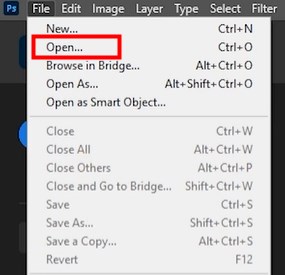
- Go ahead with File > Open... to upload your PDF file.
![edit pdf in ps01]()
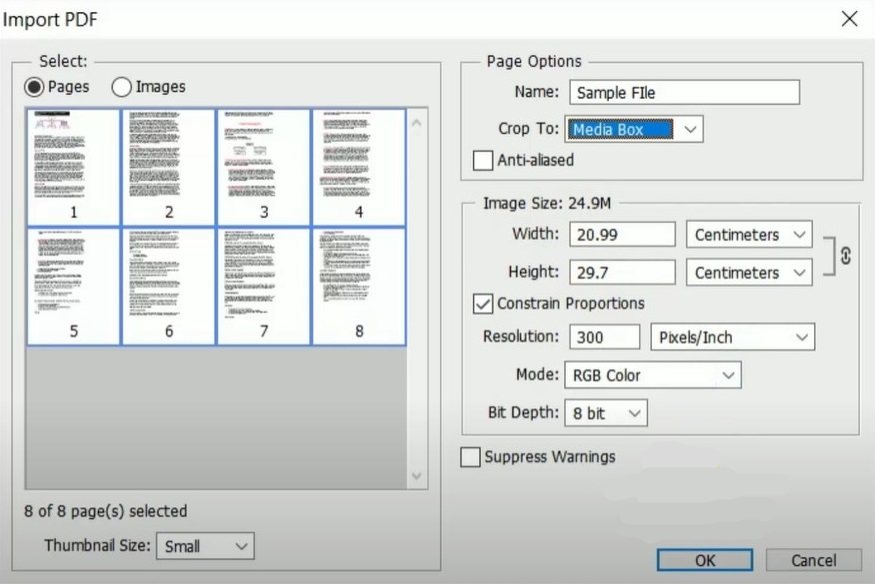
- If your PDF contains multiple pages, the program will pop up a window where you can select pages by pressing Ctrl and clicking mouse. On the right panel, many options are available to crop pages, resize images and adjust other settings.
![edit pdf in ps02]()
- Continue with OK, then the PDF will be displayed in Photoshop page by page.
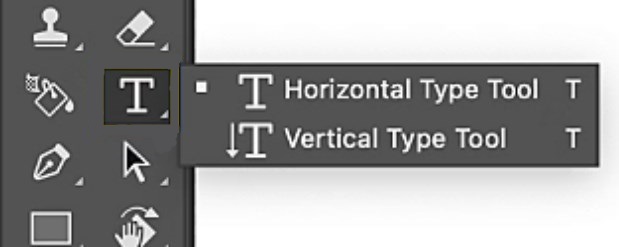
- Hit the T icon from the left-side toolbar, here are 2 options for your choice, select one and type the new text.
![edit pdf in ps03]()
- On this new text layer, you can change the font type, size, color, text alignment and more using the tools on the top.
- When you’re done, go back to File > Save to apply the changes.
How to Create a Multi-Page PDF in Photoshop
Besides adding text in PDF, Photoshop also provides a way to create a multi-page PDF.
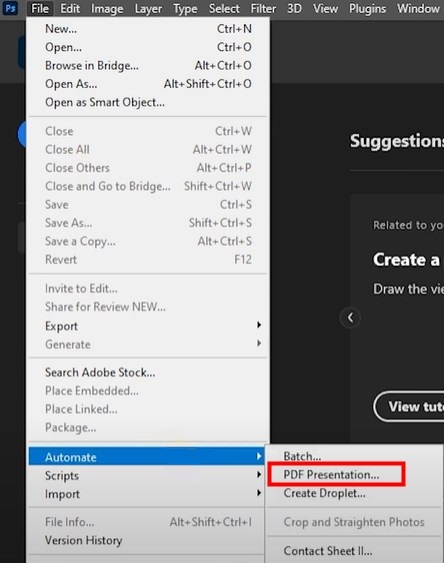
- Navigate to File > Automate > PDF Presentation....
![edit pdf in ps04]()
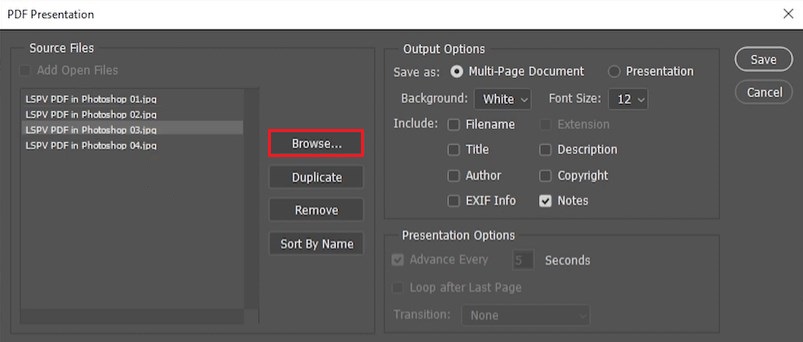
- In the PDF Presentation window, click Browse... to import multiple images onto the left panel, you can reorder them by long pressing and moving the mouse.
![edit pdf in ps05]()
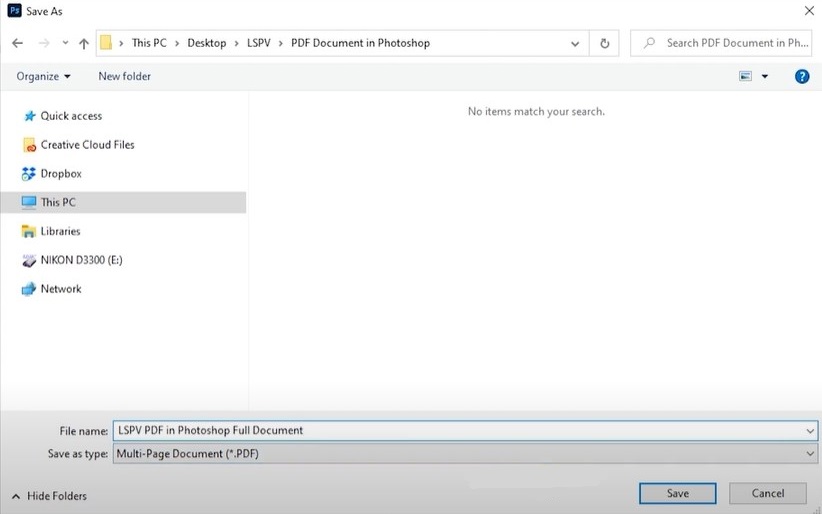
- Click Save at the top right corner. You should name the exported file and select Multi-Page Document from Save as type drop-down list.
![edit pdf in ps06]()
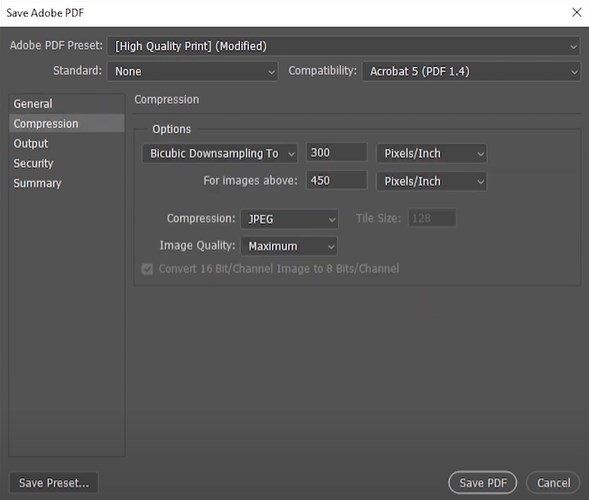
- Click Save and confirm Save PDF again in the new pop-up window.
![edit pdf in ps07]()
Better Options than Editing PDF in Photoshop
As mentioned earlier, although Photoshop can successfully edit PDF files, it is not recommended because of its complex design, limited functionality and expensive price. Professional work should be left to professional product. PDF editors are born for editing and managing PDF files, which typically offers an abundance of useful features.
Here we picked out 2 standout PDF editors from numerous choices: Cisdem PDFMaster and Adobe Acrobat.
Option 1: Cisdem PDFMaster -- All-in-One PDF Editor
Cisdem PDFMaster is listed as the first recommendation because it blends the benefits of intuitive interface, full-fledged features and affordable price. It is an all-embracing PDF editor that puts every tool users may need in one place, from requisite content editing tools, excellent file conversion performance, form creation and fill support to robust security options for sensitive documents, such as open and permission passwords, redaction marks and digital signatures. Follow the tutorials to work on your PDF files like a professional.
How to Edit PDF in Photoshop’s Alternative PDF Editor?
Import a PDF into Cisdem Software
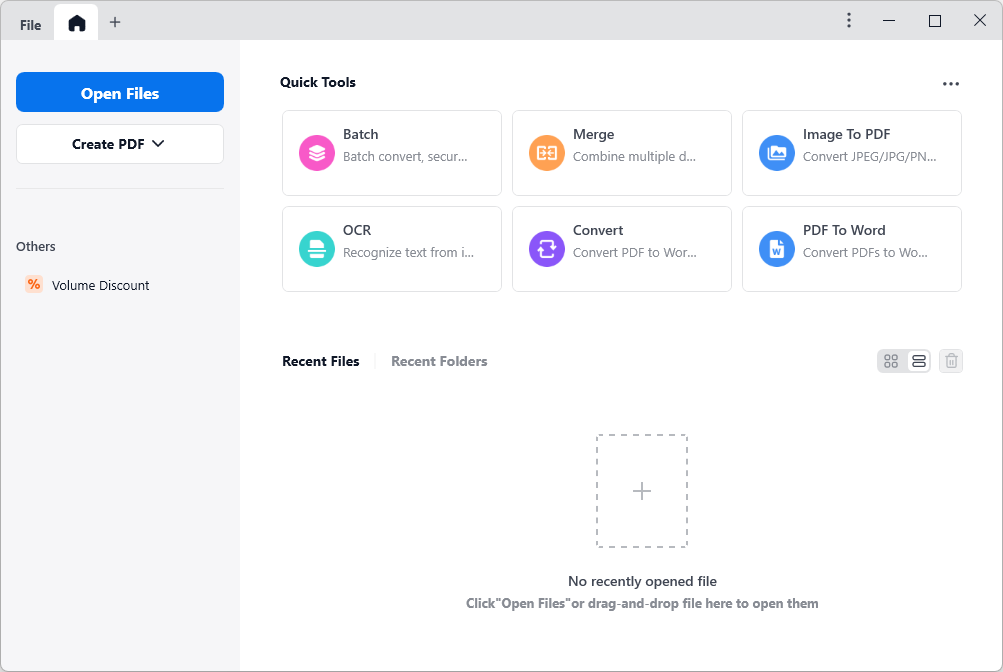
Download and install Cisdem PDFMaster on your computer. Click Open Files in the home interface to upload your PDF file.
Edit the Text and Images in PDF
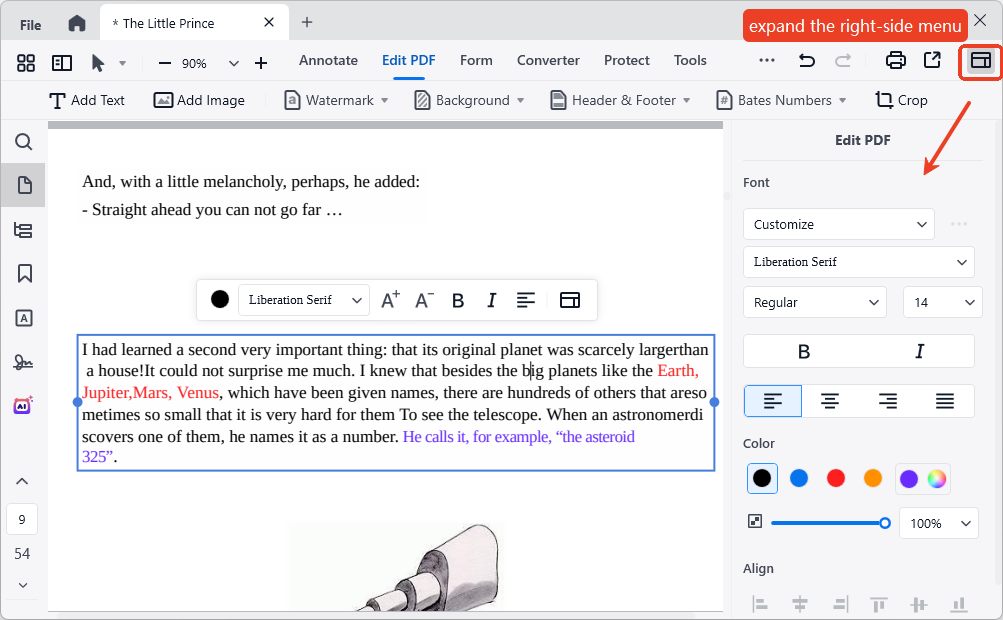
Choose Edit PDF tab from the top toolbar, all the texts and images will be editable. You can edit, copy and delete the existing text easily. A full set of font options are available on the right panel.
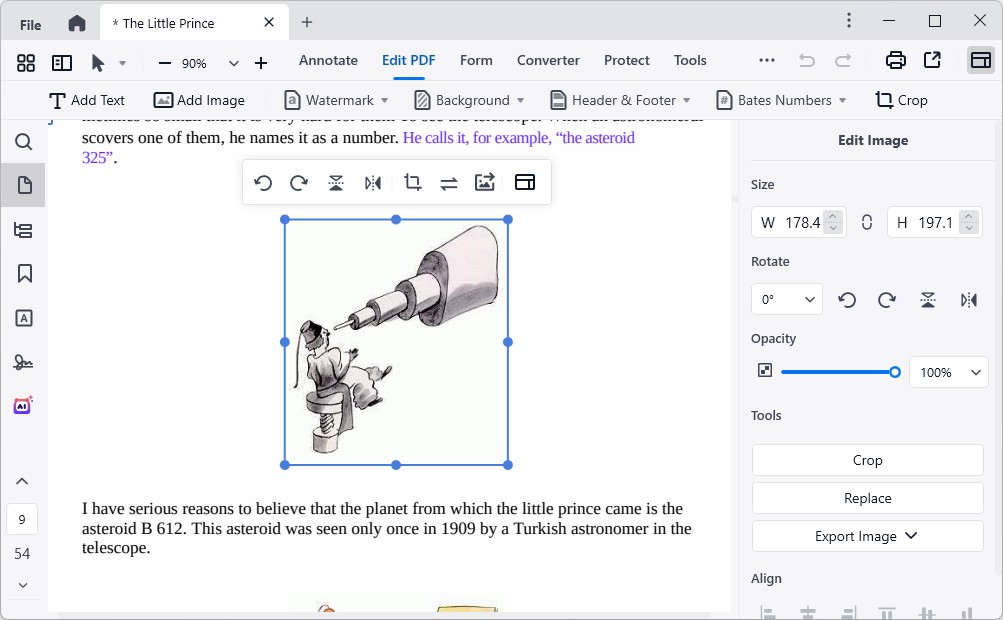
Also, you can edit the image from the floating menu or side pane.
Turn PDF into an Editable File Format
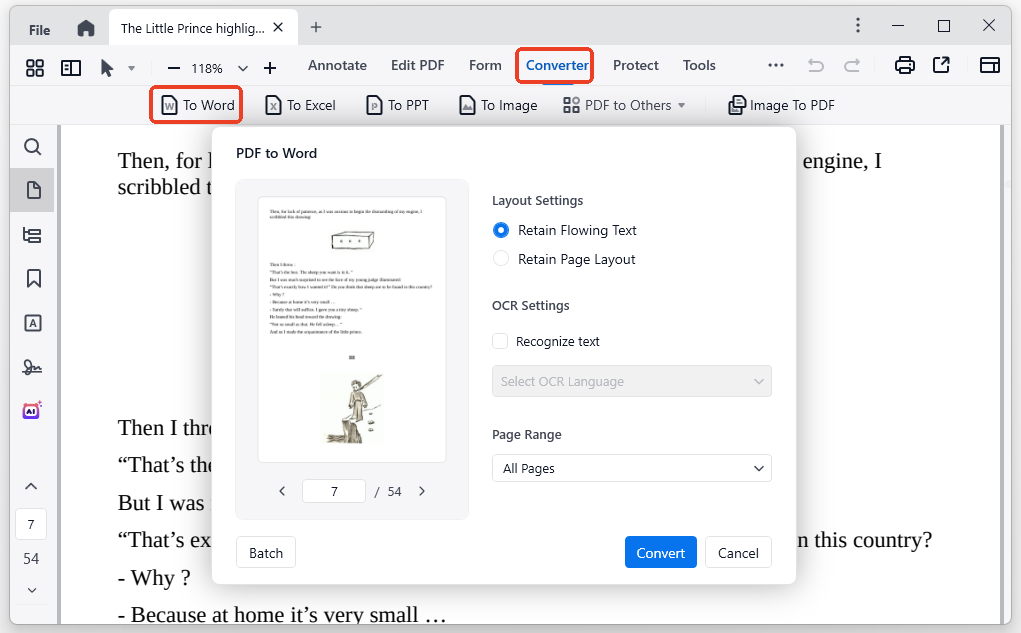
Choose Converter feature instead, here are several editable file formats in the sub-menu. Take To Word as an example, adjust the layout settings and customize the page range, click Convert to start processing. Batch conversion is allowed.
Make PDF Interactive and Fillable
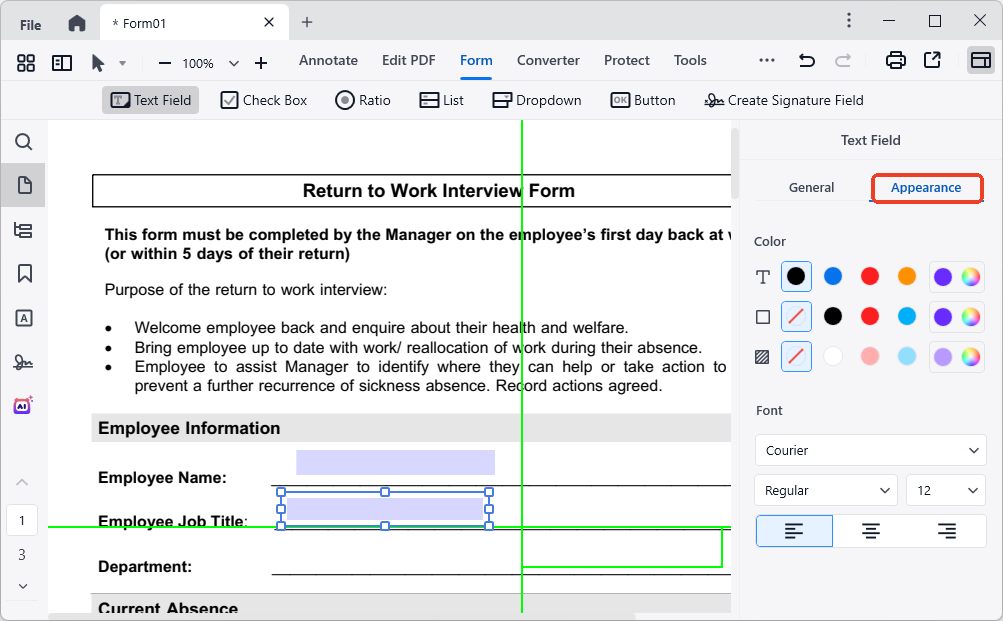
Go to Form tab, 7 form fields are provided for your choice. Select one and place the field rectangle where you want to add it. You can change its properties on the right hand. All the inserted fields are editable and easy to fill out.
There are still many other uses of Cisdem PDFMaster, like:
- Annotate a PDF with a wealth of tools,
- Redact sensitive information on PDF,
- Protect PDF against unauthorized access and edits,
- Add watermarks to PDF for copyright,
- Organize PDF pages in various ways.
Option 2: Adobe Acrobat
You must have heard of Adobe Acrobat as long as you work with PDF files regularly. It is developed by the same company as Adobe Photoshop, but they focus on different areas. The former is built for PDF editing, while the latter aims to design artwork and optimize images. Working as a PDF editor, Adobe Acrobat has gained a good reputation, packing with powerful features and file security guarantees. But its high cost discourages a majority of people.
It offers a full set of editing features, allowing users to modify the existing text, black/white out the sensitive information, create/convert PDF from/to various file formats, add page numbers/watermarks/stamps to PDF and so forth.
How to Edit PDF in Photoshop’s Alternative PDF Editor?
- Start the program of Adobe Acrobat.
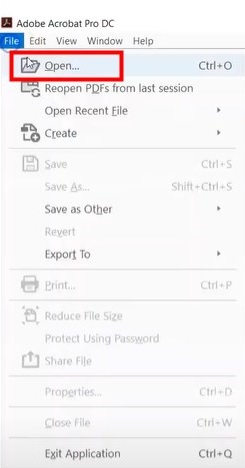
- Go to File tab and click Open to import your PDF file into the program.
![edit pdf in adobe0]()
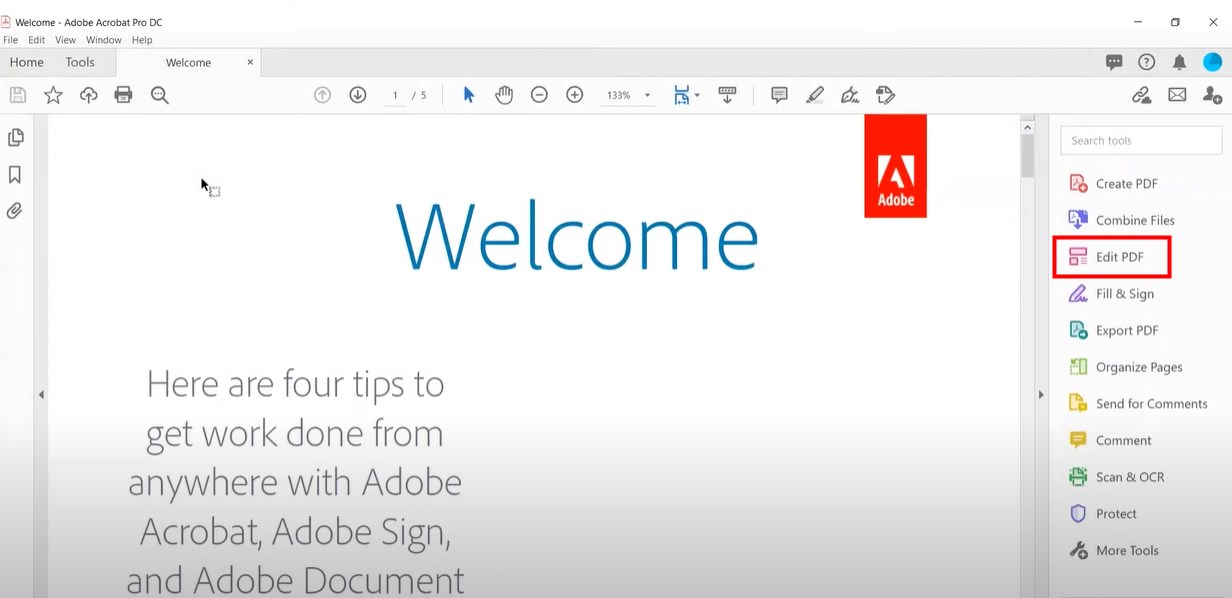
- Navigate to Edit PDF feature on the right side.
![edit pdf in adobe02]()
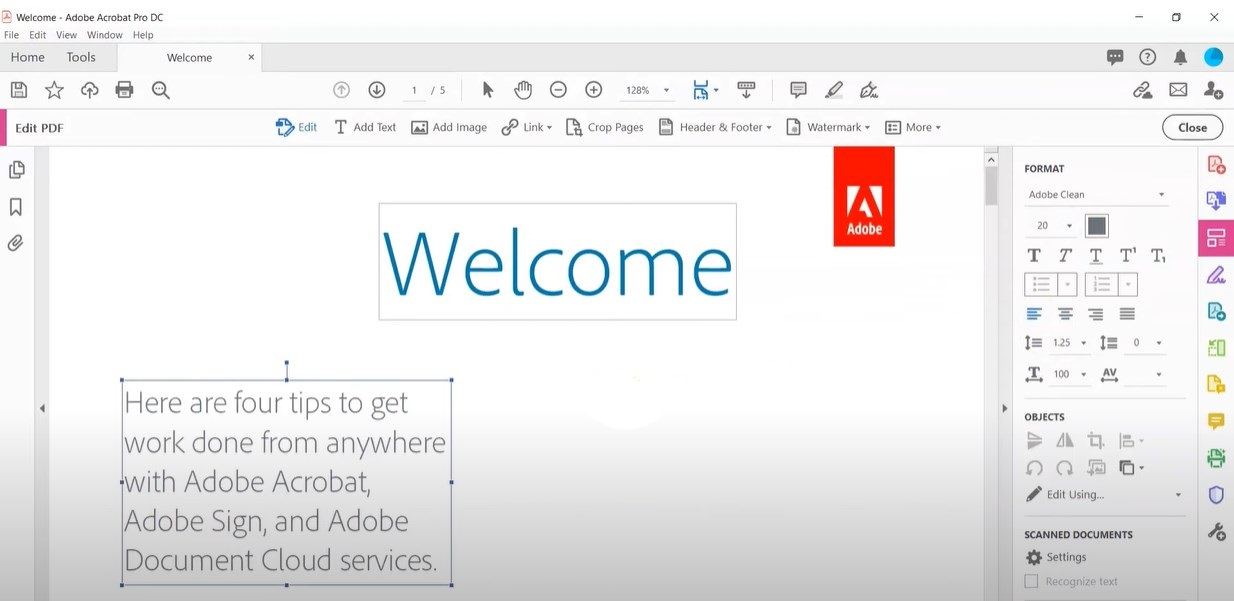
- All the editing tools have been activated, you can add new objects through the top menu bar and change the appearance of text using the right-side pane.
![edit pdf in adobe03]()
- When you’re done editing, go back to File > Save to apply the changes.
Alternative to Photoshop--Free Online PDF Editors
Consider it a hassle to download and install software onto your computer just for occasional PDF editing? Using online PDF editors can get your around this. They are accessible on any browser and enable you to edit a PDF on the go.
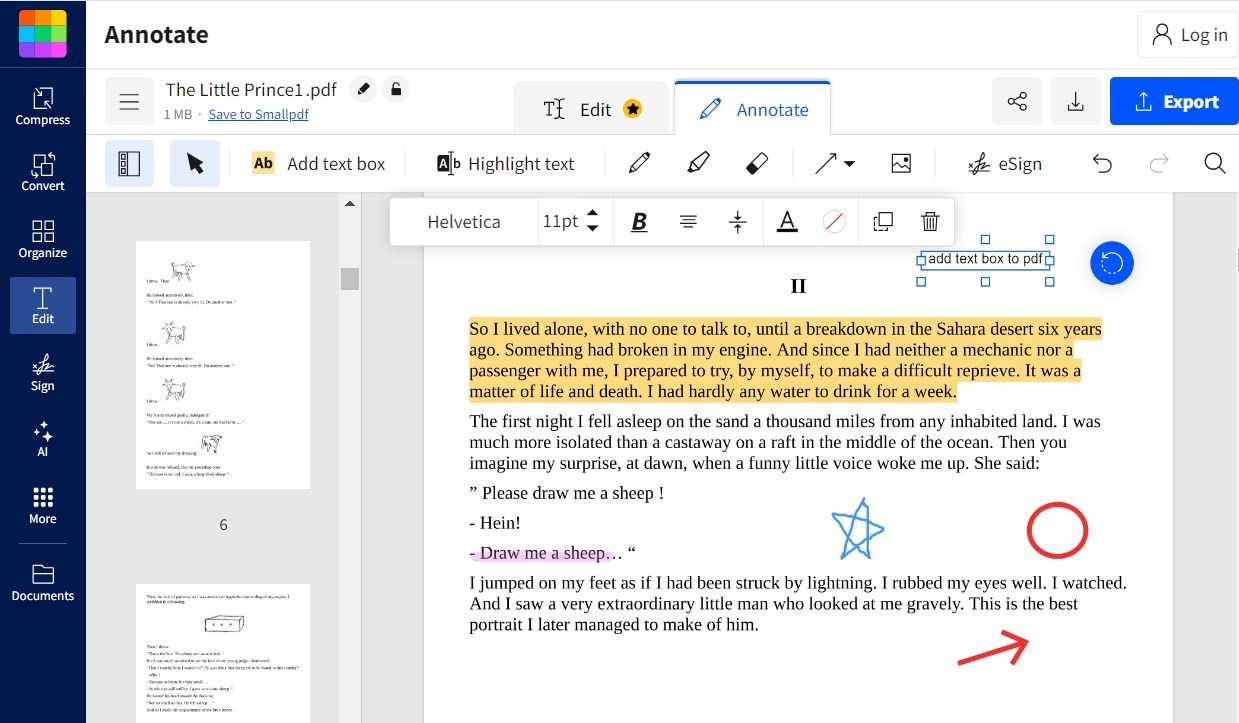
Among multifarious online PDF services, Smallpdf can rank at the forefront, which integrates all the necessary features into one basket. Expect text editing feature, other basic functions like adding text, shapes, images, highlights and annotations are supported in the program for free.
How to Edit a PDF Online Free?
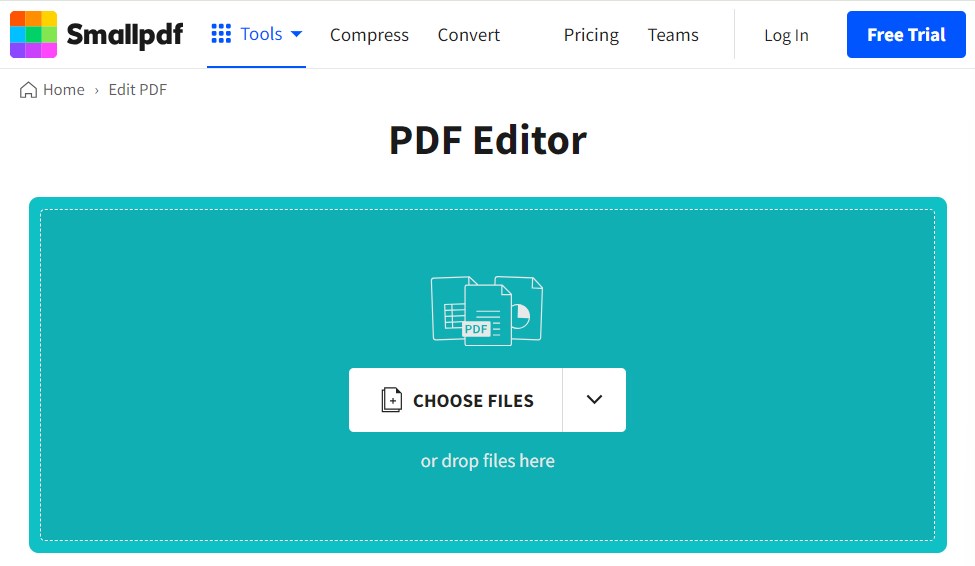
- Go to the tool website: https://smallpdf.com/edit-pdf.
- Click CHOOSE FILES or drop your PDF into the page directly.
![edit pdf in online01]()
- In the work interface, select the annotation tools it provides to edit your PDF file at will.
![edit pdf in online02]()
- You can also compress, convert, sign and organize PDF file.
- If everything is OK, click Download PDF icon to save the file onto your computer.
In Conclusion
While Photoshop do offer the capabilities to edit PDF files, it is still a bad option because the imported PDF pages have to be rasterized. The original text layout and formatting can not be edited directly. Compared to Photoshop, professional PDF editors such as Adobe Acrobat and Cisdem PDFMaster are a much better choice, initially designed to edit and process PDF files.

Bianca is a senior tech editor and strategist at Cisdem with Over 10 years of experience on PDF related solutions which covers all document editing, annotating, converting and managing etc.

Liam Liu takes charge of the entire PDF product line at Cisdem and serves as the technical approver for all related editorial content. He has deep expertise in PDF and document management technologies and nearly a decade of development experience.