


How to Download Videos from Safari on Mac and iPhone
 27.9K
27.9K
 0
0


Safari is a popular web browser from Apple. It provides a great viewing experience for people who enjoy watching videos online. But a steady and fast Internet connection is required.
If you’re up for watching videos smoothly anytime and anywhere without buffering, downloading them in advance is a good option.
This article will show you how to download videos from Safari, helping you back up your favorite content or watch videos and movies offline.
Using the Best Video Downloader App for Safari
#1. On Mac
Cisdem VideoPaw is a powerful video downloader that can download videos in 1080p, 4K and even 8K resolution from countless websites (YouTube, Facebook, Youku, TikTok, etc.) on Safari, Chrome, Firefox, Yandex and more browsers. Plus, it enables bulk URL downloads and entire playlist/channel downloads to boost productivity!
As an all-in-one Mac application, it combines converter, editor, compressor, recorder, and disc ripper, so you can, for example, also convert downloaded videos to popular video and audio formats, even presets for web videos or devices, with customizable settings as needed.
Steps on how to download any video from Safari on Mac with VideoPaw:
1. Download and install Cisdem VideoPaw to your Mac, then launch it.
 Free Download macOS 10.15 or later
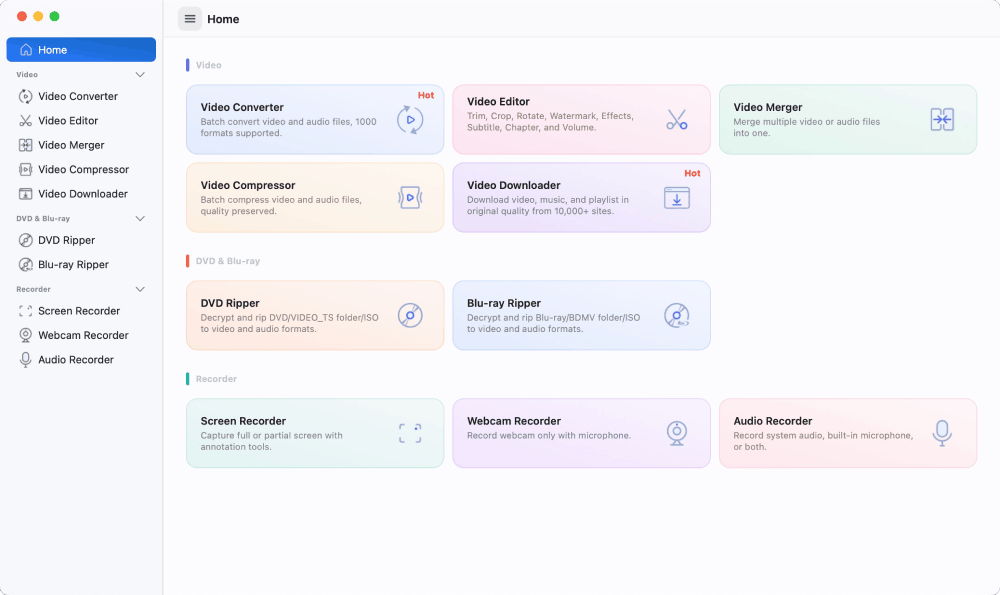
2. Open downloader module.
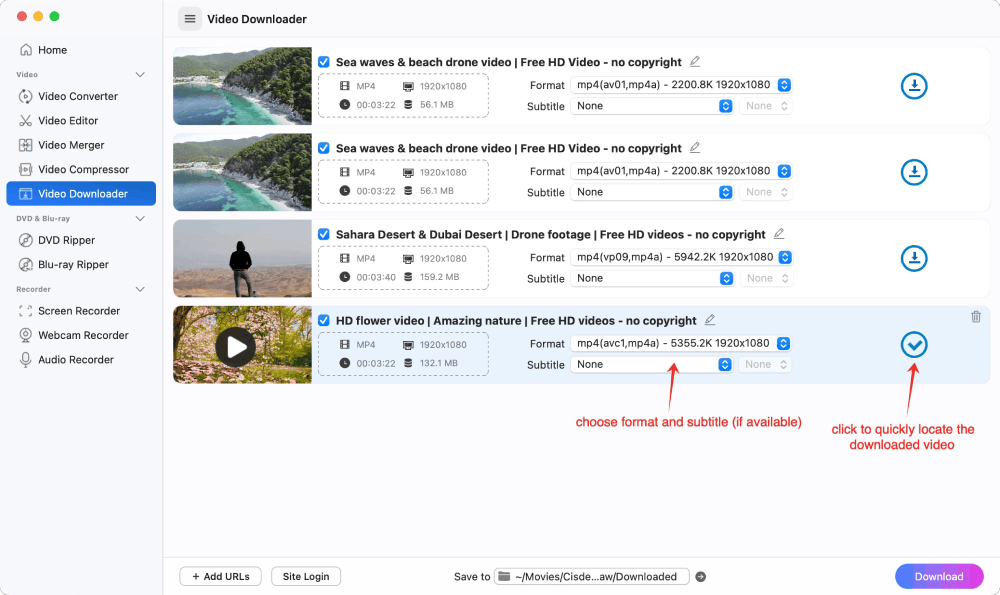
On the home screen, select Video Downloader from the list of available tools.
3. Copy and paste the URL
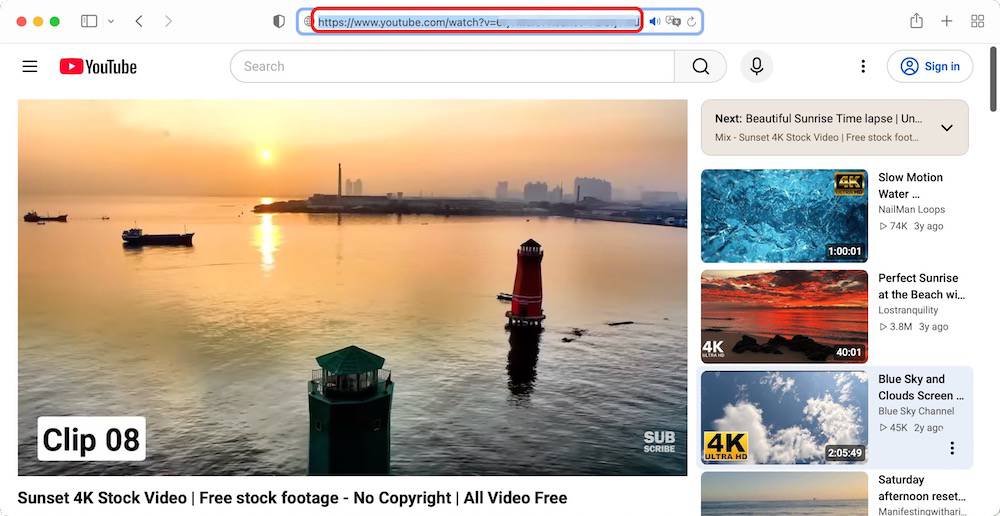
Open Safari and navigate to any website containing the video you want, such as YouTube, copy the URL from the address bar.
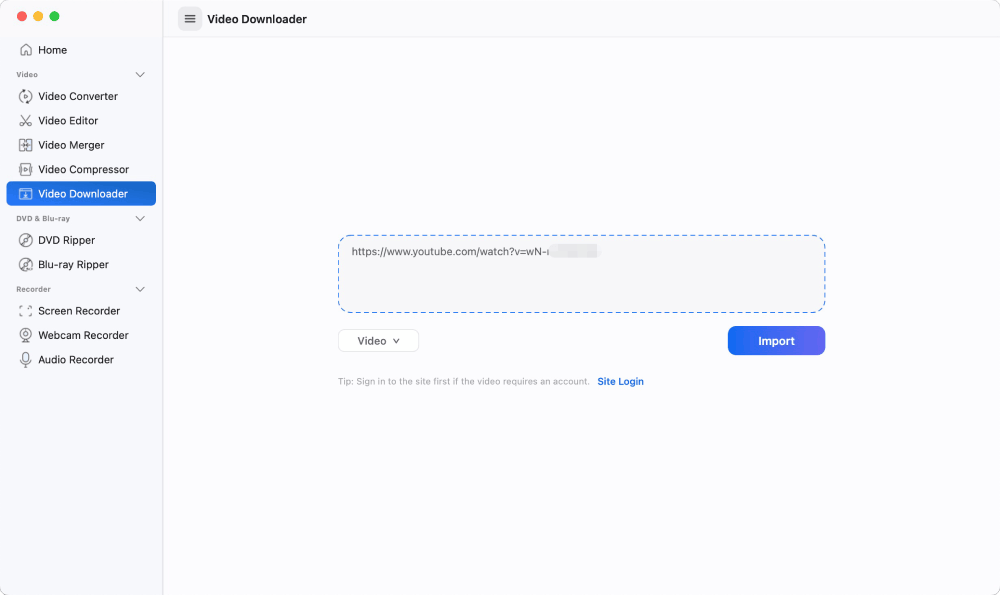
Then, return to the downloader app and paste the copied link into the center input box. Click “Import” to start analyzing the link.
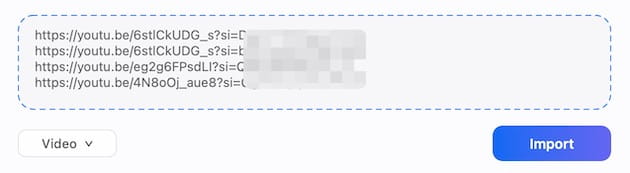
Note: To download multiple videos at once, simply press Enter in the text box to move to the next line and paste another URL. You can paste multiple links—one per line—and analyze them all with a single click.
4. Start the download process
Click the "Download" button to start downloading all videos instantly. Once completed, click on the“checkmark” icon to find the just downloaded videos on your device.
2. On iPhone
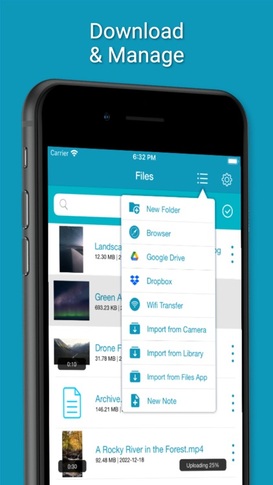
Video Saver owned by Xuyen Cao is an excellent video downloader for iPhone to download videos from Safari. It can not only download videos from Google Drive and Dropbox, but also come with a built-in browser to download videos from any websites effortlessly. It will download videos up to 1080P in batches, providing high quality for enjoyment.
Besides, it is a multipurpose software that can also be worked as video converter, editor and manager, which allows you to make basic editing to the download video and archive them well. However, you need to upgrade to the pro version if you don’t want the annoying ads.
Steps on how to download videos on iPhone from Safari with App:
- Download and install the software from your App store.
- Press on the three-dash icon on the top right corner, and choose “Browser” from the expanding list.
![download videos from safari to computer with app]()
- Input and visit a reliable online video downloader address, such as savefrom.net
- Then, open the Safari browser on your iPhone, move to a website that contains the video you want, and then copy the video link.
- Back to the interface of Video Saver, paste the copied link into the required box for analyzing URL, and press “Download arrow” icon to start the process.
- Once done, choose the preferred resolution and click “Download” to save the video to your iPhone.
Download Videos on Safari with Online Tools
#1. Loader.to
Loader.to is a reliable video downloader to get videos online from Safari without installing additional software. It supports a total of 8 websites, including YouTube, Vimeo, SoundCloud, Facebook, Twitter, Twitch, TikTok, and IMDB with corresponding interfaces for users to perform. You can save videos to MP3, M4A, AAC, FLAC, OPUS, OGG, WAV, MP4 and WEBM. The video resolution can be up to 4K, but only in WebM format, and there will be some loss of video quality.
Steps on how to download any video from Safari online with Loader.to:
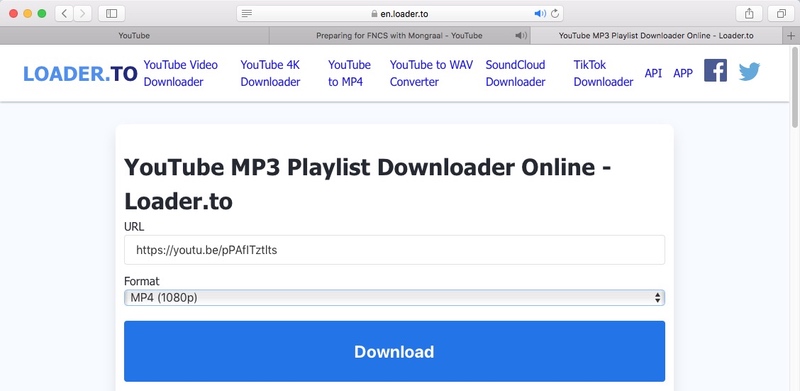
- Open Safari, visit https://en.loader.to/.
- Open a new tab, visit the supported website, choose one favorite video and copy its URL.
- Back to the online tool’s web page, paste the copied URL into the URL filed, and choose one desired output format from the “Format” section.
- Once done, tap on “Download”.
![loader.to interface]()
- Wait a while, then the video with Download button will be displayed below. Just click the Download button to save it to your device.
![download any video from safari with loader.to]()

#2. Pastedownload.com
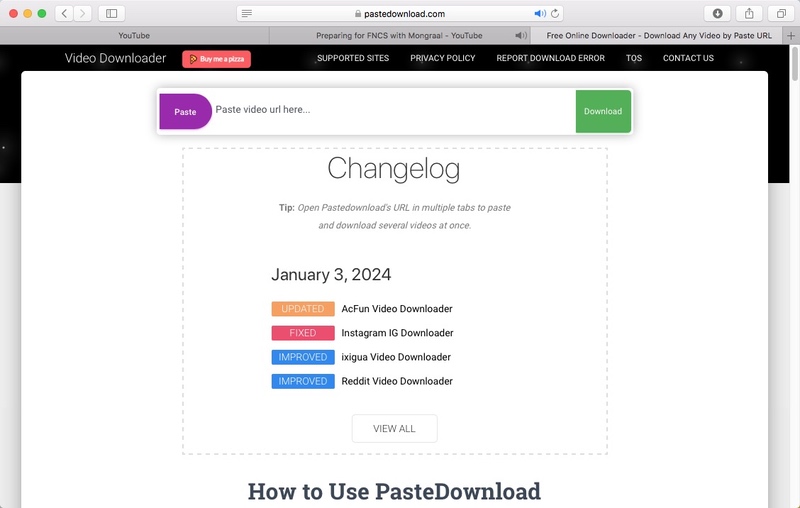
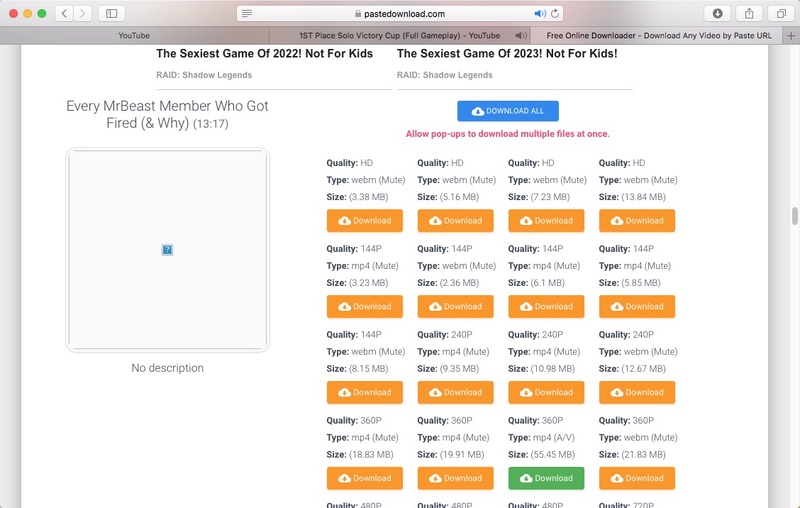
Pastedownload.com is also an excellent Safari video downloader that capable of downloading videos from many websites on Safari for free. It is easy to use and offers an auto-detection function to automatically monitor and analyze the pasted links. It will download videos to MP4 or WebM from 144p to 1080p. But you have to note that most download options are mute. Another annoying issue of it is that it contains unhealthy ads on the page.
Steps on how to download videos from Safari online with pastedownload.com:
- Visit https://pastedownload.com/ on Safari browser.
![pastedownload.com interface]()
- Switch to any video hosting website and copy the link to the desired video.
- Paste the copied link into the URL box of the online tool.
- It will automatically analyze the link. Once done, select the preferred resolution and click the button to start downloading video from Safari without app. You can also choose the audio option.
![download videos from safari with pastedownload.com]()
Download Videos in Safari Directly without Any Tool
#1. On Mac
Older versions of Safari included an “Activity” window that allowed users to view webpage resources, including some video files. This feature has since been removed. If you want to download Safari videos without third-party tools, try to use Web Inspector. Take the following steps to get your desired videos.
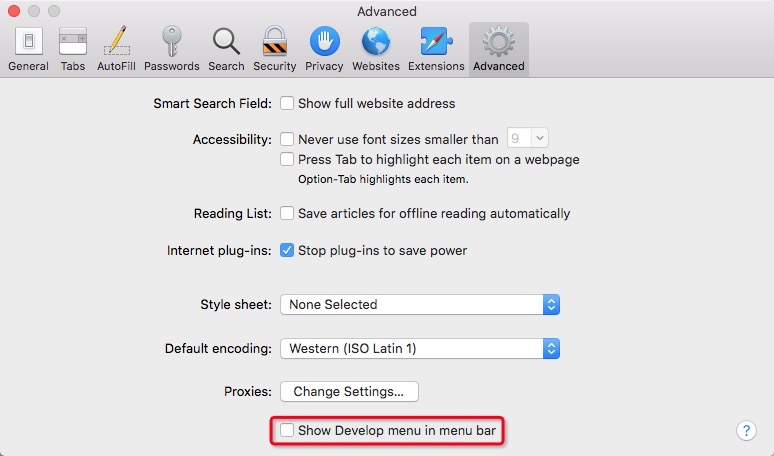
- In Safari, click “Safari > Settings (or Preferences, depending on your macOS version) > Advanced”, then check the “Show Develop menu in menu bar” checkbox.
![show develop menu]()
- Now visit the media site with Safari. open a video, right-click on the page and select “Inspect Element”.
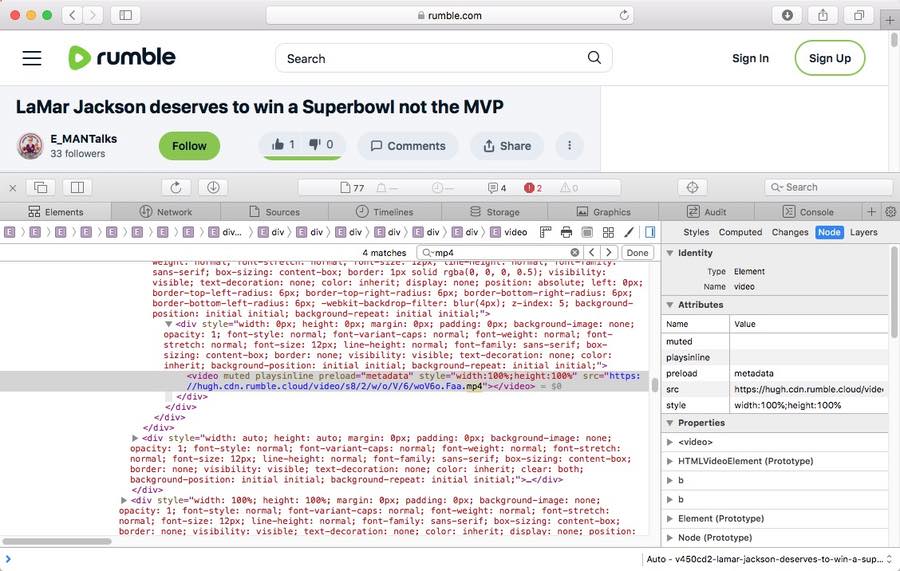
- On the "Elements" or "Network" page, press “command + F” to search for the media file. Type in mp4, video, videoplayback, or other similar keywords. Take Rumble website as an example, search for “mp4” to find the video link. If you only find the m3u8 file, you need a video downloader tool to parse the URL.
![find the video link]()
- Once you get the right link, right-click it and select "Open in New Tab".
- The video will then play on your browser. Right-click on the playing video and choose "Download video as..." to save the video in MP4 format to your local device.
Note:
- This method does not apply to all websites. Some videos from Google Drive, TikTok, Facebook, GoToStage, Vidyard, Kaltura, WebinarJam, Rumble, etc. can be downloaded successfully.
- May not be able to download in best quality, e.g. only 360p video from Vidyard, even if the original resolution is 1080p.
#2. On iPhone
The steps on iPhone will be easier. But this way is not workable with all websites.
- Open Safari and go to the video that you wish to download.
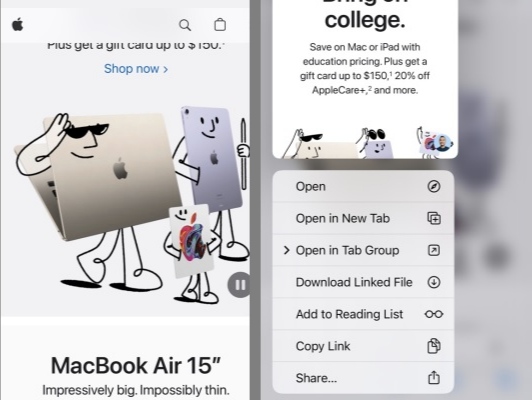
- Long press or hold on the screen content on your iPhone, choose “Download” from the appearing options to start the download task.
![download video from safari to iphone]()
- Once done, a small download icon will pop up in your URL bar, click it to access to the “Download folder” to preview the just downloaded video.
Can You Download Videos with Safari Extensions?
Yes, but actually, there are very few Safari video download extensions to choose from compared to Firefox and Google Chrome extensions. Through testings, we finally found Airy YouTube Downloader to be a great option. It can integrate seamlessly with your browser as a video downloader extension. You can use it to save YouTube videos, playlists, and channels on Safari.
Steps:
- Download and install Airy YouTube Downloader from its official website to your Mac.
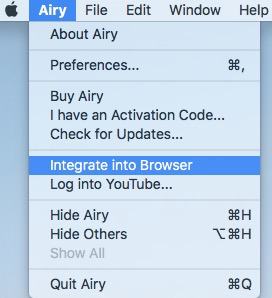
- Launch it, move to the top menu bar, click “Airy” and choose “Integrate into Browser”.
![install extension on safari]()
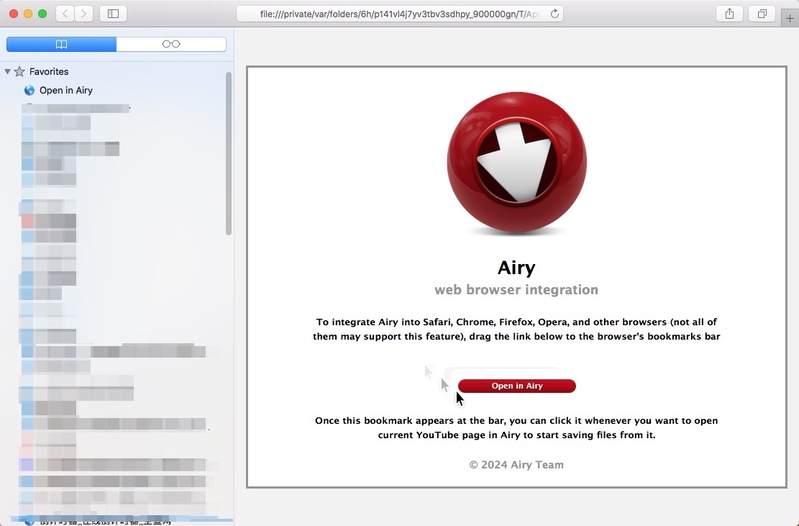
- Then, a Safari window will pop up with Airy related information, add it to your bookmark.
![make extension as bookmark]()
- Next, open a new tab on Safari, and visit YouTube website.
- Access to a video that you wish to download and open it.
- Then, click “Open in Airy” tab in the Favorite section and then choose “Allow” to launch Airy.
- Airy will immediately analyze the playing video. Once finished, choose a suitable video format and resolution, and click “Download” button to save the video offline.
Note:
Airy YouTube Downloader offers only 2 free downloads. It requires $19.95 to unlock unlimited downloads. And it's limited to YouTube downloads.
You can also use a Safari userscript manager. Go to the App Store and download Tampermonkey ($2.99) or Tampermonkey Classic ($1.99). After installation, search the script library for a video downloader script to save videos from more websites.
Final Words
This article has covered several ways to download videos from Safari safely. Since different websites use different methods to deliver or protect their videos, the online or direct download ways may not respond to the uncommon websites. If you often download videos from various websites, a professional video downloader may be a more convenient option, which uses advanced technology to support downloads from many websites and helps preserve video quality.
Copyright Disclaimer
The video/audio download methods provided in this article are for personal and educational use only. Sharing or commercial use is not allowed unless you get permission first. The website fully respects copyright laws and will act upon any valid removal request.

Emily is a girl who loves to review various multimedia software. She enjoys exploring cutting edge technology and writing how-to guides. Hopefully her articles will help you solve your audio, video, DVD and Blu-ray issues.

Ryan Li is a senior developer at Cisdem. Since joining the company in 2017, he has led the development of Cisdem VideoPaw and now serves as the editorial advisor for all articles related to Video Converter.