


5 Best Digital Detox Apps for PC & Mobile: All Tested
 169
169
 0
0




AppCrypt
Effective digital detox tool


In the digital age, smart devices and screens play an important role in our lives. However, too much screen time may cause physical and mental health problems, such as neck or wrist pain and anxiety. When there’s a problem, there’s a solution.
The solution in question is digital detox, an intentional break from digital devices. Starting in the early 2010s, the trend becomes more and more popular, especially after 2024. Willpower alone is usually not enough, so there are apps for digital detox.
In this article, I will discuss five digital detox apps that I’ve tested. Some are for PC, some are for mobile devices, and some cross-platform. I will share my reviews to help you choose the tool that suits your needs best.
Summary: What's the best digital detox app for you?
| Operating system | Detox level | Recommended app |
|---|---|---|
| Windows | Mild or hard | Cisdem AppCrypt |
| Mac | Mild or hard | Screen Time |
| iOS/Android | Mild | Forest |
| iOS/Android | Hard | Digital Detox: Focus & Live |
2 digital detox apps for PC
Unlike phones and tablets, there are way fewer digital detox tools for Windows PC and Mac, and some of them may not even market themselves digital detox tools. However, they can truly help you take such breaks.
Cisdem AppCrypt (Windows, Mac, Android, iPhone)
Cisdem AppCrypt is primarily a desktop app for Windows PC and Mac, and it also has a mobile version. This tool is easy to use up and difficult to get around. You can use it for mild or hard digital detox.
Key features
- Block access to websites, such as specific sites you overuse, or entire categories (such as social media)
- Block access to apps, such as games
- Block all websites, with an option to allow only the ones you need
- Restrict all apps, with an option to allow specific apps (Mac only)
- Schedule restrictions to be active permanent or during specific times, such as work or sleep hours
- Password-protect restrictions and AppCrypt settings
Pros
- Feature- and option-rich
- Flexible
- Effective due to password protection
Cons
- May lack a strict mode that prevents bypassing even if you know the password
How to set it up
1. Download and install AppCrypt.
 Free Download Windows 10 or later
  Free Download macOS 10.15 or later
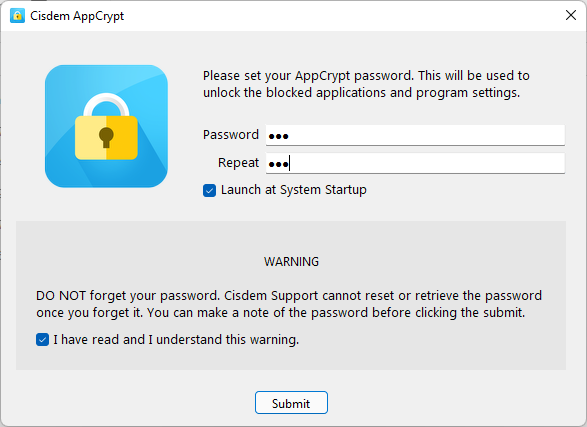
2. When you open it for the first time, set a password.
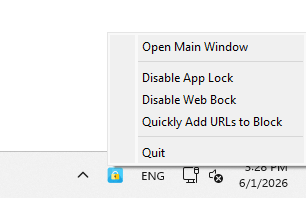
3. In the taskbar (PC) or menu bar (Mac), right-click the AppCrypt icon and choose Open Main Window.
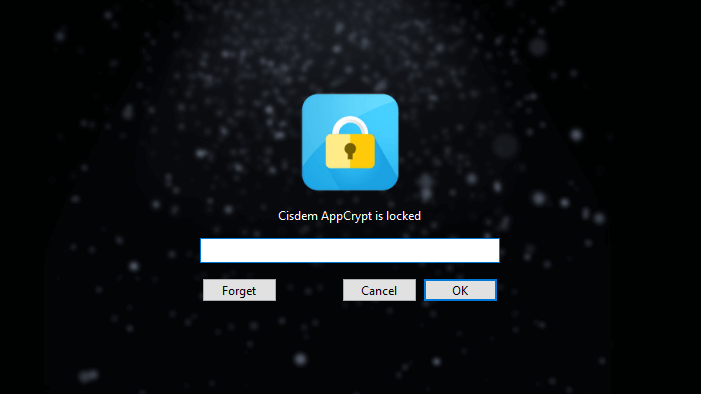
Then, enter the password to access the tool's main window.
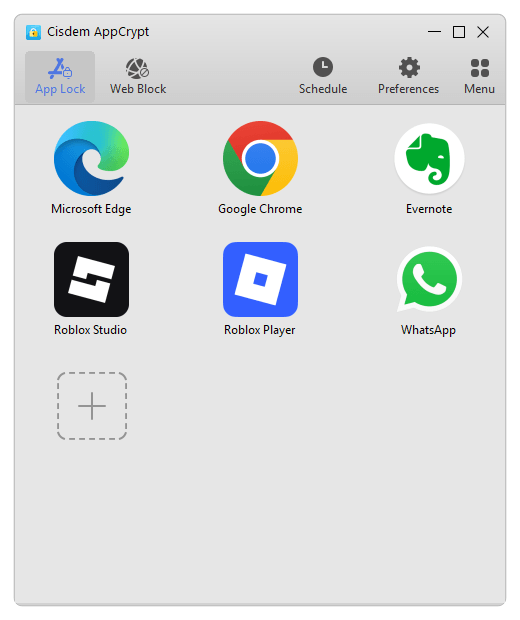
4. For a mild digital detox, consider the following practices. (For a harder one, go to step 5.)
- In the App Lock tab, add addictive apps, such as games.
![Cisdem AppCrypt's App Lock tab showing several added apps]()
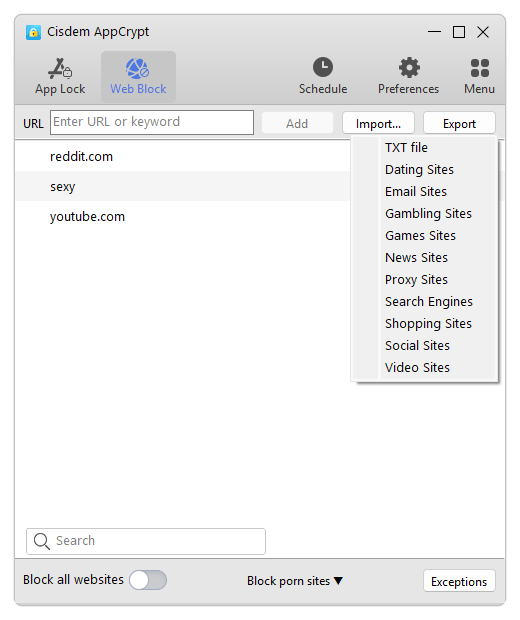
- In the Web Block tab, add websites you tend to overuse, such as choosing categories (like Social and News) or manually add websites and keywords.
![Cisdem AppCrypt's Web Block tab showing a field for entering URL or keyword, along with a menu featuring ten website categories]()
- In the General Schedule dialog, set the times of the day and days of the week when you want to take a break from these digital distractions.
5. To do a harder digital detox, you may do the following.
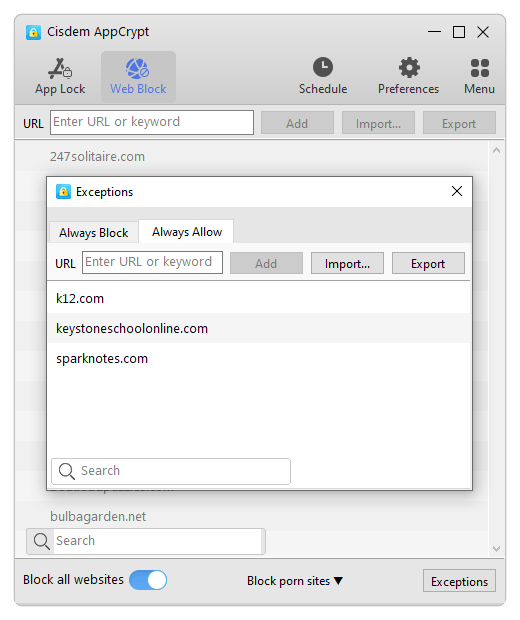
- In the Web Block tab, turn on the Block all websites option. (If needed, click Exceptions > Always Allow to add websites essential for work or study.)
![Cisdem AppCrypt's Exceptions dialog showing three websites on the Always Allow list]()
- In the App Lock tab, add apps to block except those you really need for your tasks. (If you are a Mac user, you can easily do this by enabling Switch to Allowlist.)
- Don't change the default general schedule, which keeps restrictions active 24/7.
Setting up AppCrypt like this helps turn your PC into a pure productivity device and reduce unnecessary screen time.
Screen Time (Mac, iPhone)
Screen Time is a set of settings built in to macOS, iOS, and iPadOS. Its designed to track usage and restrict website and app access.
Key features
- Restrict specific apps by time limit
- Limit specific websites
- Set all but allowed apps to be inaccessible based on your schedules
- Block all websites except allowed ones
- Protect restrictions and Screen Time settings with a passcode
Pros
- Feature-rich and flexible
- Built-in to your computer
Cons
- May not be effective enough for administrator users
How to set it up
1. On your Mac, go to System Settings (or System Preferences if you are using an earlier macOS version) > Screen Time.
2. Turn on Screen Time.
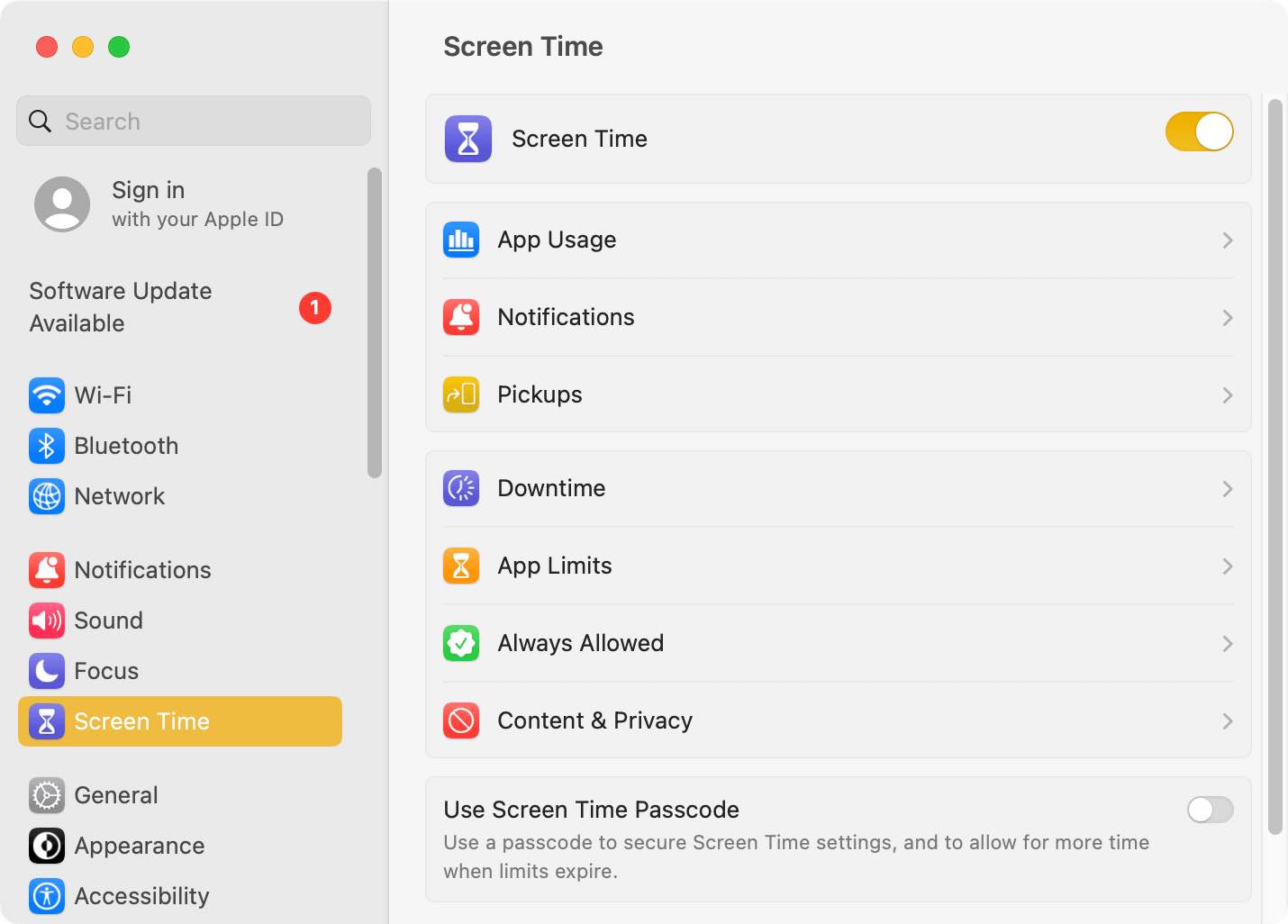
3. Turn on Use Screen Time Passcode and set a passcode.
4. For a mild approach, you may do the following.
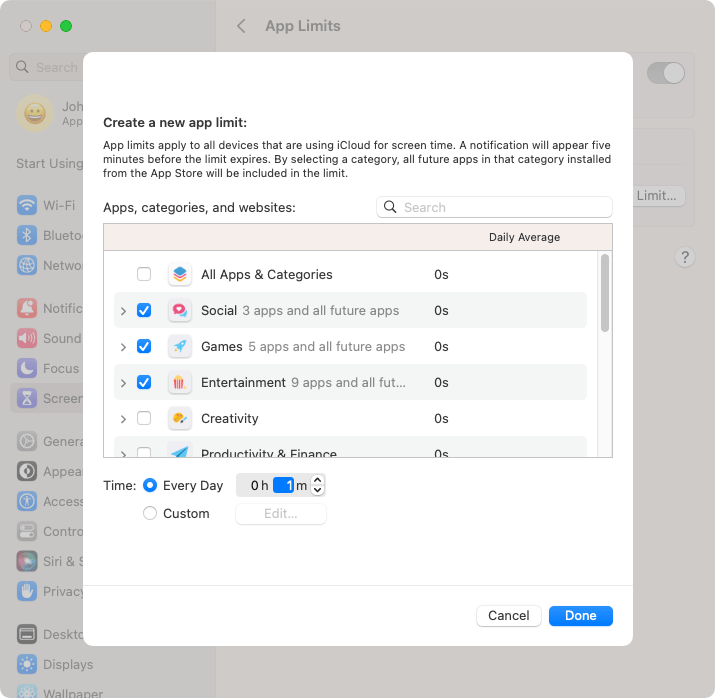
- Go to App Limits and turn it on. Set a time limit for each addictive app. The minimum time allowed is one minute.
![Create a new app limit dialog showing a list of apps and a daily limit of one minute]()
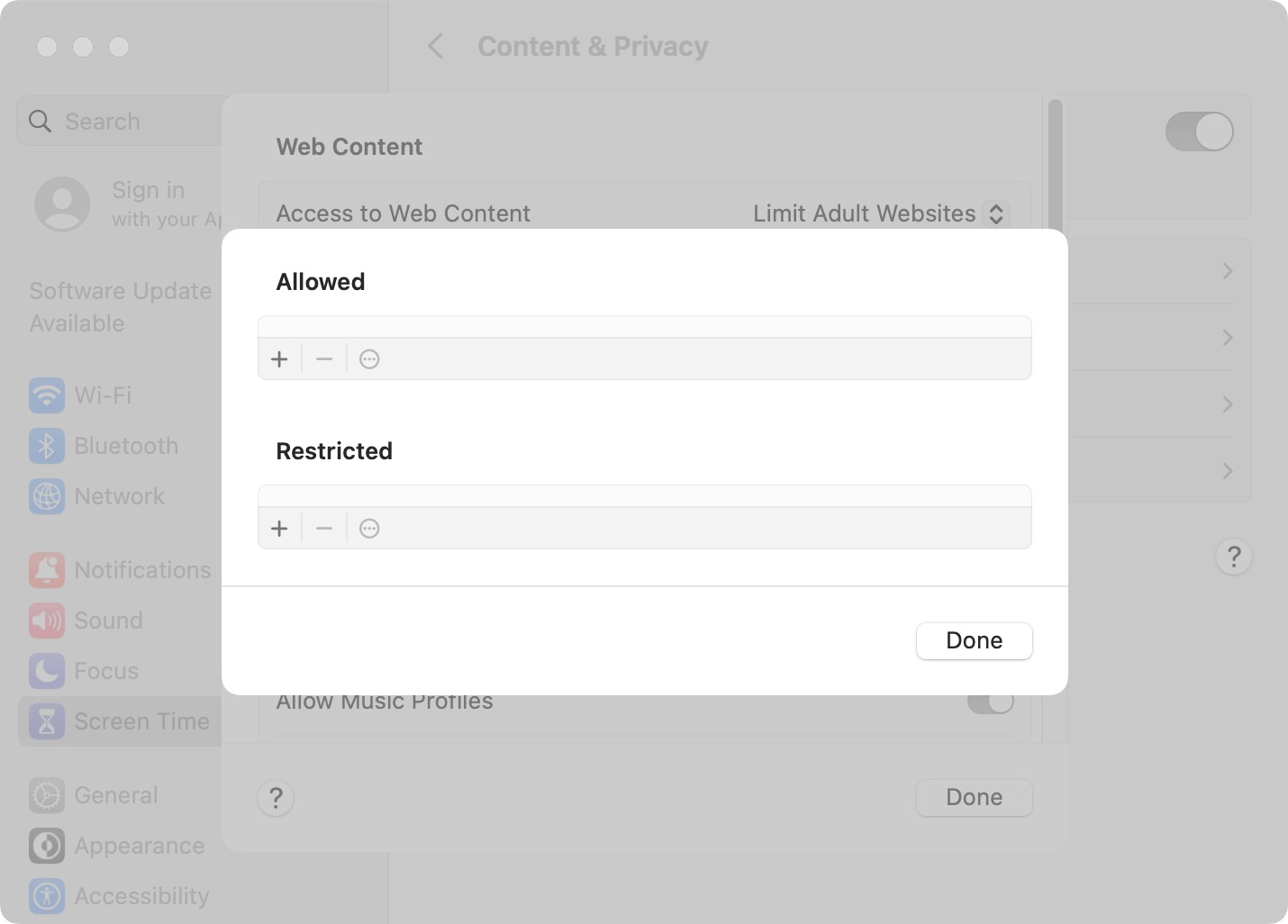
- Go to Content & Privacy and turn it on. In Web Content section, choose Limit Adult Websites to bring up a Customize button. Add addictive or distracting sites to the Never Allow list.
![Never Allow list dialog]()
5. For something stricter, consider the following.
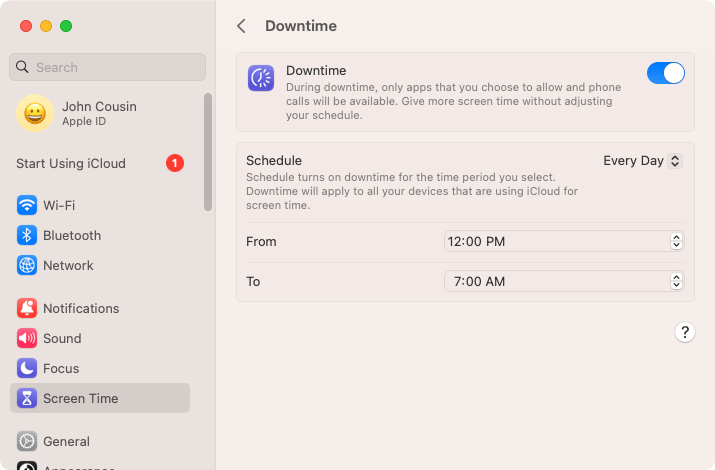
- Go to Downtime and turn it on. Set the schedule to Every Day 12:00 AM to 11:59 PM. Then, go to Always Allowed to add essential apps, such as Calendar, Maps, and Ulysses.
![Downtime interface showing a daily schedule]()
- In Content & Privacy > Web Content, select Allowed Websites Only and add websites truly needed for your tasks.
3 digital detox apps for mobile devices
Digital Detox: Focus & Live (Android)
As the name suggest, it’s a dedicated digital detox tool. The best thing about this tool is it can guide you through your digital detox journey.
Key features
- Allow only short emergency use and essential apps during digital detox sessions
- Start one-time sessions, such as 2 hours, 8 hours, or longer
- Create scheduled sessions
- Add allowed apps
- Block websites or hide videos and images on the web
- Reward each finished session with points
Pros
- Feature- and option-rich
- Flexible
- Encouraging and motivating design
Cons
- May have a learning curve for non-tech-savvy users
How to set it up
1. Install Digital Detox: Focus & Live. Open it.
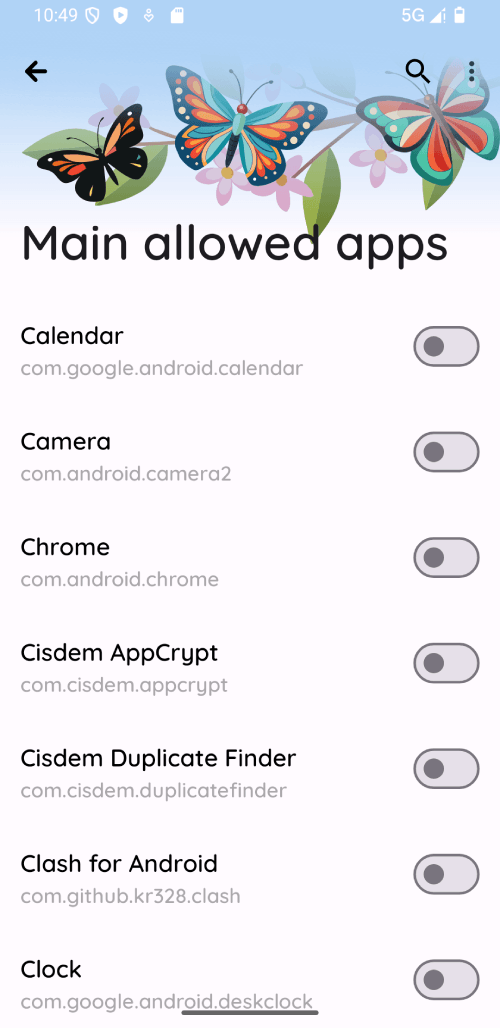
2. Go to Settings > Allowed Apps. Tap Allowed Apps. Toggle on every allowed apps, such as Calendar and Clock.
3. Go to Web. Add websites or keywords to the list. Alternatively, you can choose to disable videos, images, or javascript to make webpages less attractive.
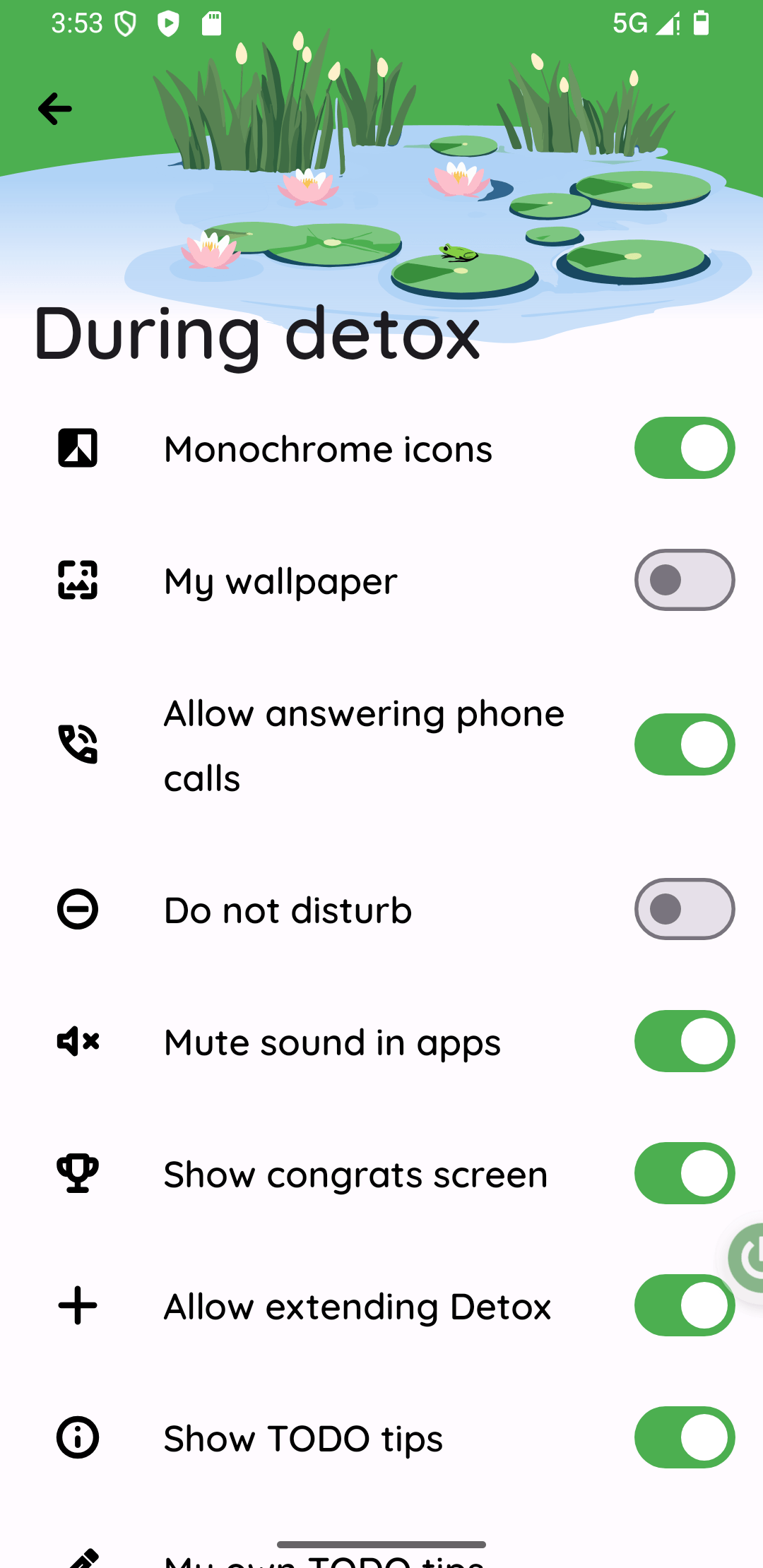
4. Go to During detox. You can choose to disable or enable options based on your needs. For example, you may want to enable Allow answering phone calls.
5. Optionally, if you prefer creating schedules rather than starting one-time digital detox sessions, you need to set up schedules.
Go to Schedule detox and enable it. You can select times of the day and days of the week.
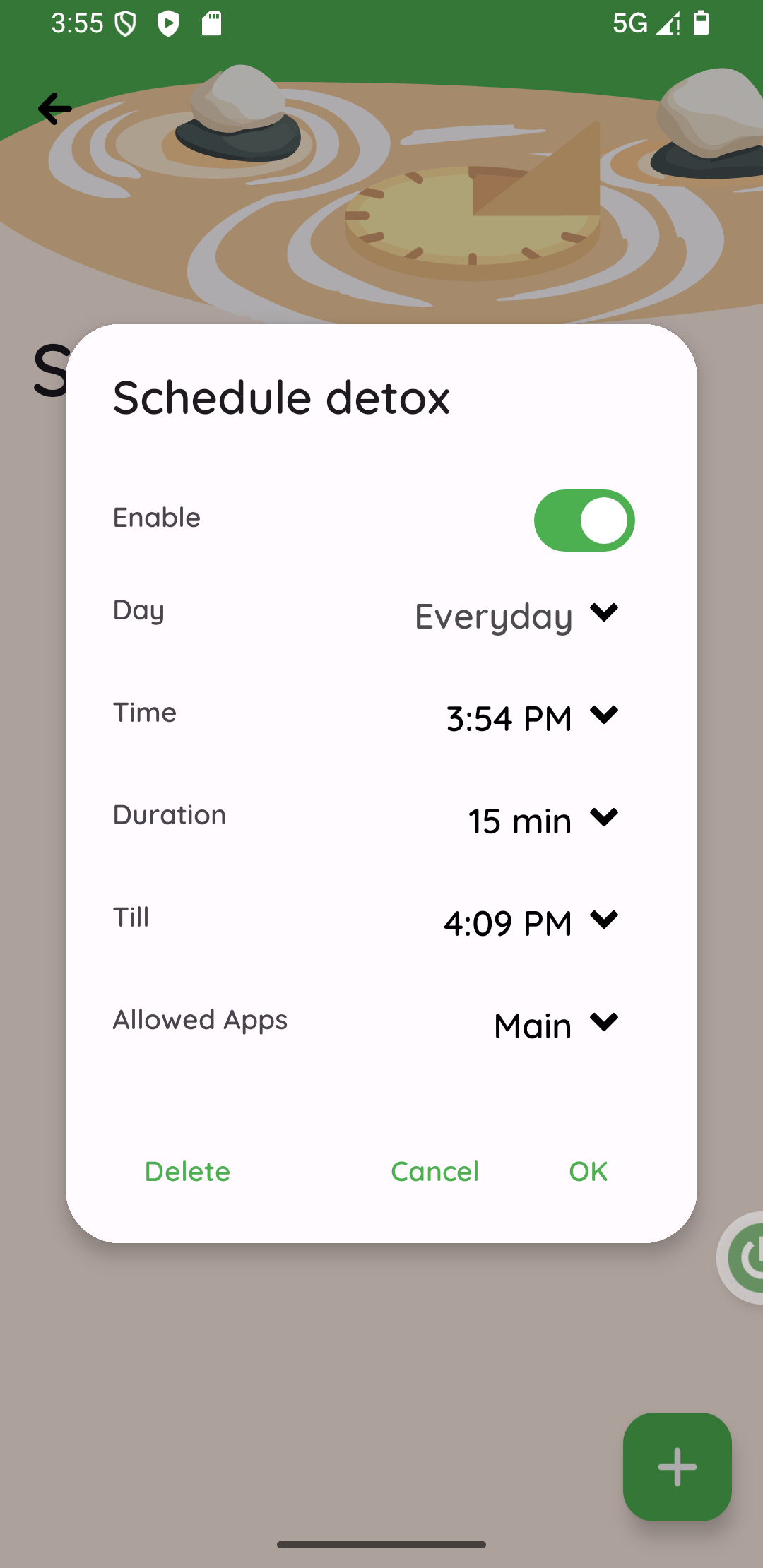
Now, Digital Detox: Focus & Live is set up. If you prefer one-time sessions, you can quickly start a session on the Begin your detox screen. For example, you can start with the 2 hours session (an Easy level that will reward you 2 points).
Forest (iPhone, Android)
The Forest app is a popular, innovative app that can be used for focus boost and digital detox. Both the reward and punishment are about trees.
Key features
- Plant a virtual tree when you start a focus session
- Wither the tree when you give up (leave Forest for other apps) during a session
- Allow specific apps during focus sessions
- Provide a Deep focus mode to enforce sessions
- Track your focus to provide stats and insights
Pros
- Minimal setup
- Motivate you to persist and build health digital habits
- Benefit the real world by planting real trees
Cons
- May lack a schedule feature
How to set it up
1. Install the Forest app.
2. In Settings, turn on App Allow List and add allowed apps.
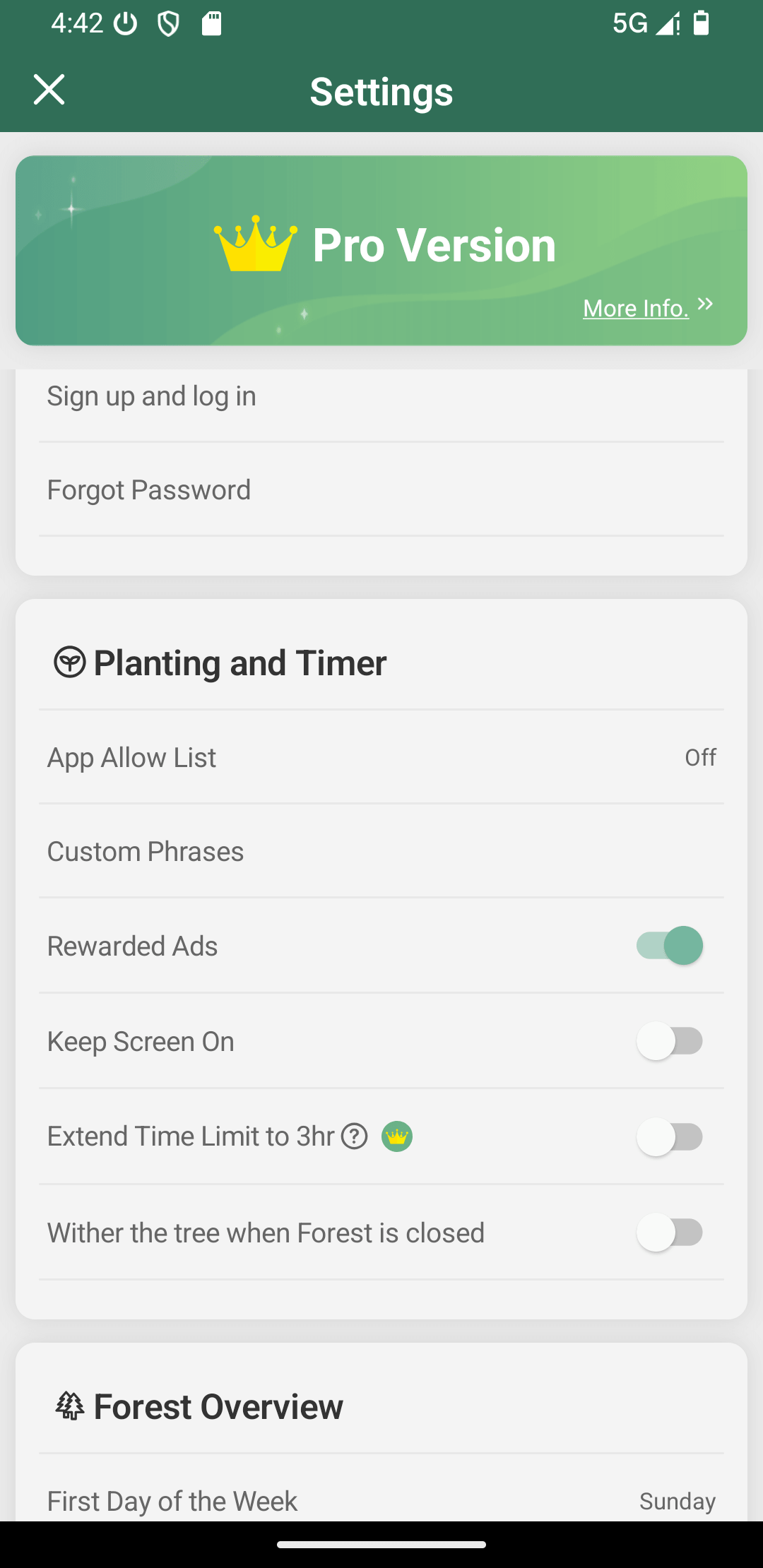
It's that simple.
Start a session by setting a timer and clicking Plant. You can select the tree species if you like. To use Forest for digital detox, I recommend allowing essential apps like Phone and Messages and setting the session to be longer (than you would for focus boost).
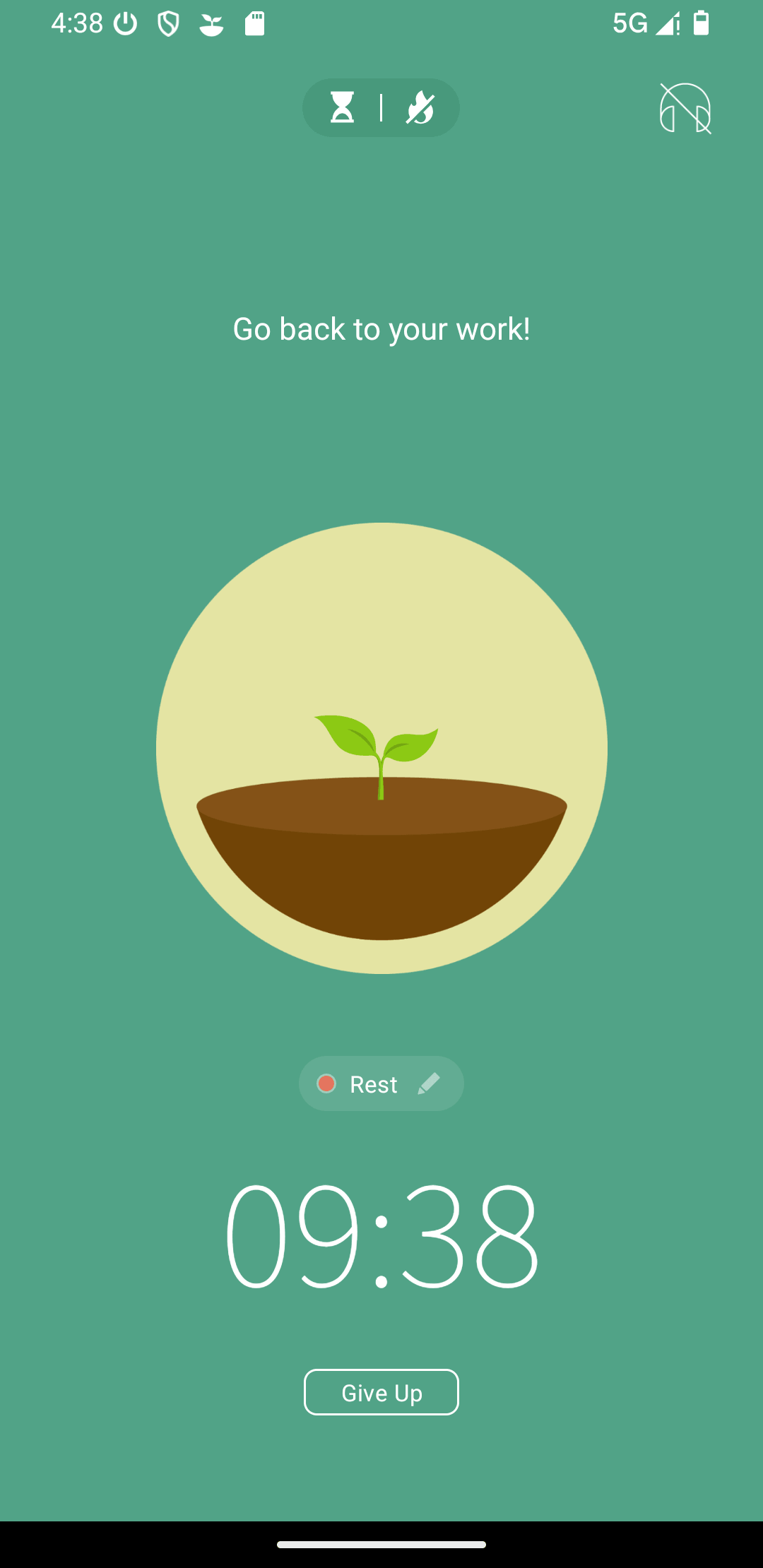
If you prefer a little harder or stricter digital detox, I would recommend turning on the Deep focus mode. This way, if you leave Forest for some app, say, YouTube, Forest will stop the access, display an "Is YouTube distracting you?" message, and provide a Return to Forest button.
AppBlock (iPhone, Android)
AppBlock is a mobile app designed for digital detox and productivity. It provides a wizard to guide you through the setup, which can be helpful for beginners.
Key features
- Block specific apps, websites, and keywords
- Start one-time block sessions
- Schedule blocking based on time period, location, Wi-Fi, usage limit, or launch count
- Provide a Strict Mode to enforce blocking and prevent bypassing
Pros
- Feature-rich
- Customizable and flexible
- Powerful scheduling
Cons
- May lack an allowlist work mode
- Might be a bit confusing or complicated for some users
How to set it up
1. Install AppBlock. Open it.
2. Get familiar with this tool by following the wizard.
3. Tap the icon in the top right corner (on the right side of Quick Block).
4. In the Apps tab, select all apps that you consider addictive or distracting. The Webs and Keywords tabs allow you to add websites and URLs that you want to restrict.
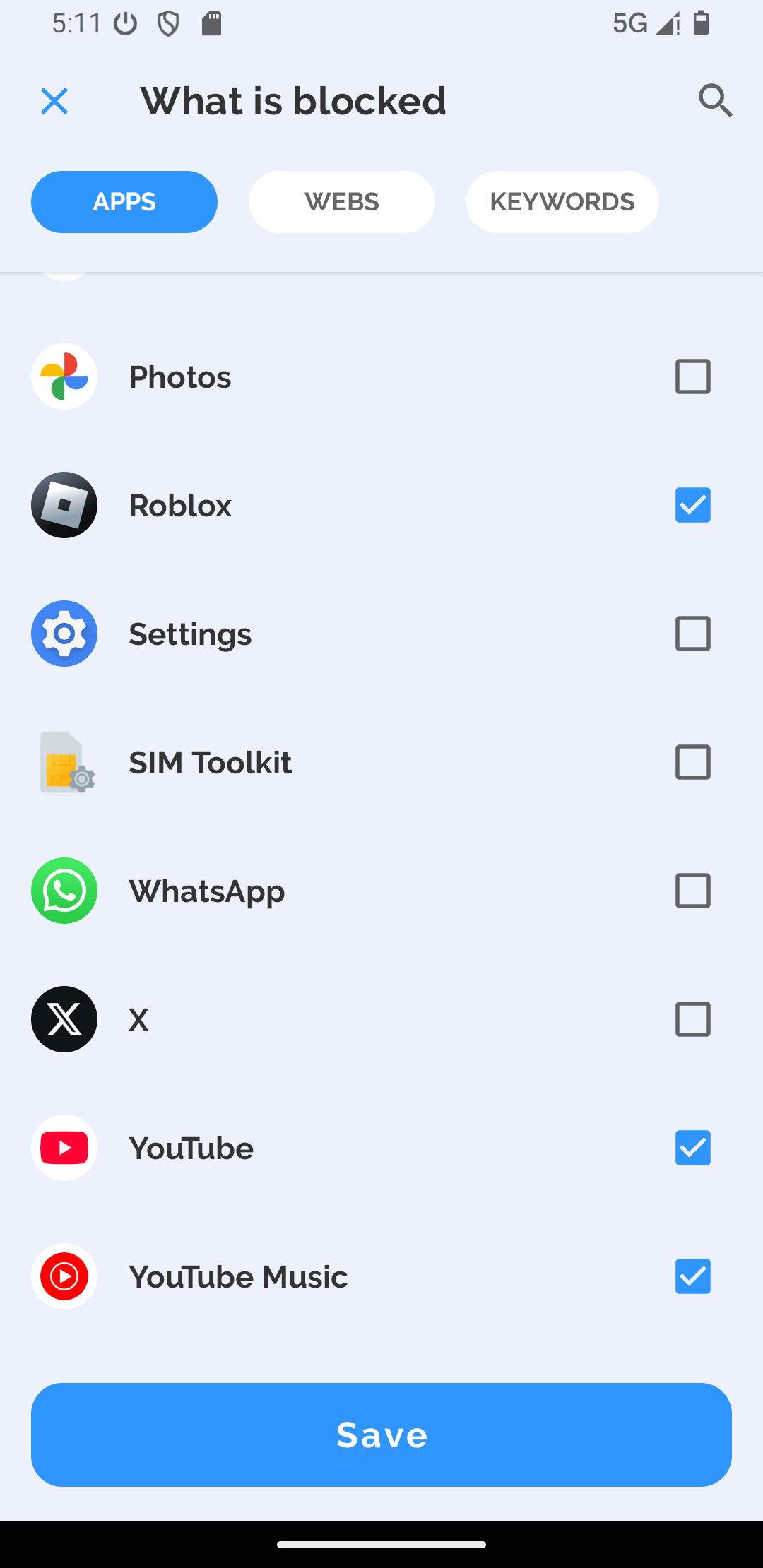
For the digital detox purpose, you might want to add as many apps, sites, and keywords as possible. Things will be easier if there was an allowlist mode, which could restrict all except essential items.
5. Optionally, create schedules.
Tap Add, view the options available, and then set up schedules based on your specific situations or needs.
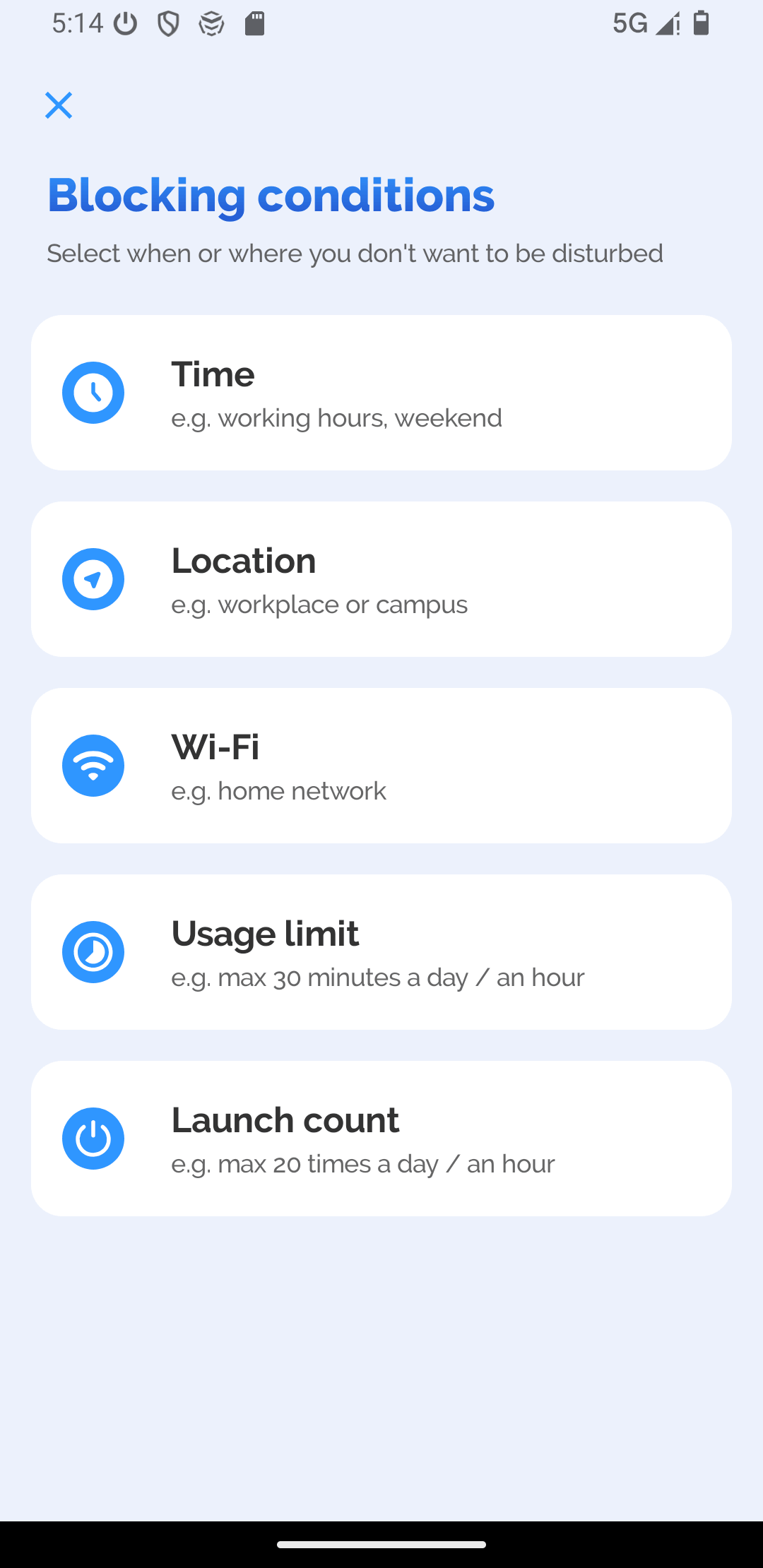
- By time: This is the most common type of scheduling. For example, you can set restrictions to automatically run from 8:00 PM to 11:59 PM every day.
- By location: For example, restrict apps and the web whenever you get home.
- By Wi-Fi: For example, start restrictions when your phone or tablet is connected to your home Wi-Fi.
- By usage: Restrictions will automatically start when the usage time limit or launch limit is reached.
You can also start a one time block session.
To prevent users from easily bypassing restrictions, this digital detox app provides a Strict Mode with various levels. To effectively enforce digital breaks, you can use Level 3 (most strict). However, beginners may start with Level 1 to get familiar with how it works.
Wrapping up
Digital detox tools are designed to turn your PC or phone into a more limited device (such as a feature phone) or to restrict addictive apps and websites. You can choose the one that best suits your situation. If you are new to digital detox, I recommend starting with a mild approach. If you go too hard in the beginning, you might end up back with excessive screen time more easily. The key is to build healthy habit gradually.

Norah Hayes likes to share her tips on how to improve focus and stay motivated at work. She believes it is essential to eliminate all online distractions during work hours.

Ethan Long joined Cisdem in 2015 as a developer and now serves as the editorial advisor for Cisdem AppCrypt. He actively tests and uses Cisdem AppCrypt and other screen-time management tools to ensure AppCrypt meets its promises in real-world scenarios.