


How to Block a Website - Even When Connected to a VPN
 241
241
 0
0




AppCrypt
The Best Website Blocker


“How can I block a certain website even if I'm connected to a VPN? I have tried several website blockers and at first everything worked perfectly. But once I turned on my VPN, the site became accessible again.”
Have you encountered the same issue? Many website blockers stop working once a VPN is turned on. In this article, we’ll show you how to effectively block websites on all browsers even when a VPN is connected.
Part 1. Why VPNs can bypass most website blockers?
When you connect to a VPN, it’ll:
- Encrypt your network traffic.
- Change your IP address to another region.
- Use the VPN's DNS instead of your device or router’s DNS.
Then the website blocker can’t recognize what site you are visiting. Or it thinks the traffic is from a different location, rather than from your local network.
As a result, most website blockers no longer work.
Part 2. Best solution: using Cisdem AppCrypt
To ensure website blocking still effective even with a VPN enabled, you should find a tool that works at system level. After testing, I found that Cisdem AppCrypt to be reliable. It continues blocking websites when the VPN is turned on, supports incognito mode, and works on both computers and mobile phones.
Main features of Cisdem AppCrypt:
- Block specific websites or webpages.
- Block websites by category, such as porn sites.
- Block all URLs that contain certain keywords.
- Let you block sites based on schedules.
- Support Chrome, Edge, Safari, Firefox, and other browsers.
- Also let you block applications with password.
- Password protection itself prevent uninstallation or bypassing.
Part 3. Step-by-step: How to block websites with Cisdem AppCrypt
With Cisdem AppCrypt, you can block websites effectively, regardless of the VPN use. Below I’ll show you how to use it on Windows, Mac, Android, and iOS devices.
On computers (Windows & Mac)
1. Download and install Cisdem AppCrypt on your computer.
 Free Download Windows 10 or later
  Free Download macOS 10.15 or later
2. Launch it. Set a password in the prompt window.
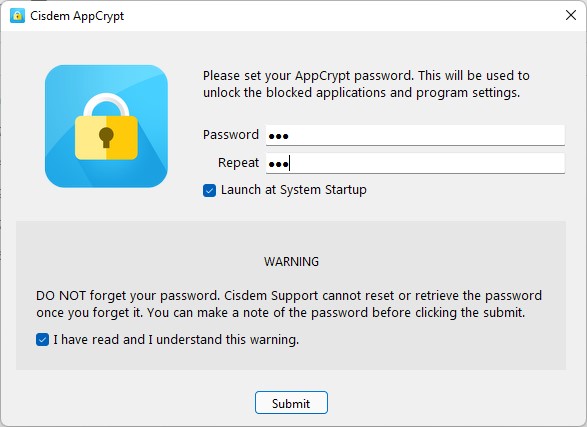
tip: Enable the box next to “Launch at System Startup” so the website blocking starts automatically whenever you turn on your computer.
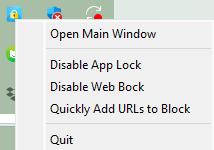
3. Click its icon in the taskbar or menu bar. Click Open Main Window.
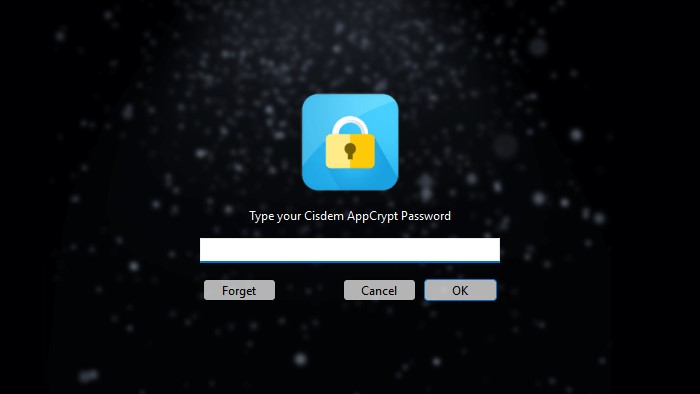
4. Enter the password to access the main window.
5. Now you are in the main window. Go to the Web Block tab. To block websites, you have several options:
- Block by URL: Enter the domain name in the top URL field. Click Add.
- Block by keyword: Enter a keyword to block all URLs that contain the word on your computer.
- Block by category: Click Import. Choose a category of sites to block, such as porn sites, social sites.
- Block all websites except a few: Turn on Block all websites at the bottom. Click Exceptions. Then add certain sites you want to keep accessible to the Always Allow list.
tip: Windows users need to install Cisdem extensions when first navigate to the Web Block tab.
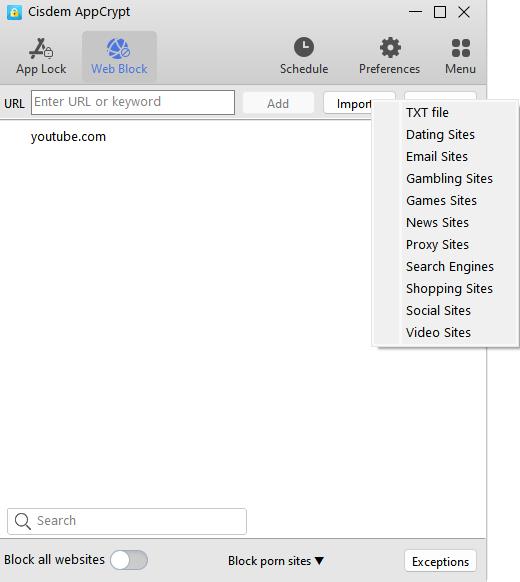
After adding the websites to the Web Block list, they will be blocked on your computer - even when a VPN is connected.
On Android
1. Install Cisdem AppCrypt from Google Play.

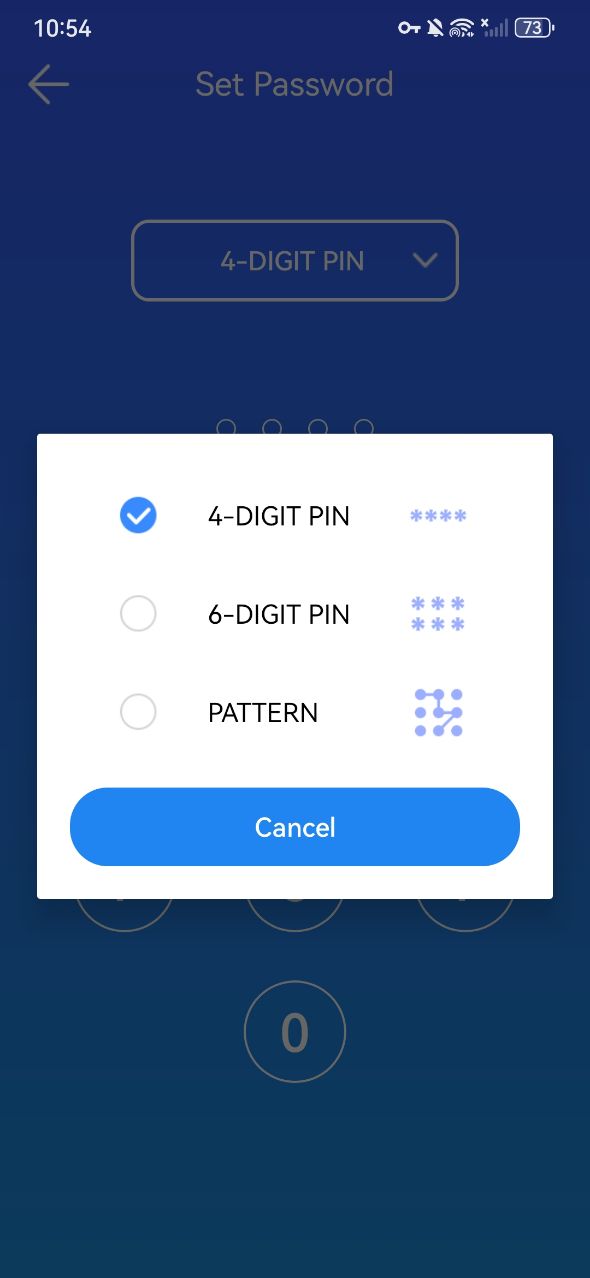
2. Open it. Set a password the first time you use it.
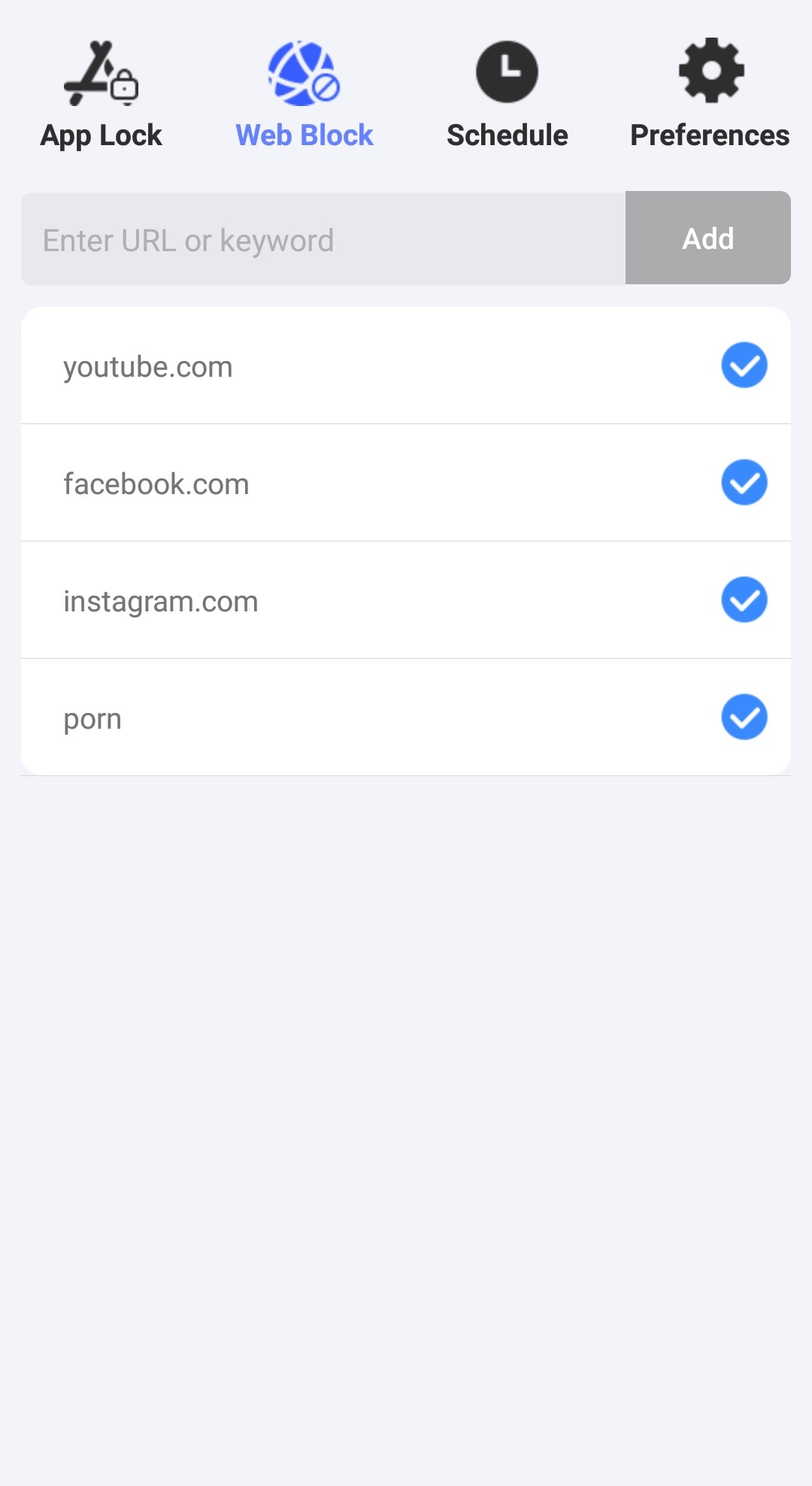
3. In the main window, click the Web Block tab.
4. It also offers two ways to block websites:
At the top, enter the website you want to block on your Android. Click Add.
Or, enter the keyword, such as game. Then all websites containing that keyword in their URLs will be blocked - whether the VPN is enabled or not on your Android.
On iPhone or iPad
1. Install Cisdem AppCrypt from the App Store.

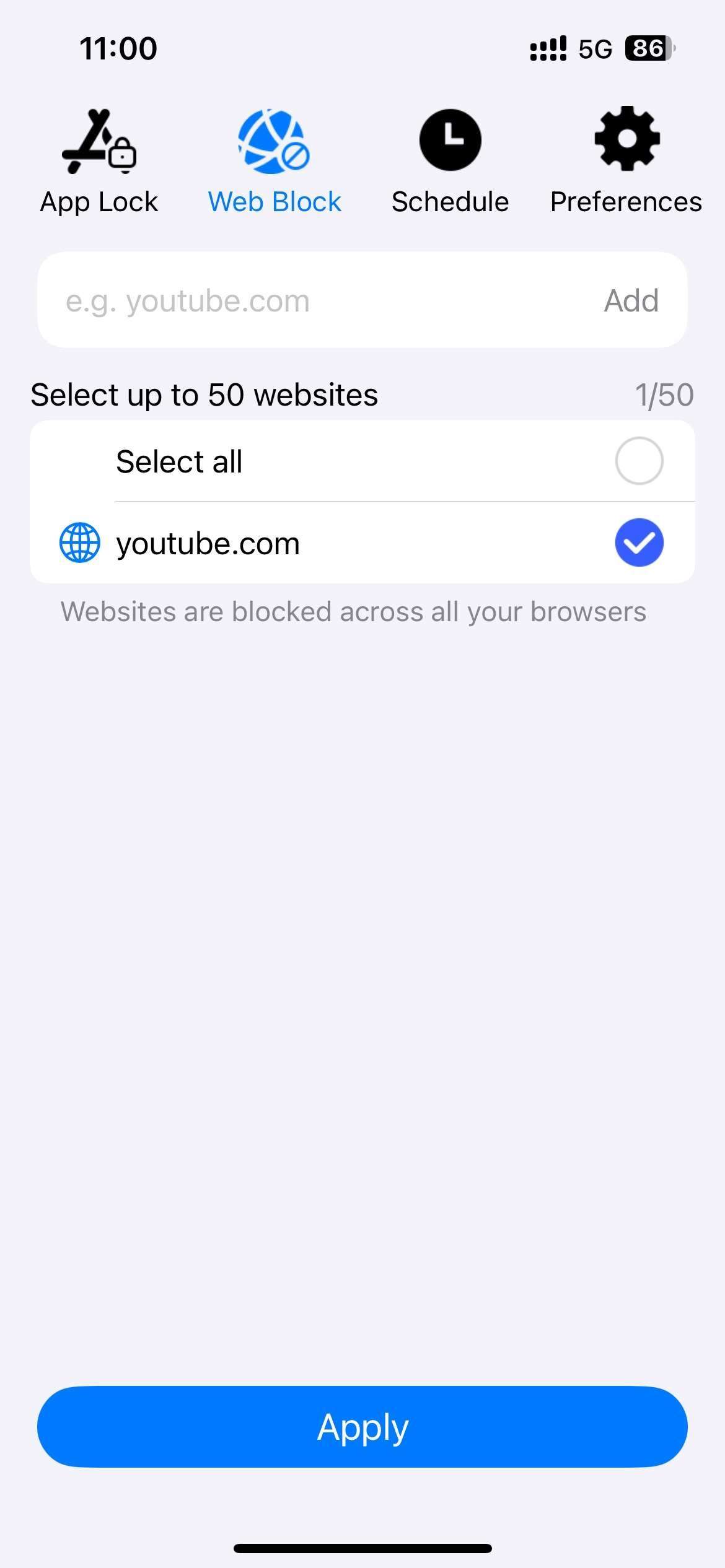
2. Open it. Click Web Block at the top.
3. Enter the website you want to block on the device. Click Add. Click Apply at the bottom.
This website blocker also offers an option to block all adult website with 1-click. Click Preferences at the top. Enable Adult Blocking.
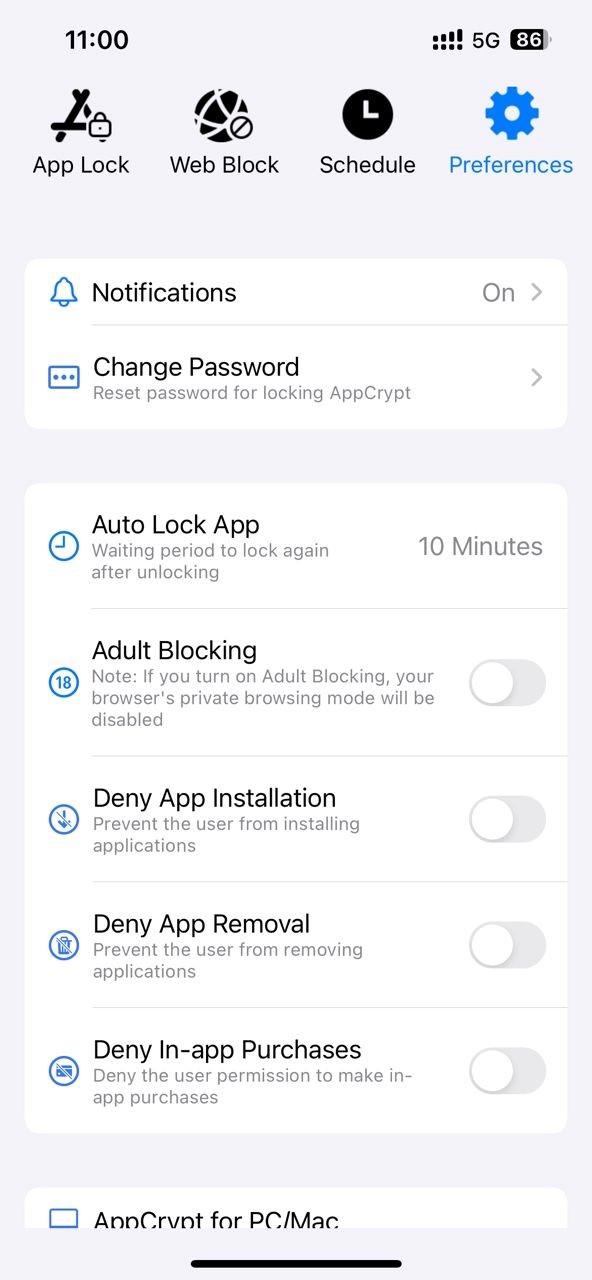
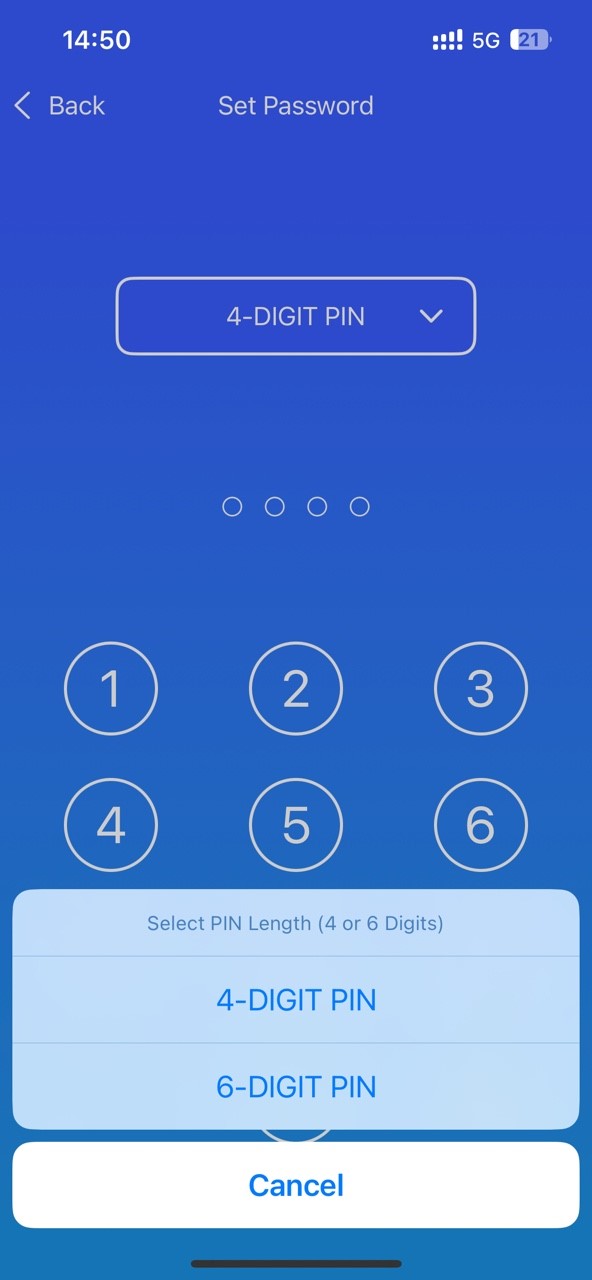
The website blocking works regardless of VPN usage. If you want to make the blocking more effective, it’s recommended to set a password to lock your settings. Under the Preferences tab. Click Notifications. Turn on Notification and Notification unlock. Then set a password in the prompt window.
Part 4. Can AppCrypt be bypassed?
I tested AppCrypt on my computer and phone to see if the website blocking still works after after I enabled a VPN. Additionally, I tried several common bypass methods that typically disable many website blockers. Below are the test results.
| Bypass attempt | Result |
|---|---|
| Enable a VPN | Not bypassed |
| Use Incognito mode | Not bypassed |
| Switch browser | Not bypassed |
| Remove the site from the block list | Password required |
| Quit AppCrypt | Password required |
| Uninstall AppCrypt | Password required |
As the test results show, the website blocker is reliable and hard to bypass.
Part 5. Other methods to block websites while using a VPN
In addition to AppCrypt, here are several other methods to block websites that still work even when a VPN is enabled.
Hosts file
Hosts file is a plain text file on computer, which is used to map domain names to IP addresses. With it, you are able to block a website by mapping its domain name to a incorrect IP address. When you try to visit a site, the computer will check the hosts file first. Since you’ve redirect the domain to a wrong IP address, the website will be blocked - even if a VPN is active.
To block a website on Windows using hosts file:
1. Search for Notepad in the Windows search bar. Open it.
2. Click File > Open.
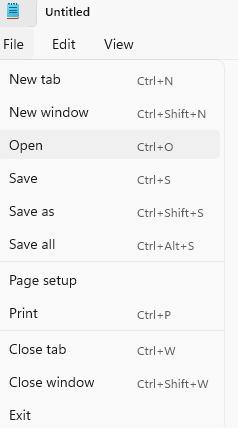
3. Navigate to: This PC\C:\Windows\System32\Drivers\etc\hosts.
4. Open the hosts file. Go to the bottom and add a new line.
5. Enter 127.0.0.1. Then enter the domain name of the site you want to block.
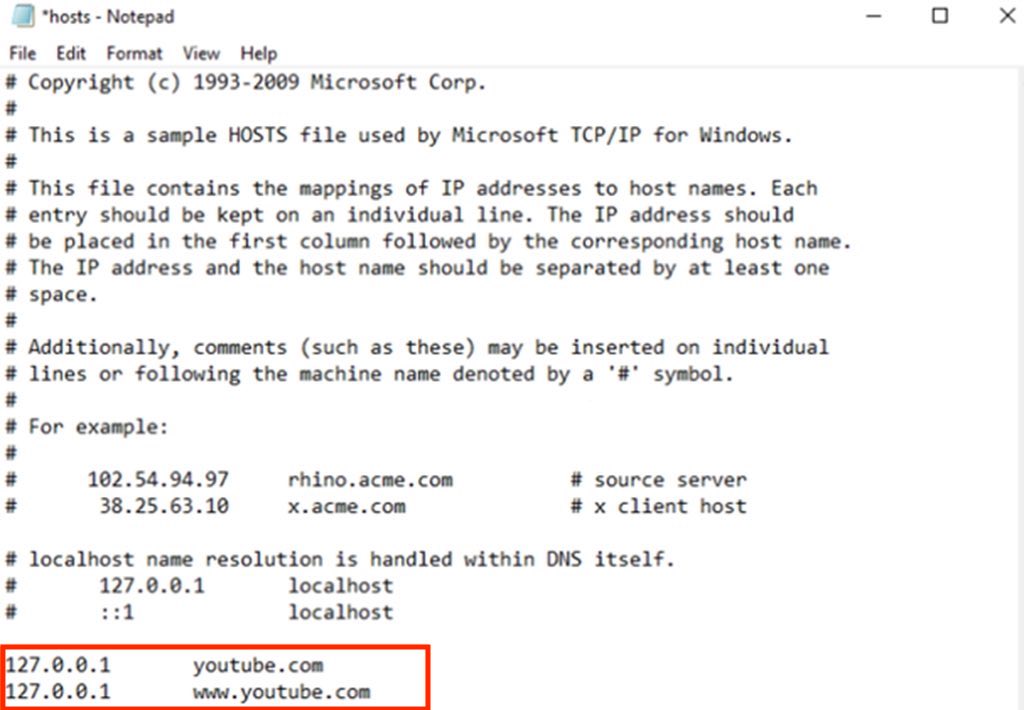
6. Click File > Save.
Now the website is blocked on your PC, even when connected to a VPN.
Screen Time
If you are using Mac, iPhone or iPad, you can also use Screen Time to block websites. It is a built-in feature in Apple devices and not affected by VPNs.
To block a website on Mac using Screen Time:
1. Select System Settings from the Apple menu.
2. Find Screen Time in the left sidebar and enable this feature.
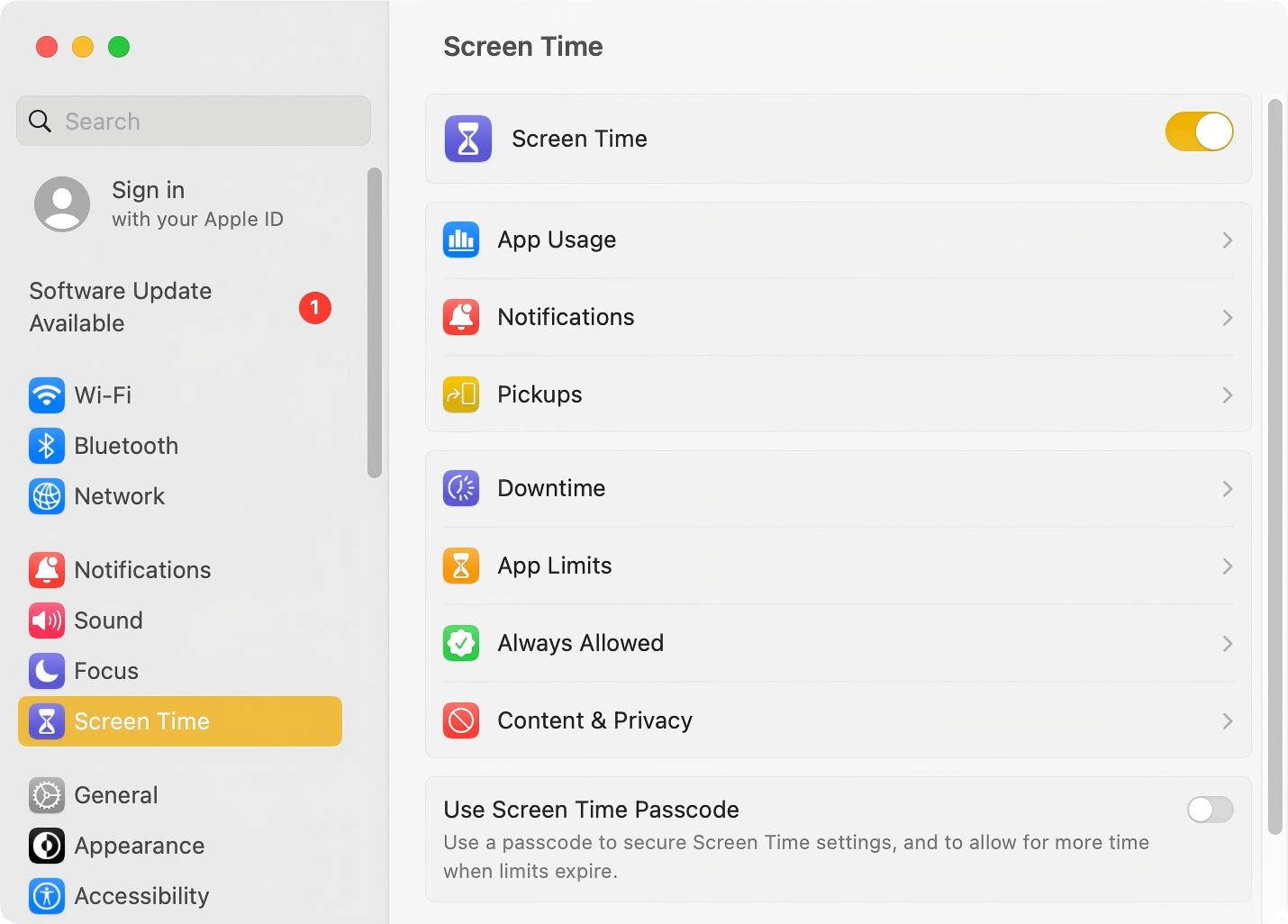
3. Click Content & Privacy. Enable this feature.
4. Choose Content Restrictions. Then click Access to Web Content > Limit Adult Websites.
5. Click the Customize button. Enter the unwanted website to the Restricted box. Click Done.
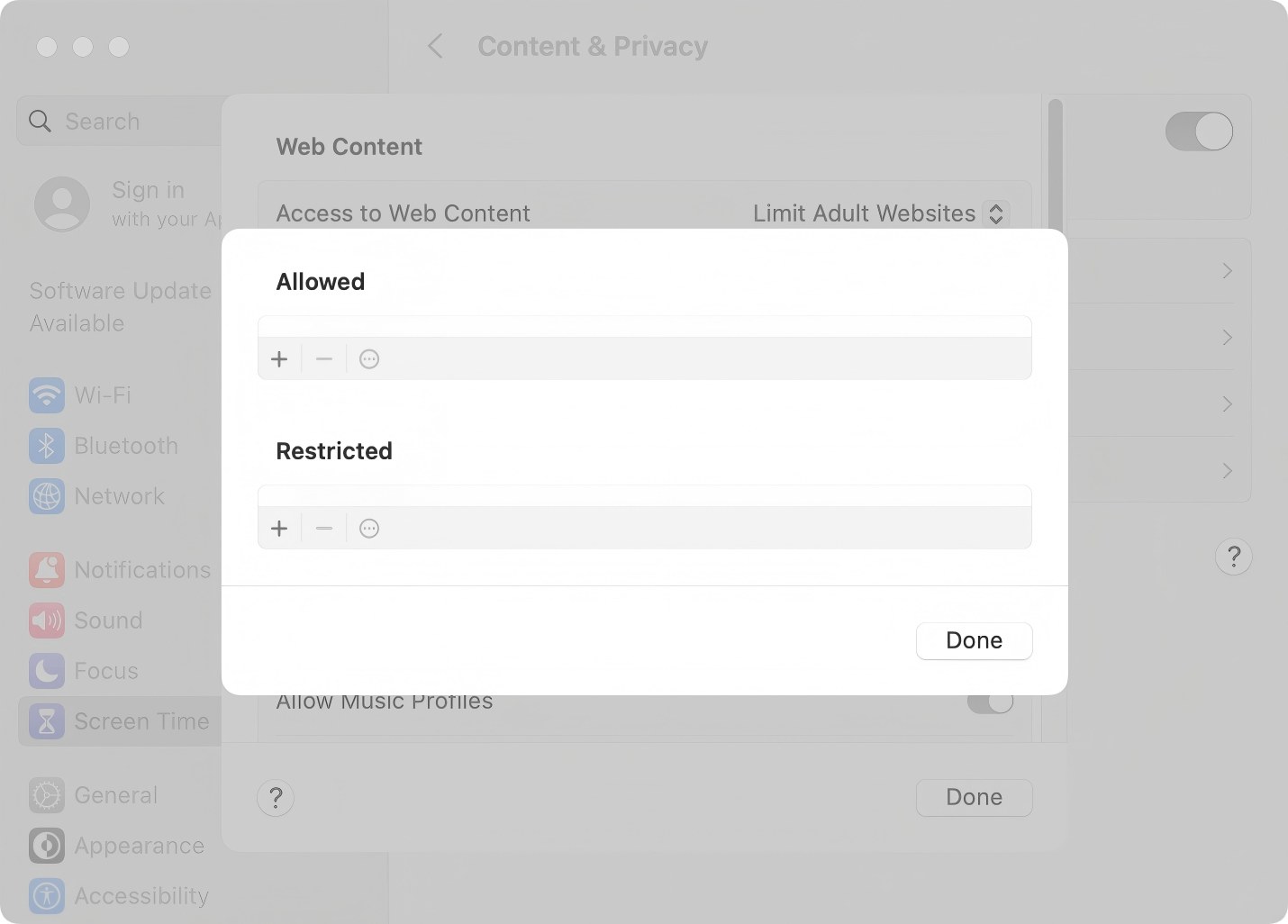
6. Click Done.
FAQs
What’s the best way to block websites while using a VPN?
The best way is to use Cisdem AppCrypt. Using this website blocker, you can easily block specific or categories of websites. The blocking works whether a VPN is enabled or not.
Can I block sites using a browser extension when a VPN is active?
After testing many extensions when a VPN is active, I found that most of them no longer work. But there are still a few extensions worked well, such as BlockSite.
Is it possible to block websites on router when a VPN is active?
Yes. But you should set up the VPN directly on your router. This way, the website blocking will still be effective when the VPN is active.

Norah Hayes likes to share her tips on how to improve focus and stay motivated at work. She believes it is essential to eliminate all online distractions during work hours.

Ethan Long joined Cisdem in 2015 as a developer and now serves as the editorial advisor for Cisdem AppCrypt. He actively tests and uses Cisdem AppCrypt and other screen-time management tools to ensure AppCrypt meets its promises in real-world scenarios.