


BlockSite Review: Is BlockSite a Good Tool to Block Websites?
 2.3K
2.3K
 0
0


If you’ve been looking for a way to block access to websites, you may be recommended to try BlockSite by some people. Is using BlockSite a good way to help you block websites? Does it do a good job? Is it safe? Is it free? How do you use it? What do you do if it doesn’t work? I hope this BlockSite review can help you find the answers.
 Cisdem AppCrypt
BlockSite Not Working? Try This
- Block websites on Chrome, Safari, Edge and more with password, and let you lock unsupported browsers with password
- Let you block specific sites and pages, URLs with certain words, and categories of sites
- Also let you block all websites except the ones you specify
- Lock apps with password
- Let you block websites and lock apps permanently or at scheduled times
- Easy to use
- Hard to bypass
- Help you block website access for yourself or your children
- Help with productivity, parental controls and privacy protection
- Available for Windows, Mac, and Android and iPhone
 Free Download Windows 10 or later
  Free Download macOS 10.12 or later
 GET IT ONGoogle Play
  Download on theApp Store
BlockSite review
Below is the review, which consists of five parts.
Overview and availability
What is BlockSite? BlockSite is a productivity tool developed by BlockSite LP. It’s primarily designed to help users improve focus and productivity by blocking websites on computer or phone. BlockSite is available as a browser extension for Chrome, Firefox and Edge. In addition, it’s available as an app for Android, iOS and Windows.
Security: Is BlockSite safe?
Is BlockSite safe? Let’s take a look.
The BlockSite extension is a featured extension in both the Chrome Web Store and the Microsoft Edge Add-ons store. This means that BlockSite is considered safe and able to provide a good user experience by the store’s team. The Firefox equivalent of a featured extension is a recommended extension. BlockSite is not a recommended extension in the Firefox Add-ons Store, which means it may not meet the highest standard in security.
The BlockSite app is available in Google Play and the App Store. An app has to pass the security test before it can appear in the app store. In this sense, BlockSite is safe.
Price: Is BlockSite free?
BlockSite is not free. But it does offer a free trial. Let’s first look at the free trial.
In the free trial, you have access to some of the features - the most basic features. The other features are not available. But you don’t have unlimited access to the available features. For example, the free trial only allows you to block up to three websites.
But there’s an exception. The BlockSite extension for Firefox is completely free to use.
To be able to use BlockSite without any limit, you need to pay. Below is the pricing table of the BlockSite extension.
| Monthly subscription | 6-month subscription | Annual subscription | |
|---|---|---|---|
| Cost | $3.99 | $41.94 | $47.88 |
As for the BlockSite app, the pricing is based on the subscription duration and the features that you subscribe to.
| Pricing | |
|---|---|
| Android | $1.99 - $199.99 |
| iOS | $2.99 - $ 38.99 |
Download and installation
You can download and install the BlockSite extension in the extension store of your browser. You can download and install the BlockSite app from the Play Store app on an Android phone or the App Store app on an iPhone. The installation of an extension or app is very easy, just as you install other extensions or apps.
Features and performances
This part of the review focuses on the BlockSite extension and also talks about the BlockSite app.
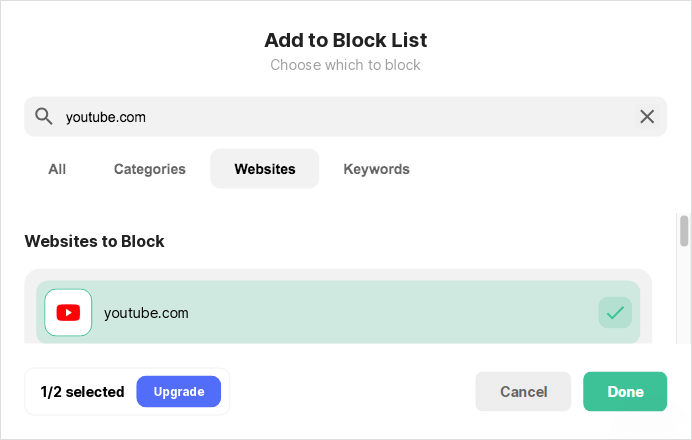
- Block user-specified websites BlockSite allows you to add specific websites (like youtube.com) or pages to the block list.
![the Add to Block List in BlockSite shows the Websites tab, the Keywords tab, and the Categories tab]()
- Block user-specified keywords Once you add a certain word (like game) to the block list, all URLs that have the word “game” will be blocked.
- Block certain categories of websites There are six categories of websites that you can add to the block list, such as Adult, Social and Gambling. If a certain category is added the block list, many websites of this category will be automatically detected and blocked.
- Import and export the block list You can export your current block list to a CSV file. You can also import a list that you exported or create a CSV file with a list of unwanted websites. But you may have a problem importing a file created by you. Note that the import/export feature supports websites and pages but not keywords.
- Block all websites except ones on the whitelist There is a whitelist mode. To make your browser completely distraction-free or child-safe, you can use this mode. However, there isn’t a separate whitelist. Turning on the whitelist mode turns the blocklist into a whitelist. This means that you have to empty your blocklist first and then add the allowed websites to this list, which can be very inconvenient.
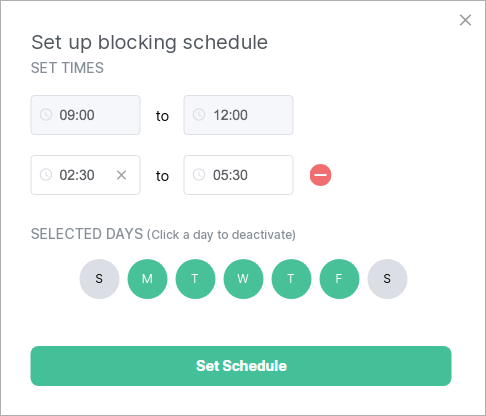
- Use the schedule feature There’s a schedule feature, allowing you to turn on the blocking of items on the blocklist only during certain times like work hours and turn off the blocking in your leisure time.
![the Set up blocking schedule dialog]()
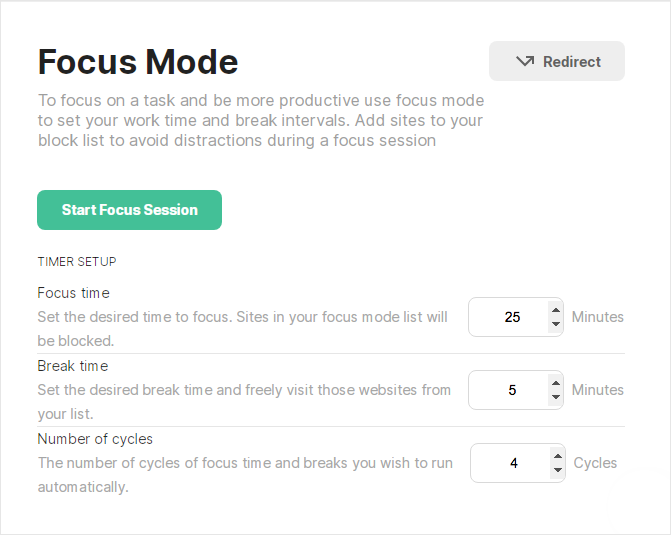
- Use the Focus Mode feature There’s another way to turn on or off the blocking. You can use the Focus Mode, which is basically a pomodoro timer. When this mode is on, the blocking is automatically turned on during the focus time and off during the break time.
![the Focus Mode showing a Timer Setup section, allowing users to set the focus time and break time]()
- Protect your block list with a password There’s a password protection feature. If you set a password, you or someone else has to enter the password to open BlockSite’s option page (where one can edit the block list, change the schedule and do more). However, the password can’t prevent one from uninstalling BlockSite at all. Once BlockSite is uninstalled, all unblocked websites will be unblocked and accessible.
- Block individual apps In addition to restricting access to websites, the BlockSite app allows you to block access to specific apps on your Android phone or iPhone. The Focus Mode and schedule feature are available for app blocking as well.
Summary
When BlockSite is installed on a browser, you can use it to control access to certain websites on this browser. But the blocking is at the browser level. It can’t block websites on the browser on which it isn’t installed or that it doesn’t support (like Safari or Opera). BlockSite offers a rich list of features and options to improve efficiency and personalize the blocking. But it’d be better if there were a separate whitelist.
There’s a layer of protection to prevent one (like your child) from unblocking websites by editing the block list or by turning off BlockSite. However, this is far from enough. Whether you are using BlockSite for yourself or your kids, it’s easy for anyone with access to the browser to uninstall BlockSite.
All in all, BlockSite provides useful features, good ease of use and good customizability but not enough effectiveness.
Tutorial
Below you will find the steps on how to use BlockSite and tips that may help if BlockSite doesn’t work.
How to use BlockSite
The following steps use the Chrome browser as an example.
1. Go to the Chrome Web Store.
2. Use the search field to search for BlockSite by blocksite.co.
3. Click the Add to Chrome button. Click the Add extension button in the message that appears.
4. You will be presented with the options page of BlockSite. Optionally, click the Extensions icon in the toolbar of your Chrome and pin BlockSite to make it appear in the toolbar.
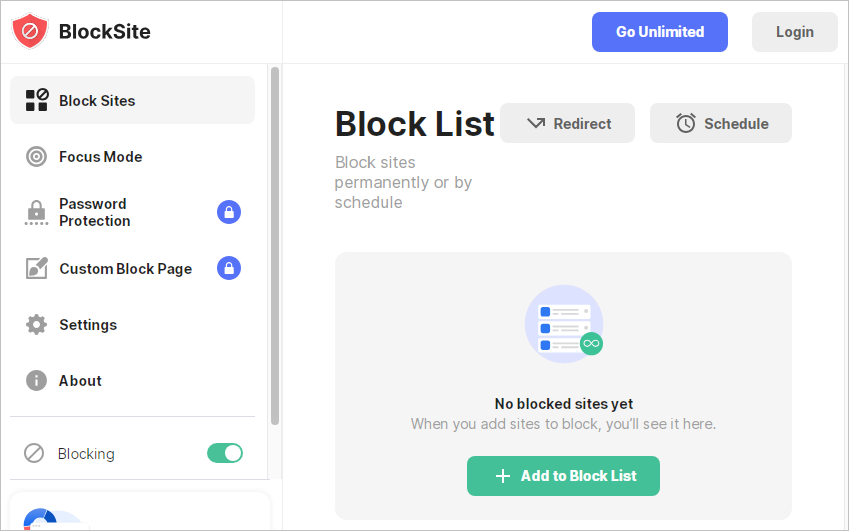
5. In the sidebar on the left, click the Block Sites tab. Click the Add to Block List button. Do any or all of the following things and click Done.
- Click the Websites tab. Enter the website that you want to restrict in the field above. Click the Add icon next to this website. Add other unwanted sites.
![the Add to Block List in BlockSite shows the Websites tab, the Keywords tab, and the Categories tab]()
- Click the Keywords tab. Enter the keywords that you want to block in the field above. Click the Add icon next to this keyword. Add other unwanted keywords.
- Click the Categories tab. Click the Add icon next to the category that you want to limit access to.
6. Right-click the BlockSite icon in the toolbar. Choose Manage Extension. Scroll down and turn on Allow in Incognito.
The last step is optional but recommended. If you don’t do this step, the blocking will only apply to normal browsing, and one can still visit any website in incognito browsing.
As for other features and customization, the BlockSite review above can provide the details.
BlockSite not working? These 4 tips may help
If BlockSite is installed and enabled on your browser but stops blocking the items on your block list, go to the options page to see if the Blocking option in the sidebar on the left is turned on. If not, turn it on.
If BlockSite blocks the websites that are not on the block list, go to the options page to see if the checkbox next to Whitelist mode is selected. If so, deselect it.
If the BlockSite on your phone stops working, go to your phone’s settings to see if your phone denies the permission for BlockSite to use the features it needs to run properly. This can happen. If so, allow the permission.
If BlockSite doesn’t work in the way that you expect from a website blocking tool, you can try BlockSite alternatives until you find the tool that best fits your needs. For example, a BlockSite alternative called AppCrypt has the features and advantages that BlockSite has. Two of the great things about AppCrypt are its ability to make the blocking hard to bypass and its ability to lock any web browser it doesn’t support. There are several ways to (temporarily or permanently) unblock a website blocked by using AppCrypt, but any of the ways requires the password.
Conclusion
BlockSite is a big name in the world of website blocking tools. BlockSite stands out for being easy to access, easy to use and allowing enough customization and flexibility. It can be a good tool to reduce online distractions. It can also help prevent access to certain inappropriate or harmful web content.
If you are looking for an easy-to-use website blocking tool, it can be a good choice. If you need to make the blocking hard to get passed, you might want to try a more effective tool.

Norah Hayes likes to share her tips on how to improve focus and stay motivated at work. She believes it is essential to eliminate all online distractions during work hours.

Ethan Long joined Cisdem in 2015 as a developer and now serves as the editorial advisor for Cisdem AppCrypt. He actively tests and uses Cisdem AppCrypt and other screen-time management tools to ensure AppCrypt meets its promises in real-world scenarios.