


How to Rip Blu-ray on Windows PC in 3 Ways (For Protected Discs)
 1.2K
1.2K
 1
1


Blu-ray ripping is to extract video/audio and other media files from a Blu-ray disc and converting them into a format for easier access. This process often requires specialized tool that can bypass BD protection and handle large video files (25GB to 50 GB or more).
Many Windows users rip Blu-ray discs to:
- create a digital backup
- watch movies without inserting discs
- stream videos through Plex or NAS
- reduce file size with H.264/ H.265 compression
Depending on your purpose and preferred output results, you may rip your Blu-ray to PC in the following 3 ways.
Solution 1. Rip Blu-ray with High Quality Compression
For users who want:
- Best compatibility with TVs, phones and media players
- Smaller Blu-ray video file sizes
- User-friendly Blu-ray ripper
- Fast Blu-ray ripping speed
- Quick tech support
Cisdem VideoPaw (originally Cisdem Video Converter) is a one-click Blu-ray ripper software that allows you to extract video and audio files from Blu-ray disc, BDMV folder or ISO and convert them into common formats including MP4, MKV, AVI, WMV, MP3 and more.
Key features:
- Support 300+ video/audio output formats and device profiles
- Built-in video editing
- Preview Blu-ray content
- Custom output configuration
- All-in-one media converter and downloader
- GPU hardware accelerated decoding & encoding
 Free Download Windows 10 or later
  Free Download macOS 10.15 or later
How to rip Blu-ray to PC with Cisdem VideoPaw:
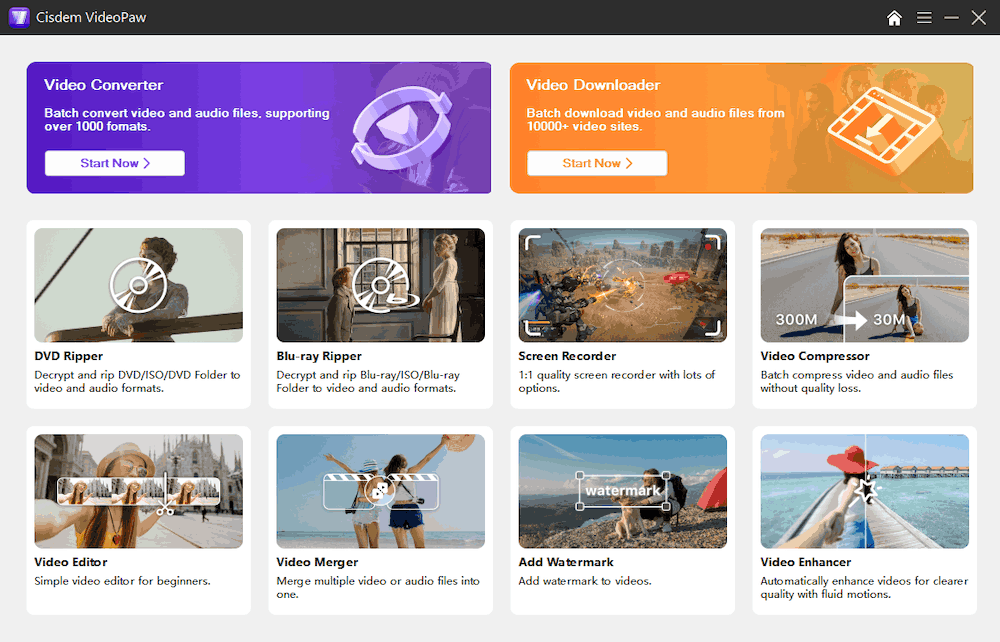
1. Download Cisdem VideoPaw, launch the software and go to the “Blu-ray Ripper” module.
2. Insert a Blu-ray disc to the BD drive attached.
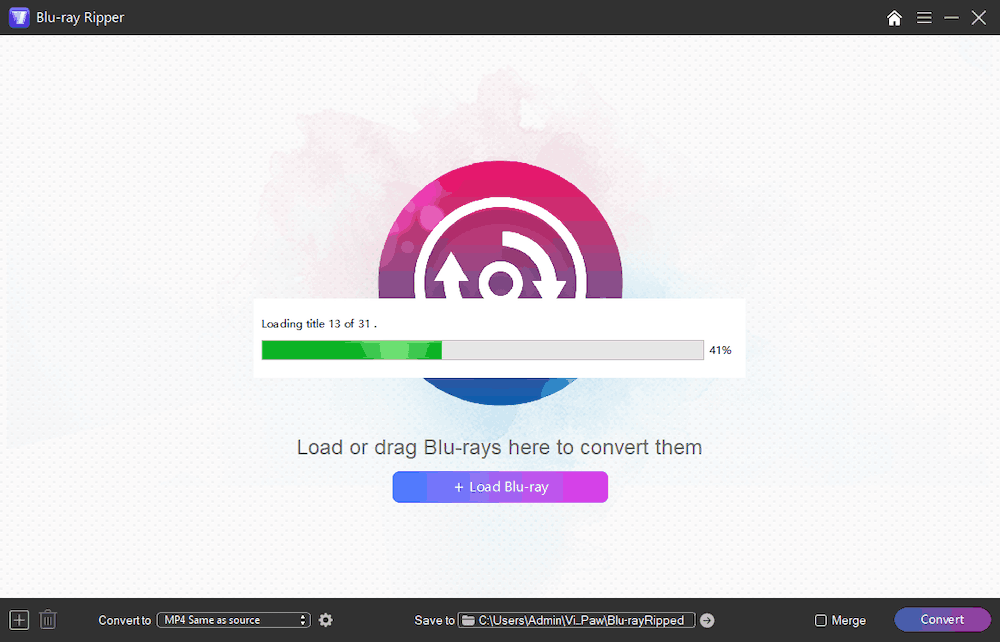
3. Drag and drop the the Blu-ray to the interface, or click the "Load Blu-ray" button and select folder. It will then start decrypting and loading all titles.
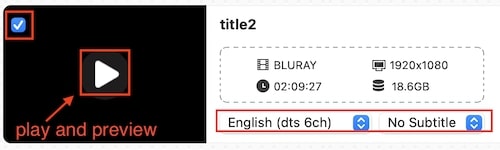
4. Select the video titles you need.
Note: For some protected Blu-ray discs, the software may display many fake titles, while the main movie is usually the longest title. To save ripping time and storage space, you can uncheck unnecessary titles/chapters in the list and choose the main movie only. You can also play content to see which is which.
5. For multi-lingual Blu-rays, select the audio and subtitle language you want to keep from drop-down lists.
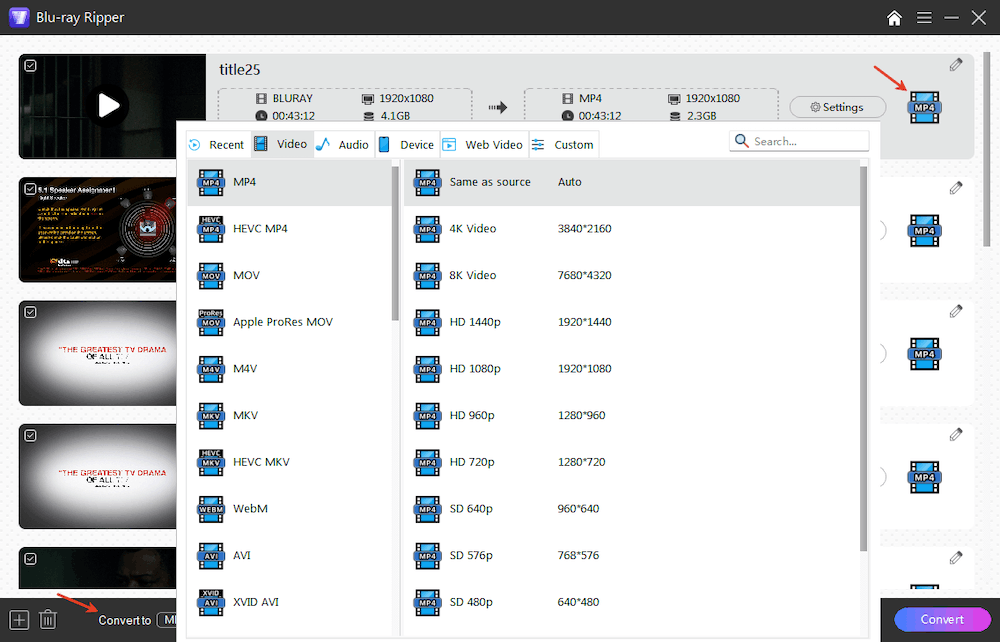
6. Click the Format icon to choose the ripping format and quality, such as “MP4 > Same as source”. Or click the “Convert to” button to set output format for all titles.
7. Specify the save location by clicking the “Save to” box.
8. Click on the "Convert" button to start ripping the Blu-ray on your computer.
Tips
- If the Blu-ray content is split into multiple connected titles, you can check the “Merge” option next to the “Convert” button to combine them into a single video file.

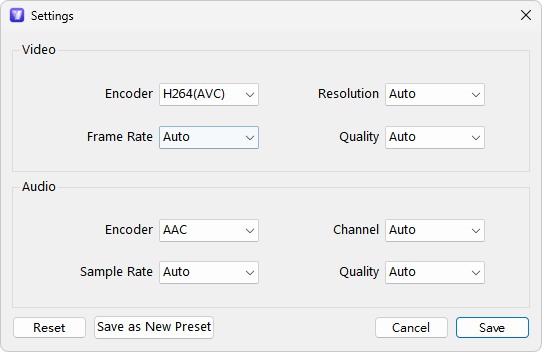
- If you want to further adjust video or audio parameters, click the Settings button or the icon next to the format option to tweak advanced settings including codecs, framerate, resolution, quality (bitrate), etc.
![format settings]()
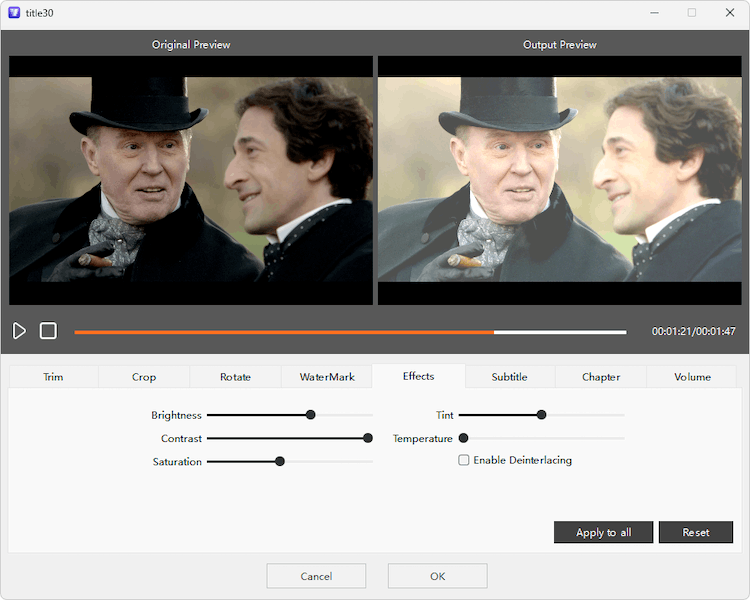
- You can click the pencil-shaped icon to perform basic editing including trimming, cropping, adjusting video effects, adding external subtitles, etc.
![edit blu-ray video]()
Which format is best for Blu-ray conversion on Windows?
MP4 H.264, the default output setting of VideoPaw, is most recommended for best compatibility and faster encoding. H.265 (HEVC) is the next popular format that offers around 50% even smaller size than H.264, but it’s not compatible with native players like Windows Media Player.
Can I use free tools like HandBrake and VLC to rip Blu-ray on Windows?
Possible. Both HandBrake and VLC can rip and convert unprotected Blu-rays, but most legally purchased or rental Blu-rays are protected by encryption schemes such as AACS and BD+. A workaround is to install decryption files manually to get them to handle copy-protected Blu-rays. But the ripping speed is still very slow and there can be problems like audio and video out of sync. If interested, you may check detailed steps in these posts:
- Rip protected Blu-ray with HandBrake on Windows: https://www.cisdem.com/resource/blu-ray-to-mkv.html#handbrake
- Rip protected Blu-ray with VLC on Windows: https://www.cisdem.com/resource/blu-ray-to-mp4.html#way-3
Solution 2. Use MakeMKV to Rip Blu-ray Without Re-encoding
For users who want:
- Lossless Blu-ray ripping without conversion
- Save all subtitle and audio tracks
- Fairly active forum for discussion
For data hoarders who don't care about saving disk space, MakeMKV is a great Blu-ray ripper. It's a software free during Beta, used to rip DVD and Blu-ray movies to decrypted MKV files. Also, it works for 4K UHD Blu-ray backup with compatible UHD-friendly drives.
Since the data is not compressed or converted, the output file size will be almost the same size as the original BD. And the app doesn't allow you to preview the Blu-ray video or edit the titles.
How to rip Blu-ray movie losslessly on Windows using MakeMKV:
- Download MakeMKV from its official website. If your trial version expired, enter the time-limited registration key or purchase a lifetime key.
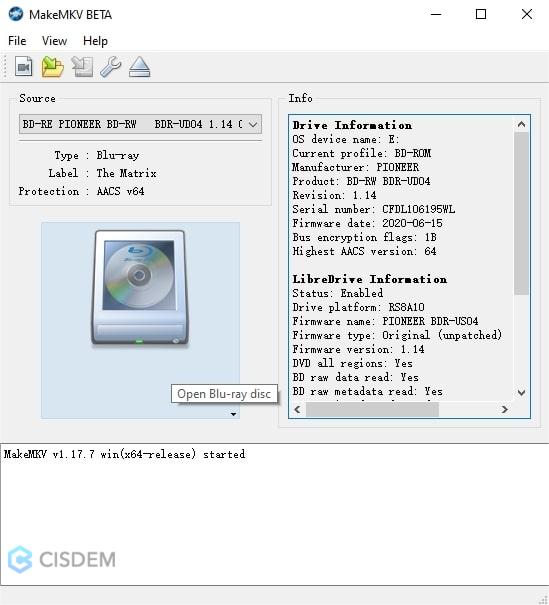
- Insert your Blu-ray into the drive and open the software. Wait for it to recognize the disc.
- Click the Blu-ray drive icon to scan the disc and list available titles.
![makemkv load BD]()
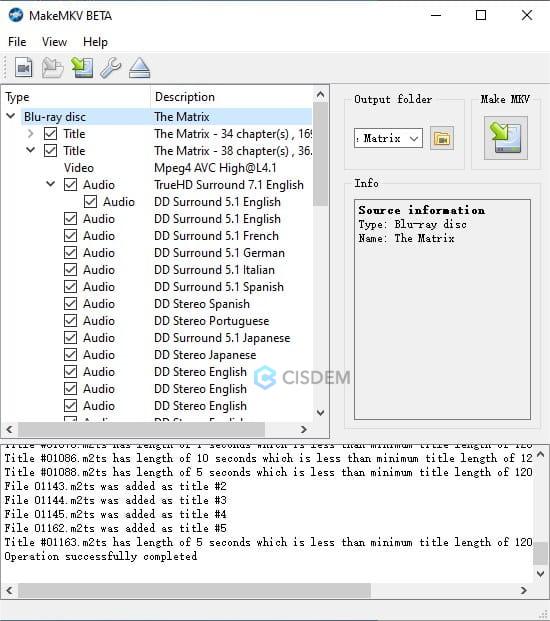
- Select the titles you need according to the described info. You can check the video and audio track information like codec, resolution, duration, etc.
![select titles]()
- Choose the output folder to store the ripped files.
- Click the "Make MKV" icon to start ripping Blu-ray.
How to play the ripped Blu-ray MKV files?
If the Blu-ray video is in MPEG4 AVC codec, you should be able to open the file with Media Player and most modern players. For Blu-ray videos encoded in VC-1 or MPEG-2, you need a third party media player like VLC and Cisdem Video Player.
Solution 3. Rip Blu-ray to ISO for Full Disc Copy
For users who want to:
- Keep full disc structure for later burning
- Play ripped Blu-ray file with menus
- Long-term Blu-ray archiving
Ripping Blu-ray to an ISO image is to create a 1:1 backup of the disc, preserving not just the movie content, but also the full menus and extras. The Blu-ray ISO file size could be even larger than the original BD.
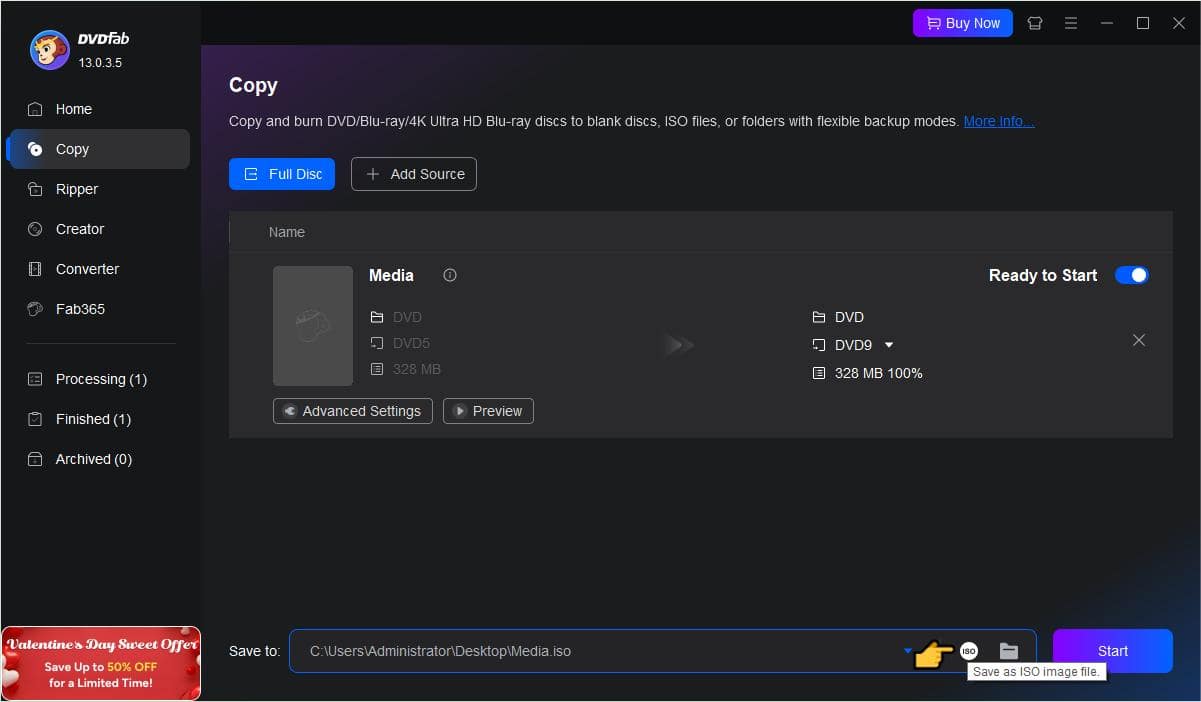
DVDFab HD Decrypter is our recommended tool for the task. It's the free mode of DVDFab, allowing you to rip Blu-ray disc (released more than one year ago) to ISO file in one click. Note that you still need to install the all-in-one DVDFab package, and most other ripping/burning features are paid options.
How to rip Blu-ray to ISO for free on PC:
- Download the latest version of DVDFab from its official site.
- Open the software, it will start analyzing inserted Blu-ray disc. Or you can click “Add Source” to import Blu-ray folder from hard disk.
- Select "Copy" from the left pane.
- Click the ISO button to choose the target folder and enter the file name.
- Click Start to begin the ripping.
![rip blu ray to iso on windows]()
How to play the ripped Blu-ray ISO file?
To play the backed up Blu-ray ISO with menus like a physical disc, you’ll need a professional Blu-ray player such as PowerDVD and PlayerFab, most are paid programs.
Final Thoughts
Ripping Blu-ray allows you to store Blu-rays on your computer and watch HD movies anytime, anywhere. Of the three ripping methods, the first one converts Blu-rays to more compatible formats with quite compact size, while the other two preserve the original video/audio data without conversion involved. There’s no significant difference in the terms of the output video quality, but the latter two may offer faster ripping speeds. Weigh the pros and cons of different rippers and choose the best one to rip your Blu-ray collection.
Copyright Disclaimer:
The above guide is intended to show what is technically possible for educational and personal use. Please note that ripping Blu-ray discs without legal ownership or permission may violate copyright laws in your country. Use this information at your own risk and never for illegal distribution.

Jenny is a technology editor who has been blogging since she was a student. Since joining Cisdem, she focuses on writing articles about video software and how-to guides. She loves exploring new tools and techniques.

Ryan Li is a senior developer at Cisdem. Since joining the company in 2017, he has led the development of Cisdem VideoPaw and now serves as the editorial advisor for all articles related to Video Converter.
Phee3ohcee
I was having some audio sync issues with a video I was working on in HandBrake, and this helped me figure out the right approach. It was helpful having the different solutions in one place instead of searching through old forum posts.