


How to Play Blu-ray Discs on Windows 10/11 Free: 2 Methods
 1.5K
1.5K
 0
0


Ever wanted to play Blu-ray discs on your PC or laptop? This way you can conveniently watch HD Blu-ray movies without the need for a bulky Blu-ray player device.
However, as we all know, Windows doesn't have built-in support for Blu-ray playback, and only specialized programs can decode and play commercial Blu-ray discs.
No more digging and testing, this article will show you two proven solutions to play Blu-ray discs on Windows, safely and for free.
 Cisdem VideoPaw
Play and Rip All Blu-ray Discs Effortlessly
- Play commercial Blu-ray discs with built-in player for free
- Choose preferred sound and subtitles tracks
- Support screen capture, keyboard shortcuts and full-screen mode
- Rip Blu ray discs to digital formats to watch with any player
- Handle the latest released Blu-rays
- Also convert/download/compress/edit/merge videos
- Easy to use with intuitive interface
 Free Download Windows 10 or later
  Free Download macOS 10.13 or later
Can I play protected Blu-ray Discs on Windows?
Yes, with the right Blu-ray player hardware and software.
Few computers come with a built-in optical drive. To play Blu-ray a disc on your PC, you will need to purchase an external BD drive to read it.
Then, you need a Blu-ray player software to decode and play Blu-ray. VLC media player and Cisdem VideoPaw are recommended free options after trying a dozen of Blu-ray players. Which tool to choose will depend on your specific needs and technical expertise.
How to Play Blu ray Discs with Menus in VLC on Windows
VLC media player is a free open source player that supports playback of unprotected Blu-ray and DVD discs. If you directly open a BD with VLC, an error message "this Blu-ray needs a Library for AACS decoding" will prompt. To make VLC play Blu-rays without errors, we need to download necessary decoding files first. And if you want to play with menus like you would on a Blu-ray player, the Java setup is also required. Check out the detailed steps below.
Step 1. Download and install VLC 32-bit or 64-bit from its official sites.
Step 2. Visit https://vlc-bluray.whoknowsmy.name/ to download following decoding files.
- Go to http://fvonline-db.bplaced.net/ to download "keydb.cfg - English", and extract the file to C:\ProgramData\aacs\ (create the folder if it does not exist).
- Download AACS library file (libaacs.dll) for Windows 32 bit or 64 bit, and put it in your VLC directory (usually C:\Program Files\VideoLAN\VLC if you didn’t specify installation).
*At this point you should be able to play Blu-ray content without menus.
Step 3. Download a working Java JRE for BD-J menu support and set up Java environment. The "jre-8u311-windows-x64" from Oracle works for me. You can also choose a more recent version. (JDK is not needed according to my experience.)
- Set the JAVA_HOME variable: search for "Edit the system environment variables" in your Windows search bar, then click the "Environment Variables" button. Under User variables and System variables, click “New”. In the Variable name field, enter “JAVA_HOME”, and in the value field, enter your JRE installation path, such as "C:\Program Files\Java\jre1.8.0_311". Click OK to save changes.
![set java_home variable on windows 10/11]()
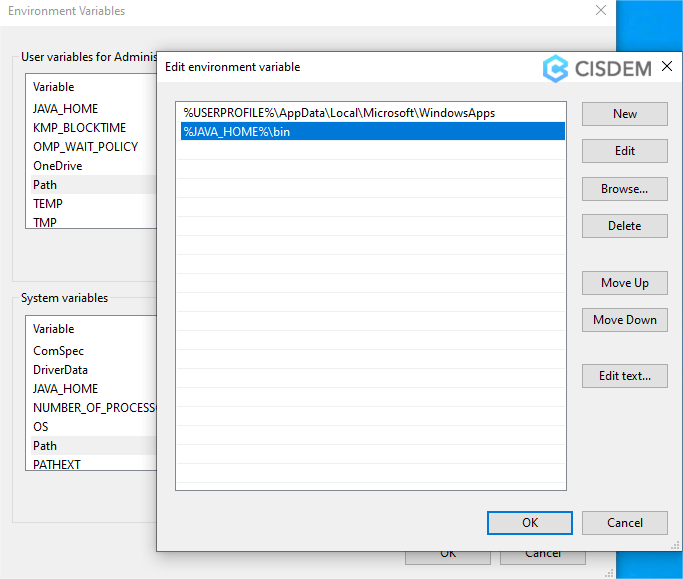
- Set PATH variables: click the "Path" entry under both variables and click “Edit”, then add a New line "%JAVA_HOME%\bin" to the list. Click OK.
![set Java path]()

Step 4. Play Blu ray in VLC with menus.
- Insert the Blu-ray Disc into your BD drive and wait for your computer to detect it.
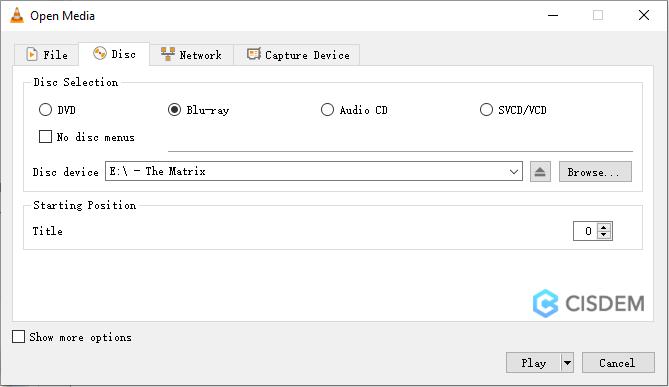
- Open VLC, click Media > Open Disc, choose the "Blu-ray" option and make sure the "Disc device" is correctly selected. Leave "no disc menus" option unchecked, and click "Play".
![vlc media player open blu-ray disc]() Then you will see the movie studio logo and disc menu intro. Note: the menu buttons may not respond to the mouse click, you can use the keyboard arrows and Enter to navigate menus.
Then you will see the movie studio logo and disc menu intro. Note: the menu buttons may not respond to the mouse click, you can use the keyboard arrows and Enter to navigate menus.![vlc play blu-ray menu]()
 Then you will see the movie studio logo and disc menu intro. Note: the menu buttons may not respond to the mouse click, you can use the keyboard arrows and Enter to navigate menus.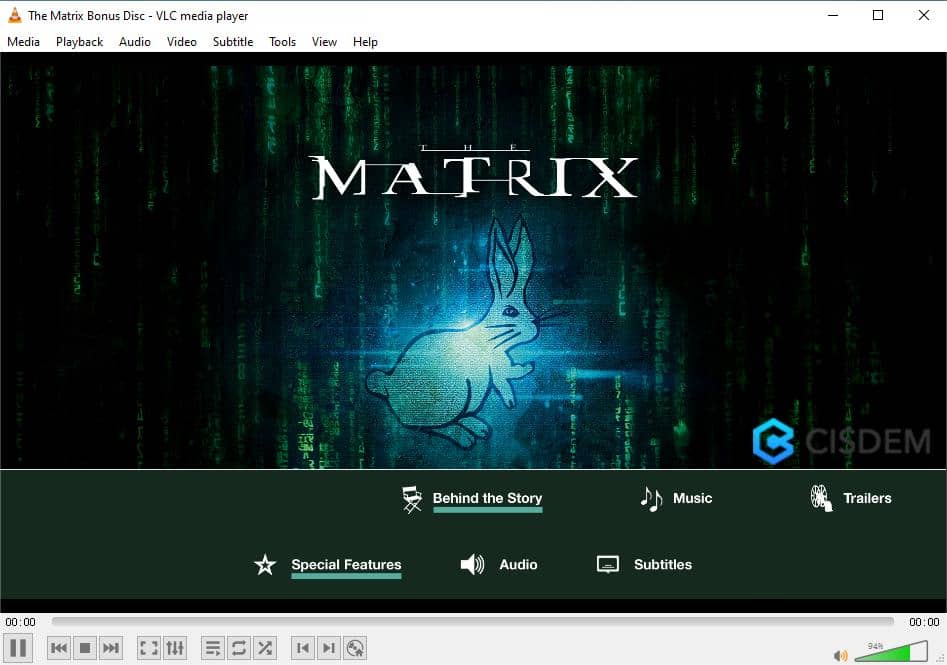
If VLC fails to open and play your Blu-ray, the disc may be BD+ encrypted, such as all FOX Blu-ray releases. You will need to choose a more powerful product that supports BD+ and AACS decryption, such as Cisdem VideoPaw in the next method.
Use Cisdem VideoPaw to Watch Blu-ray Discs [Recommended]
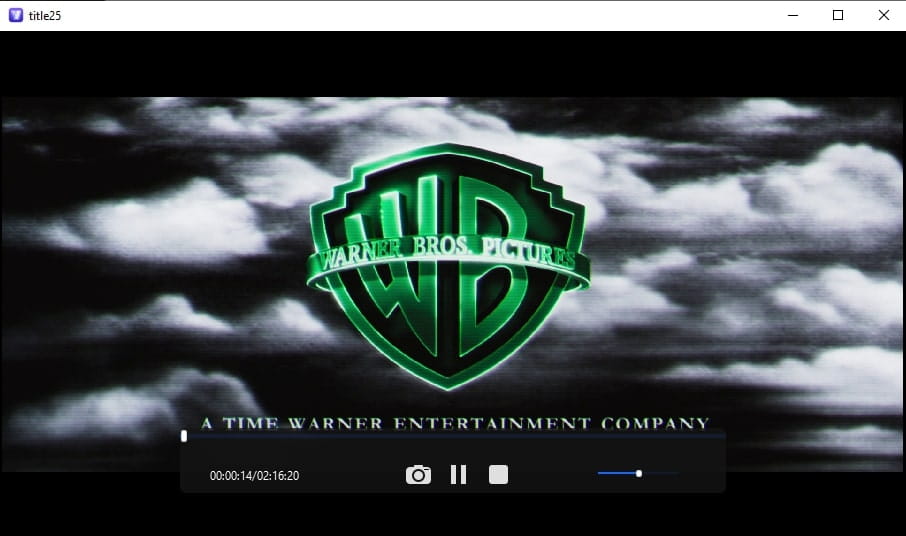
Cisdem VideoPaw (originally Cisdem Video Converter) is a professional but simple Blu-ray player. It's able to bypass all types of copy protections on Blu-ray discs, and play the movies instantly without additional settings. It allows you to choose the audio track and subtitle language to play with, take screenshots, watch in full screen, etc. But it doesn't offer the menu feature as it's not specifically designed for playback after all.
You can also use it to digitize Blu-ray and play them with any player, such as Windows Media Player, or transfer to Apple TV, mobile devices like Android, iPad, etc.
What's more, Cisdem VideoPaw is a multifunctional software that can also convert/compress/edit video files, rip DVDs, and download online videos from various sites such as YouTube, Facebook, Vimeo, etc. The disc playback function is totally free, while other advanced features may require an upgrade.
How to easily play Blu-ray discs with Cisdem VideoPaw on Windows 10/11/8/7:
1. Download and install the Cisdem VideoPaw.
Free Download Windows 10 or later
2. Insert a Blu-ray disc to your Blu-ray drive, label side up.
3. Launch Cisdem, and click the second icon on the top.
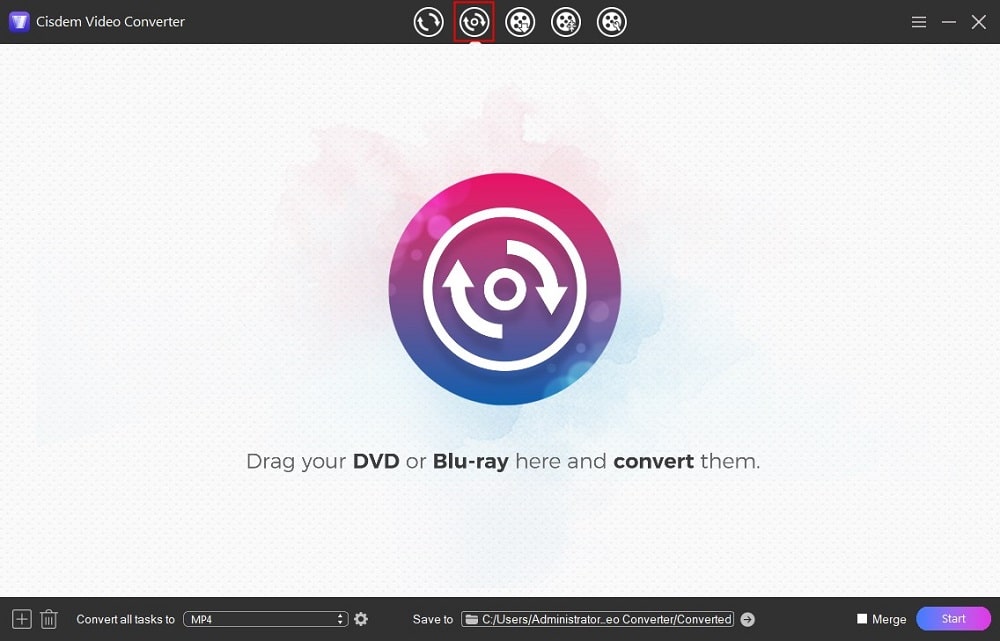
4. To import the Blu-ray disc, there are two ways:
- Directly drag and drop the BD folder to the program interface.
- Or, click the add icon in the bottom left corner, browse to the BD drive, and click “Select Folder” to open it.
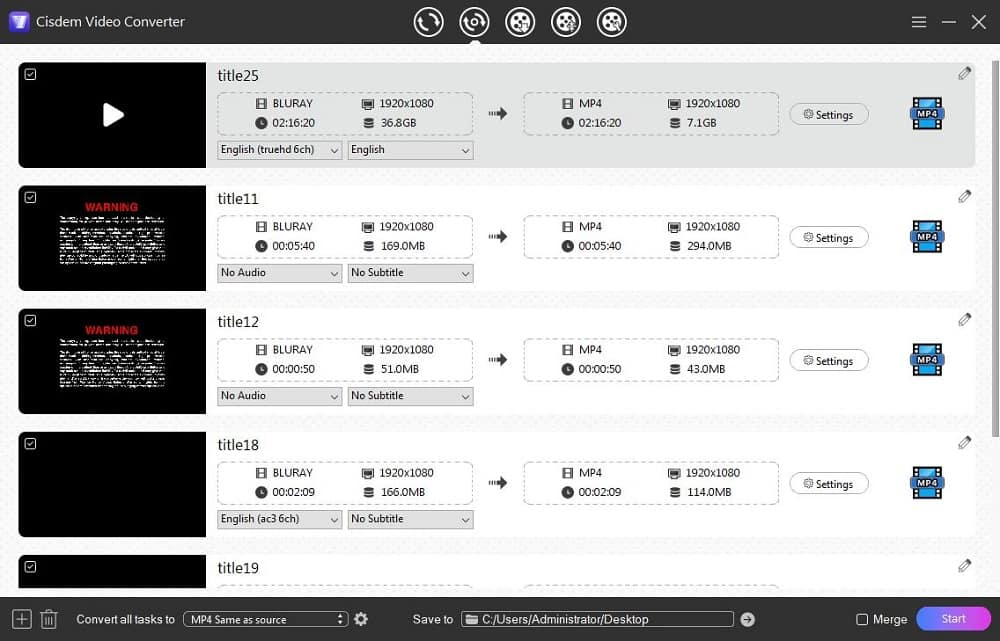
When the Blu-ray disc is loaded, you'll see all video titles, with the movie thumbnail, resolution, length, and size info. The longest and largest one is the main movie.
5. Choose your preferred sound track and subtitles from the corresponding drop-down lists, if available.
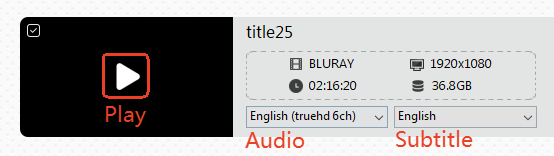
6. Click the on Play icon on the movie thumbnail to play it.
Tip: How to convert Blu-ray to MP4 for smooth playback without Blu-ray drive
If you have enough storage space, ripping the Blu-ray to your computer in common formats is also good option to ensure smooth playback and avoid potential stuttering.
- When the Blu-ray is loaded, you can keep only the main movie, and Uncheck unnecessary titles like warnings and trailers.
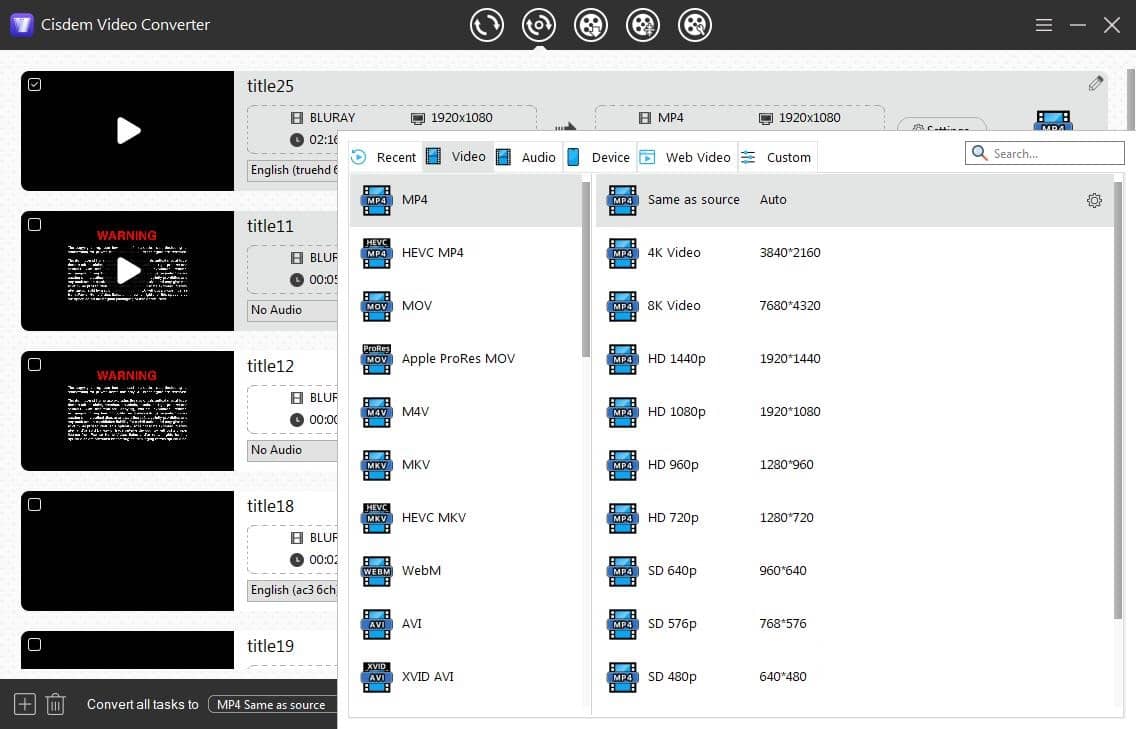
- Click the "Convert all tasks to" button to open the output format selection list, where you can choose commom video formats like MP4, MKV, MOV, etc., or select a preset profile under "Device" category.
![cisdem rip blu-ray to mp4]()
- Click the “Save to” field to specify output folder.
- Click on the “Start” button to initiate the ripping process.
Bonus Tip: More Blu-ray Players for Windows
We've tested as many Blu-ray players as we could find, both free and premium products.
| Blu-ray Player | Price | Result |
|---|---|---|
| PowerDVD 23 Ultra | $79.99 | Plays Blu-ray with menu support, and can output unprotected Blu-ray to MP4 |
| Leawo Blu-ray Player | Free | Similar to VLC |
| VideoByte Blu-ray Player | $45 | Plays Blu-ray with simple menu, no special effects, offer time-limited free trial with watermark |
| Aiseesoft Blu-ray Player | $50 | As above |
| 5K Player | Free | Can't play encrypted/commercial Blu-rays |
Final Words
Playing Blu-ray discs on a PC is not easy due to encryption and menu issues. Getting VLC to play Blu-ray discs with menus requires a long learning curve. For users looking for a more comfortable solution, consider Cisdem VideoPaw, which can play copy-protected Blu-rays without extra components. Ripping Blu-ray discs to MP4 video files is another workaround to facilitate playback on computers or other devices.
Copyright Disclaimer:
Any mention of Blu-ray disc ripping is intended only for educational and personal use. It may violate copyright laws in your country without legal ownership or permission. Use this information at your own risk and never for illegal distribution.

Jenny is a technology editor who has been blogging since she was a student. Since joining Cisdem, she focuses on writing articles about video software and how-to guides. She loves exploring new tools and techniques.

Ryan Li is a senior developer at Cisdem. Since joining the company in 2017, he has led the development of Cisdem VideoPaw and now serves as the editorial advisor for all articles related to Video Converter.