


How to Lock Sticky Notes in Windows 10 and 11 with Password
 1.8K
1.8K
 0
0


Microsoft Sticky Notes is a desktop notes app included in Windows computers. This app provides an easy and quick way to take and view notes. So it’s loved by many users and may store some important or private notes in it. But how to prevent others from snooping the notes? In this article, we will show you how to lock Sticky Notes in Windows 10 and 11 with a password.
 Cisdem AppCrypt
The Best App to Password Protect Sticky Notes
- Lock individual apps, like Sticky Notes, with password
- Offer an option to automatically re-lock apps after a period of inactivity
- Also block websites with password on Chrome, Edge, and other browsers
- Block specific sites and pages, URLs with certain words, or all sites except a few
- Let you lock apps and block websites permanently or at scheduled times
- Record failed attempts to open locked apps
- Easy to use
- Hard to bypass
- Help with privacy protection, productivity and parental controls
- Compatible with Windows 11, 10 or earlier, 64-bit only
- Also available for Mac, Android, iPhone and iPad


Can I lock Sticky Notes on a Windows PC?
Yes. To help guard your privacy, some notes apps provide a built-in feature to lock notes with a PIN, password or fingerprint. However, Sticky Notes does not offer this feature.
But you can still lock access to Sticky Notes on your Windows PC thanks to third-party apps. The following part will show you how.
How to lock Sticky Notes on Windows 10/11?
To effectively password-protect Sticky Notes on your PC, you can use Cisdem AppCrypt. It allows you to lock any applications on your computer, including apps installed by yourself and preinstalled ones.
Password protection is always on for the apps specified by you, as long as AppCrypt is running. You can set it to launch automatically at system startup. Turning off the protection or quitting AppCrypt requires the correct password.
Steps to lock Sticky Notes
1. Download and install AppCrypt. It is compatible with Windows 10 and 11 etc.
 Free Download Windows 10 or later
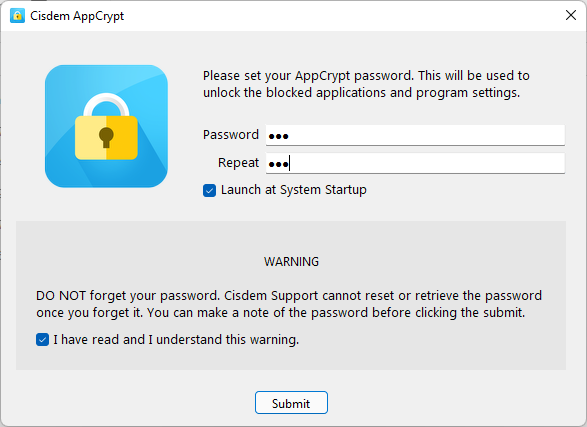
2. The first time you open it, it asks you to set a password.
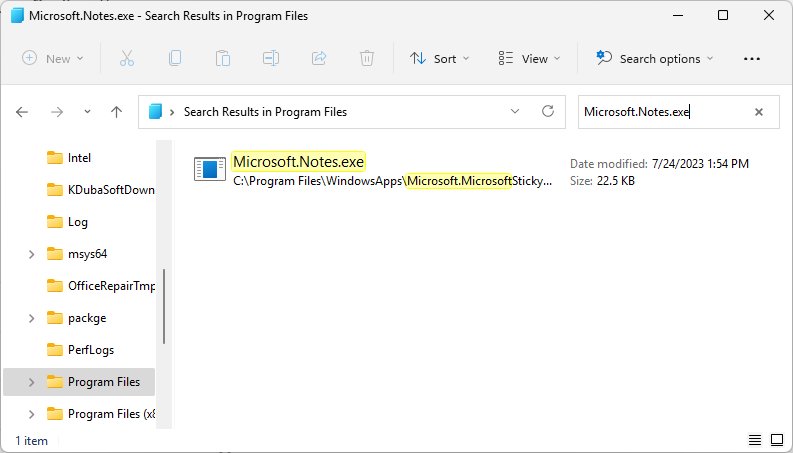
3. In File Explorer, go to C:\Program Files and search for “Microsoft.Notes.exe”.
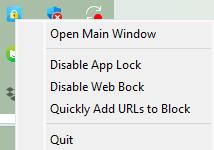
4. Go to the taskbar and click the AppCrypt icon. Or, you can right-click the icon and choose Open Main Window.
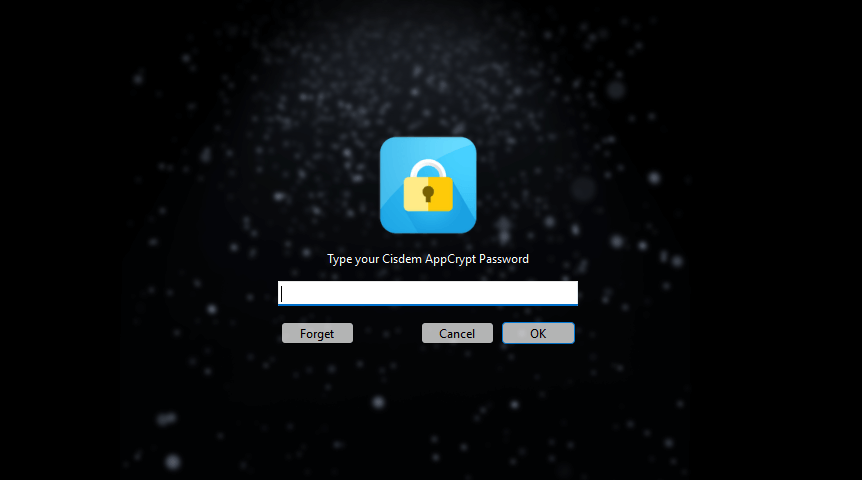
5. Enter the password to access the main window.
6. Drag Microsoft.Notes.exe into the main window. Or, you can use the plus icon.
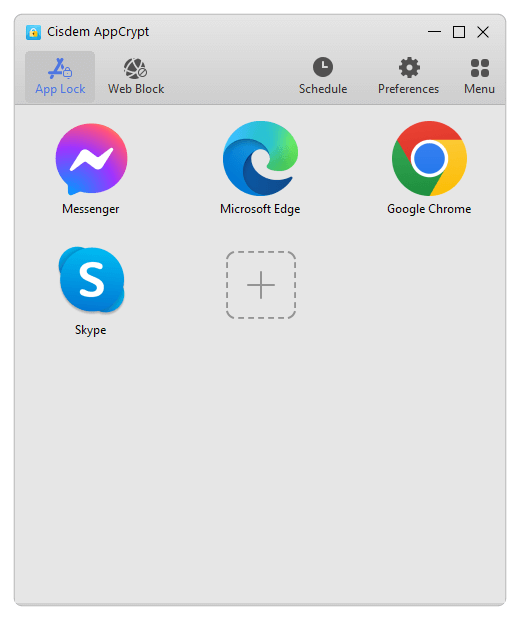
Now Sticky Notes is locked with the password you set. This way, unauthorized access is prevented. People who don’t know the password can’t view your notes.
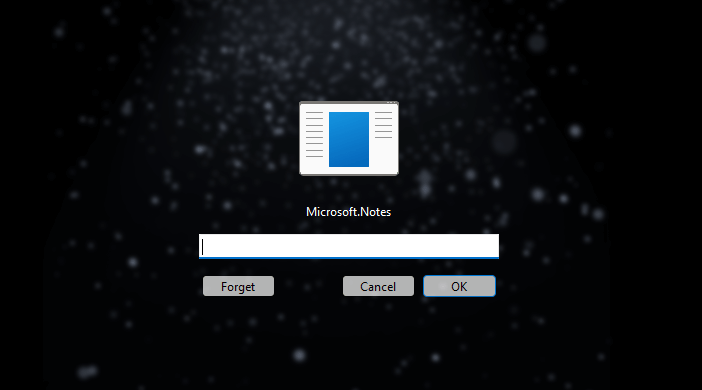
To successfully unlock Sticky Notes, just enter the correct password. (Unlocking Sticky Notes takes 30 seconds so it takes a bit of waiting. But unlocking any other app only takes less than a second.)
Every time someone enters a wrong password, with an attempt to open Sticky Notes, AppCrypt will prevent the access and record the failed attempt.
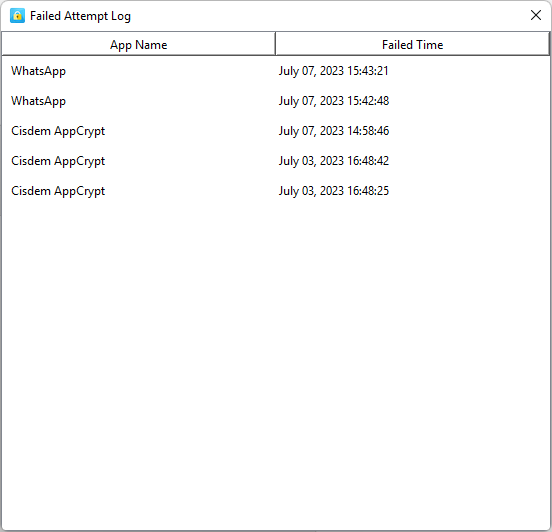
Removing the lock also requires the password. Just go to the main interface, select Sticky Notes (Microsoft.Notes), and press the Delete key.
Tips
Go to Preferences. In the General section, turn on the first three options. This way, the lock is more effective. You can turn off any of the options at any time.
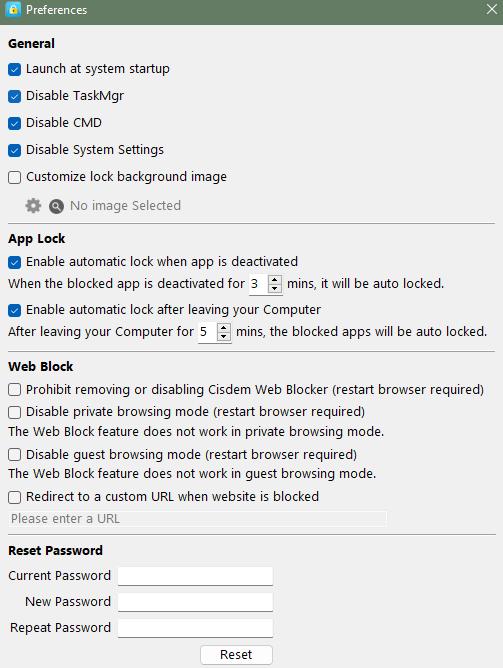
Go to the App Lock section in Preferences. Select the Enable automatic lock when app is deactivated checkbox. This also helps make the lock more effective.
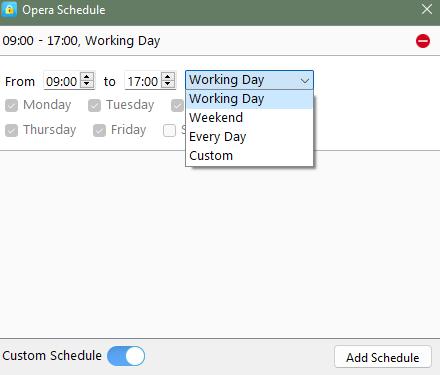
In addition to password protecting apps, AppCrypt can help users set time limits on apps. You can use the Schedule feature for this purpose. There is a General Schedule feature, which applies to all locked apps. There is also a Custom Schedule feature, which applies only to the app specified by you. You can easily set certain apps to be locked at specific times of the day and days of the week.
Other ways to help keep your notes private
Password protect Sticky Notes by locking your Windows PC
It’s always a good practice to put a password on your computer, which prevents others from seeing what’s on your computer.
1. On your computer, go to Settings.
2. Choose Accounts > Sign-in options > Password.
3. Click the Add button, then create a password.

Now, other people can’t view your sticky notes, files and other data on your computer.
But sometimes you may need to let someone else, such as a coworker or friend, to use your computer and account. In such a case, this method doesn’t work. You need to put a lock on Sticky Notes and some other apps instead of the entire computer.
Lock Sticky Notes on your other devices
Some Mac, Android, or iOS users sync and access Sticky notes through the OneNote app or the Microsoft Launcher. To better protect your privacy, you should also lock the apps that can access your notes on these devices. AppCrypt is compatible with both computers and phones, allowing you to lock individual app on any devices.
Use a Sticky Notes app with password protection
Microsoft Sticky Notes doesn’t offer password protection. You can use a third-party sticky notes app that allows you to lock the app, specific notes, or specific content of a note. Apps such as Notezilla and 7 Sticky Notes provide such a feature.
Conclusion
Sticky Notes has been around for many years. It’s simple and convenient to use. However, it’s not perfect. Many users think that Microsoft should make Sticky Notes password protected. This long anticipated feature is not available yet.
This article shows you how to lock Sticky Notes in Windows 10 and 11. I hope it’s helpful. The recommended method is easy and effective. In addition, it can help you keep other apps private. Nowadays privacy protection is more important than ever. So you can’t go wrong by putting a lock on your apps.

Norah Hayes likes to share her tips on how to improve focus and stay motivated at work. She believes it is essential to eliminate all online distractions during work hours.

Ethan Long joined Cisdem in 2015 as a developer and now serves as the editorial advisor for Cisdem AppCrypt. He actively tests and uses Cisdem AppCrypt and other screen-time management tools to ensure AppCrypt meets its promises in real-world scenarios.