


How to Lock ChatGPT App and Protect Your Web Chats
 9
9
 0
0


To keep others from viewing your ChatGPT conversations on a shared device, lock the ChatGPT app. You also need to restrict access to the website if you’re signed in to ChatGPT in a browser.
This article shows you how to lock ChatGPT on Windows, Mac, Android, iPhone and iPad.
 Cisdem AppCrypt
The Best Lock for ChatGPT
- Lock the ChatGPT desktop app, as well as other apps, with a password
- Offer an option to automatically re-lock ChatGPT after a period of inactivity
- Block websites with a password as well, such as ChatGPT web
- Let you block specific sites, pages, and categories, or block all sites except a few
- Lock apps and block websites 24/7 or at schedule times
- Require password to enter/quit/uninstall AppCrypt
- Easy to use
- Hard to bypass
- Help with privacy protection, parental controls, and productivity
- Available for Windows, Mac, Android, iPhone and iPad


How to lock the ChatGPT desktop app on computer
If you stay signed in to the ChatGPT desktop app, someone using your computer may be able to open it and view your private chats. ChatGPT doesn’t provide a built-in feature to lock itself. But you can Cisdem AppCrypt to add a password to it. Here’s how.
1. Download and install this ChatGPT locker.
 Free Download Windows 10 or later
  Free Download macOS 10.12 or later
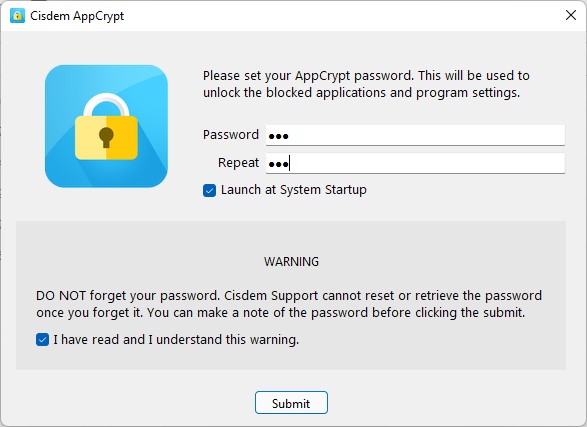
2. Open it. Set a password different from your computer login password. This lets others use your computer without giving them access to the ChatGPT app.
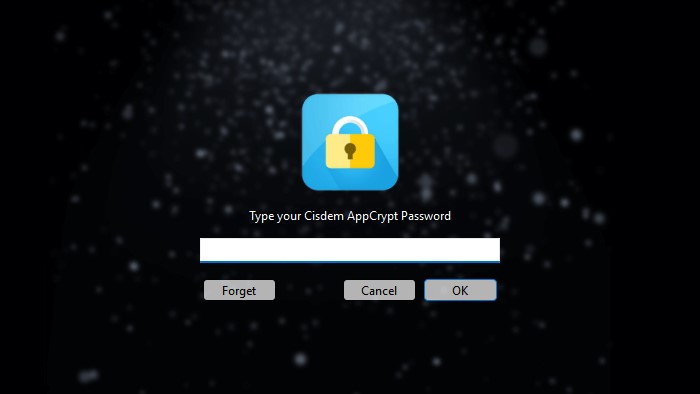
3. Click the lock icon on the taskbar or menu bar. Enter the password to access the main window.
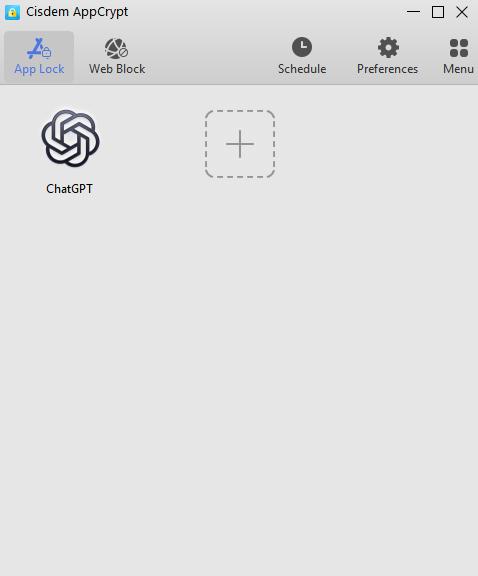
4. Go to the App Lock tab. Drag the ChatGPT desktop shortcut into the window.
Can’t find a ChatGPT desktop shortcut? View the tip below.
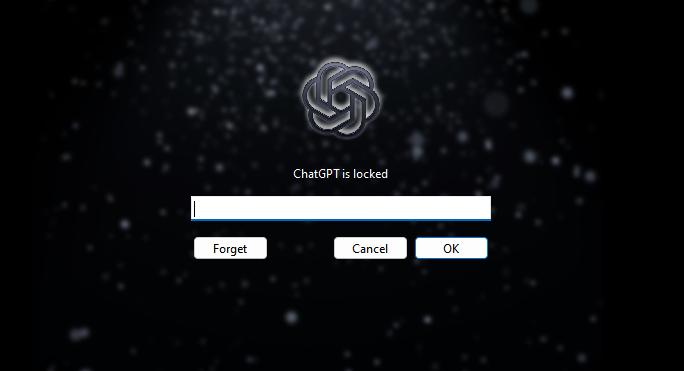
AppCrypt will ask for the password next time you access ChatGPT.
Tip: Can’t find a ChatGPT desktop shortcut in step 4?
On Mac, click the plus icon. Select the ChatGPT app from the Applications folder. Click Open.
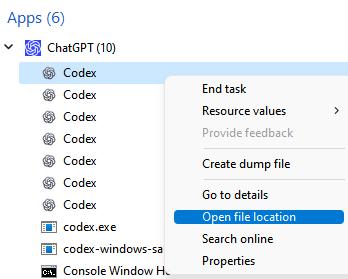
On Windows, launch the ChatGPT app. Press Windows + Shift + Esc. Find ChatGPT under Apps. Expand the list. Right-click on Codex, and choose Open file location. Drag ChatGPT.exe to AppCrypt.
How to protect your ChatGPT web chats in a browser
You may also use ChatGPT web and stay signed in. So others using your computer can still open chatgpt.com and access your private chat. To prevent this, you can restrict access to the websites with Cisdem AppCrypt. Here’s how.
1. Open Cisdem AppCrypt. Enter the password you set.
2. Go to the Web Block tab. On Windows, follow the prompts to install the extension in each browser you use for ChatGPT.
3. Enter chatgpt.com. Click Add.
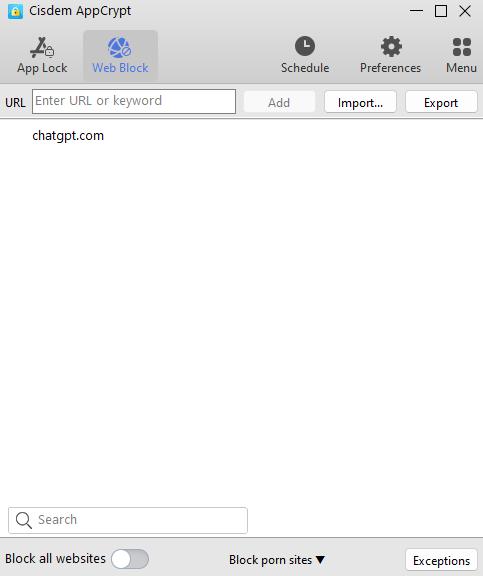
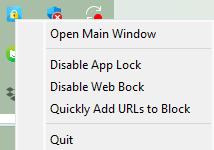
ChatGPT web is blocked now and others cannot access it without password. When you need to use it, right-click AppCrypt’s icon on the taskbar or menu bar. Select Disable Web Block. Enter your AppCrypt password when prompted.
How to lock the ChatGPT app on your phone
If you lend your phone to others, such as your children, they may be able to open the ChatGPT app and read your conversations. You can use your phone’s built-in settings to lock the app, or third-party app locker - such as AppCrypt.
On Android
Some Android phones provide system-level App Lock feature to protect individual privacy apps with a PIN, password, or fingerprint. On Samsung phones, you can add applications that you don’t want others to open to the Secure Folder. Search for similar feature in your phone’s settings. The steps below show how I locked ChatGPT using the App Lock feature on my phone.
1. Open Settings.
2. Click Apps > App Lock.
3. Find ChatGPT from the list of installed apps. Select it.
4. Click Set password.
5. Choose to set a 4-digit password or set a pattern. Then turn on fingerprint unlock in the pop-up window.
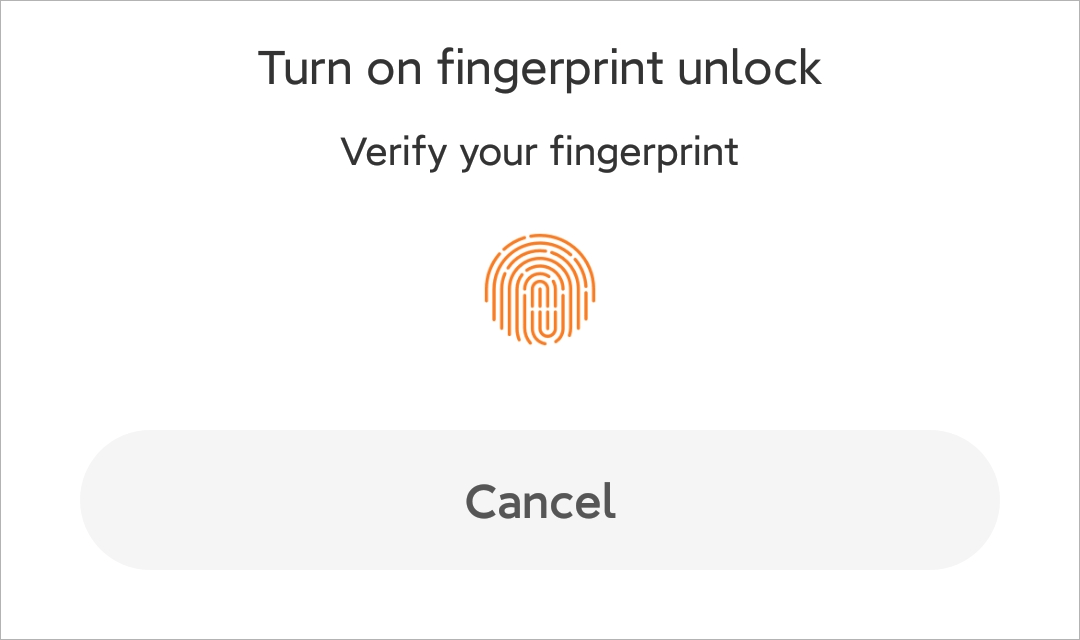
Now ChatGPT is locked. I can unlock it with my fingerprint but others cannot use the app.
On iPhone or iPad
Apple’s built-in App Lock feature lets you lock ChatGPT and other private apps with Face ID or Touch ID. It’s easy to set up but only available on iOS 18 or later. If your iPhone runs an earlier version, update it or use other methods.
Here’s how to lock ChatGPT on your iPhone:
1. Find ChatGPT on your Home Screen.
2. Long-press on its icon.
3. Click Require Face ID. If your iPhone uses Touch ID instead, click Require Touch ID.
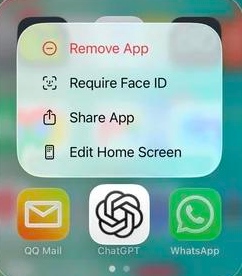
4. Your phone will then scan your face or ask for your fingerprint to confirm. Click Require Face ID or Require Touch ID again.
Now the ChatGPT app is locked and only you can access it.
Tip: Can’t find a built-in App Lock feature? Try Cisdem AppCrypt
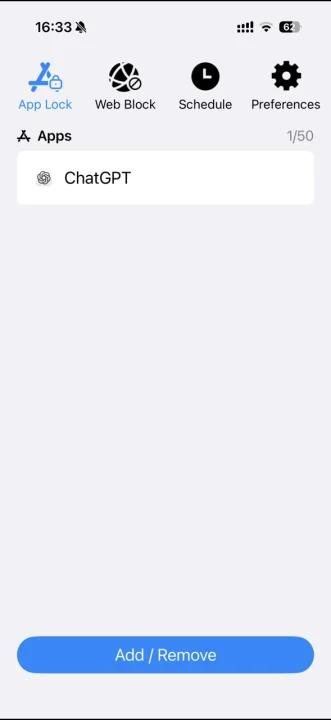
If your Android phone doesn’t have App Lock, or your iPhone can’t running iOS 18 or later, you can use AppCrypt instead.
It lets you to lock the ChatGPT app on your phone with a PIN or a pattern. You can also block chatgpt.com to prevent access to your chats through a browser.
Cisdem AppCrypt is free to use on Android, iPhone and iPad.
FAQs
Can I lock individual chats on ChatGPT with a password?
No. ChatGPT doesn’t offer password protection for individual chats. You can only delete a chat from the sidebar, or directly lock the entire app with an app locker.
Does locking the ChatGPT app also protect my chats in a browser?
No. Locking the ChatGPT app only prevents others from opening the app on your device. If you stay signed in at chatgpt.com, you should also put a password lock on the website.
Can I hide the ChatGPT app on my iPhone as well as lock it?
Yes. Long-press on the ChatGPT icon. Click “Require Face ID”. Then click “Hide and Require Face ID”. This app will be hidden from the Home Screen. You can search for it in the App Library and open it with your Face ID.
Conclusion
If someone else uses your computer or phone, your ChatGPT chats may be accessible through the app or a browser. You can lock the app as well as the website with your device’s built-in app locker, or AppCrypt for stronger and more flexible protection. This guide covers both options. You can choose the one that works best for your device.

Norah Hayes likes to share her tips on how to improve focus and stay motivated at work. She believes it is essential to eliminate all online distractions during work hours.

Ethan Long joined Cisdem in 2015 as a developer and now serves as the editorial advisor for Cisdem AppCrypt. He actively tests and uses Cisdem AppCrypt and other screen-time management tools to ensure AppCrypt meets its promises in real-world scenarios.