


Cisdem AppCrypt for Mac Advanced Guide
 323
323
 1
1


01 Solutions for Cisdem AppCrypt is not blocking websites on Mac
Cisdem AppCrypt is a powerful app and website blocker designed to enhance productivity and protect privacy. However, some users may encounter issues where Cisdem AppCrypt does not block websites or keyword searches. In this guide, we’ve outlined 4 effective solutions to help you troubleshoot and resolve this issue.
1. Check whether your browser is supported
Cisdem AppCrypt supports 9 browsers: Chrome, Safari, Edge, Brave, Opera, Arc, Opera GX, Ecosia, and Dia. If the browser you are using does not included in the list, we suggest you switch to one of the supported browser for full functionality. What’s more, feel free to contact our support team with the name of your browser, our R&D department will take it into consideration with future versions.
2. Check whether Cisdem AppCrypt has been authorized
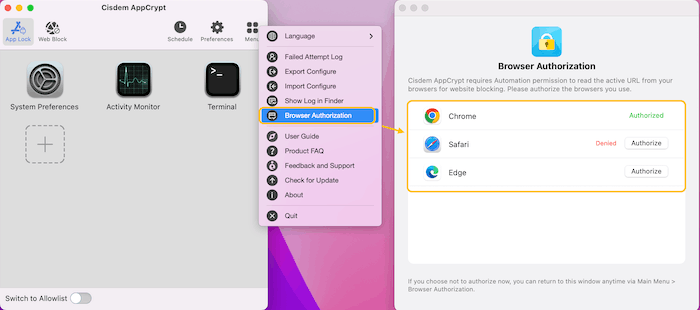
To block websites effectively, Cisdem AppCrypt must be granted to control browsers in your Mac’s System Settings. Just go to AppCrypt's Main Window, click Menu > Browser Authorization, make sure the browsers you are using are authorized.
3. Verify schedule setup
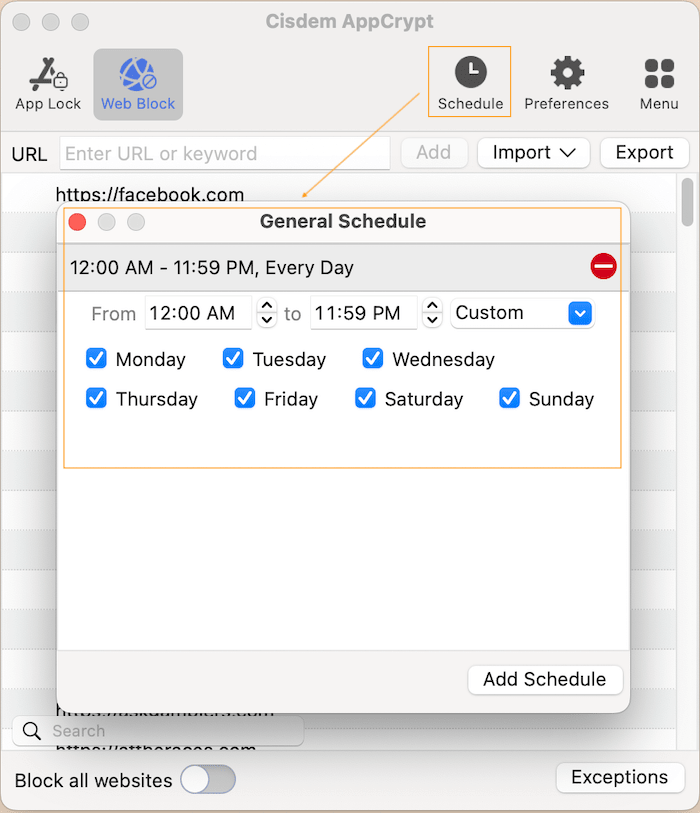
The schedule is used to setup the period to block websites and apps, so if no schedule has been set up, no websites will be blocked. Please go to the Schedule section, and make sure you've set up a schedule to block those websites.
4. Verify that WebBlock is enabled
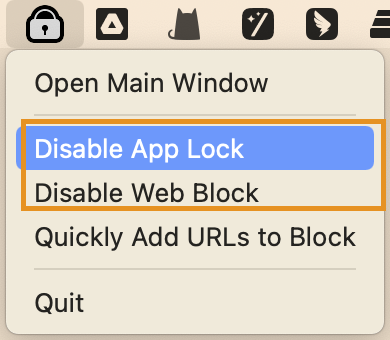
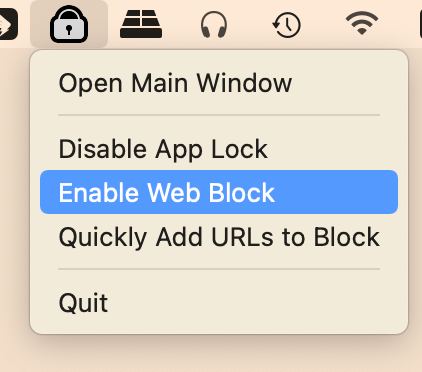
You can temporarily disable the App Lock and Web Block function via the padlock icon on the top menu bar. So please click the Padlock icon at the top menu bar and make sure the WebBlock function is enabled. No password is needed to enable the WebBlock function.
Conclusion
The above 4 solutions should help you figure out why the websites are not being blocked. If the problem persists, please send an email to our support team at support@cisdem.com for further assistance.
02 New Features that You Need to Know about Cisdem AppCrypt
Cisdem AppCrypt is an app can block distraction websites and lock your private apps for focused and security. Trusted by over 1 million users worldwide, and it is loved for its simple and effective.
We have received valuable suggestions from our users, such as:
“Is there any way to add to list of blocked sites without unlocking the app?”
“ it's annoying that I have to put in the password to Enable the lock.”
We are always listening and working to make Cisdem AppCrypt even more effective and user-friendly. So we’ve added two new features with the latest version of Cisdem AppCrypt.
Feature 1 Allow users to add blocked URLs without entering a password
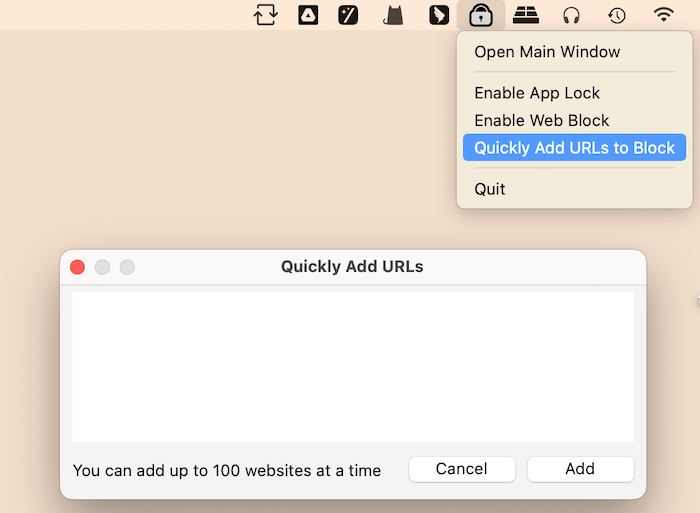
If you want to add new websites to block, you can directly click the Cisdem AppCrypt icon (padlock icon) on the top menu bar and choose “Quickly add URLs to block”, manually enter or copy & paste the URLs into the following box, and then click Add.
Feature 2 Allow users to enable Web Block/App Lock without entering a password
Cisdem AppCrypt allows you to temporarily disable Web Block/App Lock and enable them later. With the new feature, a password is required only when you disable Web Block/App Lock. That is, you can directly enable Web Block/App Lock without entering a password.
You suggested, we acted! At Cisdem, we truly values every user suggestion and piece of feedback. If you have any thoughts on how we can improve our apps , don’t hesitate to contact our support team at support@cisdem.com We are always happy to hear from you!
03 What To Do to Protect Cisdem AppCrypt from Being Bypassed on Mac
If you use Cisdem AppCrypt to block apps and websites on Mac, it is important to configure it properly to prevent bypass attempts. In this guide, we will show you how to configure its settings and strengthen its protection.
1. Set A Strong and Secure Password
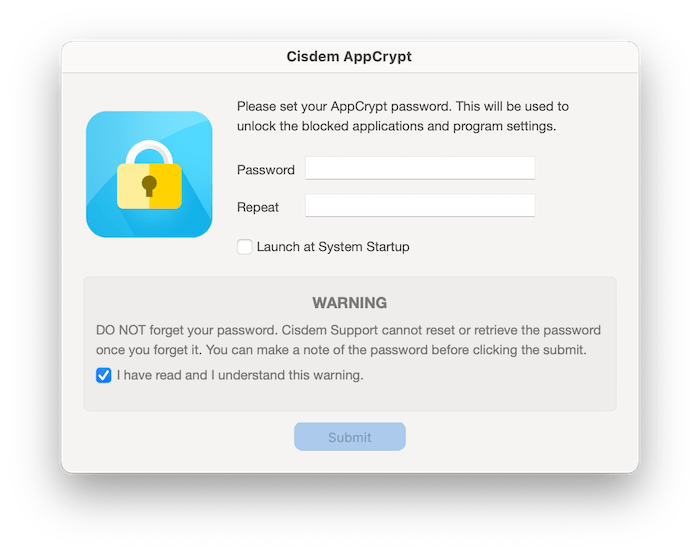
When you first launch Cisdem AppCrypt, a window will appear asking you to create a password. This password is used to unlock both the locked apps and the Cisdem AppCrypt itself. Without it, others cannot change Cisdem AppCrypt’s settings or uninstall it, so please set a strong and secure password that others cannot guess.
Tips:
a. There is a chance that you may forget your password, in light of this, you can use the email address that you placed the order and send the order receipt to our support team, they will send you a one-time secret code to reset your password.
b. If you want to use Cisdem AppCrypt to block yourself, consider asking a friend to set a password for you, or set a random password that you won’t remember.
2. Enable Automatic Startup
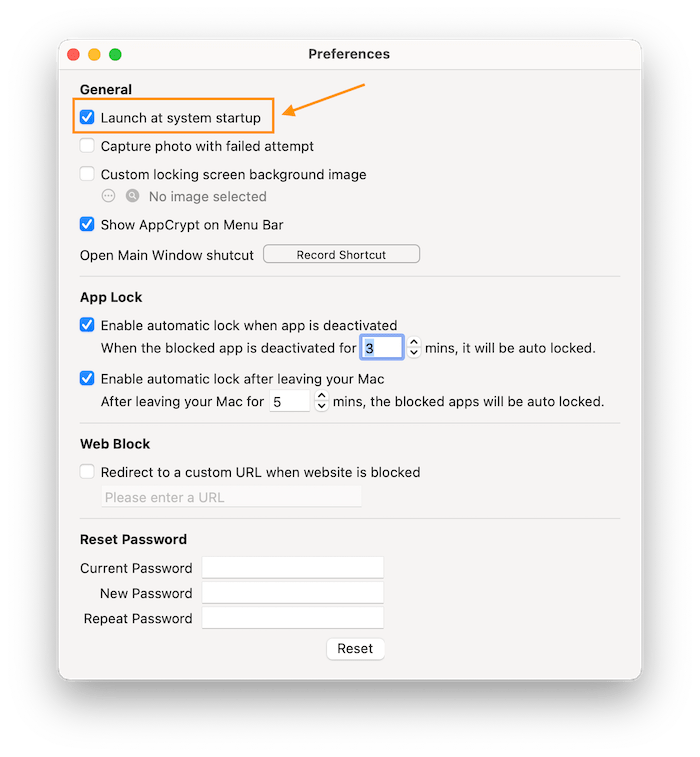
To prevent Cisdem AppCrypt from being bypassed through a reboot, we suggest you enable Automatic Startup function of Cisdem AppCrypt.
Just go to the main window of Cisdem AppCrypt, tap Preferences, check the option “Launch at System Startup”
3. Lock 3 default apps
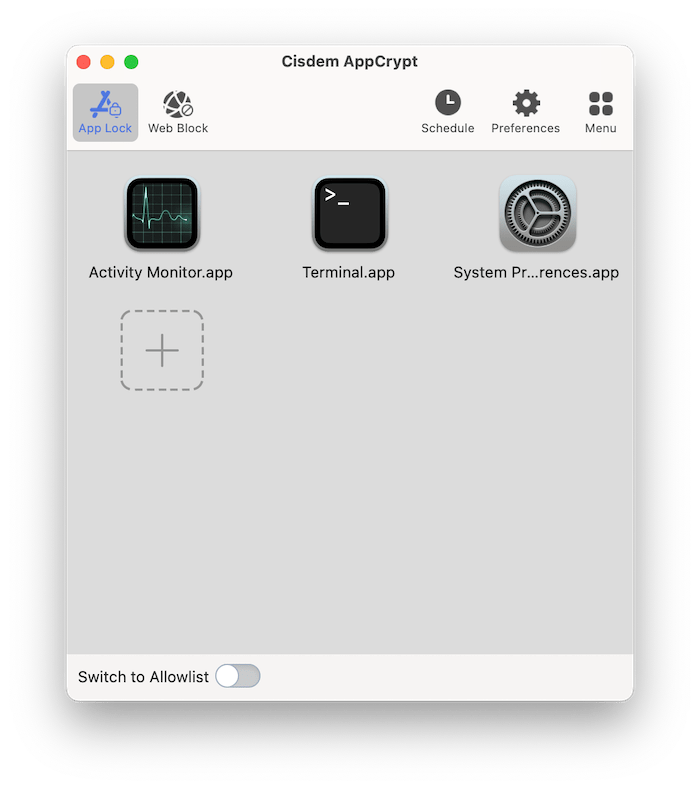
A tech-savvy may bypass Cisdem AppCrypt via 3 system apps: System Settings, Terminal and Activity Monitor, so you are suggested to lock these 3 apps and prevent them to be accessed without a password.
These 3 apps are locked by default, just don’t remove them from the App Lock list.
Conclusion
By setting a strong password, enabling automatic startup, and keeping key system apps locked, you can greatly reduce the chances of Cisdem AppCrypt being bypassed on your Mac. Proper configuration ensures reliable protection, taking a few extra minutes to apply these best practices will help you get the most out of Cisdem AppCrypt’s security features.

Traci Gordon has worked as a tester in a software company for 8 years, she believes that the best software should be a tool that can help users accomplish what they need with the simplest steps.

Ethan Long joined Cisdem in 2015 as a developer and now serves as the editorial advisor for Cisdem AppCrypt. He actively tests and uses Cisdem AppCrypt and other screen-time management tools to ensure AppCrypt meets its promises in real-world scenarios.
Isaac Ruiz
Necesito ayuda muy urgenta ya que no puedo acceder a mi aplicación de ajustes al no disponer de mi contraseña, no la recuerdo exactamente, necesito un código pero no me lo mandan y es muy urgente, ya no se que hacer.