


How to Block Websites on Dia Browser: 3 Methods I Tested
 95
95
 0
0


Many people, including me, love the Dia browser for its clean interface and productivity features. However, online distractions can still get in the way when you’re working. Once you visit an interesting website, it’s easy to get caught up and spend more time scrolling than you planned. To find a better way to stay focused, I tested several website blockers for Dia. In this article, I’ll share my experience and show you how to block websites on Dia effectively.
 Cisdem AppCrypt
The Best Website Blocker for Dia
- Block websites in Dia, Safari, Chrome and more with a password
- Block specific sites and pages, URLs with certain keywords, and categories of sites
- Block all websites except specified ones
- Lock apps with a password
- Block websites and lock apps permanently or at scheduled times
- Easy to use
- Hard to bypass
- Prevent yourself or your children from accessing certain websites
- Help with productivity, parental controls, and privacy protection


1. Use Cisdem AppCrypt to block websites on Dia (Recommended)
Best for: Blocking specific websites or website categories on Dia and other browsers on Mac.
The Dia browser launched last year. Many website blockers still don't support it. Cisdem AppCrypt added support for Dia in its latest version 7.10.0, making it one of the few website blockers that works with Dia.
Why I chose it
After testing it with Dia, I found AppCrypt useful because
- It works with Dia, Chrome, Safari, and other browsers on Mac.
- It lets me block websites with a password, making it harder to bypass.
- It supports blocking individual URLs or categories of sites.
- It offers two blocking modes: block list and allow list.
- It lets me create schedules, which is useful for focused work sessions.
- The setup process is simple and beginner-friendly.
How I blocked websites on Dia
1. Download and install AppCrypt on Mac.
 Free Download macOS 10.15 or later
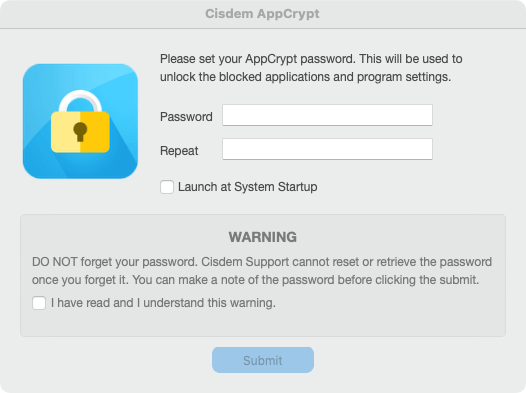
2. Open it. Set a password.
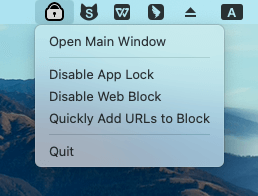
3. Right-click on its icon on the menu bar. Select Open Main Window.
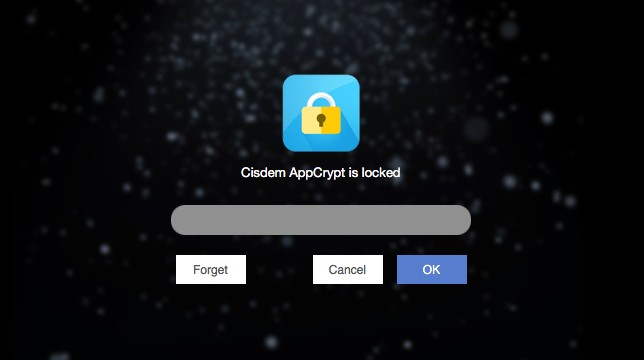
4. Enter the password to access the main window.
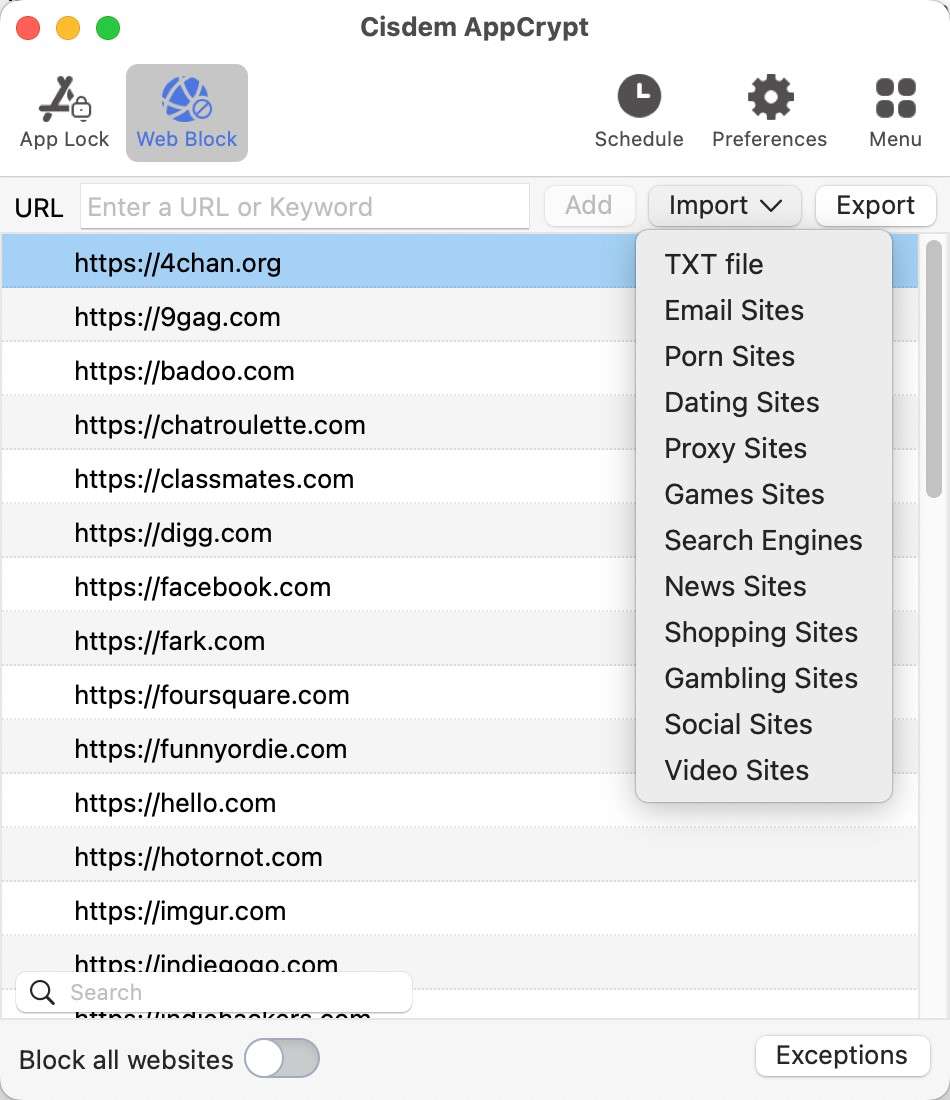
5. Go to the Web Block tab.
6. Add websites you want to restrict.
- Enter a URL such as youtube.com. Click Add.
- Or click Import. Select a category, such as Social Sites.
Open Dia and try accessing the blocked sites.
My test result
- The websites were blocked immediately when I tried opening them in Dia.
- The blocking also worked in Chrome, Safari, and other browsers on my Mac.
- The blocking cannot be bypassed without entering the correct password.
- I could still access work-related websites.
- The Schedule feature helped me stay focused during work hours.
Overall, AppCrypt worked well for my needs. It is a good choice for users who want stronger control over distracting websites on Dia.
2. Use BlockGuard to block websites on Dia
Best for: Blocking short-form content, adult websites, and other distractions on Dia.
I recently tested this website-blocking extension on the Dia browser to see whether it could help reduce my endless scrolling habit.
Why I chose it
I chose BlockGuard because it focuses on controlling the types of content that usually distract me:
It blocks Shorts and Reels on social media sites with one click.
It offers both Blocklist and Whitelist modes.
It can filter explicit content from search results.
It allows me to set daily time limits for specific websites.
It tracks my browsing time on distracting websites.
How I blocked websites on Dia
1. Open the Chrome Web Store in Dia.
2. Search for BlockGuard. Add it to Dia.
3. Open the extension settings. Click Features.
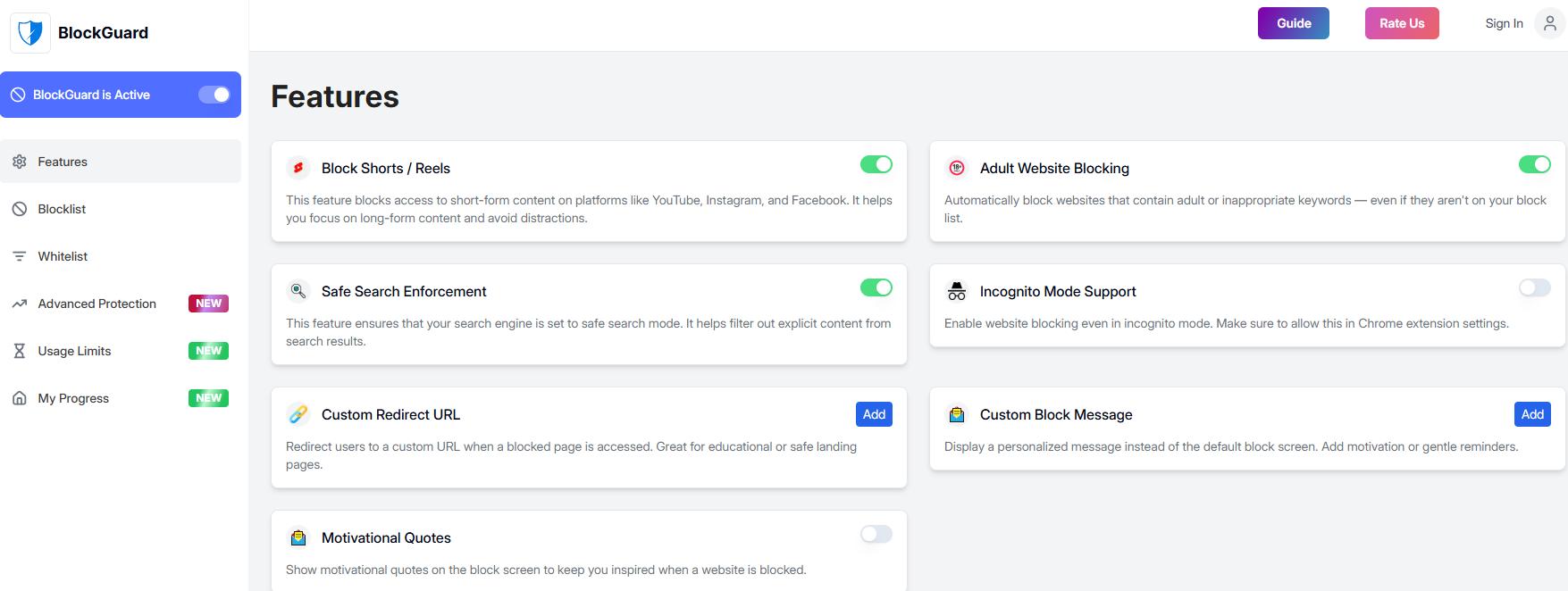
4. Enable Block Shorts / Reels.
By default, the Adult Website Blocking and Safe Search Enforcement features are also enabled.
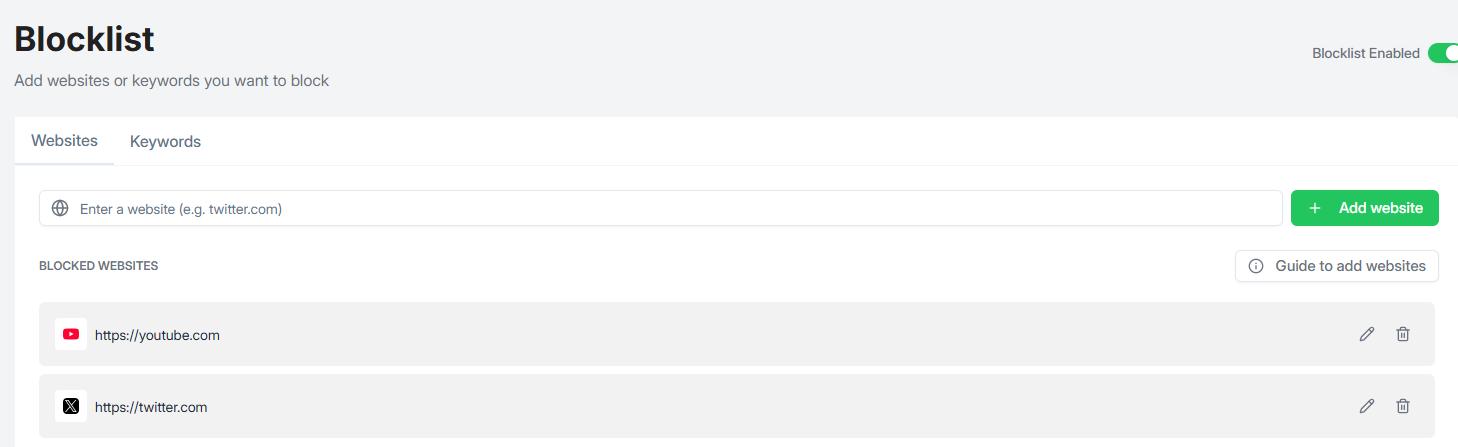
5. Go to Blocklist. Enter a website URL such as twitter.com. Click Add Website.
My test result
- The websites I added to Blocklist were successfully blocked in Dia.
- The blocking only worked in Dia because the extension was installed only on this browser.
- The Block Shorts / Reels feature also blocked access to the entire YouTube website in my test, as well as Facebook Reels and Instagram Reels.
- I could still disable or uninstall the extension without entering a password. The blocking could be easily removed.
Overall, BlockGuard is better suited for self-control rather than parental control. Its biggest advantage is the ability to block Shorts and Reels, which helps reduce time spent on social media sites.
3. Use StayFocusd to block websites on Dia
Best for: Setting time limits for distracting websites on Dia and reducing unnecessary screen time.
StayFocusd is a browser extension designed for productivity. It’s available for Dia. It helps control browsing habits without completely blocking websites.
Why I chose it
After testing several website-blocking extensions for Dia, I found StayFocusd useful because it focuses on time management rather than only blocking access:
- It helps me set time limits on specific websites or a group of websites on Dia.
- It lets me create different blocking groups for different situations, such as work time or break time.
- It also offers the Allowed Sites mode.
- The Require Challenge feature makes changing settings less convenient when I want to bypass my own restrictions.
- It can track screen time across devices by connecting with the StayFree mobile app.
How I blocked websites on Dia
1. Open Dia. Go to the Chrome Web Store.
2. Search for StayFocusd and add it to Dia.
3. Open StayFocusd settings. Click Blocked Sites.
4. Click Add group.
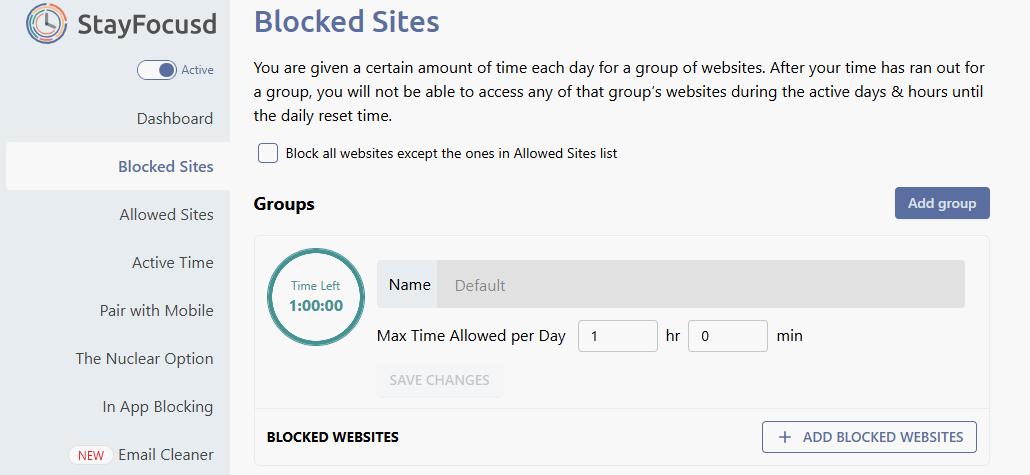
5. Enter the group name. set the maximum time allowed per day. If you want to block a site completely, set the time limit to 0 hours and 0 minutes.
6. In the “Enter blocked websites” box, enter the websites you want to block on Dia.
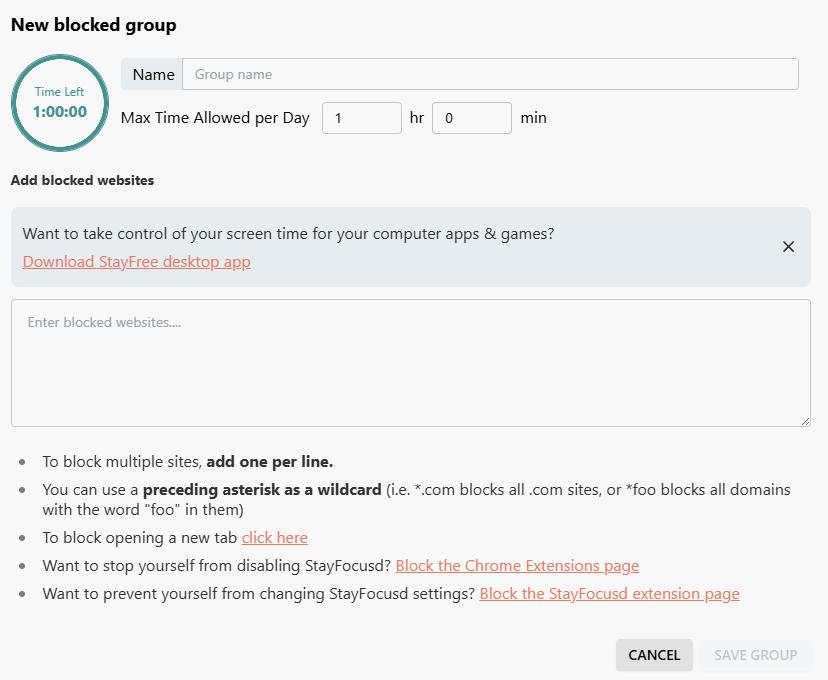
7. Click Save Group.
My test result
- Websites were blocked automatically after I reached the daily time limit.
- Setting the allowed time to 0 minutes per day completely blocked access to the selected websites.
- The Require Challenge feature added an extra step before changing settings, which helped reduce impulsive changes.
- However, I could still remove the restriction by disabling or uninstalling the extension from Dia.
Overall, StayFocusd works best for users who want to control how much time they spend on distracting websites instead of completely blocking them.
Quick comparison: website blockers for Dia
| Tool | Choose it if you want to… | Not ideal if you need… |
|---|---|---|
| Cisdem AppCrypt | Block websites on Dia with stronger control | A lightweight browser extension |
| BlockGuard | lock distracting content like Shorts, Reels on Dia | Strict website blocking with password protection |
| StayFocusd | Limit the time you spend on distracting websites in Dia | Blocking many websites at once |
FAQs
Does Dia have a built-in website blocker?
No. The Dia browser does not currently include a built-in feature to block websites. If you want to block websites on Dia, you need to use a third-party website blocker.
How to allow access to only certain websites on Dia?
You can use a website blocker that supports Allow List mode to allow access only to websites you choose. For example, Cisdem AppCrypt lets you create an Always Allow list and block all other websites while allowing only selected sites in Dia.
Do website blockers work on Dia?
It depends. Some website blocker apps that support Chromium-based browsers can also work with Dia. However, browser extensions only affect the Dia browser where they are installed.

Norah Hayes likes to share her tips on how to improve focus and stay motivated at work. She believes it is essential to eliminate all online distractions during work hours.

Ethan Long joined Cisdem in 2015 as a developer and now serves as the editorial advisor for Cisdem AppCrypt. He actively tests and uses Cisdem AppCrypt and other screen-time management tools to ensure AppCrypt meets its promises in real-world scenarios.