


How to Block Snapchat on Computer, Phone and Router 2026
 4.7K
4.7K
 1
1


Snapchat can be fun for sharing photos and videos. But endless Stories can easily lead to excessive use or even addiction. In addition, there are some inappropriate content on Snapchat, making parents worry about children’s online safety. In this article, we will explore four effective methods to block Snapchat on your computer, phone, or router.
 Cisdem AppCrypt
Block Snapchat on Computer & Phone
- Block websites and webpages on Chrome, Safari, and other browsers
- Block specific sites, categories of sites, and URLs containing specific keywords
- Lock apps with a password to prevent unauthorized access
- Set schedules to block sites and lock apps during certain times
- Require a password to open, quit, or uninstall AppCrypt
- Block popular social media sites with one click
- Set time limits for Snapchat usage or block it completely
- Help improve productivity, protect privacy, and reduce screen time
- Easy to use and hard to bypass
- Compatible with Windows, Mac, Android, iPhone, and iPad


Comparison of Snapchat Blocking Methods
The table below compares the four methods discussed in this article for blocking Snapchat, helping you choose the right solution based on your needs.
| Method | Supported Devices | Best For | Limitations |
|---|---|---|---|
| Cisdem AppCrypt (Recommended) | Windows, Mac, Android, iPhone, iPad | Parental control, productivity, and screen time management | Requires installing an app |
| Digital Wellbeing | Android | Basic app usage limits on Android devices | Does not provide advanced controls |
| Screen Time | iPhone, iPad, Mac | Apple users who prefer built-in controls | Cannot completely block the Snapchat app |
| Router Settings | All devices connected to the network | Blocking Snapchat across a home network | Stops working when the device is disconnected from the network |
Method 1. Block Snapchat with Cisdem AppCrypt
If you want to completely block Snapchat or limit when it can be used, Cisdem AppCrypt is an easy and effective solution. It allows you to block the Snapchat app, website, and other distracting platforms with password.
With the ability to launch automatically at system startup, AppCrypt helps ensure your blocking settings stay active, making it a useful tool for parents who want to manage children’s online activities or reduce screen time.
AppCrypt is avaialble for computer and phones. Below is how to block Snapchat on different devices.
Steps to Block Snapchat on a Computer with AppCrypt
Snapchat does not offer a dedicated desktop app, but users can still access Snapchat Web through browsers on Windows and Mac. AppCrypt lets you easily block access to Snapchat permanently or during specific times. It also supports blocking sites by category, such as social media sites and video sites.
1. Download and install AppCrypt on your Windows PC or Mac.
 Free Download Windows 10 or later
  Free Download macOS 10.15 or later
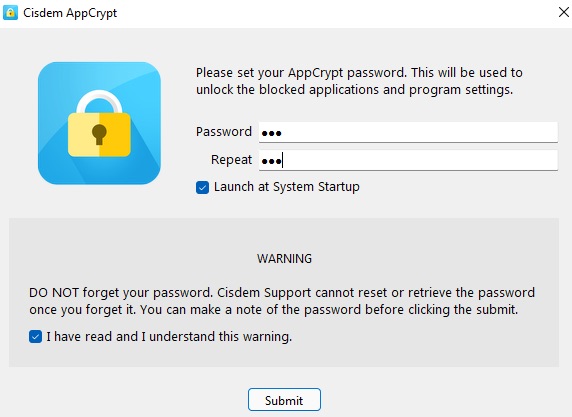
2. Launch it and set a password. This will prevent other users from changing the settings.
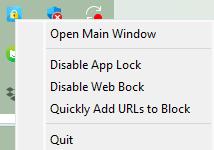
3. Right-click the lock icon on Windows toolbar/Mac menu bar. Choose Open Main Window.
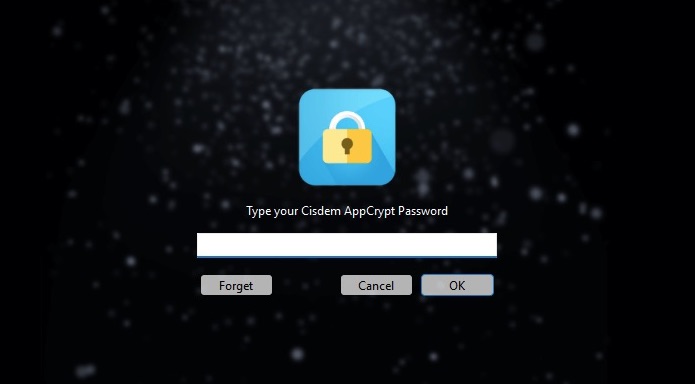
4. Then enter the password to access its main window.
5. Go to the Web Block tab.
Windows users will be asked to install extensions for different browsers. Click Install next to Chrome, Edge, or other browsers you wish to block Snapchat in. Follow the prompts to install the extension. (Mac users can skip this step.)
6. To block Snapchat, enter snapchat.com in the URL field. Click Add.
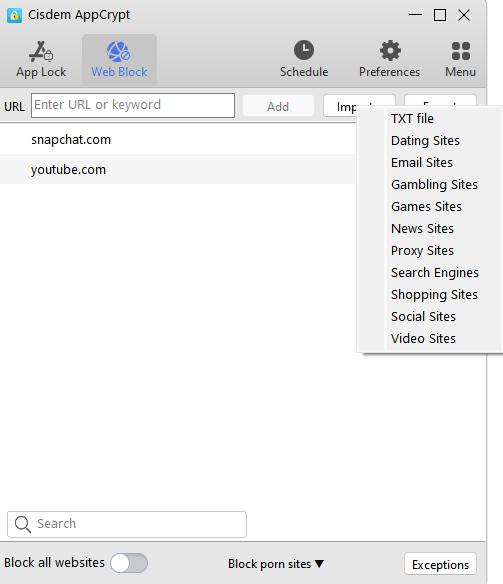
Now Snapchat is blocked on computer. Any user cannot access Snapchat web on this computer without the password.
Tip 1. How to set time limit for Snapchat?
By default, Snapchat is blocked completely once you adding it to the block list. You can also use AppCrypt’s Schedule feature to set time limit for Snapchat.
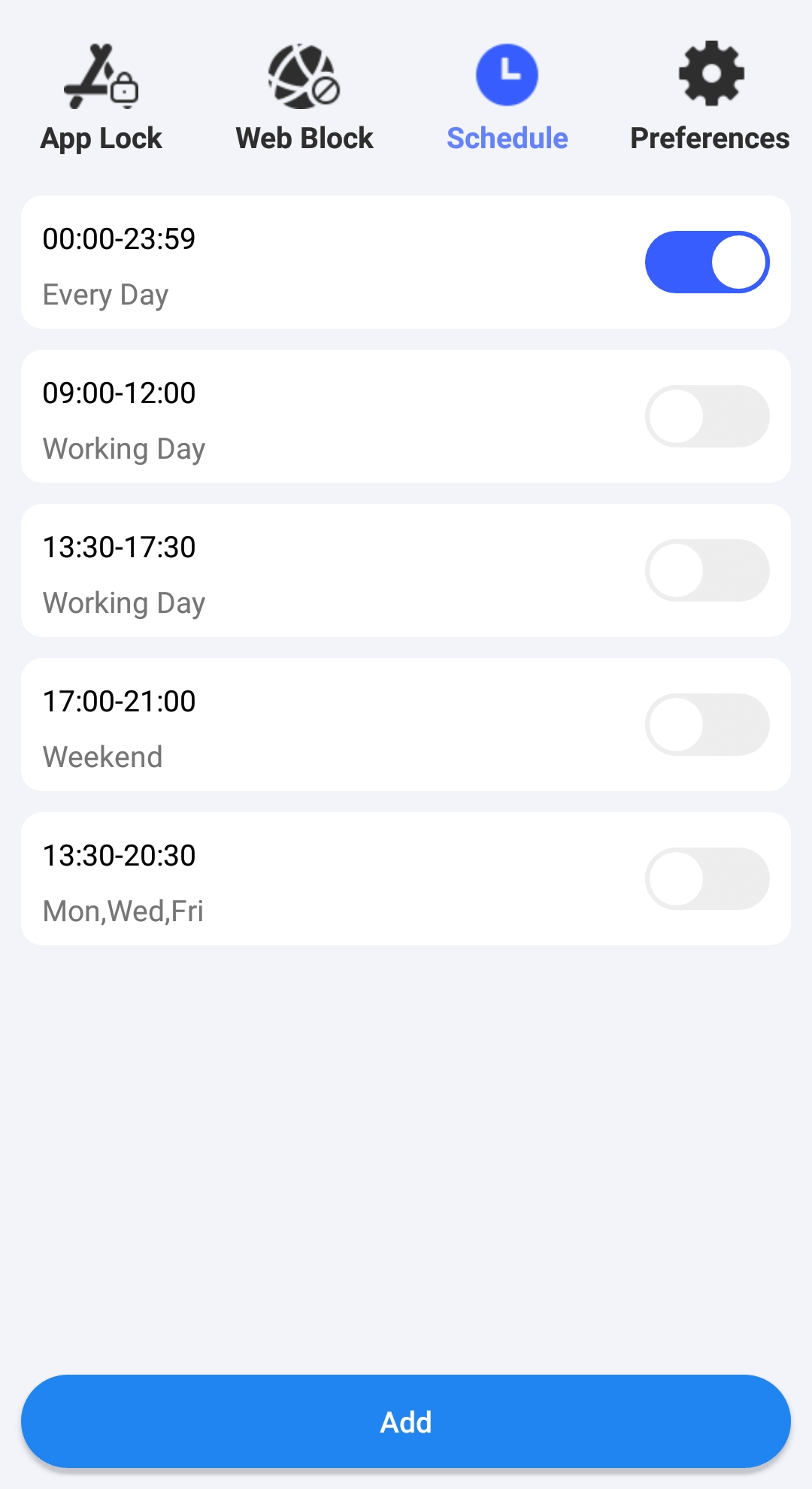
Select Snapchat from the block list. Then you’ll see a clock icon appears. Click the clock icon. Enable Custom Schedule in the bottom-left corner. Click Add Schedule. Set a time to block access to Snapchat on your computer.
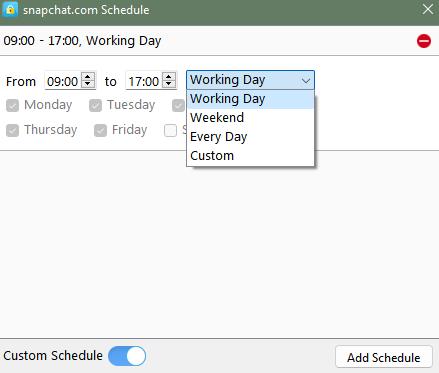
Tip 2. How to block all popular social media sites?
Social media is a major source of distraction for us when working or studying. In step 6, you can click the Import buton next to the Add button. Select Social Sites. This will block access to all hot social media websites on the Internet, including Snapchat.
🎬Watch the video below to learn how to block Snapchat on a laptop with AppCrypt.
Steps to Block Snapchat on Android with AppCrypt
On Android devices, AppCrypt helps you block the Snapchat app and web with password.
1. Install Cisdem AppCrypt from the Google Play Store.

2. Set a PIN or pattern when you open it for the first time.
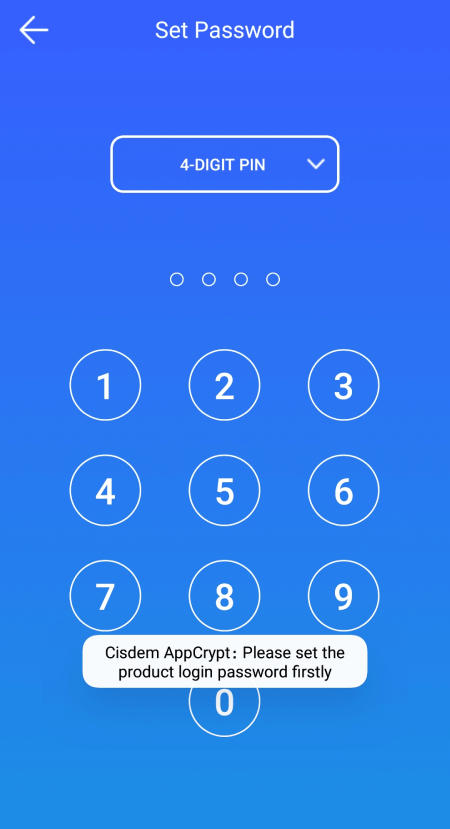
3. Choose the App Lock tab.
4. Find the Snapchat app and then toggle the switch next to it to the on position.
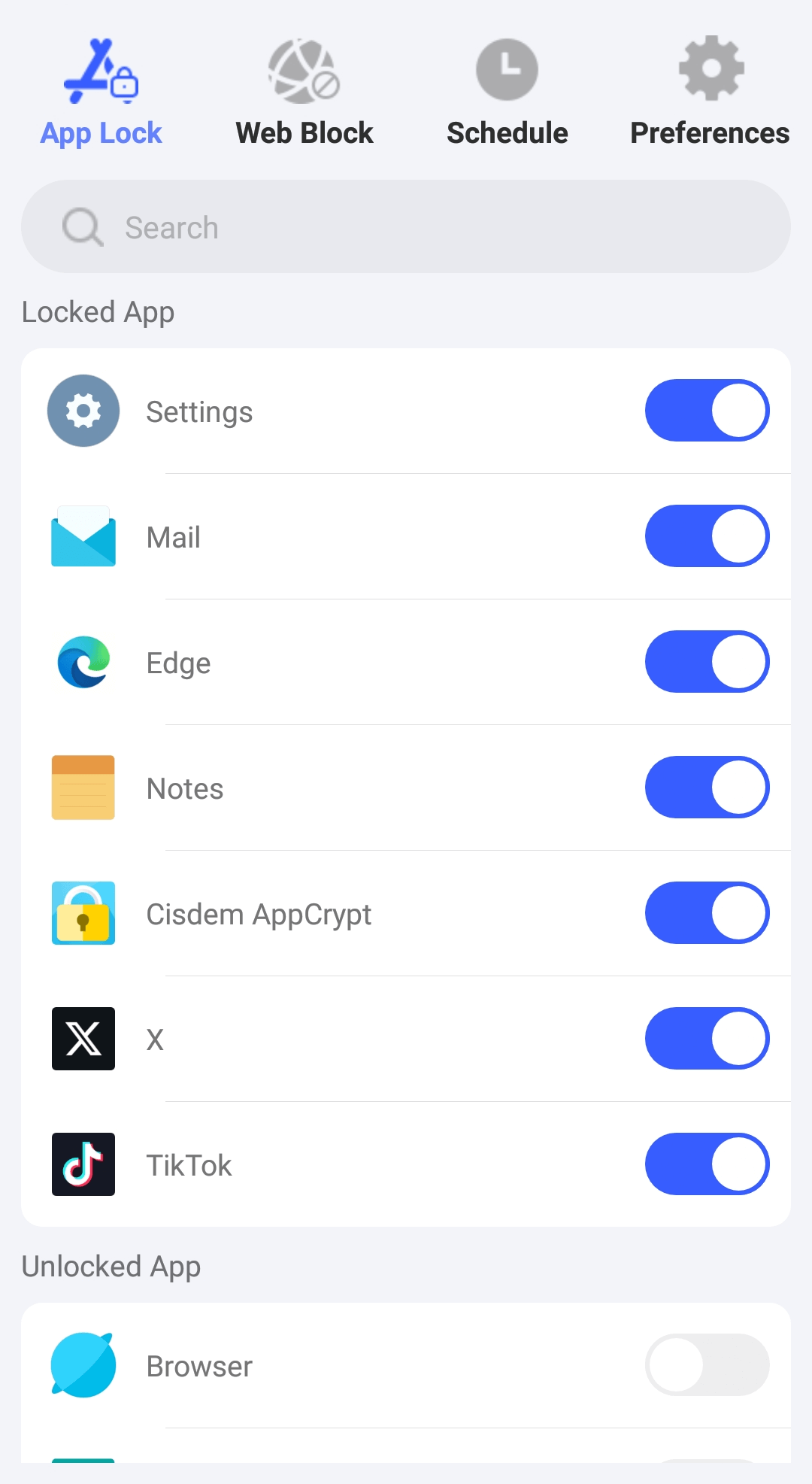
Now Snapchat is blocked. And by default the blocking is forever. If you only want to restrict access to Snapchat during certain times, you can use this tool's Schedule feature.
Steps to Block Snapchat on iPhone or iPad with AppCrypt
For iPhone and iPad users, AppCrypt helps limit access to Snapchat and other distracting apps and websites. It provides an additional layer of control beyond Apple’s built-in Screen Time features, such as Deny App Installation, Deny App Removal, and Deny In-app Purchases.
1. Download and install AppCrypt from the App Store.

2. Go to the App Lock tab. Click Add/Remove.

3. Search for Snapchat app. Select it. Click Done.
This way, Snapchat is blocked.
If you want to set a password, go to Preferences. Enable the options of Notification and Notification unlock. It'll prompt you to set a password.
Method 2. Block Snapchat on Android with Digital Wellbeing
Android users can use the built-in Digital Wellbeing feature to block the Snapchat app without installing any third-party apps. Available on many Android devices, Digital Wellbeing allows you to monitor app usage and set daily app timers. By setting Snapchat’s usage limit to zero, you can prevent yourself or your child from opening the app.
1. Open the Settings app.
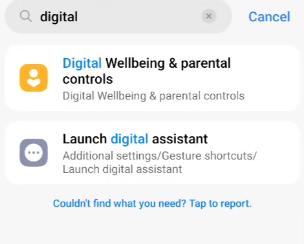
2. Find the Digital Wellbeing and Parental Controls. Click it.
3. Scroll down. Click App timers.
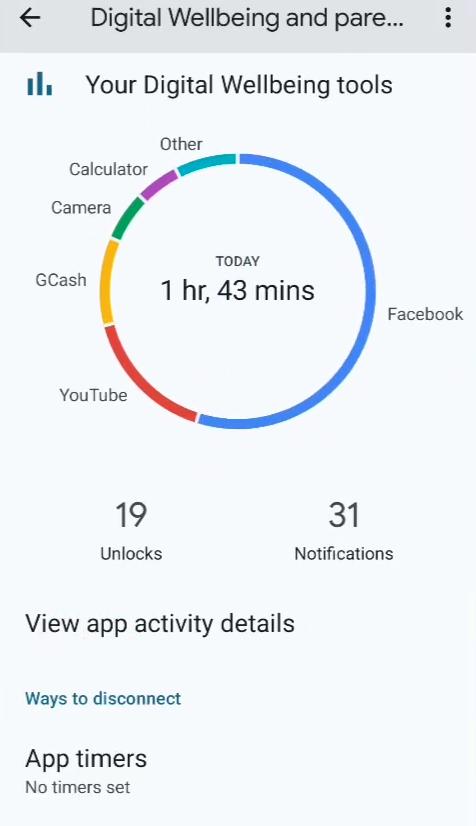
4. Select the Snapchat app from the applications list.
5. Click App Timer.
6. Set the timer to 0 hours and 0 minutes. Click OK.
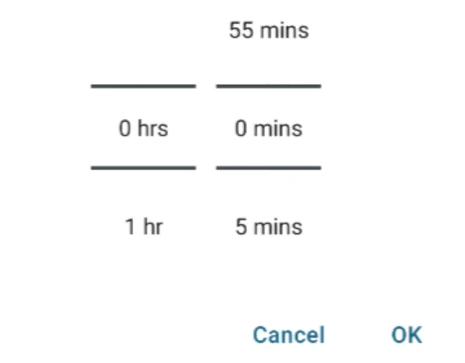
Now Snapchat is blocked on your Android device.
To unblock the app, just return to the settings and turn off the timer.
Method 3. Block Snapchat on iPhone and iPad with Screen Time
iPhone and iPad users can use the built-in Screen Time feature to block Snapchat without installing any third-party apps. Screen Time allows you to set app limits, block websites, and manage your or your child’s screen time.
With Screen Time, you can set a daily app limit for Snapchat as low as 1 minute. It is mainly designed for screen time management rather than completely blocking the app.
1. Open the Settings app on your iPhone or iPad.
2. Scroll down. Click Screen Time.
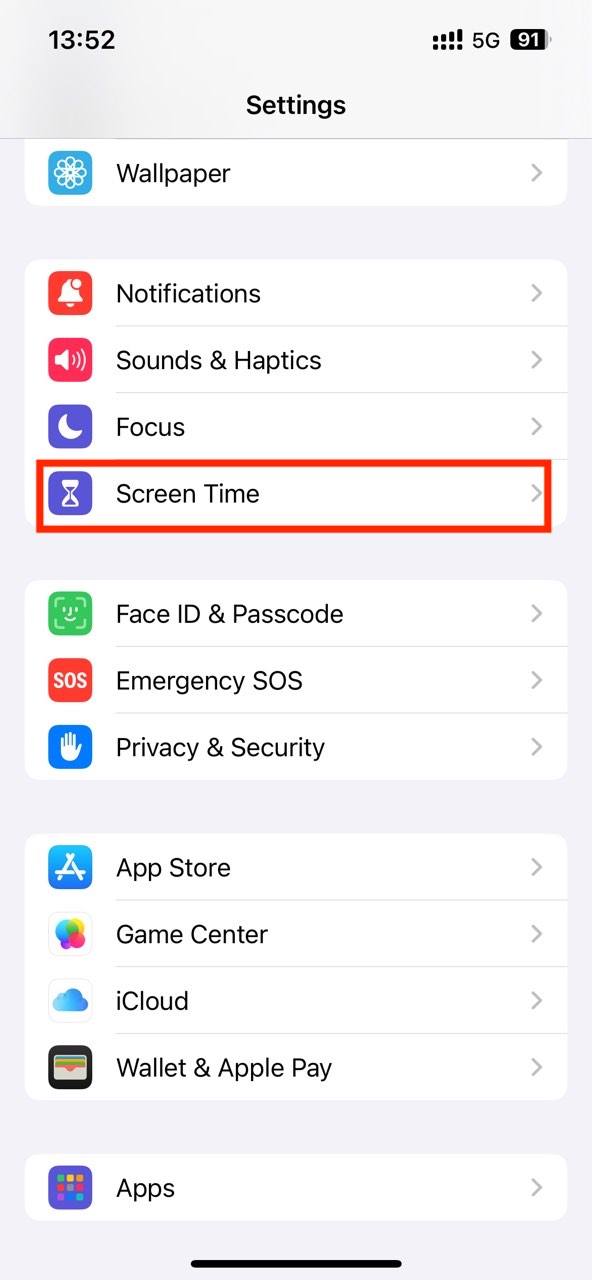
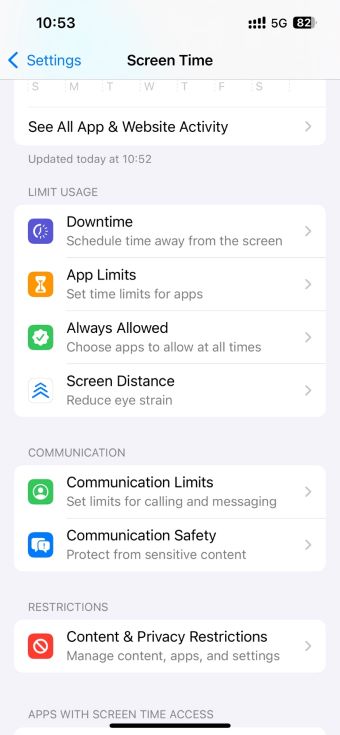
3. Click App Limits.
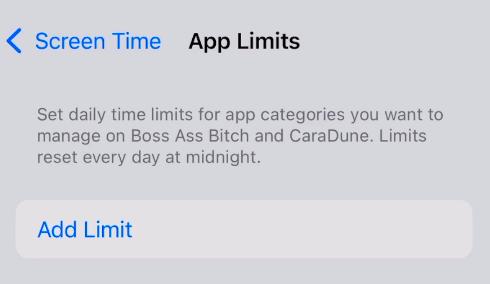
4. Click Add Limit.
5. Select Social and find Snapchat from the app list. Or search for it.
6. Set the time limit to 1 minute.
7. Click Add.
Now Snapchat is restricted on your device.
Method 4. Block Snapchat on All Devices with Router
If you want to block Snapchat on all devices connected to your home Wi-Fi network, you can use your Wi-Fi router. This method can block Snapchat across multiple devices at once, but it only works while the devices are connected to that router. If you take your device out of range of the router, the blocking won't work.
1. Open a web browser on your phone or computer.
2. Enter your router’s IP address in the browser’s address bar.
3. Log in with your router username and password.
4. In the router’s settings page, find options such as Parental Controls, Access Control, or Website Blocking.
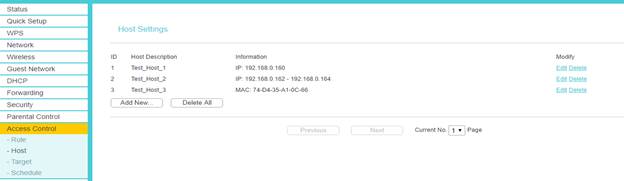
5. Add the Snapchat app and snapchat.com to the block list.
6. Save the settings.
7. Restart your router.
Now Snapchat is blocked on devices connected to your home network. If you try to open Snapchat, you’ll get an error message.
FAQs
What are the risks of Snapchat?
Snapchat is a fun app that provides a place to share photos, videos, chat with friends. At the same time, there are risks in it, especially for young people. Here are 4 risks of Snapchat:
1. Snapchat may make young people feel less satisfied with their bodies and appearance. In fact, most images, videos in social media platform are filtered or highly edited. However, some people still compare themselves to them and desire to be slimmer or prettier. Even feel depressed and anxious.
2. Children may see inappropriate content in Snapchat, especially in public shared content. Many users even said they have received unsolicited nude photos on Snapchat.
3. Snapchat is designed to be addictive. Once you open it, it's easy to get addicted to it and lose track of time. That is why we need to block Snapchat, permanently or at certain times to control the time you spend on Snapchat every day.
4. Some users may accidentally share personal information on Snapchat, and then result-in risks of identify theft, scams, cyber bullying, and more. Although all content in Snapchat will be automatically deleted once they’ve been viewed, it is possible for someone to take a screenshot.
How can I protect my kids from inappropriate content on Snapchat?
Snapchat offers some built-in settings that let parents protect child from inappropriate content by reporting Snapchat posts, blocking certain user, and changing contacts settings. For more details, you can go to the official site of Snapchat and visit its parental controls page.
What other social media platforms should I consider blocking on my child’s devices?
Except Snapchat, some social media platforms are also not safe for kids:
Twitter: This platform is a breeding ground for adult content.
TikTok: It’s easy to get addicted to it and it also present tons of inappropriate content.
Omegle: An anonymous video chatting platform. It’s one of the most dangerous social media apps for young kids.
Kik: An instant messaging app that may expose kids to large amounts of sexual content.
YikYak: It’s an anonymous app that ley you send messages to nearby users. This app currently has few features to protect young kids.
Read this post to learn more: Top 10 Adult Social Media Platforms to Block for Children
Conclusion
If you or your kids are addicted to Snapchat, or you believe that Snapchat content is not safe for your kids, the best solution is to block it. This article introduced four ways on how to block Snapchat on computer, phone and router. It’s also possible to block Snapchat on your device at the time you want to stay focused.

Norah Hayes likes to share her tips on how to improve focus and stay motivated at work. She believes it is essential to eliminate all online distractions during work hours.

Ethan Long joined Cisdem in 2015 as a developer and now serves as the editorial advisor for Cisdem AppCrypt. He actively tests and uses Cisdem AppCrypt and other screen-time management tools to ensure AppCrypt meets its promises in real-world scenarios.
Evelyn Torres
The router section was helpful. Thanks for the clear steps.