


How to Block Internet at Night on Devices and Wi-Fi
 130
130
 0
0


Here's the scenario. You plan to use your phone or computer for a little while before going to bed but end up spending hours chatting with your friends, browsing social media, or playing games. We've all been there.
Luckily, you can turn off the internet for less screen time and better sleep. In this article, I will show you how to easily block internet at night. There are two ways: blocking internet access on individual devices, or doing it on a network level (via Wi-Fi).
 Cisdem AppCrypt
Automatically Block All Websites at Night
- Block websites on Chrome, Safari, and other browsers with a password
- Block specific websites or only pages, URLs with certain words, and categories
- Provide an option to block all websites
- Also lock apps with a password
- Allow you to block websites and lock apps 24/7 or during scheduled times
- Easy to use
- Hard to bypass
- Help you automatically block all sites and apps at night
- Help with digital wellness, productivity, and parental control


How to block internet access at night on computers
Method 1. Use AppCrypt (Windows & Mac)
This method is user-friendly and provides lots of flexibility.
1. Download and install AppCrypt.
 Free Download Windows 10 or later
  Free Download macOS 10.15 or later
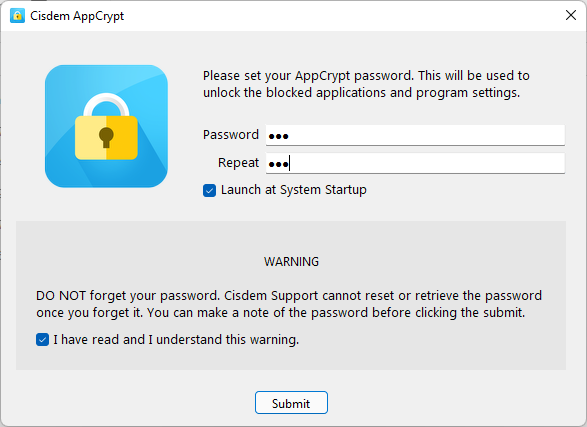
2. Open the app and set a password when prompted.
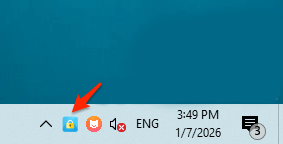
3. On a Windows computer, click the AppCrypt icon on the taskbar.
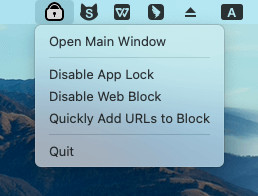
On a Mac, click the AppCrypt icon in the menu bar and choose Open Main Window.
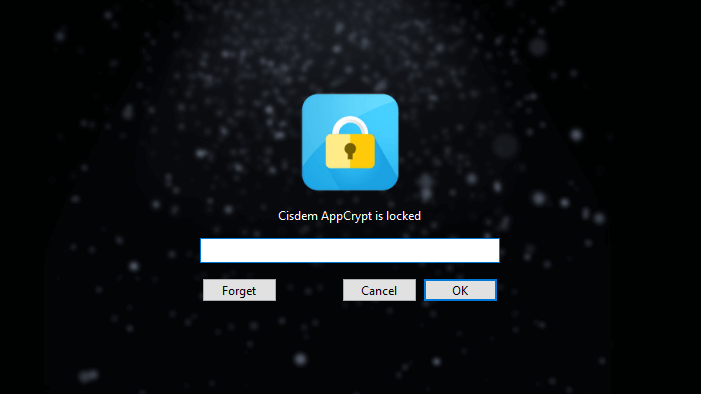
Then, enter the password when prompted to access the app's main window.
4. In the Web Block tab, turn on the Block all websites option.
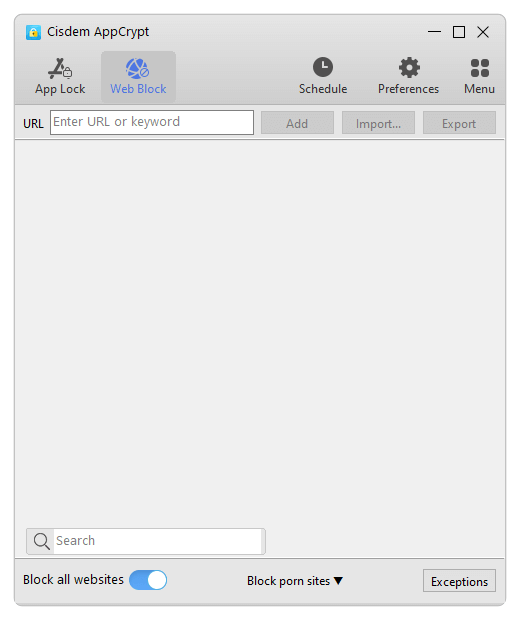
5.Click Schedule. In the General Schedule dialog that appears, easily set schedules based on your specific needs. For example, to block access from 10:30 PM to 6:00 AM, add two schedules: 10:30 PM to 11:59 PM, and 12:00 AM to 6:00 AM.
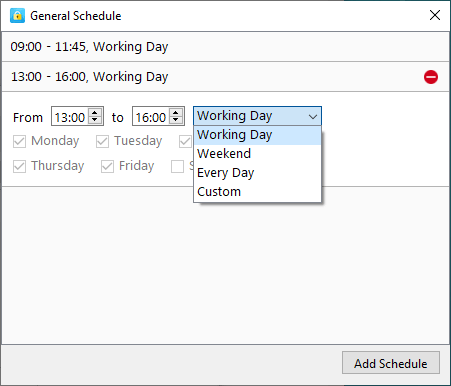
Now access will be automatically blocked during the specified night hours each day and unblocked for the rest of the day.
Due to the password set in step 2, you can prevent others, such as your child, from changing the blocking settings.
(If you want, you can go to the App Lock tab to add apps to block at night.)
Method 2. Use Screen Time (Mac)
Screen Time is a set of settings in Mac's System Preferences. Therefore, this method is a native solution from Apple.
1. Open the System Settings app from the Apple menu or Launchpad.
2. In the sidebar on the left, choose Screen Time.
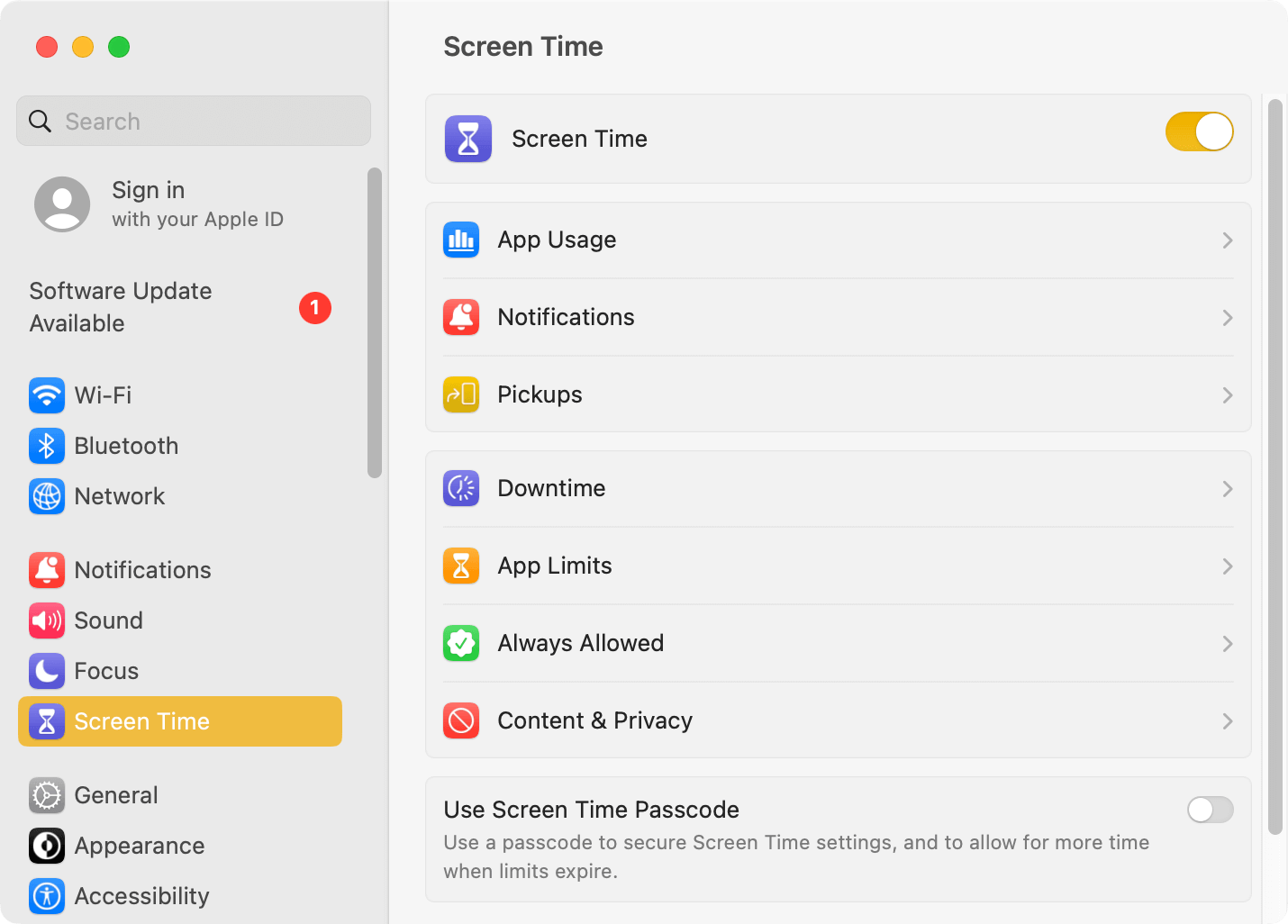
3.Toggle the switch next to Screen Time to the on position.
4. Click Use Screen Time Passcode. Then, set a 4-digit passcode. (This passcode is used to protect your Screen Time settings, not the device login password.)
5. Click Downtime.
6. In the interface that appears, turn on Downtime and enable Block at Downtime.
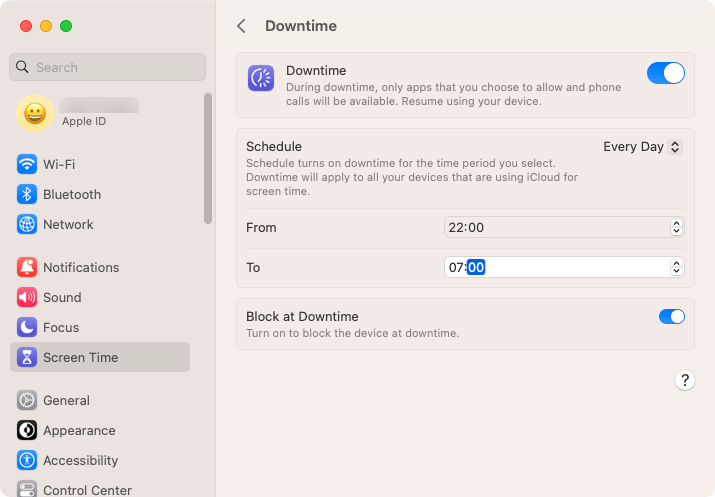
7. In the same interface, click the Schedule pop-up menu and select Everyday. Then, select the specific period when you want to block internet at night.
From now on, the user of this Mac won't be able to access the internet through browsers or apps during the scheduled night hours, since they are locked with a password.
How to block internet at night on Android devices
Method 1. Use the built-in task automation tool if available
Some Android phones and tablets have a built-in tool to help you automatically disable internet connection. Here I will use Xiaomi phone as an example to show you the process.
1. Open the Settings app.
2. Search for Automated tasks and tap it.
3. Tap Sleep in Task center.
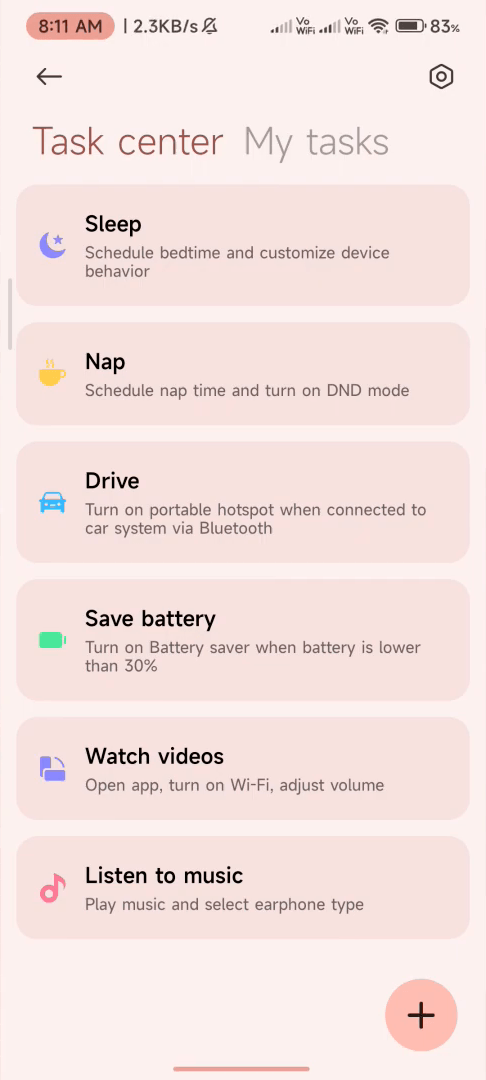
4. Optionally, tap the If section to adjust the default night hours (From 10:00 PM to 08:00 AM) as needed.
5. In the Then section, make sure WLAN displays Turn off WLAN and Mobile data displays Turn off mobile data.
Method 2. Use Lock Me Out
Lock Me Out is a third-party tool designed to restrict web and app access on Android.
1. Download and install Lock Me Out.
2. In Settings, select the Require a password to open Lock Me Out checkbox.
3. In the main interface, tap the Add button in the Regular Lockouts section.
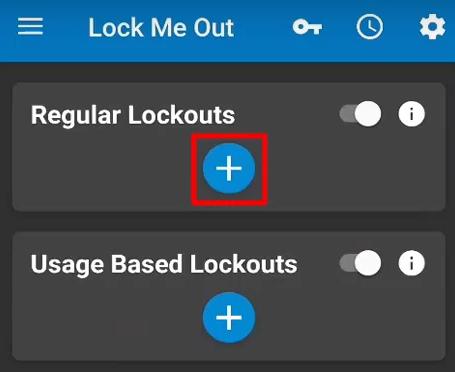
4. On the screen that appears, give the rule a descriptive name.
5. In the Lockout Time section, select Repeat and set start and end times, such as 10:00 PM to 7:00 AM.

6. In the Website Blocking section, select the Allow mode.
7. Click OK to save your settings.
How to block internet at night on iPhone and iPad
Method 1. Use Screen Time
Screen Time is also available as a native solution for iPhone and iPad.
1. Open the Settings app.
2. Tap Screen Time and turn it on.
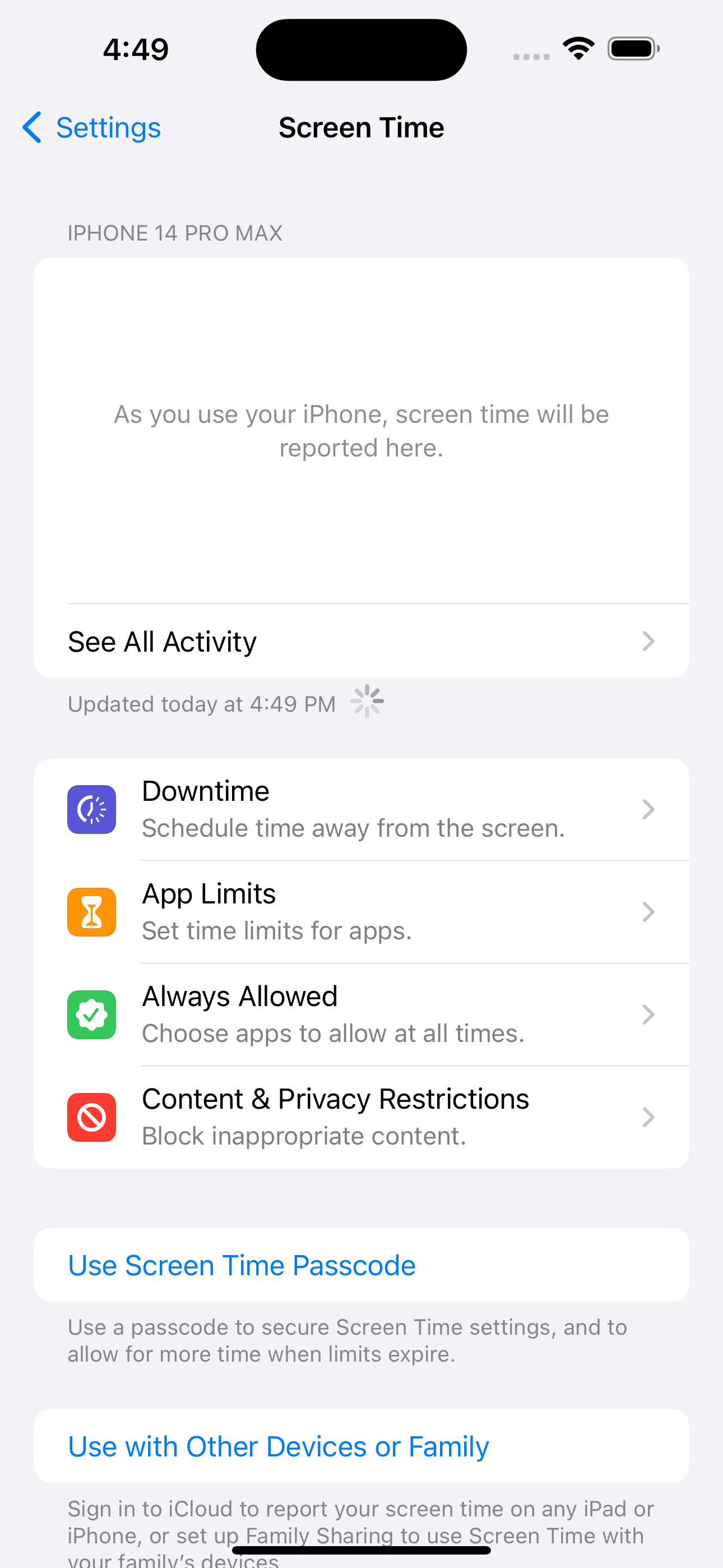
3. Tap Use Screen Time Passcode and set a 4-digit passcode.
4. Tap Downtime.
5. Turn on Scheduled.
6. Set a daily schedule of, say, from 10:00 PM to 7:00 AM.
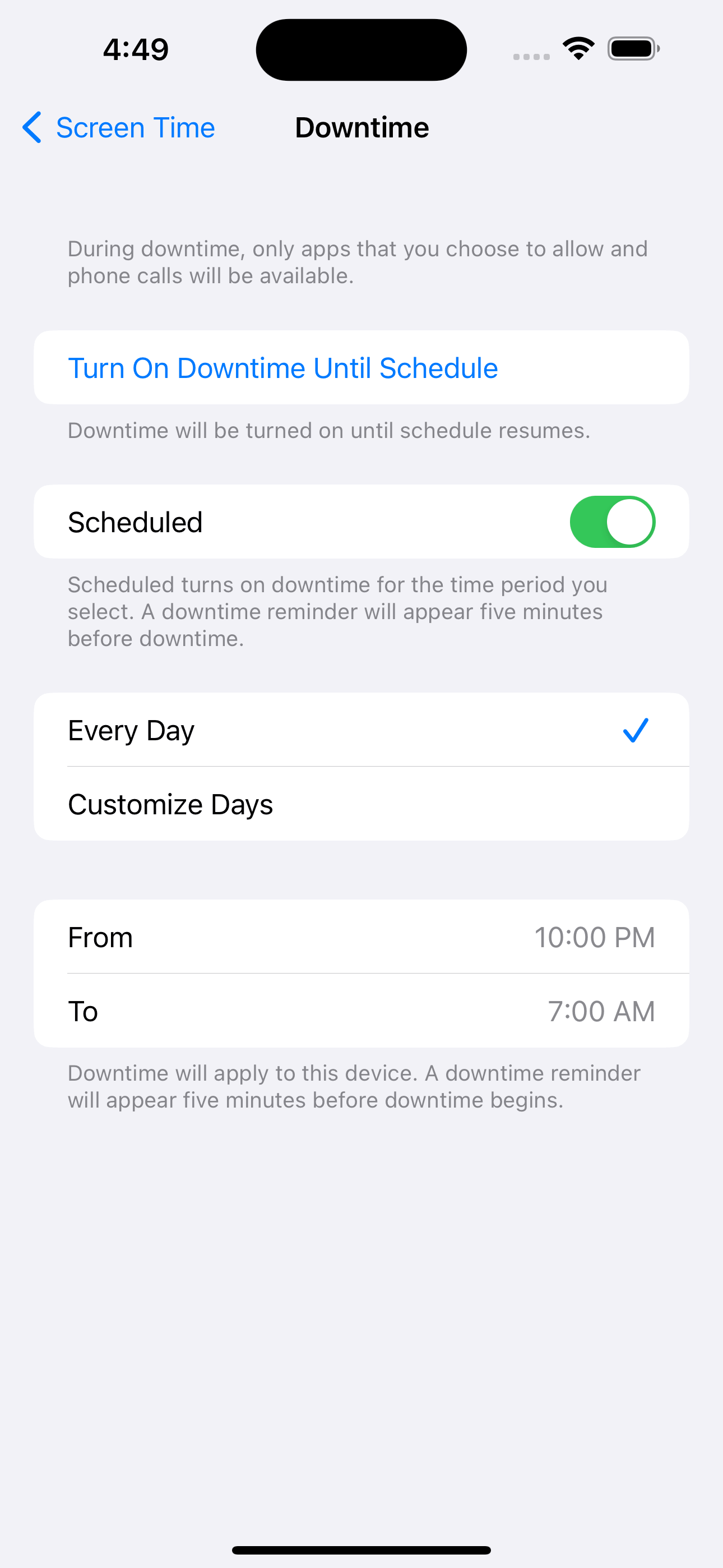
7. Turn on Block at Downtime.
8. Tap Always Allowed and make sure that very essential apps are allowed, such as Phone.
Now, internet is inaccessible through browsers and apps during night hours, since these are locked.
Method 2. Use Shortcuts
Shortcuts is a pre-installed app on iPhone and iPad that can help users automate various tasks.
1. Open the Shortcuts app.
2. Tap Automation at the bottom.
3. Tap Create Personal Automation.
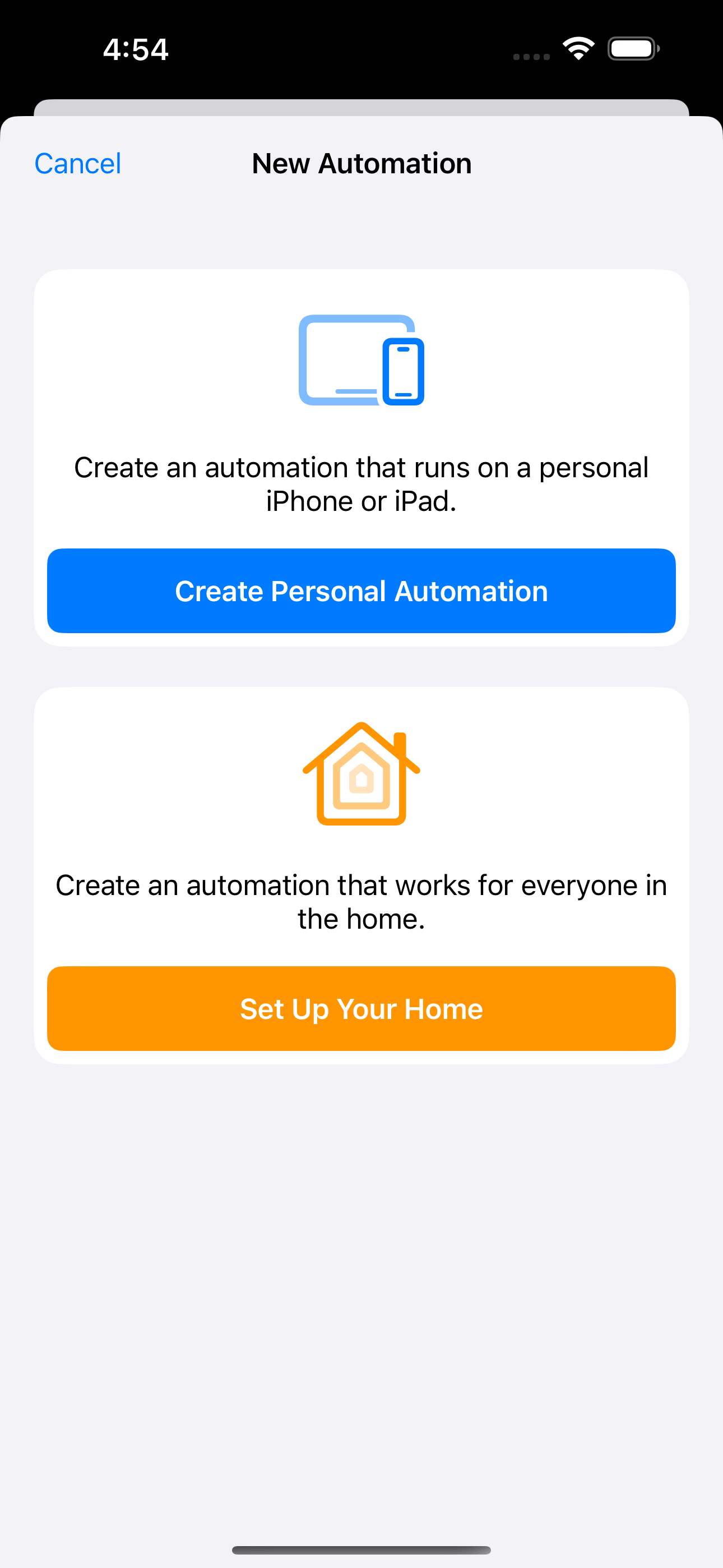
4. On the New Automation screen, tap Time of Day > Time of Day. Then, select a specific time, say, 11:00 PM.
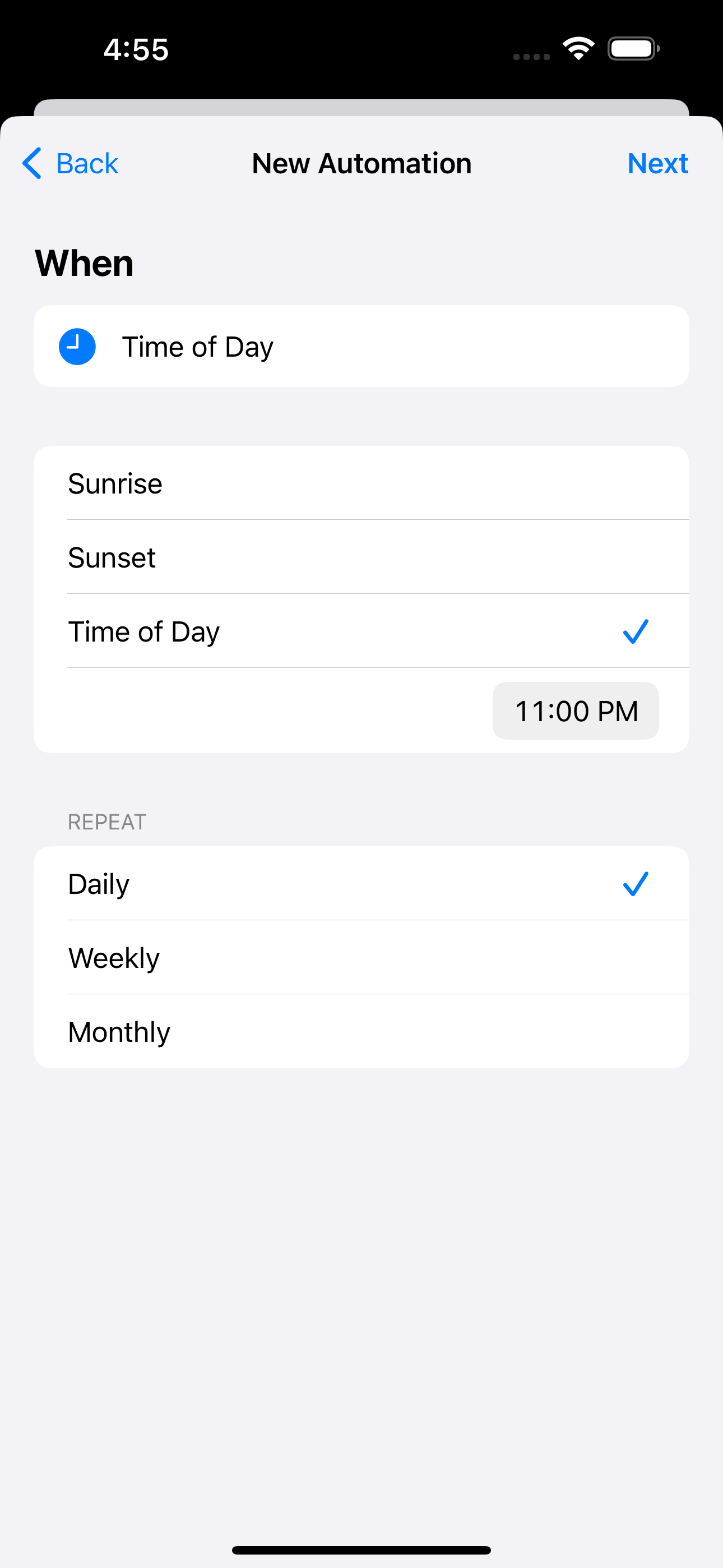
5. In the Repeat section, tap Daily.
6. Tap Next in the top right corner.
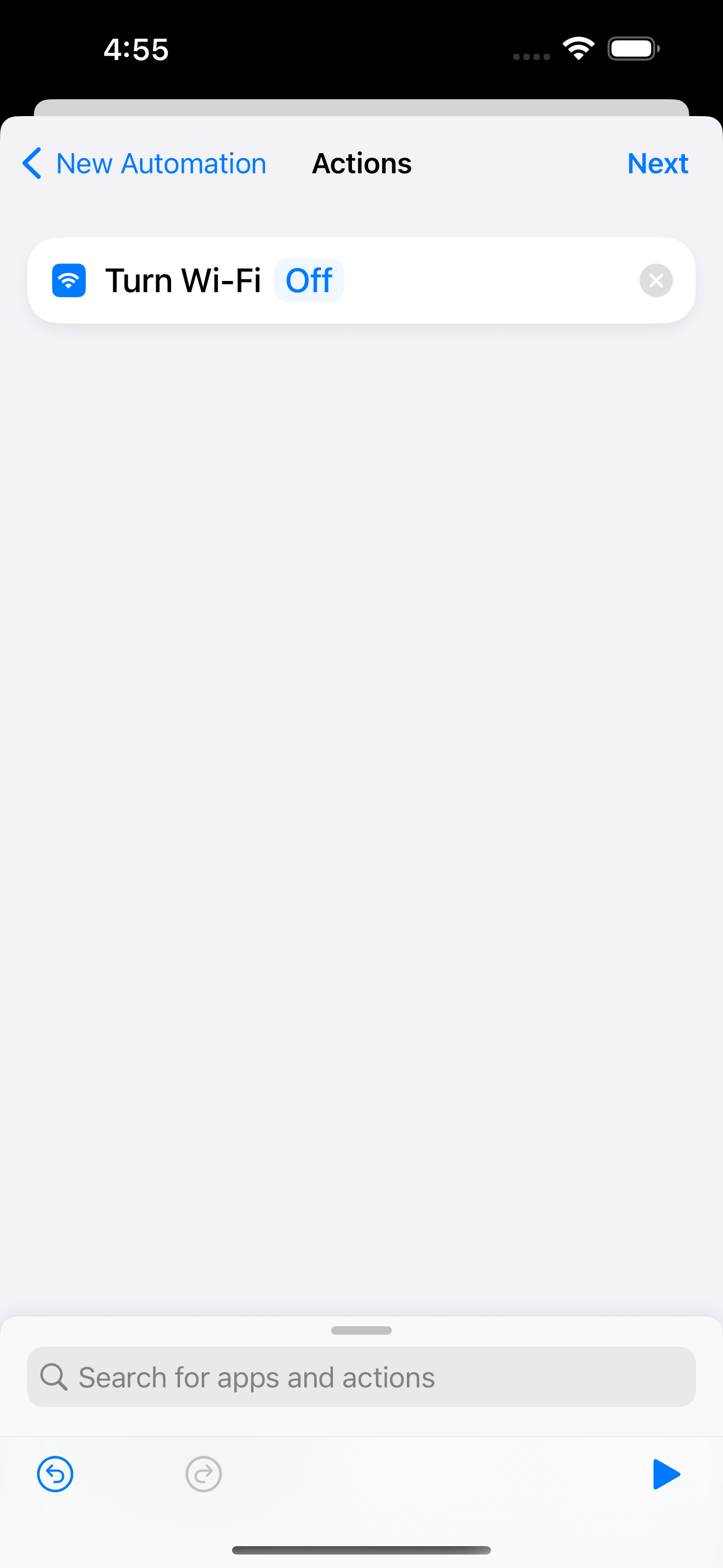
7. On the Actions screen, tap Add Actions. Then, search for Set Wi-Fi.
8. Tap the icon next to Turn Wi-Fi to make it display Off. Tap Next.
9. On the screen that appears, disable turn off Ask Before Running and tap Done.
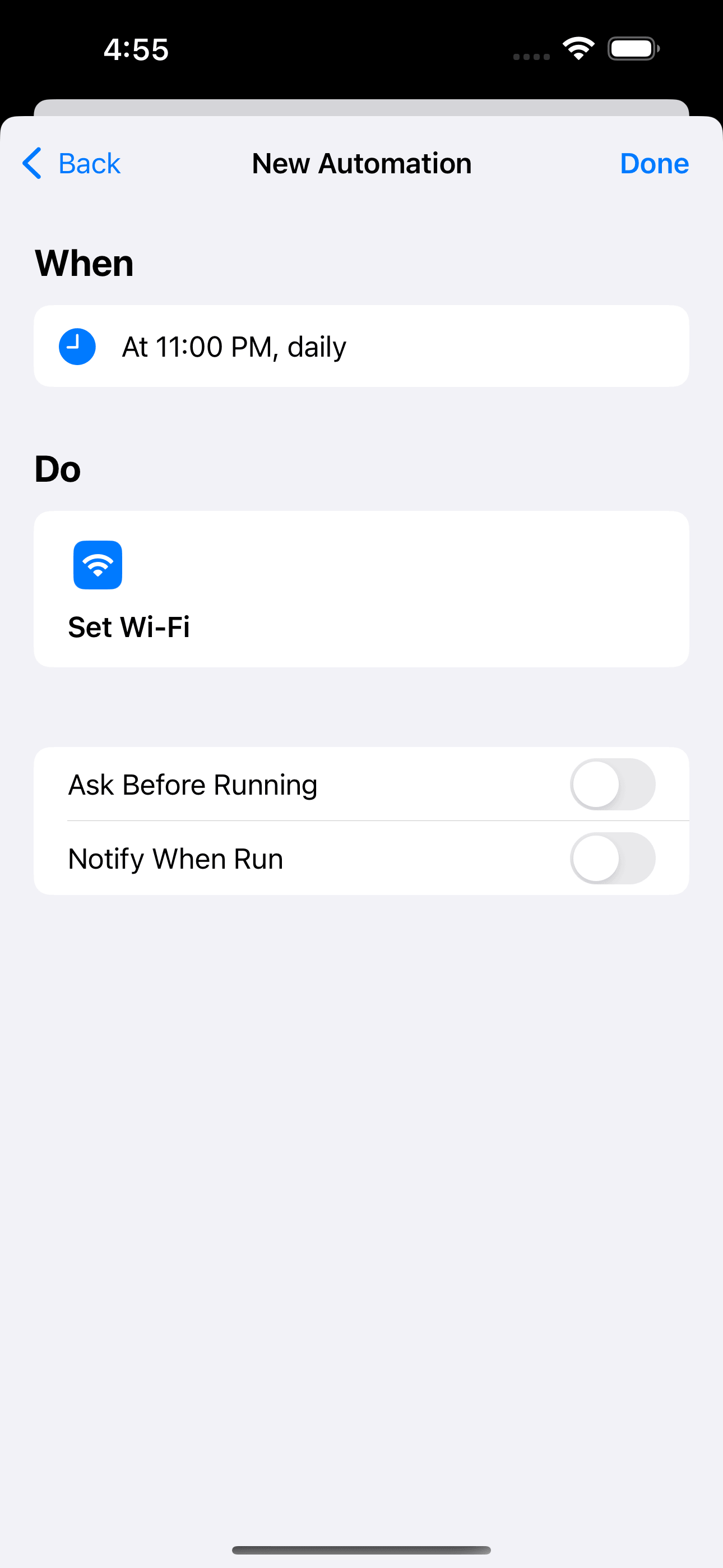
10. Repeat the steps to create a new automation that automatically turns on Wi-Fi on, say, 7:00 AM each day.
How to schedule internet to turn off on Wi-Fi at night
If you have access to router settings and the router used has a feature to disable internet during certain hours, then I highly recommend this method. Why?
Here are some reasons. The turnoff will apply to all devices connected to network generate by this router. It requires a password to undo the turnoff settings, making it hard for someone, like a kid, from bypassing it.
(To find if your router has such a feature, you can check out its settings or search online)
Here I take a TP-Link router as an example to show you the steps. Even if you use a different router, the process can be similar.
1. In your browser, visit 192.168.1.1 (or 192.168.0.1), and you should see a login interface of your router. (If not, try finding the correct IP address on the back of your router.)
2. Log in with a username and password or a password alone, depending on your router.
3. Go to HomeShield > Parental Controls.
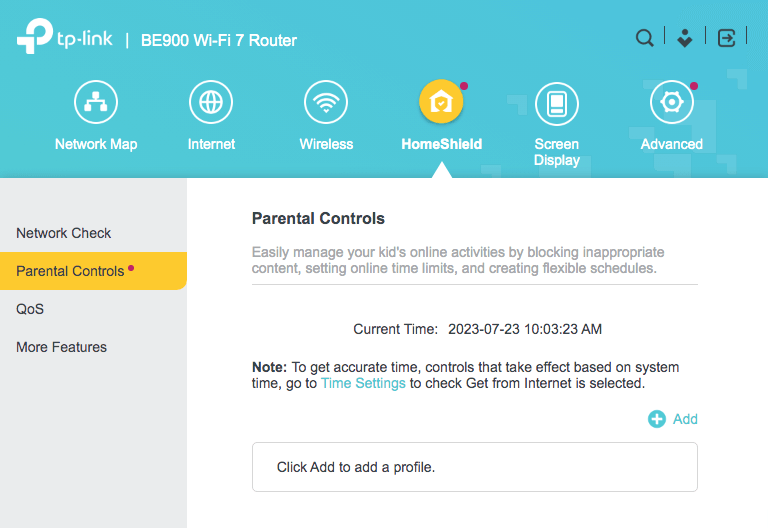
4. Click Add.
5. Add the device(s) you need to turn off internet for.
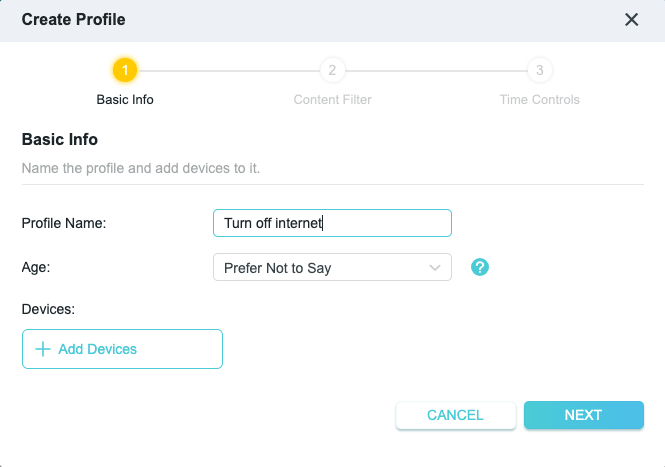
6. Go to Time Controls and turn on Bedtime.
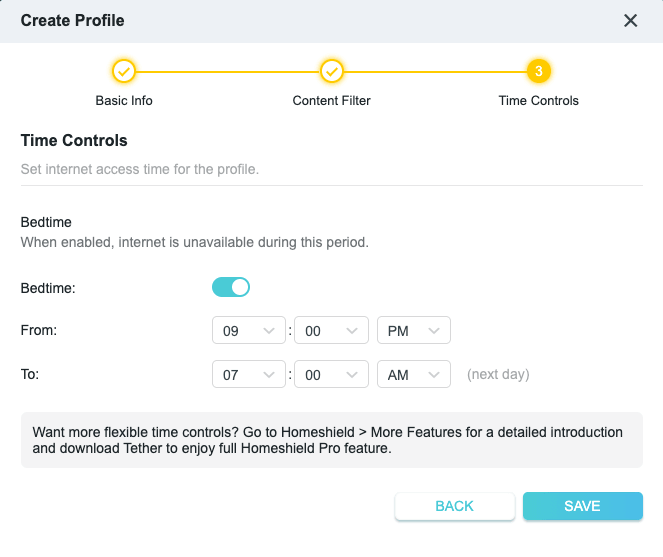
7. Adjust the default bedtime if needed.
8. Save your settings.
If your router provides a feature to create multiple profiles, you can also set different turnoff time for different family members. For example, you can set internet to be off during 8:00 PM and 8:00 AM for a 10-year-old while allowing more internet time at night for a teen.
FAQs
Is it a good idea to turn your Wi-Fi off at night?
The answer is yes in general. Without internet, your phone, tablet, and computer will become far less distracting or addictive, since most apps, games, and social media platforms become unusable if there isn't an internet connection. Without this big source of distractions and exposure to blue light, you are likely to sleep earlier and better.
How can I switch my internet off at night?
There are two methods.
If it's your home network (where you can access router settings), you can schedule it off off by configuring router settings. To prevent yourself changing settings back, you can ask someone else to set the router login password for you.
If you can't change router settings, consider blocking internet on specific devices. However, instead of truly "disabling" internet, the blocking can often applies by blocking websites and apps on a device. This leads to a similar result anyway.

Norah Hayes likes to share her tips on how to improve focus and stay motivated at work. She believes it is essential to eliminate all online distractions during work hours.

Ethan Long joined Cisdem in 2015 as a developer and now serves as the editorial advisor for Cisdem AppCrypt. He actively tests and uses Cisdem AppCrypt and other screen-time management tools to ensure AppCrypt meets its promises in real-world scenarios.