


How to Block Distracting Websites for Better Focus
 58
58
 0
0


Do you often find yourself mindlessly opening some distracting sites such as YouTube, Instagram while working? For many people, these sites have become the biggest work distractions.
In this article, we'll show you several effective ways to block distracting websites. Help you stay focused throughout the day.
 Cisdem AppCrypt
The Best Tool to Block Online Distractions
- Block distracting websites on Chrome, Edge, Safari, and other browsers
- Block specific websites or individual web pages
- Block URLs containing specific keywords (e.g. “news”, “game”, “video”)
- Block entire categories of websites, such as Porn Sites, News Sites, Games Sites
- Only allow selected websites and block all others
- Lock apps with password
- Set permanent or scheduled blocking for websites and apps
- Easy to use
- Help with productivity, parental controls, and digital wellness
- Available for Windows, Mac, Android, iPhone and iPad


Why Are Distracting Websites So Hard to Avoid?
Many websites are designed to keep users hooked.
They provide new content endlessly and suggest content to you based on your preferences, making it difficult to stop scrolling. When you're trying to focus on work, they’ll also constantly compete for your attention through notifications.
As a result, it’s not enough to avoid these distractions relying on self-control alone.
Method 1: Block Distracting Websites with a Dedicated Website Blocker
Cisdem AppCrypt is a website blocker and app locker available for Windows, Mac, Android, iPhone, and iPad. With it, you can easily block access to specific distracting websites or entire categories of websites, such as social media, news, and gaming sites.
Why This Method Works Better Than Self-Control
Self-control can be unreliable, while a dedicated website blocker can force you to stay away from sites that easily distract you. It offers several advantages:
- Blocks distracting websites across Chrome, Safari, Edge, and other browsers.
- Blocks distracting websites by category.
- Lets you block all websites except those you need for work or study.
- Supports scheduled blocking during work or study hours.
- Can be protected with a password to prevent unauthorized changes or easy bypassing.
How to Block Distracting Websites with AppCrypt
Follow these steps to block distracting websites on your computer:
1. Download and install Cisdem AppCrypt on your computer.
 Free Download Windows 10 or later
  Free Download macOS 10.15 or later
2. Launch the app. Set a password when prompted.
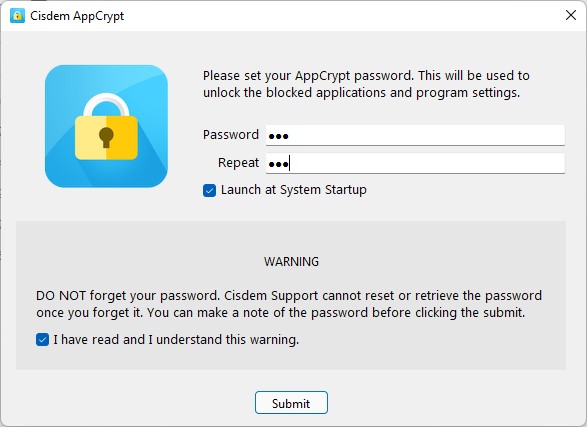
This password prevents you or others from easily changing the blocking settings.
3. Click the AppCrypt icon in the taskbar or menu bar. Enter your password to access the main window.
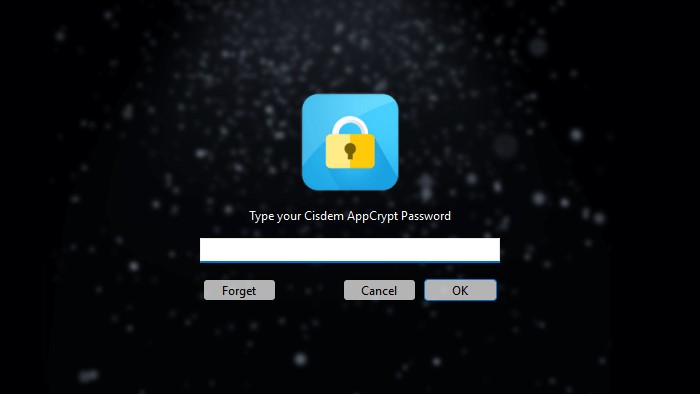
5. Click the Web Block tab.
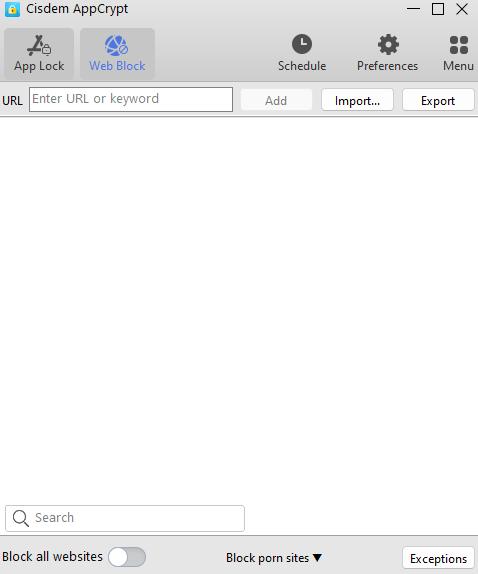
Windows users: : When opening this tab for the first time, install the browser extensions as instructed. Mac users can skip this step.
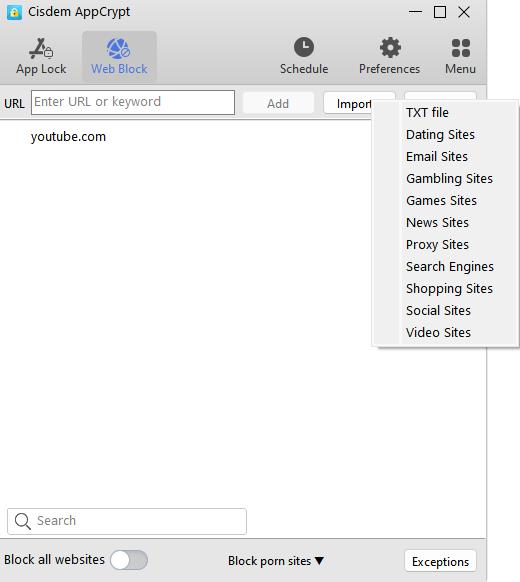
6. Add the distracting websites that consume your time. Such as youtube.com, facebook.com, instagram.com. Click Add.
Alternatively, click the Import button. Choose a website category. Such as Social Sites, News Sites.
7. (Optional) Create a schedule if you only want to block distractions during certain hours. Select the website from the block list. Click the clock icon that appears. Enable Custom Schedule. Set your desired blocking time.
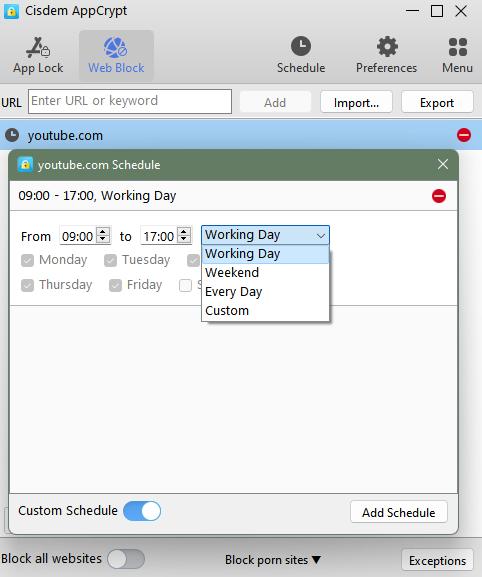
Once added to the block list, the selected distracting websites will become inaccessible on your computer.
Method 2: Use Browser Extensions for Quick Website Blocking
If you only want to block distracting websites in a specific browser, browser extensions can be a convenient option. Many extensions are designed to reduce distractions. They are easy to use. However, unlike dedicated website blocker apps, they can also be easily disabled or removed.
Below are the three best browser extensions for blocking distracting websites based on my testing.
Block Distracting Websites with BlockSite
BlockSite is one of the most popular website blocker extension available for Chrome, Edge, and Firefox. It allows you to block access to a specific distracting website, or set daily time limits for the site.
However, you can only add up to three websites to the block list for free. In addition, some advanced features require upgrading to the Pro version.
To block distracting websites with BlockSite:
1. Install BlockSite from your browser's extension store.

2. Click the Extensions icon in the browser’s tool bar. Select BlockSite from the list.
3. Click the Settings icon.
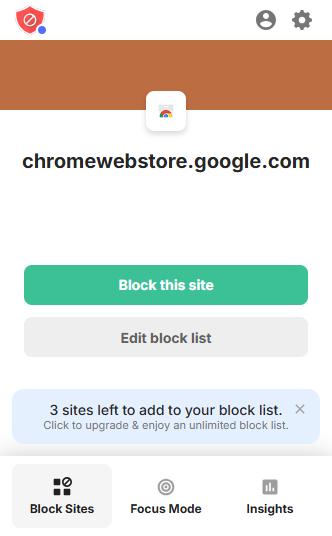
4. Grant the required permissions.
5. Click Block Sites > Add to Block List.
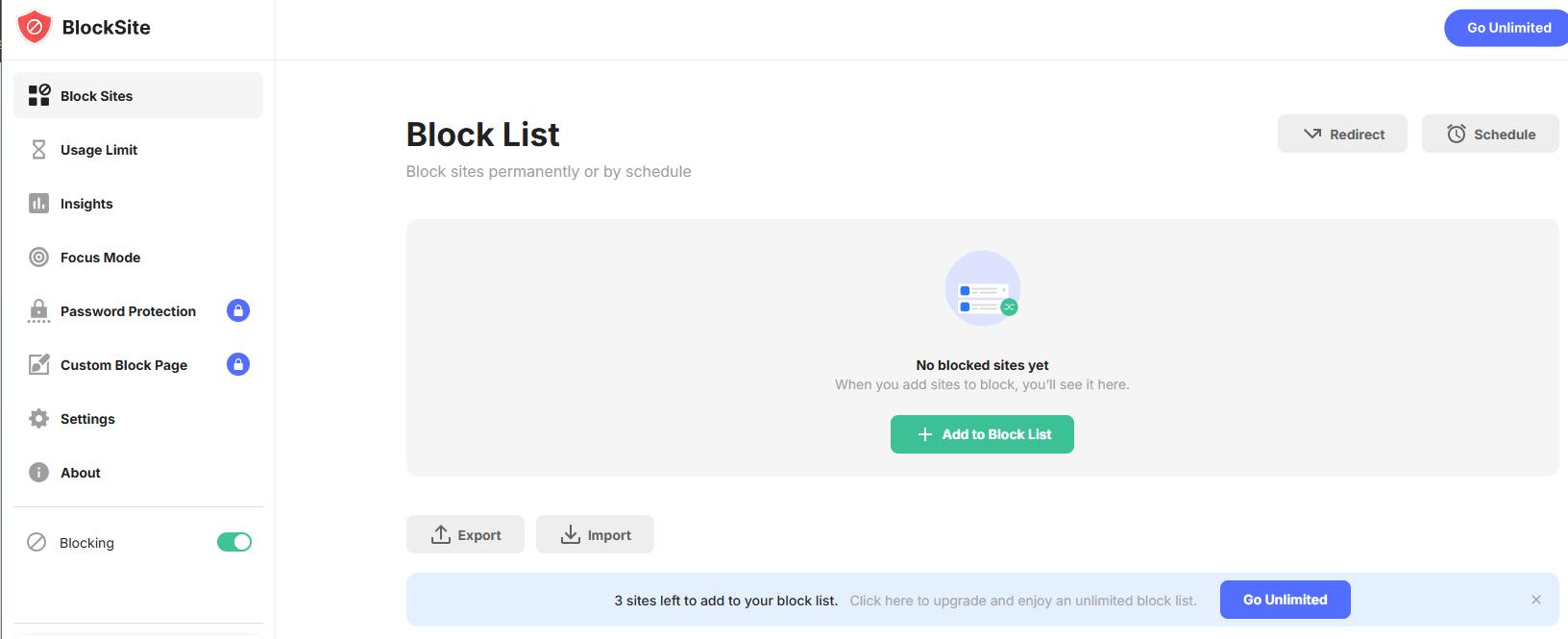
6. Click Websites. Add the distracting websites you want to block, such as YouTube, Netflix, or TikTok.
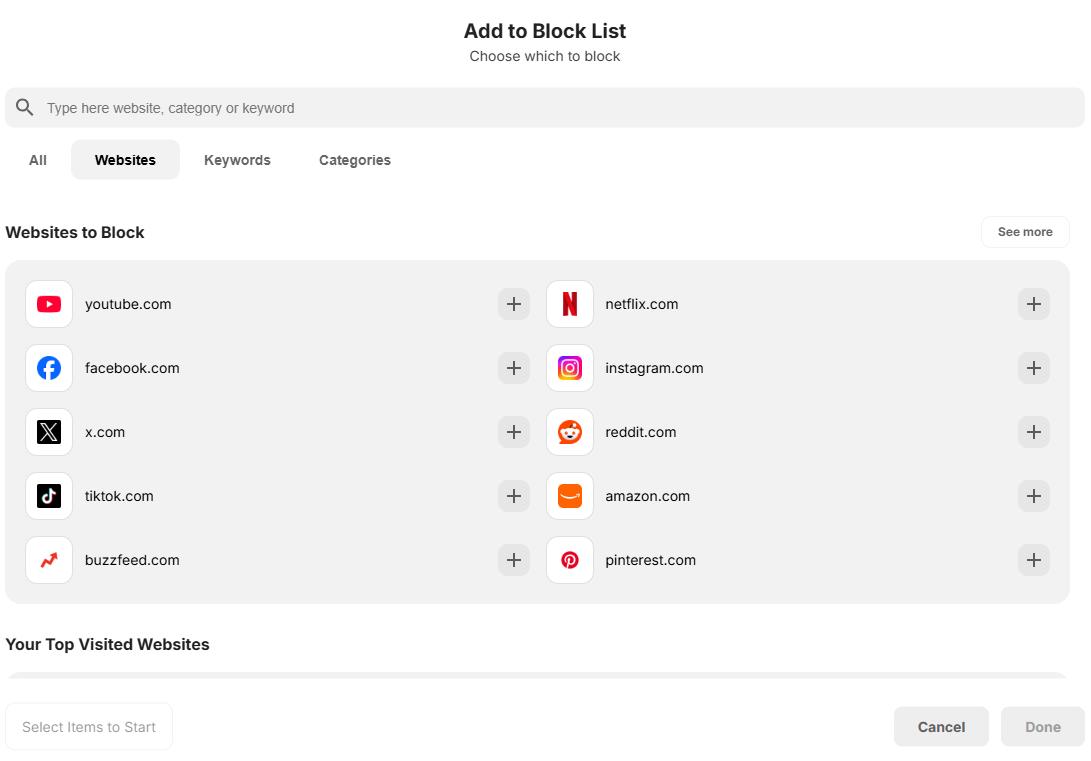
7. Click Done to save your settings.
Pros:
- Easy to set up.
- Lets you completely block distracting websites, or set time limits.
- Offers additional productivity features. Such as Focus Mode.
- Available on multiple browsers.
Cons:
- Limited to three blocked websites in the free version.
- Many useful features require a Pro subscription.
Block Distracting Websites with StayFocusd
StayFocusd is a browser extension designed to help you stay focused. With it, you can add distracting websites to the block list and set a daily time allowance. Once the time limit is reached, the blocked websites will become inaccessible.
This browser extension is available for Chrome and Edge.
To block distracting websites with StayFocusd:
1. Install StayFocusd to your browser.
2. Click the Extensions icon in the browser’s tool bar. Select StayFocusd.
3. Click Settings at the bottom.
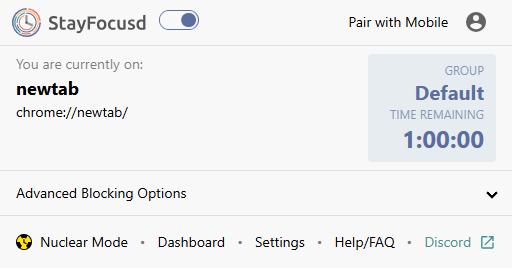
4. Go to the Blocked Sites tab. Click Add Blocked Sites.
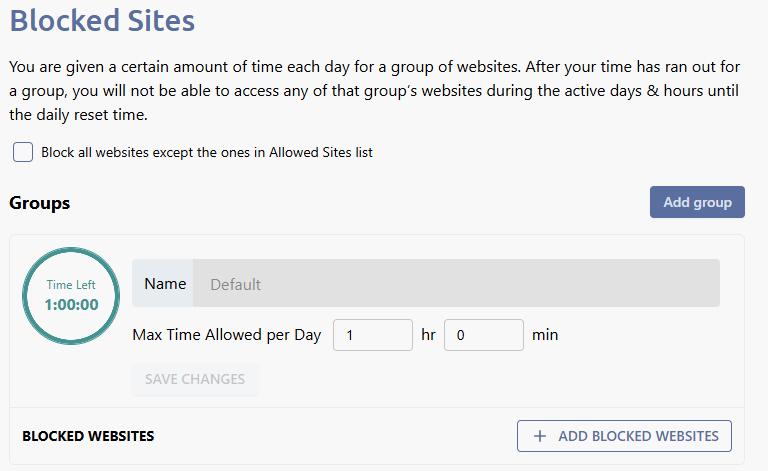
5. Enter the distracting websites you want to block. You can add multiple sites at once.
6. In the Max Time Allowed per Day section, set the maximum amount of time you can spend on those websites each day, such as 2 hours.
7. Click Save Changes.
When your allowed time runs out, StayFocusd will block access to those websites automatically.
Pros:
- Completely free to use.
- Lets you limit time spent on distracting websites.
- Offers strict productivity features such as the Nuclear Option.
Cons:
- The interface looks a bit outdated.
- Can not block entire categories of websites.
- Can be disabled or removed easily.
Block Distracting Websites with LeechBlock NG
LeechBlock NG is available for Chrome and Firefox. It allows you to create multiple block sets for different purposes. For example, you can use one block set to block news sites while studying and another to block games sites at bedtime.
1. Install LeechBlock NG to your Chrome or Firefox browser.

2. Open LeechBlock NG Options page.
3. Select Block Set 1.
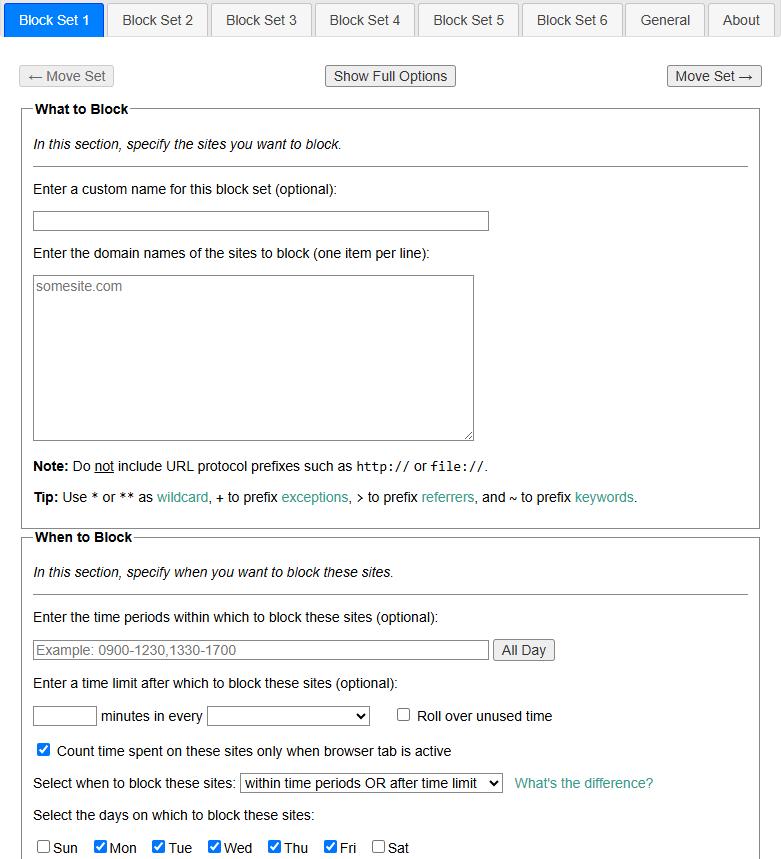
4. In the What to Block section, add the domain names of the distracting websites you want to restrict.
In the When to Block section, set a time limit.
In the How to Block section, specify how you want to block these sites.
5. Click Save Options.
LeechBlock NG can automatically block distracting websites during the schedule you create.
Pros:
- Highly customizable.
- Lets you create different blocking rules for different situation.
- Available for both Chrome and Firefox.
- Free to use.
Cons:
- A bit complicated to set up.
- For beginners, the interface might seem overwhelming..
- Requires more time to configure advanced blocking rules.
- Like other browser extensions, it can still be disabled or removed.
Bonus Tips to Stay Focused Online
In addition to blocking distracting websites, there are several other steps you can take to reduce the temptation to visit them and stay focused.
Remove Bookmarks
Many people use bookmarks to quickly access frequently websites. If you often open distracting sites like YouTube, Reddit, or Instagram via bookmarks, consider deleting them to prevent them. Then you'll be less likely to visit these websites out of habit.
Log Out of Accounts
Staying signed in makes it effortless to access social media and other distracting websites. You can log out of your accounts to add an extra step before you can start browsing.
Disable Notifications
Notifications are one of the biggest sources of distraction. When you are focused on your work, a notification from social media or news site can easily interrupt your concentration.
Block Recommended Content
Many websites recommend content based on your browsing activity and keep you scrolling for far longer than planned. Blocking or hiding recommended content can make these websites less engaging.
Final Recommendation
- For most people: AppCrypt is the most effective option. It blocks distracting websites quickly and easily, supports schedules, and is difficult to bypass.
- For users who want an easy-to-use browser extension: BlockSite is a great option. It offers a clean interface. Let you block 3 distracting websites for free.
- For users who prefer setting time limits on distracting sites: StayFocusd is for you. Once your daily time allowance is used up, the selected websites become inaccessible until the next day.
- For advanced users who need flexible blocking rules: LeechBlock NG provides the most customization options. You can create multiple block sets for different situations.
Free Download Windows 10 or later Free Download macOS 10.15 or later

Norah Hayes likes to share her tips on how to improve focus and stay motivated at work. She believes it is essential to eliminate all online distractions during work hours.

Ethan Long joined Cisdem in 2015 as a developer and now serves as the editorial advisor for Cisdem AppCrypt. He actively tests and uses Cisdem AppCrypt and other screen-time management tools to ensure AppCrypt meets its promises in real-world scenarios.