


6 Free Internet Filters: Tested and Clearly Explained
 319
319
 0
0


Want to create a safe online environment for your kids? Need to help a loved one who is struggling with addiction to porn, online gambling, or social media? An internet filter may help.
In this article, I will share six free internet filters that I've tested to you find the tool the best suits your needs. For each option, I provide detailed, helpful information while keeping my review easy to read and understand.
 Cisdem AppCrypt
Filter The Internet by Category or URL
- Filter websites by category, such as Porn, Gambling, Social, and Shopping
- Filter URLs that contain specified keywords
- Block specific websites or only pages
- Block all websites except allowed ones
- Lock individual apps
- Block websites and lock apps 24/7 or at scheduled times
- Set a password to protect web and app restrictions
- Easy to set up
- Hard to bypass
- Help with parental control, productivity, digital wellness, and more


A comparison
Here's a comparison of the free internet filters that I've tested, which can help you focus on the option(s) that may be suitable. You can click a tool's name to jump to its review if needed.
| Name | Web Filter For Chrome | Filter Anything Everywhere | OpenDNS | Your router | Screen Time | Family Safety |
|---|---|---|---|---|---|---|
| Supported OS | Windows, macOS, Linux, ChromeOS | Windows, macOS, Linux, ChromeOS | All operating systems | All operating systems | macOS, iOS, iPadOS | Windows, Android, and iOS |
| Supported browsers | Chrome | Chrome | All browsers | All browsers | All browsers* | Edge |
| Category filtering | Yes | No | Yes | Depends | Yes | Yes |
| URL filtering | No | No | No | Depends | No | No |
| Content filtering | No | Yes | No | Depends | No | No |
| Ease of use | Effortless | Effortless | Fair | Fair | Effortless | Fair |
*Note: Screen Time on macOS only supports Safari.
Reviews of 6 free internet filters
Web Filter For Chrome
Supported OS: Windows, macOS, Linux, ChromeOS
Web Filter for Chrome is a Chrome extension provided by National Education Technologies Inc.
Key features
- Filter and block websites of these categories: Pornography, Nudity, Sites Prone to Inappropriate Content, Unsafe Search Engines, and File Sharing Domains
- Automatically enable and lock SafeSearch on Google, Bing, and other popular search engines - hided explicit websites and images in search results
- Automatically turn on and lock Restricted Mode on YouTube - hide mature videos
Effectiveness
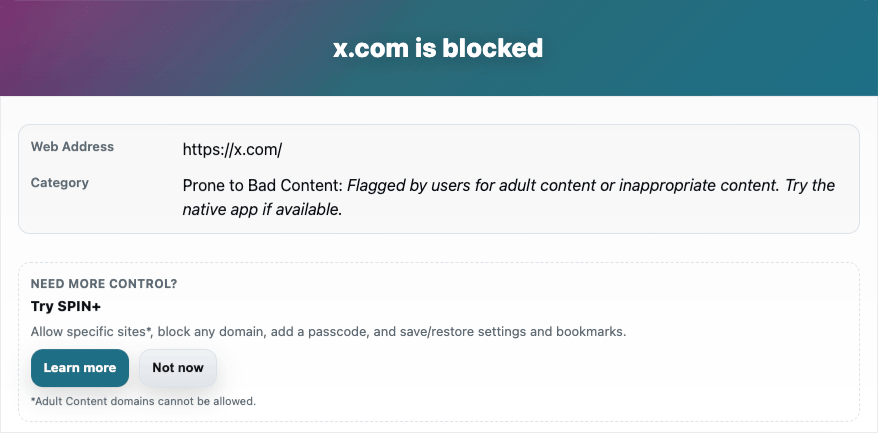
By default, filtering works in normal browsing only. You can go to Manage Extension to enable the extension in incognito browsing, preventing one from bypassing filtering by opening an incognito window. However, since the extension can be easily disabled or removed, one can still get around the filtering if he or she wants.
Pros
- Effortless to set up
- Apply filtering for websites, search results, and YouTube
Cons
- Compatible with Chrome only
- Can be easy to bypass
Best for
Users who want to filter adult content on Chrome for those with little technical knowledge, such as very young kids or some seniors.
Editor's note
In my tests, this extension excels at filtering adult websites and some "normal" sites (such as X) where mature content and explicit media can be easily found. However, sometimes it might go too far. For example, it blocks an AI site that I find completely appropriate, while still allowing access to other AI sites. Luckily, it provides a "Report as overblocked" option for most sites. This tool would be more helpful if it could filter other categories, such as gambling sites and dating sites.
The features that enable SafeSearch and YouTube's Restricted Mode can be effective for helping prevent children from stumbling upon inappropriate content.
Need a Hard-to-Bypass Tool That Filters More Categories
Use Cisdem AppCrypt to easily filter the web by categories (Porn, Gambling, Dating, Social, and more) or URL keyword. Features like app locking, scheduling, and whitelisting make the tool more powerful. Password protection makes it difficult to bypass restrictions.
 Free Download Windows 10 or later
  Free Download macOS 10.15 or later
Filter Anything Everywhere
Supported OS: Windows, macOS, Linux, ChromeOS
Filter Anything Everywhere is a Chrome extension, and I would consider it a hidden gem in the Chrome Web Store.
Key features
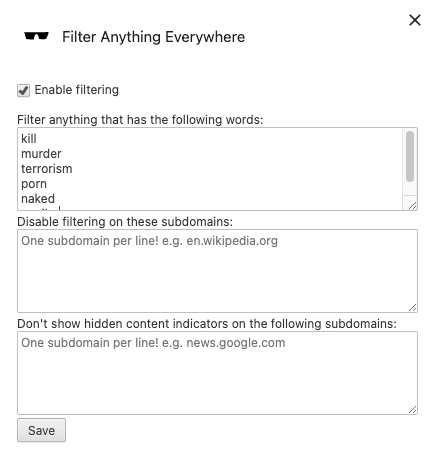
- Filter and hide any web content containing any word that you've added to the list
- Offer two options to customize filtering experience
Effectiveness
(As with Web Filter For Chrome, you might want to enable Filter Anything Everywhere in incognito browsing.) Whether the extension is effective depends on your purpose. If you want to hide unwanted web content for peace of mind or productivity, I'd say it's very effective. However, it's not an effective option for parents looking for a strict filtering solution for their children.
Pros
- Effortless to set up
- Instantly hide unwanted content anywhere, such as search results, AI conversations, news sites, YouTube comments, and social media
Cons
- Compatible with Chrome only
- Can be bypassed easily
Best for
Users who want to prevent themselves or others from seeing certain content and don't require a solution that's hard to bypass.
Editor's note
If you add a word to Filter Anything Everywhere's filtering list, web pages containing that word will still open, but most of the content won't show up. For example, if a YouTube comment includes a filtered word, the entire page (except the YouTube logo, search box, and Sign in button) will appear blank, and you will see a gray arrow icon. Clicking the icon will reveals the entire page, with the arrow icon replacing the specific comment containing the filtered word. In my tests, the filtering works almost all the time, with occasional failures on some AI sites.
OpenDNS
Supported OS: All operating systems
OpenDNS is an internet security solution, free for personal use.
Key features
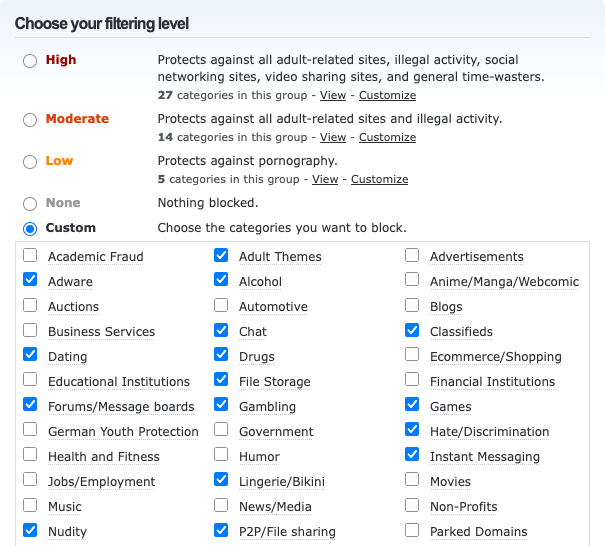
- Filter and block websites by category based on default levels: Low, Moderate, and High
- Filter website categories chosen by you
- Block or allow specific websites added by you
Effectiveness
OpenDNS can be effective enough if your family members, such as a child, are not very familiar with technology and no VPN is used. However, if they are tech-savvy or using a VPN, then OpenDNS is easy to bypass.
Pros
- Allow you to filter a wide variety of categories, such as adult sites, social media sites, chat sites, dating sites, gaming sites, gambling sites, and phishing sites
- Very customizable and flexible
Cons
- Vulnerable to VPN
- May take some effort to set up for those with little technical experience
Best for
Users who need to apply home-wide web filtering to create a safe, family-friendly online experience for all family members.
Editor's note
Unlike the previous two tools, OpenDNS requires you to change the network settings on your router or individual devices. Will changing such settings cause problems? Don't worry. OpenDNS provides official setup instructions, and it will be safe if you follow them properly.
If you want the filtering to apply to all devices (such as computers, phones, tablets, and TVs) a connected to your home Wi-Fi, you will need to change your router's network settings. To the filtering on a specific device, simply make changes on that device.
Now let's talk about the two solutions provided by OpenDNS: OpenDNS Family Shield, and OpenDNS Home.
OpenDNS Family Shield is relatively easy to set up and only blocks adult content. OpenDNS Home can be a bit complicated to set up and requires you to create an account, but it allows you to have more control. With it, you can filter various categories and customize settings based on your needs.
Your router
Supported OS: All operating systems
If you don't feel like modify your network settings and your router has built-in web filtering or parental controls, you can set up your router as a internet filter. And the a setup can be less technical and more user-friendly.
Key features
(The key features available depend on what router you use. Here're some common features.)
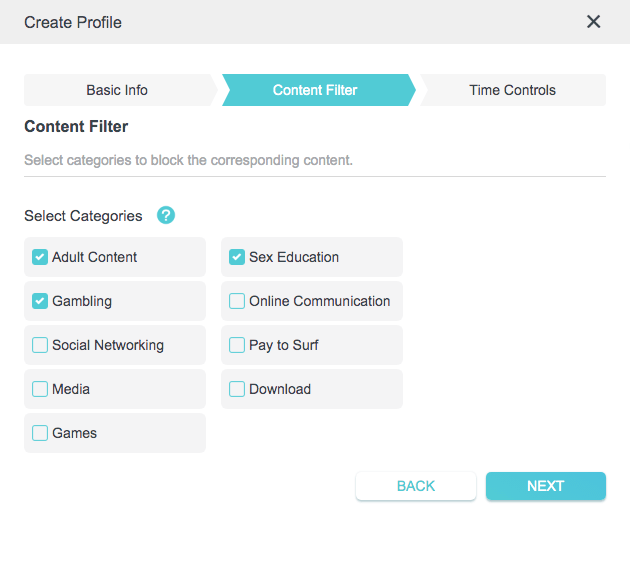
- Filter and restrict websites by categories
- Filter URLs by keyword
- Block specific websites added by users
Effectiveness
Filtering implemented via your router can be effective enough for those who are not familiar with technology. However, if your kids are tech-savvy, they may be able to bypass it.
Pros
- Come with your router
- Customizable and flexible
Cons
- Vulnerable to VPN
- Might take some time to set up for beginners
Best for
Users who are looking for a relatively easy way to filtering web content for all family members.
Editor's note
Many router's built-in filtering features or parental controls actually rely on services like OpenDNS, and some also combine DNS filtering with other techniques. That being said, the setup experience can feel different.
Also, if your router allows you to create user profiles, you can apply a different levels of filtering for different family members if needed. For example, you can restrict most categories for a young kid. If a family member spends too much time on social media, you can specifically filter social media for this person.
Screen Time
Supported OS: macOS, iOS, iPadOS
Screen Time is a set of settings included with Mac, iPhone, and iPad. This article focuses on its web filtering settings.
Key features
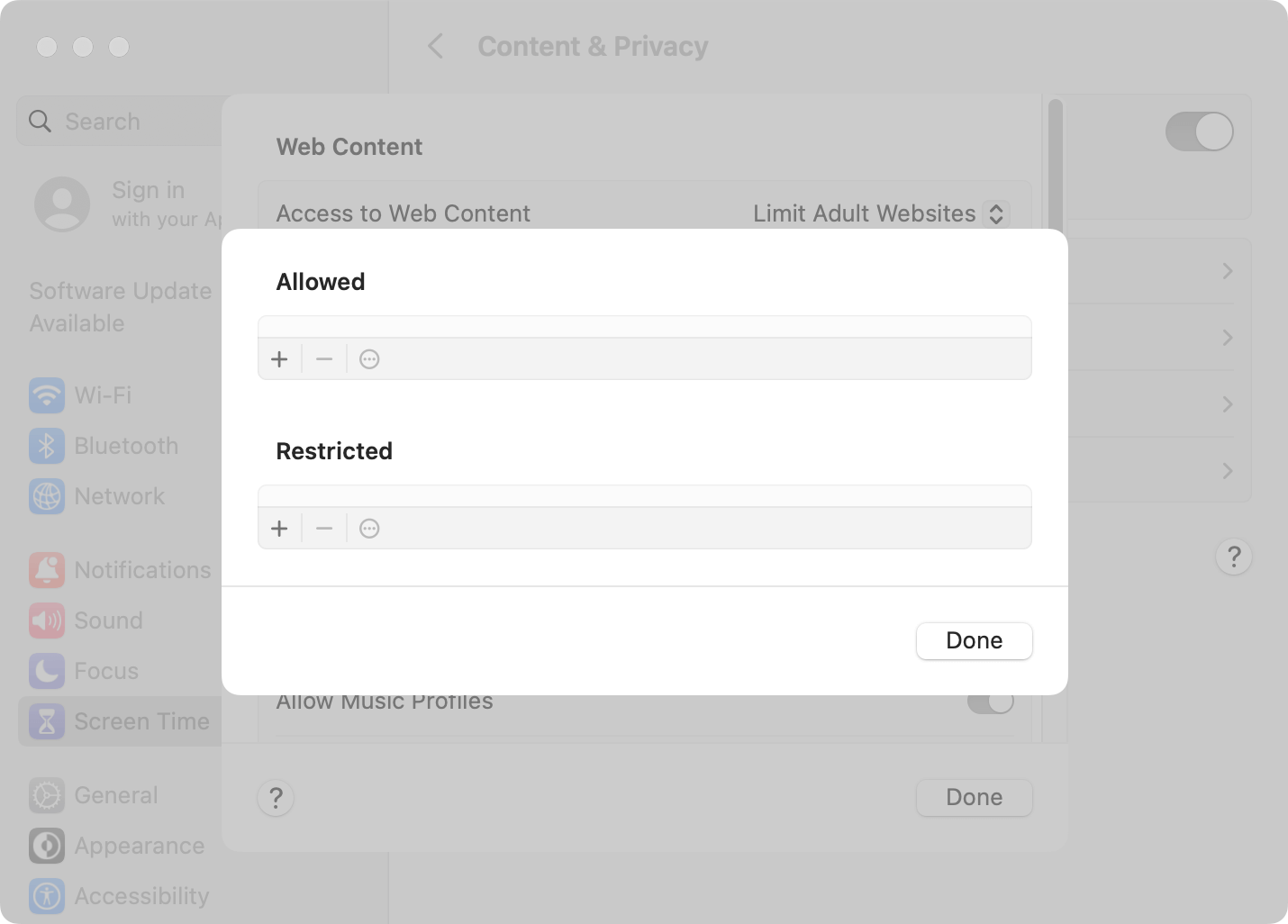
- Filter and limit adult websites
- Restrict or allow websites added by users
- Allow users to set a passcode to lock settings
Effectiveness
The Screen Time passcode helps prevent a users from changing settings to bypass restrictions. However, Mac users can get around filtering by using one non-Safari browser. Also, if your children are tech-savvy or are really try hard, they may figure out how bypass it.
Pros
- Come with your devices
- Very easy to set up
Cons
- Filter adult sites only
Best for
Apple users who prefer a native solution to filter adult content.
Editor's note
Screen Time is the Apple's built-in solution for the digital wellness and parental control. If you are looking for an internet filter for an iPhone, iPad, or Mac, I recommend you trying Screen Time first. But, if you are using an administrator account on a Mac and really need effective filtering for yourself, and you may need to consider a different tool, since setting a passcode is not available for administrator accounts.
Family Safety
Supported OS: Windows, Android, and iOS
Family Safety is a parental control tool by Microsoft, and I will only discuss its web filtering features here.
Key features
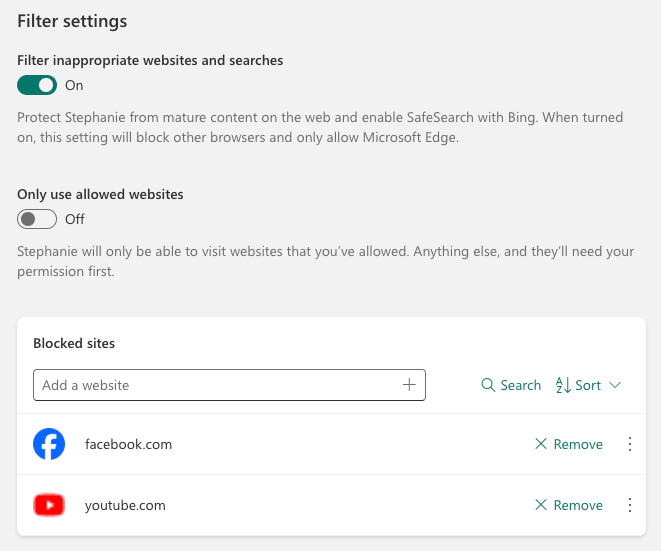
- Filter and block inappropriate websites
- Automatically enable and lock SafeSearch on Bing to filter and hide mature content in search results
Effectiveness
Only a parent's administrator account can modify Family Safety settings, making it difficult for children to bypass filtering. But it seems that filtering will only apply to Edge. Don't worry. Enabling the filtering feature will automatically disable any non-Edge browsers.
Pros
- Built-in to Windows devices
- Can be difficult to get around
Cons
- Only filter inappropriate content
- Can take time to set up
Best for
Windows users who prefer a built-in solution to filter age-inappropriate content for children.
Editor's note
(It's a similar situation to Screen Time.) If you need an internet filter for a Windows device, you can try Family Safety first. However, if your kid uses an administrator account instead of a standard one, he or she can easily bypass the filtering. In such a case, you may need to consider a different tool.
FAQs
How is an internet filter different from a website blocker?
Many people use the a two terms to mean the same thing. But if strictly speaking, they are not that same. With a website blocker, the users often need to specify the individual websites they want to block. The website blockers can turn on or off blocking based on schedules or time limits. With an internet filter, users usually specify unwanted content categories, and the filtering is usually permanent.
What is the best free home internet filter?
It depends on your specific needs. For example, to apply filtering to all devices in your home, OpenDNS or your router can be the best option.

Norah Hayes likes to share her tips on how to improve focus and stay motivated at work. She believes it is essential to eliminate all online distractions during work hours.

Ethan Long joined Cisdem in 2015 as a developer and now serves as the editorial advisor for Cisdem AppCrypt. He actively tests and uses Cisdem AppCrypt and other screen-time management tools to ensure AppCrypt meets its promises in real-world scenarios.