


EMP.dll Was Not Found on Windows 11/10? 10 Fixes Recommended
 8.1K
8.1K
 1
1


When palying games like Red Dead Redemption 2, Hogwarts Legacy, Mortal Kombat 11, Assassin's Creed Valhalla, etc., the annoying issue “EMP.dll not found” will instantly put your game enthusiasm to an end. "EMP.dll not found" is a system error message, which means the code execution cannot proceed because EMP.dll was not found.
In most situations, you are suggested to reinstall the program to fix this problem, but this leads to game process or trophies loss. Therefore, here in this article we will show you 10 possible ways to solve EMP.dll not found error on Windows, instead of just a clean reinstallation.
Key Takeaways
- An EMP.dll file can be not found for various reasons, such as deleted by antivirus software, located in the wrong place, not properly installed, not compatible with the new game version after update, downloaded the wrong .dll version, corrupted due to disk errors, missing dependencies, wrong file location specified in game or system configuration, conflict with 3rd party app/extension.
- There are 10 solutions to find back EMP.dll file without reinstalling the game: restore EMP.dll from Windows Security, re-download EMP.dll from game patch, verify the integrity of game files, re-register EMP.dll file, repair visual C++ redistributables and DirectX, repair corrupted system files, perform a clean boot, use Cisdem Data Recovery, perform Windows System restore, reinstall the game.
 Cisdem Data Recovery
Find Your Missing EMP.dll File Back
- Recover missing and deleted DLL files easily
- Recover various types of dll files, including EMP, OnlineFix64.
- Recover game data from Steam, Xbox, PS4, etc.
- Preview files before recovery
- Save EMP.dll and other game files to preferred folder, disk or external storage devices
- Also recover files lost by system crash, app bug, bad sector, sudden power off, virus attack, human errors and so on
- Recover 1000+ types of files: video, photo, audio, document, email, bookmark, archive, etc.
- Repair damaged videos, photos and documents
- Recover unsaved office and other documents
- Quickly search and filter files
 Free Download Windows 11/10/8/7
Why EMP.dll Was Not Found?
EMP.dll is a Dynamic Link Library (DLL) file that adds or modifies specific functionality in a game, such as multiplayer connection management, data synchronization, anti-cheat/DMR implementation, deeper game functions access, etc. When an EMP.dll file is not found, it can be caused by one of the following reasons:
- The file is deleted by antivirus software or by the computer user mistakenly.
- The file is put into the wrong place
- The dll file is not properly installed, it failed in the midway
- The file is not compatible with the new game version anymore after an update
- Downloaded the wrong .dll version for your system (32 bit or 64 bit)
- The file is corrupted due to disk errors, game crash, sudden power off, etc
- Miss dependencies when other required files are not present
- Game or system configuration specifies the wrong file location
- File or software conflict with 3rd party app/extension on your PC
Fix 1: Restore EMP.dll from Windows Security
The reason why you are seeing “EMP.dll was not found” error is that the EMP.dll file is missing from your game file. Most of the time, this happens because Windows security program mistakenly flags EMP.dll as a threat and removes it. No worries, here comes a quick fix.
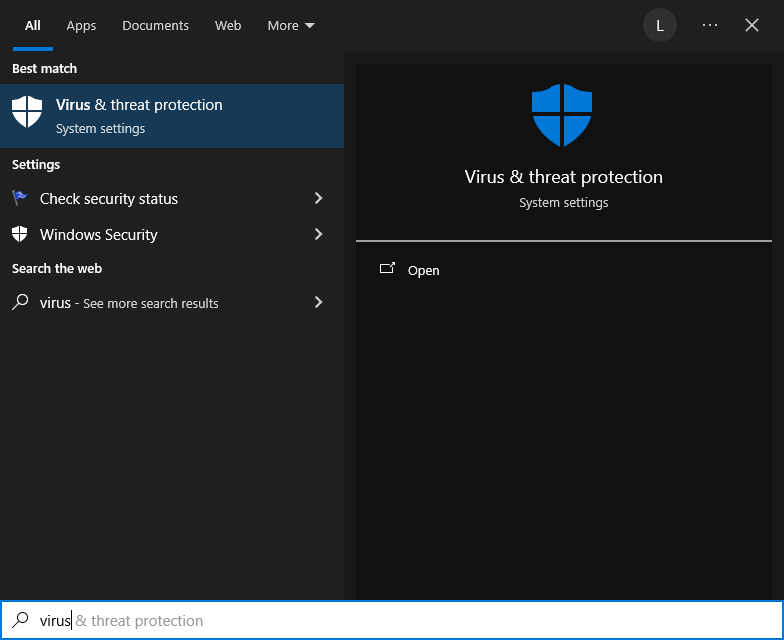
- Go to Start menu search, search for Virus & threat protection and open it.
![restore emp from windows security 01]()
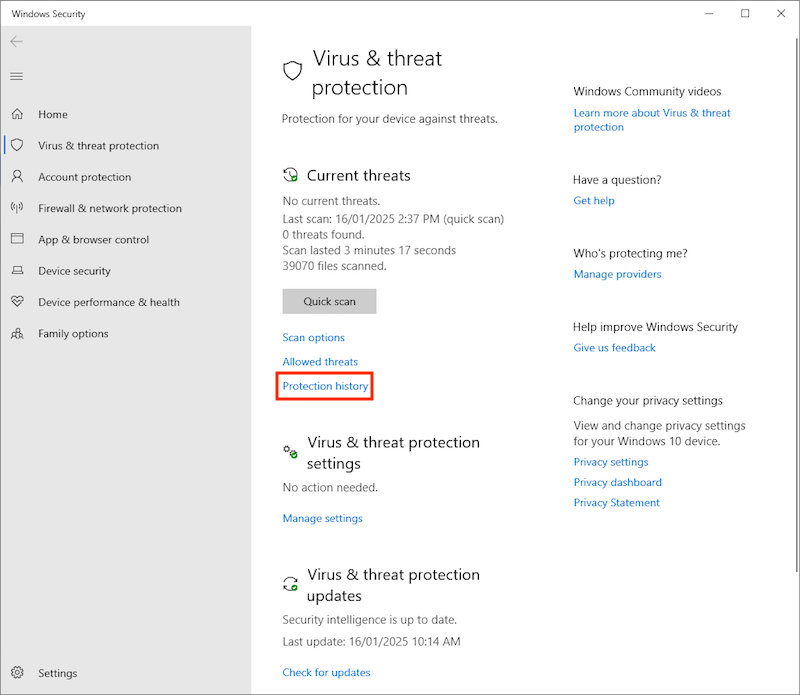
- Choose Protection history option.
![restore emp from windows security 02]()
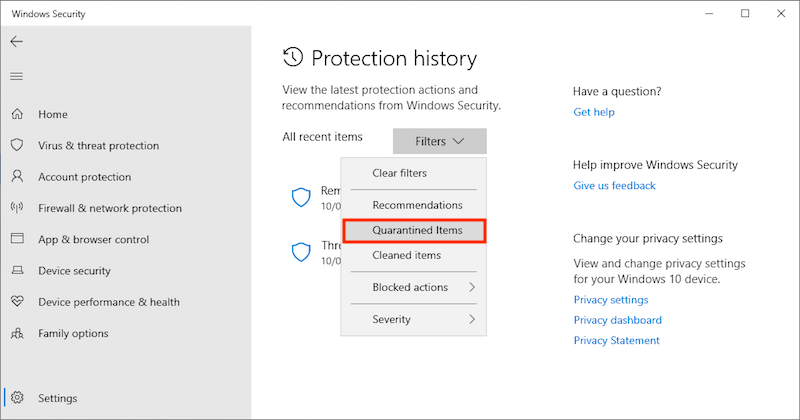
- Click the down-arrow next to Filters > Quarantined Items.
![restore emp from windows security 03]()
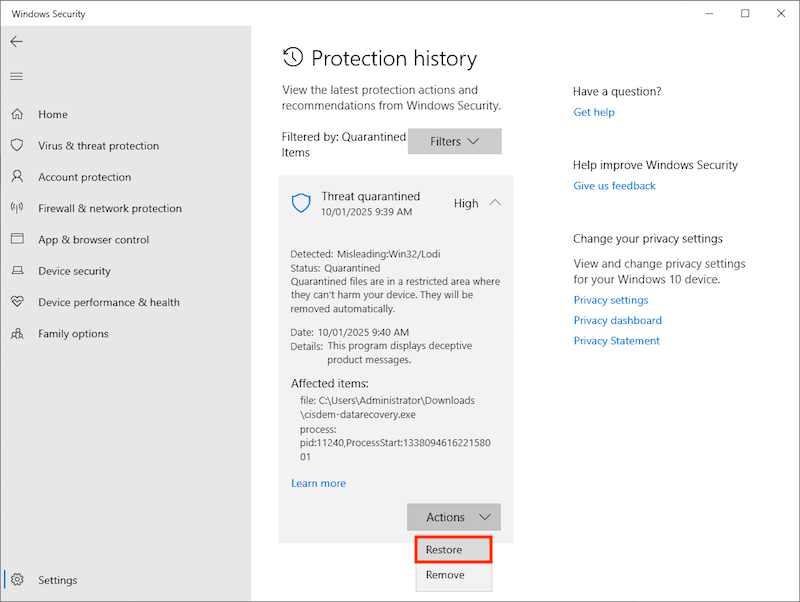
- Locate the EMP.dll file, click Actions tab > choose Restore to resolve the EMP.dll not found issue.
![restore emp from windows security 04]()
Fix 2: Re-download EMP.dll from Game Patch
The EMP.dll is often contained in the pack or repack you used to set up the game, if the issue "EMP.dll not found" keeps showing up, you can re-download the file to the right place. You are not recommended to downloading this file from an unknown 3rd-party website, it is not safe.
- Locate the patch or repack folder you used to set up the game, which contains an EMPPRESS subfolder.
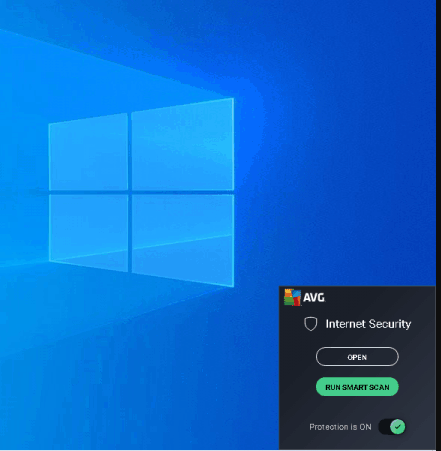
- Temporarily disable antivirus software on your PC, by turning off the protection from the system tray in the bottom-right corner of the Windows taskbar.
![disable antivirus]()
- Re-run the patch installer. Or you can manually copy and paste the EMP.dll file to the game directory. For example, for Hogwarts Legacy, copy it to: Hogwarts/Legacy/Phoenix/Binaries/Win64.
- Enable the antivirus software on your PC again, launch the game to check if this works.
Fix 3: Verify The Integrity of Game Files
EMP.dll missing from your system? Another option to obtain it is to conduct an integrity check on the game files via the platform on which it was installed. This process will automatically rectify the absence of game files such as EMP.dll. In case you’ve installed the game on Steam, see the steps below to verify the game files.
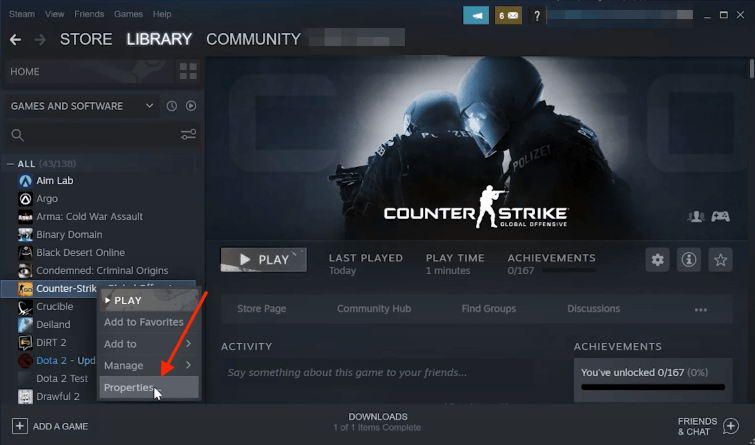
- Open Steam app on your computer, find your problematic game within game library.
- Right-click on the game title, select Properties option.
![verify game file integrity 01]()
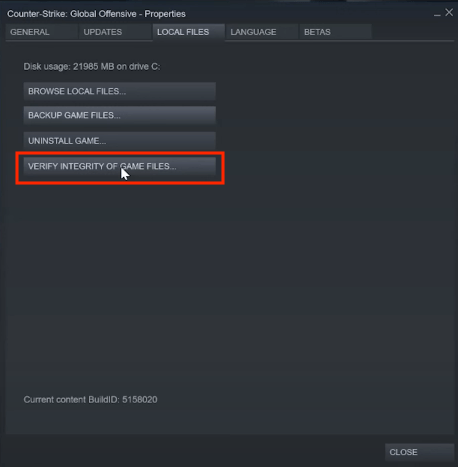
- In LOCAL FILES tab, opt for VERIFY INTEGRITY OF GAME FILES and wait for the game to be validated.
![verify game file integrity 02]()
- Re-access to the game to check whether EMP.dll not found problem is fixed.
Fix 4: Re-register EMP.dll File
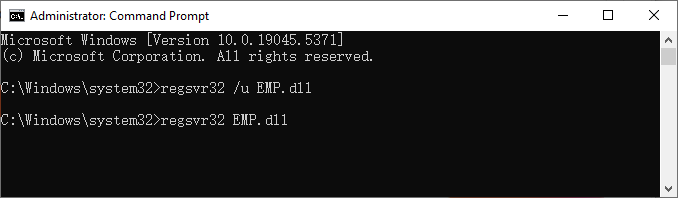
Unregistered DLL files sometimes lead to EMP.dll not found error as well. Therefore, re-registering the EMP.dll file is required to fix the issue. This method will work with the combination of Windows CMD utility.
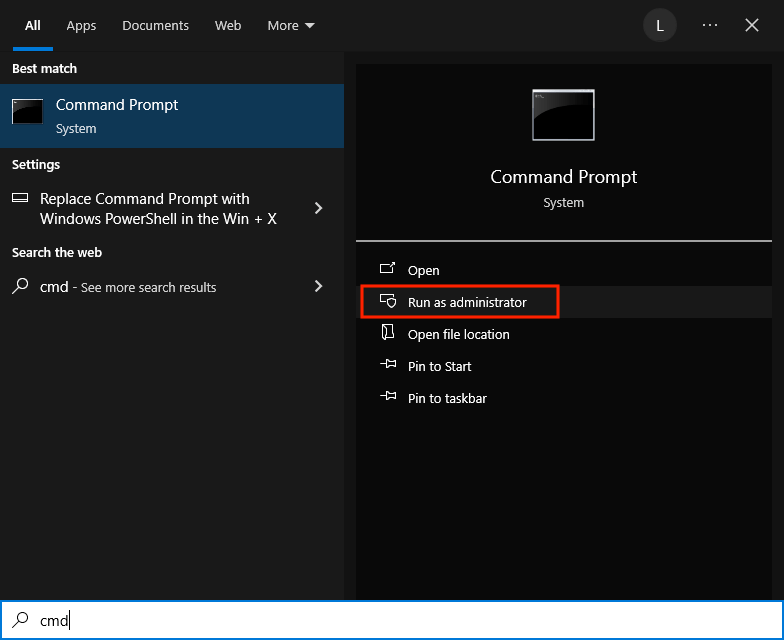
- Type cmd in the Windows search menu, select Command Prompt, click Run as administrator.
![register emp dll 01]()
- Type regsvr32 /u EMP.dll, hit Enter to unregister the DLL.
- Continue to type regsvr32 EMP.dll, press Enter to re-register it.
![register emp dll 02]()
- Restart your PC to apply the changes, and then check if your game can be played normally.
Fix 5: Repair Visual C++ Redistributables and DirectX
Visual C++ Redistribution and DirectX offers the essential runtime components for Windows games to start and load those required files. If one of the runtimes is missing or corrupted, the "EMP.dll not found" issue may appear, even if the file itself is not absent. Reparing Visual C++ Redistribution and DirectX can get back a clean runtime environment and likely solve the issue.
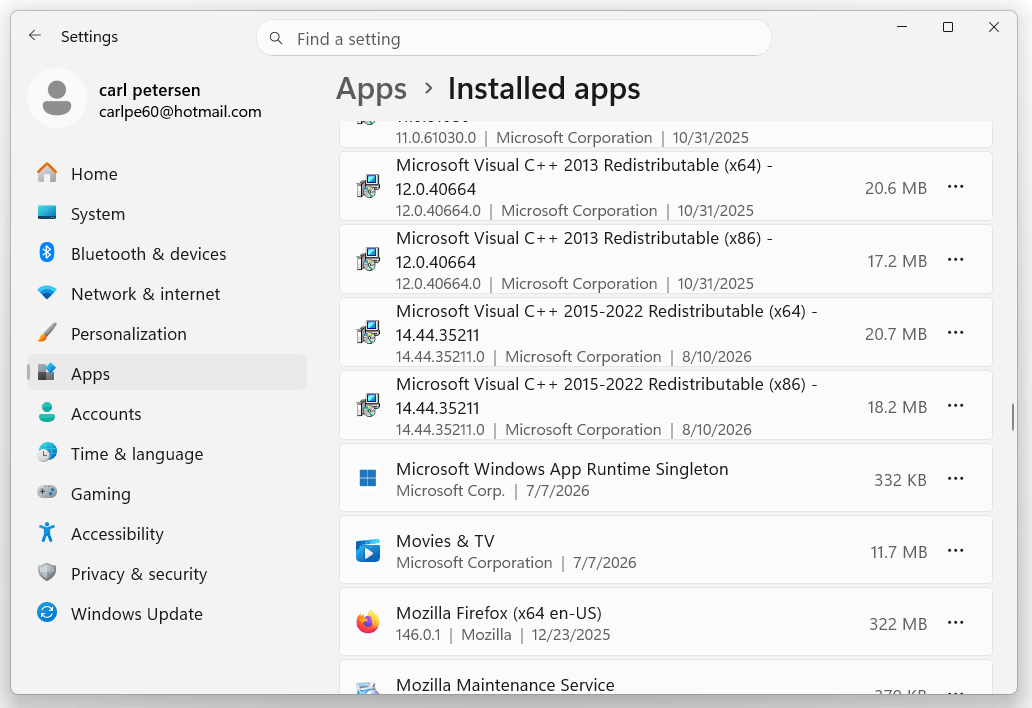
- Go to Settings > Installed apps on your PC.
![repair visual 01]()
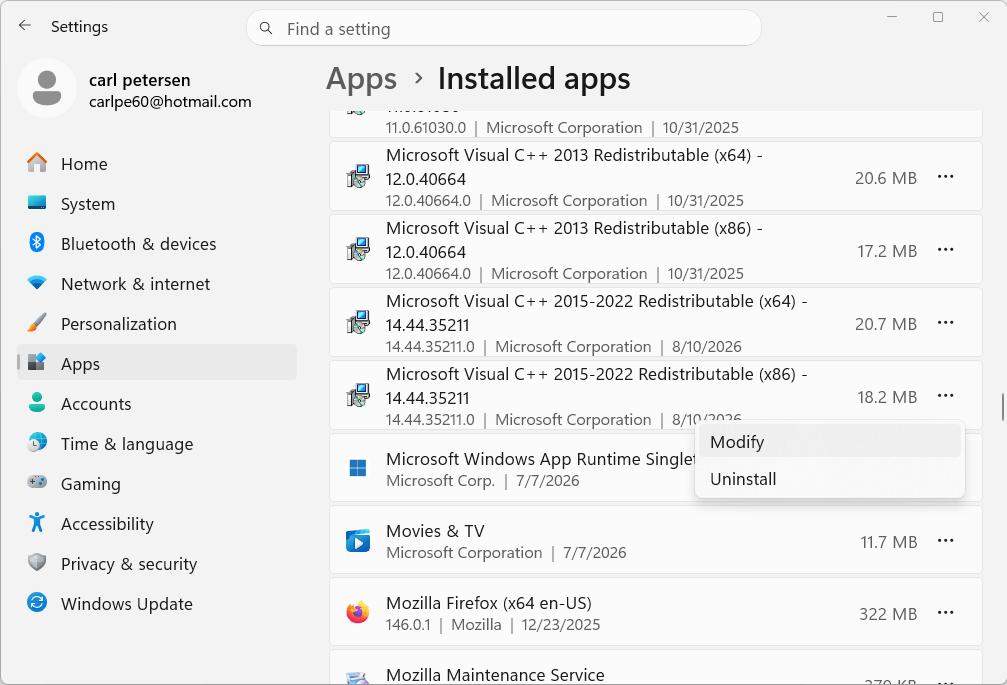
- Select the latest package Microsoft Visual C++ 2015-2022 Redistribution, click on the "..." icon and choose Modify.
![repair visual 02]()
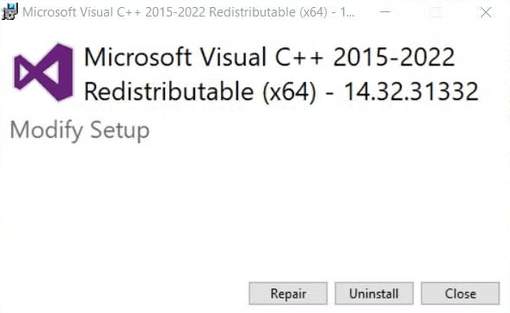
- Choose Repair and wait for the process to finish.
![repair visual 03]()
- Restart your PC, then launch the game again to check if it is fixed.
Fix 6: Repair Corrupted System Files
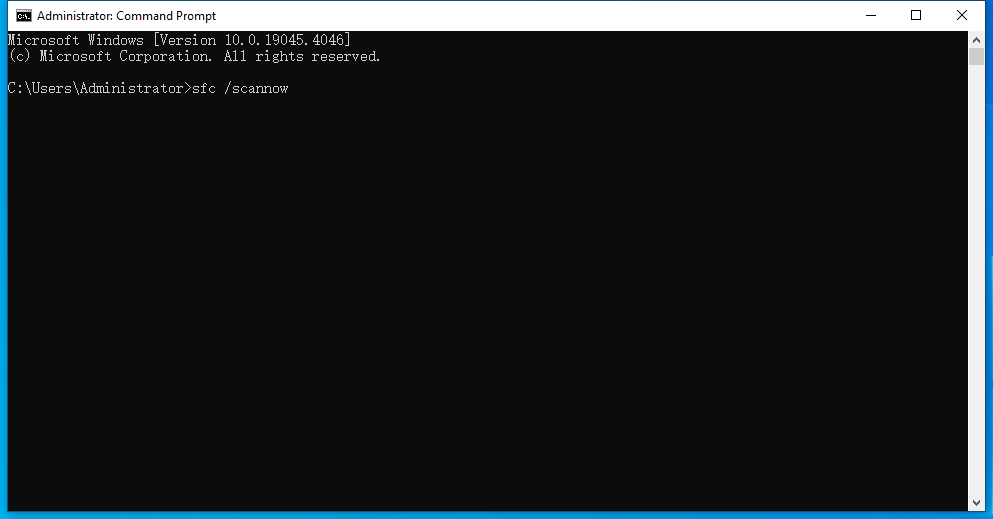
It’s also a wise option to fix EMP.dll missing error with System File Checker (SFC). Running the SFC can check and repair protected Windows system files that are corrupted, potentially including DLL files. In the meantime, you can run DSIM to repair system image files that SFC relies on, if SFC doesn't work. This also involves some specific command lines in Windows CMD tool.
- Run CMD as administrator.
- Type sfc /scannow, press Enter to execute it.
![run sfc]()
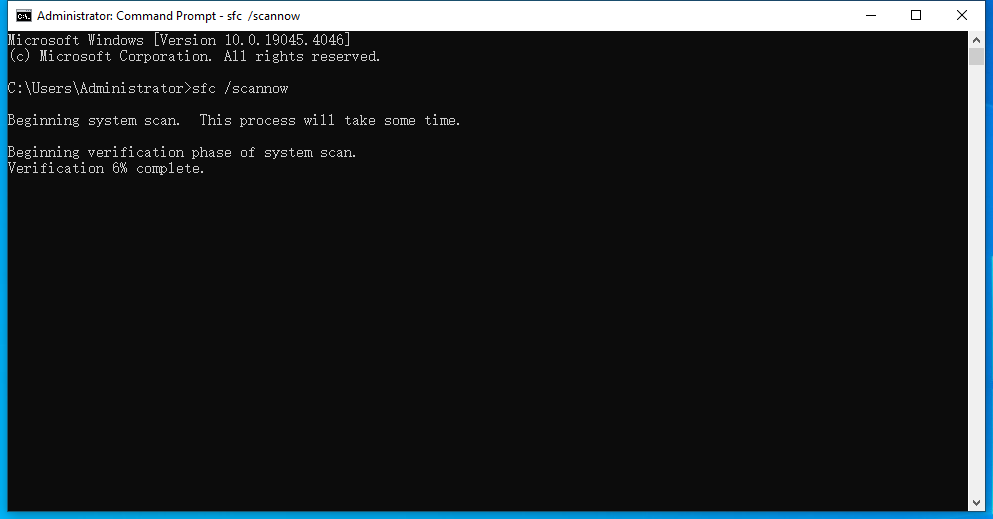
- Wait until you receive the verification 100% complete message.
![run sfc 02]()
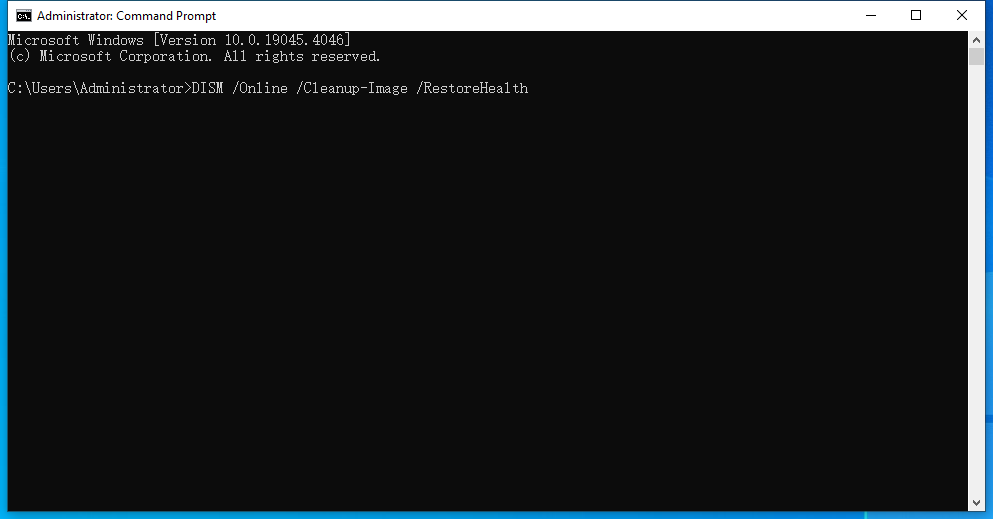
- If SFC reports system image files that it cannot repair, type DISM /Online /Cleanup-Image /RestoreHealth and press Enter.
![dism]()
- Wait for the repair to finish, and restart PC to check if the problem is solved or not.
Fix 7: Perform a Clean Boot
This issue can also be caused by the interference of a 3rd-party app or background service, then we can perform a clean boot to kill the trouble.
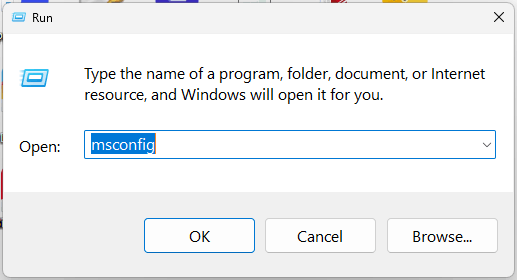
- Press Win+R, enter msconfig and press Enter.
![clean boot01]()
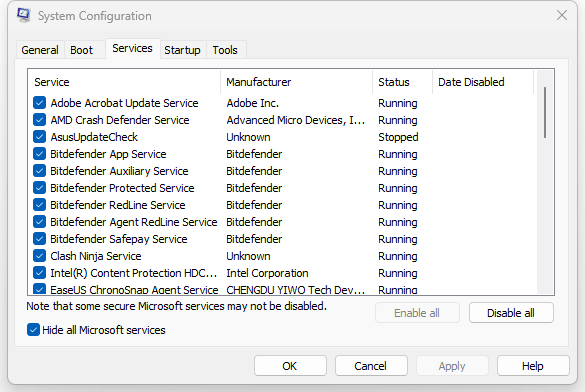
- Go to Services tab, check Hide all Microsoft services, then click Disable all.
![clean boot02]()
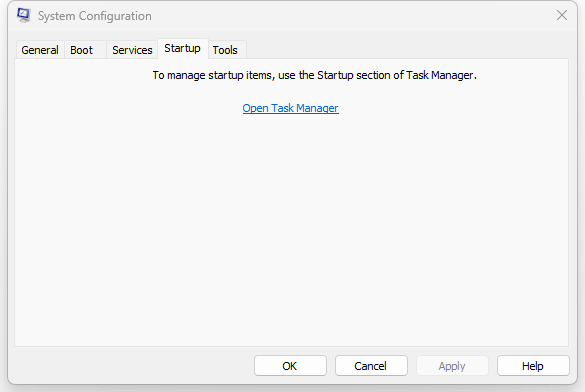
- Open Startup > Open Task Manager.
![clean boot 03]()
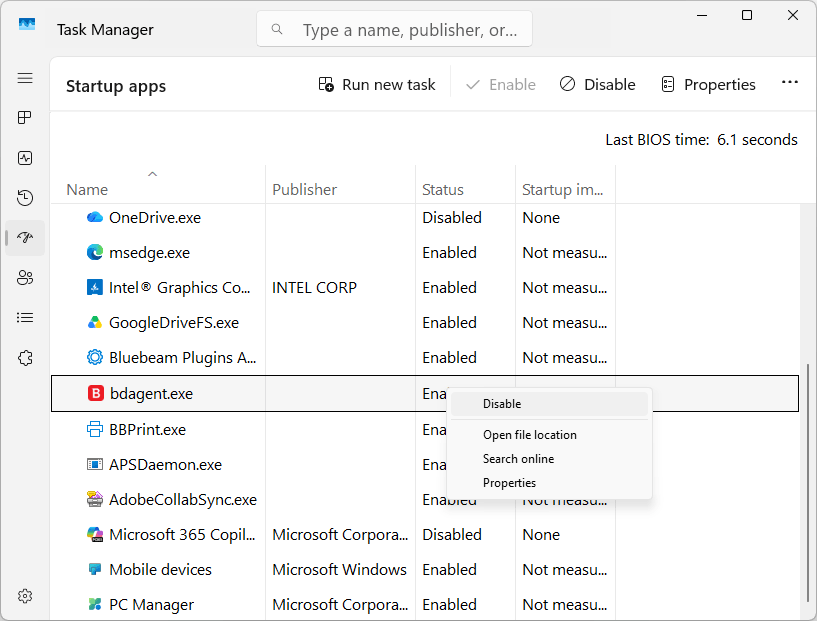
- Right click each enabled app, and choose Disable.
![clean boot 04]()
- Close Task Manager, click OK and restart PC.
- Launch the game to check if the issue persists.
Fix 8: Recover Missing EMP.dll file with Cisdem Data Recovery
If you are looking for an easy way to search missing emp.dll files on your PC, or the file was deleted by mistake, a dedicated file retrieval tool like Cisdem Data Recovery could be fully used to find the missing EMP.dll file back.
This professional-grade data recovery application offers reliable solutions to recover any deleted, lost, missing, corrupted or even formatted files from internal hard drive and external storage device, both performing brilliantly. After restoring the lost EMP.dll file with Cisdem Data Recovery, you are supposed to copy and paste the file into the right directory, thus fixing “EMP.dll was not found” error smoothly and reverting your game back to a normal operation condition.
The highlights of Cisdem Data Recovery:
- Recover data under different data loss situation: deletion, formatting, system crash, virus attack, partition loss, corruption, etc.
- Support 1000+ file types, including game file, photo, video, audio, document, email, archive, etc.
- Recover lost file from various storage devices, including internal and external hard drive, USB, SD card, etc.
- Repair corrupted images, videos and documents
- Recover unsaved files in Word, Excel, PowerPoint, etc.
- Quickly navigate to wanted files using filter tool or search bar
- Preview recoverable items before final recovery
- High recovery rate with clean yet modern UI
- Crashed PC/partition recovery supported
Steps to fix EMP.dll not found error with Cisdem:
- Download and install Cisdem Data Recovery on your Windows PC.
Free Download Windows 11/10/8/7 - Select a location to search for EMP.dll.
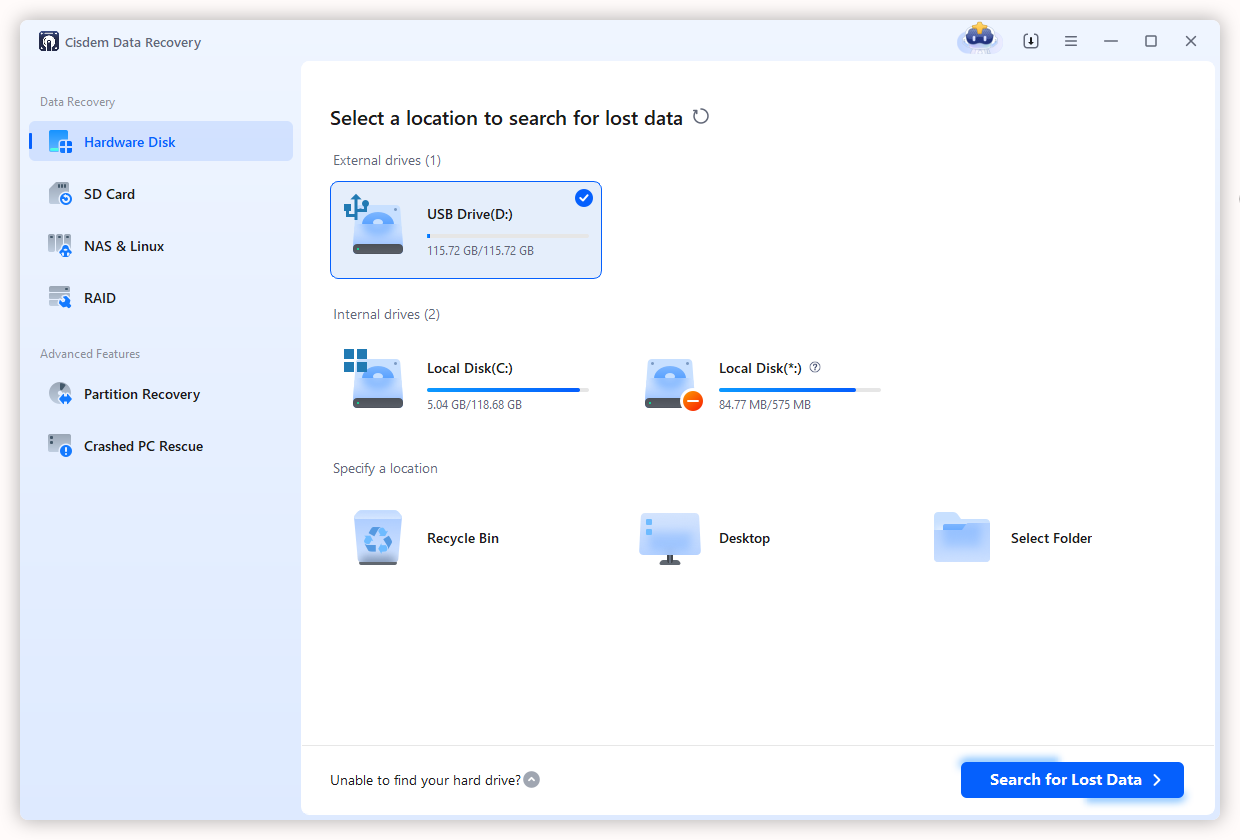
Launch this program, choose Hardware Disk, select the location where EMP.dll was stored, and click Search for Lost Data.![cisdem data recovery 01]()
- Scan the selected location.
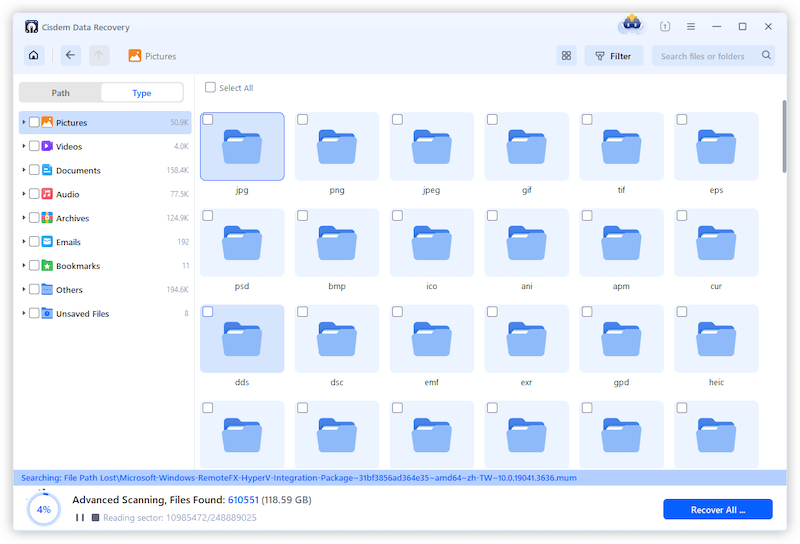
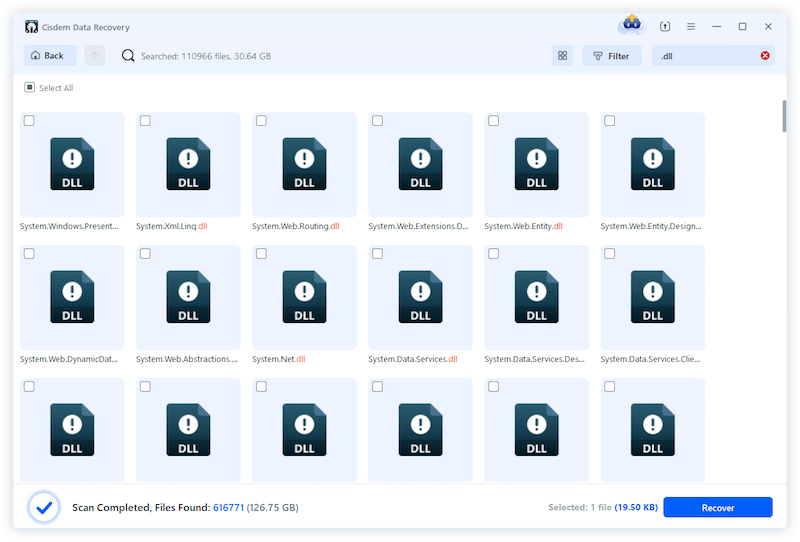
Cisdem will start scanning the seleted drive and list all the recoverable files during the scanning. You can go to Type > Others and look for the missing EMP.dll file. Alternatively, you can enter file extension .dll in the search box to do a quick search.![cisdem data recovery 02]()
- Find and recover EMP.dll.
Locate the EMP.dll file, select it and click Recover to restore the DLL file to an appropriate location.![cisdem data recovery 03]()
- Copy and paste the EMP.dll into your game directory. For example, if you are playing Hogwarts Legacy, paste the file in this folder: Hogwarts Legacy/Phoenix/Binaries/Win64.
- Reopen the game to check if “EMP.dll was not found” error has been solved successfully.
Also, you can watch the video from Cisdem official, starting from 01:00,
Fix 9: Perform Windows System Restore
Provided that any system changes have led to EMP.dll not found issue, such as OS update, downgrade, reinstallation and so on, the most suitable solution is to perform a Windows system restore. It will restore Windows to an earlier date when the DLL file missing error didn’t appear. While it’s noticeable that this fix is feasible only if a system restore point has been created before the occurrence of EMP error.
- Press Win+R to initiate Run box.
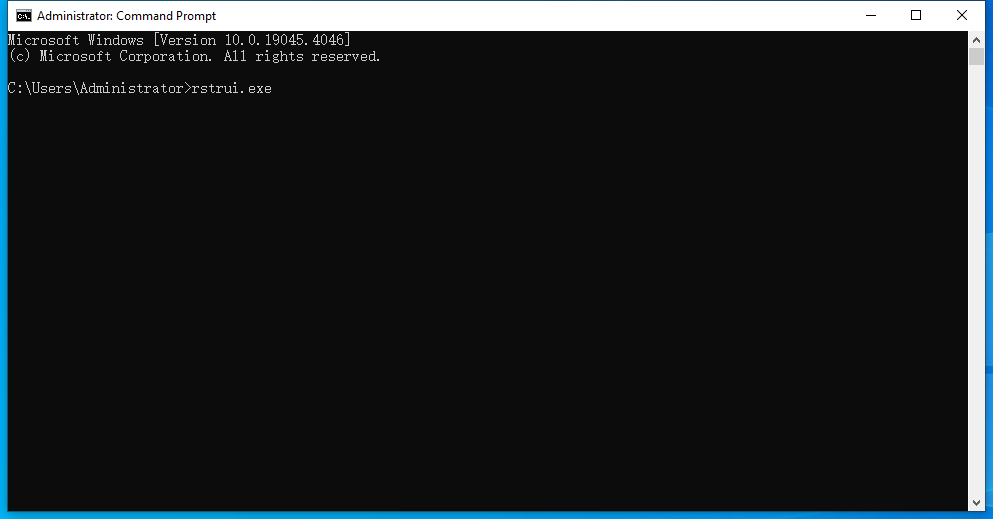
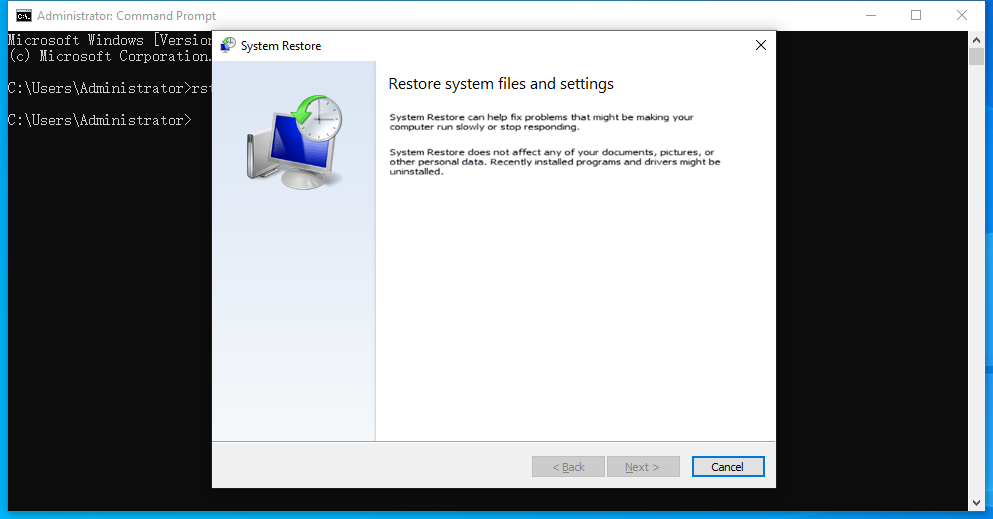
- Input rstrui.exe, click OK to launch system recovery utility.
![windows system restore 01]()
- Continue to choose Next button.
![windows system restore 02]()
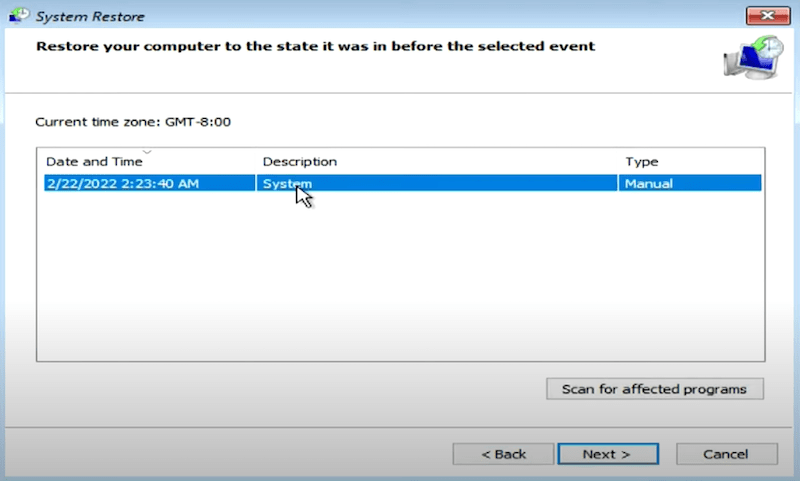
- Select a restore point before EMP.dll not found error showed up, click Next.
![windows system restore 03]()
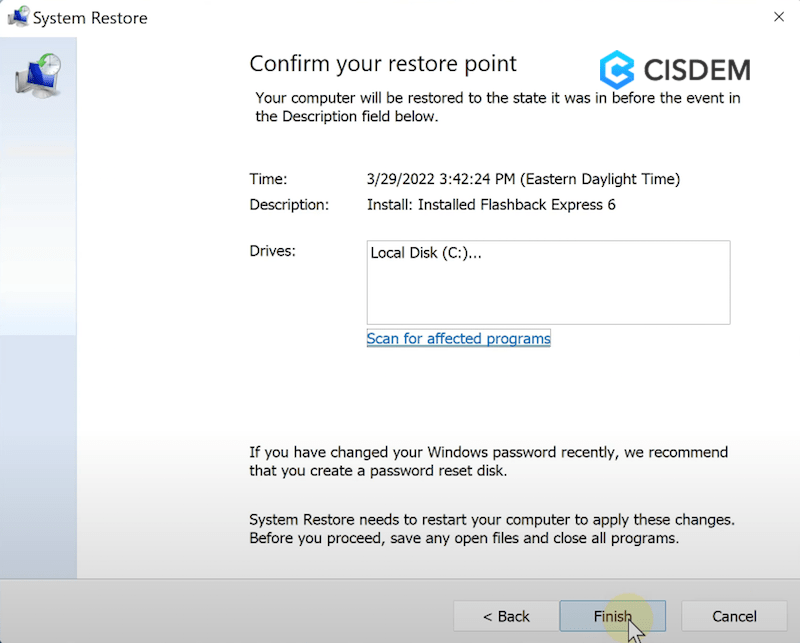
- Click Finish to confirm the restore point and start the system restore.
![windows system restore 04]()
- After restoration, your computer will reboot by default. Now the EMP.dll missing problem should be fixed.
Fix 10: Reinstall The Game
If none of the above approaches prove successful, the last thing you can do is turn for a game reinstallation. Unfortunately, in this case you have to give up the game process which may take you much time and passion. Though this method makes it a necessity to play the game from scratch, it provides one more chance to fix “EMP.dll was not found” error.
Simply navigate to your game library in either Steam or Epic Game Launcher, right-click on the game and opt for uninstall, and follow up the subsequent on-screen prompts to finish the uninstallation process. Afterward reinstall the game using the game launcher via visiting the store. Finally start your newly installed game and the EMP.dll file missing problem should disappear.
Conclusion
“The code execution cannot proceed because EMP.dll was not found” issue can happen at any moment, especially after the installation of a game or during game play. This page has covered a comprehensive guide on how to fix EMP.dll not found at given scenarios, and among these proven fixes, Cisdem Data Recovery would be a trusted attempt to get back your lost EMP.dll file within several clicks, and not losing your game data.

Zoey shows a great interest in what she does. Although not long with Cisdem, she has possessed a professional understanding of data recovery.

JK Tam is the lead developer at Cisdem, bringing over two decades of hands-on experience in cross-platform software development to the editorial team. He is now the lead technical approver for all articles related to Data Recovery and DVD Burner.
Robert R. Suarez
This guide does a good job of explaining why the DLL may disappear and walks through several ways to restore it. It is helpful.