


How to Download Only Part of a YouTube Video with Best Solutions
 10.5K
10.5K
 0
0


“I'm trying to save a section of a YouTube video. The original stream is about 50 minutes long, and I only need 15 seconds of it for remixing and sharing. Can I trim and download YouTube clips from a particular time range?” If you have a similar question, this article will give you the details you need.
Solution 1. Download Specific Part of YouTube Video with the Best Clip Downloader App
Cisdem VideoPaw is an all-inclusive app that helps you download, convert, compress, edit, and record videos easily. It can download videos from more than 10,000 platforms including YouTube, Facebook, and TikTok. And it can also convert any video to hundreds of formats.
The app is definitely the perfect YouTube clip downloader for Mac and Windows users. It makes it easy to:
- Download just a portion of video from YouTube
- Download all your clips from a playlist in one go
- Save YouTube clips from Live streams
- Trim downloaded YouTube videos
- Download clips to MP4, MP3, WebM, MKV, and more
- Keep videos in 4K or 8K
- Batch process and encode videos at super-fast speeds with integrated hardware acceleration
 Free Download macOS 10.15 or later
  Free Download Windows 10 or later
Part 1: How to download part of a YouTube video to computer:
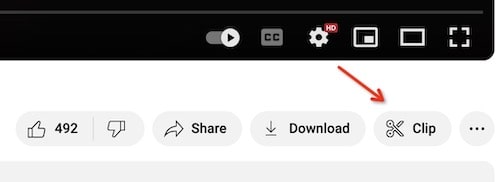
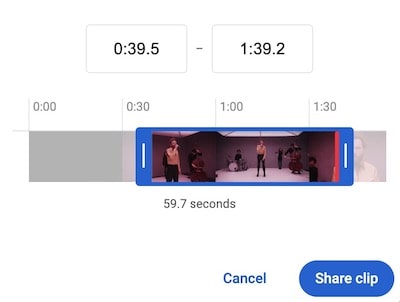
YouTube Clips is a built-in editing feature that allows content creators or viewers to quickly capture 5 to 60 seconds of video and share it. If you only want to download YouTube clips under 1 minute, you can use this method.
- Open the YouTube video you want to capture a clip from. Click "Clip" below the video.
![]()
- In the "Create clip" window that pops up, adjust the start and end time. Add a title and click "Share clip". Copy the shared link.
![]()
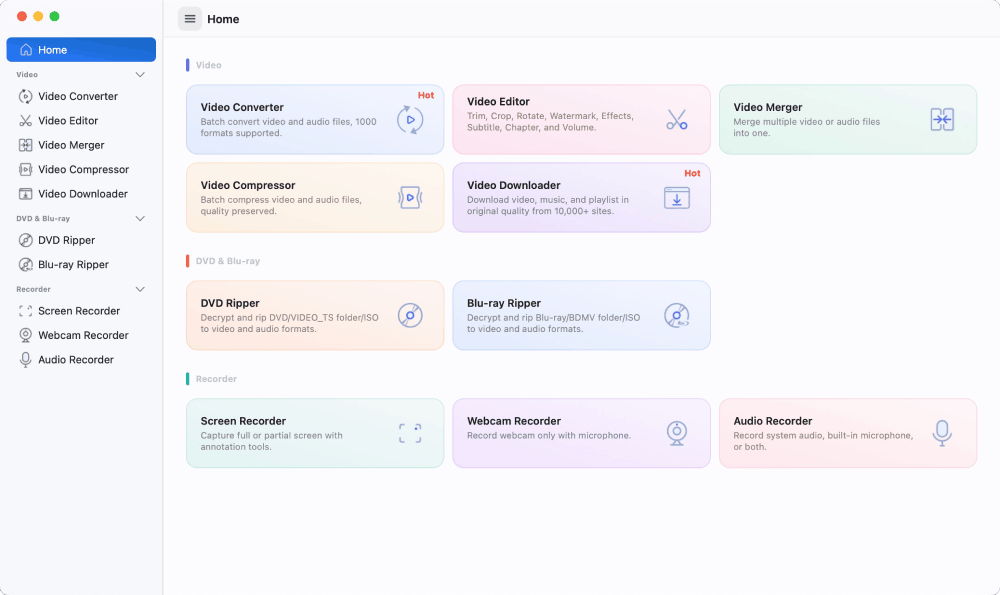
- Open Cisdem VideoPaw. Enter the Video Downloader module.
![videopaw main interface]()
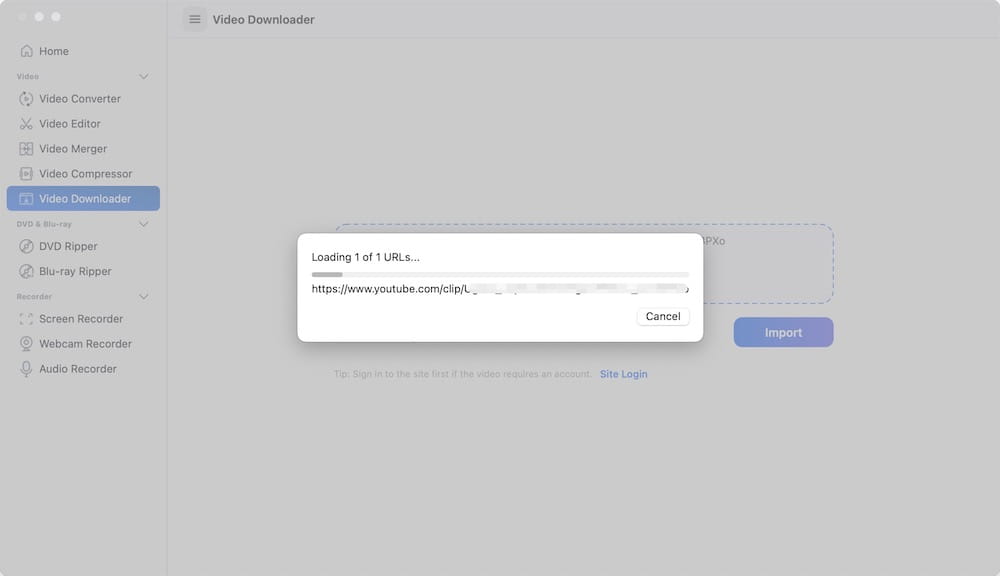
- Paste the shared link you just copied from YouTube into the center box. Press "Import" to start parsing.
![]()
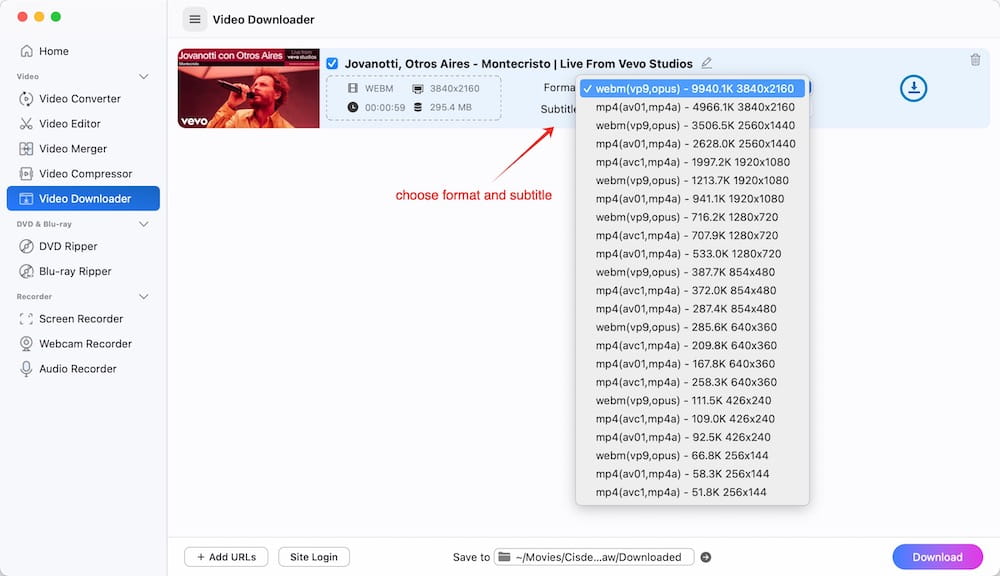
- Once the clip is loaded, select the output option from the “Format” list. Note: The software intelligently sorts the video options, with the original video at the top.
![]()
- Click the “Download” button to start downloading a YouTube video partially. Once finished, the download progress icon will turn into a blue checkmark. Click it to navigate directly to the downloaded clip.
![]()

Download segment of ongoing livestream on YouTube
Cisdem VideoPaw supports downloading YouTube live videos. You can use the above method to clip and download. All previously live-streamed content is eligible to be made into clips. Again, each clip should not exceed 1 minute.
To know how to to download a live video from the begin or from the current time, read https://www.cisdem.com/resource/download-youtube-live-stream.html.
Download multiple or all your clips from YouTube
After you clip videos on YouTube, all the videos will appear in "Your clips".
To download multiple clips in bulk:
- Visit https://www.youtube.com/. Click "Your clips" on the left.
- Copy the link - https://www.youtube.com/clip/xxxxxxxx to the individual clips directly.
- In Cisdem VideoPaw, simply press Enter to input multiple URLs on separate lines inside the link box (one URL per line).
- Click “Import” and the software will start batch processing.
![]()

To download all clips from a playlist:
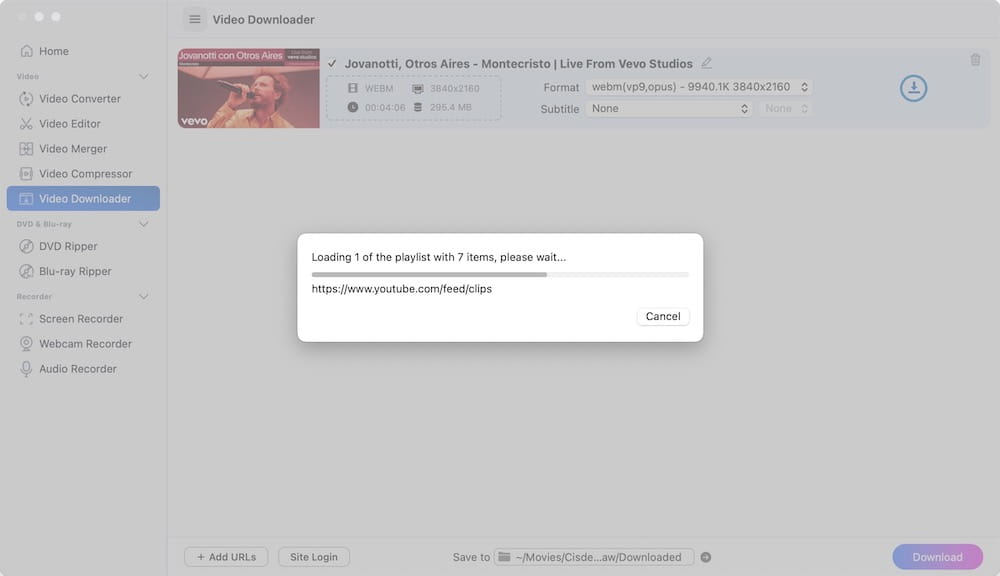
- Click "Site Login" and go to log in your YouTube account.
- Copy the link - https://www.youtube.com/feed/clips, which is the default URL for your all saved YouTube clips and only visible to you.
- Paste the link to VideoPaw and use the software to download all YouTube clips from playlist.
![]()
Part 2: Download a full YouTube video, then trim it
The good thing about this method is that you can trim a YouTube video to any length. There is no limit.
- Copy the YouTube video link directly from the address bar. Then use Cisdem VideoPaw to download it.
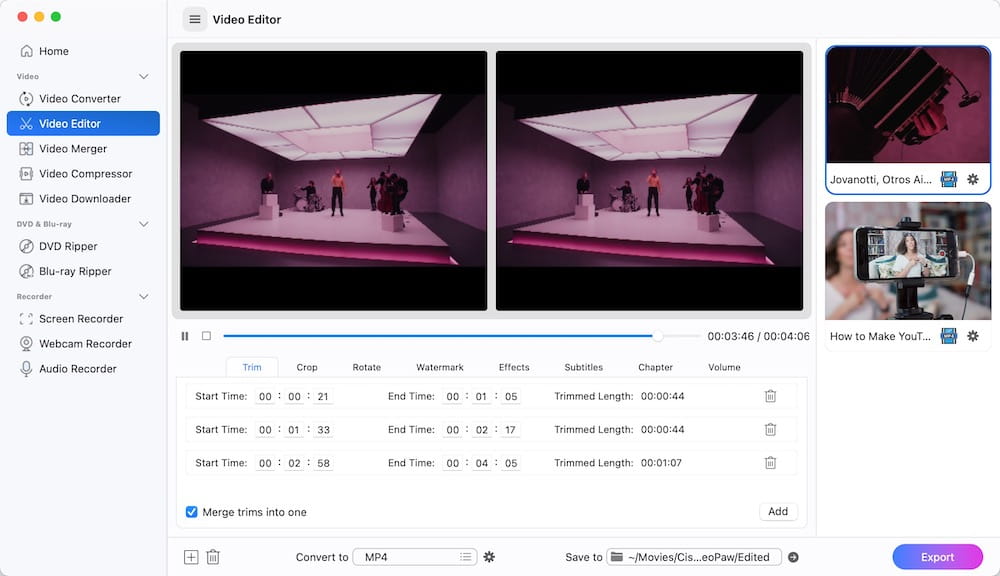
- Add the downloaded video to the Video Editor module.
- In the “Trim” tab, click "Add" and set the start/end time. You can click "Add" multiple times to cut out different sections.
- By default, "Merge trims into one" is checked to combine them. Finally, click “Export” to save a portion of a YouTube video.
![]()
Free Download macOS 10.15 or later Free Download Windows 10 or later
Solution 2. Download Selected Section of YouTube Video without Third-party Software
The following methods only work for regular YouTube videos. Playlists, live videos, and private videos are not supported.
#1 Download the part as MP4/MP3 online
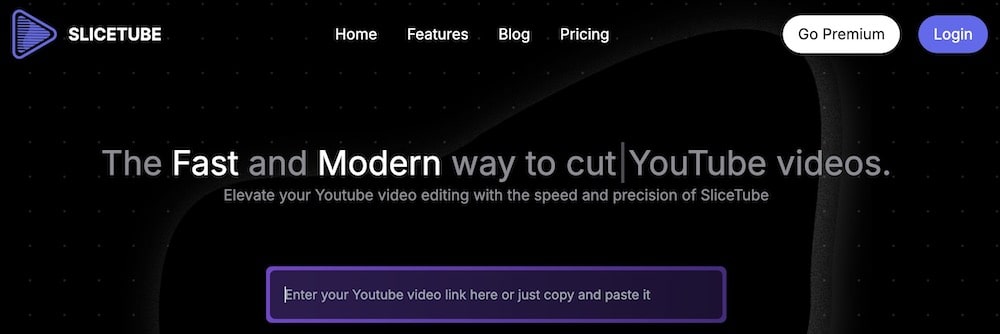
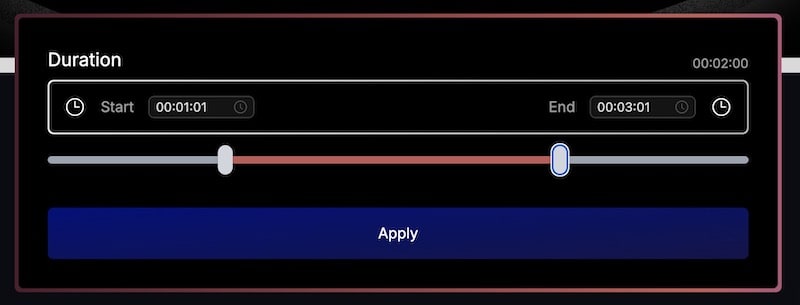
Slicetube.io is an online service that’s able to cut any YouTube video and download the segment to MP4 or MP3. It requires $5, $15, or $25 for a monthly, half-yearly, or full-year subscription. But I must warn, online sites are risky. They can be banned at any time, causing your money to go down the drain.
- Go to https://www.slicetube.io/. Copy & paste YouTube link into it.
![]()
- Scroll download. Trim the YouTube and click “Apply”.
![]()
- Choose an output option. Note: Downloading as MP3 is free.
#2 Download partial video as MP3 with extension
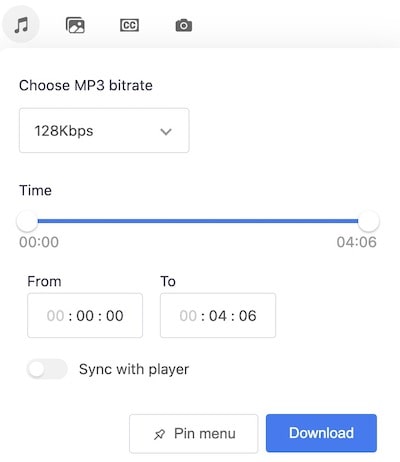
YouTube Video Downloader, provided by addoncrop.com, can download only a segment of a YouTube video into MP3. If you want to save the video as MP4, you can't trim it. The extension can be used on multiple browsers such as Chrome, Firefox, Edge, Opera, etc. Here are the steps on Chrome.
- Open https://addoncrop.com/v27/youtube-downloader/. Learn how to install the extension here. Note: There are 3 ways to install it, either through Foxified, Userscript, or Developer Mode.
- Once installed, open a YouTube video.
- Click the music symbol under the video and wait for loading video details.
- Cut the video and download part of YouTube video as MP3.
Solution 3. Download Certain Part of a YouTube Video with Command Line
Here requires yt-dlp and ffmpeg. It takes a long time to really learn and grasp them. If you have never encountered yt-dlp and ffmpeg before, I recommend using solutions 1 and 2. If you already have the command-line tools installed, you can save videos partially using the following command lines.
Download YouTube video from particular time
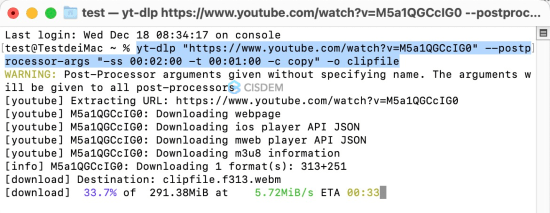
yt-dlp [YouTube URL] --postprocessor-args "-ss 00:02:00 -t 00:01:00 -c copy" -o [output file name]
The -ss is followed by the start time of the video and the -t is followed by the duration. This command means to download the video between the 2-3 minute.
Download video and trim a specific part
yt-dlp [YouTube URL]
ffmpeg -i downloaded_youtube.mp4 -ss 00:02:00 -t 000:01:00 trimmed.mp4
You need to download the whole YouTube video via yt-dlp first and then cut it using ffmpeg to get the desired portion. You can specify the output format and re-encode the video.
Download YouTube clips from playlist
yt-dlp --cookies-from-browser [your default browser] “https://www.youtube.com/feed/clips”
Need to sign in to YouTube and then close the browser completely.
Bonus: Download video with chapters or timestamps
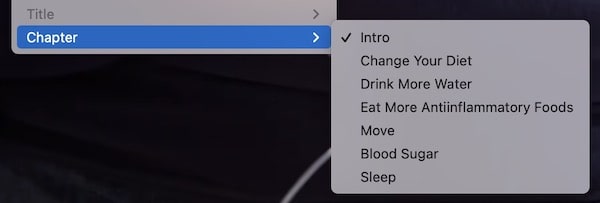
yt-dlp --embed-chapters [YouTube URL]. It does not download YouTube videos in parts, but just keeps all chapters for easy navigation. You can view chapters via VLC Media Player.
More about Saving Partial Video from YouTube
#1 Can't download specific section with current time URL
- When playing a YouTube video, right-click it, and then you can select the "Copy video URL at current time" option.
- Click the "Share" button under the YouTube video and set the start and end time. You will get a new link, such as https://www.youtube.com/embed/video_id?start=30&end=60&autoplay=true.
After my testing, parsing the above 2 types of YouTube links still yields the entire video, no matter what clip downloader is used. The purpose of these 2 links is to facilitate sharing rather than downloading.
#2 Record segment of YouTube video
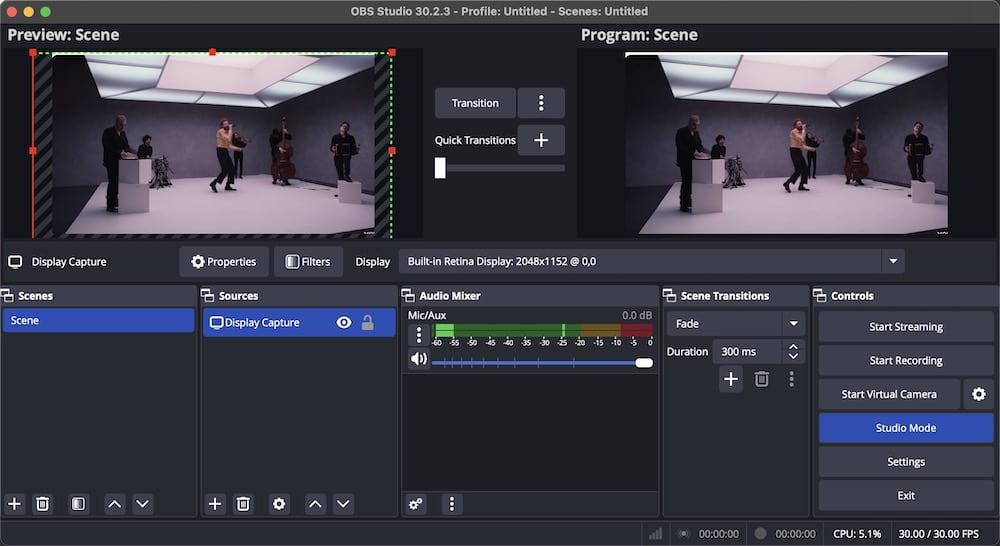
You can also use screen recording software to record video clips. OBS is an open source project on Github. It lets you record high-quality YouTube videos. However, its complex interface may confuse beginners.
- Download and install OBS from https://obsproject.com/download.
- In the bottom left of the interface, click “+” to add a scene.
- Click “+” under the Sources, then choose “Display Capture”.
- Open a video in YouTube and drag the timeline to the part where you want to start recording.
- Hold Alt and drag the border in the preview window to select the area to record.
- Set the output parameters and start streaming.
![]()
Conclusion
In a nutshell, solution 2 is simple, solution 3 is practical, and solution 1 combines the best of both worlds. In addition to downloading part of YouTube video, you can record a video clip from YouTube as well.
Copyright Disclaimer
The video/audio download methods provided in this article are for personal and educational use only. Sharing or commercial use is not allowed unless you get permission first. The website fully respects copyright laws and will act upon any valid removal request.

Emily is a girl who loves to review various multimedia software. She enjoys exploring cutting edge technology and writing how-to guides. Hopefully her articles will help you solve your audio, video, DVD and Blu-ray issues.

Ryan Li is a senior developer at Cisdem. Since joining the company in 2017, he has led the development of Cisdem VideoPaw and now serves as the editorial advisor for all articles related to Video Converter.