


Disk Drill Review 2026: Is It Safe, Legit & Worth the Price?
 90
90
 0
0


Disk Drill is one of the most frequently mentioned data recovery tools on the market. It is a top choice for individuals that need powerful data management. Find out whether Disk Drill is the right software fit for you in our review.
 Cisdem Data Recovery for Mac and Windows
Disk Drill Not Recovering Your Files? Try This!
- Recover files from various internal/external hard disks: HDD, SSD, USB, SD, etc.
- Support different data loss situations: deletion, formatting, corruption, system crash, power off, virus, etc.
- Recover 1000+ types of file: video, audio, document, image, etc.
- Repair damaged videos, photos and documents
- Recover unsaved files in Word, Excel, PowerPoint, Keynote, Pages, Numbers, etc.
- Support file recovery from iCloud, NAS, Linux, RAID, crashed PC/Mac
- Fast scanning and straightforward recovery process
- Preview files before recovery
 Free Download macOS 10.15 or later
 Free Download Windows 11/10/8/7
What Is Disk Drill?
Disk Drill is a popular data recovery program used by teams and individuals around the world.
Whether you accidentally deleted files, formatted storage devices, or had a partition lost, memory card corrupted, Disk Drill scans your device and look deeply for recoverable files. It is known for:
- Recover data under any data loss scenarios: accidentally deleted files, emptied recycle bin, crashed hard drive, formatted disk, virus infection, lost partition, corrupted memory cards
- Recover files from PC/Mac, HDD/SSD, USB, SD/CF Card, Digital Camera, etc.
- Recover video, audio, image, document, archive, other files
- Support various file systems: FAT16/FAT32, exFAT, NTFS/NTFS5, HFS/HFS+, APFS, ReFS, BTRFS, ext2/3/4
- Scan NAS, Linux SSH, raw devices, RAID, bad devices
There are also a few features beyond file recovery:
- S.M.A.R.T.Monitoring: track various indicators of hard drive reliability to avoid hardware issues
- Enable Data Protection for your drive
- Create bootable recovery drive (Mac only)
- Create macOS bootable installation drive (Mac only)
- Create backup
- Repair broken, corrupt or unplayable video
- Clean up to free up space
- Find duplicates (Mac only)
- Shred, remove, destroy unwanted files (Mac only)
- Erase free space on disk (Mac only)
Is Disk Drill Safe and Legit?
Yes, Disk Drill is safe and legit to use.
Disk Drill has been around for years (since 2009), it is developed by CleverFiles, which is a legitimate software company known for its data management solutions, and it is not a sketchy company operating out of a basement, it is a US software company that has been building apps for almost 2 decades.
Our professionals and other experts have proved Disk Drill to be safe to use on both Mac and Windows, despite the mixed reviews you will read about Disk Drill, including some negative comments. It has no malware, or any other malicious code. Like other reputable desktop software, it can scan your storage devices to find recoverable files, and it doesn’t require users to modify system files to process a file recovery workflow.
Is Disk Drill Free?
Yes, it is free to use, but the free version only allows recovering up to 100MB data, which is for program evaluation purpose, so users can decide if the tool helps them recover data or not.
Free vs Professional vs Enterprise
There are Pro and Enterprise versions available to perform unlimited data recovery on your device, and you can read following table to check the differences between these 3 Disk Drill versions.
| Disk Drill Free | Disk Drill Pro | Disk Drill Enterprise | |
|---|---|---|---|
| Features | All | All | All + Forensic data export |
| Data Recovery | Limited (up to 100MB) | Unlimited | Unlimited |
| Platform | Mac & Windows | Mac & Windows | Mac & Windows |
| Users | Individual Users | Individual Users | Commercial and organizational Users |
| Devices Support | Unlimited | Up to 3 devices | From 3 ~ 1000+ devices |
| Technical Support | Basic | Basic | Premium |
How Much Does Disk Drill Cost?
If you want full features and recover your data without limits using Disk Drill, a paid version is recommended.
There are 2 premium version: Professional and Enterprise
| Disk Drill PRO | Disk Drill Enterprise | |
|---|---|---|
| Price | One-year: $89 Lifetime: $149 |
3 Devices: $199 (Per Year) 10 Devices: $499 (Per Year) 25 Devices: $999 (Per Year) 50 Devices: $1699 (Per Year) 100 Devices: $2749 (Per Year) 1000+ Devices: Custom (Per Year) |
The Disk Drill Review
Here based on following testing environment, we have an unbiased review of Disk Drill:
- Disk Drill versions: 6.3.2326 for Mac, 6.3.1398.0 for Windows
- Testing Device: iMac running Tahoe, Windows 11
- Data loss scenarios: empty recycle/trash bin, format hard drive
Features
As we mentioned in part 1, Disk Drill is more than just a data recovery program, it has extra tools to manage your data safely and efficiently, and here is the full list of its features:
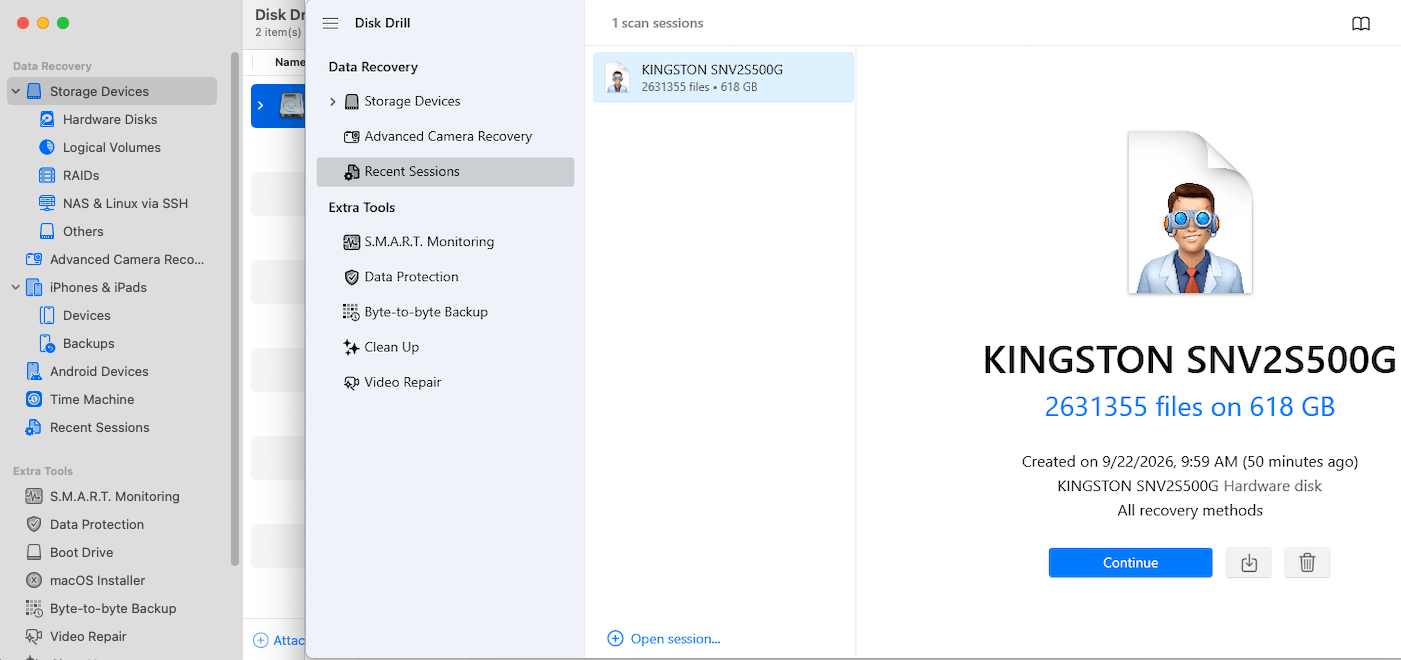
- Recover data from internal and external storage device, including RAIDs, NAS, Linux, etc.
- Recover media data from memory cards and internal storage of cameras, drones and similar devices
- Recover data from iPhones & iPads (Mac version only)
- Recover data from Android Devices (Mac version only)
- Recover data from Time Machine backups (Mac version only)
- Save recent recovery sessions
- S.M.A.R.T.Monitoring to track and diagnose the health of hard drive with
- Data protection to secure data on a partition
- Create boot drive (Mac version only)
- Create macOS installer (Mac version only)
- Create byte-to-byte backup
- Repair videos
- Clean up device
- Find duplicates (Mac version only)
- Shred data (Mac version only)
- Erase free space (Mac version only)
I tested Disk Drill’s main data recovery feature as well as its additional tools. Putting the data recovery part aside for now, I found most of the extra tools useful and intuitive to use. In particular, the duplicate finder and clean up tool, which makes it easy to identify duplicates and free up space on my iMac.
However, the video repair tool was a different story in my testing. I used this tool to repair several corrupted videos, but none of the videos were successfully restored. While Disk Drill offers a broad set of tools beyond recovery, the usefulness of these tools can vary depending on your purposes.
Compatibility
Disk Drill has a high compatibility across different ares that you would expect from a data recovery program, and it does even better than its competitors.
Operating system: Disk Drill supports all Windows version, from latest 11 to earlier XP. For Mac, however, the official website currently lists macOS Tahoe as supported but does not mention any information about the support of the latest macOS Golden Gate
CPU: The Windows version supports all Intel-based processors, while the Mac version supports both Intel-based and Apple Silicon. However, the official website does not mention the latest M6 chip, therefore, the compatibility with the newest Apple hardware is not clearly documented.
File System: This is where Disk Drill outperform its competitors. Compared with other data recovery programs on the market, it supports a relatively wider range of file system, including FAT16/FAT32/exFAT, NTFS, NTFS5, ReFS, HFS, HFS+, APFS, EXT2/EXT3/EXT4, BTRFS and any RAW disk.
Storage Device: Like other data recovering programs, Disk Drill also supports common storage devices such as internal and external HDD/SSD, SD Card, USB and others, even RAIDs, NAS, Linux. The Mac version goes further by supporting iPhones, iPads and Android devices, which is quite rarely found in a data recovery program.
File Type Support
Disk Drill officially supports 400+ file types (391 known file formats), which is a reasonable figure compared with other data recovery programs that say 1000+, even 2000+ file types. And it seems that Disk Drill supports more than just its listed formats, in our testing, Disk Drill found additional file formats.
The supported file formats cover all the file types that most people are likely to need for work and life, including 45 types of videos, 42 types of audio, 101 types of photos, 183 types of documents, 20 types of archives.
Scanning Speed
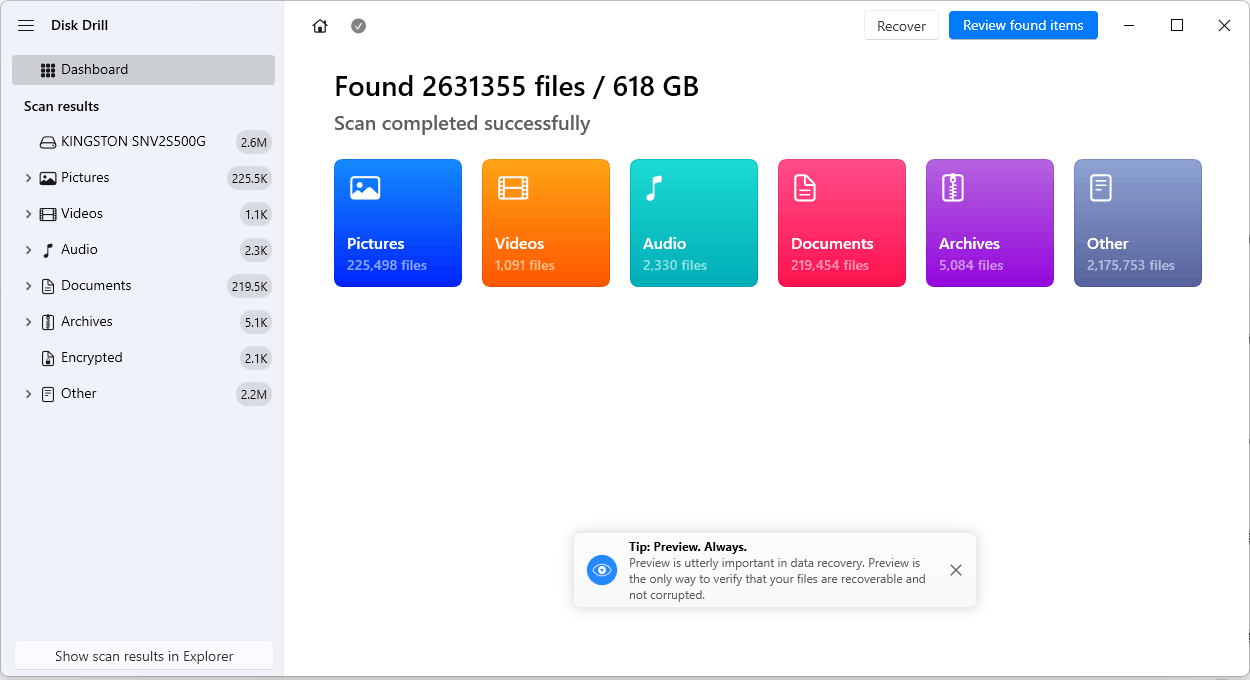
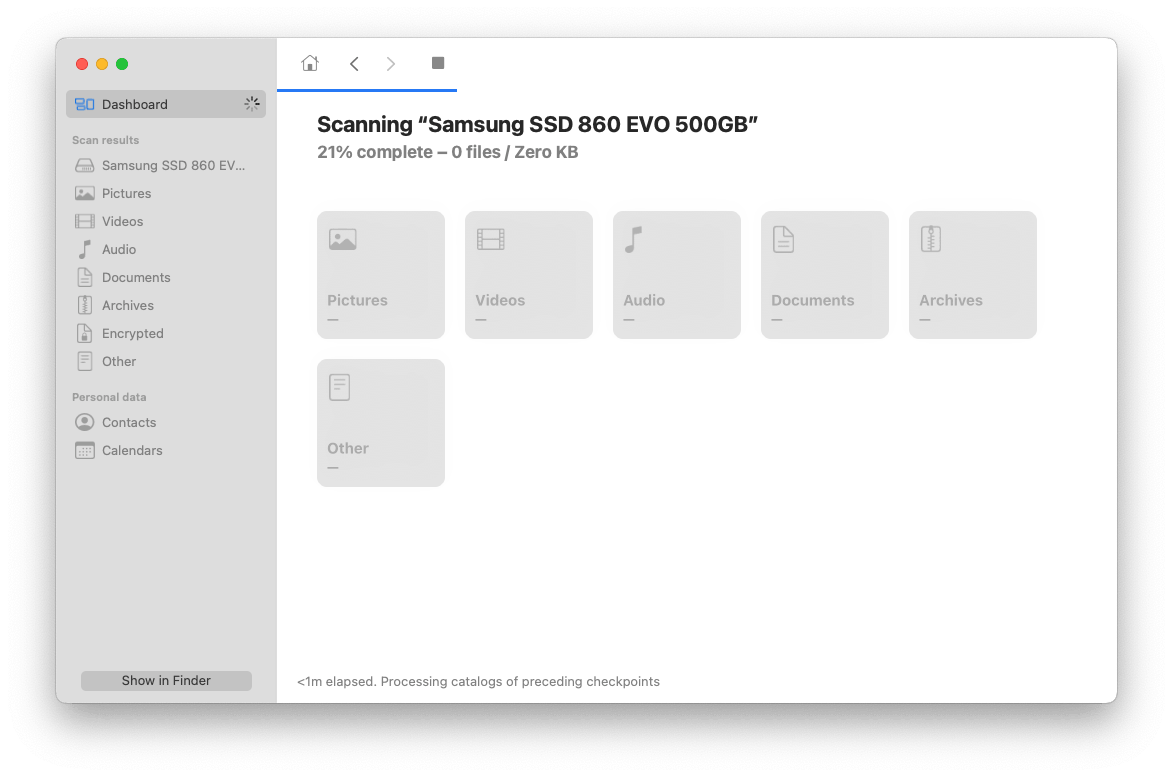
We tested Disk Drill on both Windows and Mac to see how quickly it could a large amount of data:
| Computer | Internal Drive | Files Found | Data Found | Scan Time |
|---|---|---|---|---|
| Windows 11 | KINGSTON SNV2S/500G | 2,552,782 | 619GB | 56 min |
| iMac | Samsung SSD 860 EVO/ 500GB | 3,803,565 | 830GB | 74 min |
One thing we found confusing during the scan was Disk Drill’s progress indicator. The scanning status bar repeatedly reached 100% and disappeared, then another progress bar appeared and continued scanning. This happened several times until the scan was complete. A single continuous progress bar would be better to make the process easier to understand.
Scanning on Windows is faster than that on a Mac, even though the capacity of the scanned drive is the same 500GB.
Comparing with other solid data recovery programs like Cisdem, Stellar, R-studio, Disk Drill’s scanning speed is not the fast, it is quite mediocre in our testing, even slower than Cisdem.
Recovery Performance
Here we will look at Disk Drill’s recovery performance from the following 3 aspects:
Recovery rate: in our testing, Disk Drill recovered most of the files we had recently deleted or formatted, the recovery rate reaches approx 90%. However, the recovery rate depends heavily on the data-loss scenarios. We started the recovery immediately after deletion or formatting, which contributed to a relatively higher success rate in our testing. If your drive is damaged, or the data has been lost for a long time, the recovery rate could be lower.
File integrity: Disk Drill generally did a good job preserving original file names and file structure during recovery. Most of the recovered files in our tests could be opened normally, which means the recovered data was intact.
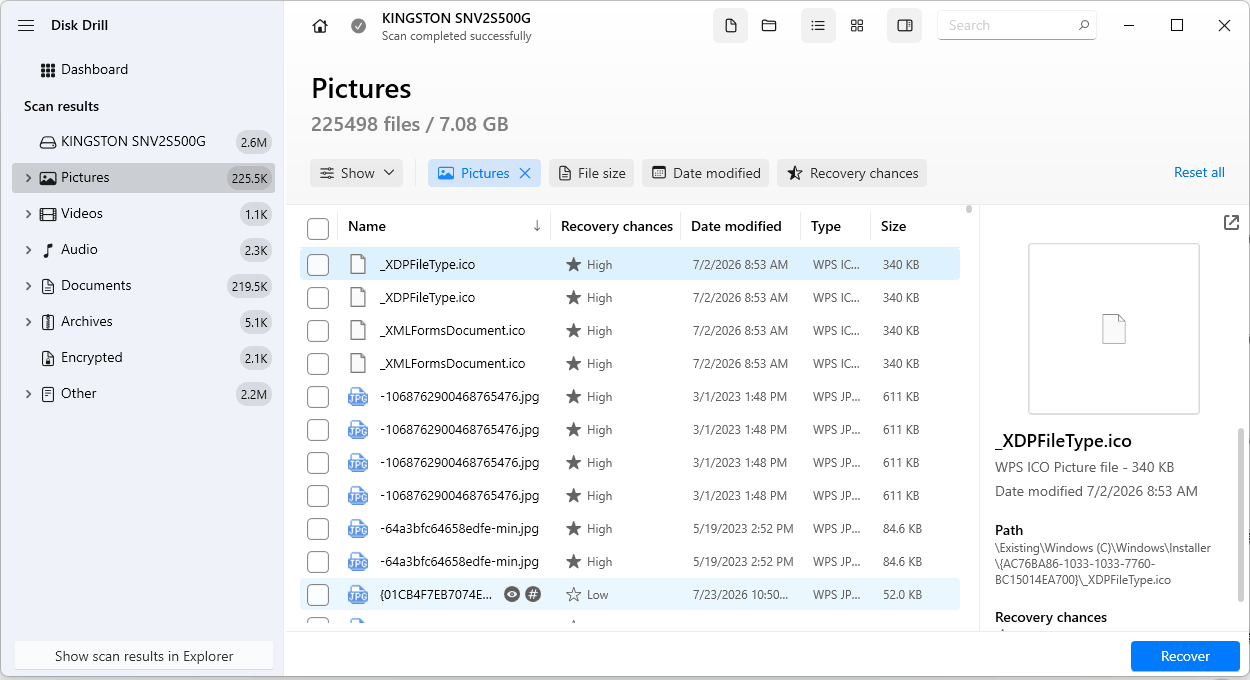
User experience: the recovery interface is generally easy to understand and follow, but finding a specific file can be tedious. By default, you have to open multiple nested folders one by one to reach the file you want, even there is filter tool available, unless you switch to individual file mode. And the tool Recovery Chances for Mac is not available in the free Mac version. Though it allows previewing a file, some files, especially the photos and videos cannot be always previewed with success, you have to recover first.
How to Use Disk Drill?
It requires a bit of learning curve to use Disk Drill for recovering files, and here we list the steps to find back lost data in this program.
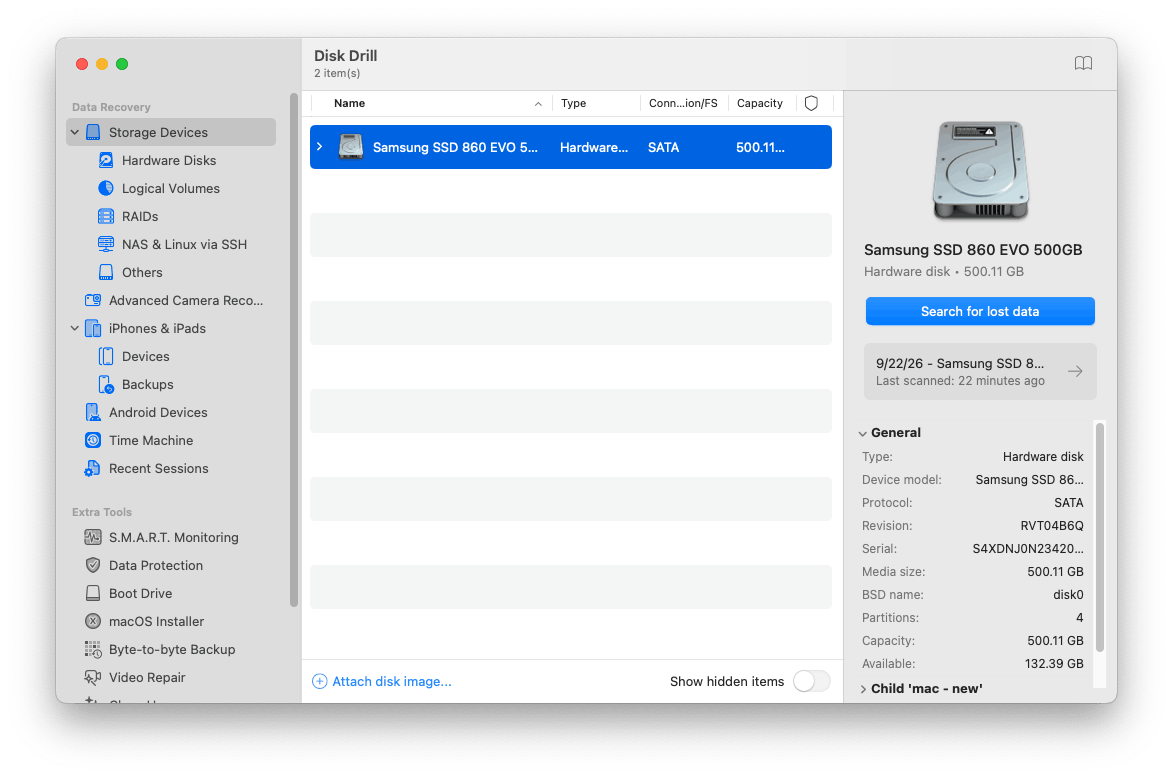
- Download Disk Drill from its official website, install it onto your Mac or PC.
- Select a disk or a volume that you want to restore files.
![use-disk-drill01]()
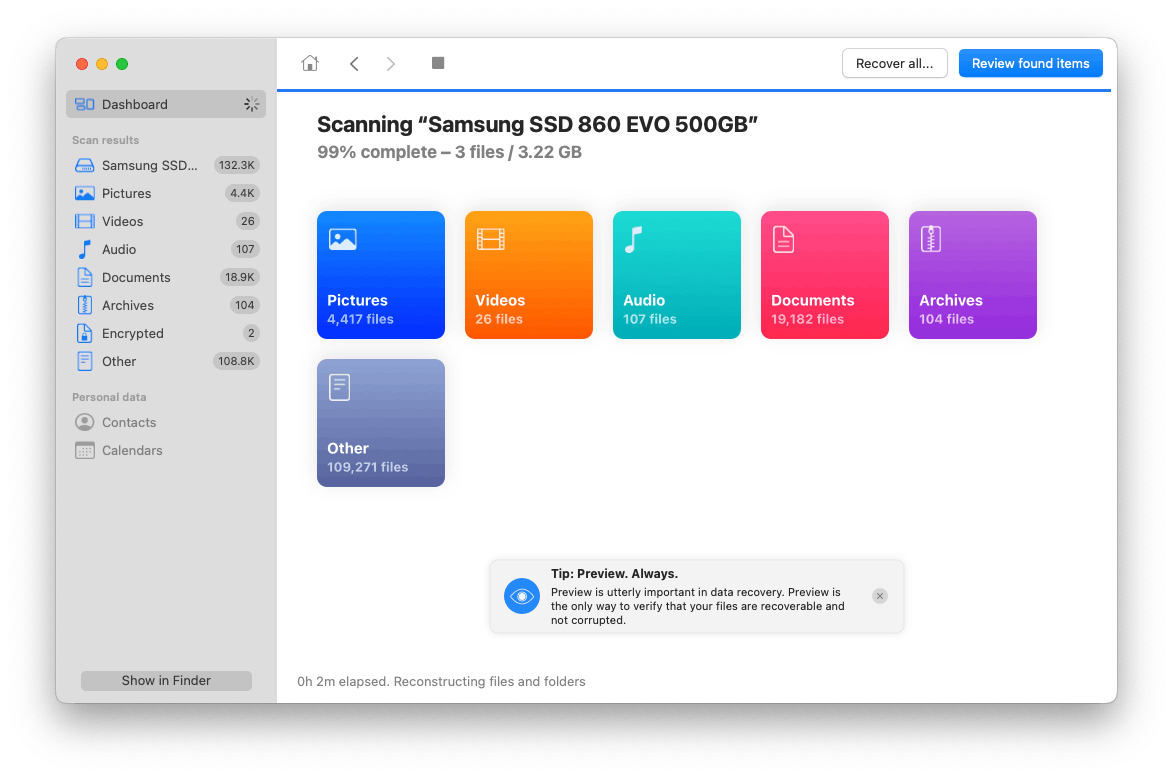
- Click Search for lost data to start the scanning, all the recoverable files will be listed according to file types.
![use-disk-drill02]()
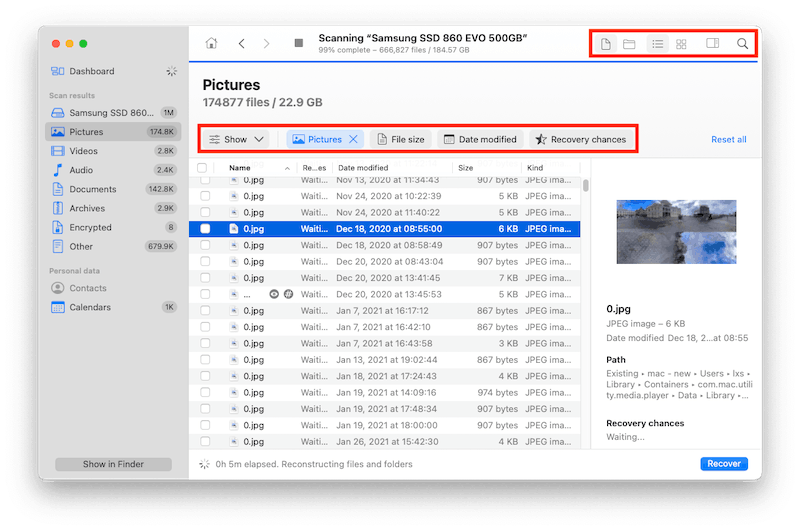
- Browse individual files, or check the folders to locate your files. Also, you can use the filter tools to quickly locate the lost files.
![use-disk-drill03]()
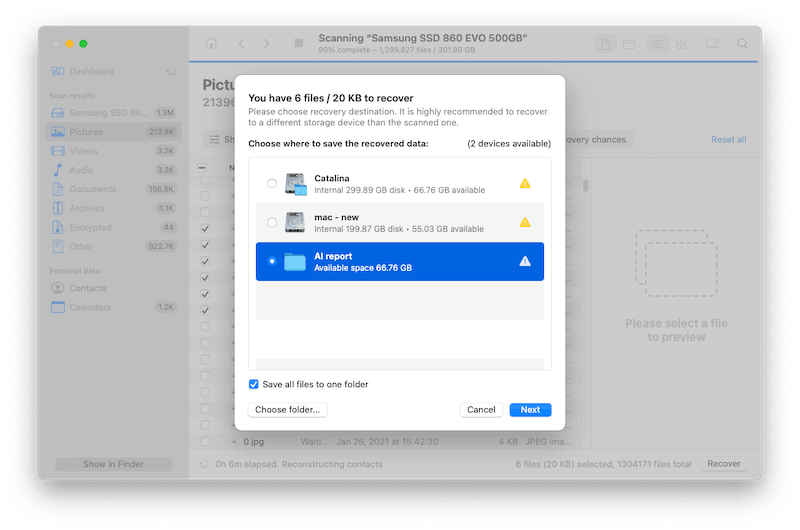
- Preview the files, select them and click Recover button, the save the files to a safe location.
![use-disk-drill04]()
FAQs about Disk Drill
1. Does Disk Drill make you pay?
No, though the free version allows recovering up to 100MB data only, when your data exceeds 100MB, an “Upgrade to Recover” windows will pop up to let you buy the Pro version. It is not an auto subscription process, you can choose to buy the Pro version or not.
2. Can Disk Drill repair corrupted files?
Yes, it can, but only video files.
Though Disk Drill helps access data on corrupted devices, such as memory cards, itself doesn’t repair damaged data, it can just rescue recoverable data from a corrupted storage device.
And it has a Video Repair tool to fix broken, corrupt or unplayable videos.
3. How to use Disk drill to search specific folder?
Select a disk or a volume that you want to restore files, click Search for lost data to start the scanning. After the scanning, go to your disk from Scan results, then go to the location where this specific folder is stored, or enter folder keywords into the search box to locate the folder, and recover your files.
4. Disk drill did not find video files, why and how to fix?
If you lost videos files indeed, but Disk Drill cannot find, it may be caused by following reasons:
- The video is overwritten. And there is no way to recover
- The drive stores the video is damaged. And it is not possible to rescue
- The scan is not complete. Finish the deep scan, or re-scan the drive
- The video is severely damaged. And Disk Drill won’t help on the recovery
5. What is Disk Drill refund policy?
There are no refunds.
According to CleverFiles, due to the nature of Disk Drill that is delivered electronically and made available immediately, all purchases and sales are final. For subscription plans, cancellation of automatic renewal does not refund the current billing period.
The Summary
Disk Drill is safe and legit to use, and it is worth the price especially when you need to recover some important recently deleted or formatted files .
Advantages:
- High recovery success for recently deleted or formatted files
- Good file integrity to show original names or open properly
- Broad compatibility on OS, storage devices, file systems
- 400+ file types to cover all use cases
- Useful extra tools to manage data on device
Disadvantages:
- Lower recovery rate for damaged drives or files that have been lost for a long time
- Slow scanning, Mac scans are even slower than Windows scans on same-sized drives
- Confusing scan progress with bar repeatedly reaching 100%
- Limited file preview and some files cannot be previewed successfully
- Latest Mac compatibility isn’t fully documented

Connie Yu has been a columnist in the field of data recovery since 2011. She studied a lot of data loss situations and tested repeatedly to find a feasible solution tailored for each case. And her solutions are always updated to fix problems from the newest systems, devices and apps.

JK Tam is the lead developer at Cisdem, bringing over two decades of hands-on experience in cross-platform software development to the editorial team. He is now the lead technical approver for all articles related to Data Recovery and DVD Burner.