


4DDiG Duplicate File Deleter Review: Things You Need to Know
 686
686
 0
0


Key Takeaways
4DDiG Duplicate File Deleter is a nice app for handling duplicate files and available for Windows only.
4DDiG Duplicate File Deleter is costly when compared with other duplicate file finders.
If you have used your computer for a long time, it's likely that duplicate files have accumulated on your hard drive. Generally unnecessary, they not only take up space but also lead to disorganization.
Is 4DDiG Duplicate File Deleter the right tool to help you manage duplicate files? Should you install or buy 4DDiG Duplicate File Deleter? In this review, I will discuss things you need to know about 4DDiG Duplicate File Deleter, such as its strengths and limitations.
 Cisdem Duplicate Finder
4DDiG Duplicate File Deleter Not Suitable for You? Try This
- Identify duplicate photos, videos, documents, audio files, and all other files
- Detect similar images with AI-powered similarity detection engine
- Support Windows PC, Mac, external storage devices, cloud drives, and more
- Scan for duplicate files in folders, Mac's Photos, iTunes, and Apple's Music
- Let you view duplicates in 3 ways, with side-by-side photo previews
- Automatically select all but one file for removal in each set of duplicates, enabling you to delete all duplicates at once
- Allow you to adjust selections manually or choose from 10 rules (e.g., Select Newest)
- Easy to use and customize


4DDiG Duplicate File Deleter review
Overview
What is 4DDiG Duplicate File Deleter?
Developed by Tenorshare, 4DDiG Duplicate File Deleter is a relatively new duplicate file finder and can help you remove duplicate files as well as similar images.
This app used to support both Windows and Mac. Now, it's only available for Windows, and its Mac version is part of a larger app. In addition to PC's internal hard drive, it supports cloud drives like OneDrive and Dropbox.
Pros
- User-friendly interface with a modern look
- Accurately find duplicate files and easily find similar photos
- Support all common file types: documents, images, videos, audio, and more
- Allow you to preview files before deletion
- Offer two rules for mass selections: Select Oldest and Select Latest
- Provide a Duplicate Reminder feature and an additional feature that analyzes disk space
Cons
- May lack some customization options needed by advanced users
- May be less convenient due to single-image previews instead of side-by-side previews
- More expensive ($24.95/month, $39.95/year, or $59.95 for life time) than most other duplicate file finders, making it not a cost-effective choice
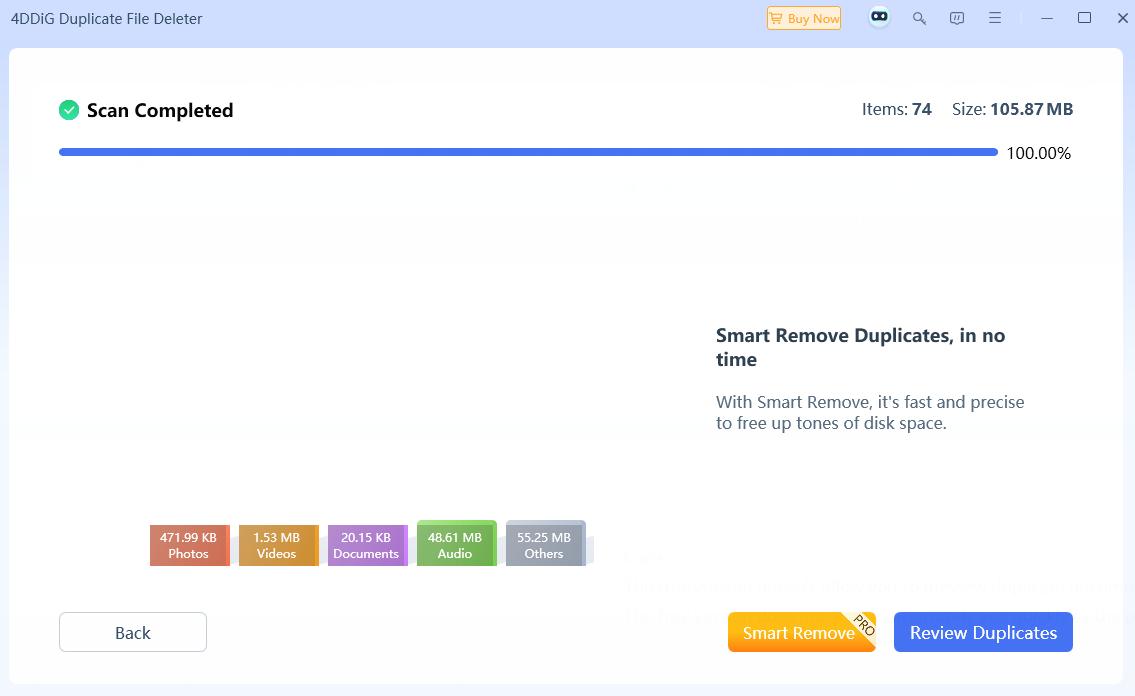
Features and performance
Handle duplicate files
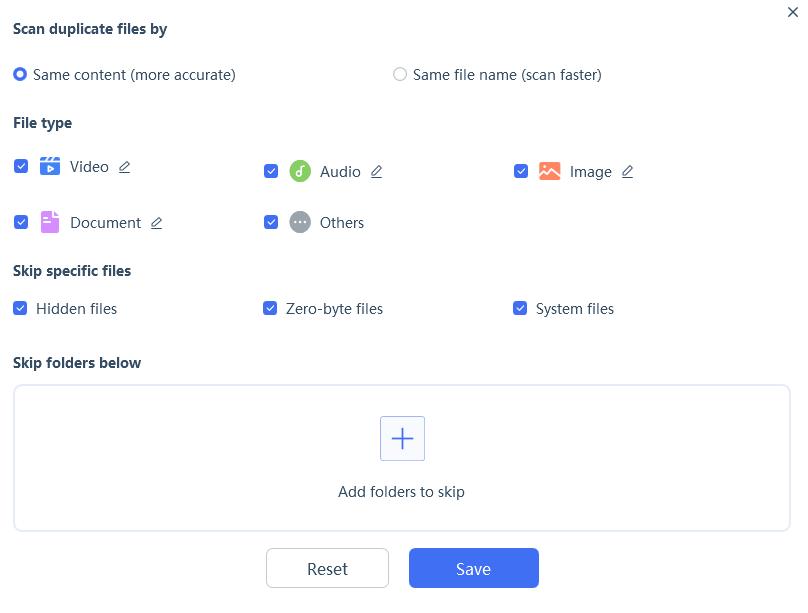
4DDiG Duplicate File Deleter uses the Message-Digest Algorithm to compare files and detects duplicates, which means it can find duplicate files with the same name or different names. You can set it to find all duplicates or only one type, such as duplicate videos.
It provides two basic auto select rules (Select Oldest and Select Latest) to help simplify duplicate removal. However, if you need to, for example, select files for removal by folder, you need a more powerful alternative.
Handle similar photos
The app also offers basic similar photo detection. By grouping similar images in your photo collection, this feature can help you remove redundant versions. However, since the detection is basic, it may miss many similar images.
Is 4DDiG Duplicate File Deleter safe to use?
Yes, 4DDiG Duplicate File Deleter is safe to use. Developed by Tenorshare, a well-known data recovery and software developer, it does not come with any malware during installation. And your personal data will not be uploaded during the scanning process. But make sure to download this software from its official site.
How to find duplicate files using 4DDiG Duplicate File Deleter
Finding duplicate files with 4DDiG Duplicate File Deleter is easy. Just follow these steps:
Step 1. Download and install 4DDiG Duplicate File Deleter from Tenoshare website.
Step 2. Launch it. Select “Duplicates” in the sidebar. Click “Get Started”.
Step 3. To find duplicates on your computer, USB drives, SD cards, or external hard drives, select “Local Drive”. Click “Next”.
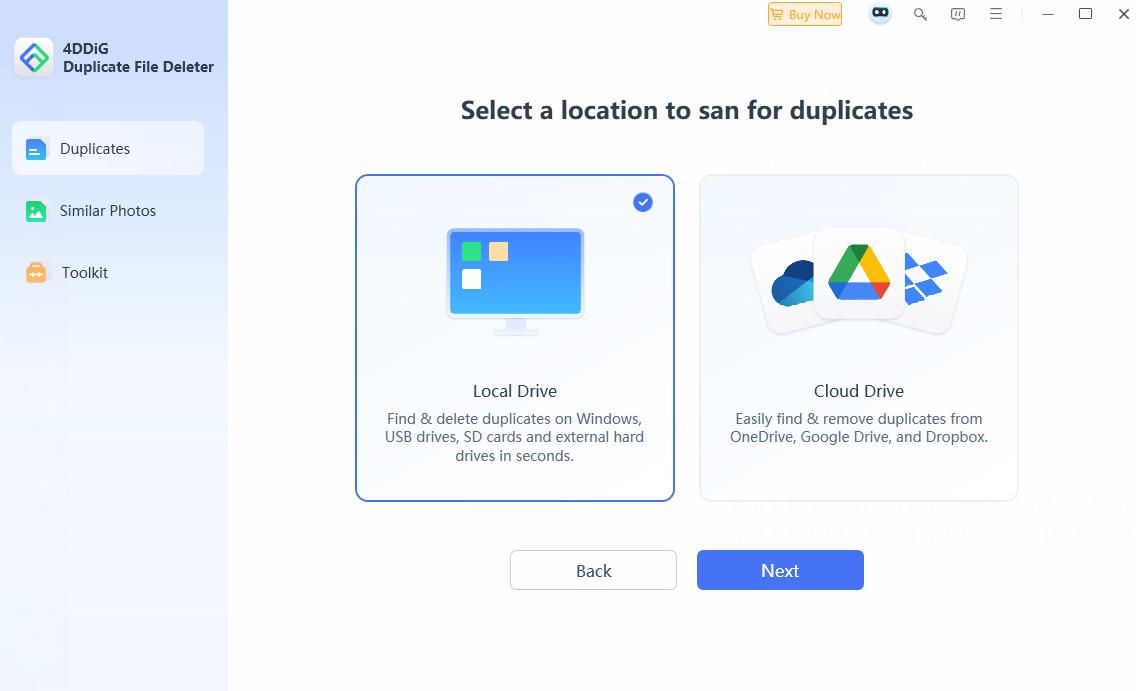
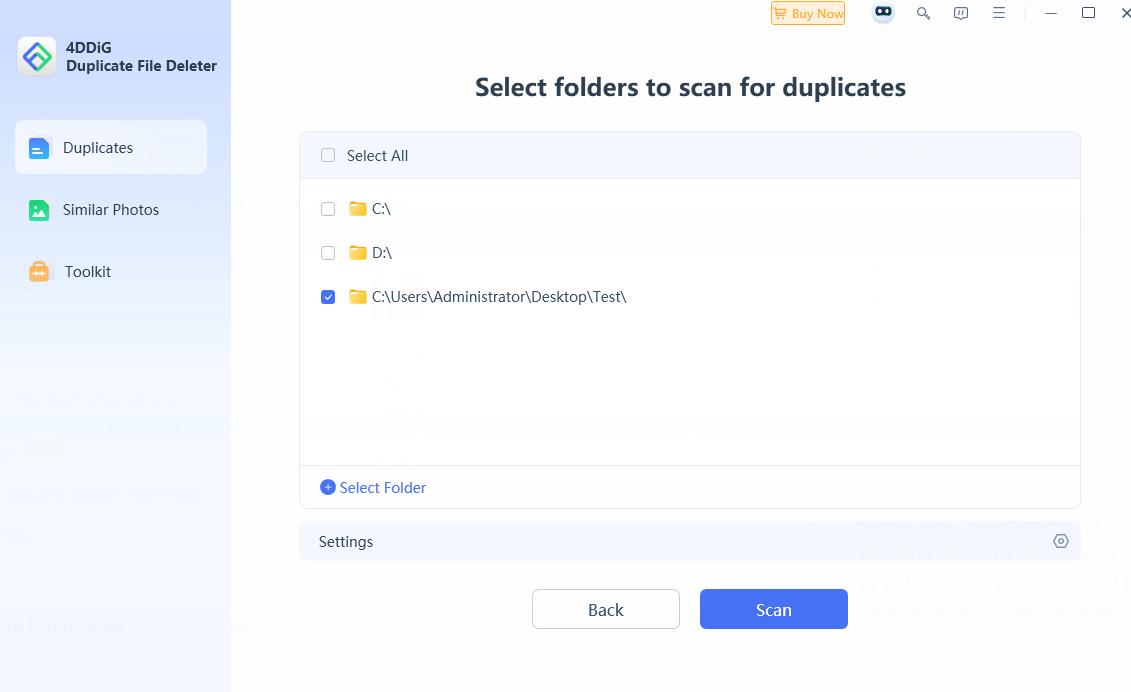
Step 4. Click “Select Folder”. Navigate to the folder you want to scan for duplicate files. Choose it.
By default, it may have selected the C drive and D drive to scan. You need to manually deselect them, otherwise it will take a lot of time to complete the scan.
Step 5. Click the Settings icon in the bottom right corner. Here you can select the scan method, set the file type to scan, etc. Click “Save”.
Step 6. Click the “Scan” button. Wait for the scan to complete.
Step 7. Click “Review Duplicates”. Then you will see a list of all detected duplicate files in the result window. You can view the file details.
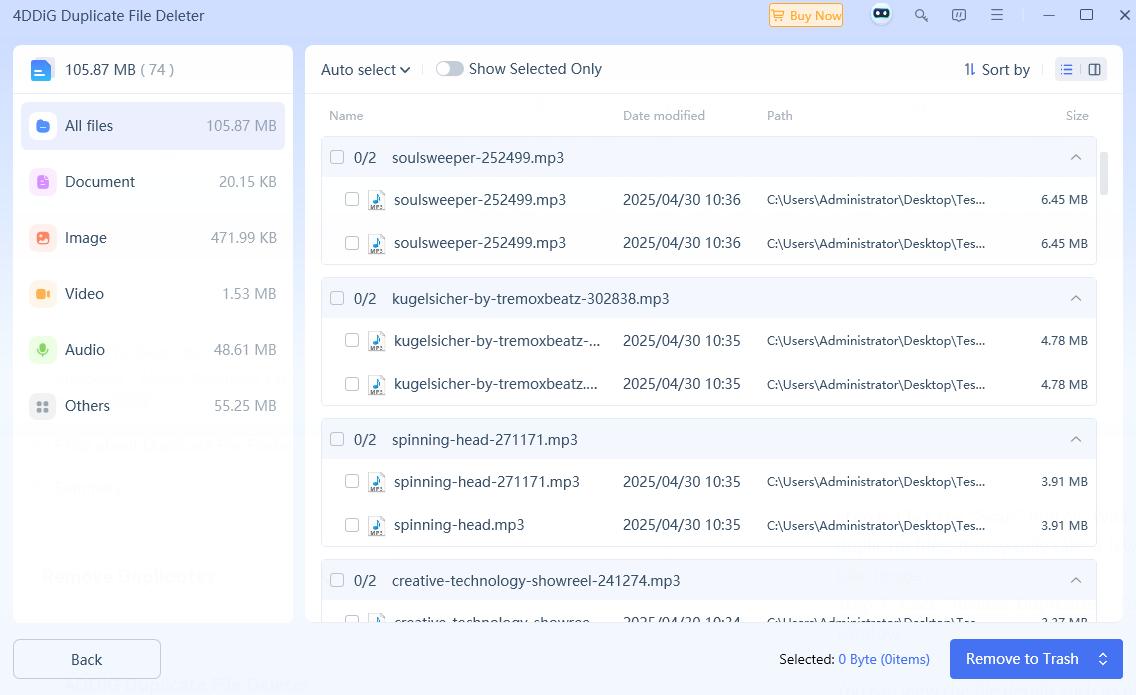
To preview the duplicate images, click "Image" in the left sidebar. Select the second preview mode in the upper right corner.
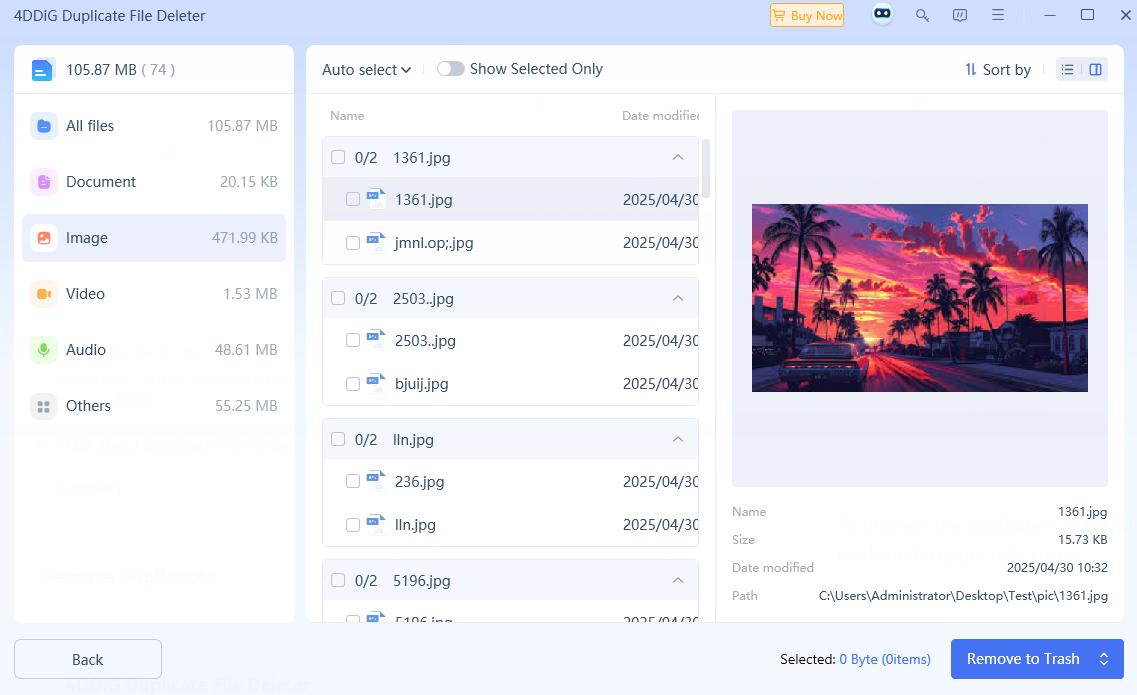
Step 8. You can manually select the files to remove or use the selection rules to help you quickly choose duplicates.
Step 9. click “Remove to Trash”.
Step 10. Click “Remove X file(s)” to delete the selected duplicate files.
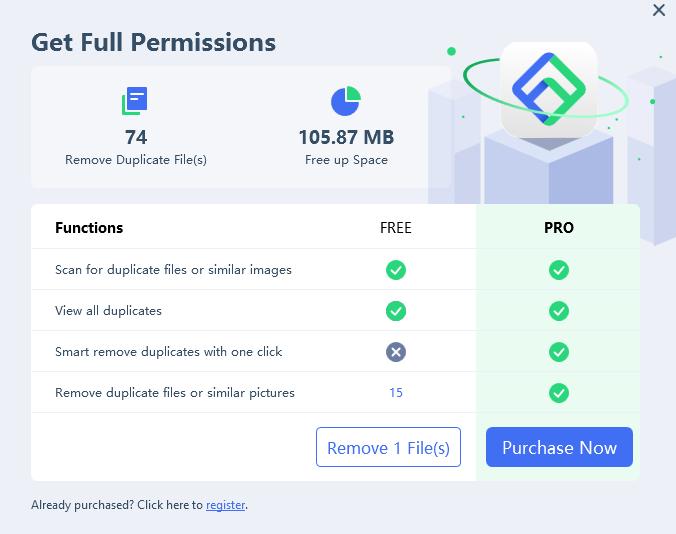
With these steps, 4DDiG Duplicate File Deleter helps you easily free up storage space by removing useless duplicate files.
The best alternative to 4DDiG Duplicate File Deleter
What's a good alternative to 4DDiG Duplicate File Deleter?
- It should have all the main features that 4DDiG Duplicate File Deleter offers and be at least available for Windows.
- Ideally, it should be more customizable and affordable.
- Support for more operating systems, such as macOS, can be a plus.
Therefore, Cisdem Duplicate Finder can be the best 4DDiG Duplicate File Deleter alternative.
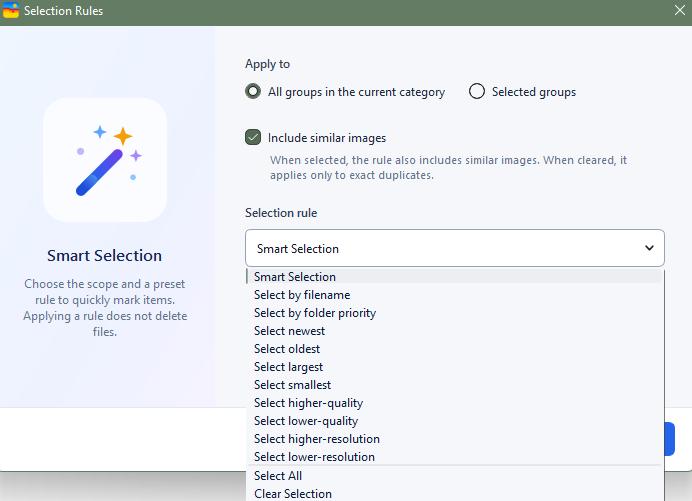
This alternative is suitable for both basic and advanced users due to user-friendly interface and enough customization. For example, it offers up to 10 selection rules, including a rule that helps you remove duplicates from one folder while keeping files in the other. It provides three view modes and allows you to compare photos side by side.
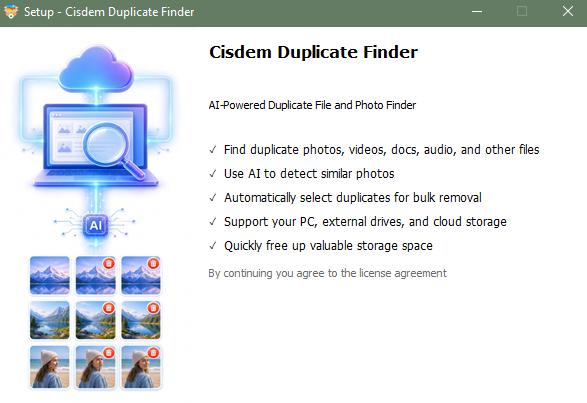
With this 4DDiG Duplicate File Deleter alternative app, you can easily find duplicate files on computer’s internal hard drive, external hard drive, SD card, cloud drive, etc. Here are the detailed steps to use it to find and remove duplicate files on my computer.
Step 1. Download and install Cisdem Duplicate Finder.
 Free Download Windows 10 or later
  Free Download macOS 10.11 or later
Step 2. Open it. Under Local File Scan, add folders or drives you want to check for duplicates. You can add multiple folders/drives.
Cisdem Also dupports Dropbox and OneDrive cleanup online.
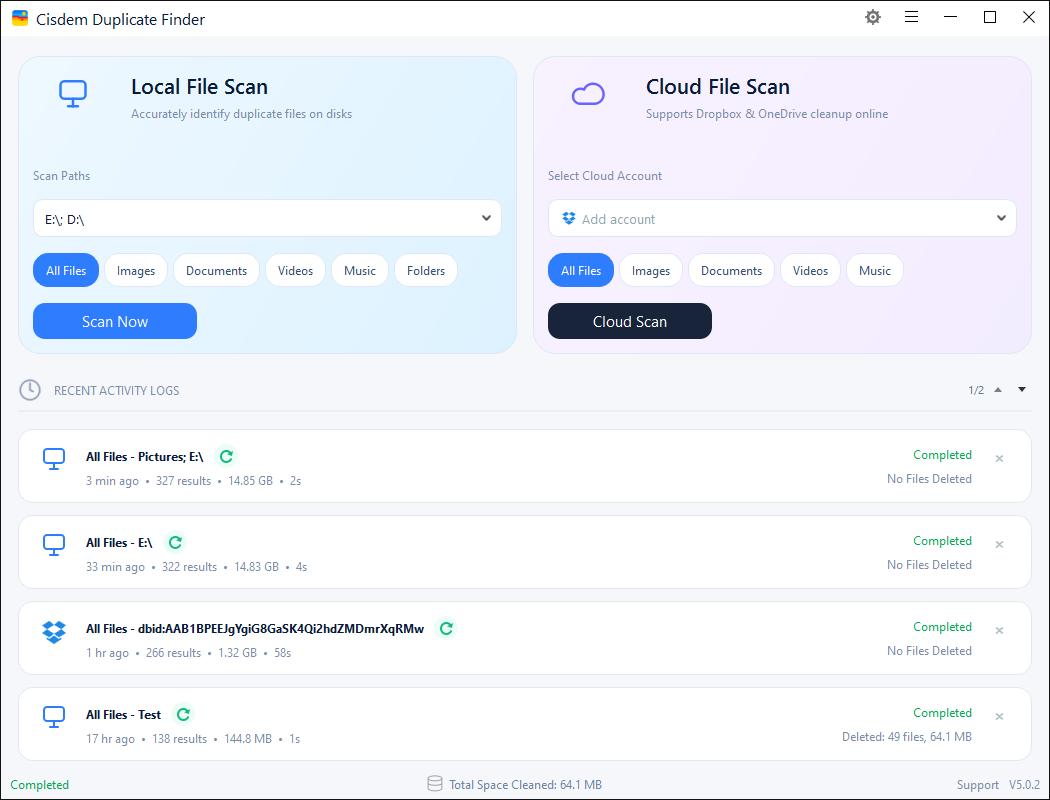
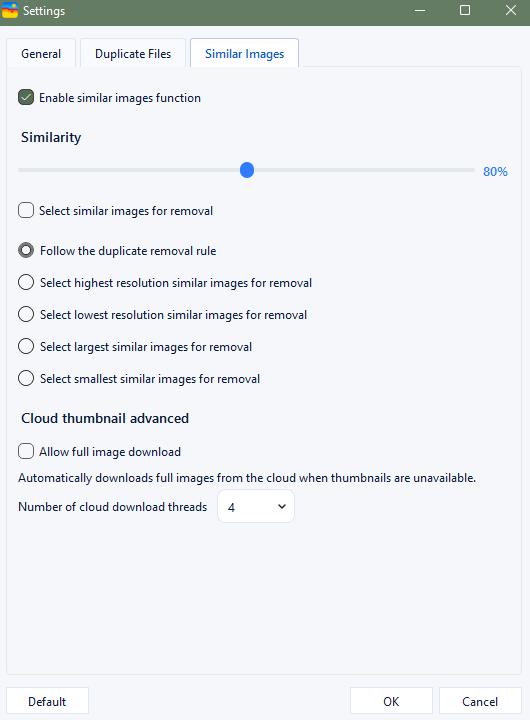
Step 3. Click the Settings icon in the upper right corner. Here you can exclude certain files, folders from scanning, adjust similarity threshold, and more.
Step 4. Click “Scan Now”.
Step 5. View the duplicate files. Cisdem Duplicate Finder identifies duplicate files based on the file content. Files with the same content but different file names can also be found by it.
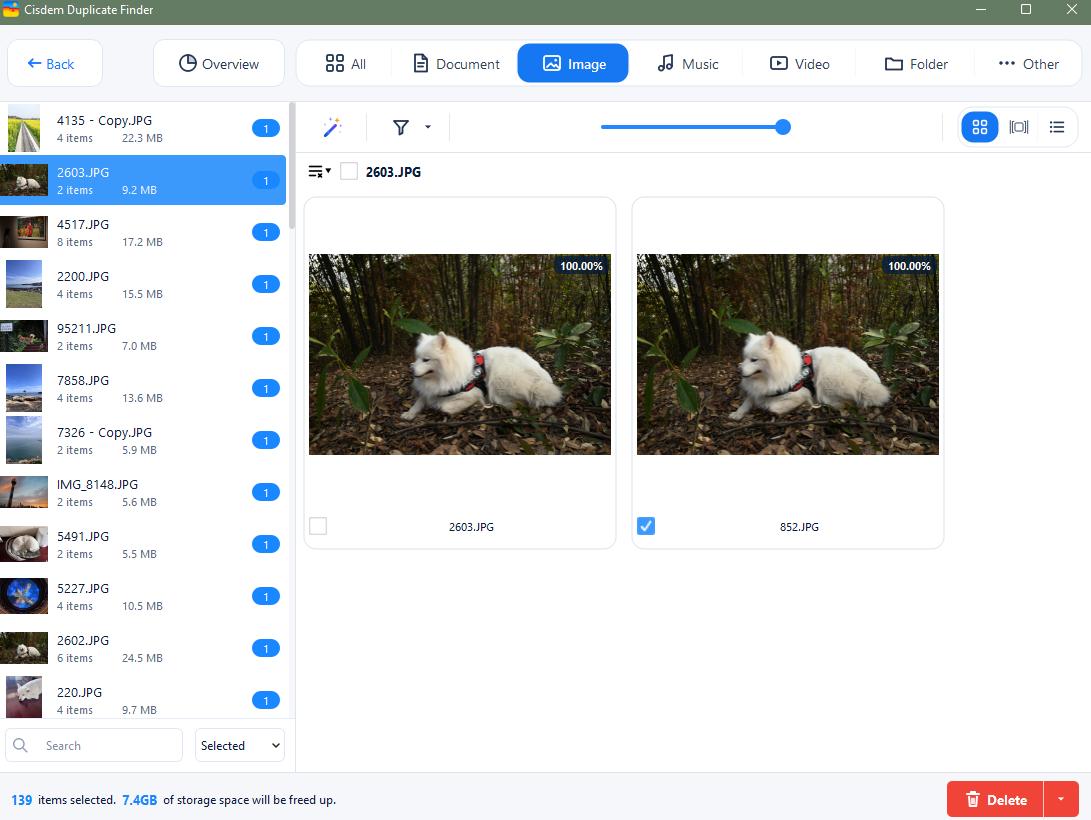
Step 6. The duplicate files are already selected for you to delete. You can click the “Delete” button to remove them to the Recycle Bin/Trash.
It also let you manually select files to delete, or use the selection rules provided by the software for bulk selection.
Summary
No matter which duplicate file finder you choose, it’s best to move duplicates to the Recycle Bin first when cleaning up. This way, you can easily recover important files if they are accidentally deleted. Both 4DDiG duplicate file deleter and its alternative app move files to the Recycle Bin by default. You can also choose to permanently delete them if needed.
This 4DDiG Duplicate File Deleter review covers what it is, its pros and cons, safety, and how to use it. I also introduced its best alternative app - Cisdem Duplicate Finder. Both apps can help you find duplicate files and free up disk space easily.

With a passion for tech and writing, Sarah joined Cisdem, where she focuses on creating articles about using utility tools to enhance file management and simplify contact management.

Adrian Li is Cisdem’s Chief Engineer and serves as the editorial advisor for Duplicate Finder and ContactsMate. His work and insights have been featured in leading tech publications such as Fossbytes, TUAW, Redmond Pie, SafetyDetectives, and BestForAndroid.