


6 Easy Ways to Convert WAV to OGG on Windows & Mac
 593
593
 0
0


While WAV delivers outstanding audio fidelity, it does generate fairly big files. OGG, on the other hand, is a compressed audio format that provides good sound quality in a lossy format while achieving considerable compression. You may want to convert WAV to OGG for many reasons, such as saving valuable space or enhancing compatibility for later use.
In this article, we will present 6 best ways to convert WAV to OGG with high quality, including reliable audio converter software, online websites and command-line tools. Choose the most suitable method for your needs.
 Cisdem VideoPaw
Best WAV to OGG Converter for Windows and Mac
- Convert WAV to OGG with highest quality
- Convert between 600+ audio & video formats or presets
- Batch convert multiple files at once
- Offer advanced settings to control output file size and quality
- Merge and trim selected audio files at will
- Compress large audio files without losing quality
- Rip commercial DVDs and Blu-rays to digital formats
- Also download online audio and video from 1,000+ streaming sites
- Easy to use with a simple interface
 Free Download Windows 10 or later
  Free Download macOS 10.13 or later
About WAV and OGG
Check the table below to better understand WAV and OGG files as well as differences between them.
| WAV | OGG | |
|---|---|---|
| Codec | PCM | Vorbis |
| File Extension | .wav | .ogg |
| Open Format? | No | Yes |
| Compression | Uncompressed and lossless | Compressed and lossy |
| Bitrate | 1,411 kbos (usually) | up to 500 kbps |
| File Size | Larger | can be 90% smaller than WAV |
| Streaming | Not ideal due to large file size | Efficient, low bandwidth cost |
Converting WAV to OGG may result in a slight loss of quality. If you prioritize audio quality, it is recommended to always select the highest bitrate or quality setting available.
Convert WAV to OGG with Audio Converter Software
Want to change WAV to OGG with optimal audio quality? Have hundreds of files waiting to be converted? Well, what you need is a professional audio converter software. Below are three reliable choices for both Windows and Mac, and the first one is more recommended for multi-threaded processing capability.
Way#1 Using Cisdem VideoPaw [Recommended]
Cisdem VideoPaw (originally Cisdem Video Converter) is the most effective and easy way to convert WAV to OGG on your computer. It supports a wide variety of video and audio formats, including WAV, OGG, MP3, M4A(AAC), FLAC, and etc. It can not only convert WAV files to OGG with the best quality, but also provides customization options to adjust the audio codec, sample rate, quality and channel. More than a video & audio converter, Cisdem can also help you download online tracks from streaming sites and rip DVD discs to digital formats.
Key benefits of Cisdem:
- User-friendly and clean interface
- Trim and merge tracks at will
- Convert multiple files simultaneously with lightning fast speed
- Support for hundreds of formats and preset profiles
- Download music, video and live streams from various websites like YouTube
- Rip DVD/Blu-ray discs to audio or video for backup
Without further ado, perform steps below to convert WAV to OGG effortlessly with Cisdem:
Step 1. Download and install the converter
Free Download Windows 10 or later Free Download macOS 10.13 or later
Step 2. Import WAV files.
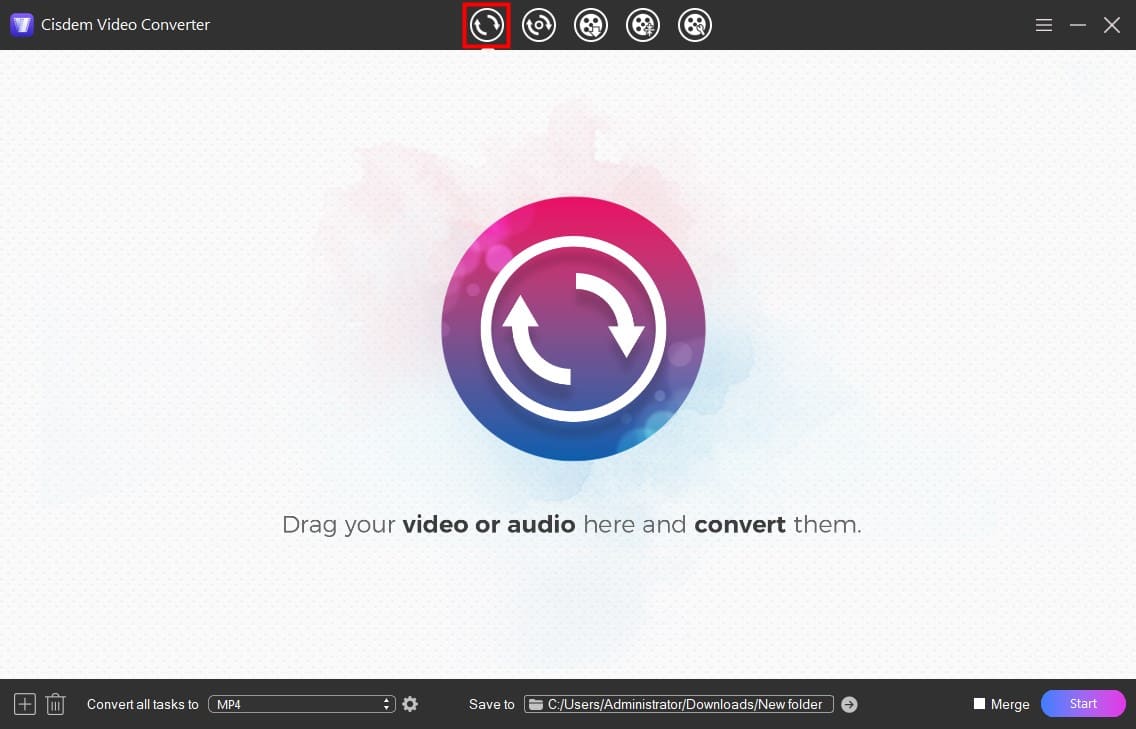
Launch the converter and stay at the first tab of conversion. Simply drag and drop your WAV audio files into the program interface.
Step 3. Set output format
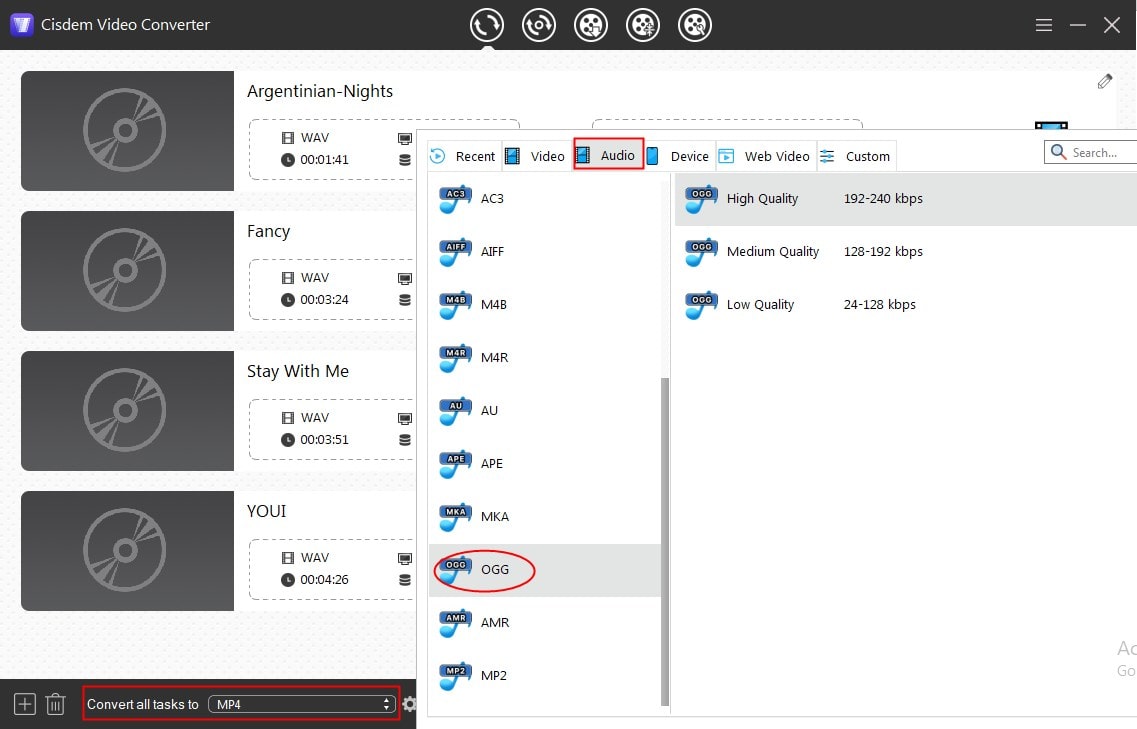
Click the box after "Convert all tasks to" in the bottom left to open a format selection list, go to the "Audio" tab and choose "OGG > High Quality" as the target format.
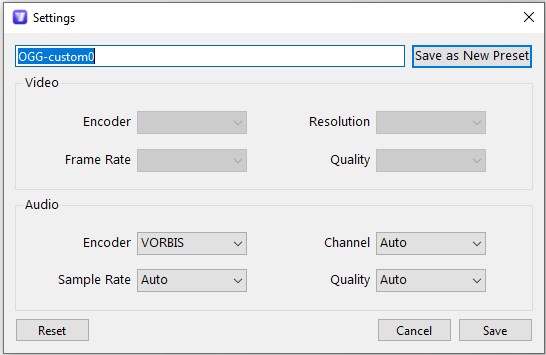
Tip: you can click the "Settings" button to configure the audio settings for OGG, such as changing the quality level to "Best" with higher bitrate.
Step 4. Convert WAV to OGG
Finally, click the "Start" button at the bottom right corner to start the conversion process.
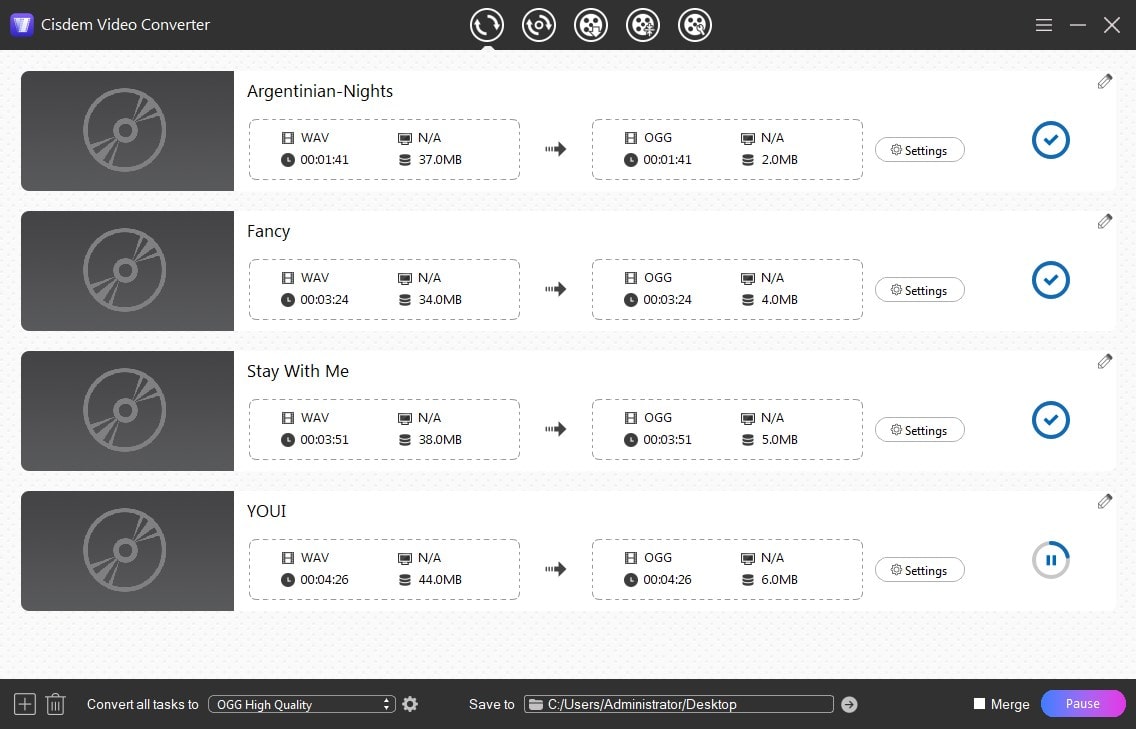
When the conversion is complete, you can click the Checkmark icon to quickly find the converted OGG files in the default save folder. To specify a destination, you can click the "Save to" box to choose a directory, and click "Select Folder".
Way#2 Using Fre:ac
Fre:ac is a free audio converter with support for WAV, Ogg Vorbis, APE, Opus, WMA and other popular audio formats. Fre:ac allows you to convert WAV to OGG in bulk and control the encoding mode and quality level. The latest release also adds a tool for splitting the the output into multiple files based on various parameters. The interface is a bit cumbersome, you can follow the detailed guide below to convert WAV to OGG with this free audio converter:
- Visit freac.org to download this free audio converter, and then open it.
- Click the first button on the toolbar to add WAV files to the joblist.
- Click the "Selected encoder" drop-down list and choose "Ogg Vorbis Encoder".
- To configure the encoder, click the cogwheel icon to open a new window. Here you can change the quality setting and the encoding mode.
- Click the Start icon on the toolbar to begin the encoding process.
![fee:ac convert WAV to OGG]()
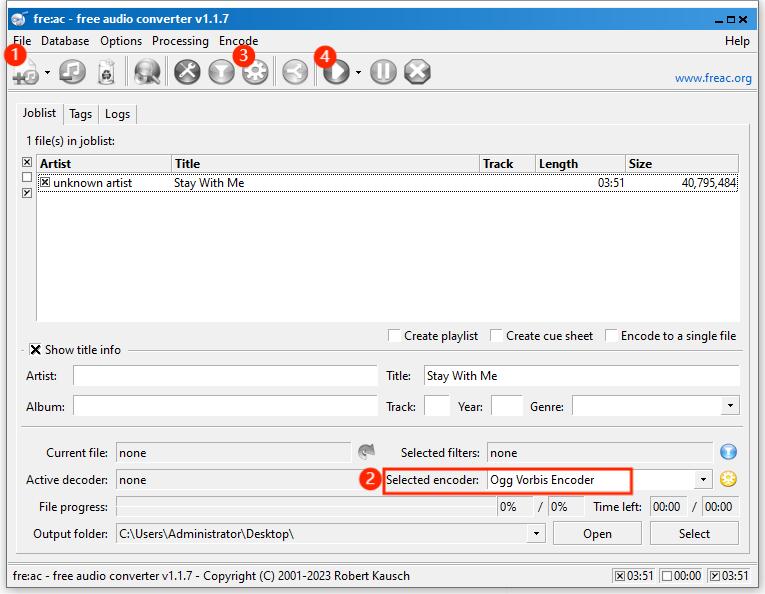
If you add multiple files, fre:ac will convert them one by one and create a new folder to save the files.
Way#3 Using Audacity
Audacity is a free audio editor and recording software capable of exporting audio to various formats, available for Windows, Mac and Linux. It supports a dozen of popular audio formats allowing you to convert WAV to OGG, MP3 and more. It’s an viable option if you want to add effects and create OGG for game music.
To convert WAV to OGG using Audacity:
- Download and run Audacity.
- Drag and drop the WAV file(s) into the program, or go to "File" menu > "Import" > "Audio" to browse.
- Choose File > Export Audio.
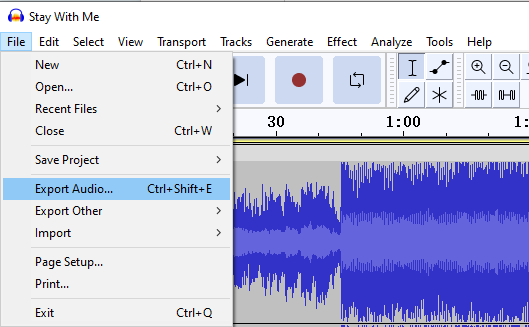
- In the pop-up window, select "Ogg Vorbis Files" as the output and choose a folder to store the file. You can set the Quality level to 10 to minimize the quality loss.
![Aucacity convert WAV to OGG]()
- Click "Export" to start converting WAV to Ogg.
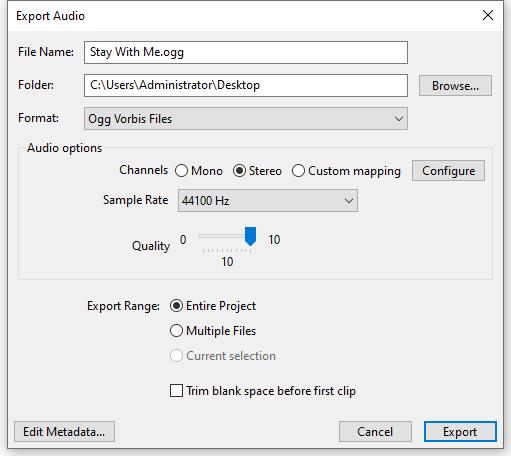
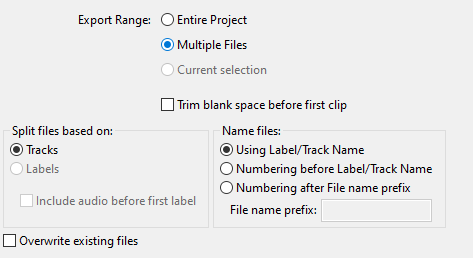
Tip: for batch conversion, just select "Multiple Files" option under Export Range.
Convert WAV to OGG Online
There are some online audio converter tools that allow you to convert between WAV and OGG, without having to install any software. However, almost all web-based tools have limits on the file size and batch conversion, and uploading and converting takes much more time than desktop programs. Below are two websites you can use for occasional conversions, but may not suitable for mass processing.
Way #4 Using online-convert.com
Online-convert.com is a free online file converter with support for various audio, video, image and document files. It provides rich optional settings for advanced users to adjust output Ogg file, including birate, channels, volume and more. However, the maximum file size for audio task is 50 MB and the amount of tasks a user can do within 24 hours is also limited. You'll need to upgrade to a premium plan for unrestricted conversions.
Steps to convert WAV to OGG online in high quality:
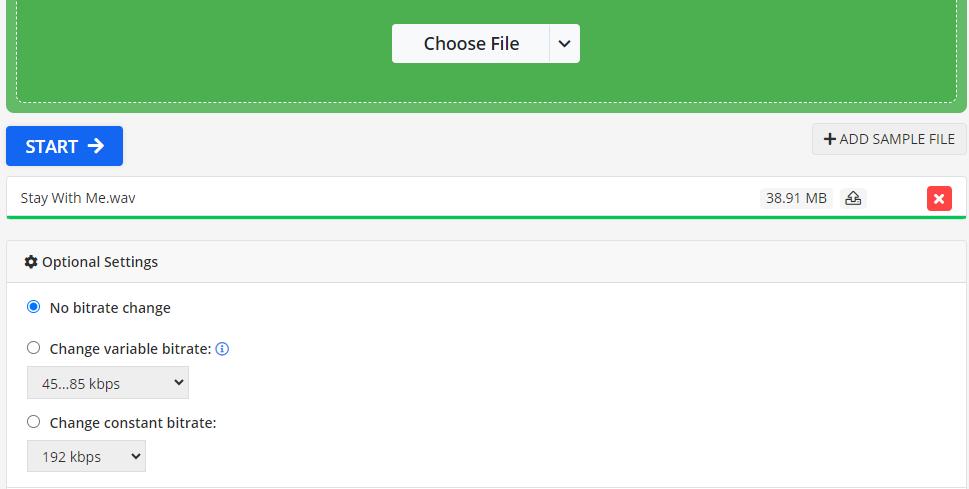
- Go to https://audio.online-convert.com/, and select "Convert to OGG" panel.
- In the new tab, click "Choose File" to upload your WAV file. You can add up to 3 files at a time.
- Change the optional settings if necessary.
- Click the "Start" button to convert WAV to Ogg. Then it will guide you to a new interface.
![online WAV to OGG converter]()
- Click "Download" to save the OGG file to your device.
Way #5 Using onlineaudioconverter.com
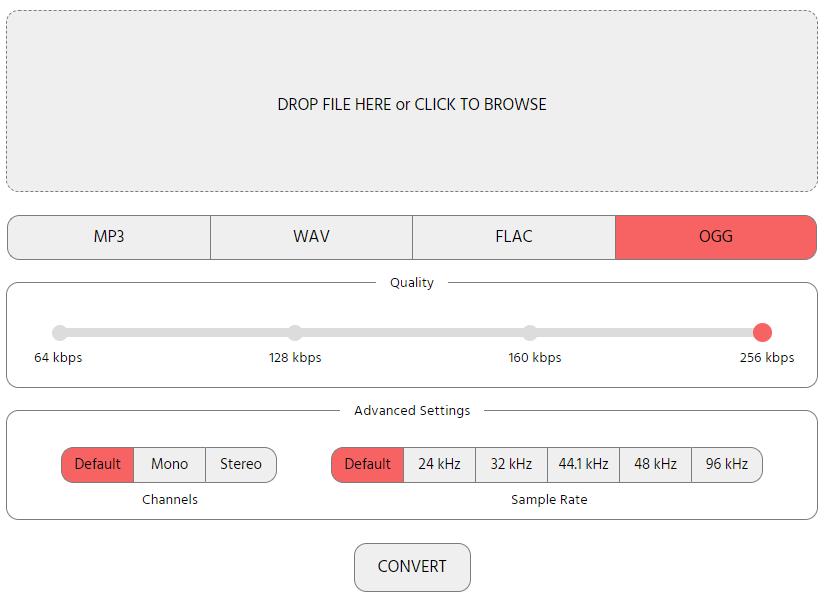
If you need to convert WAV file larger than 50 MB, try onlineaudioconverter.com. This free audio converter site can handle large files with support for WAV, OGG, FLAC and MP3. However, note that it doesn't offer batch process and only supports 4 audio bit rates up to 256k for OGG output.
How to convert large WAV file to OGG online for free:
- Visit onlineaudioconverter.com on any web browser.
- Upload a WAV file to the website.
- Select OGG as the target format.
- Pick a quality level from 64 to 256 kbps.
- Hit the "Convert" button below to initiate the conversion process.
![free online WAV to OGG converter for large file]()
- After the file is successfully converted, download it to your device.
Convert WAV to OGG via Command-line Utility
FFmpeg is a a free and open source command-line program for converting multimedia content, supporting all audio formats and encoders. Unlike the desktop or online applications mentioned above, FFmpeg does not have a clickable user interface, but runs on the command line. Once you've mastered the basics of ffmepg, you'll be able to convert WAV to OGG of your desired quality with just one line of command.
To convert WAV to OGG via FFmpeg:
Step 1. Install FFmpeg on your computer. The procedure can be different for Windows and MacOS.
Step 2. Open Command Prompt (or Terminal on Mac), type the following command to re-encode WAV to OGG fast:
ffmpeg -i input.wav output.ogg
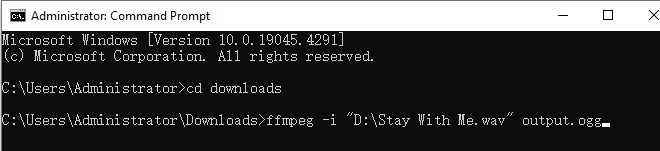
Replace "input.wav" with the actual filename and path of your WAV file.
Step 3. Press Enter to execute the command. This command will output an OGG audio with a audio quality setting of 3 (about 112 kbps).
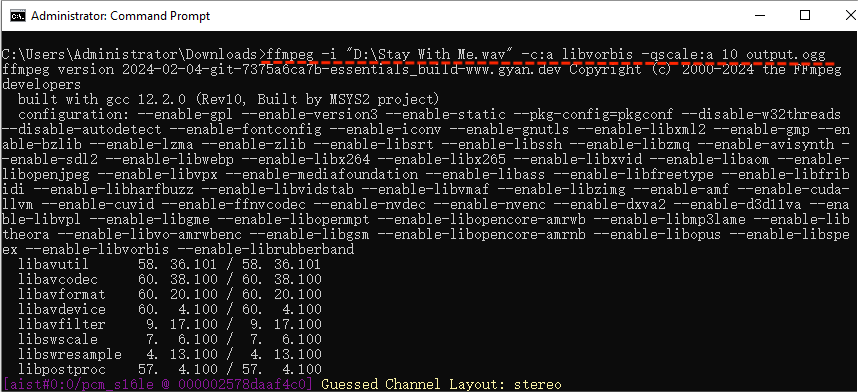
To specify a desired quality level, use the "-qscale:a" command, which refers to quality scale for audio. For example, if I want to change WAV to OGG at 500 kbps to keep the highest quality possible, type and run:
ffmpeg -i input.wav -c:a libvorbis -qscale:a 10 output.ogg
Note: it's quite complicated to get FFmpeg to do a batch process. It's best to use a desktop converter if you want to convert your file in bulk.
Conclusion
Converting WAV to OGG offers the advantages of shrinks files while keeping the good stuff intact. You have different types of converters to choose from based on your preferences. Among the tools outlined in this article, Cisdem VideoPaw excels with its simple yet effective workflow.

Emily is a girl who loves to review various multimedia software. She enjoys exploring cutting edge technology and writing how-to guides. Hopefully her articles will help you solve your audio, video, DVD and Blu-ray issues.

Ryan Li is a senior developer at Cisdem. Since joining the company in 2017, he has led the development of Cisdem VideoPaw and now serves as the editorial advisor for all articles related to Video Converter.