


Screen Time Not Blocking Websites on Mac? Causes and 7 Fixes
 1.8K
1.8K
 0
0


Have you added websites to Screen Time's Restricted list, only to find that they can still be accessed? You're not alone. Many users report that Screen Time fails to block websites on Mac.
The good news is that in most cases, the problem can be fixed. In this guide, I'll walk you through the most common reasons why Screen Time isn't blocking websites, and provide potential fixes.
 Cisdem AppCrypt
Websites Not Blocked by Screen Time? Try This
- Block websites in Safari, Chrome, Opera, and other browsers
- Block specific sites or pages, URLs containing certain keywords, and categories of sites
- Allow only approved websites with an allowlist
- Lock apps with a password
- Lock all apps except the allowed ones
- Let you block websites and lock apps 24/7 or during scheduled times
- Prevent unauthorized changes and bypass attempts with password
- Easy to use
- Help with productivity, parental controls, and privacy protection


Common Causes of Screen Time Not Blocking Websites on Mac
Screen Time fails to block websites? Below are the most common causes and their fixes.
| Possible Cause | Quick Fix |
|---|---|
| You're using Chrome or another unsupported browser | Use Safari or a third-party website blocker |
| Screen Time wasn't set up correctly | Reconfigure website restrictions |
| Screen Time or Content & Privacy is disabled | Turn them on |
| Adult website filtering misses certain sites | Manually add websites to the Restricted list |
| Screen Time service is temporarily unavailable | Check Apple's System Status page |
| Website opens from cached data | Clean up Safari Cache |
| macOS bug after update | Install latest macOS version |
Cause 1: You're Using a Browser That Screen Time Doesn't Support
This is one of the most common reasons. Screen Time on Mac supports blocking websites in Safari. But its compatibility with third-party browsers is limited. If you're using Chrome or other browsers, blocked websites may still be accessible.
Fix: Open the website in Safari and check whether it is blocked. If the restriction works in Safari but not in Chrome, consider using a different method to block websites in your preferred browser.
Cause 2: Screen Time wasn't Set up Correctly
If websites remain accessible after being added to the Restricted list, it may be because of incorrect setup. Even a small mistake can make Screen Time not working.
Fix: Follow the steps to set up Screen Time correctly and block unwanted websites.
Cause 3: Screen Time or Content & Privacy is Disabled
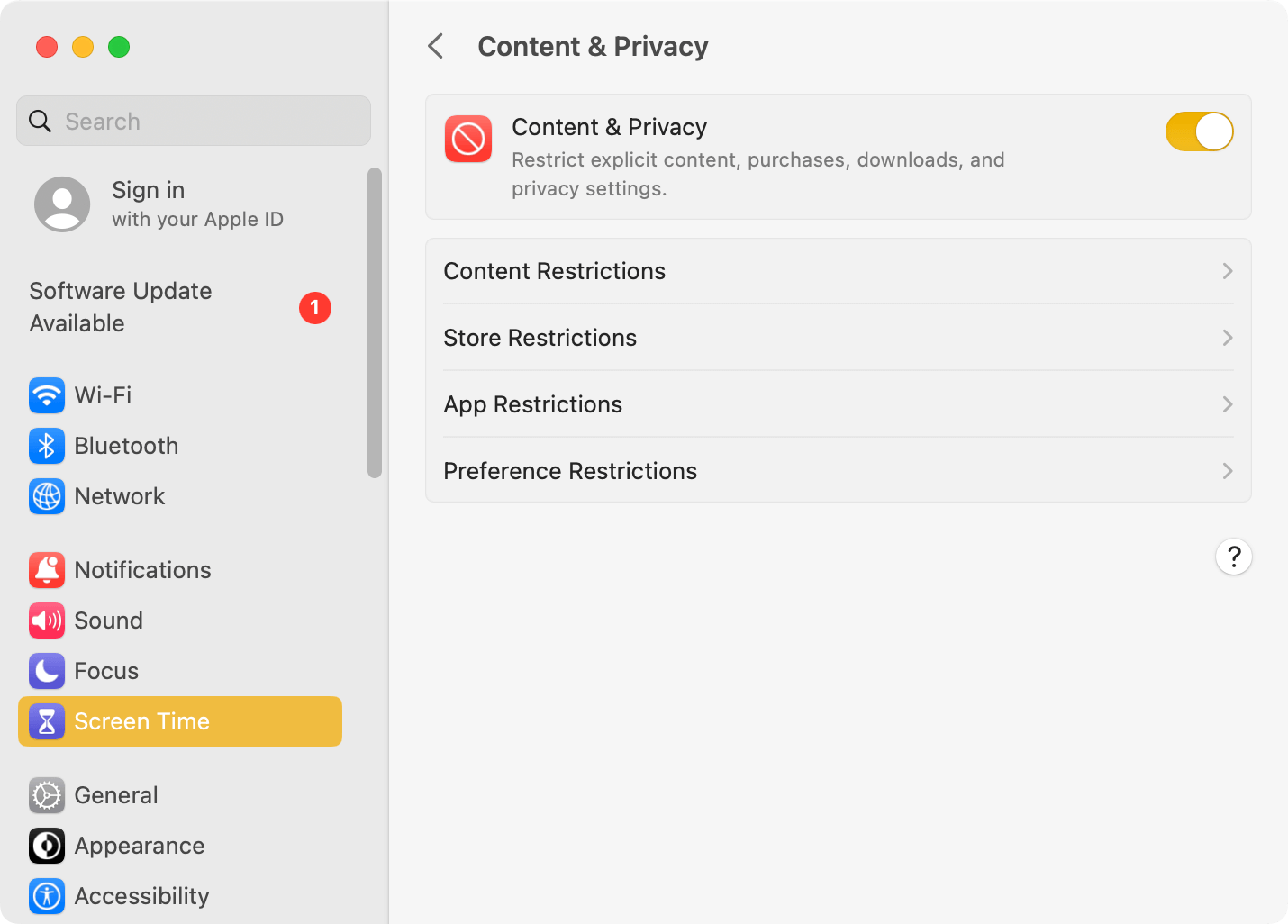
Screen Time or Content & Privacy within it is accidentally turned off. Screen Time can be enabled or disabled, as can Content & Privacy. Content & Privacy in Screen Time is where the website blocking feature is located.
Fix: Go to Screen Time settings. Verify that both Screen Time and Content & Privacy features are enabled.
Cause 4: Adult Website Filtering Misses Certain Sites
Using the “Limit Adult Websites” feature is necessary if you want to use Screen Time to block websites. When it's enable, it blocks websites that contain mature content or other inappropriate content. Since not content filter is perfect, it doesn't cover all inappropriate sites.
Fix: Click the “Customize” button to manually add unwanted websites to the Restricted list.
Cause 5: Screen Time Service is Temporarily Unavailable
Sometimes, a temporary Apple service outage can cause Screen Time not working.
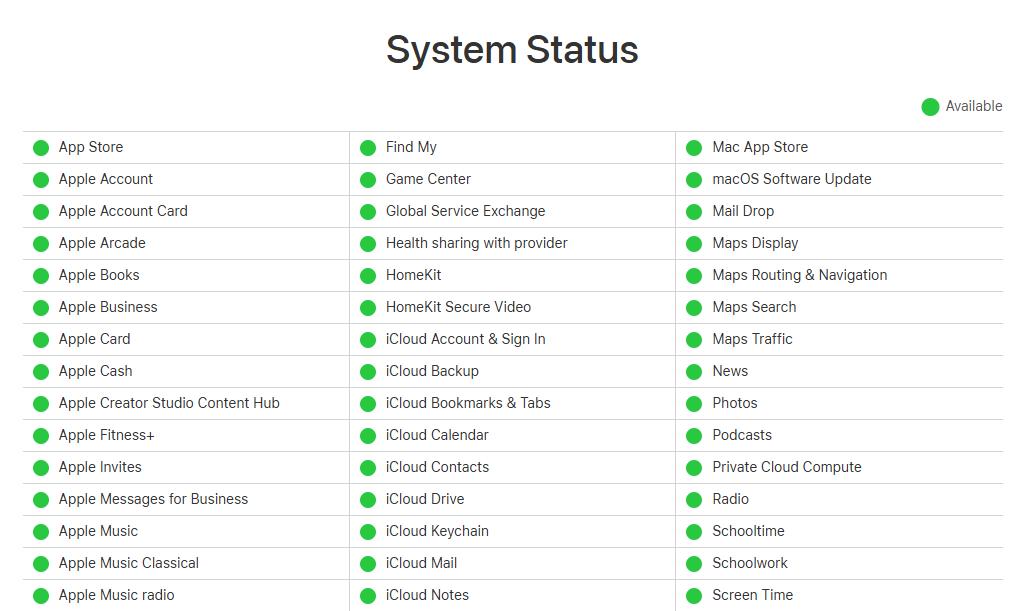
Fix: Go to Apple's official website to check the status of Screen Time. If the circle icon next to Screen Time is green, it means Screen Time is currently available and operating normally. If not, you need to wait for it to recover.
Cause 6: Website Opens from Cached Data
Some websites still accessible even after being added to the Restricted List. This may be due to browser cache. Clearing the Safari cache can resolve the issue.
Fix: Open the Safari browser. Go to Settings > Privacy > Manage Website Data. Click Remove All Website Data.
Cause 7: macOS bug after update
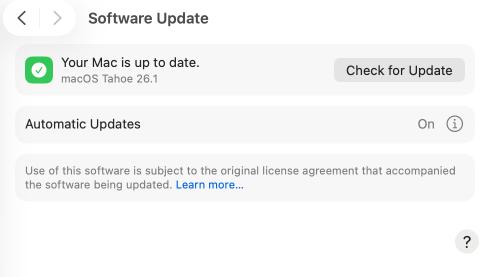
Many users reported that Screen Time stopped working after a system update. In this case, just upgrade to the latest version of macOS.
Fix: Open your Mac. Go to System Settings > General > Software Update. Download and install latest macOS version.
How to Set Up Screen Time to Block Websites Correctly
An incorrect setup can lead to issues with blocking websites. You can follow the steps below to set up Screen Time properly.
1. On your Mac, go to System Settings (or System Preferences if you are using an earlier macOS version).
2. In the sidebar on the left, choose Screen Time.
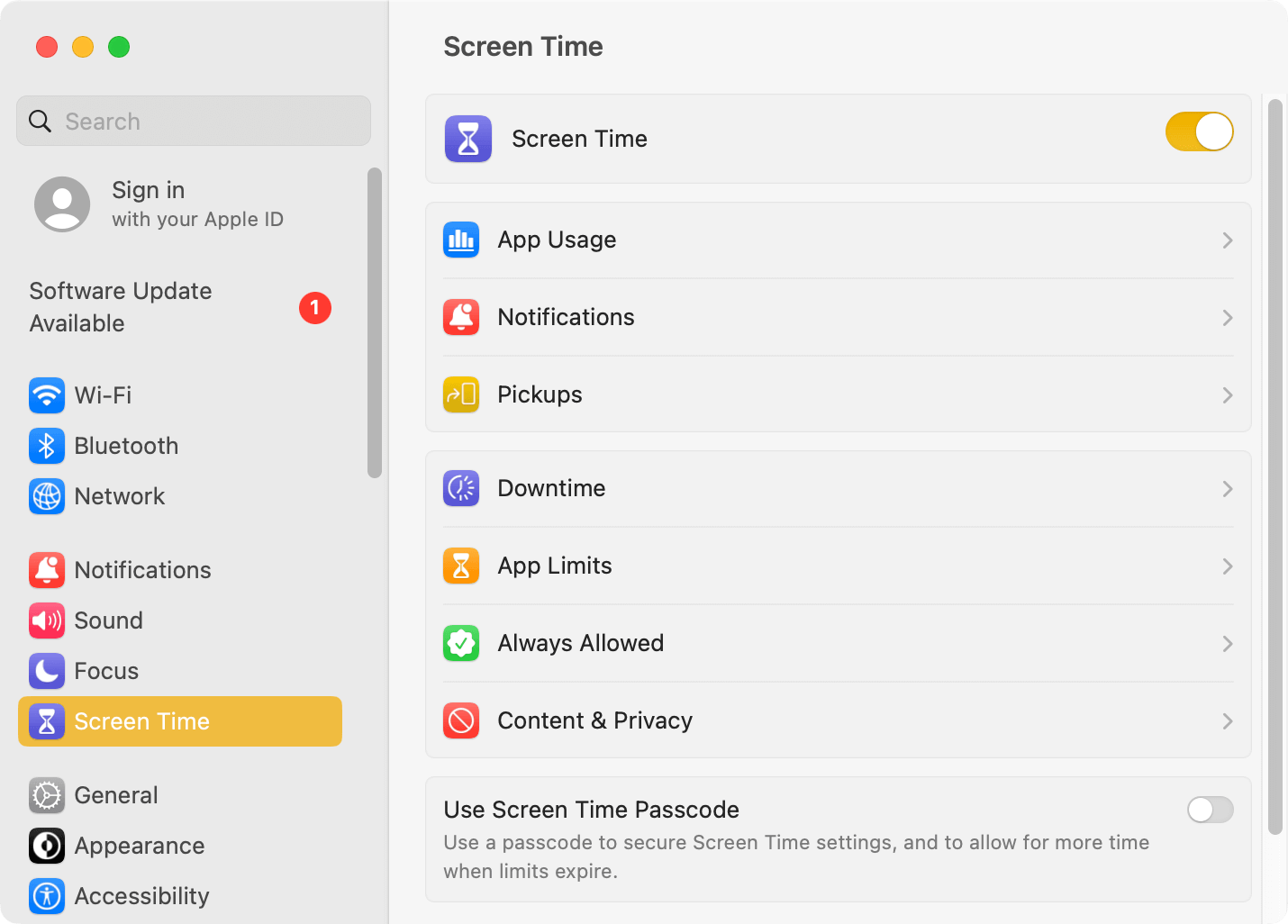
3. On the Screen Time main screen, toggle the switch next to Screen Time to the on position and then click Content & Privacy.
4. On the screen that appears, turn on Content & Privacy and click Content Restrictions.
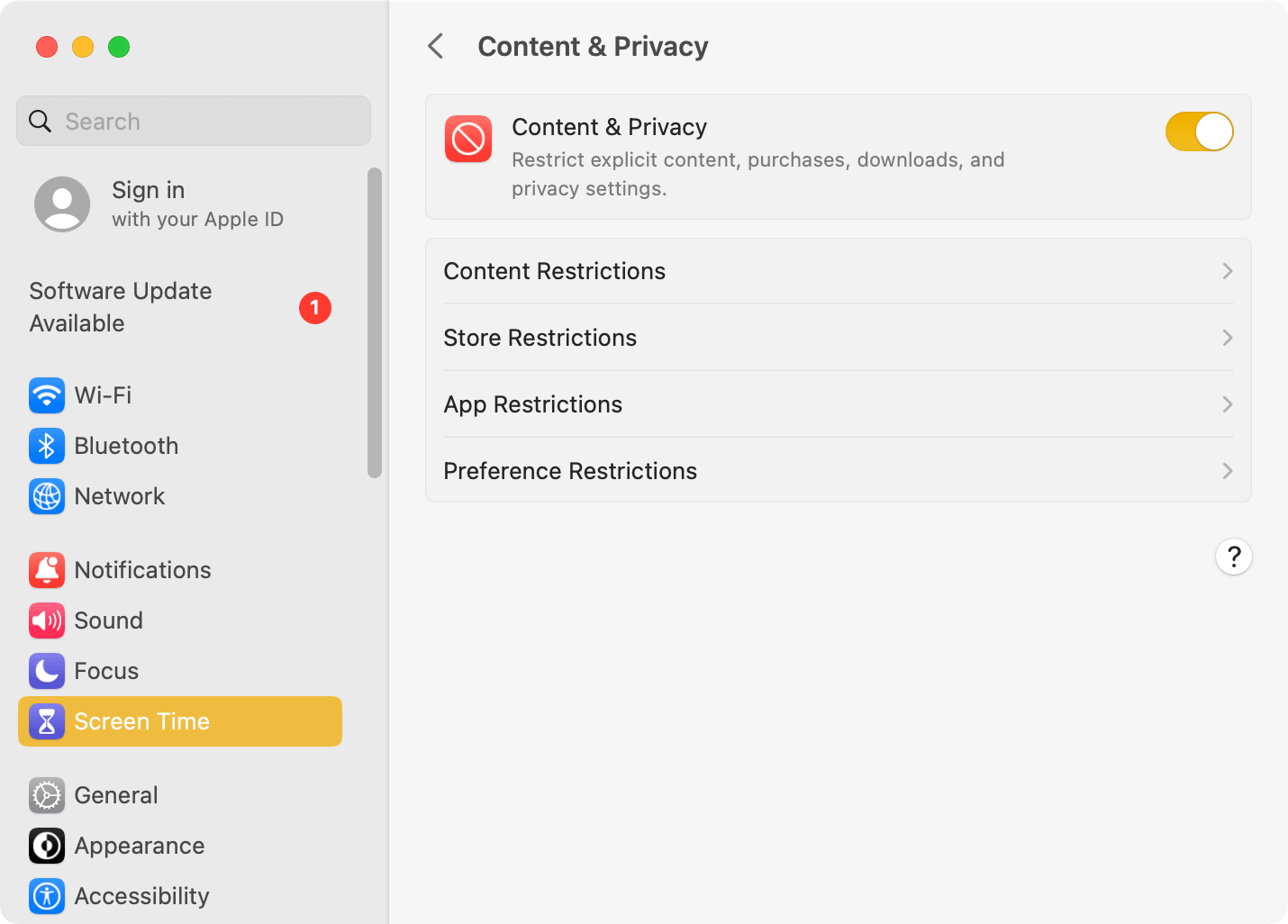
5. In the dialog that appears, click the pop-up menu in the Web Content section and select Limit Adult Websites.
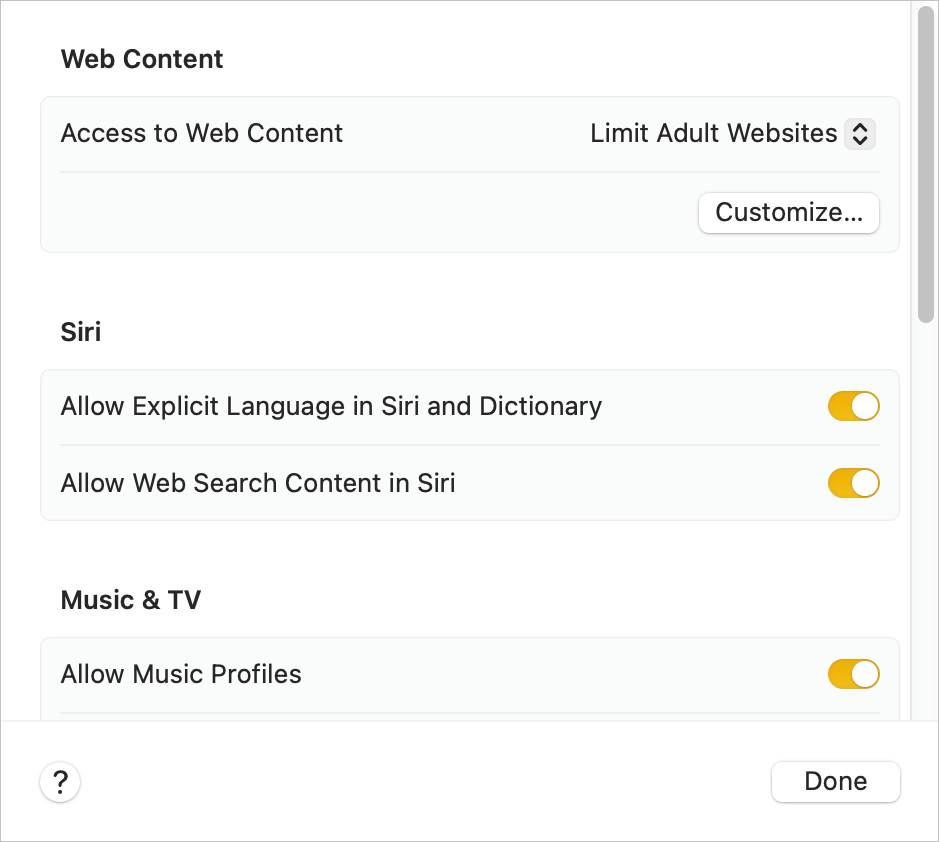
If limiting commonly known adult websites is enough, you can click Done now, and the setup is then complete.
If you want to block some non-adult sites (such as certain social media sites), or if Limit Adult Websites isn't blocking the inappropriate websites you want to restrict, move on to the next step.
6. Click the Customize button below the pop-up menu. In the dialog that shows up, click the Add button in the Restricted section, enter the URL of an unwanted website in the URL field and click Done, and click Done.
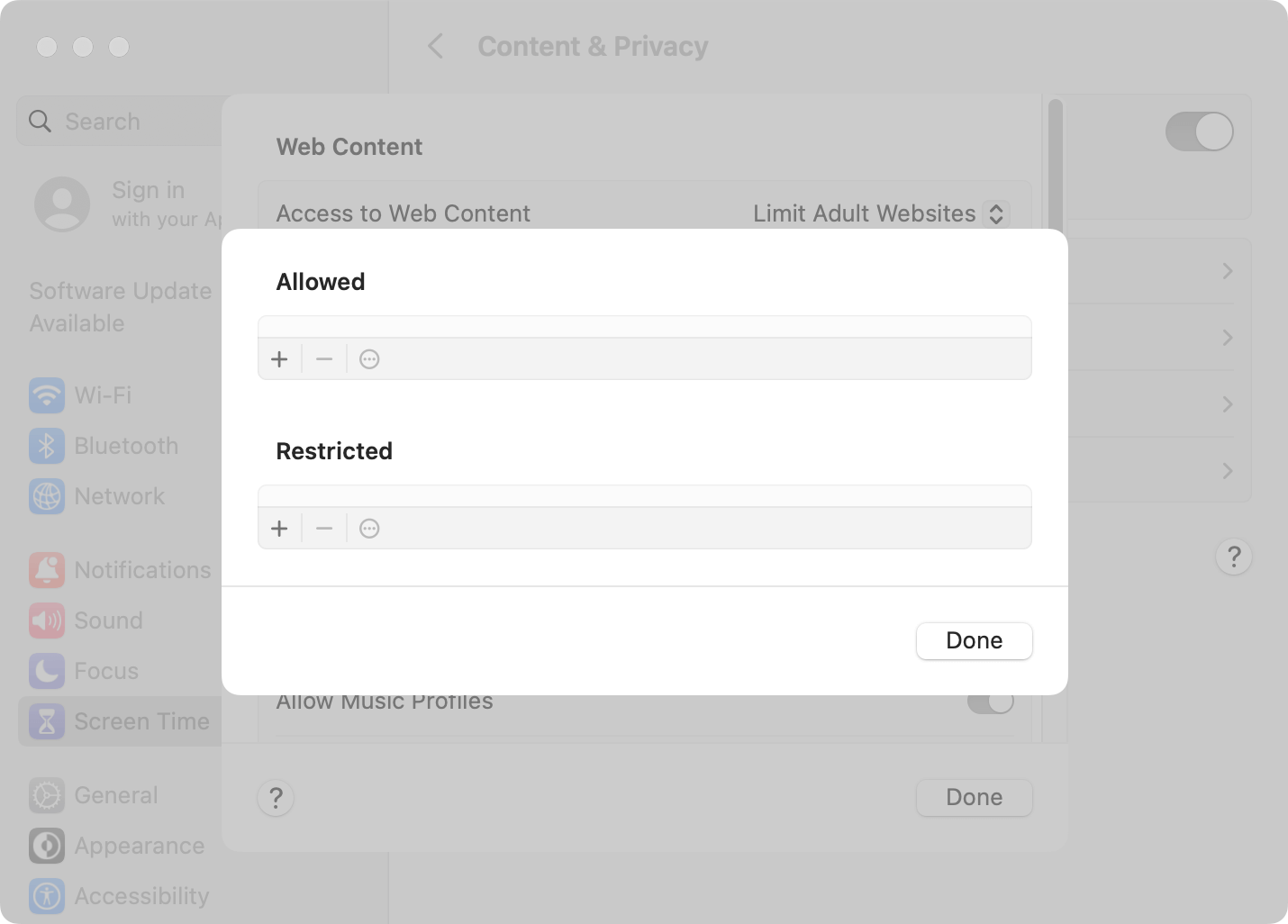
7. Click Done in the dialog that includes the Web Content section.
How to Block Websites When Screen Time Doesn't Work
If Screen Time can't help you restrict website access, you can use Cisdem AppCrypt, a website blocker and app lock in one.
Like Screen Time's website blocking feature, this alternative has a block list and an allow list. It also has useful features like keyword blocking. It provides password protection to improve effectiveness, just as Screen Time does. In addition to Safari, this alternative supports Chrome and a few other browsers.
With it, you can restrict websites at all times or schedule the blocking, which offers flexibility.
1. Download and install Cisdem AppCrypt.
 Free Download macOS 10.15 or later
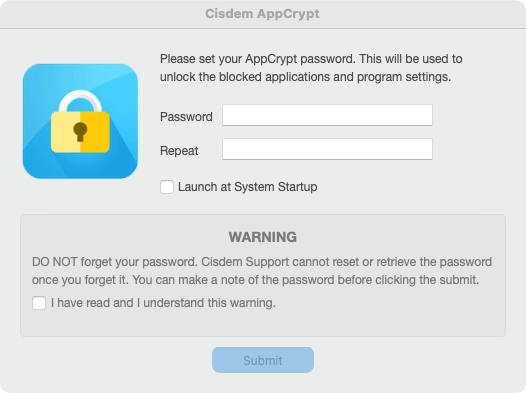
2. The first time you open it, set a password.
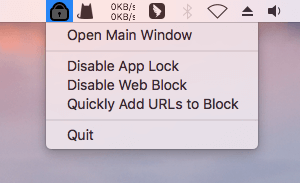
3. Click the lock icon in the menu bar and select Open Main Window.
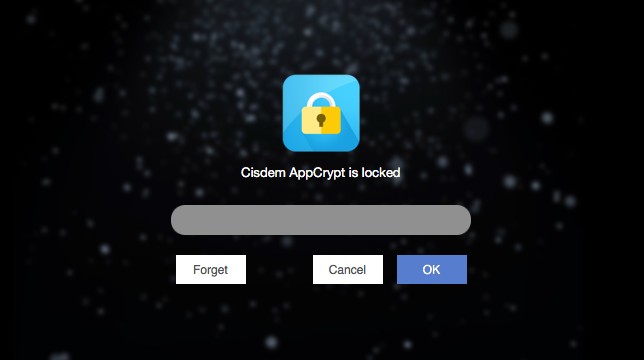
4. Access the main window by entering the password.
5. Click the Web Block tab.
6. Do any of the following:
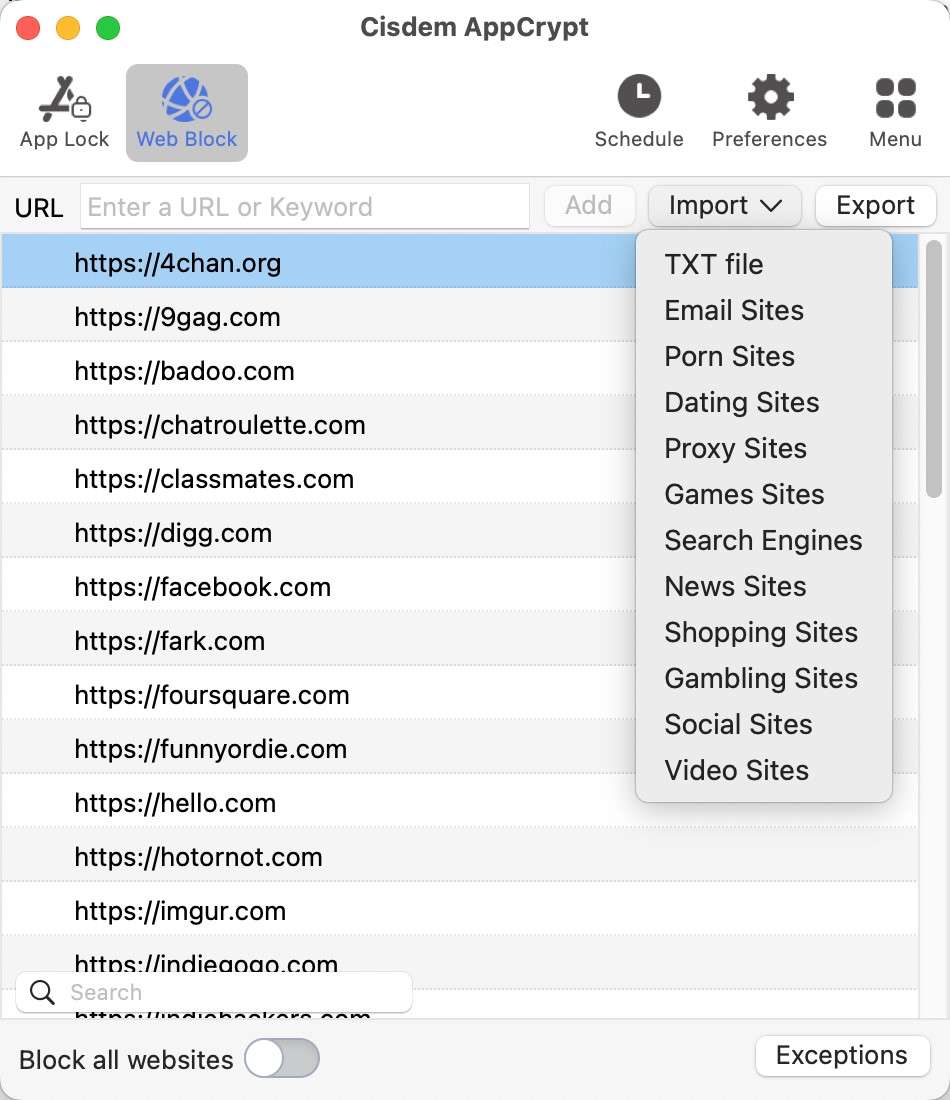
- Add a specific website to the block list by entering its domain name (such as example.com) in the URL field and clicking Add. This works like the Restricted list available in Screen Time's Limit Adult Websites.
- If you want to filter URLs containing certain keywords, simply add these keywords to the block list one by one.
- Click the Import dropdown menu and select an undesirable category (such as Social Sites). This will automatically add all popular websites in this category to the block list.
- To allow access to only websites of your choice, turn on Block all websites, click Exceptions, and add the domain names to the Always Allow list.
Wrapping up
Screen Time provides a convenient built-in way to block website on Mac, but it doesn't always work as expected. If Screen Time isn't blocking websites, the fixes above should help resolve the issue. However, if you prefer to use non-Safari browsers, you may need to use an alternative method for restricting website access.

Norah Hayes likes to share her tips on how to improve focus and stay motivated at work. She believes it is essential to eliminate all online distractions during work hours.

Ethan Long joined Cisdem in 2015 as a developer and now serves as the editorial advisor for Cisdem AppCrypt. He actively tests and uses Cisdem AppCrypt and other screen-time management tools to ensure AppCrypt meets its promises in real-world scenarios.