


Photos Missing from Google Photos? Why and How to Fix on Computer or Phone?
 1.5K
1.5K
 1
1


Google Photos is a fabulous photo app to backup, edit, organize and share photos or videos across different devices. It offers a free storage up to 15 GB, therefore, it is much likely your Google Photos stores a lot of photos that were taken years ago. However, there may come a time when photos are missing from Google Photos, and this is annoying.
This guide will look at the reasons why photos are missing from Google Photos, and explore several fixes or solutions to find back Google photos, on both computer and mobile phone.
Key Takeaways
- There are various reasons for photos missing from Google Photos: logged into the wrong Google account, Google Photos app is not updated, the operating system on your device is outdated, you’ve exceeded the storage limit, data or caches in Google Photos is corrupt, freed up space to get more storage, you’ve deleted the photos, the Backup and Sync feature is disabled, photos are moved to Archive or Locked Folder, photo loading failure due to poor network connection.
- To find back missing Google Photos, even for years, make sure use a stable network connection, log into the right account, free up storage space, check trash bin, check archive or locked folder, enable backup feature, clear caches, recover storage, update Google Photos app, check other backups, update OS, contact Google Support.
- Also there is professional data recovery tool designed to get back missing photos from Google Photos, Cisdem Data Recovery for Windows or Mac can help restore deleted or lost Google photos on PC, Mac, Android SD Card, USB, iCloud and other storage device. While Cisdem iPhone Data Recovery can restore Google photos from iPhone directly.
 Cisdem Data Recovery for Windows and Mac
Find and Recover Missing Google Photos Quickly
- Recover missing, deleted and damaged Google Photos
- Get back Google Photos, Google Docs, Google Sheets and more
- Preview Google Photos to recover data efficiently
- Recover lost files under different data loss situations
- Recover files from internal disk, external storage device, NAS, Linux, cloud storage, etc.
- Restore 1000+ file types: photo, video, document, bookmark, email, archive, etc.
- Repair corrupted videos, photos and documents
- Recover unsaved files in Word, Excel, PowerPoint, WPS, PSD, etc.
- Support data recovery from crashed PC
- Recover files to local disk, external drive or to cloud.
 Free Download Windows 10 or later
 Free Download macOS 10.15 or later
Why Are Photos Missing from Google Photos?
Google Photos is a safe place for photos, from key features to useful tools, it works outstandingly, but this doesn’t mean we won’t lose any file from it. Google photos are not missing for random reasons, it is mainly about human errors. The following are common reasons why photos are missing from Google Photos app.
1. You’ve logged into the wrong Google account: you may log into an account that doesn’t store the photos, so you mistakenly think the photos are missing.
2. The Google Photos app is not updated: the bugs, incompatibilities or performance issues may lead to such a problem.
3. The operating system on your device is outdated: there may be technical glitches or incompatibility problems with the Google Photos app, which cause sync/backup/load failures and finally not shows all photos.
4. You’ve exceeded the storage limit: if you’ve exceeded the storage limit, the backup and sync will fail, your photos won’t be automatically uploaded to Google Photos as before.
5. Data or caches in Google Photos is corrupt: as the data accumulates, it may get corrupted for different reasons, and finally lead to missing photos in Google Photos.
6. You’ve freed up space to get more storage: you may tap on the Free up space option that Google Photos suggests, this frees up space indeed, but also delete some of your photos.
7. You’ve deleted the photos: you may have moved the photos to Trash folder without noticing that you actually need them.
8. The Backup and Sync feature is disabled: you may disable the backup and sync feature, so the photos won’t fill every place.
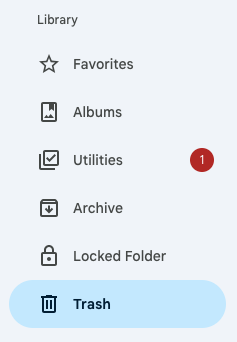
9. You’ve moved the photos to Archive or Locked Folder: Google Photos allows users to save photos in different libraries, such as Favorites, Albums, Utilities, Archive, Locked Folder.
10. Photo loading failure due to poor network connection: the photos won’t load successfully due to poor network connection, and you may think they are missing.
How to Fix If (Old) Photos Missing from Google Photos?
To fix missing photos from Google Photos and continue using this app at ease, try each of the following fixes in order. There is no need to try them all. Just read through this entire guide, attempt the fix and see which one applies to your problem. Now, let’s see the potential fixes in detail.
1. Use a stable network connection
Slow and unstable network brings lag and stutter, which finally lead to weird performance in an app. You can either test the network speed, or turn on and off the WiFi to make sure the network is connected and in good state.
2. Log into the right account
Make sure you’ve signed in to the account that stores your photos, instead of an account that belongs to your family members.
- Open Google Photos app on your device.
- Click on the avatar to check which account you’ve signed in.
![check account]()
- To switch an account, sign out first, then sign in with the credentials of the right account.

3. Free up storage space
Though Google allows users to store data in its cloud up to 15G for free, this includes all the data in your Google Drive, Photos and Gmail. You may have just several gigabytes of photos, but your Google Drive and Gmail also take a large amount of storage space.
Therefore, you need to check how much storage you’ve used, if exceeding 15 GB, you need to manually delete some large files in your Google account to free up space, then upload the missing photos again to Google Photos.
- Open Google Photos and sign in.
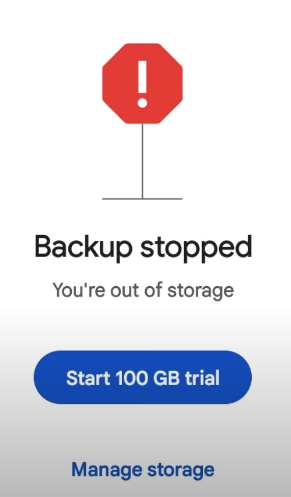
- Check the storage. If exceeds the storage limit, you can buy more storage. Or tap Manage storage to free up some space.
![manage storage 01]()
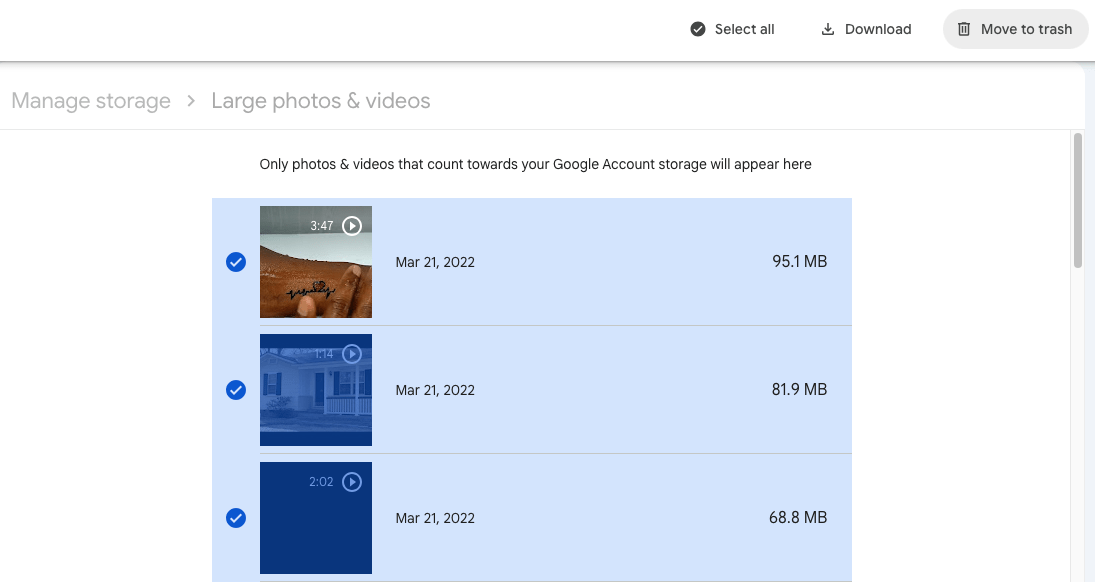
- Review and delete unwanted photos or videos, so you will be get enough space to upload those missing photos again.
![manage storage 02]()
4. Check trash bin
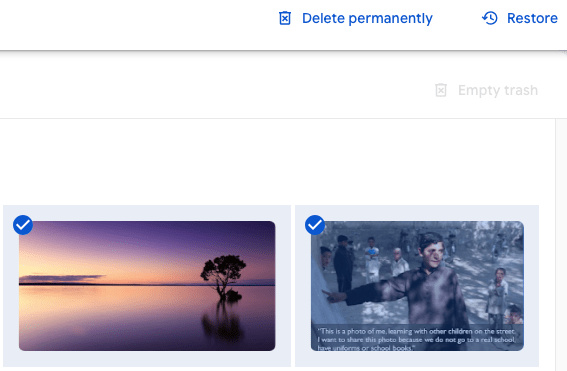
Or you may have moved the photos to Trash folder by accident, you should check the Trash folder and put them back to your photos gallery. Items in the Trash folder will be kept for 60 days.
- Open Google Photos app and log in.
- Go to Trash folder.
![recover from trash 01]()
- Select the missing photos and click Restore.
![recover from trash 02]()
5. Check archive or locked folder
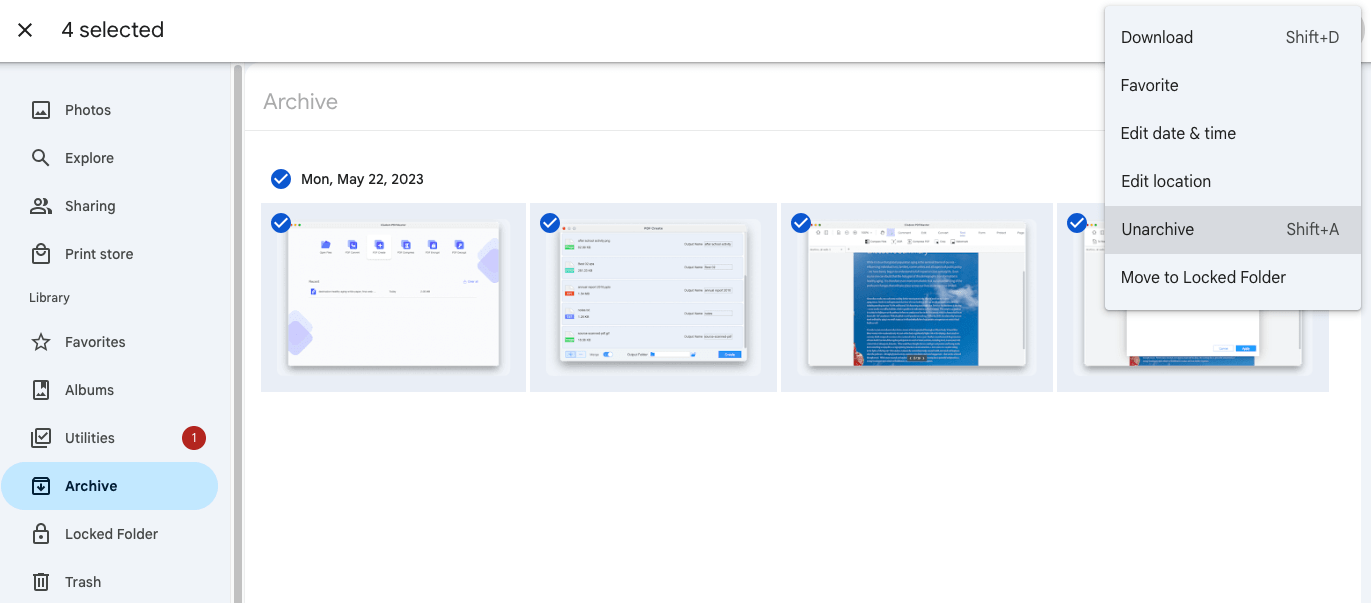
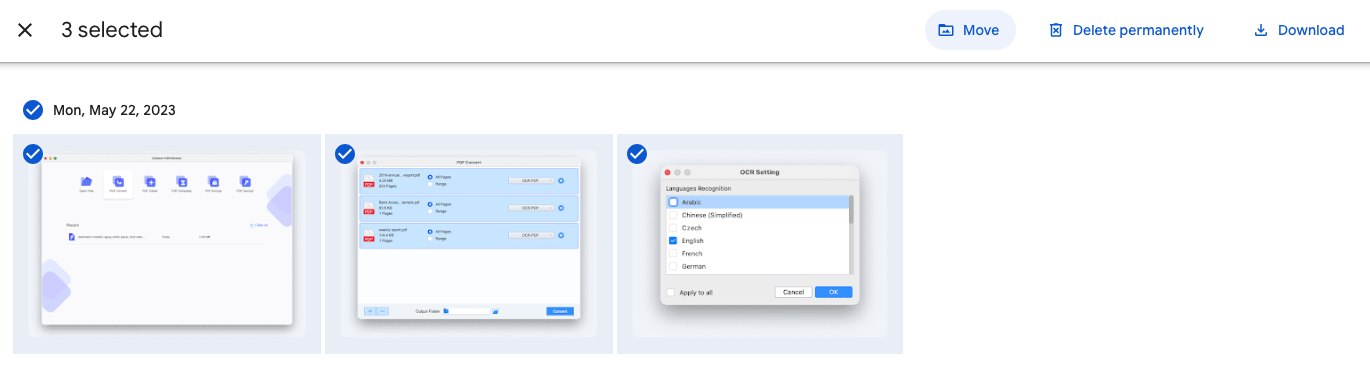
Also, don’t forget to check other libraries, especially the Archive and Locked Folder you may have used to organize or hide your photos.
- Open Google Photos and log in.
- Go to Archive, select the photos and click the 3-dot icon, select Unarchive.
![unarchive photos]()
- Or go to Locked Folder, select the missing photos and Move to unhide the photos.
![unhide photos]()
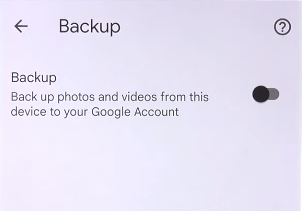
6. Enable backup feature
Automatic backup and sync definitely takes more storage, because it keeps all photos updated. So it is possible that you’ve turned off this feature to save more space, but you didn’t realize doing so. Or, if the backup feature is enabled, you can also turn it off and on again to check the missing photos come back or not.
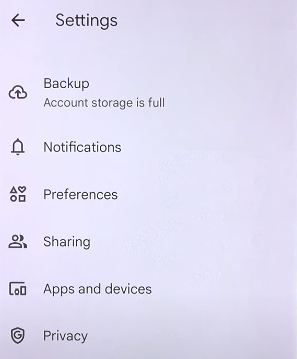
- Open Google Photos app, tap on the profile icon.
- Then tap Photos settings > Backup.
![enable backup 02]()
- Turn the backup feature on. Or turn it off if you’ve enabled, then turn it on again.
![enable backup 03]()
7. Clear caches
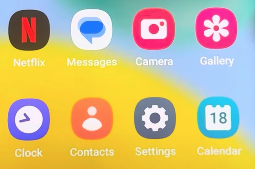
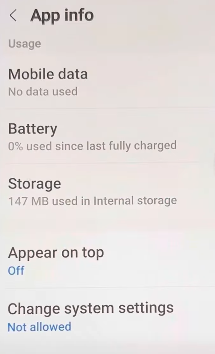
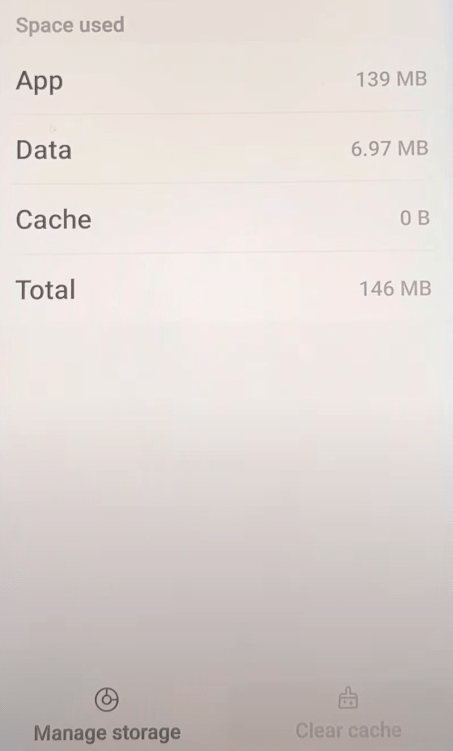
If the interface loads but some photos don’t, it might be the reason of cache corruption. We need to clear the corrupted the cache files and let the database loads again to show all photos in the app.
- Tap Settings on your mobile phone.
![clear cache 01]()
- Go to Apps > Photos > Storage.
![clear cache 02]()
- Tap on Clear cache.
![clear cache 03]()
- Open Google Photos again and check if the missing photos appear in the app.
8. Recover storage
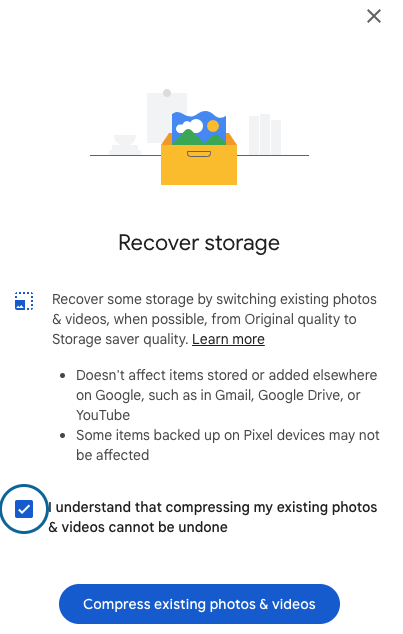
If you’ve exceeded the free storage limit of 15GB and turned the backup feature ON, the backup will stop and the newly added photos won’t show, unless you compress the photos to make enough space for the complete backup. The “Recover storage” is designed to recover some storage by switching existing photos from original quality to storage saver quality, so all the photos will be backed up successfully and show up in the app.
- Log into https://photos.google.com/ with your Google account.
- Click on Storage and go to Recover storage, then click Learn More.
![recover storage 01]()
- Check “I understand that compressing my existing photos & videos cannot be undone” and click on Compress existing photos & videos.
![recover storage 02]()
- The compressing will start and needs some time to finish. Once you get enough space, the sync will continue, and you will get the missing photos back.

9. Update Google Photos app
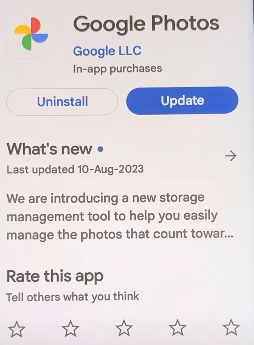
Outdated Google Photos results in such an issue as well, you will need to update your app to the latest version and let it load the whole database again.
- Tap on Play Store and search Google Photos.
- Then tap on Update.
![update google photos]()
- Tap Google Photos to relaunch the app to check if the problem persists.
10. Check other backups
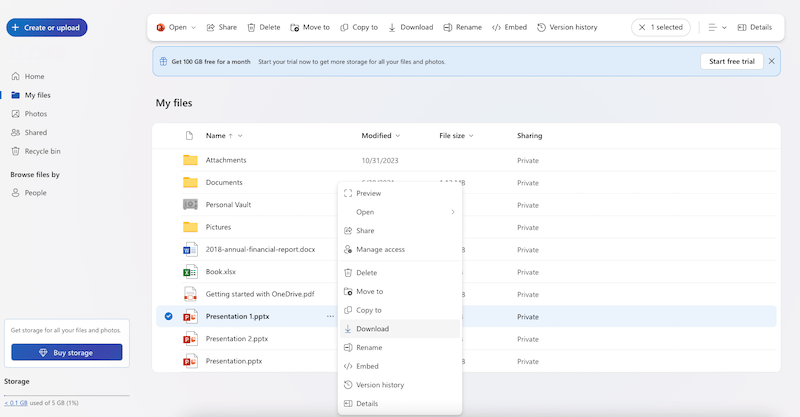
If none of the above fixes solve your problem and the photos are still missing, you should check any possible backup in other cloud service, such as iCloud, OneDrive, Dropbox, or log into your social media account and browse from the timeline to check if there is any other backup.
11. Update OS
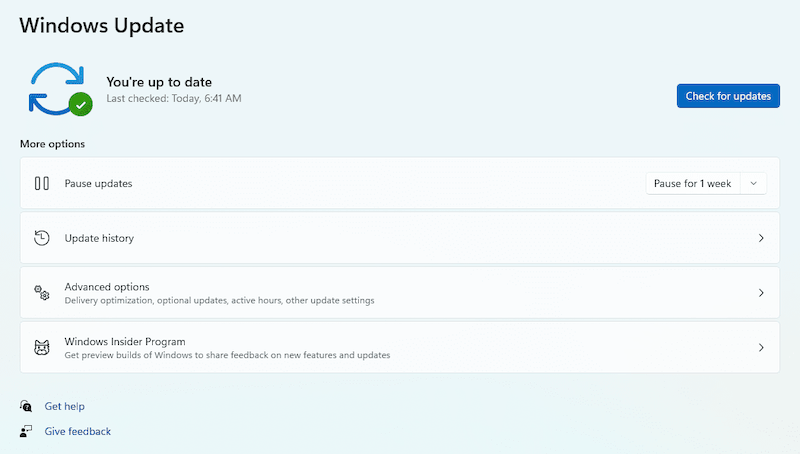
Still, you should run Google Photos on the newest OS to avoid any incompatibility issue.
For Android users, you can search android system update in Play Store and update.
For iPhone and Mac users, you can go to Settings > General > Software update.
For Windows users, go to Settings > Windows Update.
12. Contact Google Support
The last but not the least useful method is to contact Google Support. Though Google Photos doesn’t offer contact form, you can submit a request to Google Drive support, if you have a backup of the missing photos in Google Drive.
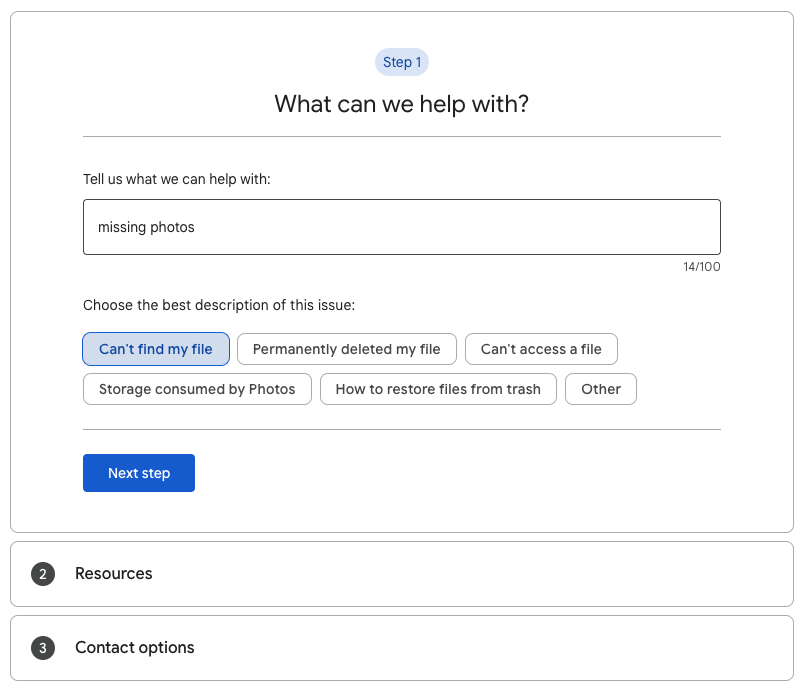
- Visit https://support.google.com/drive/gethelp.
- Type missing photos and click Next, click on Can’t find my file > Next step.
![google contact 01]()
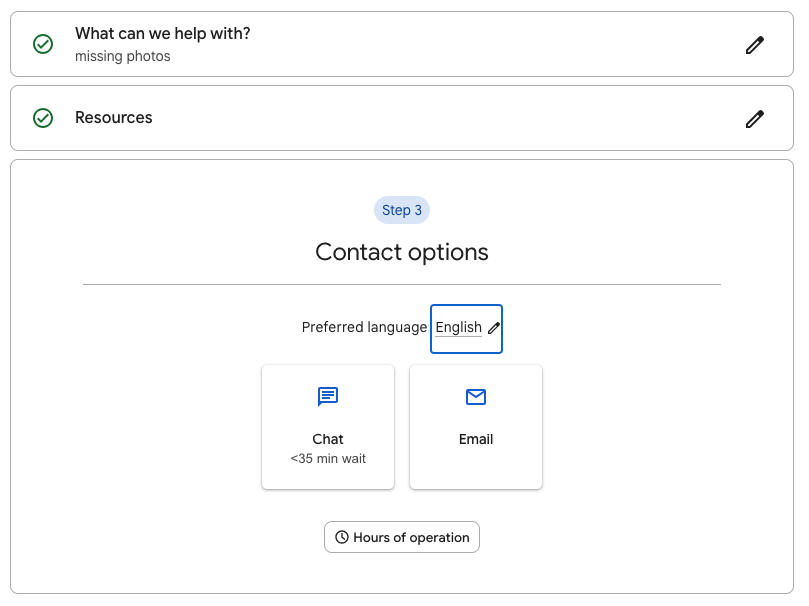
- Continue with Next step.
- Choose a contact options, fill in the form fields and click Submit.
![google contact 02]()
How to Recover Missing Google Photos on Computer or Android?
If the photos are still missing, don’t worry, recovering missing Google Photos can be a quicker and easier process than you expect, as long as we have an appropriate tool in hand.
For Windows or Mac users, the best way to recover missing Google Photos is using Cisdem Data Recovery. It is a trustworthy tool for both personal and corporate data recovery. It includes basic data recovery mode for internal and external hard disk data retrieval, advanced recovery modes for SD card recovery, NAS/Linux/RAID recovery, even crashed PC recovery.
Why Cisdem Data Recovery can even help recover data from cloud apps like Google Photos? Because, for any photos that we've uploaded to Google Photos, there must be a copy saved in the local drive on a computer, or on a mobile device, even other storage devices (USB, SD, HDD, SSD,etc.). Even the copies have been deleted from your device, we can still recover before they are overwritten, by using a data recovery program.
And get back to Cisdem Data Recovery, it can recover files that are lost under various circumstances, also supports more than 1000 file types, including photos, videos, documents, bookmarks, emails, archives, audio files and so on. It combs through specified disks and folders, allows users to locate missing files quickly, and recovers files with a high recovery rate.
It is capabe of recovering missing data from Windows, Mac and Android SD card, but due to the characteristics of the iOS system, Cisdem Data Recovery doesn't support recovering Google photos from iPhone at this moment. You can skip this part if you are using an iPhone.
Steps to Recover Missing Google Photos on Windows or Android phone.
- Download and install Cisdem Data Recovery on your computer.
Free Download Windows 10 or later Free Download macOS 10.15 or later - (Optional) Connect the Android SD card to your computer if you want to recover Google photos from Android.
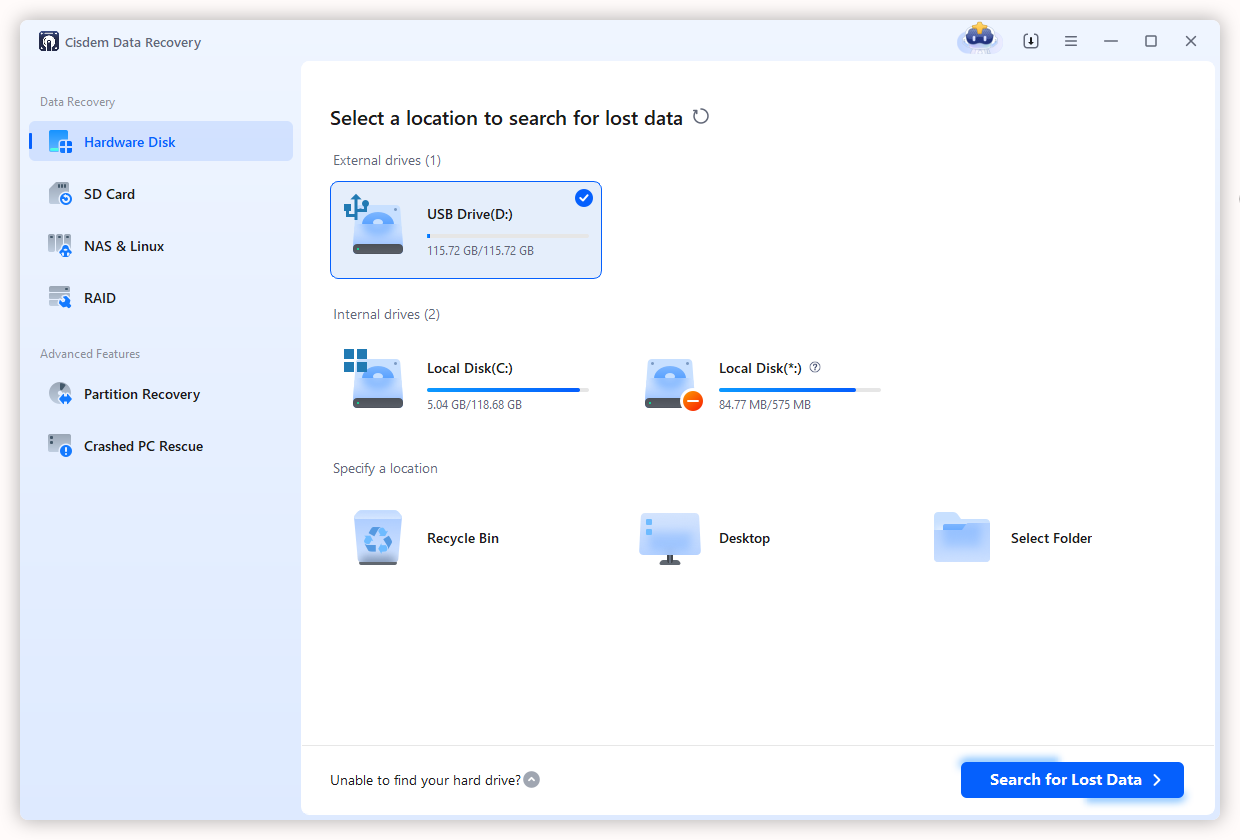
- Go to Hardware Disk, select the location where you saved the missing Google photos before uploading to Google Photos. Or go to SD Card if you are using Android phone. Then click Search for Lost Data.
![recover missing photos cisdem 01]()
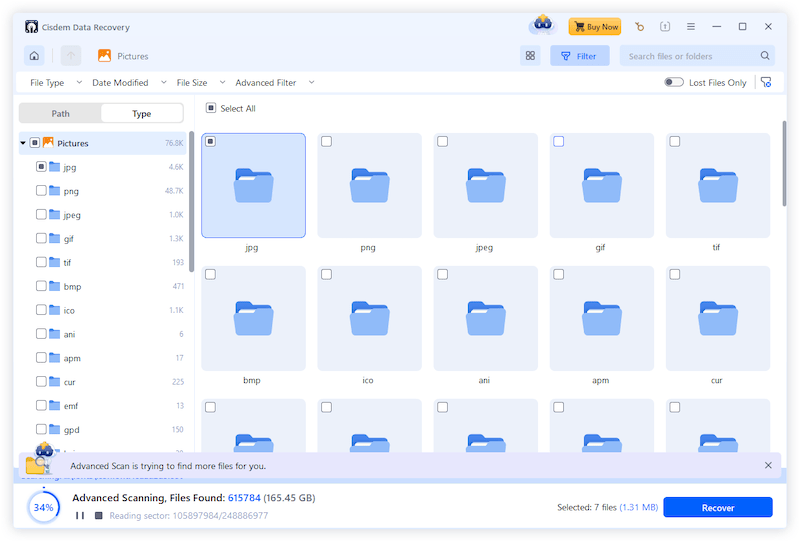
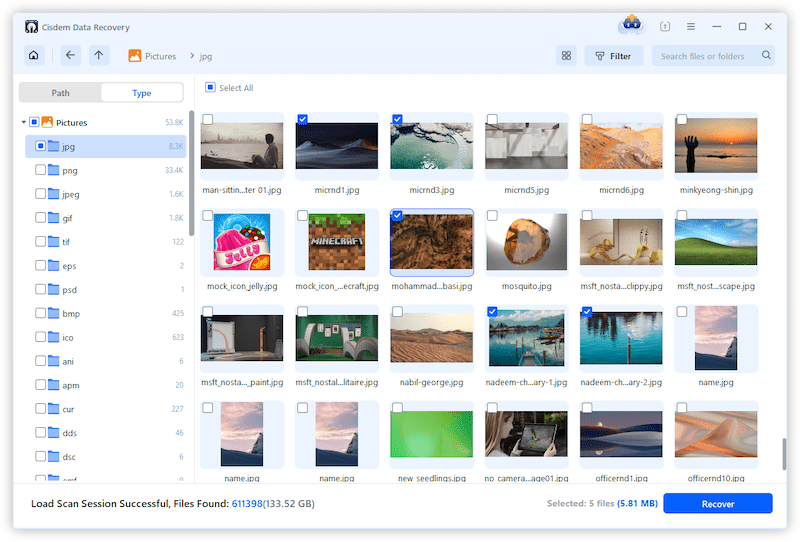
- Go to Type > Pictures, you can check the scanning results basing on Google image type, or use filter and search box to quickly locate a missing photo.
![recover missing photos cisdem 02]()
- Double click the Google photo to preview, select them and click Recover.
![recover missing photos cisdem 03]()
- Then upload the recovered photos to Google Photos again.
How to Recover Missing Google Photos on iPhone?
If you use Google Photos on your iPhone, similar to computer users, you can recover the missing Google photos via an iPhone data recovery program.
Differing from Android phones that have a higher compatibility, a dedicated iOS data recovery program is required to recover data from iPhone. And for your reference, most of iPhone data recovery programs need to be installed and initiated on a computer. Therefore, you have to use a computer to recover missing Google photos on your iPhone.
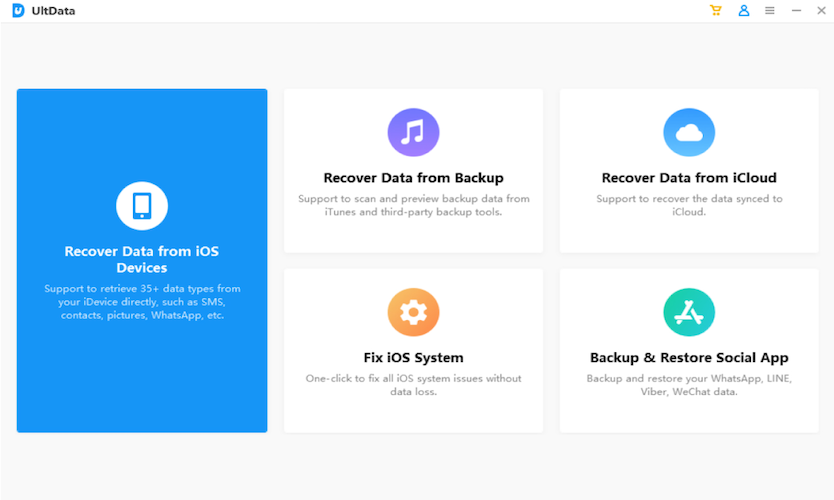
UltData iPhone Data Recovery is recommended. It can help users recover 30+ types of data, including messages, contacts, pictures, notes, call history and data in 3rd party apps. There are 3 ways to start the recovery process, directly from iPhone, via a local backup or from iCloud.
Steps to Recover Missing Google Photos on iPhone
- Download and install UltData on your computer.
Free Download Windows 11/10/8/7 Free Download macOS 10.15 or later - Connect the iPhone to your computer, and choose a recovery mode.
![recover missing photos on phone 01]()
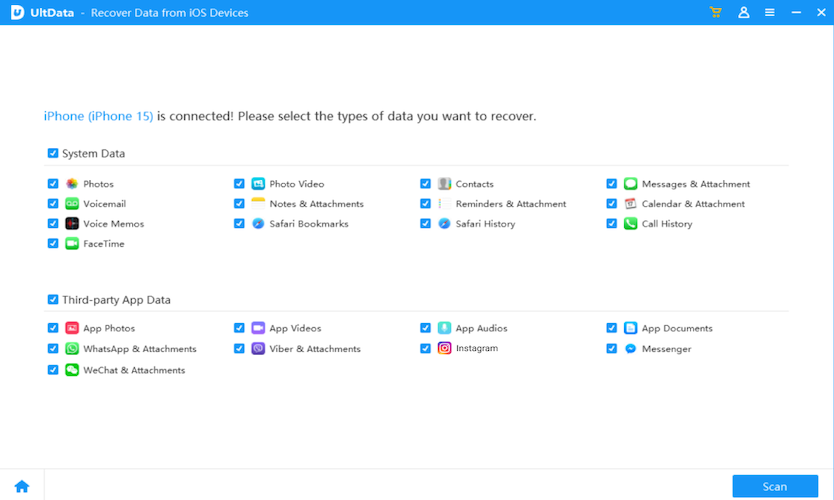
- Select the types of data you want to recover, here we need to tick before App Photos from Third-party App Data.
![recover missing photos on phone 02]()
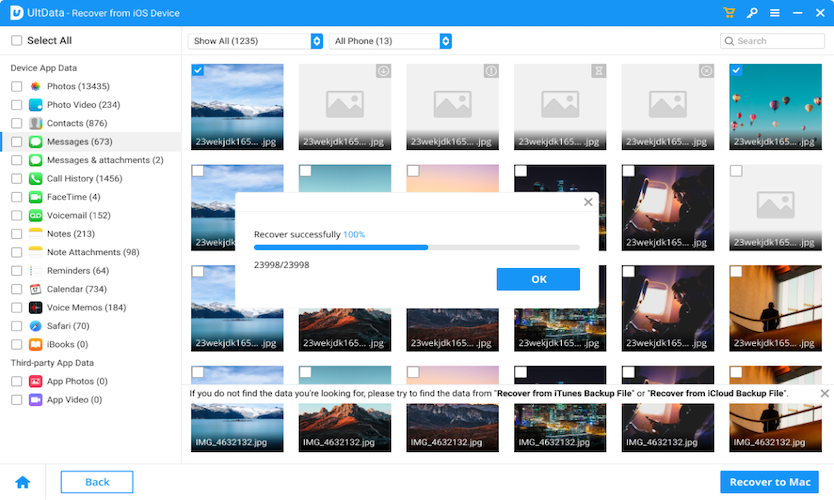
- After scanning, preview and select the missing Google photos, then click Recover.
![recover missing photos on phone 03]()
- Upload the recovered photos to Google Photos app again.
Conclusion
Missing photos from Google Photos can be caused by various reasons, we should figure out and troubleshoot the issue first. If you've tried all the fixes and not working, a dedicated data recovery program is reliable to try on your device. Though Google Photos is a safe and trustworthy place to store photos, the risk of losing photos exists. You are recommended to save a copy for the important files to both a local and cloud storage.

Zoey shows a great interest in what she does. Although not long with Cisdem, she has possessed a professional understanding of data recovery.

JK Tam is the lead developer at Cisdem, bringing over two decades of hands-on experience in cross-platform software development to the editorial team. He is now the lead technical approver for all articles related to Data Recovery and DVD Burner.
Nick
I ran into this exact issue last month—some of my older travel photos suddenly disappeared from Google Photos on my phone. This guide helped me realize I hadn’t checked the Archive folder. After following the steps, my Google photos showed up again.