


How to Password Protect Safari and Lock Safari Access
 276
276
 0
0


Want to stop others from opening Safari on your Mac, iPhone, or iPad? Safari doesn’t provide a built-in way to lock the entire browser. However, you can use Safari’s built-in privacy feature to lock your Private Browsing. If you want to completely block Safari access with a password, you can use Screen Time or a dedicated app blocker like Cisdem AppCrypt.
 Cisdem AppCrypt
Password Protect Safari and Block Unauthorized Access
- Password-protect Safari and other apps to prevent unauthorized access
- Block Safari completely or restrict access during specific hours
- Set custom schedules to limit Safari usage for work, privacy, or parental control
- Require a password to open, quit, or uninstall AppCrypt
- Automatically re-lock apps after inactivity
- Record failed attempts to open locked apps
- Offer an Allowlist mode to lock all apps except allowed ones on Mac
- Block specific sites, URLs containing certain words, or all sites except a few
- Available for Mac, Windows, iPhone and iPad, Android


Compare 4 Ways to Password Protect Safari
| Method | Prevents Others from Opening Safari | Password Protection | Ease of Use | Protection Level |
|---|---|---|---|---|
| Safari Private Browsing Lock | No | Yes (Uses Face ID or Touch ID) | Easy | Low |
| Screen Time | Limited | Yes (Uses Screen Time passcode) | Medium | Medium |
| Separate macOS User Accounts | Indirectly | Yes (Uses your macOS account password) | Medium | Medium |
| Cisdem AppCrypt (Recommended) | Fully | Yes | Easy | High |
Method 1: Lock Safari Private Browsing Windows (Built-in)
Best for: Users who want to prevent others from viewing your Private Browsing history.
Safari provides a built-in feature to lock your Private Browsing windows with Face ID, Touch ID, or password. However, it does not lock the Safari app, so others can still access your normal browsing tabs.
Steps to Lock Safari Private Browsing on Mac
1. Open the Safari app on your Mac.
2. Click Window > Lock All Private Windows.
3. Enable the option to require Face ID, Touch ID, or password to unlock Private Browsing.
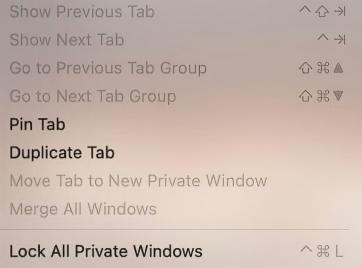
Close Safari and reopen it, you’ll find that Private Browsing is locked.
Steps to Lock Safari Private Browsing on iPhone or iPad
1. Open the Settings app on your iPhone or iPad.
2. Click Apps. Find and click Safari from the list of apps.
3. Turn on Require Face ID/Touch ID to Unlock Private Browsing.
Open Safari and switch to Private Browsing, you’ll find that it is locked.
Method 2: Use Screen Time to Restrict Safari
Best for: Users who want to limit Safari usage for yourself or your child.
Screen Time is a built-in feature on Apple devices. Unlike method 1, it cannot fully lock Safari. Instead, it enables you to limit how long Safari can be used. However, the shortest time limit you can set is 1 minute. So others can still open and use Safari before the restriction takes effect.
Steps to restrict Safari with Screen Time on Mac
1. Open System Settings on your Mac.
2. In the sidebar, select Screen Time.
3. Turn on Screen Time if it isn’t enabled.
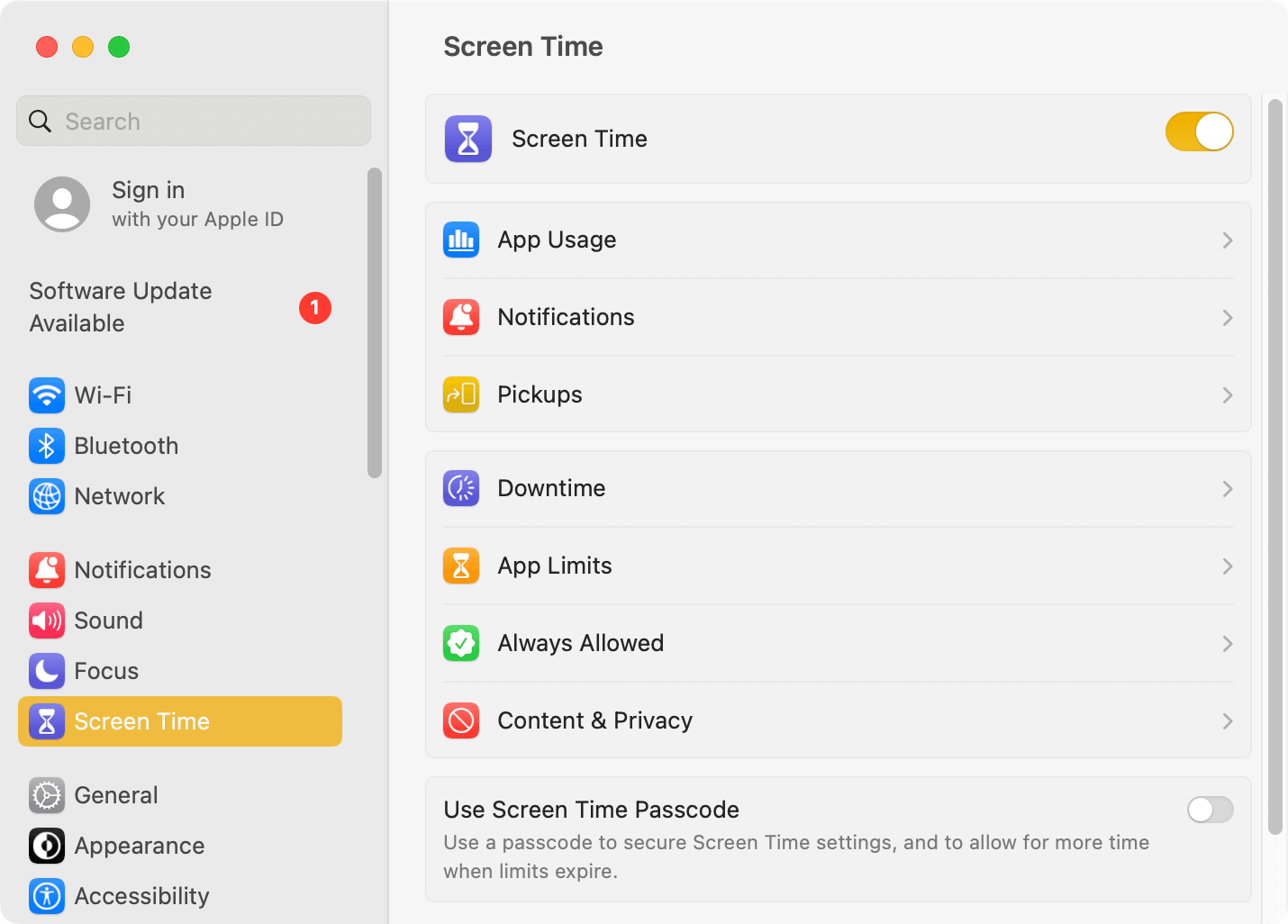
4. At the bottom, turn on Use Screen Time Passcode. Set a passcode.
5. Select App Limits.
6. Turn on the App Limits feature.
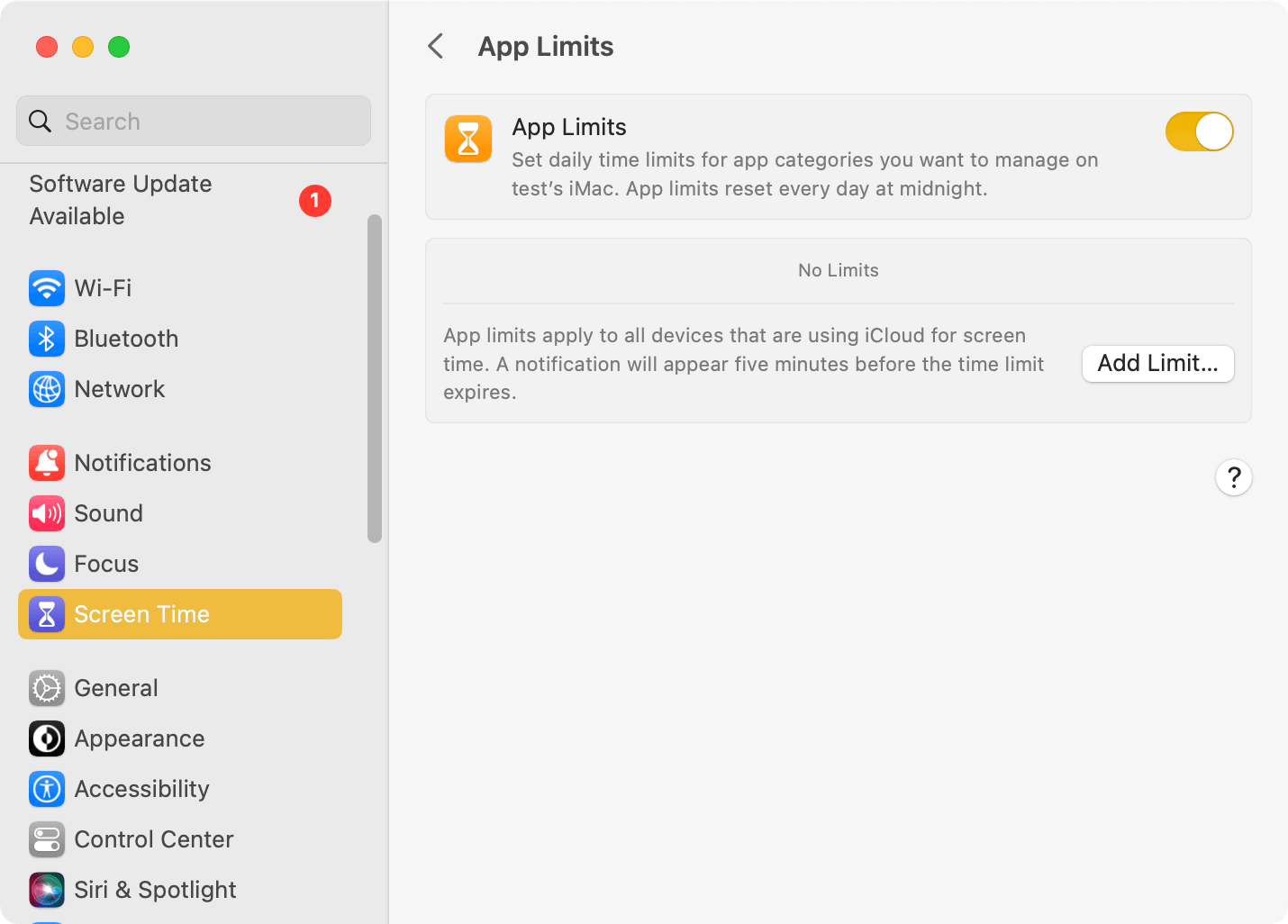
7. Click Add Limit.
8. Choose Apps > Safari. Or use the search bar to search for Safari.
9. Set the usage limit to 1 minute.
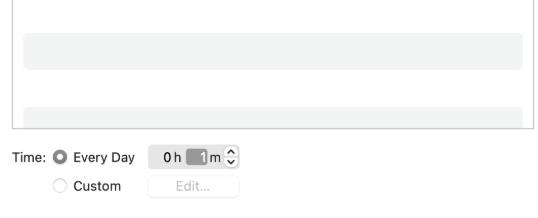
10. Enable Block at End of Limit.
11. Click Done.
Once the time limit is reached, the Screen Time passcode is required to unlock it.
Steps to restrict Safari with Screen Time on iPhone or iPad
1. Open the Settings app.
2. Click Screen Time.
3. Click App Limits.
4. Select Safari from the list of apps.
5. Set the allowed usage time.
Method 3: Create Separate macOS User Accounts
Best for: Users who want to protect Safari access on a Shared Mac with multiple users.
Creating a separate user account is another practical way to lock Safari. You can have your own independent macOS user account. Others won’t be able to access your sensitive data such as browsing history unless they know your Mac login password.
Although this method doesn’t directly password protect Safari, it can provide more effective privacy protection if you regularly share your Mac with others.
Steps to create a separate user account on Mac
1. Open your Mac. Go to System Settings.
2. In the sidebar, select Users & Groups.
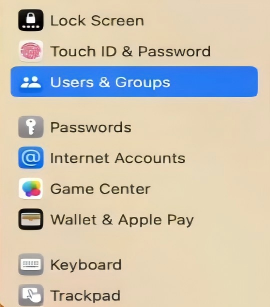
3. Click Add Account.
4. Enter your administrator password when prompted. Click Unlock.
5. Choose the account type. Standard is recommended for shared users.
6. Enter the account details, such as Full name, Account name.
7. Click Create User.
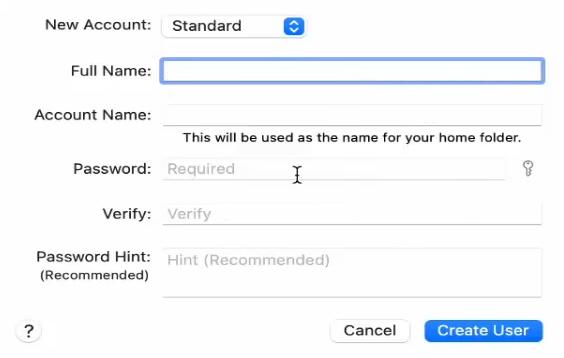
After setup, other users can only log in to their own account. They won’t be able to access your Safari browsing history, bookmarks, passwords, etc.
Method 4: Use Cisdem AppCrypt to Password Lock Safari
Best for: Users who want to completely lock Safari with a password and stop unauthorized access.
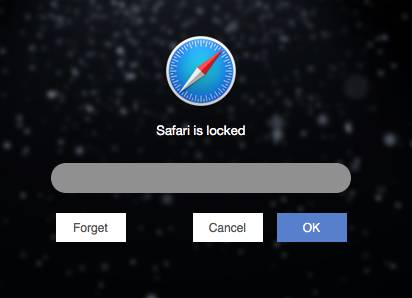
Cisdem AppCrypt is a dedicated app locker that allows you to lock any applications on your Mac easily. Once set it up, anyone trying to open Safari will need to enter the correct password. This is especially useful if you share your Mac with your with family members, roommates, or anyone else.
Steps to password protect Safari using AppCrypt on Mac
1. Download and install Cisdem AppCrypt on your Mac.
 Free Download macOS 10.15 or later
2. Launch the app. Set a password when prompted.
This password will be required whenever someone tries to open AppCrypt and locked apps such as Safari.
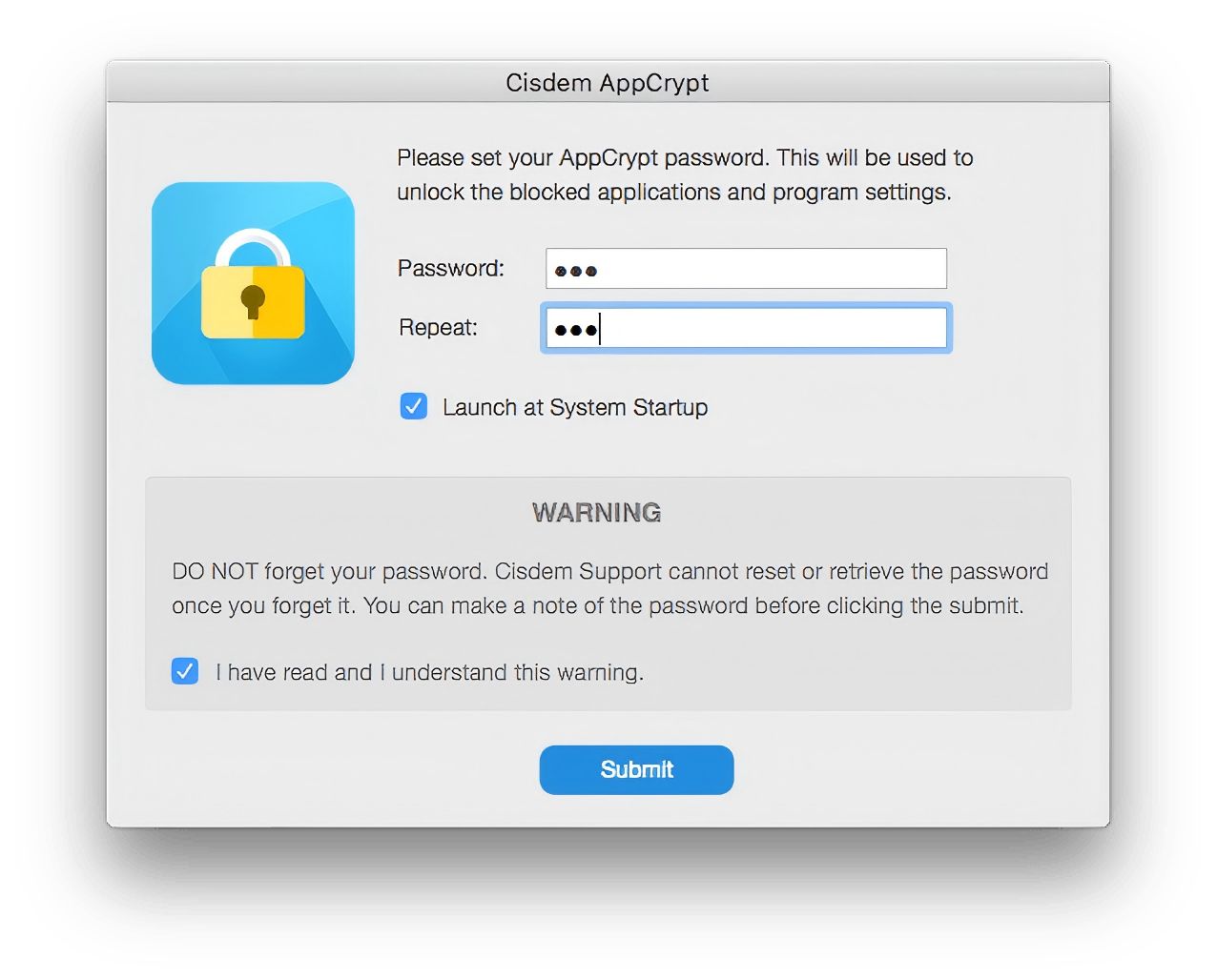
3. Click the lock icon in the Mac menu bar.
4. Enter the password to access the main window.
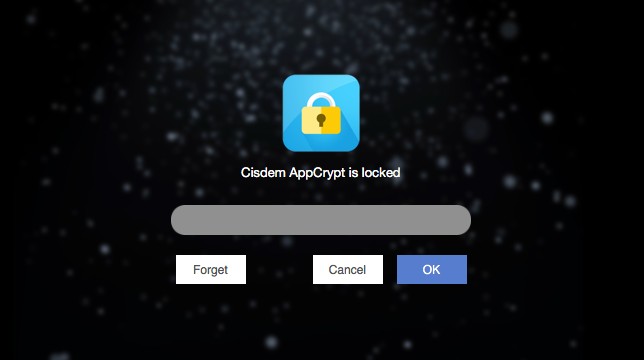
5. Go to the App Lock tab.
6. Click the + button.
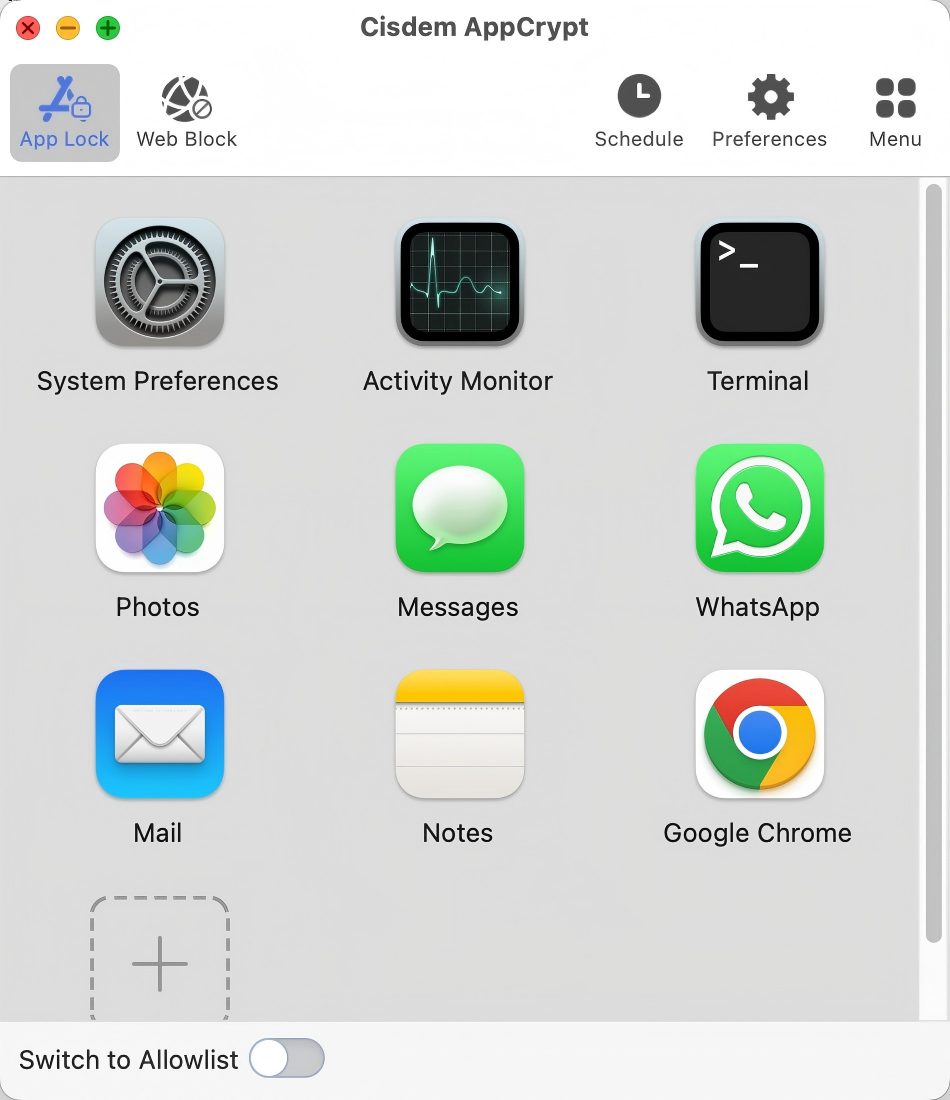
7. Select Safari from the Applications folder. Click Open.
Now Safari is locked on your Mac.
Steps to password protect Safari using AppCrypt on iPhone or iPad
1. Download and install Cisdem AppCrypt from the App Store.

2. Open the app. Click App Lock.
3. Click the Add/Remove button.
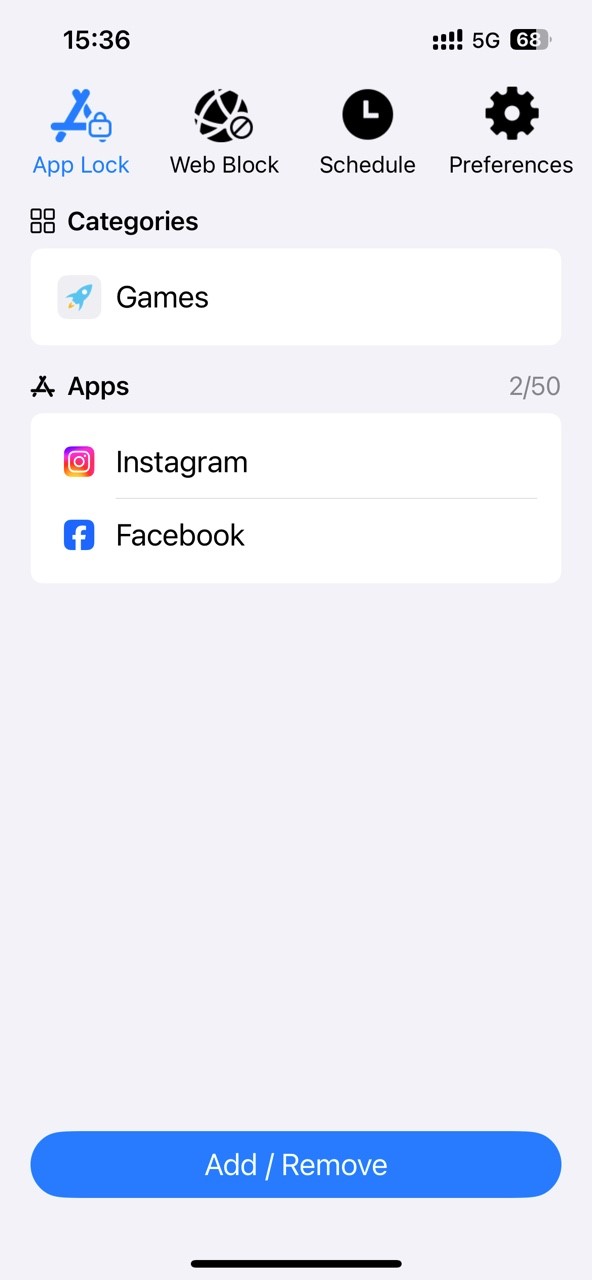
4. Select Safari from the Applications list. Add it to the lock list.
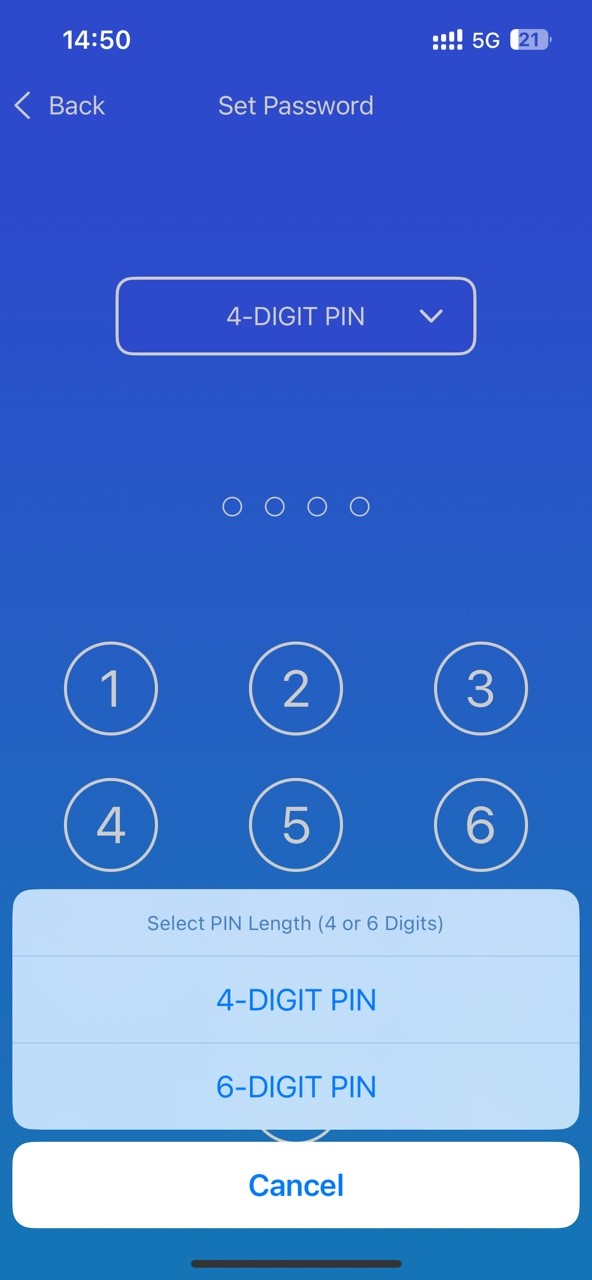
5. Click Preferences. Click Notifications. Enable both Notification and Notification unlock. Then it'll prompt you to set a PIN, which will be used to lock Safari and any other apps you add to lock list.
FAQs
Does Safari have a built-in password lock?
No. Safari itself does not offer a built-in password protection feature.
Can I password protect Safari without installing any software?
Yes. You can use Screen Time or the built-in app lock on your Mac, iPhone or iPad to password protect Safari.
How can I stop someone from opening Safari on my Mac?
The easiest way is to use a password-protected app blocker like Cisdem AppCrypt, which can prevent Safari from opening without entering the correct password.

Norah Hayes likes to share her tips on how to improve focus and stay motivated at work. She believes it is essential to eliminate all online distractions during work hours.

Ethan Long joined Cisdem in 2015 as a developer and now serves as the editorial advisor for Cisdem AppCrypt. He actively tests and uses Cisdem AppCrypt and other screen-time management tools to ensure AppCrypt meets its promises in real-world scenarios.