


5 Ways to Recover Deleted Videos from DJI Osmo Pocket (3, 4, etc.)
 4.8K
4.8K
 2
2


This post will teach you how to recover deleted videos from DJI Osmo Pocket within minutes. Not limited to the popular Osmo Pocket 3 series, the latest Osmo Pocket 4 series, and other Osmo Pocket series, these proven methods also apply to recovering deleted videos from Osmo Action, Mobile, 360, Nano, and drones like DJI Neo, Mavic, Air, etc. Let’s dive in!
 Cisdem Data Recovery for Windows and Mac
Recover Deleted Videos from Osmo Pocket 3, 4, etc.
- Restore deleted Osmo Pocket videos and photos from SD card
- Repair damaged Osmo Pocket files
- Also support other models of DJI handheld cameras and drones
- Restore 1000+ file types: videos, photos, emails, documents, archives, bookmarks, etc.
- Recover unsaved office files
- Preview files before recovery
- Save recovered files to local drive or to cloud
- Fast and deep scanning
- Support the latest Osmo Pocket 4 series


Can We Recover Deleted Videos from DJI Osmo Pocket?
Yes, we can.
DJI Osmo Pocket camera doesn’t offer cloud storage to back up videos automatically, but it stores the footage or photos on an inserted SD card. When you delete the videos directly on Osmo Pocket camera, you cannot find the file anymore, but it doesn’t mean the file is removed off the card right away. It will be gone forever only when there are new files overwrite the deleted file. Therefore, you should stop using your camera and perform the recovery as soon as possible.
In the case that you’ve deleted the videos on your computer, by accessing the SD card on your device and deleting them, then we should check the recycle bin, they are often moved there to put back.
Also, DJI Osmo has a mobile application called DJI Mimo that allows users view, edit and download the videos. If you’ve downloaded the videos to your mobile phone, even they are deleted, we can find back in recently deleted folder or use a 3rd party program.
Method 1. Check Recycle Bin to Find Back DJI Osmo Pocket Videos
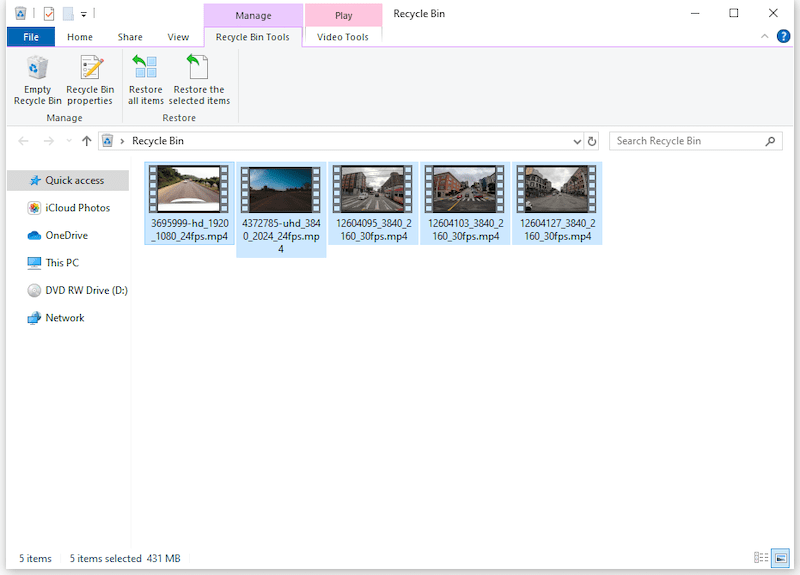
If you inserted the Osmo Pocket SD Card to a card reader, then connected it to your computer and deleted the videos, then the deleted videos were moved to recycle bin, you should check there and restore immediately.
- Open Recycle Bin or Trash Bin on your PC/Mac.
- Then browse the deleted files and select the Osmo Pocket video that you want to recover.
![recover dji video bin 01]()
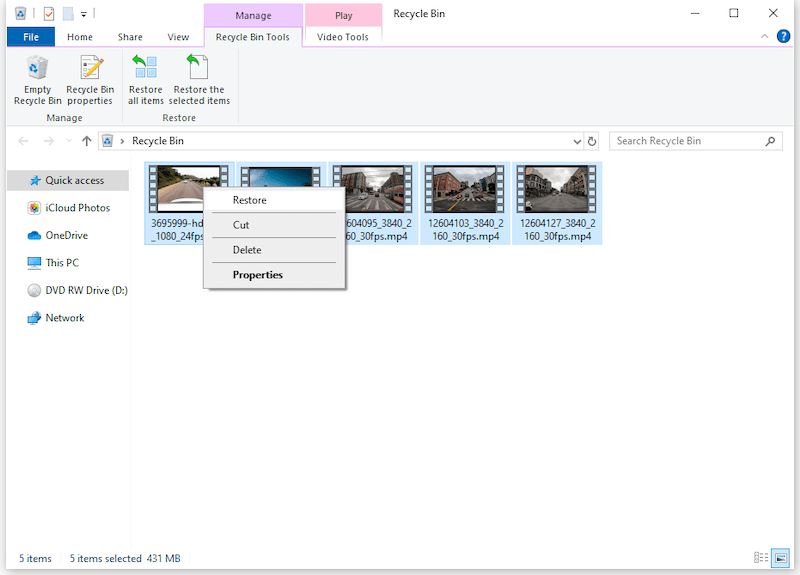
- Right click on Put back or Restore to recover. You can choose the SD card to save back the video directly to your Osmo Pocket.
![recover dji video bin 02]()
Method 2. Search a Backup to Restore Deleted DJI Osmo Pocket
Or you may have transferred the videos from your camera to a cloud storage system, such as Google Drive, OneDrive, iCloud Drive. Then you should check the copies there, also don’t forget to look at the recently deleted folder. Here we will take Google Drive as an example.
- Log into Google Drive.
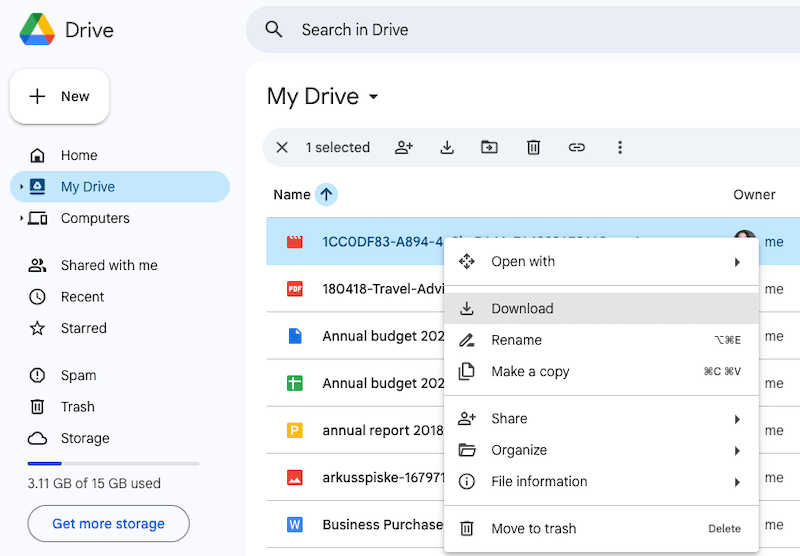
- Go to My Drive, select the copies for the deleted videos, then click the “...” icon to download.
![recover dji video google 01]()
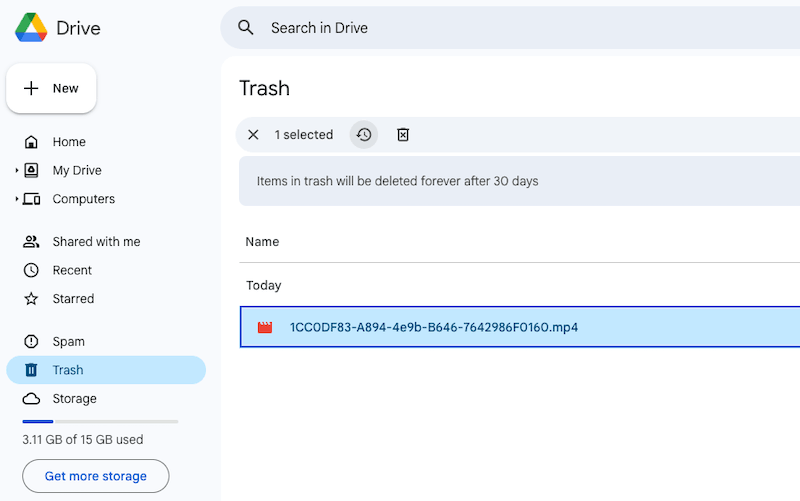
- Or go to Trash, select the deleted videos and click Restore icon to recover.
![recover dji video google 02]()
- Then transfer and save the recovered video to a safe location or to DJI Osmo Pocket SD card.
Method 3. Use Cisdem Data Recovery to Recover Deleted Videos from DJI Osmo Pocket 3/4
You deleted the footage on your computer, but could not find back from the bin, you may have emptied the trash bin. Or you deleted the video directly by confirming the deletion on your Osmo Pocket camera? Then you need a professional data recovery program to retrieve the videos from your computer drive or camera SD card.
Cisdem Data Recovery is the most dependable and efficient recovery tool for your case. No technical know-how is needed for using Cisdem Data Recovery. This top-notch application can retrieve deleted, lost, formatted, and even corrupted videos and photos from DJI Osmo Pocket with just several clicks. And it allows users to retrieve deleted videos with the same resolution as high as that of they’re firstly captured.
In addition to SD card, Cisdem also supports outstanding recovery performance on various storage media: computer hard disk, USB flash drive, digital camera, camcorder, video player, portable media player, HDD, SSD, memory card and more commonly used devices. Better yet, it’s reputable for its high recovery rate, advanced scanning engine, quick scan speed, and easy-to-use UI.
More key features of Cisdem Data Recovery:
- Support 1000+ file types in different formats: MOV, MP4, JPEG, DNG, Word, Excel, PDF, PST, MP3, OGG...
- Get DJI files back from mistaken deletion, improper formatting, camera crash, SD card corruption...
- Support various types of internal and external storage devices
- Repair damaged images, videos and documents
- Recover unsaved files in Word, Excel, PowerPoint, Keynote, Pages, Numbers, WPS, PSD, etc.
- Render Osmo Pocket videos and photos for easy preview
- Recover data from crashed computer
- Recover files to local disk or cloud
How to recover deleted videos from DJI Osmo Pocket 3 or 4?
- (Optional) Remove the SD card from your Osmo Pocket 3 or 4 and insert it into your computer with an SD card reader.
- Download, install and open Cisdem Data Recovery on the computer.
 Free Download Windows 11/10/8/7
  Free Download macOS 10.15 or later
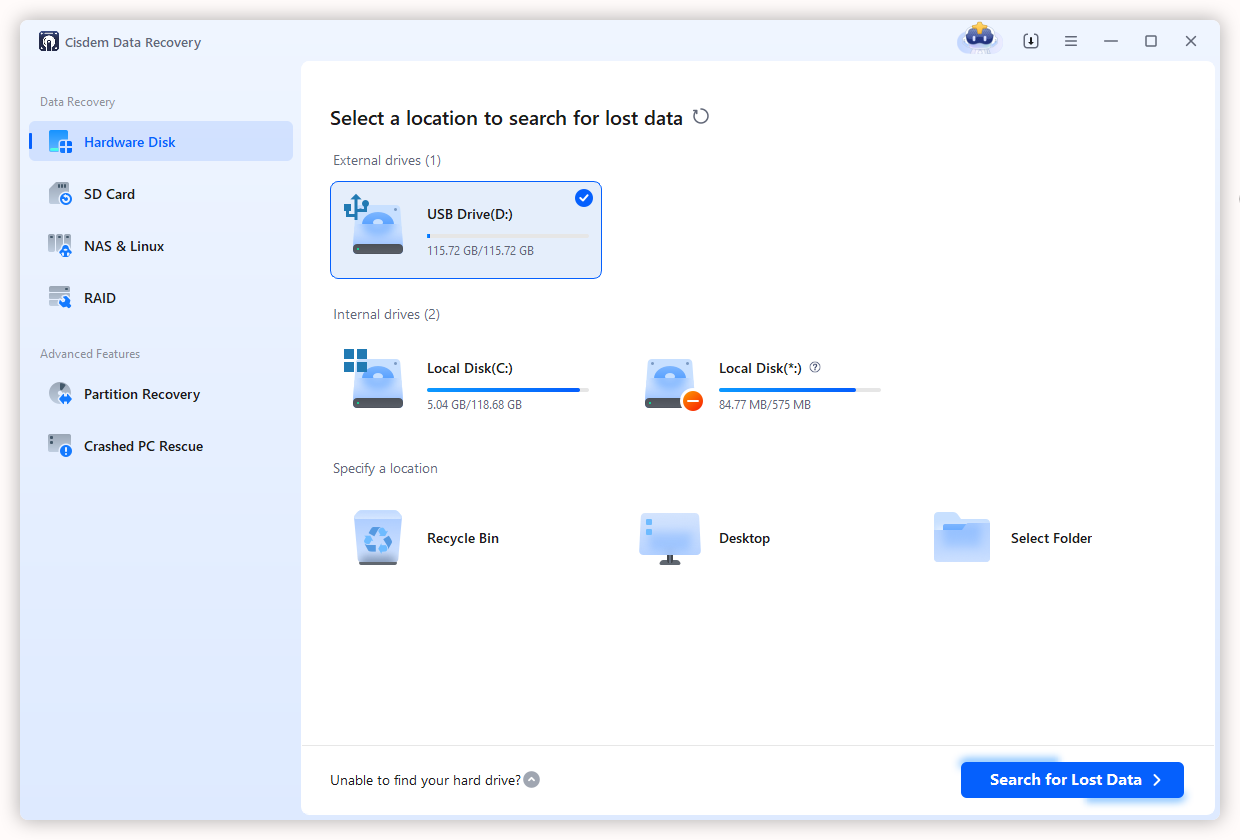
 - Go to SD Card if you deleted the videos on Osmo Pocket camera, or go to Hard Disk if you deleted the videos on the computer, select the disk and click Scan for lost data to start the scanning.
![recover osmo video with cisdem 01]()
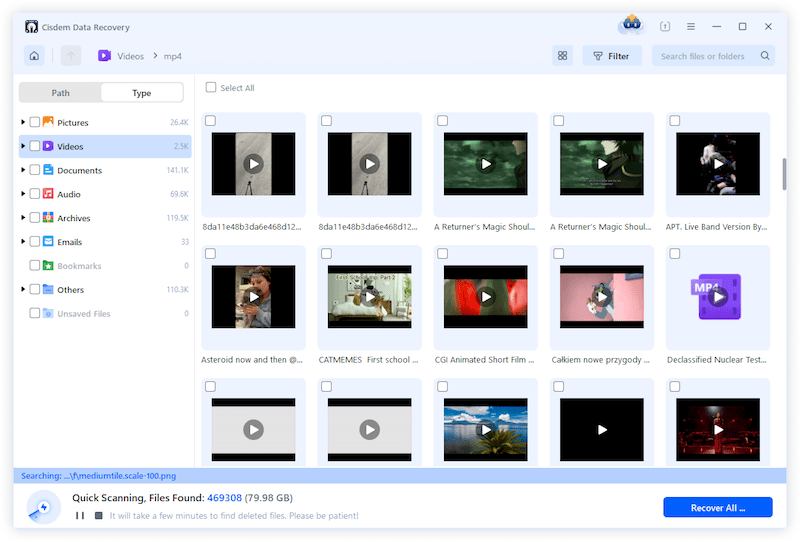
- During or after scanning, go to Type > Videos or Pictures folder, and find the DJI Osmo Pocket 3/4 files you want to restore.
![recover osmo video with cisdem 02]()
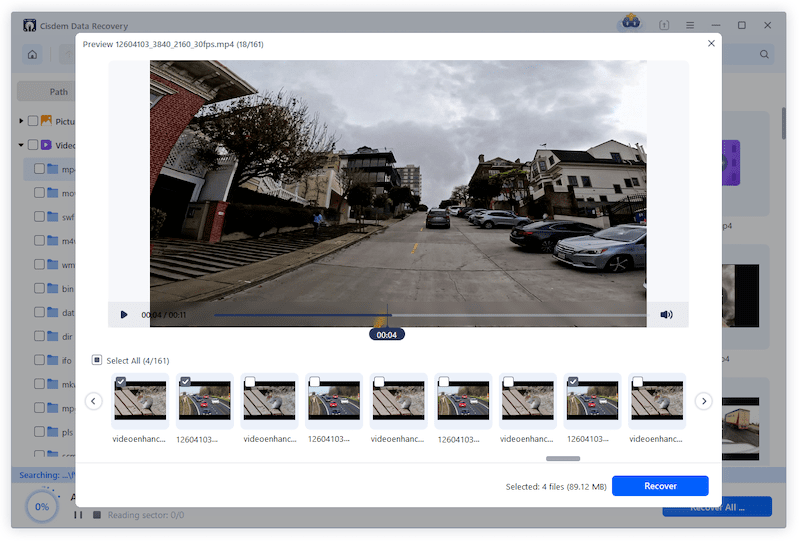
- Double click to have a preview. Select the needed files and click Recover to retrieve deleted videos/photos from Osmo Pocket 3/4.
![recover osmo video with cisdem 03]()
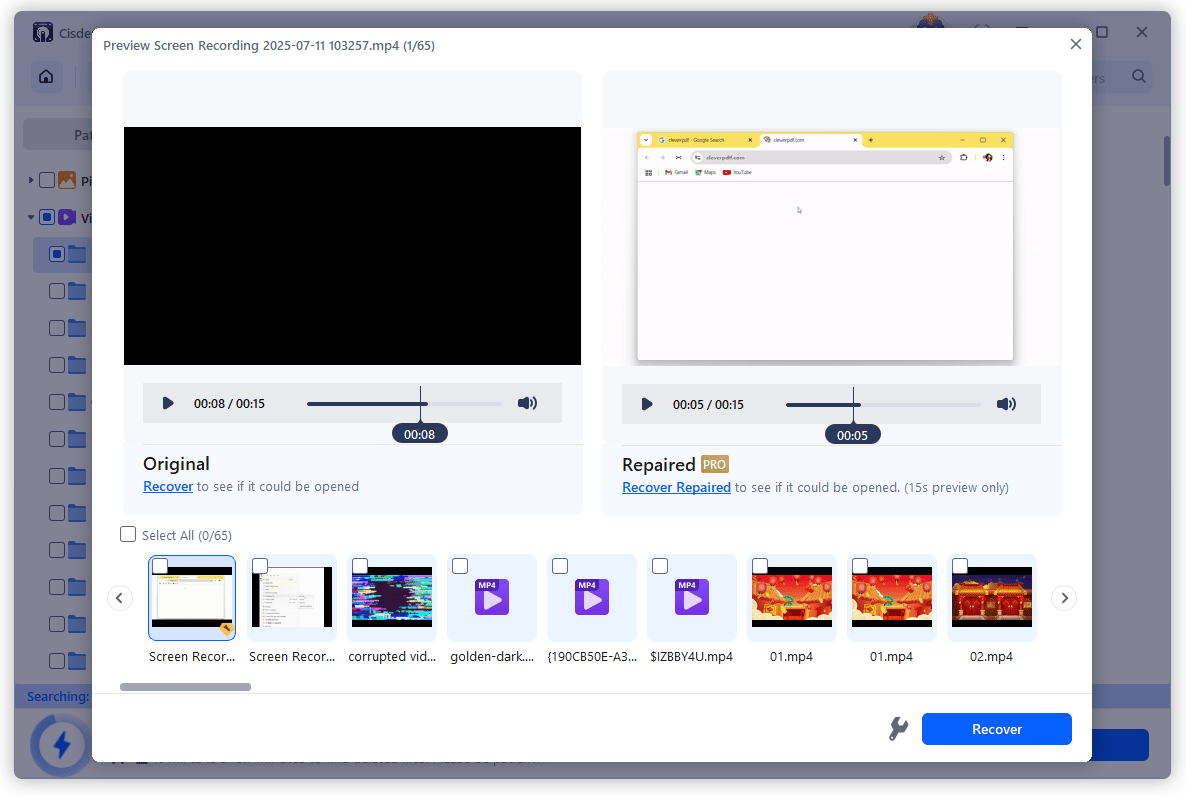
tips: If you find the deleted videos are damaged and show up as a black image, use the File Repair tool at the bottom to repair first.
Method 4. Recover Deleted DJI Videos on Phone
Depend on where you saved or deleted the DJI videos, there are 3 ways to recover a DJI Osmo Poccket video in different cases.
#1 Recover Deleted Videos from DJI Mimo App
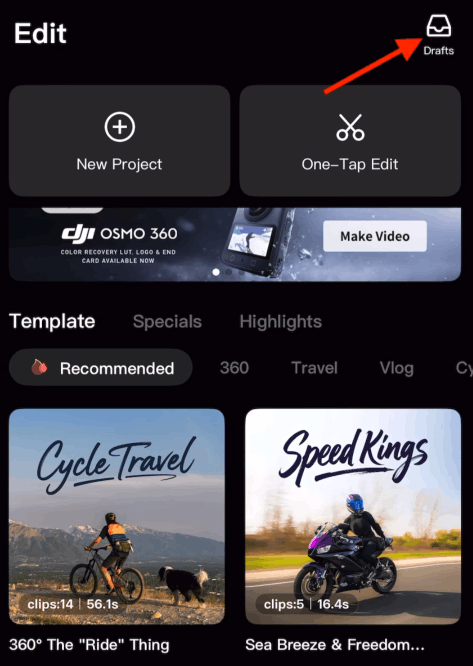
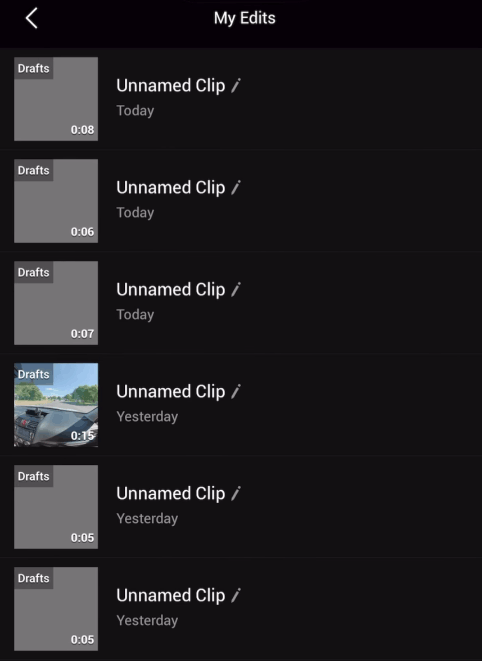
DJI offers DJI Mimo app to help users shoot, edit, manage and download videos in one place. Though it doesn't allow recovering a deleted video, it is helpful to restore a video from a draft, if you once edited the project in Mimo and did not save.
- You can open Mimo app on your phone, then tap Drafts on the top.
![mimo draft]()
- Then select the one you want to recover, tap it and continue edit.
![draft 02]()
- Then save or export the video for file recovery.
#2 Recover Deleted Videos from Recently Deleted
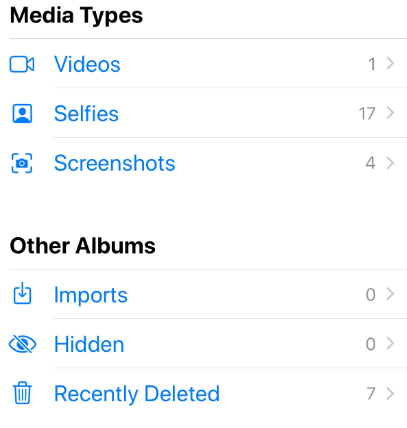
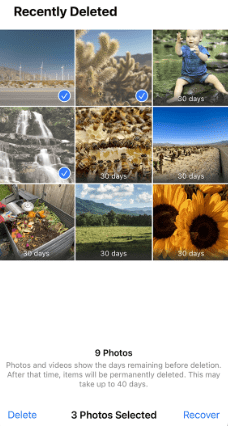
If you’ve downloaded the videos to your photos gallery, then deleted, you should check the recently deleted album on your phone first.
- Open the Photos gallery app on your Android or iPhone.
- Then go to Trash or Recently Deleted album.
![recover dji video phone 01]()
- Select the deleted Osmo Pocket videos and click Recover.
![recover dji video phone 02]()
#3 Recover Permanently Deleted Videos from DJI Osmo Pocket on Phone
In the case that you cannot not the deleted videos in the recently deleted or trash folder on your mobile phone, or you’ve deleted the videos from DJI Mino app without downloading a copy, you need a 3rd data recovery program that works similar to Cisdem Data Recovery to recover the videos from your mobile phone.
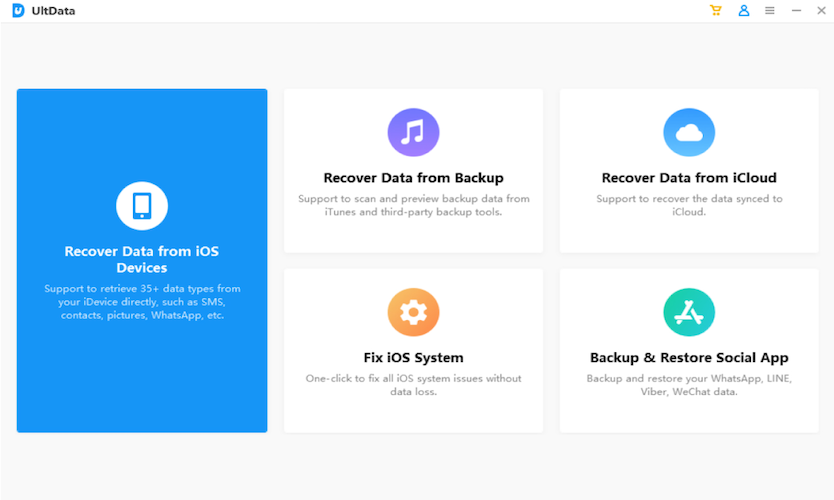
It is lucky that Cisdem Data Recovery also supports recovering videos from Android SD card, if you are using an iPhone, UltData fits your needs and you can follow these steps:
- Install and launch UltData on your Windows or Mac.
- Connect your iPhone to the computer. Choose Recover from iOS Device.
![recover dji video phone 03]()
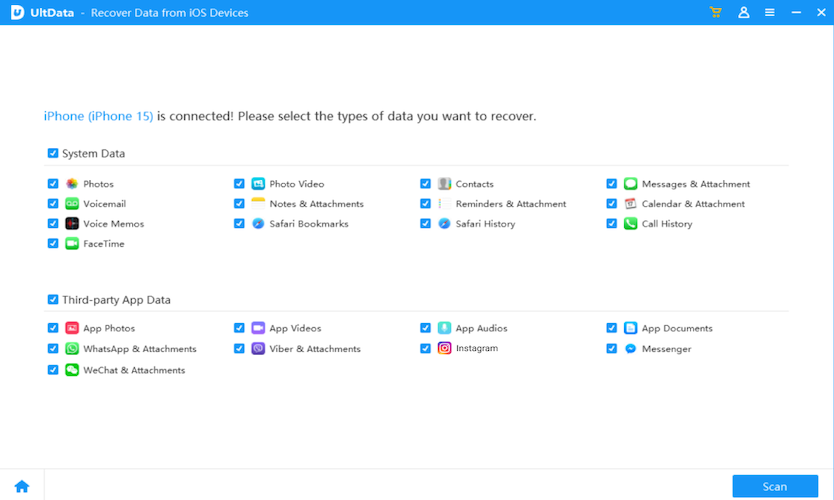
- Then select Photo Video and App Videos types, and click Scan.
![recover dji video phone 04]()
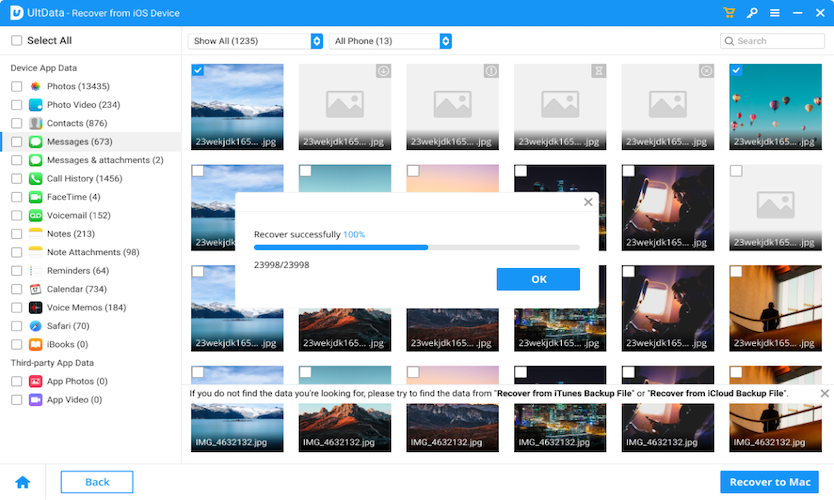
- Preview the videos, select and click Recover button to retrieve the videos.
![recover dji video phone 05]()
Method 5. Use Recuva to Recover Deleted Video on DJI Osmo Pocket for Free
If you are still looking for a free way to recover deleted video recordings from DJI Osmo Pocket, this method is for you. Developed by Piriform Software, Recuva is an free undeletion program on Windows, which has the ability to salvage files that have been marked as deleted but have not been overwritten yet.
It supports a lot of storage devices, including SD card from a camera like DJI Osmo Pocket series. Though it has a lower recovery rate than paid options, it marks highly recoverable files in Green and lets users preview.
How to restore DJI video free using Recuva?
- Connect the SD card of your DJI drone with the Windows via a card reader.
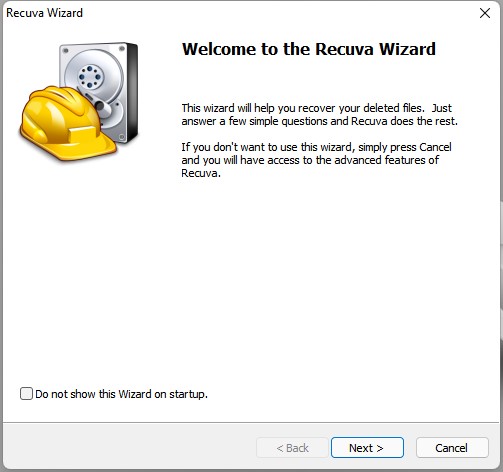
- Download Recuva free version from https://www.ccleaner.com/recuva, then install and run the program on your PC.
![recover dji video recuva 01]()
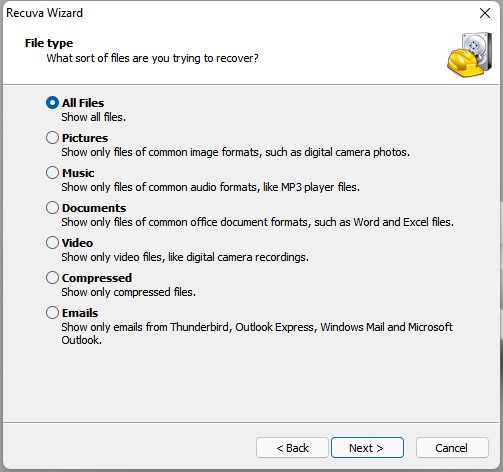
- Choose the sort of files you are trying to recover, tap on Next. You can opt for All files, also select Video or Pictures only.
![recover dji video recuva 02]()
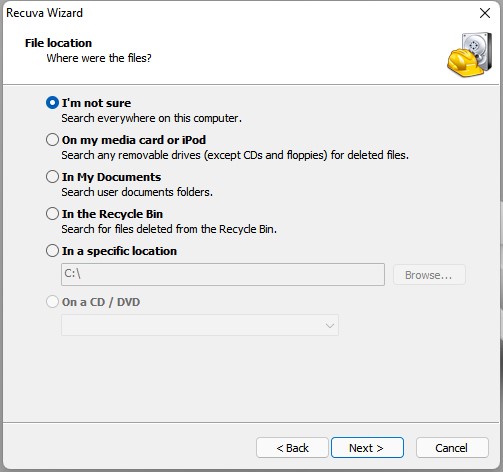
- In the next Wizard, choose the file location as “On my media card or iPod” > click Next.
![recover dji video recuva 03]()
- Click Start to initiate the recovery process.
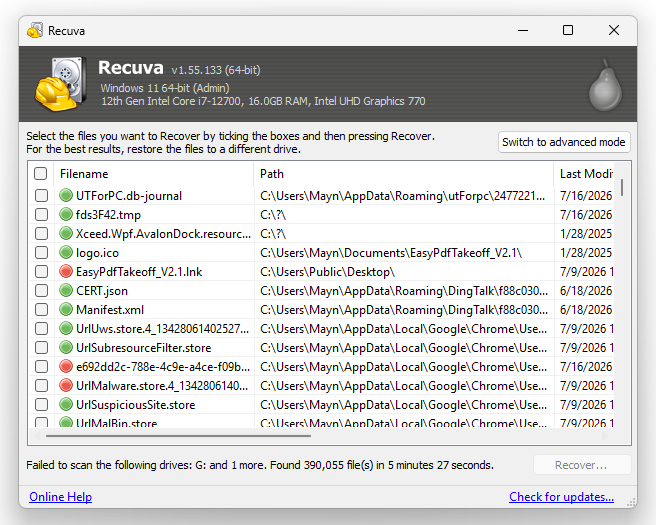
- After scanning, find the DJI videos that marked in Green, check the boxes and hit Recover button to retrieve it back to a safe location on your computer.
![recover dji video recuva 04]()
Conclusion
Losing videos unexpectedly is a disaster for DJI Osmo Pocket users. Fortunately, there are possible solutions to get them back by checking recycle bin on computer, cloud backup, photos gallery on mobile phone. Also, there are professional data recovery programs designed to retrieve the deleted Osmo Pocket videos. To recover files as many as possible, Cisdem is a better choice and you should try as soon as possible before the files are overwritten by new shootings. In addition, don’t forget to export your videos to save a copy via DJI Mimo or an USB to prevent data loss.

Zoey shows a great interest in what she does. Although not long with Cisdem, she has possessed a professional understanding of data recovery.

JK Tam is the lead developer at Cisdem, bringing over two decades of hands-on experience in cross-platform software development to the editorial team. He is now the lead technical approver for all articles related to Data Recovery and DVD Burner.
Albert J. Hanna
Oh my god, it helped! My deleted Osmo Pocket footage was actually back. I was honestly worried that I had lost the videos for good, but following the steps with Cisdem Data Recovery worked for me.
Lona Ewald
Oh man, I wish I had found this guide a few months ago! I accidentally deleted some precious travel clips from my Osmo Pocket and panicked—tried a few sketchy recovery tools that didn’t work and almost gave up. Your method using Cisdem looks way more reliable than what I stumbled through. One thing I’m curious about: will the recovered video go parts? I saw the repair tool but not sure how it works.