


How to Lock Snapchat on iPhone and Android (4 Proven Ways)
 3.7K
3.7K
 0
0


Key takeaways
To lock Snapchat, you can use an app locker like Cisdem AppCrypt, or built-in features like Shortcuts on iPhone, Secure Folder on Samsung phone.
If you often lend your phone to friends or family, they may open Snapchat and view your chats or photos. To protect your privacy, you can lock the app. In this article, we’ll show you how to lock Snapchat on iPhone and Android phone, including using third-party app locker and built-in features on the phone.
 Cisdem AppCrypt
Password-protect Snapchat & Other Apps
- Available on iPhone, iPad, Android, Mac, and Windows
- Lock individual apps, like Snapchat, with password
- Lock categories of apps, like Social (on iPhone and iPad)
- Automatically re-lock apps after a specified period, e.g., 10 minutes
- Block specific websites
- Block adult sites with 1-click (on iPhone, iPad, Mac, Windows)
- Let you lock apps and block sites permanently or at scheduled times
- Easy to use
- Hard to bypass
- Help with privacy protection, productivity, and parental controls


How to password protect Snapchat on iPhone with AppCrypt
Applies to: iOS 16 or later; iPadOS 16 or later
Cisdem AppCrypt is an easy-to-use app locker and website blocker. It’s free to use on the phone.
It allows you to easily lock individual apps (like Snapchat) and categories of apps (like Social) on your iPhone or iPad. You can also set it to automatically re-lock Snapchat after a period of time after it is unlocked, like 10 minutes. So others can’t access your chats even if you forget to lock the app.
Below is how to use it to put a password on Snapchat.
1. Install AppCrypt.

2. Tap Add / Remove at the bottom of the App Lock tab.
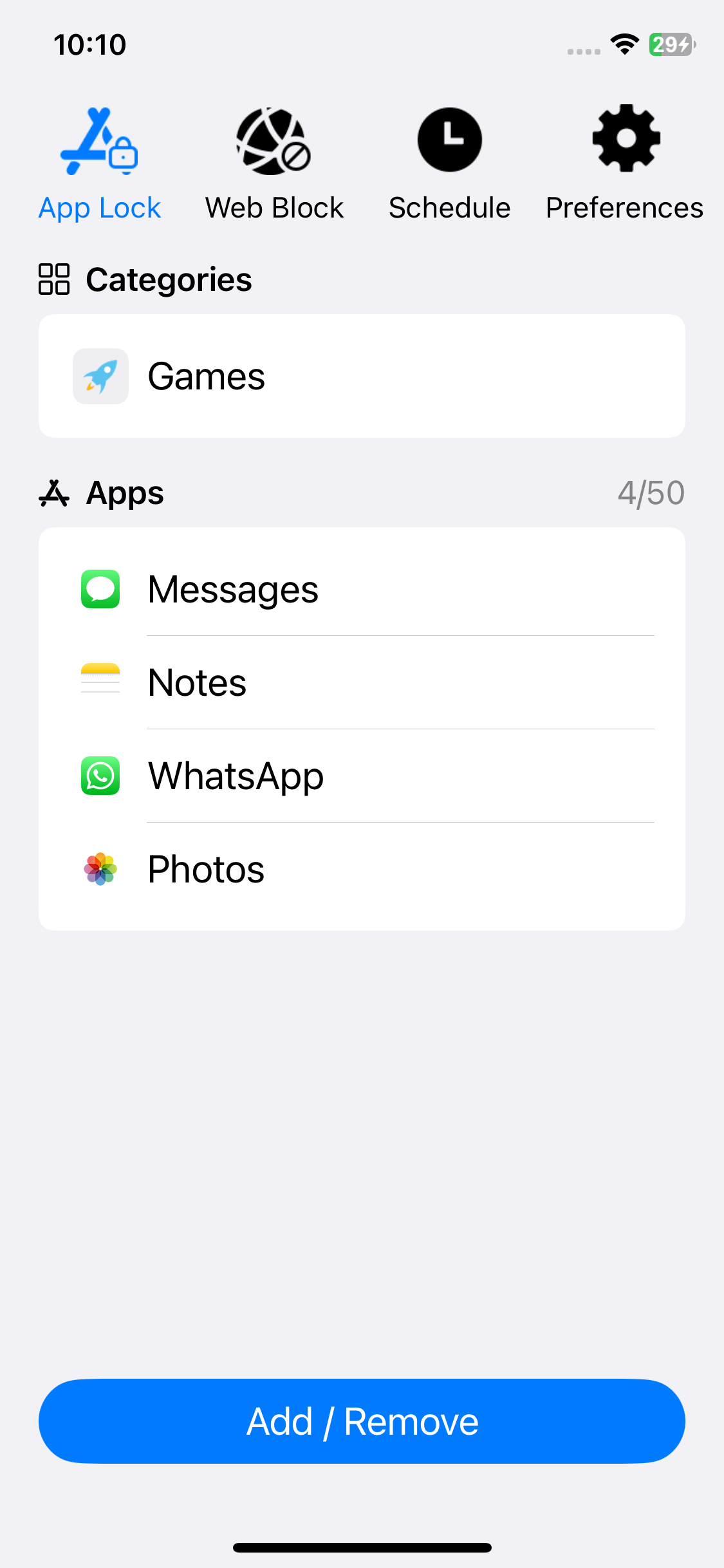
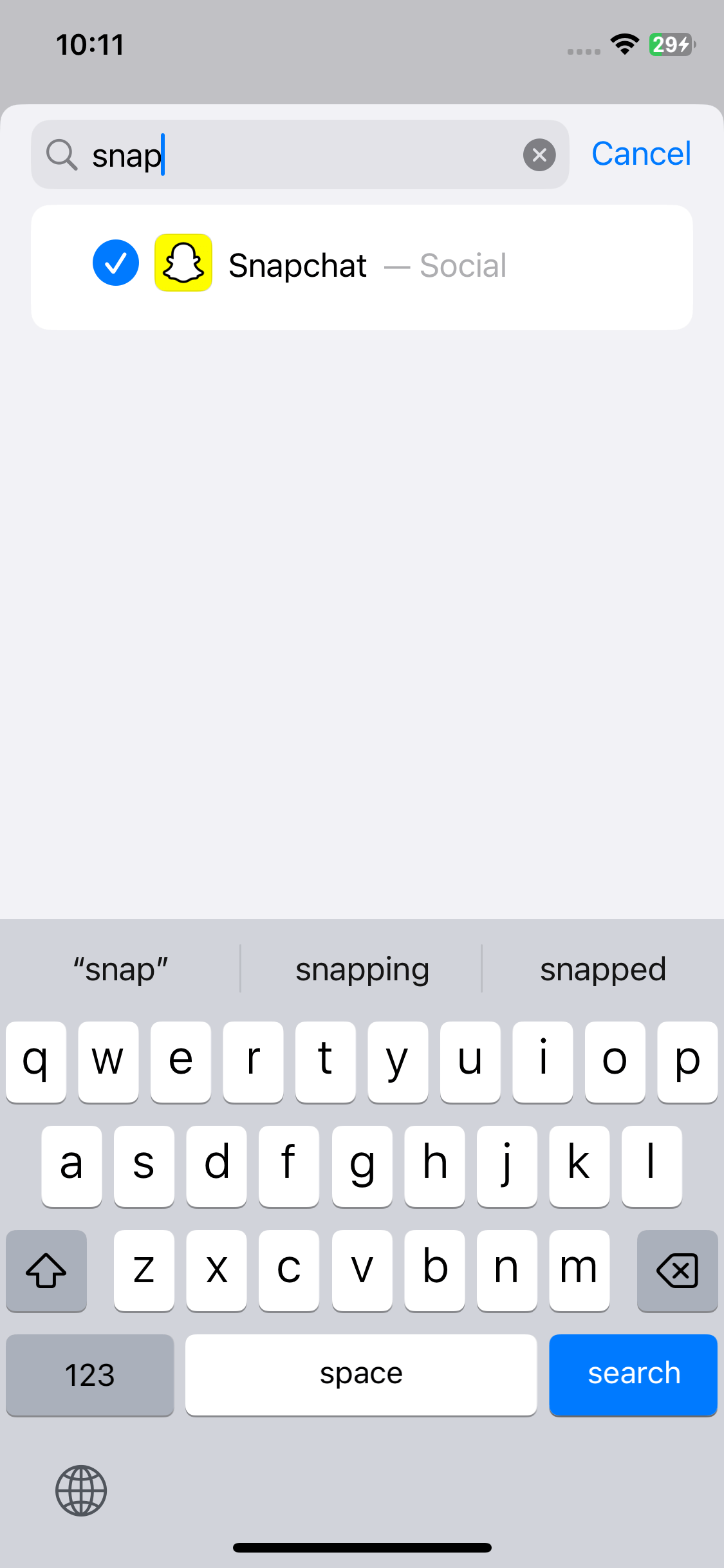
3. Use the search field to find Snapchat and then select the app. Tap Done.
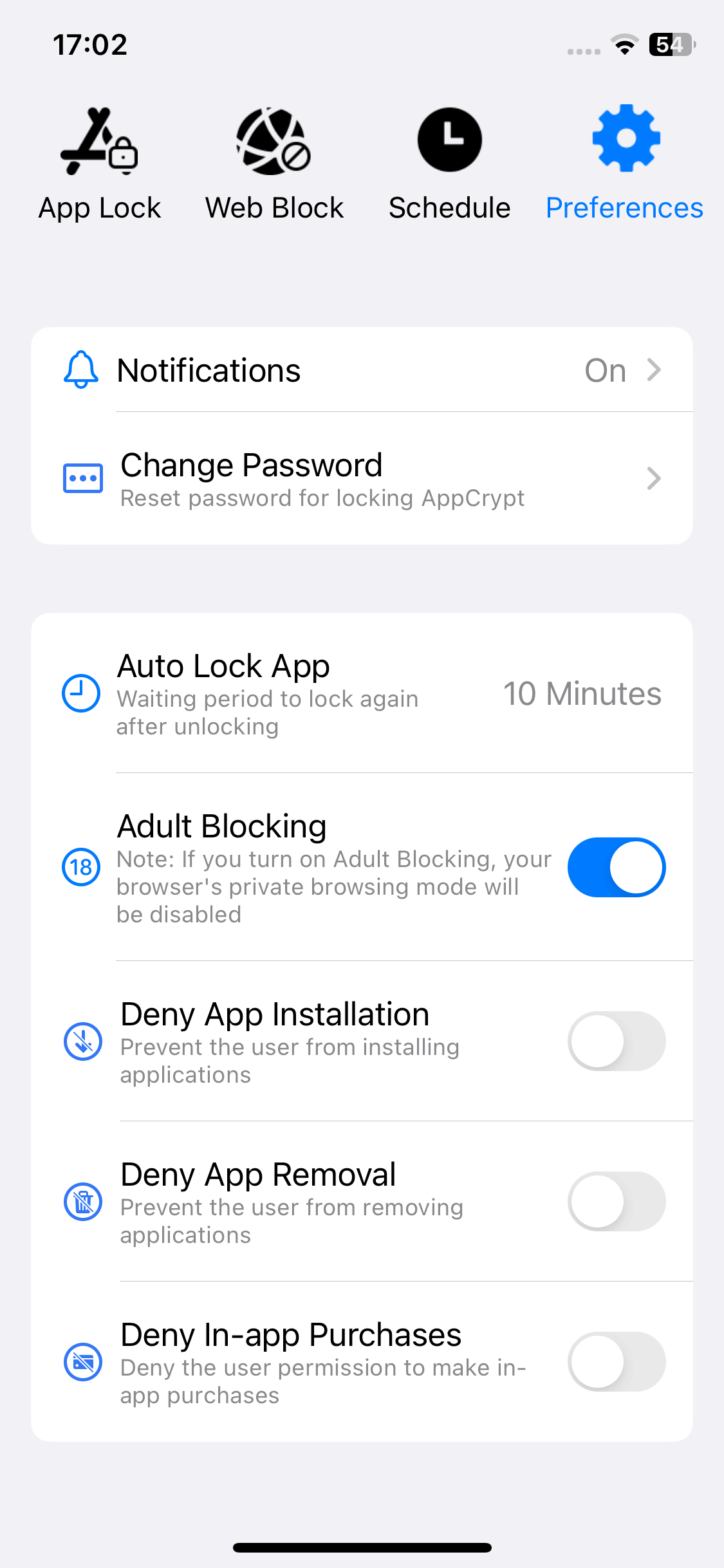
4. Tap Notifications in the Preferences tab. Turn on Notification and then Notification unlock. Set a 4- or 6-digit password when prompted.
Note: In step 2, if you want, you can select the Social category instead, which will lock Snapchat and any other installed apps that are categorized as a social app.
Now Snapchat is locked with password on your iPhone. When you or anyone else tries to open Snapchat, a screen will appear saying that this app is locked.
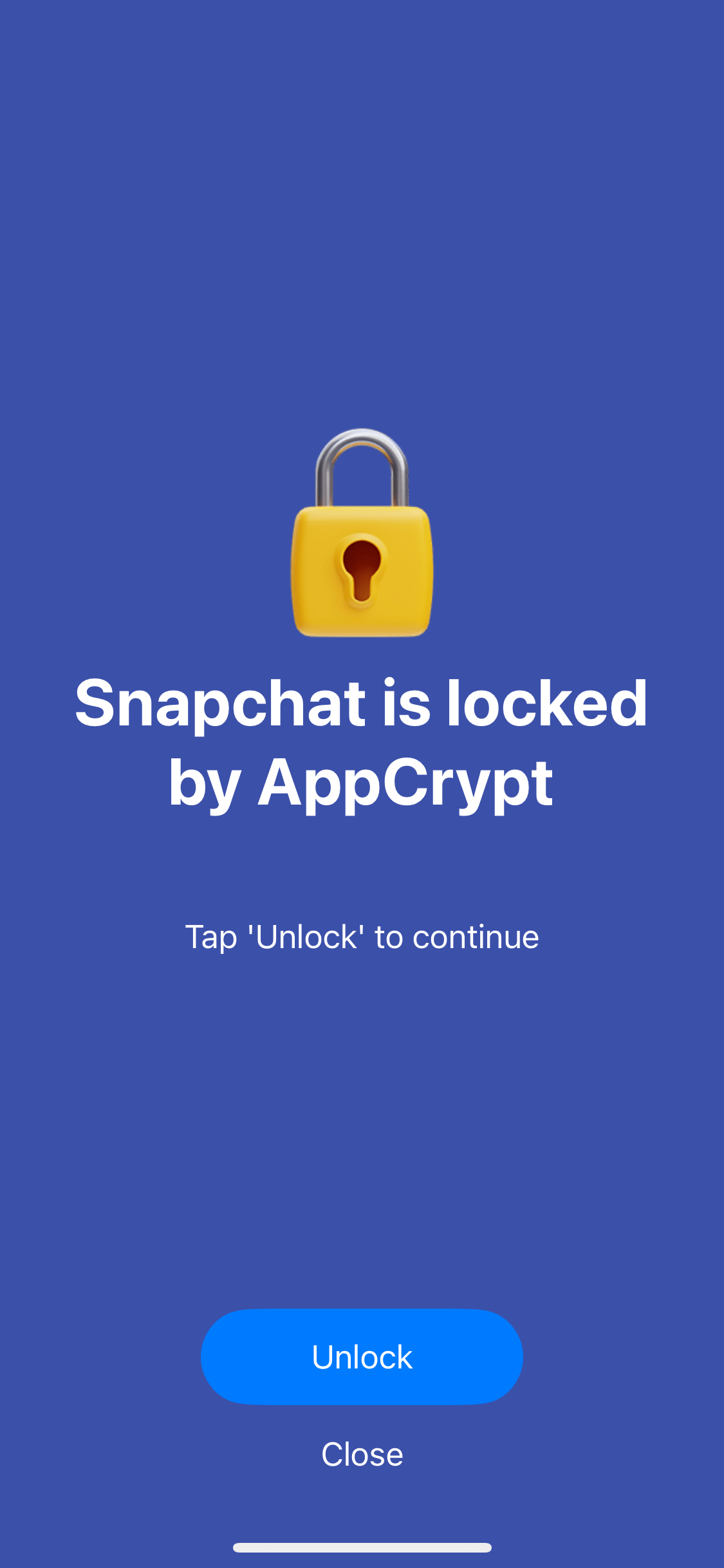
Tip 1: How to unlock Snapchat?
To unlock Snapchat, tap the "Unlock" button on the screen. Tap and hold the message that appears. Then enter your password.
The password protects AppCrypt itself all the time. Only people who know the password can access the App Lock tab to remove Snapchat from the lock list.
Tip 2. How to lock Snapchat on a computer?
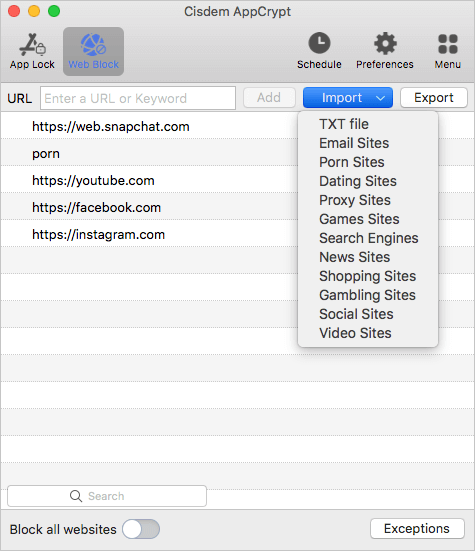
The computer version of AppCrypt can lock Snapchat for Web on Mac and Windows. Just go to the Web Block tab to add “web.snapchat.com” to the block list. To quickly unlock it, click AppCrypt's icon on the Mac menu bar or Windows taskbar. Select Disable Web Block. Enter the password.
How to use Shortcuts to lock Snapchat on iPhone with Face ID, Touch ID or a password
Applies to: iOS 12 or later; iPadOS 12 or later
Shortcuts is a default app on iPhone, which can be used to perform various tasks, including locking an app. If you can’t find it on your iPhone or iPad, just get it from the App Store.
Below is how to use Shortcuts to put a lock on Snapchat. I’m using iOS 16. The steps on your device might be slightly different, depending on the iOS version you use.
1. Open the Shortcuts app.
2. In the Automation tab, tap the Add button in the top right corner.
3. Tap Create Personal Automation.
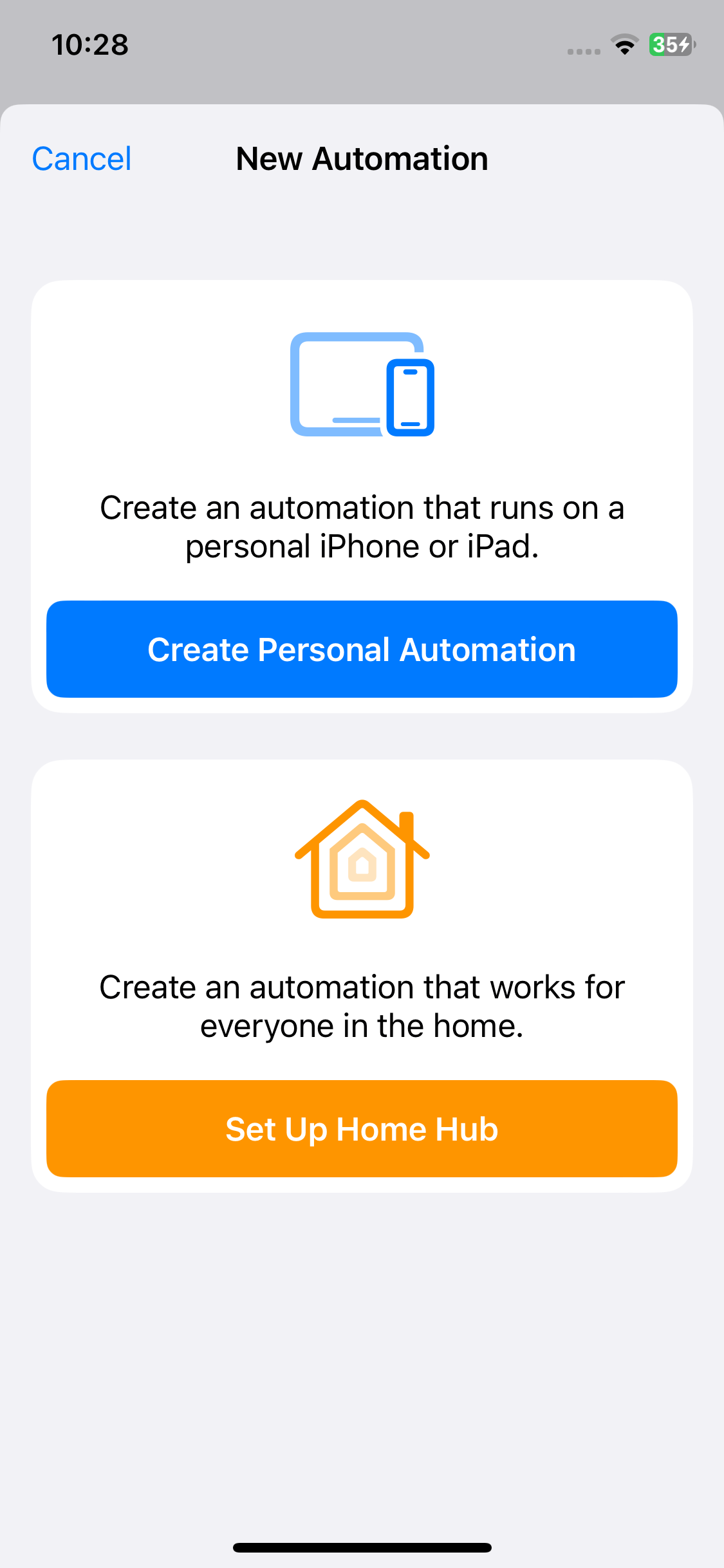
4. Scroll down to find and tap App.
5. Tap Choose, search for Snapchat. Select it. Tap Done.
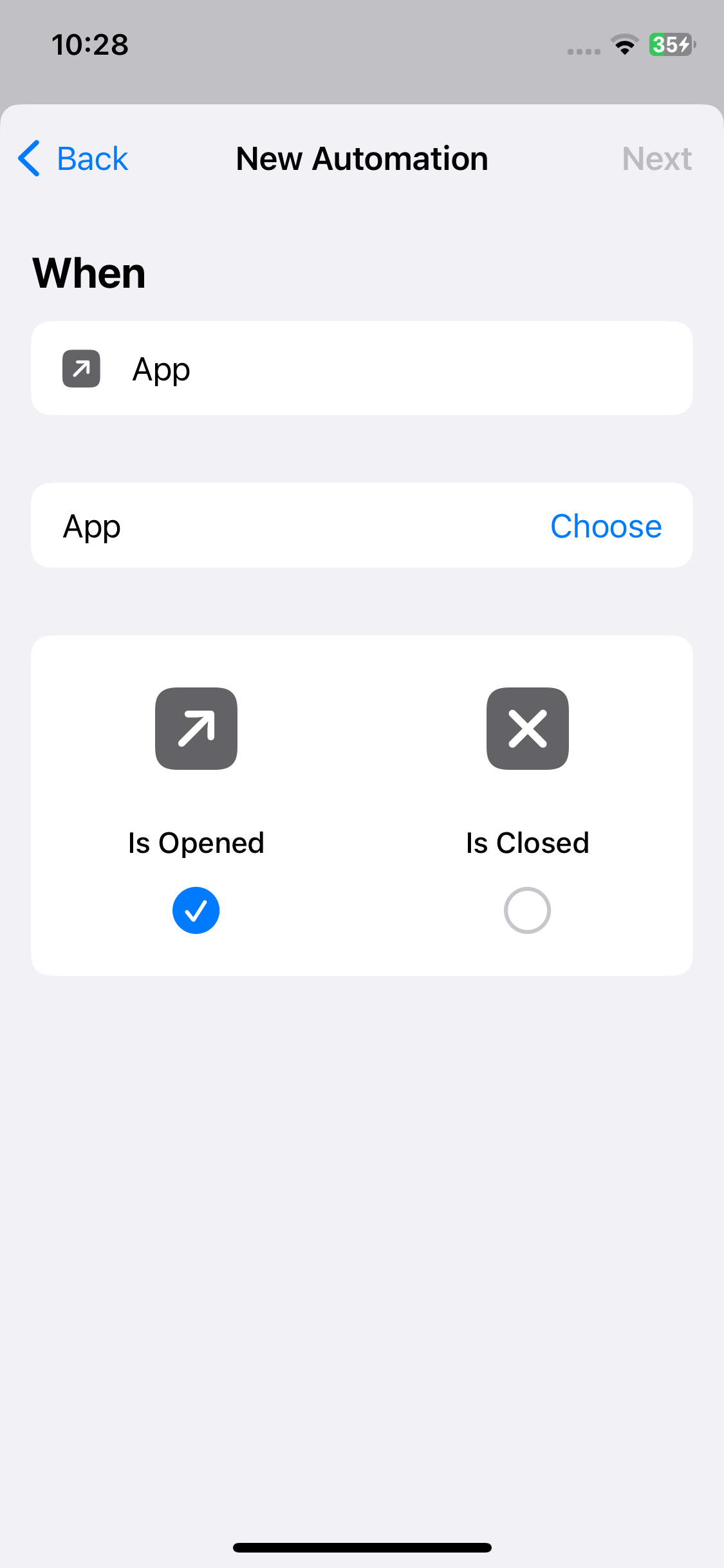
6. Make sure that Is Opened (instead of Is Closed) is selected. Tap Next.
7. Tap Add Action, search for Lock Screen, and then tap it. Tap Next.
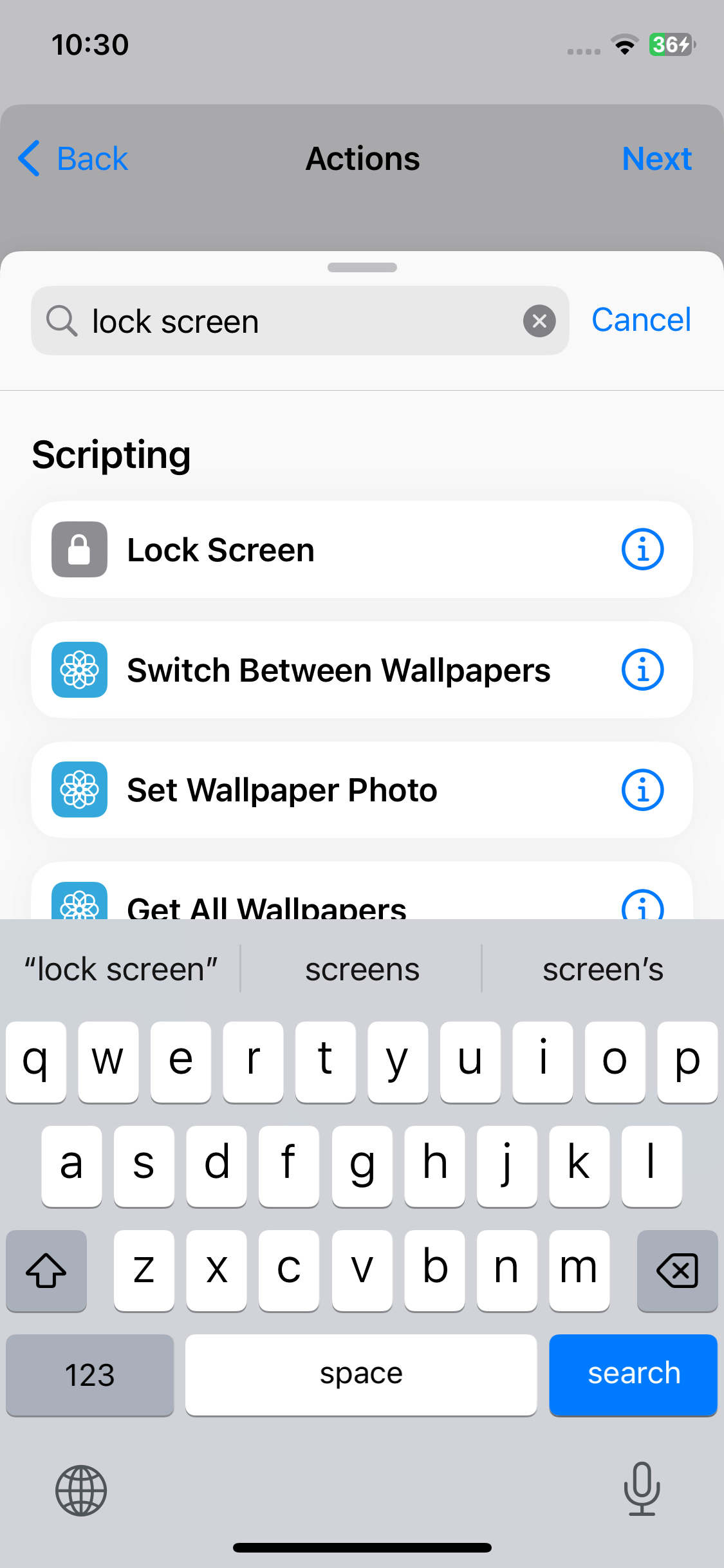
8. Turn off Ask Before Running. Tap Don’t Ask in the message that appears.
9. Tap Done.
When you or someone else tries to open Snapchat, your Lock Screen will appear, preventing access.
You can unlock Snapchat using your Face ID, Touch ID, or password, depending on your settings. Whenever you close Snapchat or switch to another app, it will be locked again.
You can easily disable the lock or remove it from Snapchat in Shortcuts.
How to lock Snapchat on Android using an app lock
Applies to: All current Android versions
There are two situations.
- Some Android devices offer built-in app lock, which allows you to protect the Snapchat app with a password, fingerprint or facial recognition.
- If your phone doesn’t come with an app lock, or the built-in option doesn’t meet your needs, you can use a third-party app lock like Cisdem AppCrypt, which is free to use.
1. Install Cisdem AppCrypt. It’s compatible with Android 8 or later.

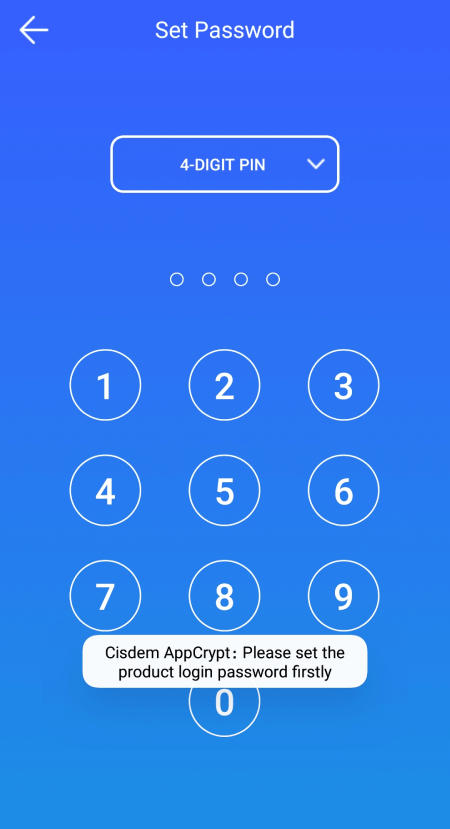
2. When you launch it for the first time, set a 4- or 6-digit password or a pattern.
3. In the App Lock tab, search for Snapchat, and then tap the switch next to it to the on position.
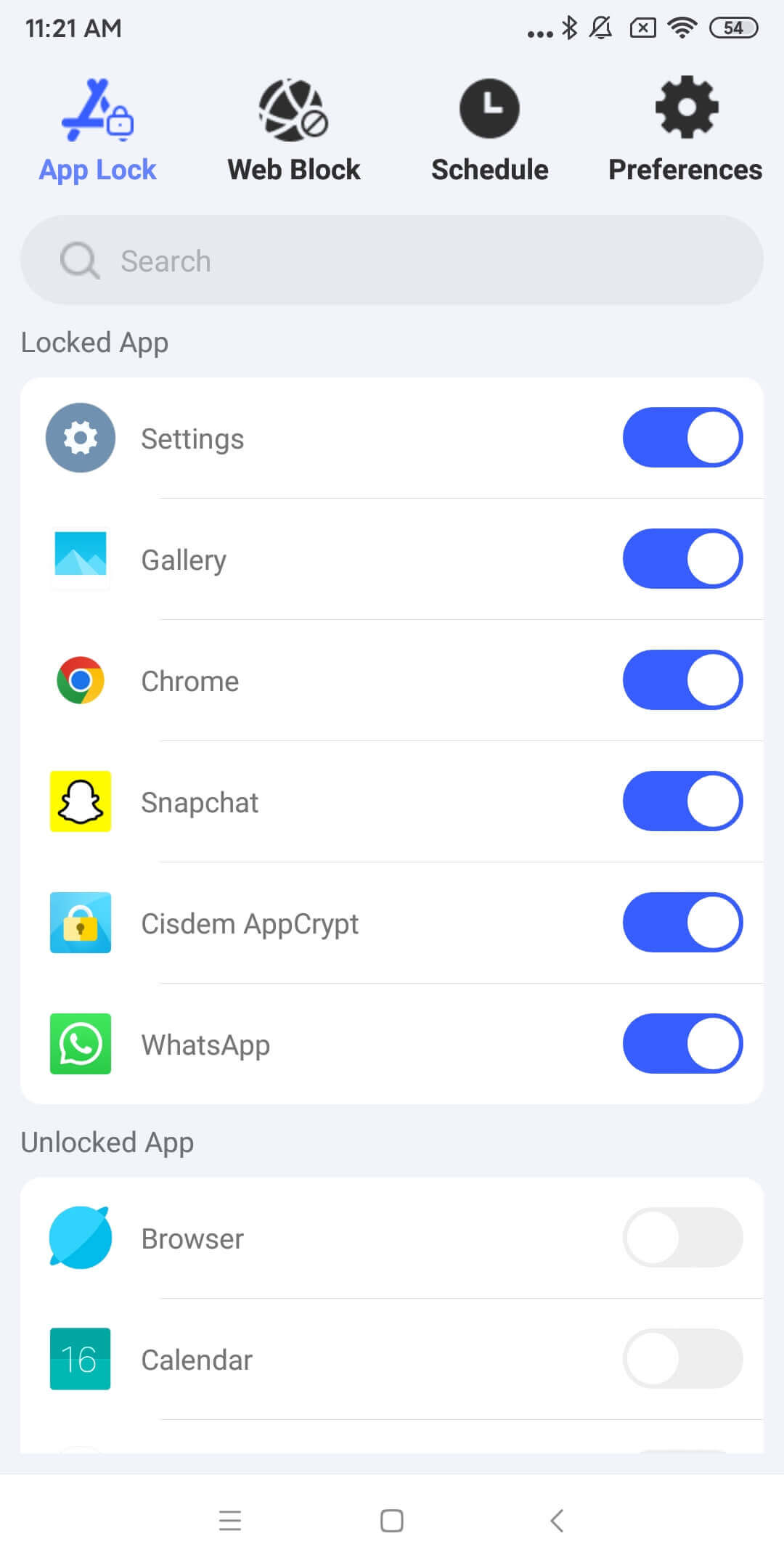
Now Snapchat is locked. Unlocking it requires entering your password or pattern. This effectively prevents unauthorized access to this app. It will be automatically re-locked after being unlocked for, for example, 10 minutes.
How to protect Snapchat on a Samsung phone using Secure Folder
Applies to: All Samsung’s current models
Samsung is the most popular Android manufacturer. Although Samsung phones don’t come with a straightforward app locking feature, its Secure Folder feature can help you prevent others from accessing apps of your choice.
Before you can use this feature to protect your Snapchat app, you need to set it up first.
1. Open Settings on your Samsung phone. Go to Biometrics & security > Secure Folder.
2. On the screen that appears, tap Continue. Sign in with your Samsung account.
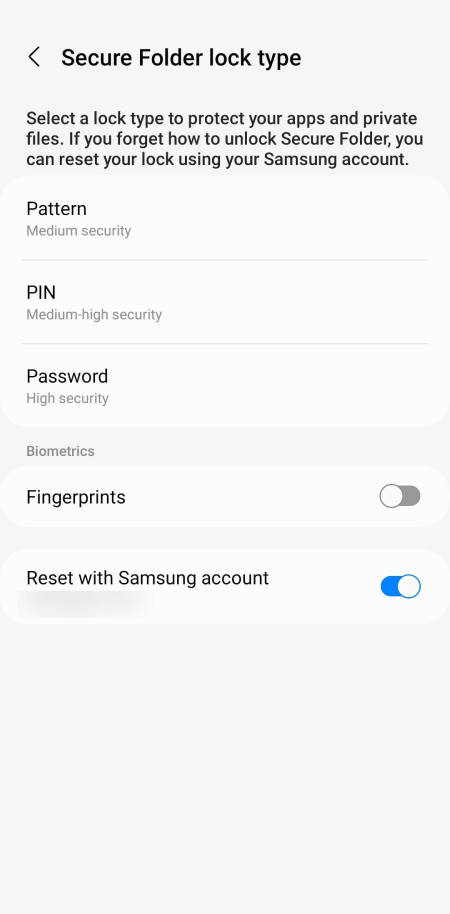
3. On the Secure Folder lock type screen, you will see four options: Pattern, PIN, Password, and Fingerprints. Choose your preferred option and then set it up.
Now the Secure Folder feature is set up.
4. In Secure Folder, tap the Add button.
5. Search for Snapchat and select it. Tap Add. This will install Snapchat inside the Secure Folder (without affecting the version on your home screen).
6. Log in to the newly installed Snapchat. Delete the version on your home screen.
If you want, you can move Snapchat from Secure Folder to your home screen.
Tapping the Snapchat icon won’t open the app. Instead, a screen will appear, preventing access and allowing you to unlock Snapchat using your chosen method, such as a PIN.
FAQs
Does Snapchat have a built-in app lock feature?
No, Snapchat doesn’t have a built-in app lock feature. But both Android and iOS devices offer built-in features that can help you lock apps.
Can I lock Snapchat with a password?
Yes. You can use Cisdem AppCrypt to lock Snapchat with a password. Without the correct password, no one can access the Snapchat app and snoop your privacy.
Can I hide Snapchat instead of locking it?
Yes. iOS user can hide Snapchat by long-pressing its icon. Select “Remove from Home Screen”. Then it’ll be hidden from your Home Screen. But you can still find it in the App Library.
Conclusion
All four methods discussed in this article are free. Locking the app not only protects your privacy but also safeguards your Snapchat settings from being changed. These methods can also be used to protect other apps.
For added security, I recommend reading this article by Snapchat, which shares ten tips on using Snapchat safely, including advice on privacy protection.

Norah Hayes likes to share her tips on how to improve focus and stay motivated at work. She believes it is essential to eliminate all online distractions during work hours.

Ethan Long joined Cisdem in 2015 as a developer and now serves as the editorial advisor for Cisdem AppCrypt. He actively tests and uses Cisdem AppCrypt and other screen-time management tools to ensure AppCrypt meets its promises in real-world scenarios.