


8 Practical Ways to Reduce My Screen Time by Over 60%
 462
462
 0
0


“A while ago, I realized I was spending too much time on my phone every day. In fact, I wasn't using it for anything important. I was just aimlessly browsing social media, or playing games. Is there any way to strictly limit my screen time?”
Do you have the same problem? Excessive screen time can lead to eye strain, neck and shoulder pain, decreased sleep quality, etc. In this article, I’ll share you how I reduced my screen time by over 60% using 8 practical ways.
 Cisdem AppCrypt
The Best Tool to Reduce Screen Time
- Limit screen time by blocking time-wasting apps and websites
- Let you set a schedule
- Lock individual apps with password
- Lock categories of apps on iPhone, such as Social, Games, etc.
- Block websites and pages on Chrome, Safari and other browsers
- Require password to enter/quit/uninstall AppCrypt
- Help with productivity, parental controls, and digital wellness
- Easy to use and hard to bypass
- Available for iPhone, iPad, Android, Mac, and Windows


1. Check screen time on iPhone or Android
How much screen time is OK per day? Experts say that adults should limit screen time to less than 2 hours (not include your work time) per day. If your screen time outside of work exceeds this, it's time to reduce it. At first, you can check your screen time on your phone easily.
How to check screen time on iPhone?
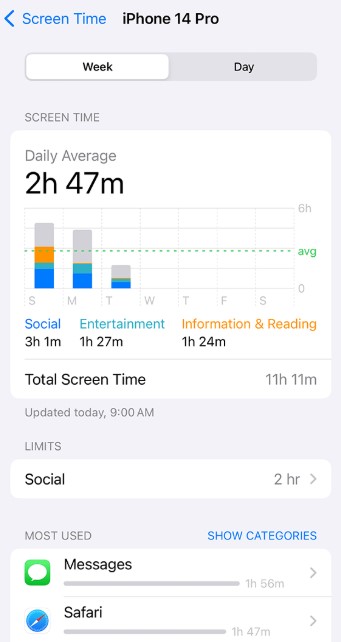
To check screen time on iPhone, follow this steps:
Step 1. Open the Settings app. Scroll down to find Screen Time. Click it.
Step 2. Click on App & Website Activity.
Step 3. Click Turn On App & Website Activity.
On the next screen, you can see your screen time weekly and daily report.
How to check screen time on Android?
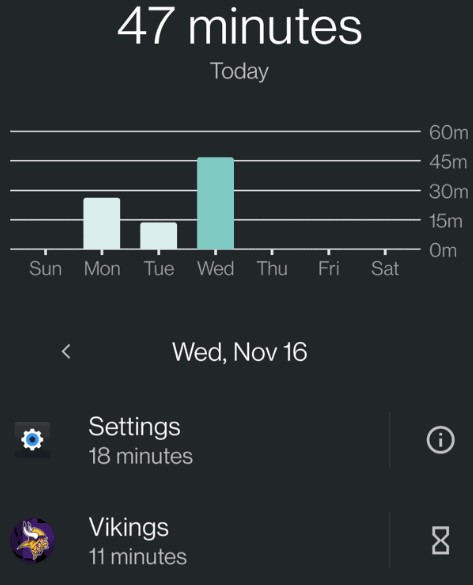
Most Android devices also offer built-in features to help users keep track of their screen time. For example, the Digital Wellbeing feature in Samsung Galaxy devices.
Step 1. Open the Settings app on your Android phone.
Step 2. Click on Digital Wellbeing & parental controls. Turn on it.
In the pop-up window, you'll see the amount of time you've used your phone today and this week.
2. See which apps are most used and limit access to them
Both Screen Time on iPhone and the Digital Wellbeing on Android let users see the total use time for a specific app. To reduce screen time, you can find your most-used apps on your phone and set time limit on them. The tool I use to limit access to apps is Cisdem AppCrypt - an easy-to-use app locker and website blocker for iOS, Android, Mac, and Windows PC.
How to limit access to an app on iPhone?
I used to waste more than 2 hours a day on gaming apps. This is not a healthy digital habit. Below I’ll show you how do I limit screen time by limiting access to time-wasting apps on my iPhone:
Step 1. Download and install Cisdem AppCrypt from the App Store.

Step 2. Open it. Click Start.
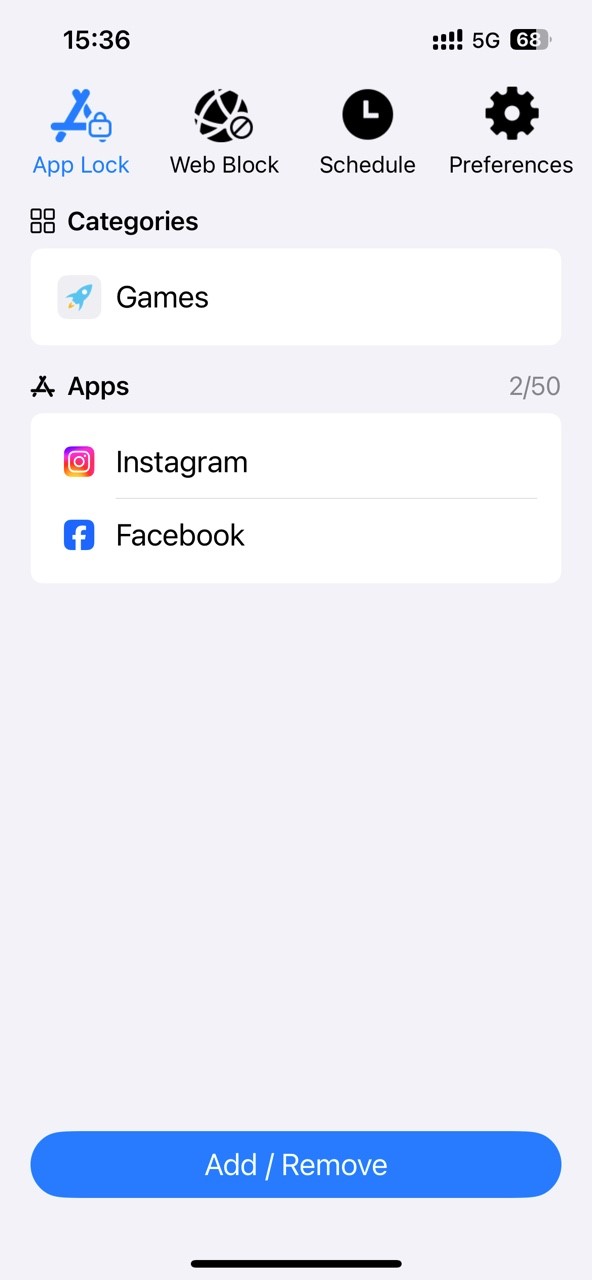
Step 3. Click App Lock. Then click the App/Remove button at the bottom.

Step 4. Use the search field to find the app you want to restrict access to and select it. Click Done. You can also select apps by category, such as Games.
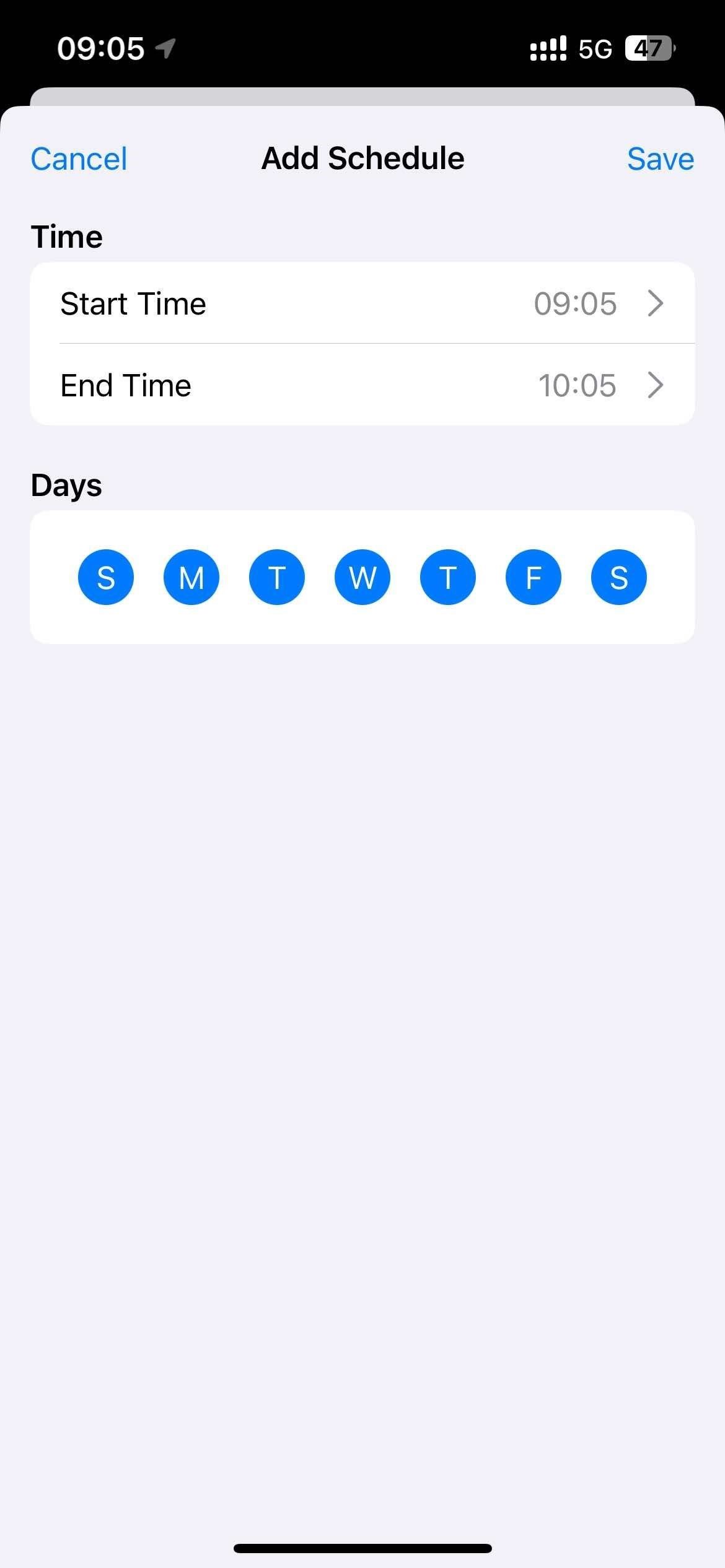
Step 5. Click Schedule. Now you can limit your screen time by blocking these apps at certain times of the day or certain days of the week. Click Save.
Step 6. Go to the Preferences tab. Click on Notifications. Turn on Notification and Notification unlock.
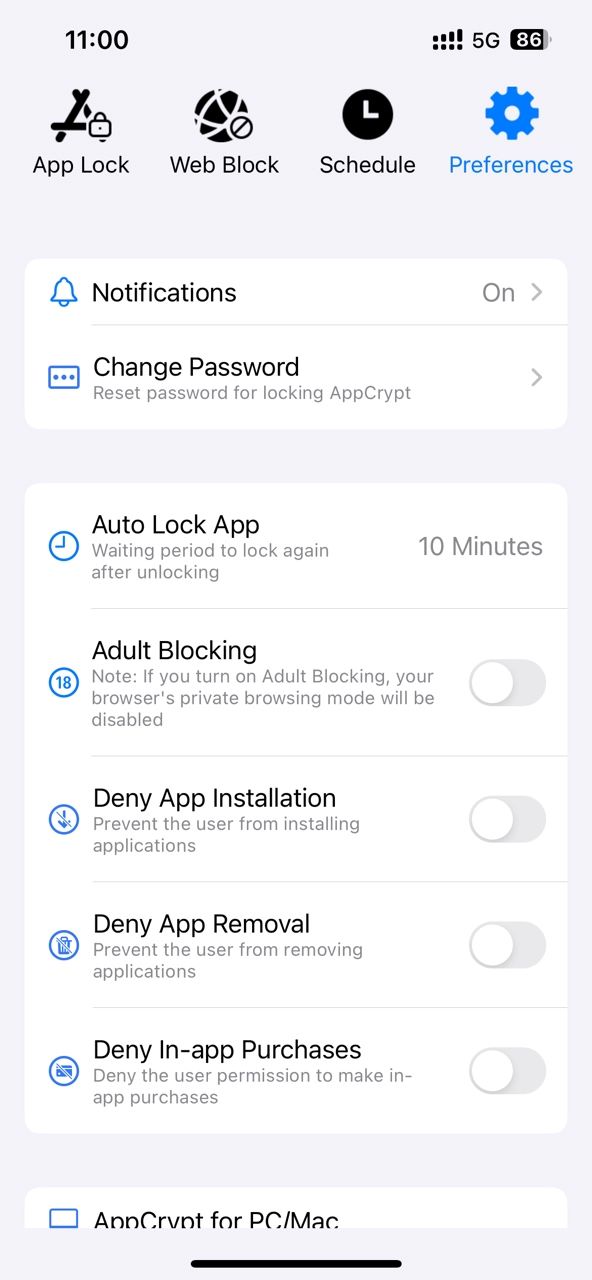
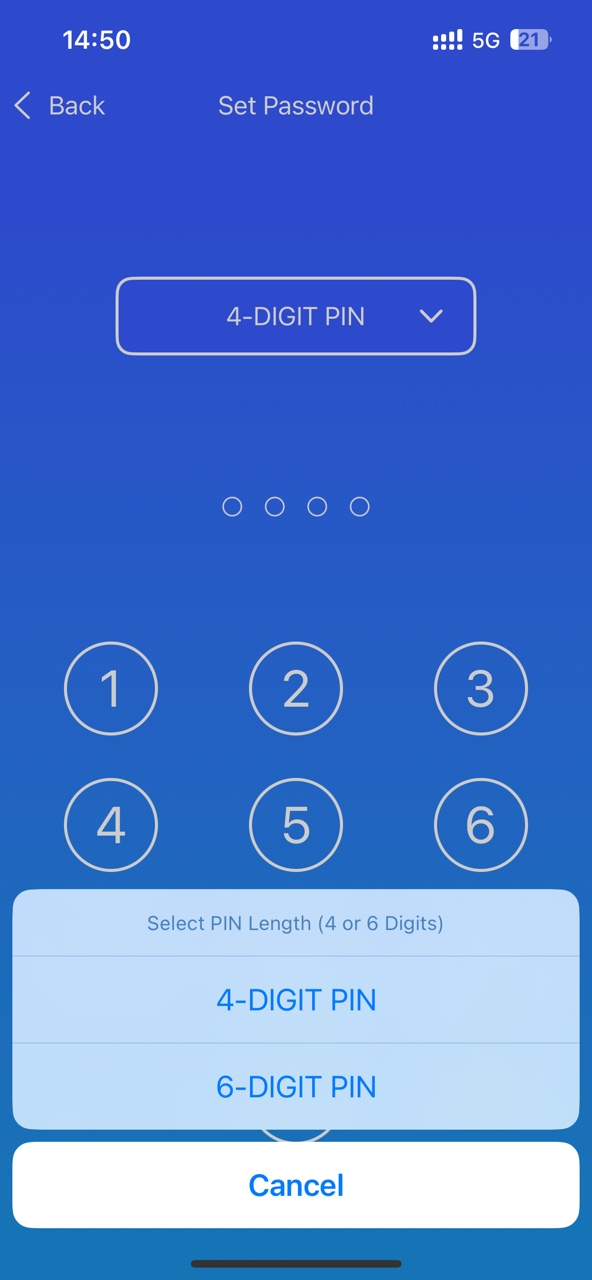
Set a 4- or 6-digit password when prompted.
How to limit access to an app on Android?
Cisdem AppCrypt also lets you decrease screen time by limiting access to time-wasting apps on Android phone easily.
Step 1. Install it from the Google Play Store.

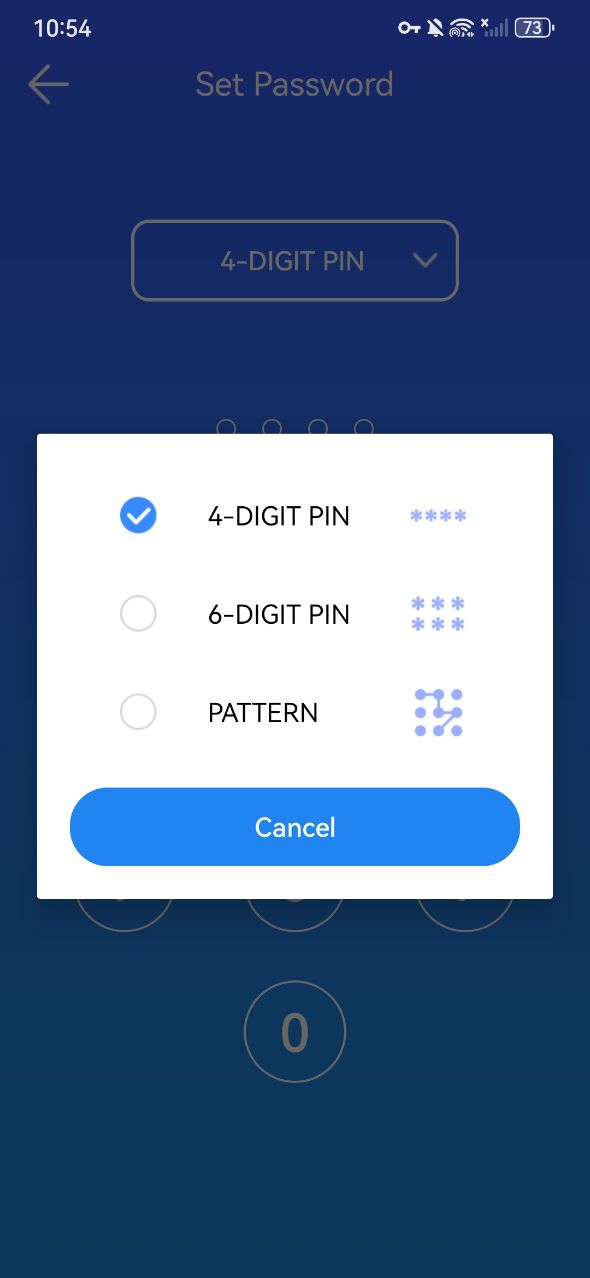
Step 2. Set a 4- or 6-digit password or a pattern when you first open it.
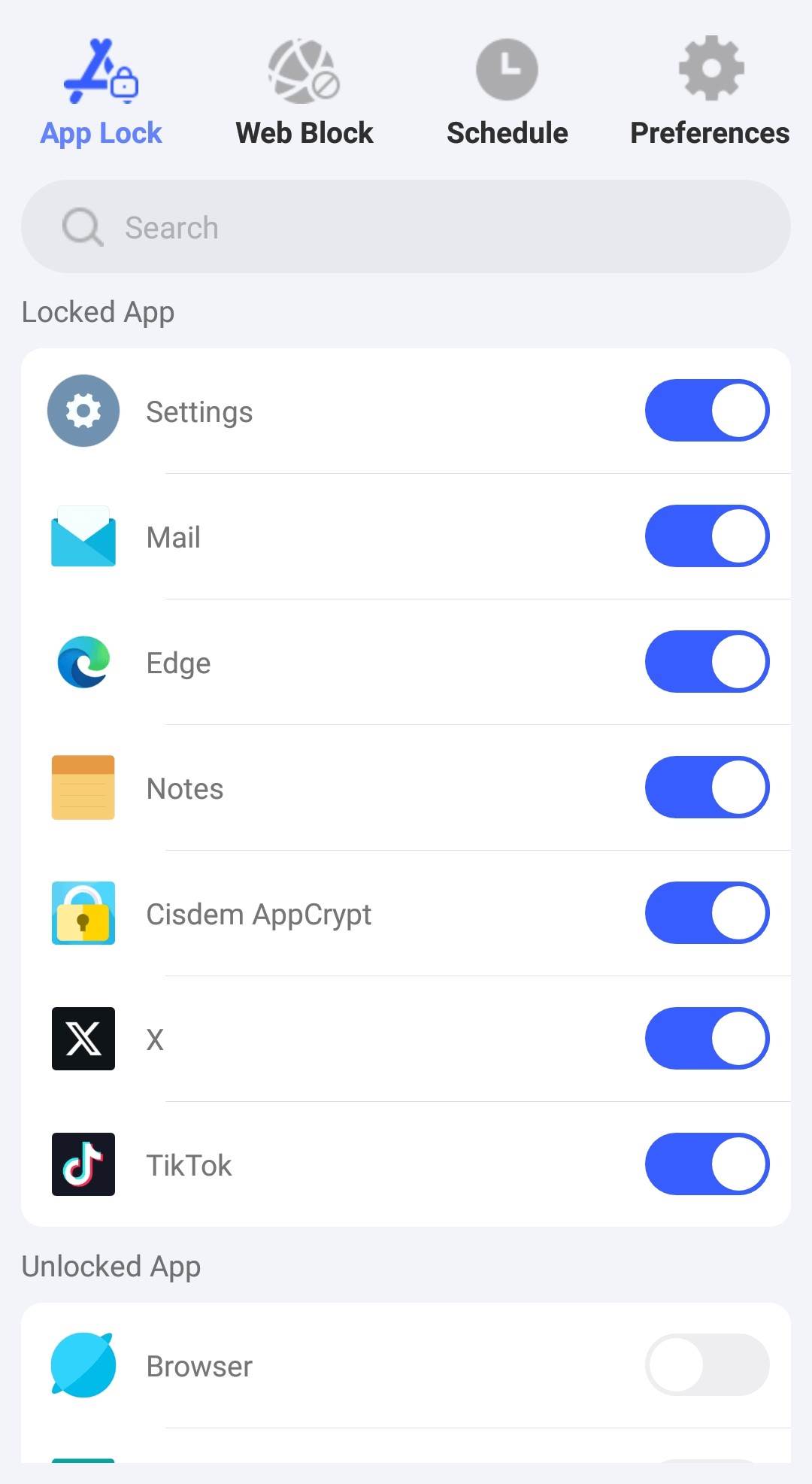
Step 3. Go to the App Lock tab. Search for the app you consider to be time-wasting. Toggle the switch next to it to the on position.
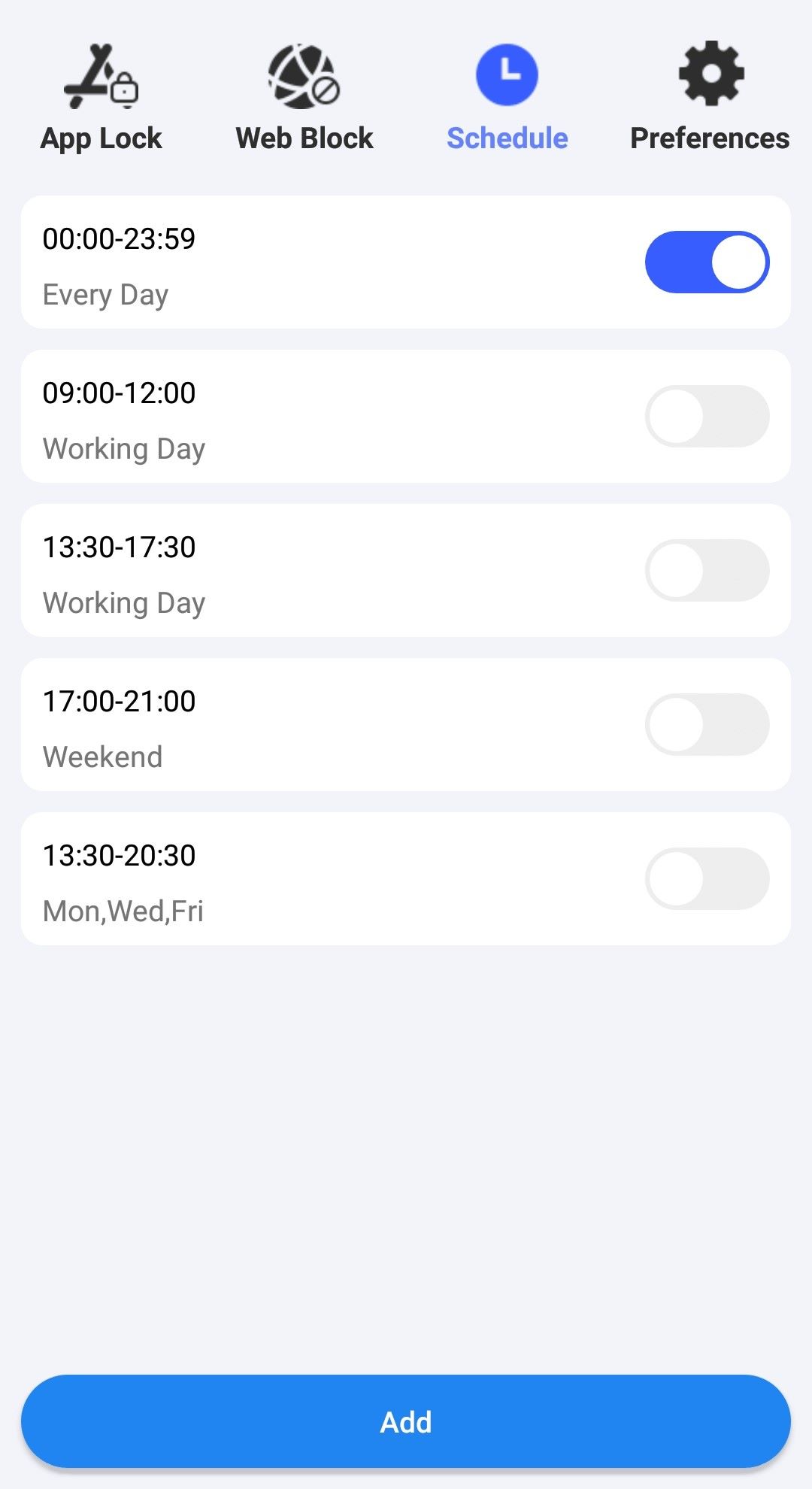
Step 4. Go to the Schedule tab. Set the time you want to limit access to these apps on your Android. You can add multiple schedules according to your needs.
3. Find out your most visited websites and block the ones that are time-wasting
Blocking time-wasting websites on the phone is also a great way to reduce screen time. Cisdem AppCrypt can also help you with that.
How to block time-wasting websites on iPhone?
Step 1. Open AppCrypt. Click Web Block.
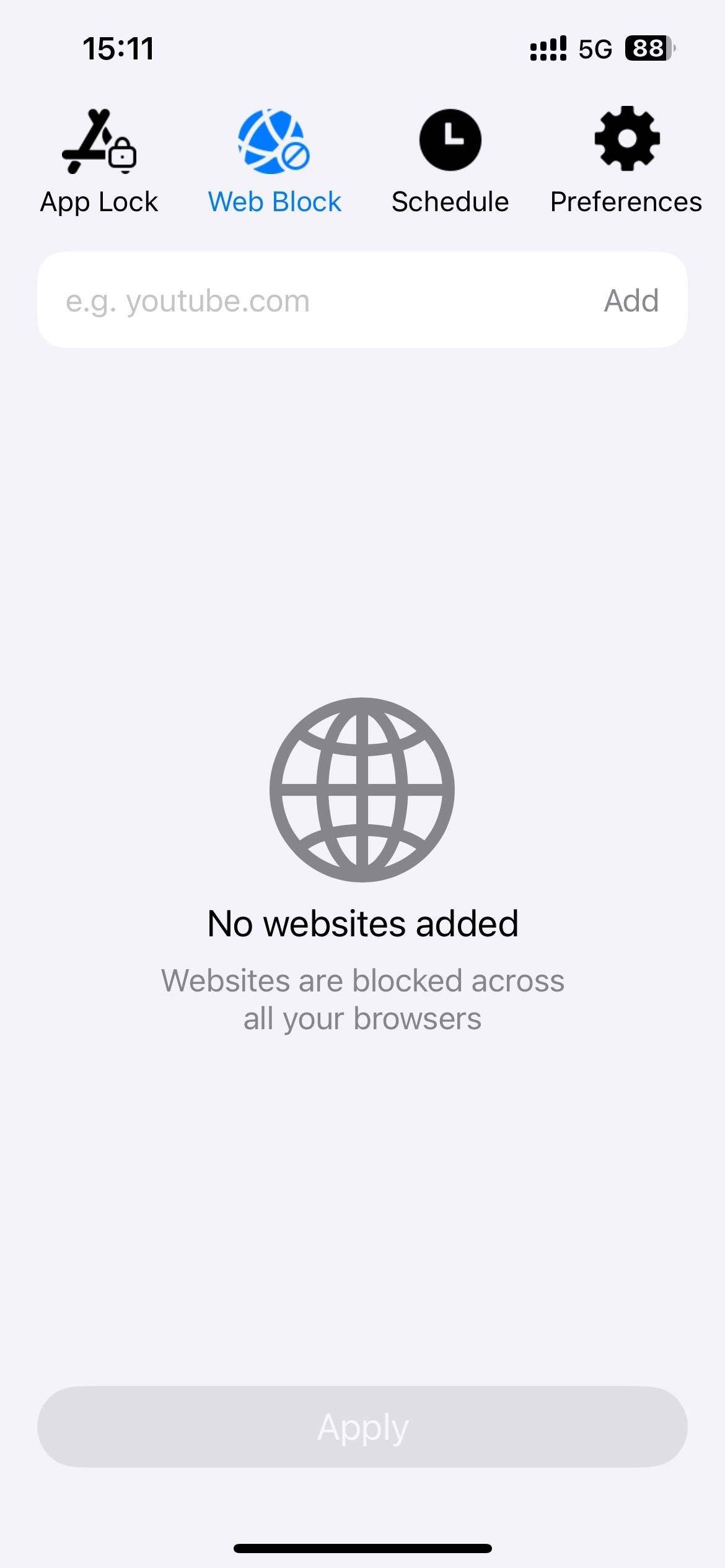
Step 2. In the top URL field, enter the website that you think is causing your excessive screen time. Click Add.
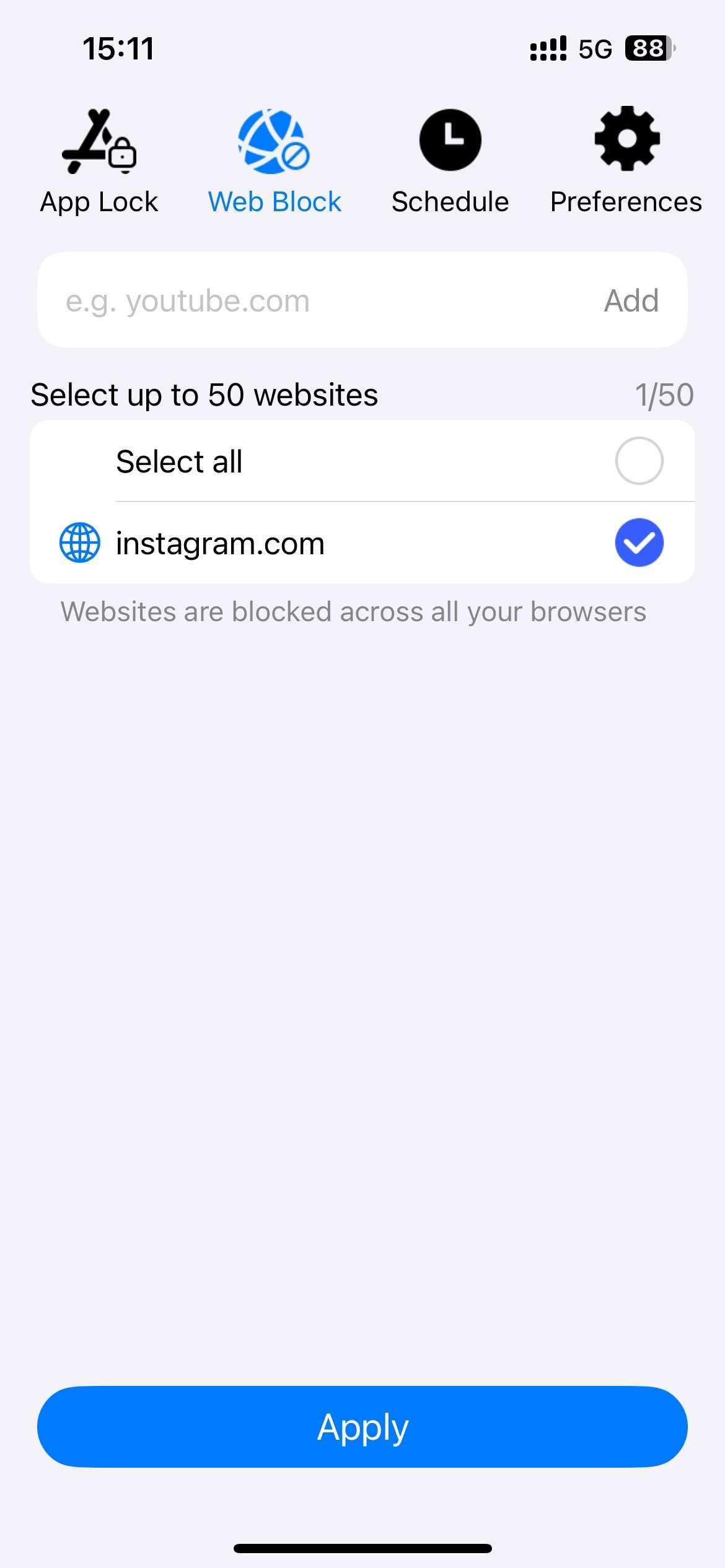
Step 3. Click Apply at the bottom.
Note: You can also block websites at certain times using the Schedule feature. The schedule works on both the blocked apps and websites in the block list. By doing this, you can reduce your screen time.
How to block time-wasting websites on Android?
Step 1. Open AppCrypt. Go to the Web Block tab.
Step 2. Enter the time-wasting website in the URL field at the top. Click Add.
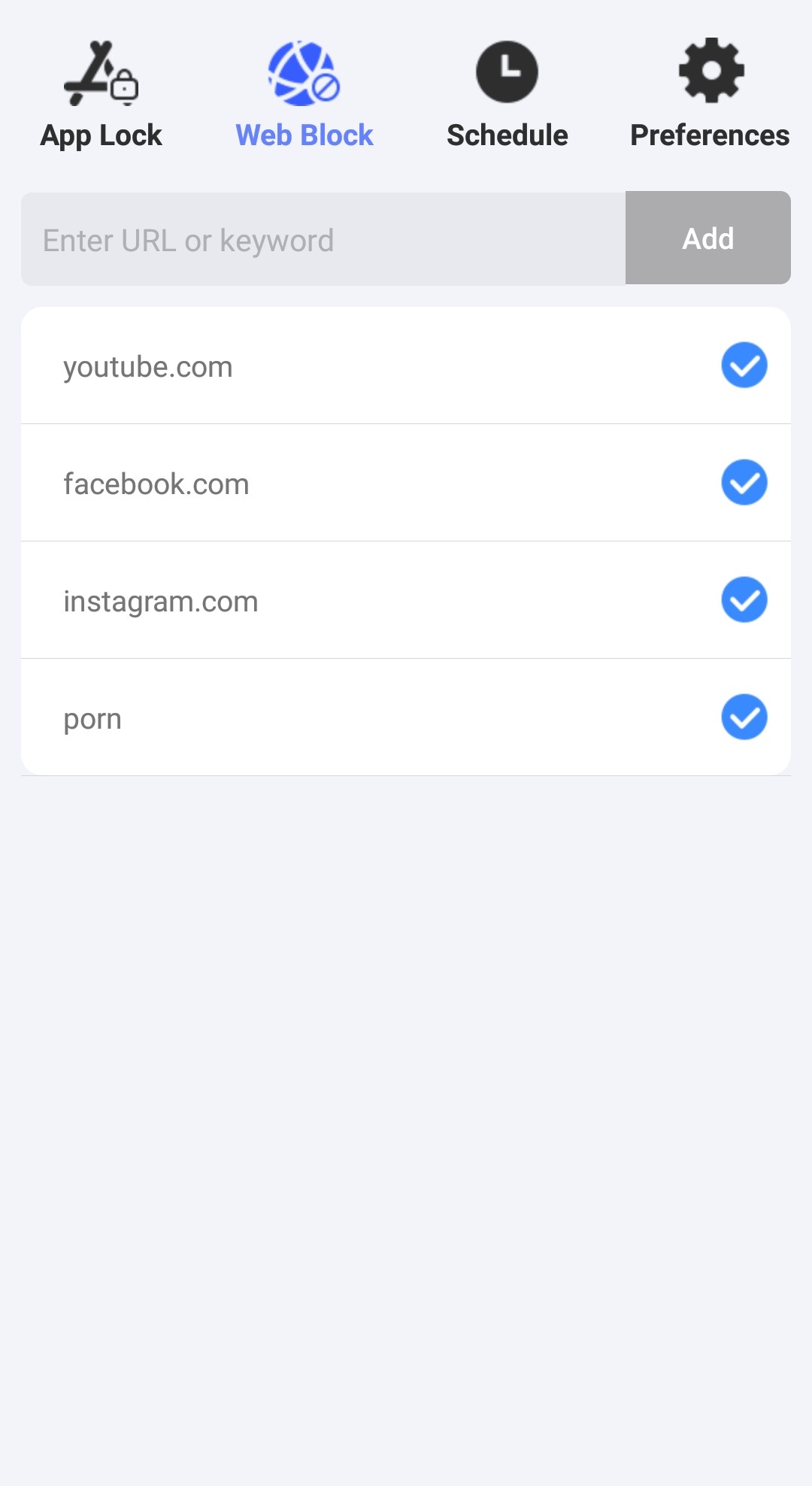
Step 3. Add other sites you wish to block one by one.
4. Turn off notifications on your phone
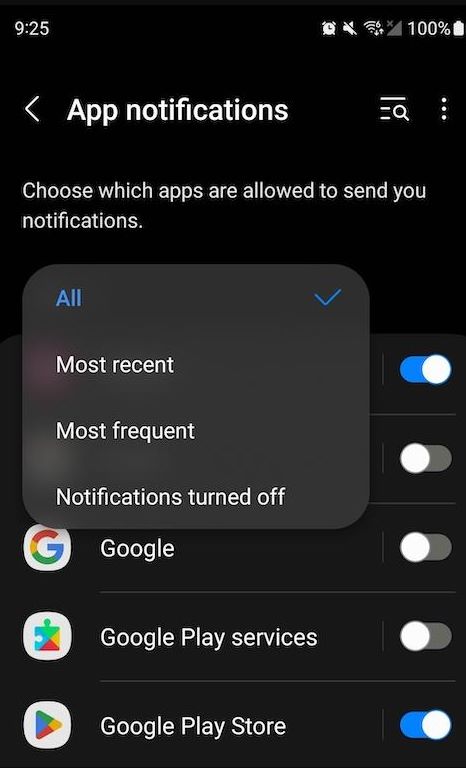
I always get distracted by my phone notifications. Then I find something else more interesting and spend more time on it. After turning off phone notifications, I found that I can concentrate more at work, and my screen time decreased.
To turn off notifications, go to your phone's settings. Go to the App notifiations section. Turn off notifications from unnecessary apps.
5. Keep your phone out of the bedroom
I usually use my phone before bed. Sometimes I can't help but keep scrolling through social media. Most people do, and then lead to insufficient sleep, or poor sleep quality. Now, I put my phone out of my bedroom. Since then, I no longer stay up late, or won't be woken up by phone notifications in the middle of the night.
6. Develop non-screen hobbies
There are many non-screen hobbies you can develop. For example, reading, which can also better improve our attention. I also like to draw when I'm bored. Some outdoor activities can reduce screen time more effectivelly, such as hiking, swimming, and camping.
7. Set a daily schedule
I always create a daily schedule based on my needs. In this schedule, I set screen time limits, including when I'm allowed to use my phone. Sometimes I plan more specific, such as my bedtime, work hours, and free time. I've found this method effectively reduces my screen time.
8. Get support from family
If you have poor self-control, you can ask your family for help. For example, when using Method 2 and Method 3 in this article, let your family set the password for this app locker and website blocker. This way, you can't access any time-wasting or distracting apps and websites without knowing the password. Spending time with family such as playing outside, cooking, reading can also replace screen time.

Norah Hayes likes to share her tips on how to improve focus and stay motivated at work. She believes it is essential to eliminate all online distractions during work hours.

Ethan Long joined Cisdem in 2015 as a developer and now serves as the editorial advisor for Cisdem AppCrypt. He actively tests and uses Cisdem AppCrypt and other screen-time management tools to ensure AppCrypt meets its promises in real-world scenarios.