


How to Lock Photos on iPhone: 4 Free Ways in 2026
 492
492
 0
0


When you hand your iPhone to someone, your private photos may be exposed. To prevent this, you can lock the photos on your iPhone to prevent unauthorized access. In this article, we’ll show you several ways to do it.
 Cisdem AppCrypt
The Best Tool to Lock Photos on iPhone
- Lock individual apps on your phone with a PIN
- Lock categories of apps, such as Social, Games, etc.
- Auto re-lock apps after they've been unlocked for a period of time
- Auto-lock AppCrypt itself to protect all your settings
- Block websites on Chrome, Safari, Firefox, and other browsers
- Let you lock apps/block websites permanently or at certain times
- Hide the App Store app to prevent new apps from being installed
- Hide the Delete App option to prevent existing apps from being deleted
- Help you lock Photos on iPhone to prevent unauthorized access
- Help with privacy protection, productivity and parental controls


Comparison of ways to lock photos on iPhone
| Method | Security Level | Ease of Use | Cost | Compatibility |
|---|---|---|---|---|
| AppCrypt | ⭐⭐⭐⭐⭐ | ⭐⭐⭐⭐⭐ | Free | iOS 16.0 or later |
| Shortcuts | ⭐⭐⭐ | ⭐⭐ | Free | iOS 12.0 or later |
| iOS 18 App Lock | ⭐⭐⭐⭐ | ⭐⭐⭐⭐⭐ | Free | iOS 18.0 or later |
| Hidden Album | ⭐⭐ | ⭐⭐⭐⭐ | Free | iOS 14.0 or later |
How to password protect Photos on iPhone using AppCrypt
Best for: Users who want to lock the entire Photos app with a PIN. Ideal if you don’t want anyone accessing your photos without your permission.
The best method to lock Photos on iPhone is using Cisdem AppCrypt. It is an app locker and website blocker tool rolled into one. This tool lets you password-protect the entire Photos app, ensuring that no one can open it without your permission.
With it, you can:
- Lock the Photos app with a 4-digit PIN or a 6-digit PIN.
- Prevent unauthorized access even if someone knows your phone's screen lock password.
- Automatically re-lock the Photos app after it has been unlocked for a period of time.
- Automatically lock AppCrypt itself to prevent others from changing your settings.
Below are the steps to lock Photos on iPhone with AppCrypt:
1. Download and install Cisdem AppCrypt from the App Store.

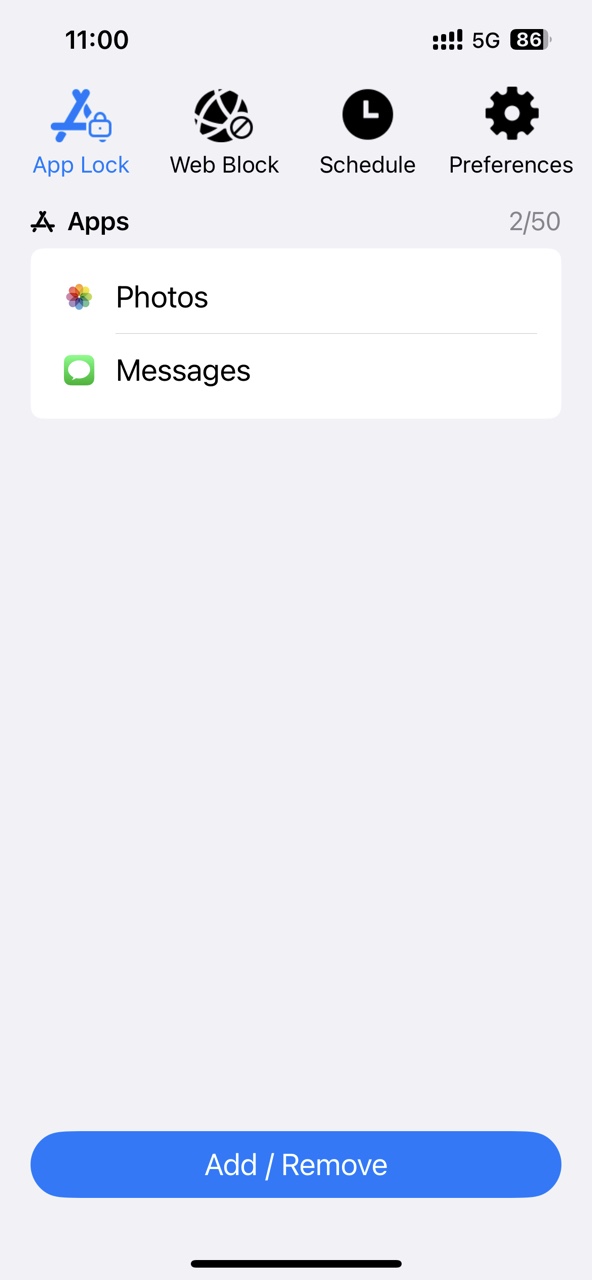
2. Open it. Go to the App Lock tab.

3. Click Add/Remove.
4. Select Photos from the Application list. Also you can directly search for it. Click Done.
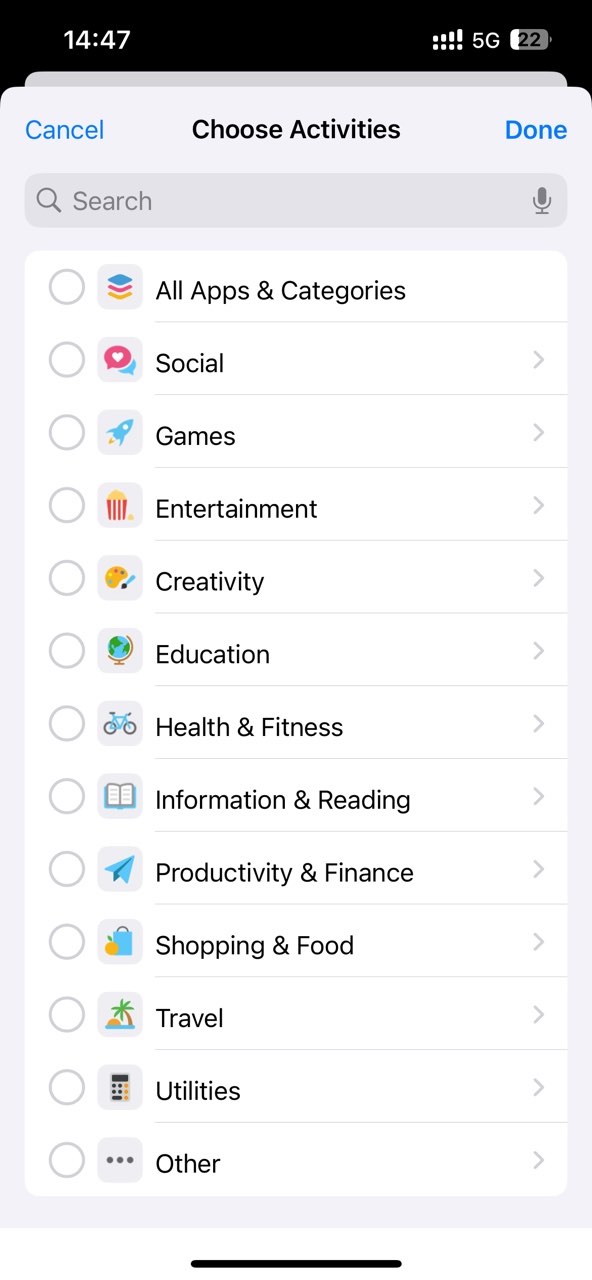
Now all your photos are locked on your iPhone.
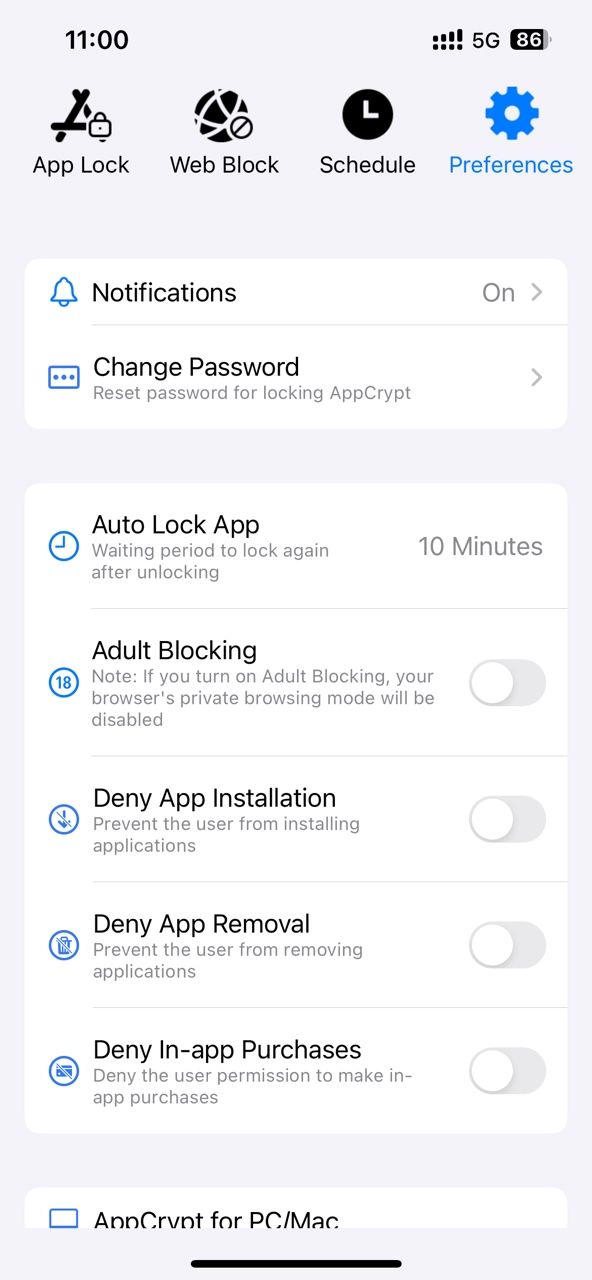
5. This step is optional and recommended: go to the Preferences tab. Select Notifications. Then turn on the "Notification" and "Notification unlock" options.
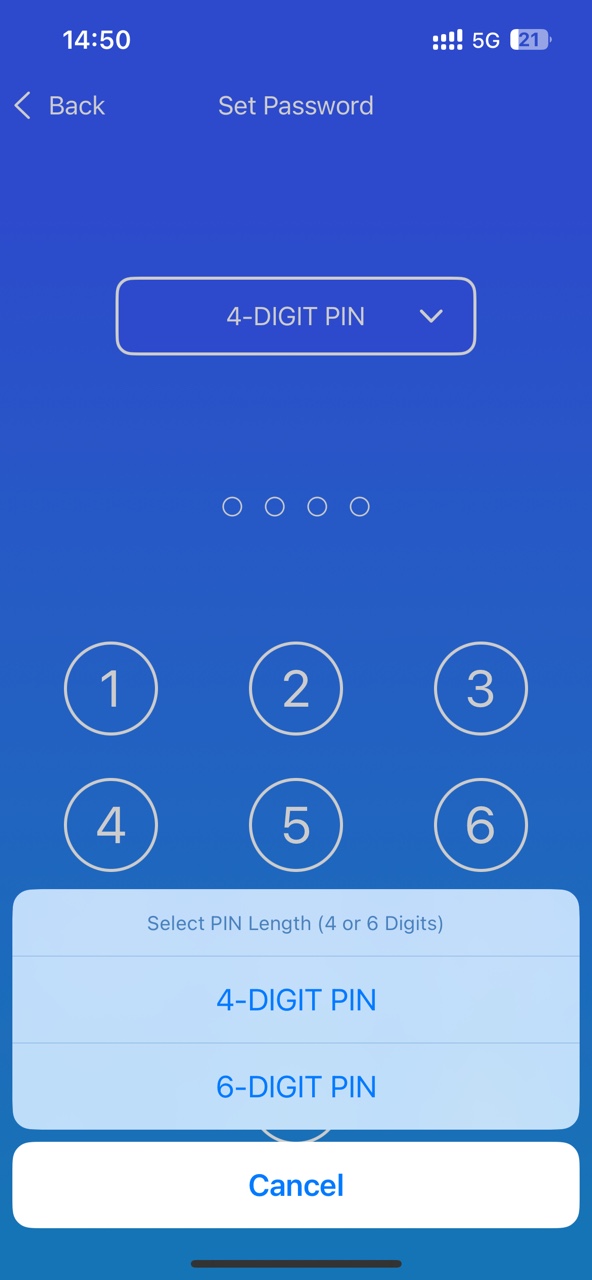
It'll prompt you to set a 4-digit PIN or 6-digit PIN for protecting your settings and unlocking locked apps.
Tip. Automatically re-lock Photos after it's unlocked for a user-selected period
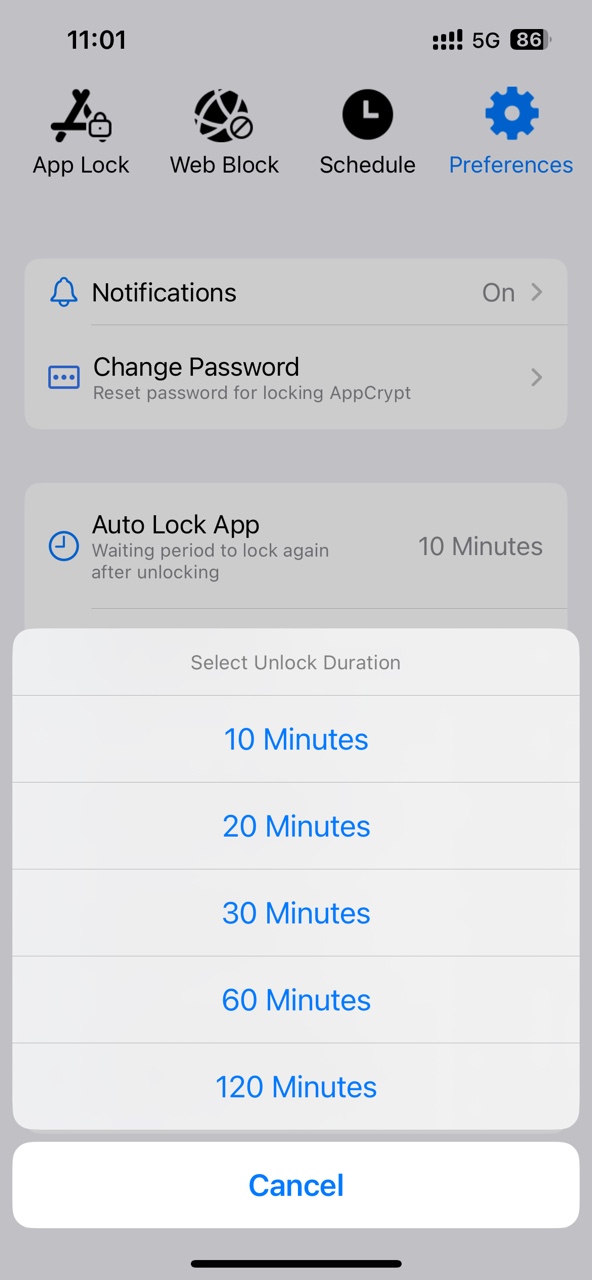
If you unlock Photos with the PIN and leave it running in the background, it'll remain unlocked. Then others can still view your photos during that time. Fortunately, AppCrypt can automatically re-lock the locked apps after you unlock them for a period of time, such as 10 minutes, 30 minutes. Click Preferences. Select Auto Lock App. Then you can select the time you want Photos to be automatically locked after you unlock it.
How to lock Photos on iPhone using a Shortcut
Best for: Users who prefer a built-in solution and don’t mind a more complex setup.
Developed by Apple, Shortcuts is an app on iOS, iPadOS, macOS, and watchOS devices. It can help users automate many tasks, especially the tasks you do regularly. By creating a customized shortcut, you can get the task done quickly via a single tap or asking Siri. iPhone users can also create a Shortcut to lock Photos. This method is a bit complicated. But as long as you follow the detailed steps below, you can successfully lock your photos.
1. Find the Shortcuts app on your iPhone. If you can't find it, download and install it from the App Store. Open it.
2. Click the Automation tab at the bottom. Click New Automation.

3. On the next screen, scroll down to find App. Select the option.

4. Click the Choose button next to App.
5. Select Photos from the application list. Click Done.

6. Select the Is Opened and Run Immediately options. Click Next.

7. On the next When “Photos” is opened window, click on New Blank Automation.

8. In the Search Actions field, search for Lock Screen. Select it.

9. Click Done to save the Shortcut for locking Photos.

Now the Photos is locked on your iPhone. The next time you try to access it, it'll lock your phone automatically. You can unlock it using your Face ID, Touch ID, or screen lock password.
How to lock Photos on iPhone using the App Lock feature in iOS 18
Best for: Users running iOS 18 or later and who want a simple way to lock the Photos app without installing third-party tools.
iOS 18 brings more privacy protection features, one of which is the lock/hide app feature. With it, you can lock almost all applications on your iPhone with your Face ID or Touch ID. To lock photos on iPhone using this method, first make sure your iPhone has been upgraded to iOS 18 or higher. Go to Settings on your iPhone. Click General > Software Update. Then you'll see the OS version.
To lock Photos on iPhone using the lock app feature on iOS 18:
1. Open your iPhone, long-press on the Photos app.

2. Select Require Face ID (or Touch ID).
3. Click Require Face ID (or Touch ID) again to confirm.

Now Photos is locked. It can only be accessed using your Face ID/Touch ID.
How to hide certain photos on iPhone using the Hidden album
Best for: Users who just want to hide certain photos on iPhone instead of all photos.
Here’s another simple way to lock photos on iPhone - using the Hidden album. This method does not lock all the photos in your photo library. You can only lock some of your photos by adding certain privacy photos to the Hidden album. Then lock the Hidden album with your Face ID or Touch ID. Other people who use your phone can still access the Photos app but won’t be able to see those photos in the Hidden album. You can also think of this Hidden album as a locked album.
1. Open Photos on your iPhone.
2. In your photo library, find the photo you want to lock. Long-press on it. Click Hide.

If there are multiple privacy photos you wish to lock, click Select in the upper right corner. Then select the images one by one. Click the 3-dot icon in the lower right corner of the screen. Select Hide.

3. When prompted, click on Hide Photo.

Now the photos are moved to the Hidden album and on iOS 16 or higher this album is locked by default.
To view the locked photos, scroll down and click Hidden under Utilities. Then you can unlock it with your Face ID/Touch ID.

4. This step is optional: you can hide the Hidden album itself to further protect your locked photos on iPhone. Open the Settings app. Scroll down to find Apps. Click it. Select Photos app. Turn off the Hidden album using the toggle switch next to Show Hidden Album. Now the Hidden album won’t appear under Utilities in your Photos app.

FAQs
1. Can I lock a single photo on my iPhone?
Not exactly. iPhone doesn’t offer a built-in way to lock a single photo. However, you can hide a photo using the Hidden album. For more security, you can lock the entire Photos app using a third-party app locker.
2. How to lock photos on iPhone without password?
With the Shortcut or iOS 18 App Lock methods in this article, you can lock photos on your iPhone with your Face ID or Touch ID.
3. How to lock photos on iPhone without app?
You can use the iOS 18 App Lock feature to restrict access to photos without installing any apps. It’s easy to set up. For stronger protection, a third-party solution is more effective.
Conclusion
Locking photos on your iPhone is essential if you want to protect your privacy. This article introduced 4 different ways to lock Photos on iPhone. Each option comes with its own pros and limitations. You can choose the one that best fits your needs. Thanks to these Photos lockers for iPhone, you can temporarily lend your phone to others without worrying about your privacy being exposed.

Norah Hayes likes to share her tips on how to improve focus and stay motivated at work. She believes it is essential to eliminate all online distractions during work hours.

Ethan Long joined Cisdem in 2015 as a developer and now serves as the editorial advisor for Cisdem AppCrypt. He actively tests and uses Cisdem AppCrypt and other screen-time management tools to ensure AppCrypt meets its promises in real-world scenarios.