


How to Password Protect Chrome Settings (Step-by-Step Guide)
 358
358
 0
0


Chrome settings contains your saved passwords, browsing history, and other sensitive information. You may want to lock Chrome settings to protect your privacy, or prevent unauthorized changes. In this article, I’ll show you 2 easy and effective ways to do it.
 Cisdem AppCrypt
Password protect Chrome on Computer & Phone
- Lock individual apps, like Chrome, with password
- Offer an option to automatically re-lock apps after a period of inactivity
- Record failed attempts to open locked apps
- Block specific websites or categories of sites
- Set schedules to lock apps and websites permanently or at certain times
- Allows you to block all websites except a few
- Requires password to enter/quit/uninstall AppCrypt
- Easy to use and hard to bypass
- Protect your browser against unauthorized access
- Help with privacy protection, parental controls, and productivity
- Available for Mac, Windows, iPhone and iPad, Android


Benefits of locking Chrome settings
By locking Chrome settings, you can:
- Prevent others from changing your customized preferences, such as appearance, languages, default search engine, and more.
- Prevent others from viewing your browsing history, download history, saved passwords, and more.
- Prevent your child from disabling some browsing restrictions you have set, such as website blocking.
- Prevent your child from deleting their browsing history after using the browser.
......
Note: Chrome itself does not provide built-in features to lock settings. As long as your account is logged in, others can easily access the settings page. To prevent this, you’ll need to use a third-party app or browser extension.
Method 1: password protect Chrome settings with Cisdem AppCrypt
You can password protect Chrome settings using Cisdem AppCrypt - an app locker and website blocker that helps protect your privacy.
This tool comes with strong password protection. Without entering the password, no one access, quit, or uninstall the app.
Although AppCrypt offers a Web Block feature that allows your to lock specific websites or web pages, locking the Chrome Settings page alone is not supported. It will affect normal browser functions, such as opening a new tab. Therefore, it’s recommended to use the App Lock feature to password protect the entire Chrome browser for stronger protection. By locking Chrome, the Settings page is automatically locked as well.
Below are the steps to lock Chrome settings on computer. This app is also compatible with mobile devices.
1. Download and install Cisdem AppCrypt.
 Free Download Windows 10 or later
  Free Download macOS 10.15 or later
 GET IT ONGoogle Play
  Download on theApp Store
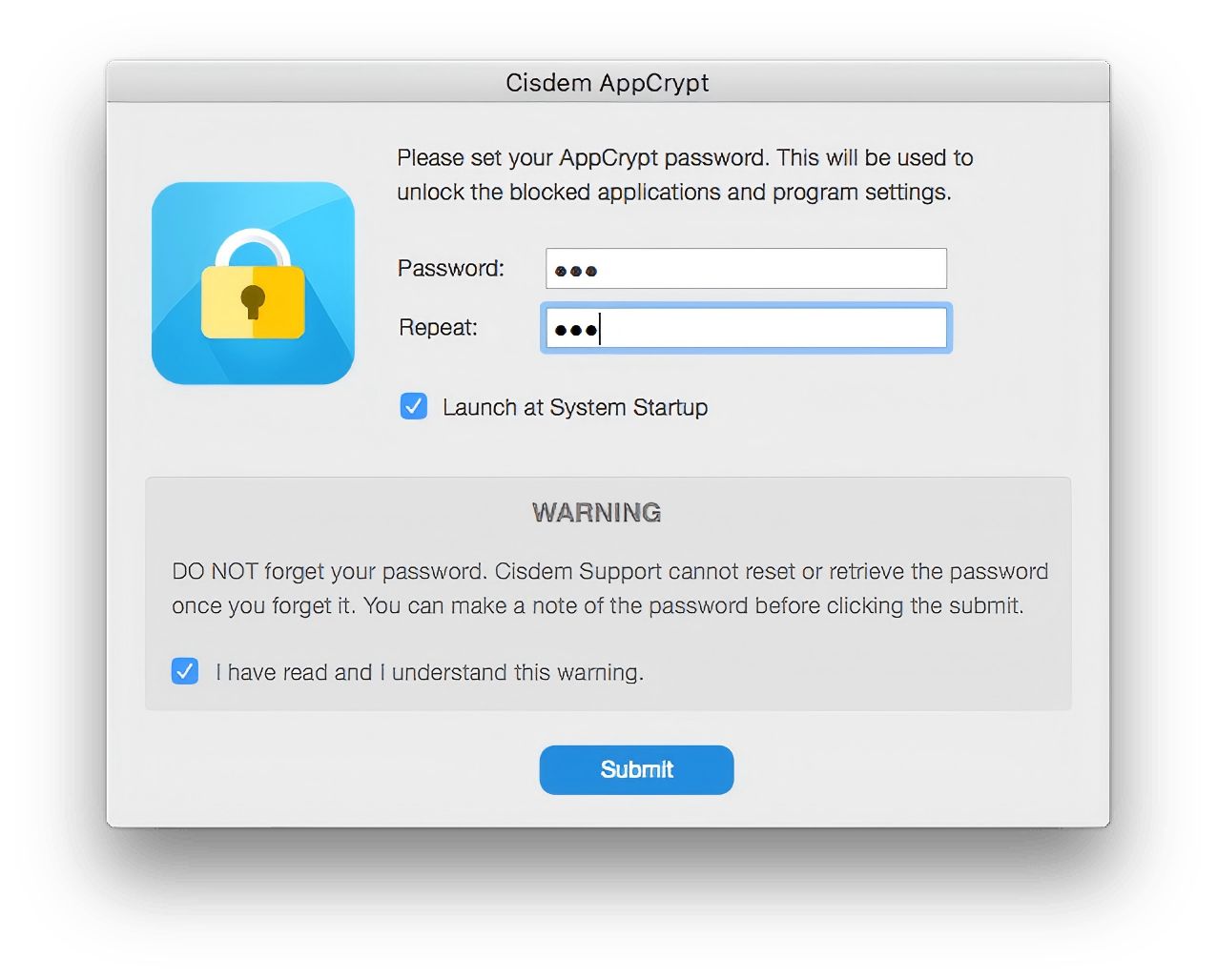
2. Launch it. Set a password for locking Chrome settings.
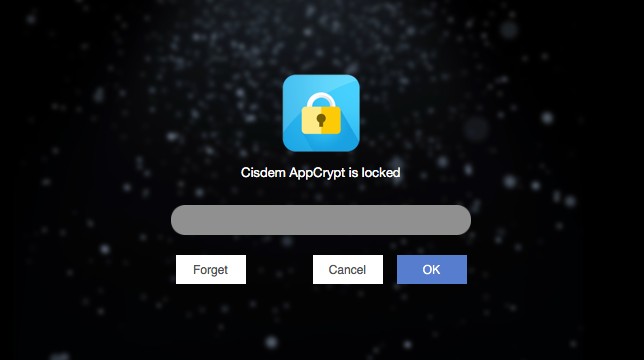
3. Click the lock icon on the menu bar or taskbar. Enter the password to access the main window.
4. Go to the App Lock tab.
5. Drag and drop the Chrome desktop shortcut icon into the program. Alternatively, you can use the plus button.
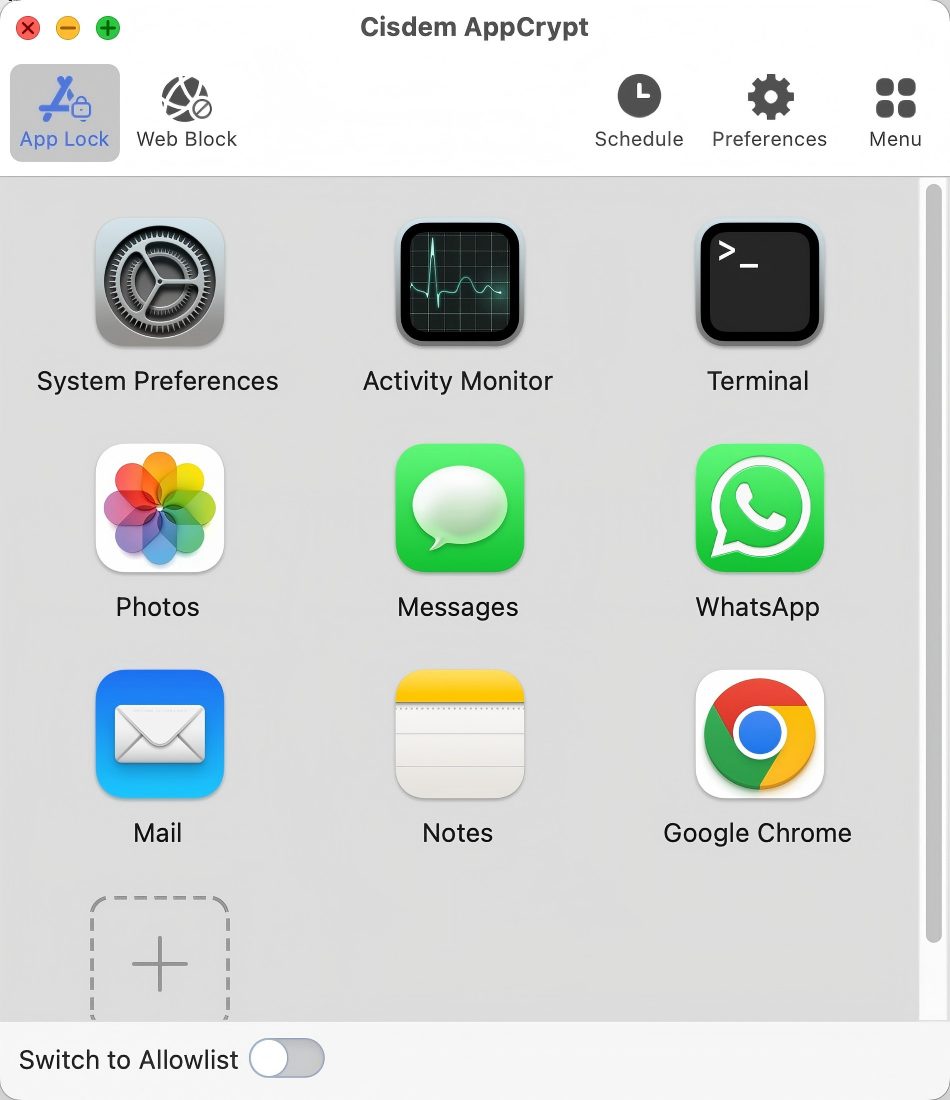
Now Chrome settings is locked with password.
Method 2: password protect Chrome settings with Browser Lock extension
Browser Lock is a Chrome extension. It helps you password protect the Chrome browser to prevent unauthorized access. Once installed and set it up, Chrome will require password to open it. Others cannot access the browser as well as the settings page without the password.
However, unlike Cisdem AppCrypt, Browser Lock works as an extension. So it can be bypassed easily, such as by disabling or removing the extension.
Below are the steps to lock Chrome settings using Browser Lock.
1. Open the Chrome browser.
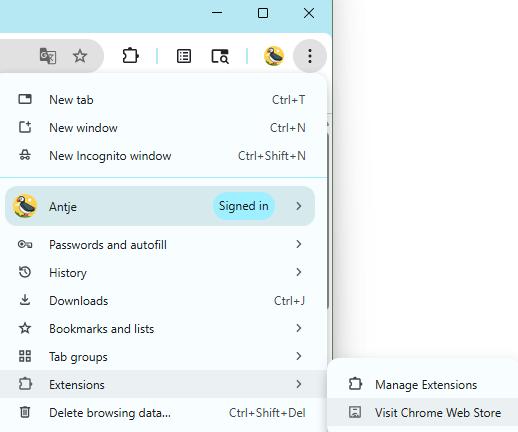
2. Click the 3-dot icon in the top-right corner of the window.
3. Click Extensions. Click Visit Chrome Web Store.
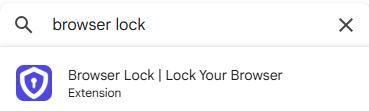
4. Search for “browser lock”. Select the first one from the results list.
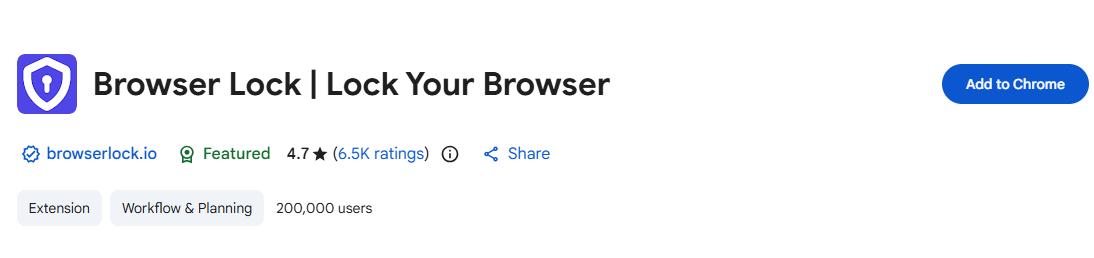
5. Click Add to Chrome.
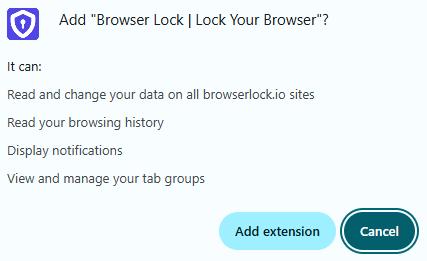
6. Click Add extension.
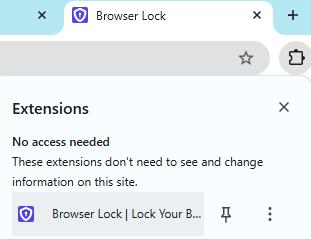
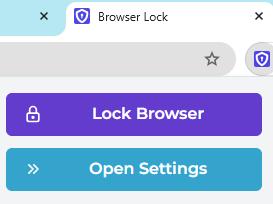
7. Click the Extensions icon in the top-right corner of the window. Select Browser Lock from your extensions list.
8. Click Open Settings. Click the Start Now button.
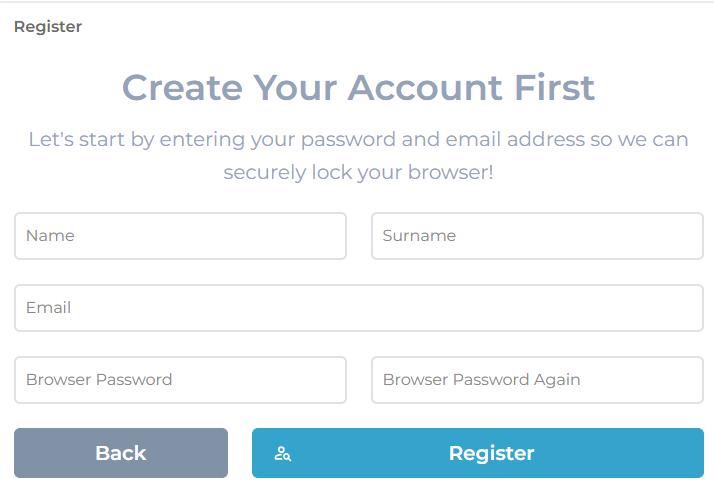
9. Create your account and set the browser password. Then verify your email.
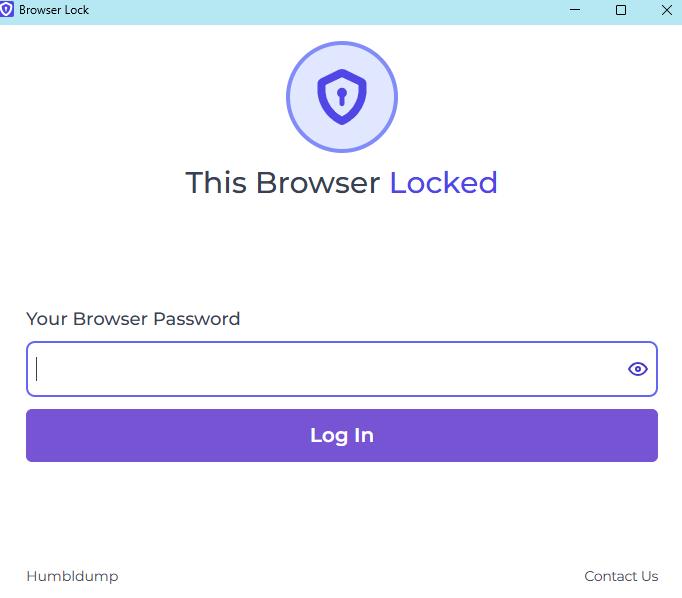
Now your Chrome browser is locked. And the Settings page cannot be accessed without the password.
Comparison: which method is better?
Both methods in this article can help you lock Chrome settings. But they differ in flexibility, security level, ease of use, and more. Here is a comparison:
| Cisdem AppCrypt | Browser Lock | |
|---|---|---|
| Lock entire Chrome browser | √ | √ |
| Lock Chrome settings | √ | √ |
| Prevent disabling without password | √ | ☓ |
| Prevent uninstallation without password | √ | ☓ |
| Protection level | High | Moderate |
| Ease of use | Easy | A bit cumbersome |
If you require stronger protection or advanced features, such as locking other browsers, blocking specific websites or webpages in Chrome, Cisdem AppCrypt is the better choice.
Bonus tips to make your Chrome more private and secure
In addition to locking Chrome settings, here are some more tips to make your Chrome more private and secure:
Tip 1. Enable Enhanced Safe Browsing in Chrome
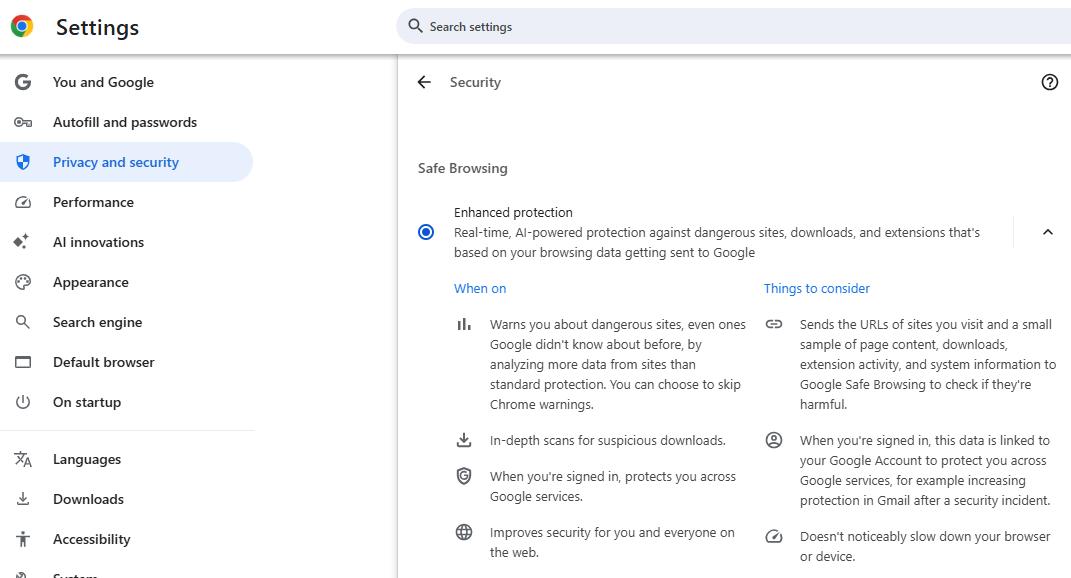
Enhanced Safe Browsing is a built-in feature in Chrome. It keeps you safe while browsing. When you visit a malicious website, install a dangerous extension, or your password is compromised, it will warn you . To enable the feature in Chrome:
1. Open Chrome. Click the 3-dot icon in the top-right corner.
2. Click Settings from the drop-down menu. Select Privacy and security.
3. Under Safe Browsing, select Enhanced protection.
Tip 2. Clean up browsing data in Chrome regularly
Overtime, cached files, cookies, and browsing history will accumulate and slow down Chrome. And the browsing history may store your privacy information. Regularly clearing browsing data in Chrome can help improve browser performance, it can also protect your privacy.
1. Open Chrome. Click the 3-dot icon.
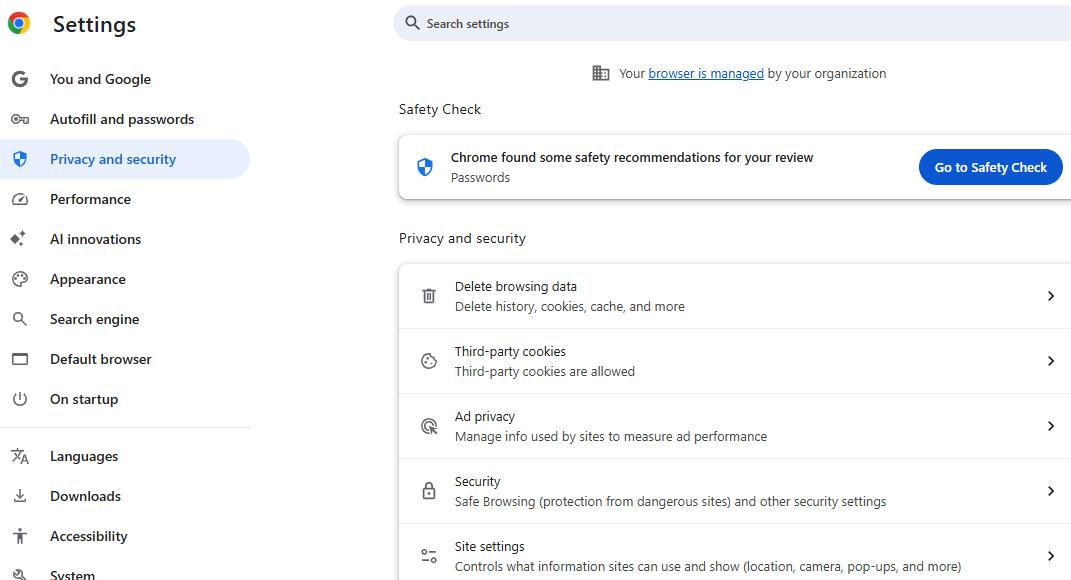
2. Click Settings. Select Privacy and security from the left sidebar. Click Delete browsing data.
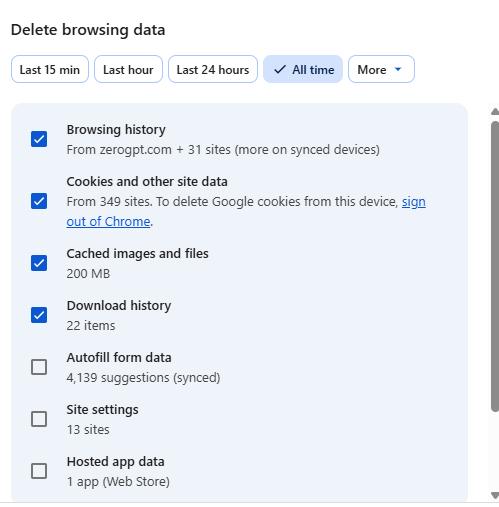
3. Select a time range, like All time.
4. Then select the types of data to delete, like Browsing history.
5. Click Delete data.
Tip 3. Turn on 2-Step Verification for Google account
By turning on 2-Step Verification for your Google account, no one can access to your account without your permission. It also helps protect against hacking.
1. Open Chrome. Click the 3-dot icon.
2. Click Settings. Select You and Google in the left sidebar. Click Manage your Google Account.
3. Go to the Security & sign-in tab.
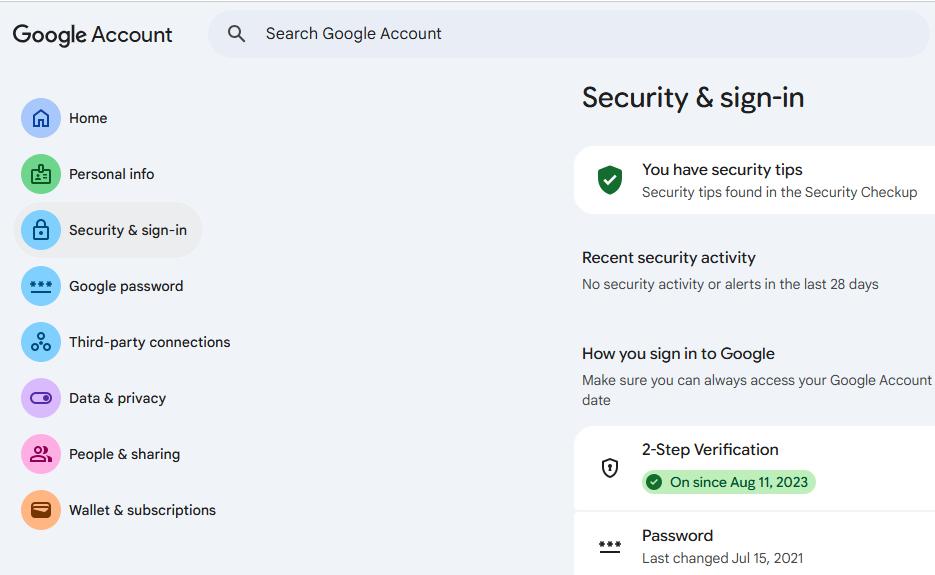
4. In the middle of the window, select 2-Step Verification.
5. It lets you choose a verification method.
6. Then complete the setup as prompts.
Conclusion
If you frequently share your computers or phones with others, locking Chrome settings is essential. Chrome does not offer a built-in feature to password protect settings. But there are third-party application and extension can help you do this. In this article, I’ve walked through both practical methods and the detailed steps. The first method is easier and more effective. Hope it helps!

Norah Hayes likes to share her tips on how to improve focus and stay motivated at work. She believes it is essential to eliminate all online distractions during work hours.

Ethan Long joined Cisdem in 2015 as a developer and now serves as the editorial advisor for Cisdem AppCrypt. He actively tests and uses Cisdem AppCrypt and other screen-time management tools to ensure AppCrypt meets its promises in real-world scenarios.