


How to Block WhatsApp Web on PC, Mac, or Phone - 3 Ways
 2.9K
2.9K
 0
0


WhatsApp is the most widely used instant messaging and video calling app in the world. It also offers a web version. Many users prefer to use WhatsApp web instead of the app. However, for productivity or privacy reasons, you may want to block WhatsApp Web. In this article, we’ll show you three effective ways to do it on PC, Mac, and mobile devices.
 Cisdem AppCrypt
The Best WhatsApp Web Blocker
- Block websites on Chrome, Edge, Safari, and other browsers
- Let you block specific websites or webpages (like web.whatsapp.com)
- Block sites on computer by categories, such as social media
- Let you block all websites except specific ones
- Lock individual applications with password (like WhatsApp)
- Offer an option to automatically relock apps after a period of inactivity
- Let you lock apps and block sites permanently or at certain times
- Require password to enter/quit/uninstall AppCrypt
- Easy to use
- Hard to bypass
- Can be used for parental controls, productivity, and privacy protection
- Available for Windows, Mac, Android, iPhone and iPad


Benefits of blocking WhatsApp web
- Protect children’s online safety: Blocking WhatsApp web (as well as the WhatsApp app) on children’s devices can help prevent them from chatting with strangers online and reduce exposure to inappropriate content.
- Improve workplace productivity: For employers, restricting access to WhatsApp web on employees’ PCs can improve productivity. They won’t be constantly distracted by notifications popping up from WhatsApp Web.
- Protect your privacy: Blocking WhatsApp web with password on your own devices can also prevent others from snooping on your private messages.
How to block WhatsApp web on PC/Mac with AppCrypt
WhatsApp web is the browser-based version of WhatsApp app, which is accessible through any web browsers, requiring no installation. If you find WhatsApp web distracting, or are worried about privacy leaks, you can block it with password on your browsers with Cisdem AppCrypt - a professional website blocker and app locker tool that enables you to block specific websites/webpages on all popular web browsers on computer.
It’s super easy to block access to WhatsApp web using Cisdem AppCrypt. You can follow these steps:
1. Download and install this WhatsApp web blocker.
 Free Download Windows 10 or later
  Free Download macOS 10.15 or later
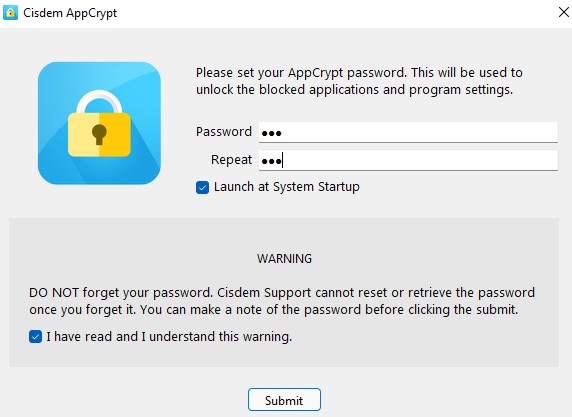
2. Launch it. Set the password. Click Submit.
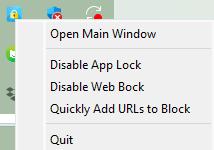
3. Click the lock icon on the Windows taskbar/Mac menu bar. Choose Open Main Window.
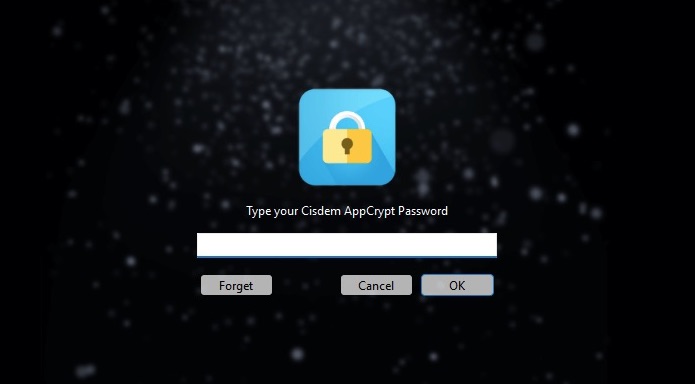
4. Enter the password to access this tool.
5. Go to the Web Block tab.
To block websites on Windows PC, Cisdem AppCrypt requires extensions to be installed on the browsers. Click Install next to the browser that you wish to block access to WhatsApp web.
Mac users can skip this step.
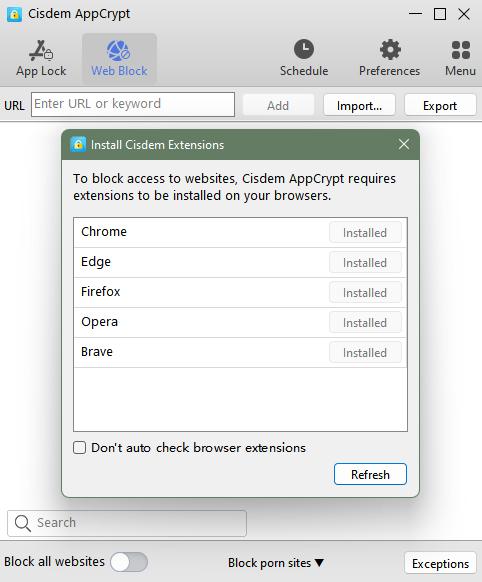
6. After the extensions are installed, go back to the Web Block tab. Add web.whatsapp.com in the URL field. Click Add.
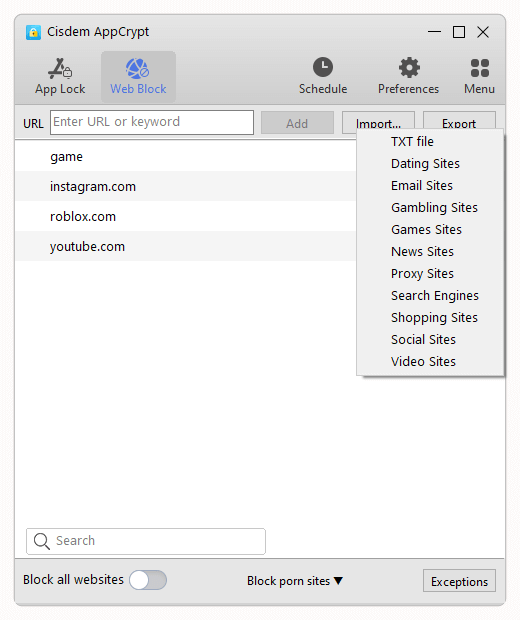
Now WhatsApp web is blocked.
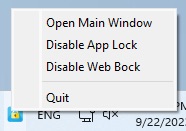
Note: To unblock WhatsApp web, access Cisdem AppCrypt main window with password, and then remove the site from the block list. Or Click the lock icon on the taskbar/menu bar. Select Disable Web Block or Quit. Then enter the password.
Tip: How to block WhatsApp Web only during scheduled times?
Even if there's nothing urgent, you may still find yourself checking WhatsApp notifications on your phone or computer. To stay focused and boost productivity, you can block WhatsApp Web on your PC only during certain hours.
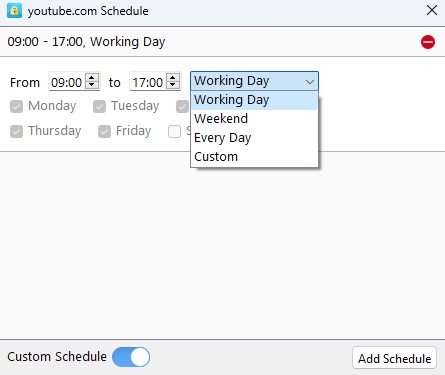
Simply select web.whatsapp.com in the block list. A clock icon will appear next to it. Click the icon and enable Custom Schedule. Set the time you wish to block access to WhatsApp web.
The video below shows you how to block WhatsApp Web on your computer in just a few simple steps.
How to block WhatsApp web on PC with hosts file
Here is a technical method to block WhatsApp web on computer-using hosts file. Hosts file are text files in operating systems to map domain names to IP addresses, which can be edited by Notepad or other text editors on computer as administrator. To block WhatsApp on PC, you can use hosts file to redirect the site’s domain to an invalid IP address like 127.0.01.
1. Open Notepad on your PC. Run it as administrator.
2. Click File > Open.
3. Navigate to C:\Windows\System32\drivers\etc\hosts. You can also click the address bar at the top and paste the path, then press Enter.
4. If you don’t see any thing, click Text Document on the bottom right corner. Select All files from the drop-down list.
5. Double-click to open the hosts file.
6. Scroll down to the end of the file. Create a new line. Enter the following text:
127.0.0.1 web.whatsapp.com
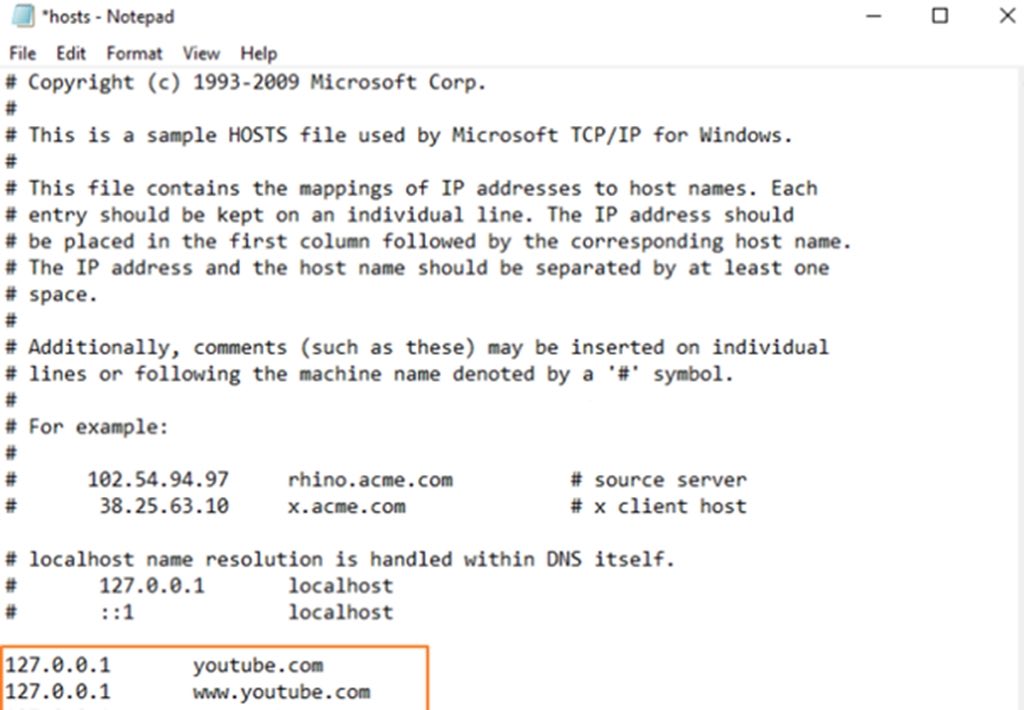
7. Click File > Save.
Restart your computer. Then the WhatsApp web will be inaccessible on any web browser.
The downsides of this method are that it is a bit cumbersome, and anyone can change the settings without a password.
How to block WhatsApp web on phones
On Android
Since Cisdem AppCrypt is also available for Android, you can use it to block access to WhatsApp web. Below is how.
1. Install Cisdem AppCrypt.

2. Set a 4-digit or 6-digit PIN or pattern when you open it for the first time.
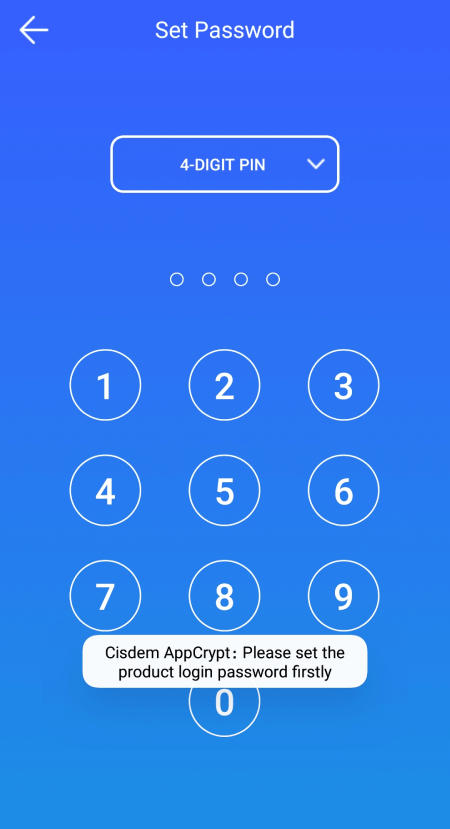
3. Tap the Web Block tab.
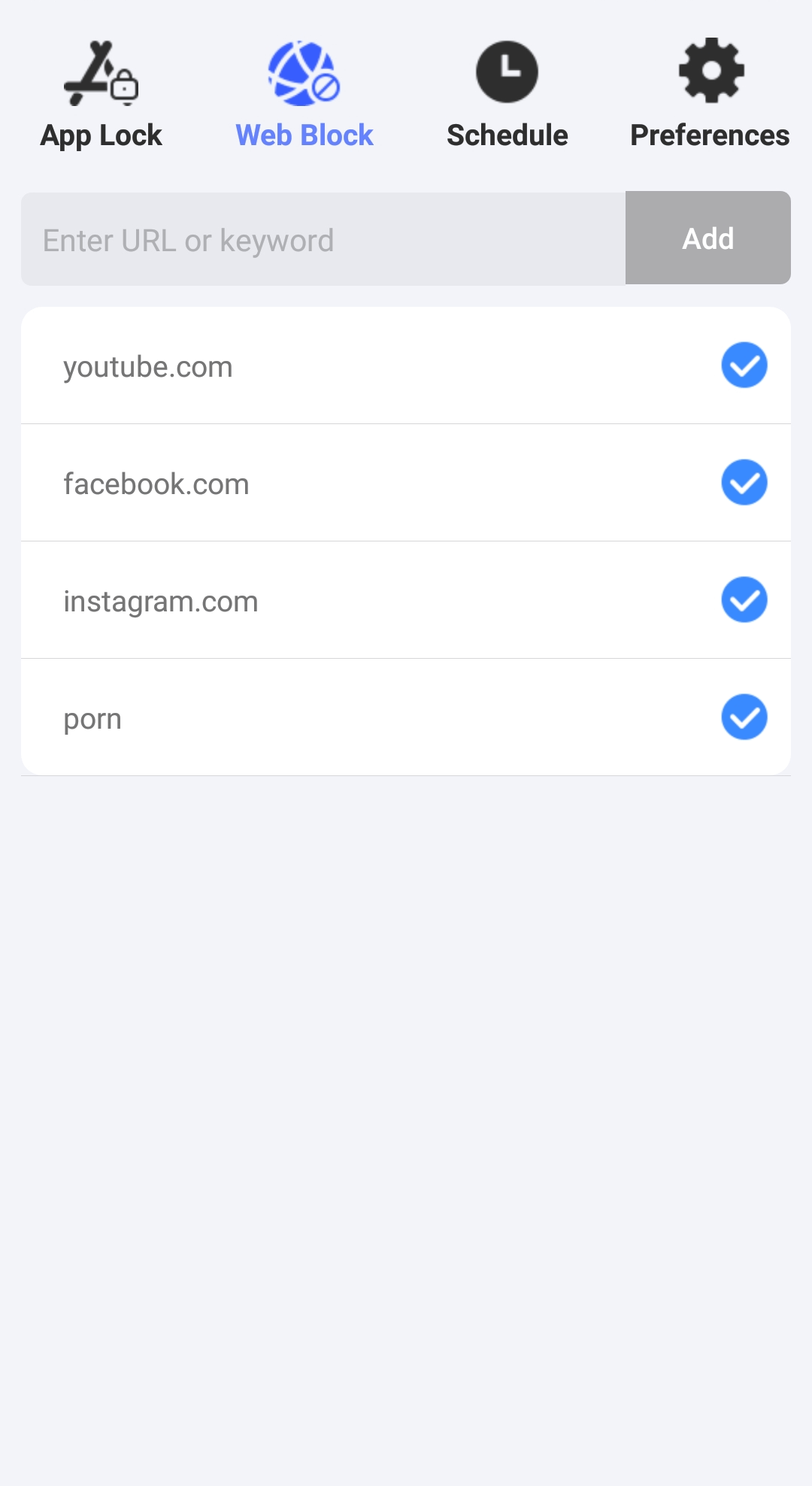
4. Type web.whatsapp.com and then tap the Add button.
Now WhatsApp web is blocked on the browsers on your Android phone or tablet. By default, the blocking is permanent. If you only want to block it at certain times, such as during work hours, you can use the Schedule feature.
On iPhone
For iPhone users, there are two solutions: using using a third-party website blocker or Screen Time. The following steps show you how to use the former.
1. Install Cisdem AppCrypt on your iPhone.

2. Click Web Block.

3. Enter web.whatsapp.com. Click Add.
4. Click Apply.
Now WhatsApp web is inaccessible on your iPhone.
5. To protect your blocking settings, you can go to Preferences > Notifications. Turn on Notification and Notification unlock. It'll prompt you to set a password.
Bonus tips
How to log out WhatsApp web
Remember to log out WhatsApp web when you no longer use it. Then you will no longer receive WhatsApp notifications from browsers, thus preventing others from invading your privacy.
1. Open WhatsApp web on your browser.
2. Click the 3-dot icon above your chat list.
3. Click Settings > Log Out.
How to unlink a device from WhatsApp web
If you've moved away from the device on which you were signed in to WhatsApp web, you can use the WhatsApp app on your iPhone or Android device to unlink this device.
1. Launch WhatsApp app on your phone.
2. Click Settings > Linked Devices.
3. Then you’ll see a list of all devices that are linked to your account. Find and click on the device that you want to unlink.
4. Click Log Out.
Conclusion
Blocking WhatsApp app on children or employees’ devices helps them to focus more while learning or working. However, they can still access WhatsApp by visiting web.whatsapp.com on any web browsers. This article introduced 3 ways on how to block WhatsApp web on PC, Mac, and phone. Hope it helps.

Norah Hayes likes to share her tips on how to improve focus and stay motivated at work. She believes it is essential to eliminate all online distractions during work hours.

Ethan Long joined Cisdem in 2015 as a developer and now serves as the editorial advisor for Cisdem AppCrypt. He actively tests and uses Cisdem AppCrypt and other screen-time management tools to ensure AppCrypt meets its promises in real-world scenarios.