


How to Block Shopping Websites on a Computer or Phone
 705
705
 0
0


Online shopping is the way to go for many people. We use shopping websites and apps to browse products, make purchases, and receive what we want, enjoying great convenience and a fast experience. However, if you are addicted to online shopping, this convenience can be a problem. In this article, I will share a few ways to block shopping websites on different devices.
 Cisdem AppCrypt
Shopping Website Blocker for Computers & Phones
- Block websites on Chrome, Safari, and more with a password
- Block specific sites or only pages, URLs with certain keywords, and categories (e.g. Shopping Sites, Social Sites)
- Block all websites except the ones you allow
- Lock apps with a password
- Block websites and lock apps 24/7 or during scheduled times
- Easy to use
- Hard to bypass
- Help stop you or others from accessing shopping websites
- Help with self-control, productivity, parental control, and more


Are you addicted to online shopping?
Online shopping addiction is a serious problem for many people. Are you addicted to online shopping? Here are a few of the key warning signs to watch for:
- Inability to set limits on how much time is spent on shopping websites.
- Loss control over the amount of money spent on online shopping.
- Browse online stores for a long time without being interested in anything else.
- Always feel guilty after go online shopping.
- Often hide what you’ve bought online from your family.
People of all ages can become addicted to online shopping. When adults are no longer able to pay their bills, they may max out their credit cards. Children may secretly take their parents’ credit or debit cards to shop online. Seniors may easily fall victim to scam shopping websites and lose their money.
Why is it important to block shopping websites on your devices?
Blocking shopping websites can bring the following benefits:
- Avoid impulse buying. Online shopping can easily lead to impulse buying. Blocking access to shopping websites can help users with poor self-control stop impulse spending.
- Increase productivity. Blocking shopping websites can reduce the time we spend on online shopping and prevent us from being distracted by shopping websites, helping us better focus on our work or study.
- Protect personal data. Some shopping sites may host malware. Or they might collect the personal data of costumers. It’s necessary to block these unsafe websites.
- Prevent potential scams. Blocking suspicious shopping websites can help protect people who are not comfortable with technology from potential online scams.
How to block shopping websites on a computer
Method 1. Use a website blocker app
Shopping website blockers can be installed on computers. They can prevent you from accessing shopping websites on your devices, and help you stay focused. Below I detail some of the most useful shopping sites blockers.
Cisdem AppCrypt is an easy-to-use and powerful shopping site blocker, which is available to download on Windows PC and Mac computer. It lets you block certain shopping websites with password, permanently or at certain times. It also helps block all popular shopping websites on the Internet with one click.
Step 1: The first step is to install Cisdem AppCrypt on your computer.
 Free Download Windows 10 or later
  Free Download macOS 10.15 or later
Step 2: Launch it. Set a password.
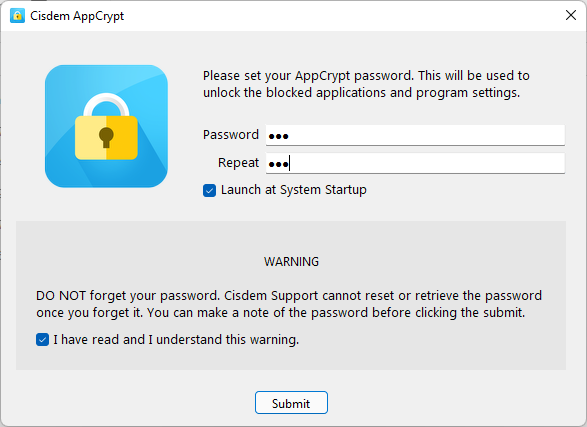
If you want the shopping websites blocker run automatically at startup, check the box next to Launch at System Startup.
Step 3: Click the lock icon on Windows taskbar/Mac menu bar. Click Open Main Window.

Step 4. Enter the password to access this tool's main window.

Step 5: Now you’re in the main window. Go to the Web Block tab.
Windows users need to install the extension on their browsers in order to implement blocking, while Mac users don't need to do this.
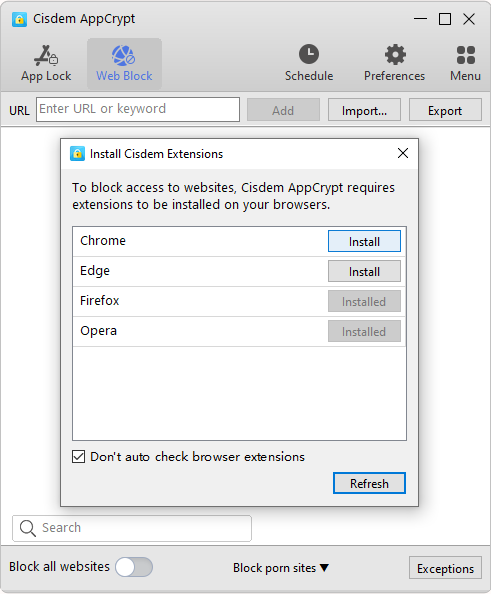
Further Information
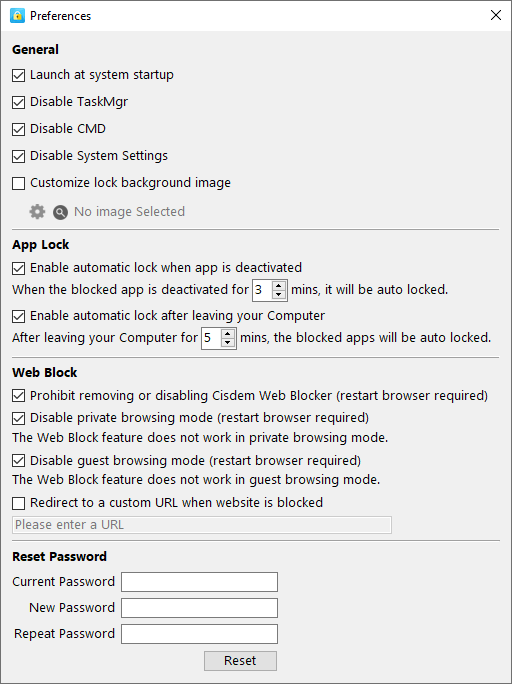
Windows users can enable the options in Preferences > Web Block to prevent one from disabling or removing the extension or from using incognito/guest browsing. This will help prevent bypassing.
Step 6: Click the Import dropdown menu and select the Shopping Sites category. This will add all popular shopping websites to the block list, such as Amazon, eBay, Walmart, Target, and more.
Trick
There's a very long list of 1,689 shopping websites shared on social media. If you want to add them all to the block list, here's how. Copy these sites and paste them into a TXT file, click the TXT file option in the Import dropdown menu, and select that TXT file.
You can use the Search box in the bottom left corner to check if a certain shopping site is on the block list. If not, manually enter it in the URL field and click Add.
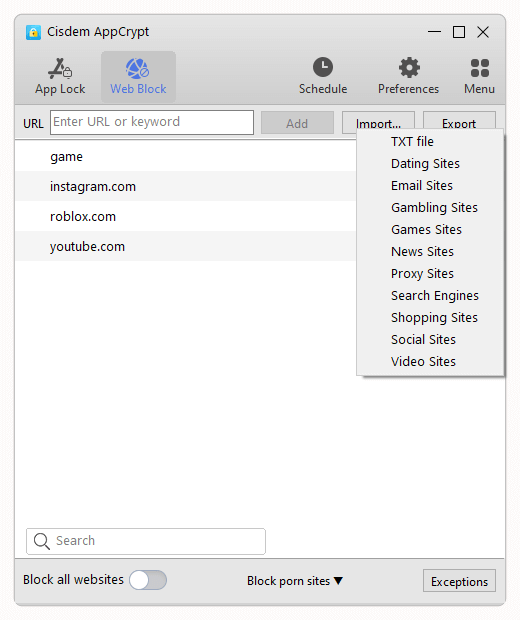
Now these shopping websites are blocked on your computer permanently.
Tip: How to reduce the amount of time spent on shopping websites
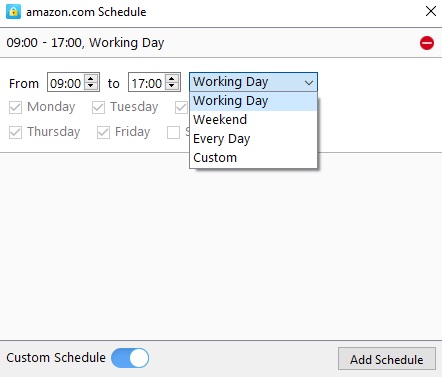
Sometimes you browse a shopping website for hours without realizing it, or wasting too much time on online shopping but can’t control yourself. Using this shopping websites blocker, you can create a schedule and visit shopping sites only at specific times of the day. Click the shopping website you frequently visit from the block list. Click the clock icon that appears. Enable Custom Schedule. Now you can set the time you allow yourself to visit the site.
Method 2. Use a website blocker extension
You can also use a browser extension called BlockSite, which works on Chrome, Safari, and Edge. Here's how to set it up for your purpose.
Step 1: Search for BlockSite in your browser's extension store, such as Chrome Web Store.
Step 2: Add the extension to your browser.
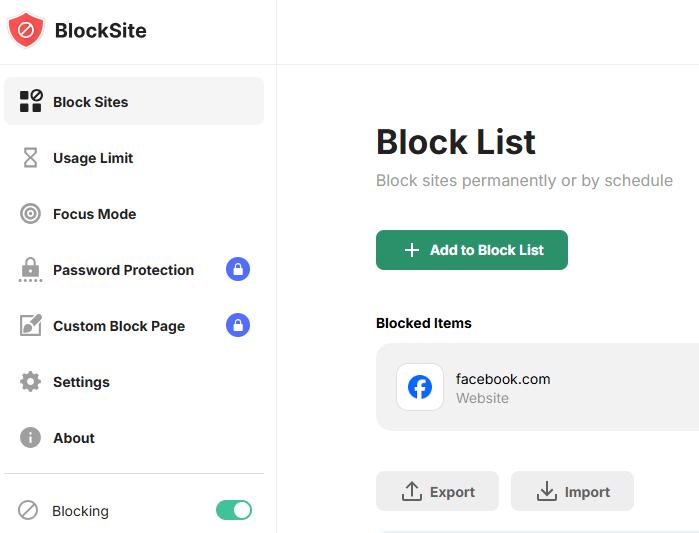
Step 3: Go to the extension's options page (where you access its settings).
Step 4. Click Add to Block List.
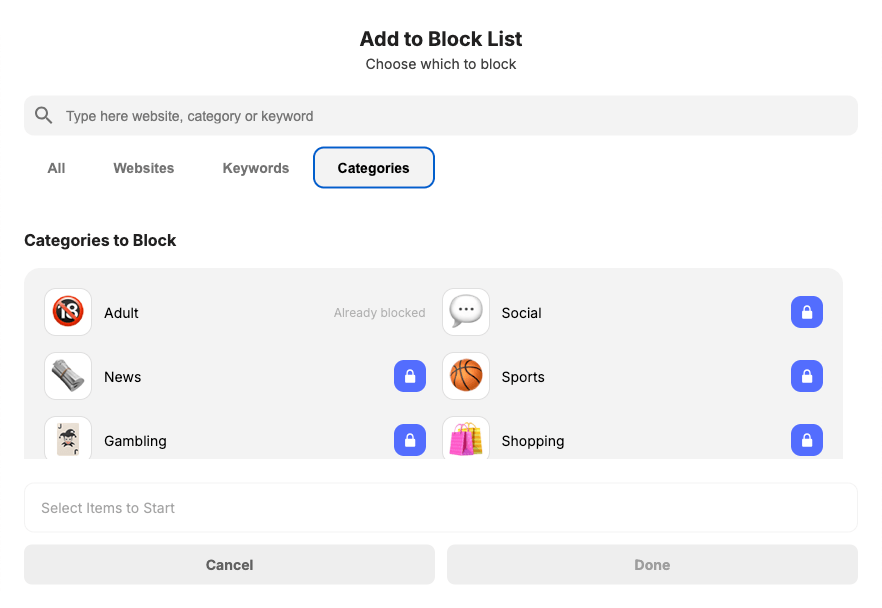
Step 5: Go to the Categories tab in the dialog that appears.
Step 6: Select the Shopping category and then click Done.
Step 7: Right-click the extension's icon in your browser's toolbar, choose Manage Extension, and enable the extension in incognito or private browsing.
Now those shopping websites will be blocked on this specific browser.
However, unlike the first method, where you can't disable or remove an extension, BlockSite can be easily disabled or uninstalled. This will unblock the websites.
How to block shopping websites on a phone
On Android
To block shopping websites on Android phones, you can use Cisdem AppCrypt, which is a website blocker and app lock rolled into one. In addition to shopping websites, it allows you to block shopping apps.
Step 1: Install Cisdem AppCrypt.

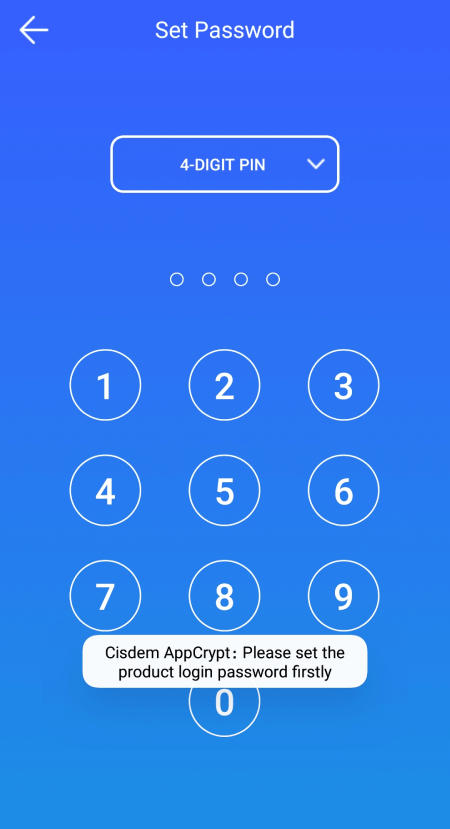
Step 2: You you launch it for the first time, set a PIN or pattern.
Step 3: Go to the Web Block tab.
Step 4: Type a shopping site that you want to make inaccessible and then tap the Add button. Repeat this step to add other unwanted shopping websites to the block list.
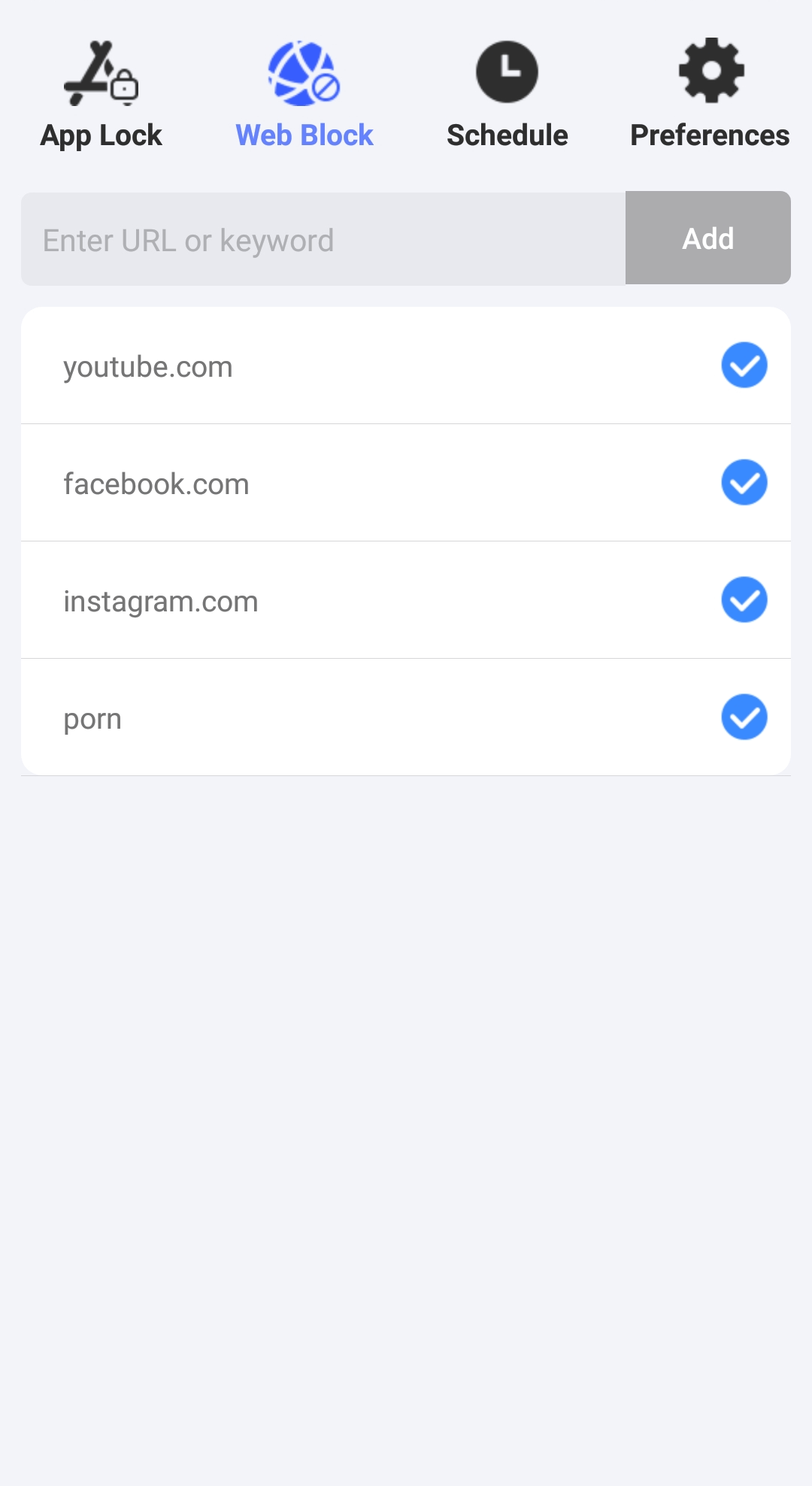
Step 5: Optionally, go to the App Lock tab and block the shopping apps that you want to restrict access to.
Now the shopping sites are blocked on the browsers on your Android device. The blocking applies to all popular browsers, such as Chrome, Samsung Internet, Firefox and Opera.
On iPhone
AppCrypt also available for iPhone. With it, you can block shopping websites as well as blocking shopping applications on your iPhone easily.
Step 1: Download and install AppCrypt on your iPhone.

Step 2: Open it. Go to the Web Block tab.
Step 3: Enter the URLs of the shopping sites you want to block into the top box. Click Add.

Step 4: Click Apply.
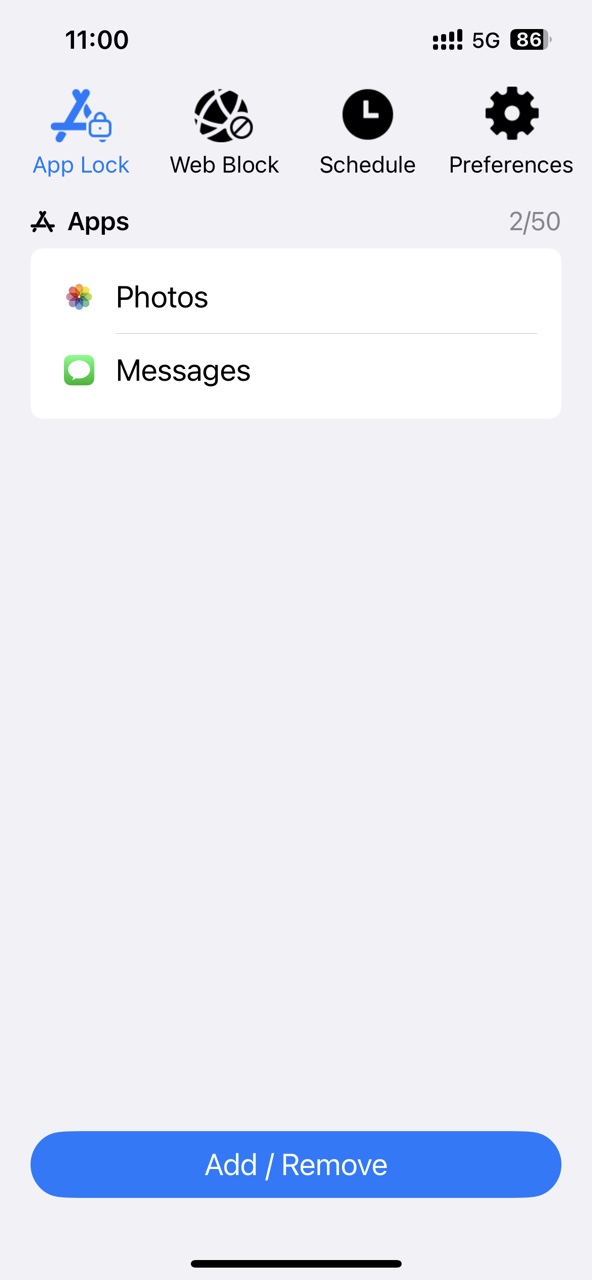
Step 5: If needed, you can go to the App Lock tab to add some shopping apps to the block list too.
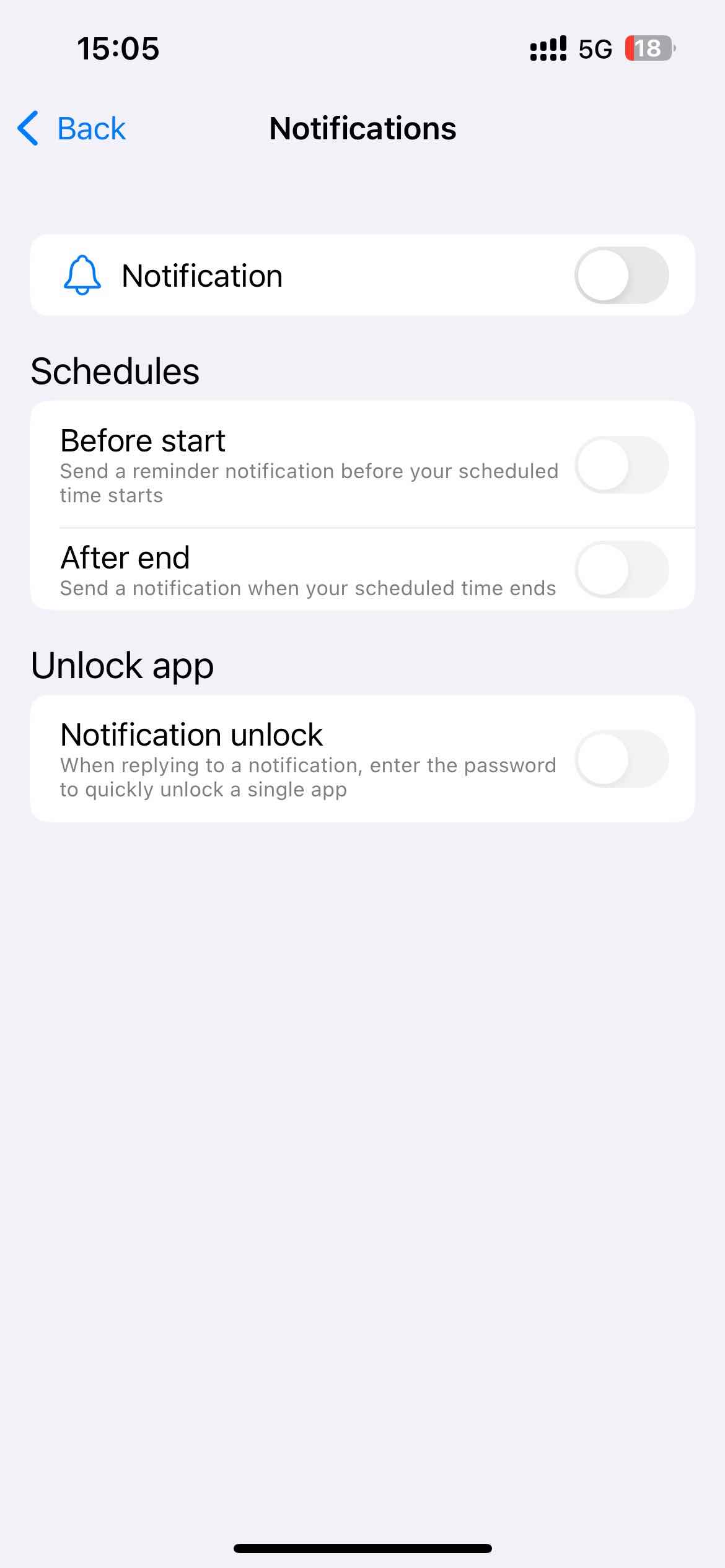
Step 6: This step is optional: go to the Preferences tab. Click Notifications. Enable Notification and Notification unlock. Then it'll prompt you to set a password for protecting your settings.
Conclusion
How much time do you actually spend on shopping sites every day? Some people may only spend a few minutes browsing online stores and quickly complete their purchases, while many people may spend a lot of time comparing products, reading reviews, and deciding which one to buy. Others waste a lot of time browsing shopping websites without actually needing to buy anything. This article shows you easy ways on how to block shopping websites on Windows, Mac, iPhone and Android. If you are also struggling to stop online shopping, then it may help you.

Norah Hayes likes to share her tips on how to improve focus and stay motivated at work. She believes it is essential to eliminate all online distractions during work hours.

Ethan Long joined Cisdem in 2015 as a developer and now serves as the editorial advisor for Cisdem AppCrypt. He actively tests and uses Cisdem AppCrypt and other screen-time management tools to ensure AppCrypt meets its promises in real-world scenarios.