


How to Block Instagram on iPhone (App & Website Guide)
 358
358
 0
0


Can’t stop scrolling Instagram and wasting a lot of time every day? Instagram is addictive. It constantly recommends content that attracts you and keep you hooked. Users with poor self-control can also be easily distracted by new notifications and posts while working or studying. In this article,we’ll show you how to block Instagram completely, including both the app and website.
 Cisdem AppCrypt
The Best Tool to Block Instagram on iPhone
- Lock individual apps on your phone with a PIN
- Lock categories of apps, such as Social, Games, etc.
- Auto re-lock apps after they've been unlocked for a period of time
- Auto-lock AppCrypt itself to protect all your settings
- Block websites on Safari, Chrome, Firefox, and other browsers
- Let you lock apps/block website permanently or at certain times
- Hide the App Store app to prevent new apps from being installed
- Hide the Delete App option to prevent existing apps from being deleted
- Easy to use and hard to bypass
- Help with productivity, parental controls, and privacy protection
- Compatible with iOS 16.0 or later
- Also available for Android, Mac, and Windows PC


How to block Instagram on iPhone using AppCrypt (best)
Best for: Users who want a free and hard-to-bypass way to block Instagram completely or set time limits, including both the app and website.
The most easy and effective method to block Instagram on iPhone is using Cisdem AppCrypt. This app locker and website blocker allows you to block Instagram app and website on iPhone in just a few clicks. With it, you can also uninstall the Instagram app and prevent it from being reinstalled.
Block the Instagram app
Using AppCrypt, you can lock the Instagram app on your iPhone with a 4-digit or 6-digit PIN. You can ask a family member or a trusted friend to set up a PIN for you.. Without knowing the PIN, you won’t be able to access it. If you want to quit Instagram addiction and control the amount of time you spend on Instagram, you can use the Schedule feature.
1. Download and install Cisdem AppCrypt from the App Store.

2. Open it. Click App Lock.
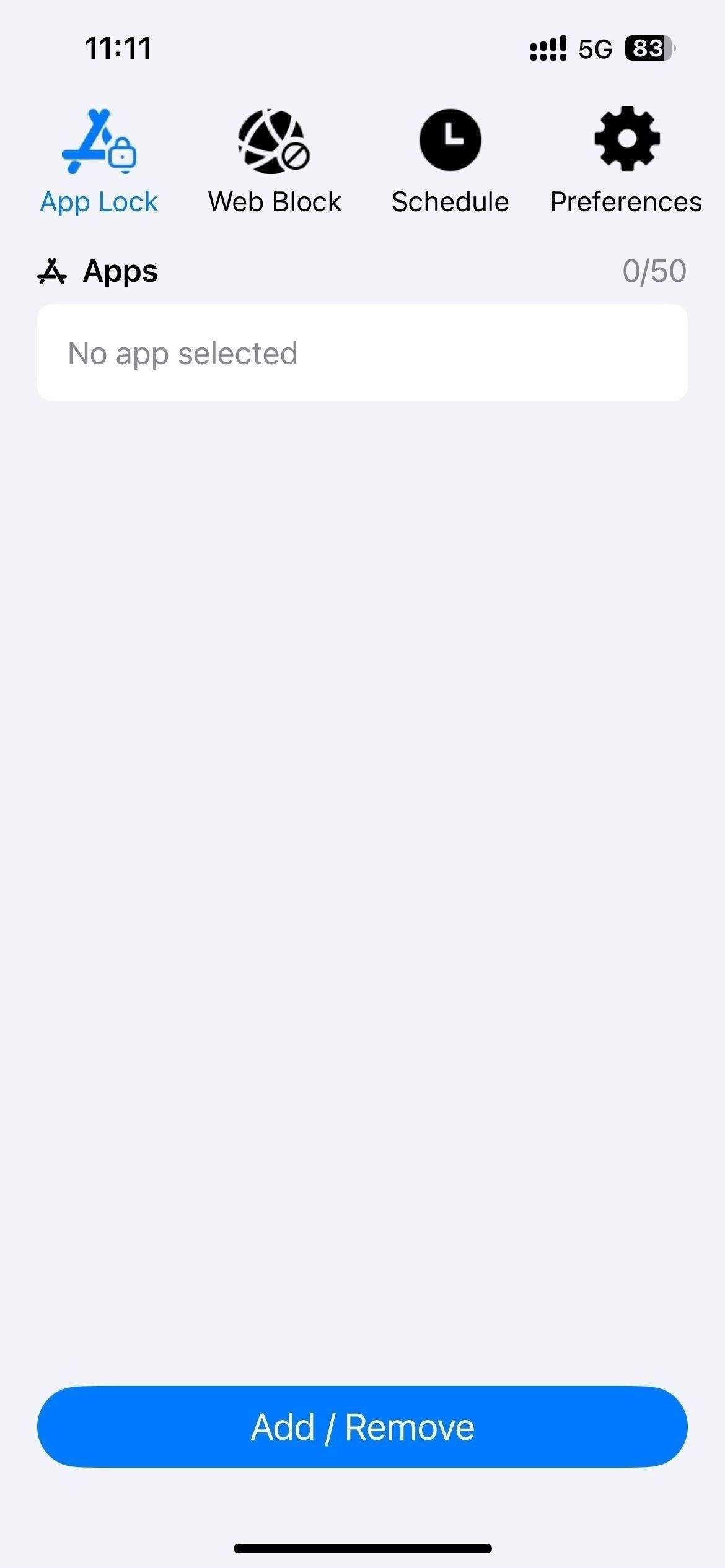
3. Click the Add/Remove button at the bottom.
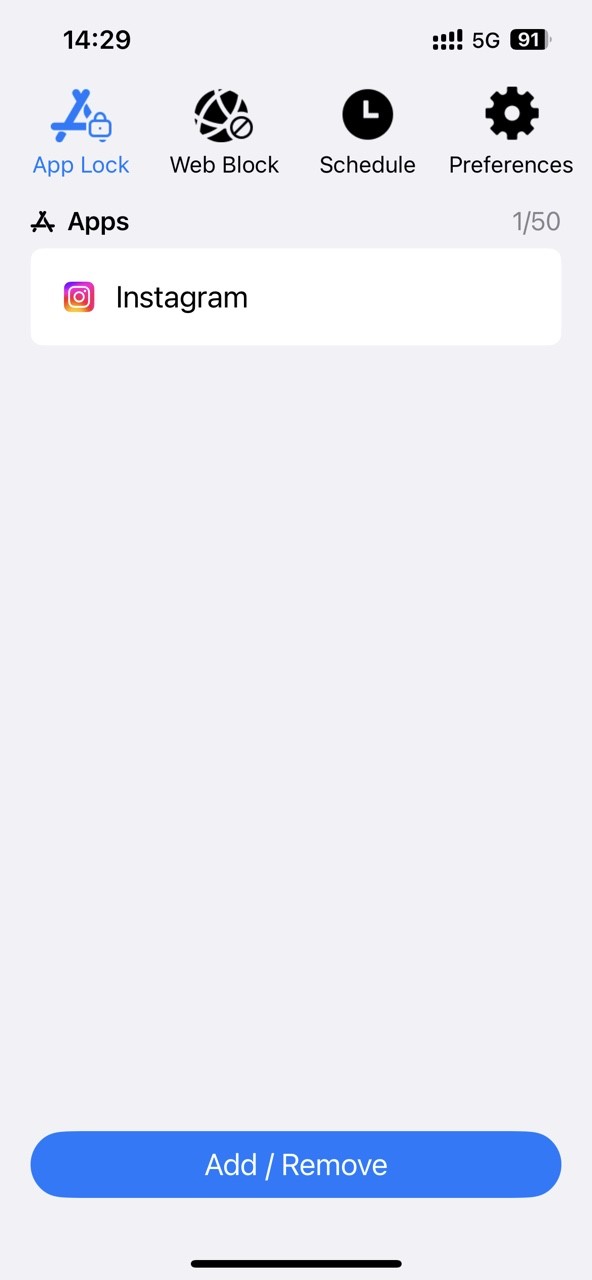
4. Search for the Instagram app. Select it. Click Done.
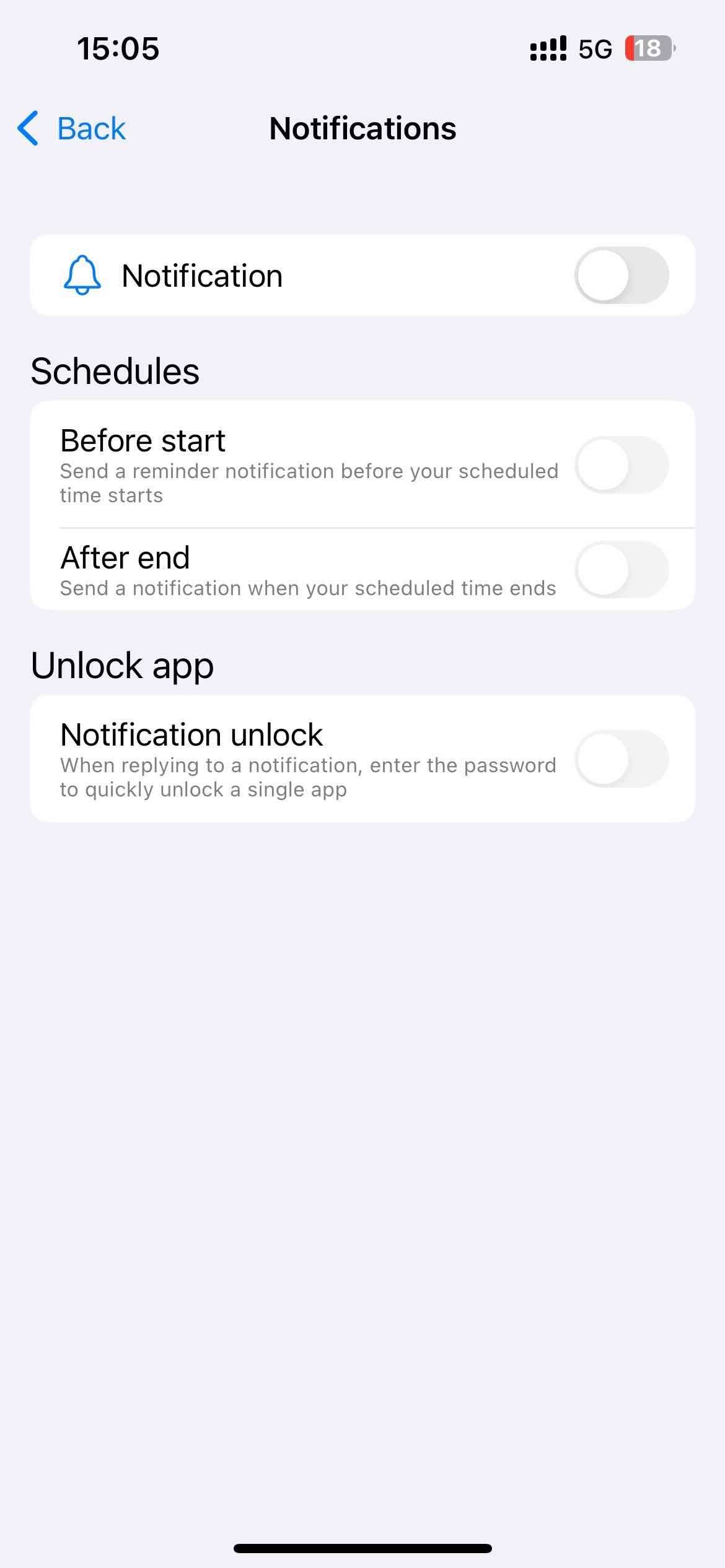
5. Click Preferences > Notifications. Enable Notification and Notification unlock.
6. Then it'll prompt you to set a PIN to lock your settings. You can select the PIN length.
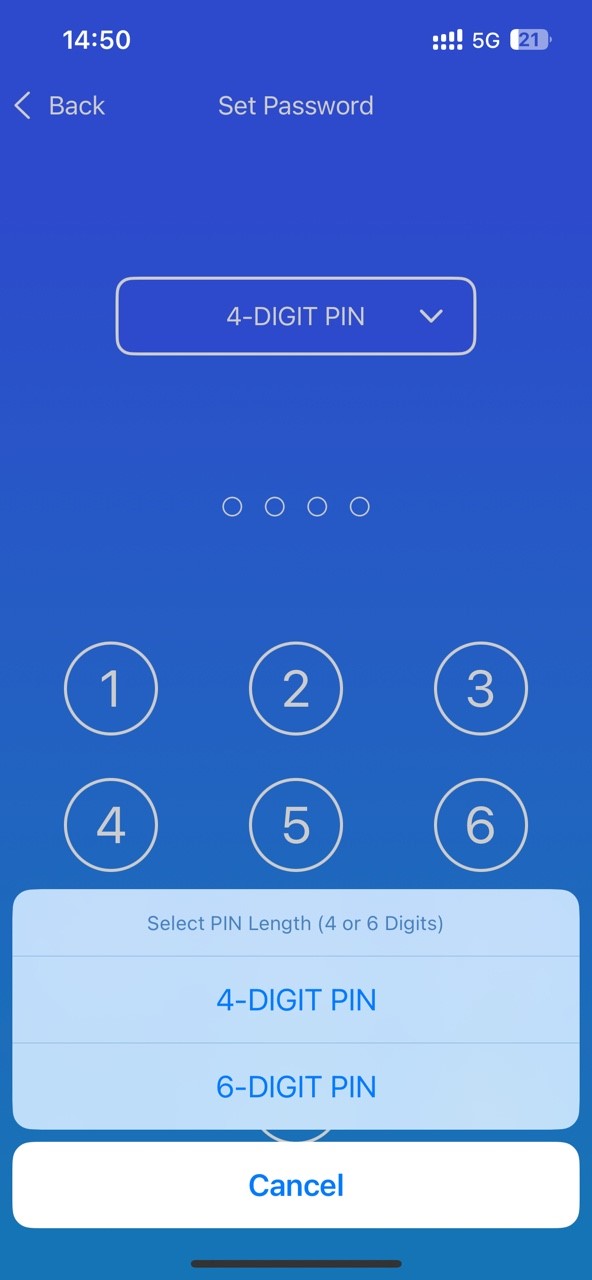
Now Instagram is blocked on your iPhone. Also, your blocking settings are password protected to prevent others from changing it.
Tip: How to block Instagram on iPhone at certain times?
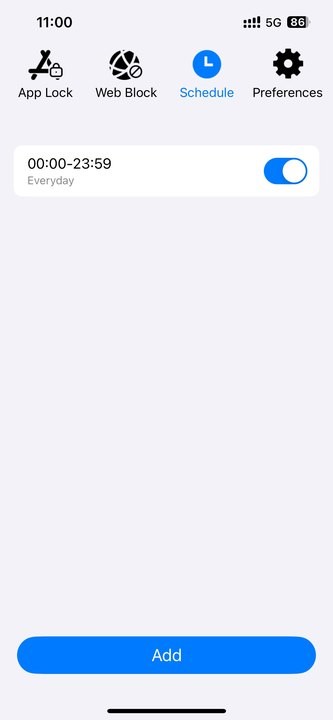
This Instagram blocker offers a Schedule feature that allows you to block Instagram during certain hours of the day and certain days of the week. This can help you gain more control over the time you spend on Instagram and other addictive apps on your iPhone. You can go to the Schedule tab to set the time you wish Instagram to be blocked. It allows you to set one or multiple schedules. Note that the schedules work on both the blocked apps and websites.
Block the Instagram website
Some iPhone users prefer to use Instagram on the web. It’s also possible that you’ve blocked the Instagram app on your child’s phone, but he or she can still access Instagram via browsers. Fortunately, Cisdem AppCrypt also enables you to block the Instagram website on Safari, Chrome, Firefox, and other browsers on iPhone. Below are steps:
1. Open AppCrypt. Click the Web Block tab.

2. Enter instagram.com into the URL field. Click Add.
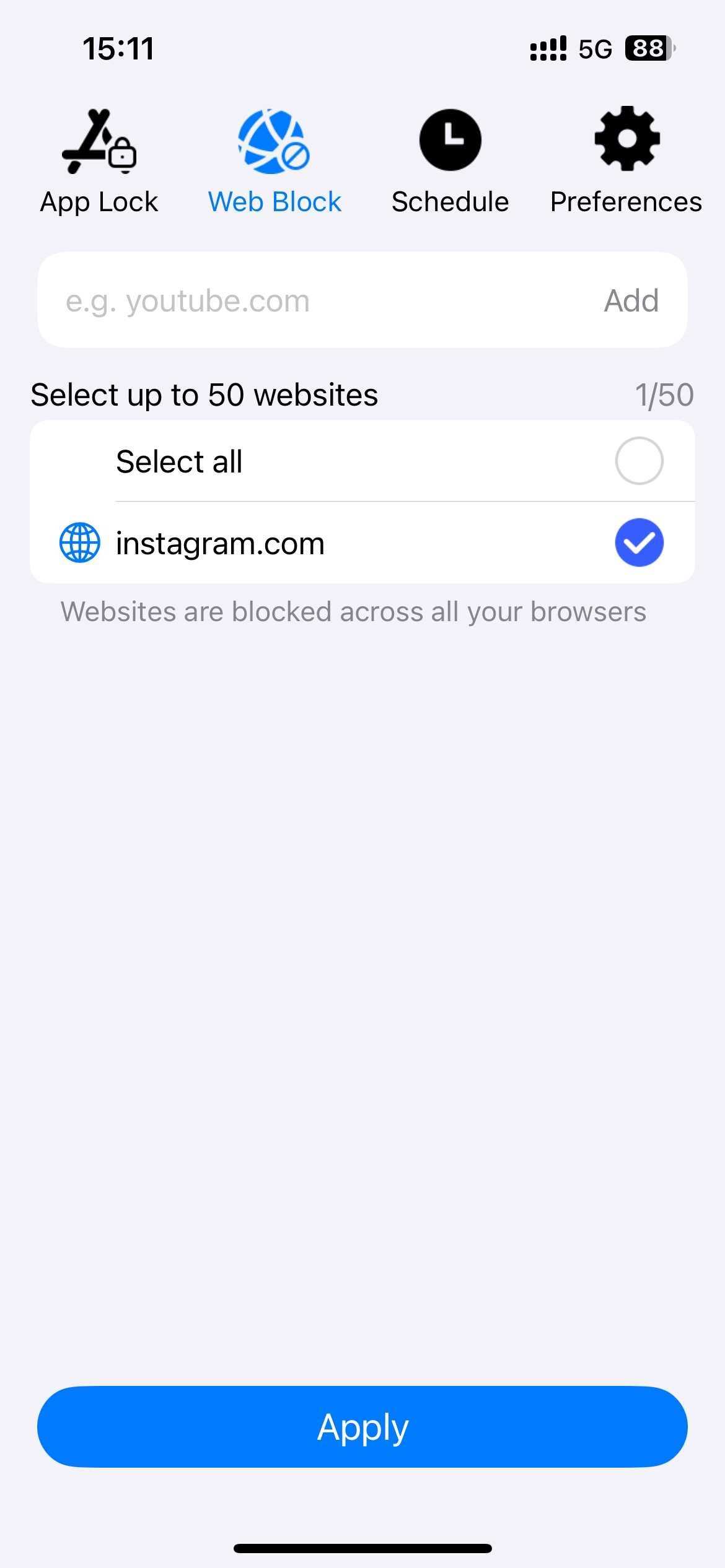
3. Click the Apply button.
Now Instagram website is blocked on your iPhone.
Block Instagram from being downloaded and installed
To prevent you or your child from getting addicted to Instagram, you may have uninstalled Instagram from the iPhone. But it can be reinstalled. You can use Cisdem AppCrypt to block new applications from being installed.
1. Open your iPhone. Make sure the Instagram app is uninstalled.
2. Open AppCrypt. Go to the Preferences tab.
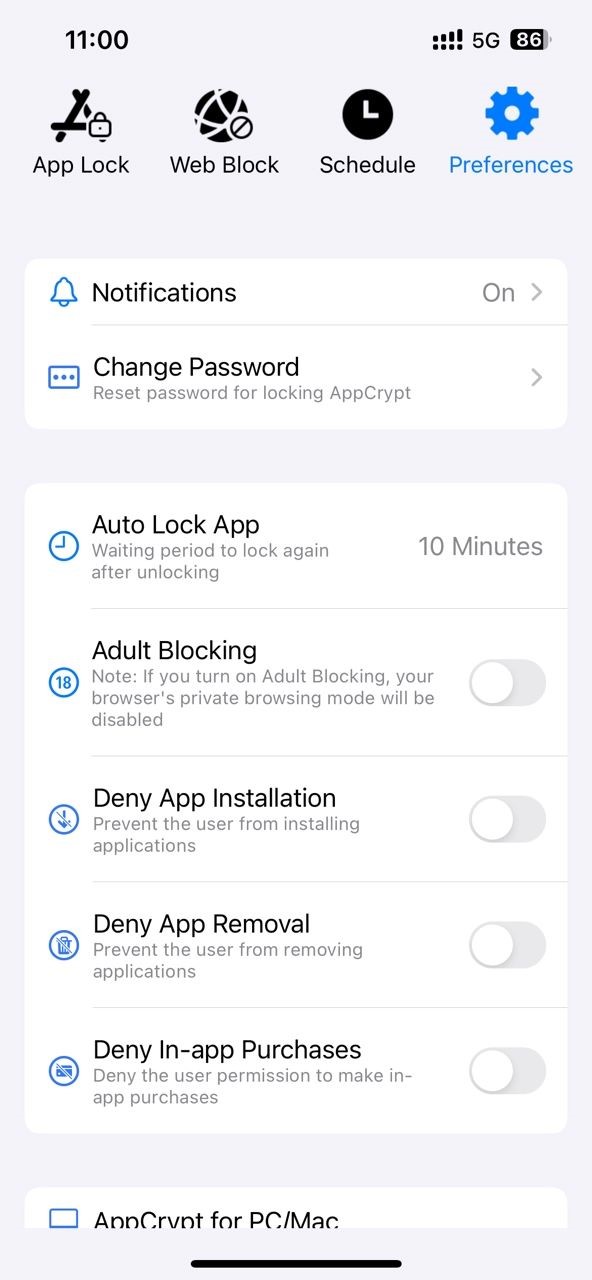
3. Turn on Deny App Installation.
Then you can't download and install any new apps on this iPhone, including Instagram.
How to block Instagram app on iPhone using App Limits
Best for: Users who prefer a built-in solution to limit the usage time of Instagram.
This method allows you to block Instagram app on iPhone by setting the maximum usage time to 1 minute per day. But it does not block it completely. Screen Time is a set of built-in features in Apple devices. iPhone users can use it to set limit on device use. It provides the App Limits feature, which can help you limit the usage time of specific apps, such as Instagram app.
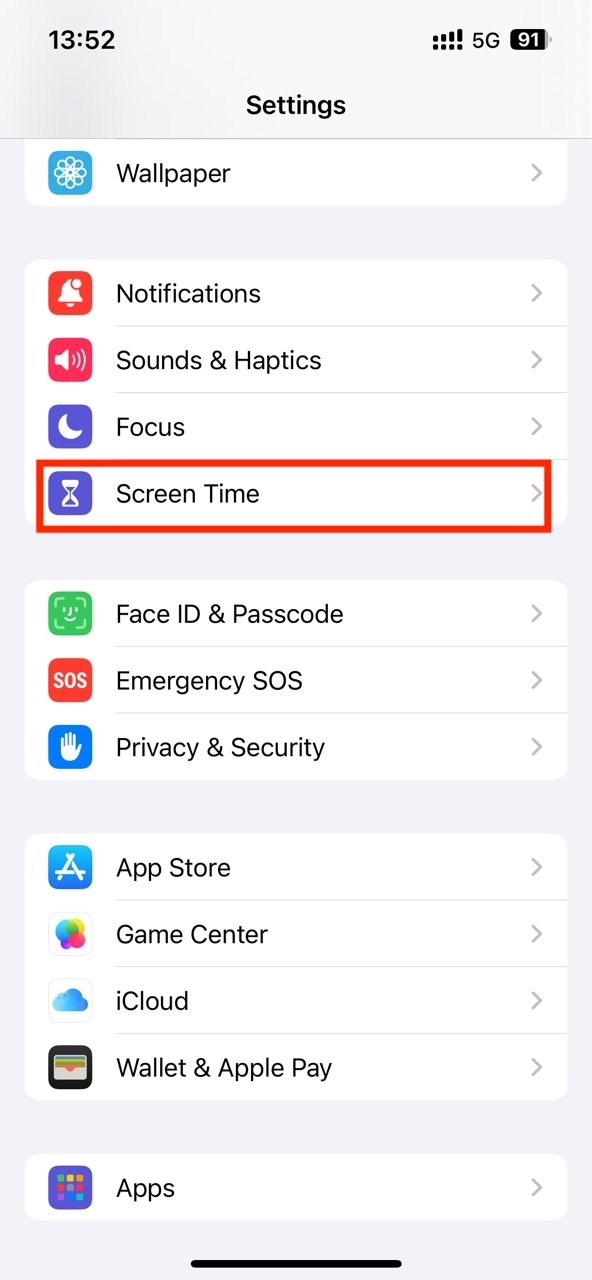
1. Open the Settings app on your iPhone. Find and select Screen Time.
2. Click Lock Screen Time Settings. You can set a password to lock your Screen Time settings.
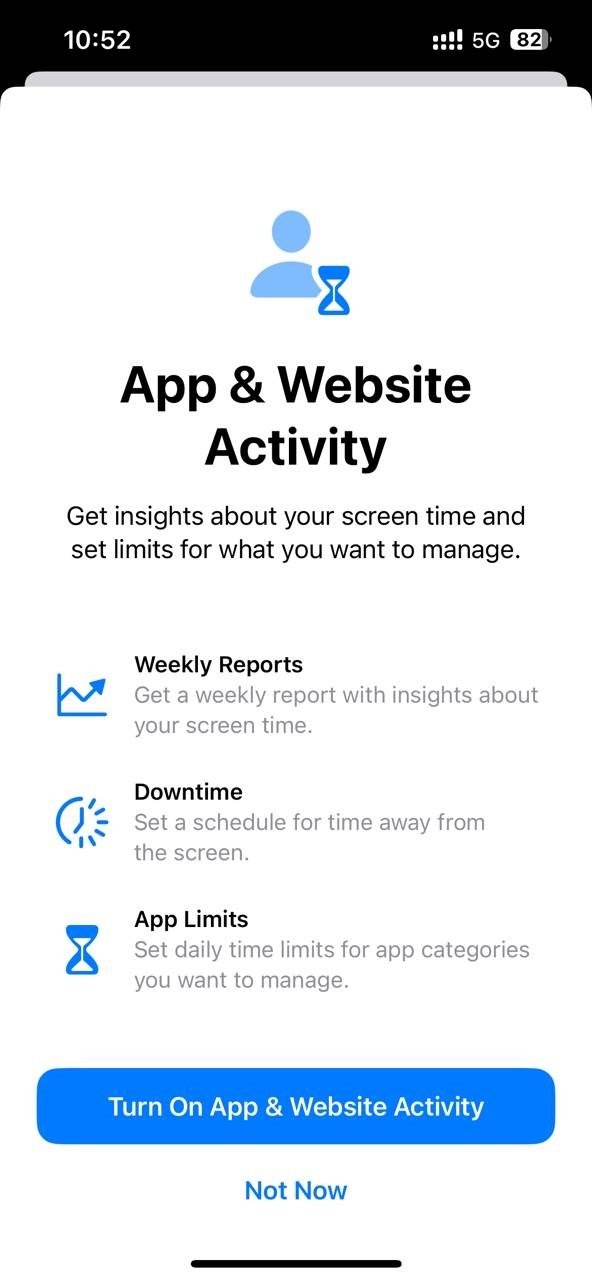
3. Click on Apps & Websites Activity. Click Turn on Apps & Websites Activity at the bottom.
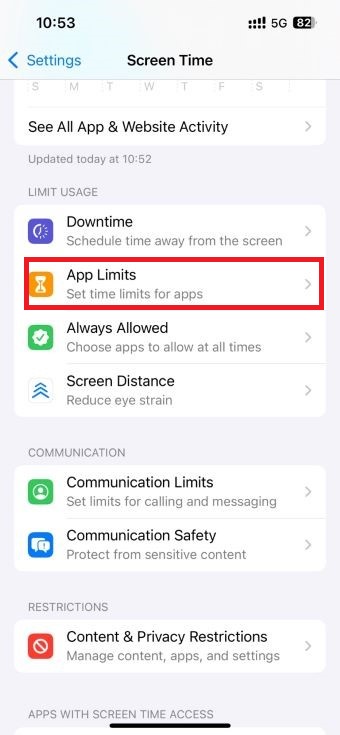
4. Under LIMIT USAGE, select the App Limits feature.
5. Click Add Limit.
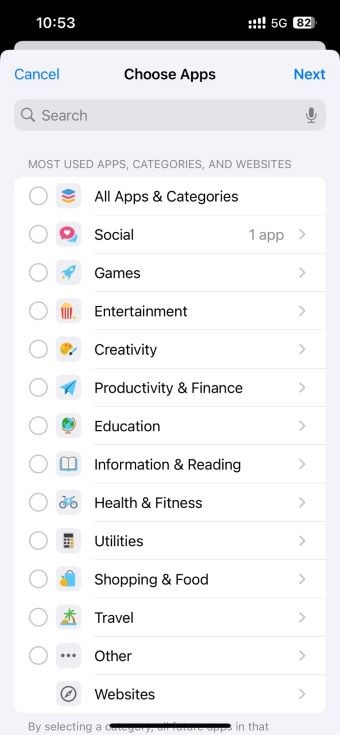
6. Then you can search for the Instagram app from the top search box. Select Instagram.
7. Click Add. Click Next.
8. On the next screen, set the time limit for Instagram to 0 hour and 1 minute per day. You can also allow more time on Instagram if you want. Click Add.
Instagram will be blocked on your iPhone after the screen time limit is reached.
How to block Instagram on iPhone using Content Restrictions
Best for: Users who want to block Instagram along with other apps and websites that may contain inappropriate content on child’s iPhone.
This method also uses Screen Time. The Content Restrictions feature in Screen Time also helps in blocking Instagram. With it, you can block the Instagram app on iPhone permanently as well as Instagram website on Safari.
Note: After following the steps below to block Instagram, most adult websites, some regular websites that may contain adult content, and all apps rated 9+ will also be blocked on your iPhone.
Block the Instagram app
1. Open Settings > Screen Time.
2. Click on Content & Privacy Restrictions.
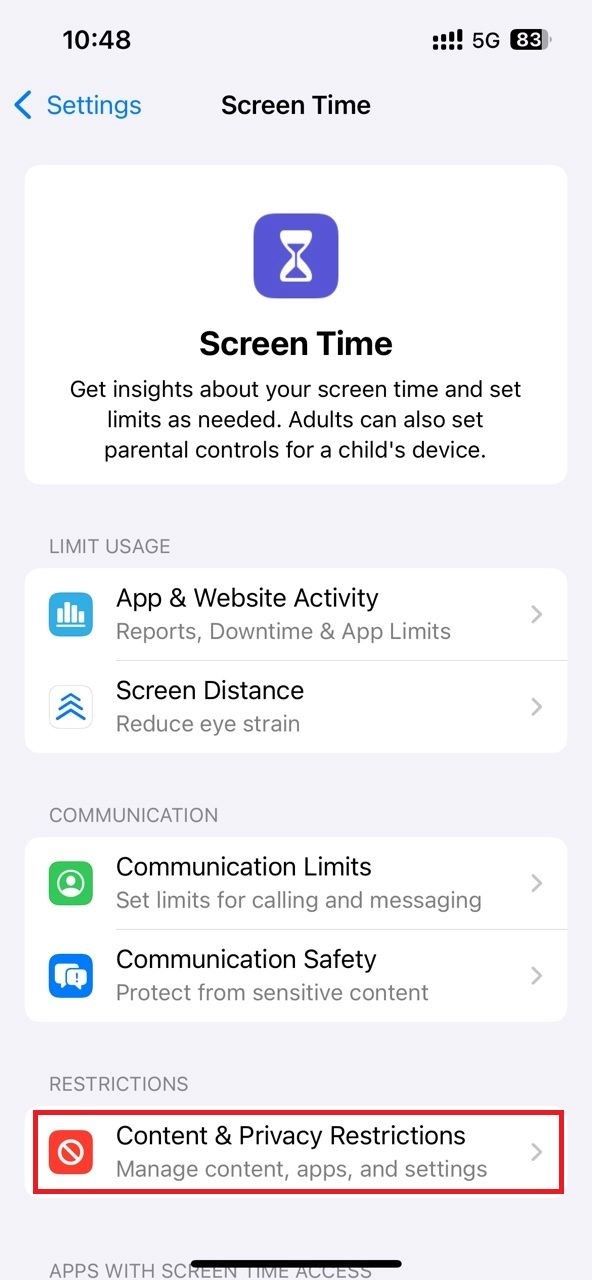
3. Turn on the feature.
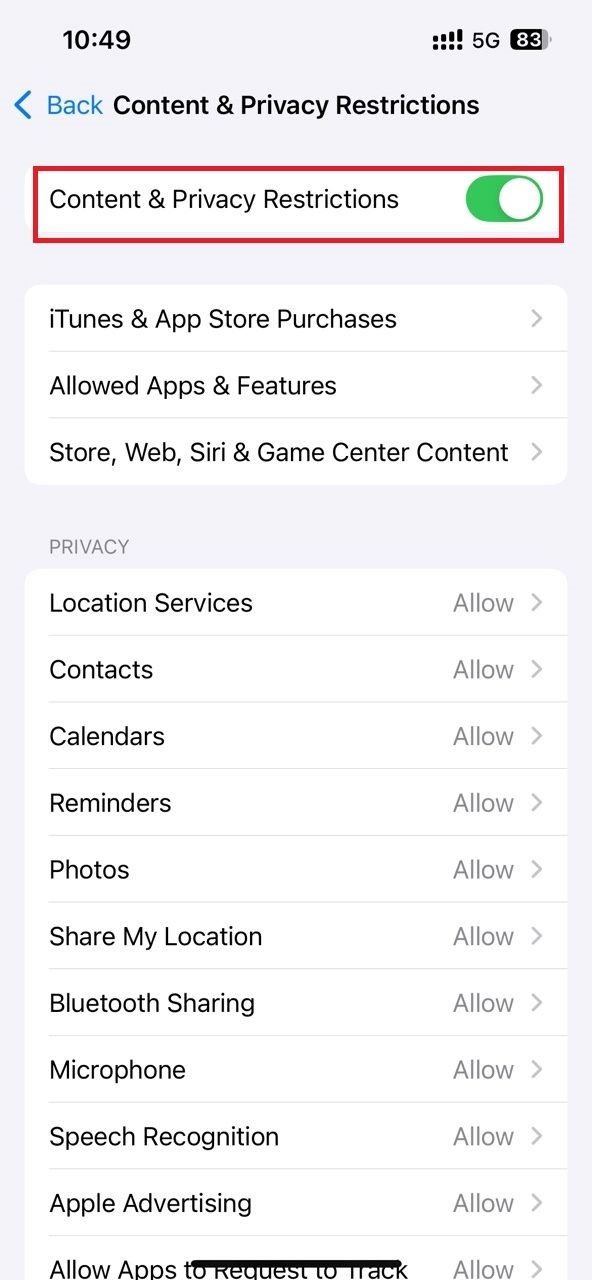
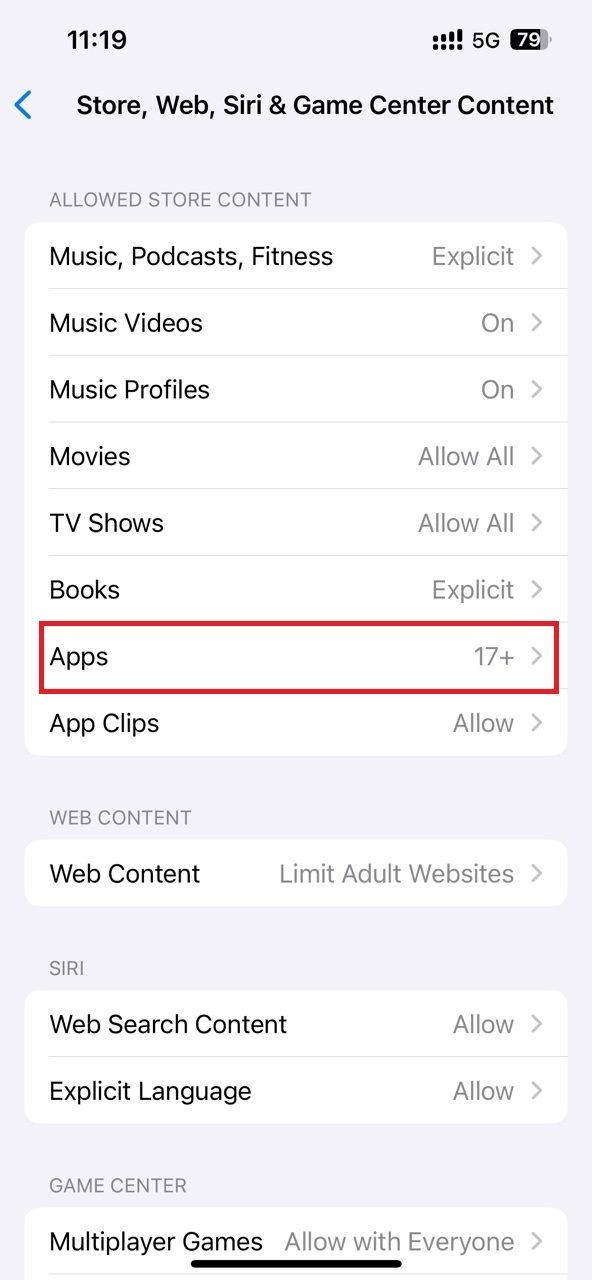
4. Under Content & Privacy Restrictions, Select Store, Web, Siri & Game Center Content.
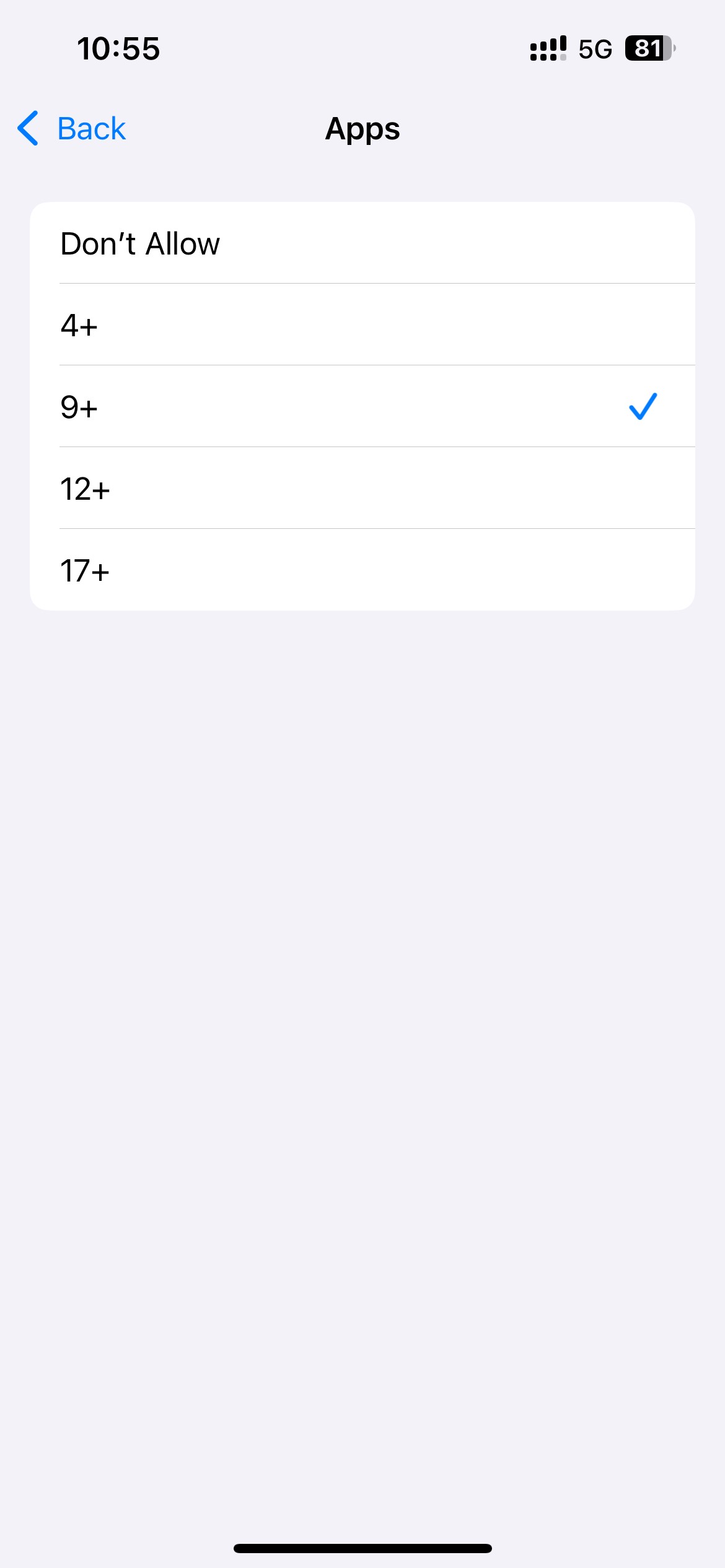
5. On the next screen, click Apps.
6. Select 9+.
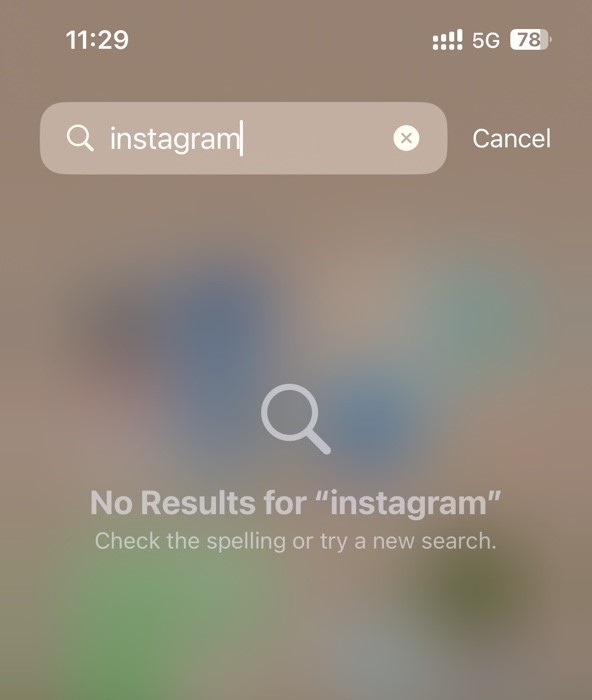
This will make all apps that are listed as 9+ in the App Store disappear from your iPhone, including Instagram. You won't even be able to find it in the App Library.
Block the Instagram website (on Safari)
To block instagram.com on Safari on iPhone using this feature:
1. Complete steps 1-4 of the above method.
2. On the Store, Web, Siri & Game Center Content screen, select Web Content.
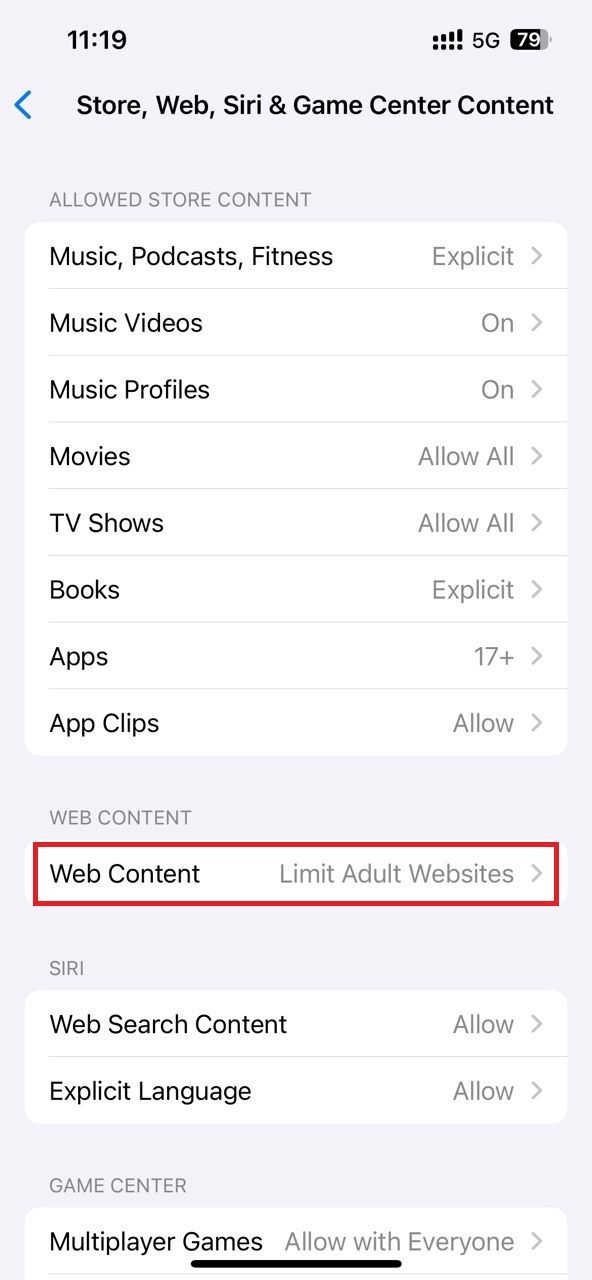
3. Select Limit Adult Websites.
4. Click the Add Website button under NEVER ALLOW.
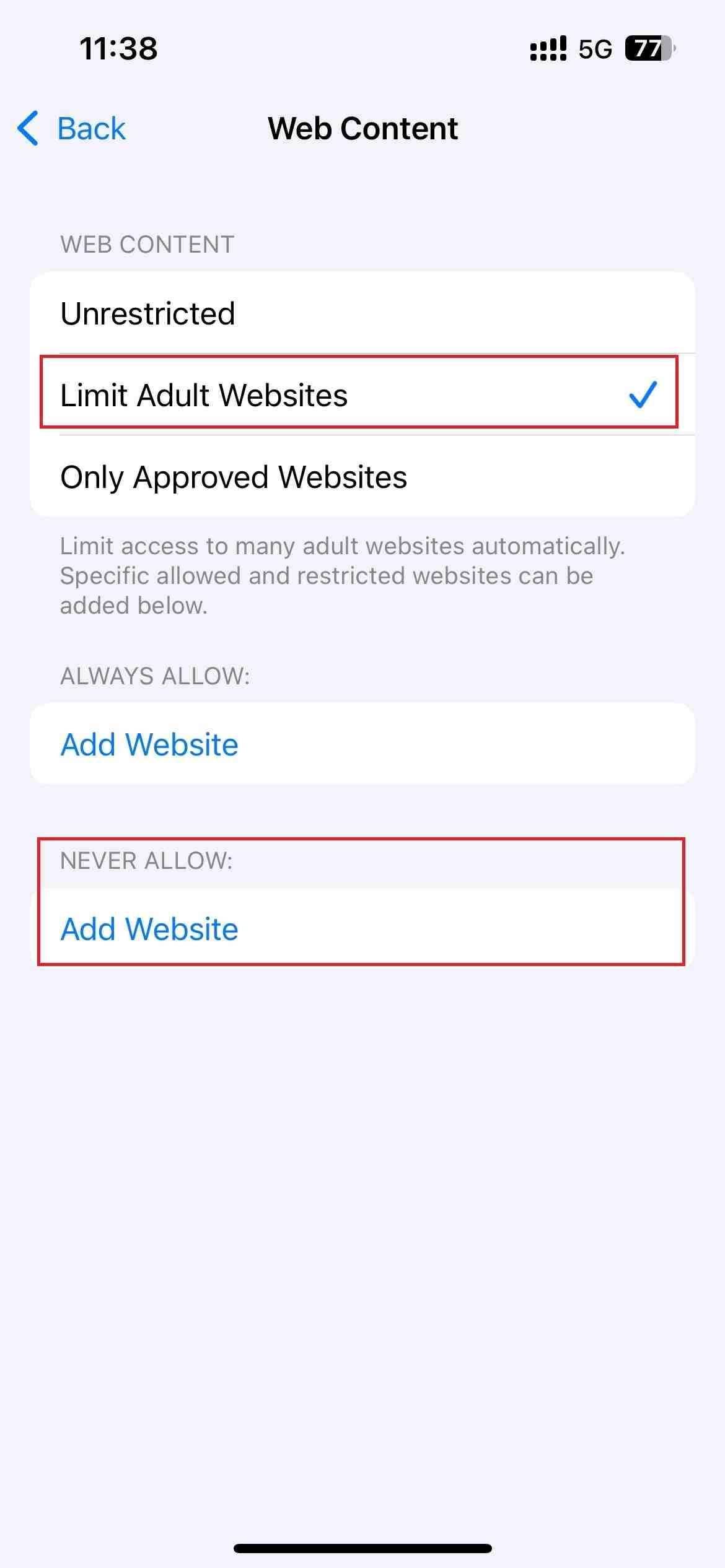
5. On the next screen, type instagram.com into the URL field.
6. Click Done.
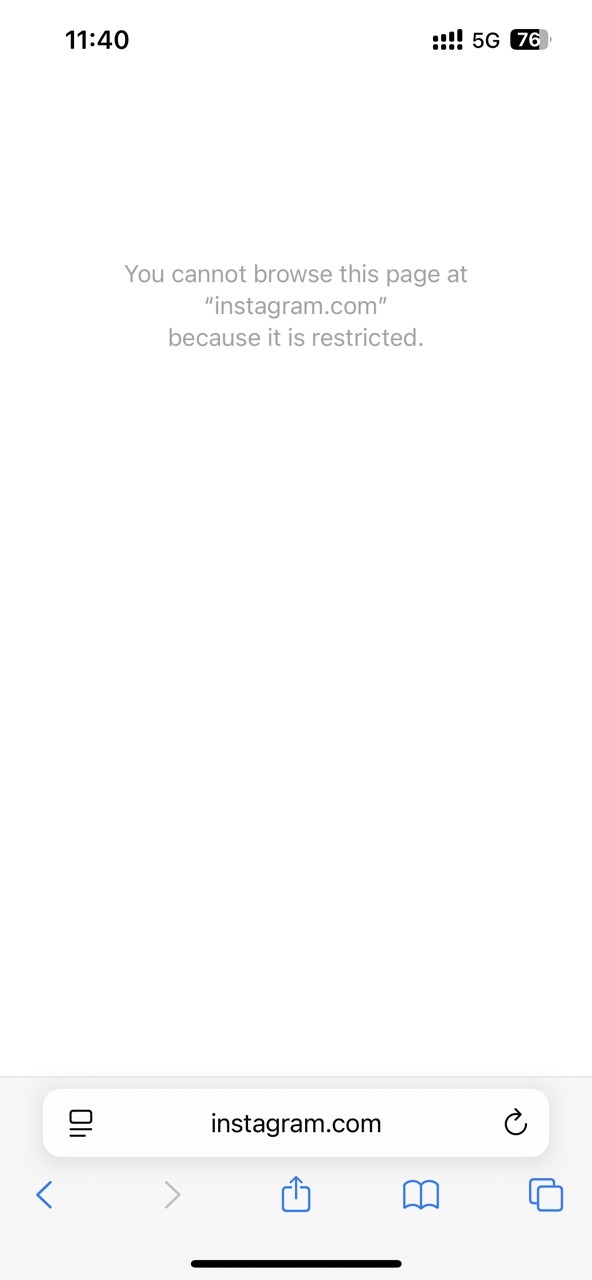
Now Instagram website is blocked on Safari on iPhone. If you try to access this site, it'll display a page saying it is restricted.
Conclusion
Like other social media apps and websites, Instagram is distracting and addictive. Even if you uninstall it from your iPhone, it can be easily reinstalled. For users with less self-control, it is better to block it completely. This article discusses how to block Instagram on iPhone using different methods. Method 1 is more recommended. As it can help you block Instagram app permanently or at certain times, as well as blocking instagram.com on all popular browsers on your iPhone. If you choose to uninstall Instagram from your iPhone, it can also prevent you from reinstalling it.

Norah Hayes likes to share her tips on how to improve focus and stay motivated at work. She believes it is essential to eliminate all online distractions during work hours.

Ethan Long joined Cisdem in 2015 as a developer and now serves as the editorial advisor for Cisdem AppCrypt. He actively tests and uses Cisdem AppCrypt and other screen-time management tools to ensure AppCrypt meets its promises in real-world scenarios.