


How to Block a Website During Certain Hours (4 Easy Methods)
 121
121
 0
0


There are many ways to block websites completely, but sometimes you may need to restrict access to a website only during certain hours. For example: block YouTube during work hours, prevent kids from visiting games sites during study time, bed time. This guide shows several ways to block a websites during certain hours easily.
 Cisdem AppCrypt
The Best Website Blocker With Scheduling
- Block websites on Chrome, Safari, and more with a password
- Block specific sites or only pages, URLs with certain keywords, and categories (e.g. social media, adult, etc.)
- Block all websites except the ones you allow
- Lock apps with a password
- Block websites and lock apps 24/7 or during scheduled times
- Easy to use
- Hard to bypass
- Help with productivity, parental control, and screen time control


Method 1: Use a Website Blocker with Scheduling
To block a website during certain hours, using a website blocker with scheduling is the most flexible and quick way. Cisdem AppCrypt is such an app. With this website blocker, you are able to:
- Block a specific website during certain hours of the day.
- Block a category of sites during certain hours, such as games sites, porn sites.
- Create custom schedules for different websites.
- Create different blocking schedules for weekdays, weekends, or custom days.
- Block websites across all major browsers.
- Automatically block websites when your computer starts up.
- Password-protect your settings.
Steps to block a website during certain hours with AppCrypt on computer:
1. Download and install Cisdem AppCrypt.
 Free Download Windows 10 or later
  Free Download macOS 10.15 or later
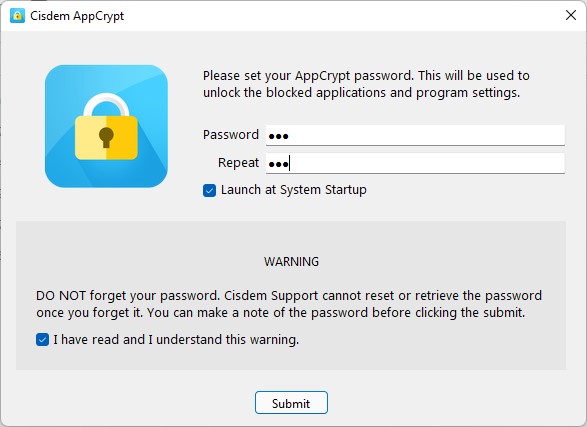
2. Launch the app. Set a password when prompted.
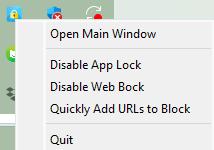
3. Right-click on the lock icon in the taskbar or menu bar. Choose Open Main Window.
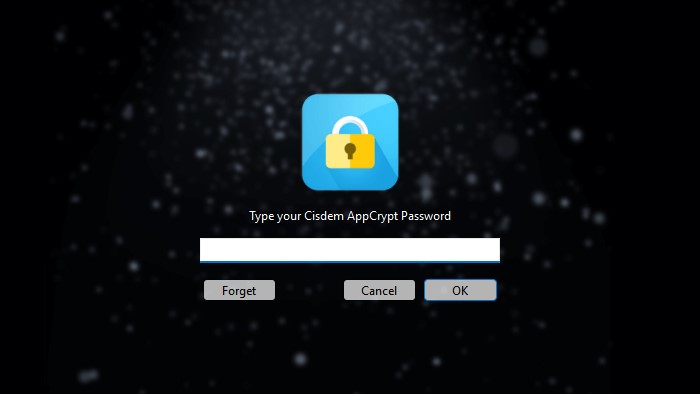
4. Enter the password to access the main window.
5. Go to the Web Block tab.
(Windows users need to install extensions as prompts when first navigate to the Web Block tab.)
6. Enter the URL of the website you want to block. Click Add.
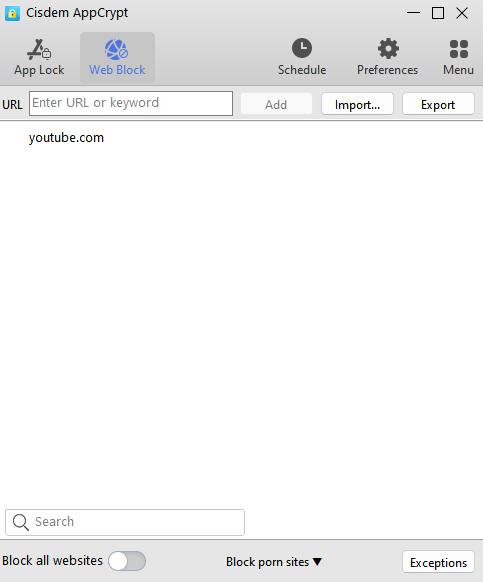
7. Select the website from the block list. Click the clock icon that appears next to it.
8. Enable Custom Schedule. Select the days when you want the blocking rule to apply. Set the start time and end time.
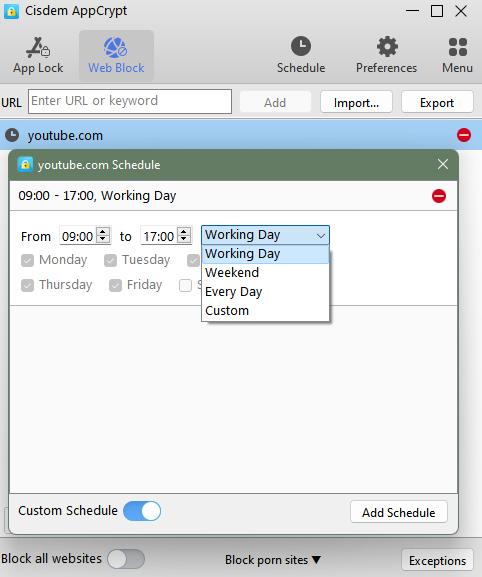
AppCrypt will automatically block the website during the specified hours.
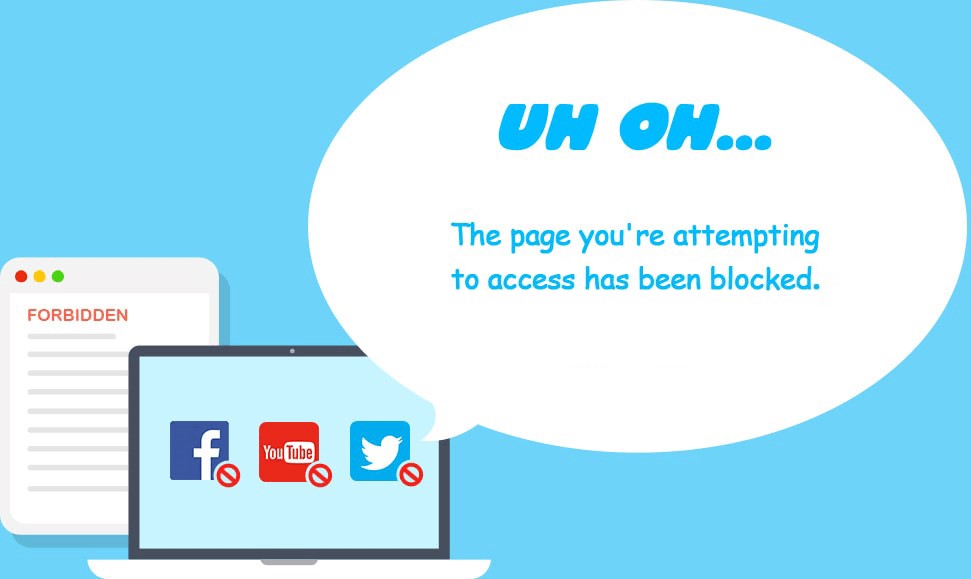
Tip: Instead of setting up schedule for a specific website, you can also create a general schedule that applies to all blocked websites. Simply click Schedule in the toolbar. Set your desired blocking time.
Pros:
- Easy to set up.
- Highly customizable schedules.
- Harder to bypass.
- Works with Chrome, Edge, Safari, Opera, and other browsers.
- Available for both computers and mobile devices.
- Suitable for both productivity and parental control.
Cons:
- Requires installing third-party software.
Method 2: Use Screen Time on Apple Devices
If you use an iPhone, iPad, or Mac, you can also use the built-in Screen Time feature to block a website during certain hours. Unlike a professional website blocker, it lacks some flexible features. But for users who are not willing to installing third-party tools, Screen Time is a good option.
Steps to block a website during certain hours with Screen Time on iPhone or iPad:
1. Open the Settings app.
2. Scroll down to find Screen Time. Click it.
3. Click App & Website Activity. Turn on it.
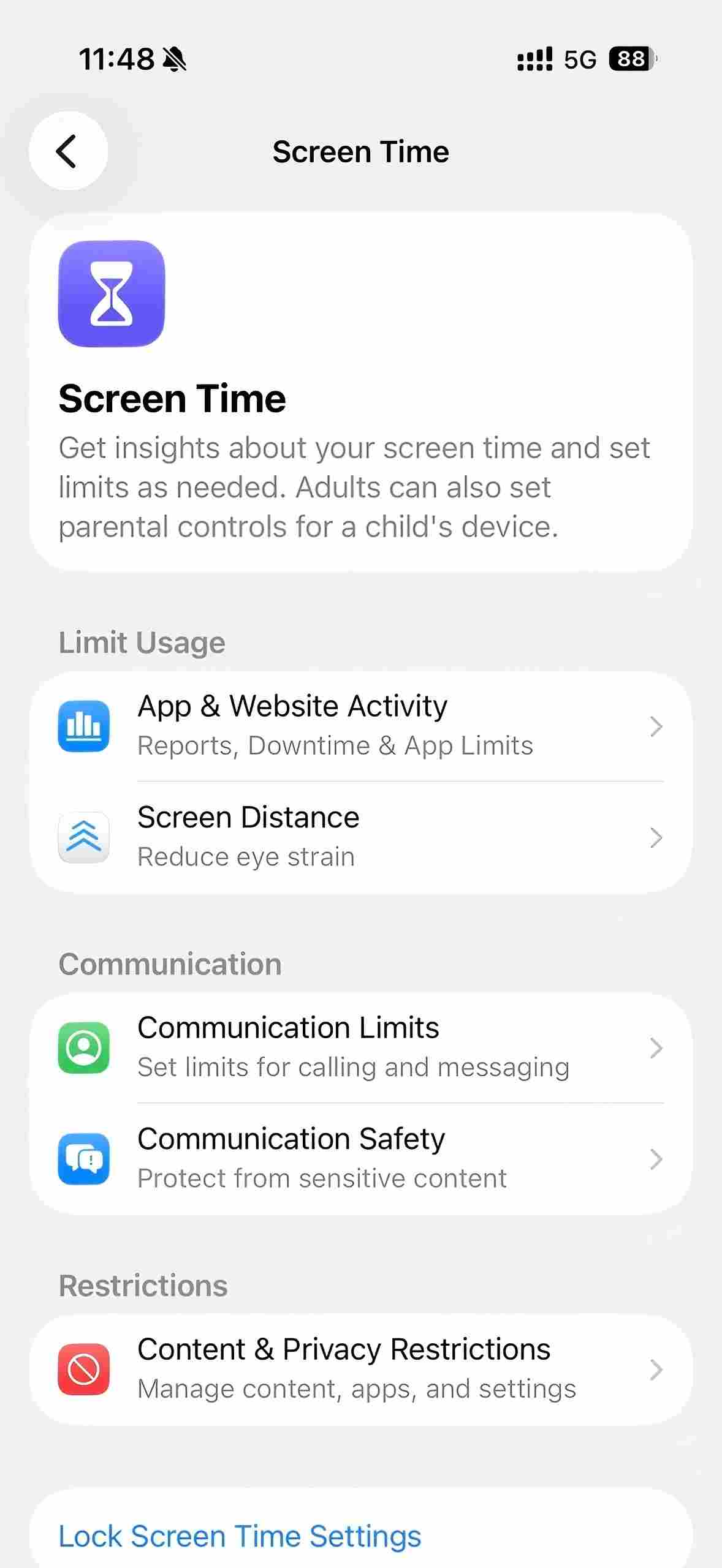
4. Under Limit Usage, Select Downtime.
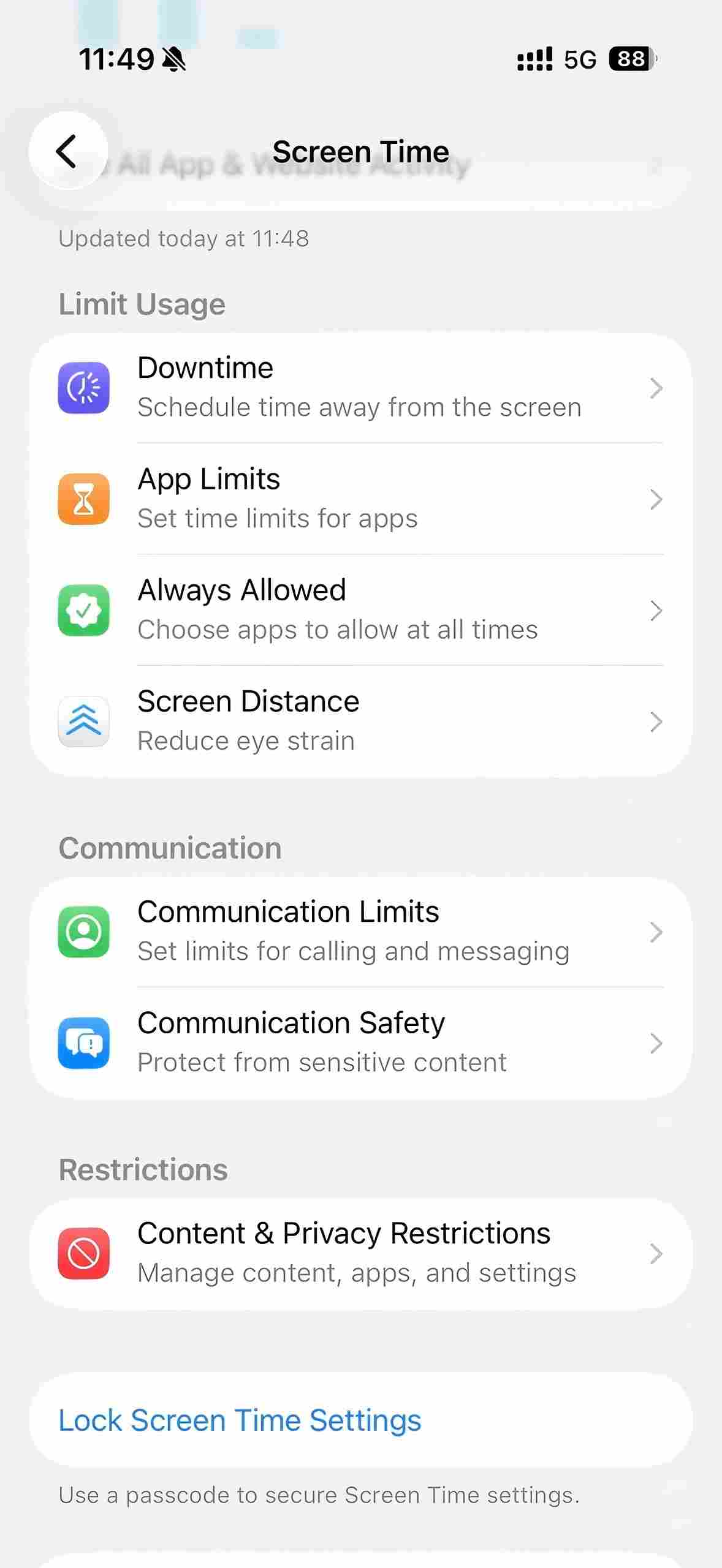
5. Turn on Scheduled. Set the blocking time according to your needs.
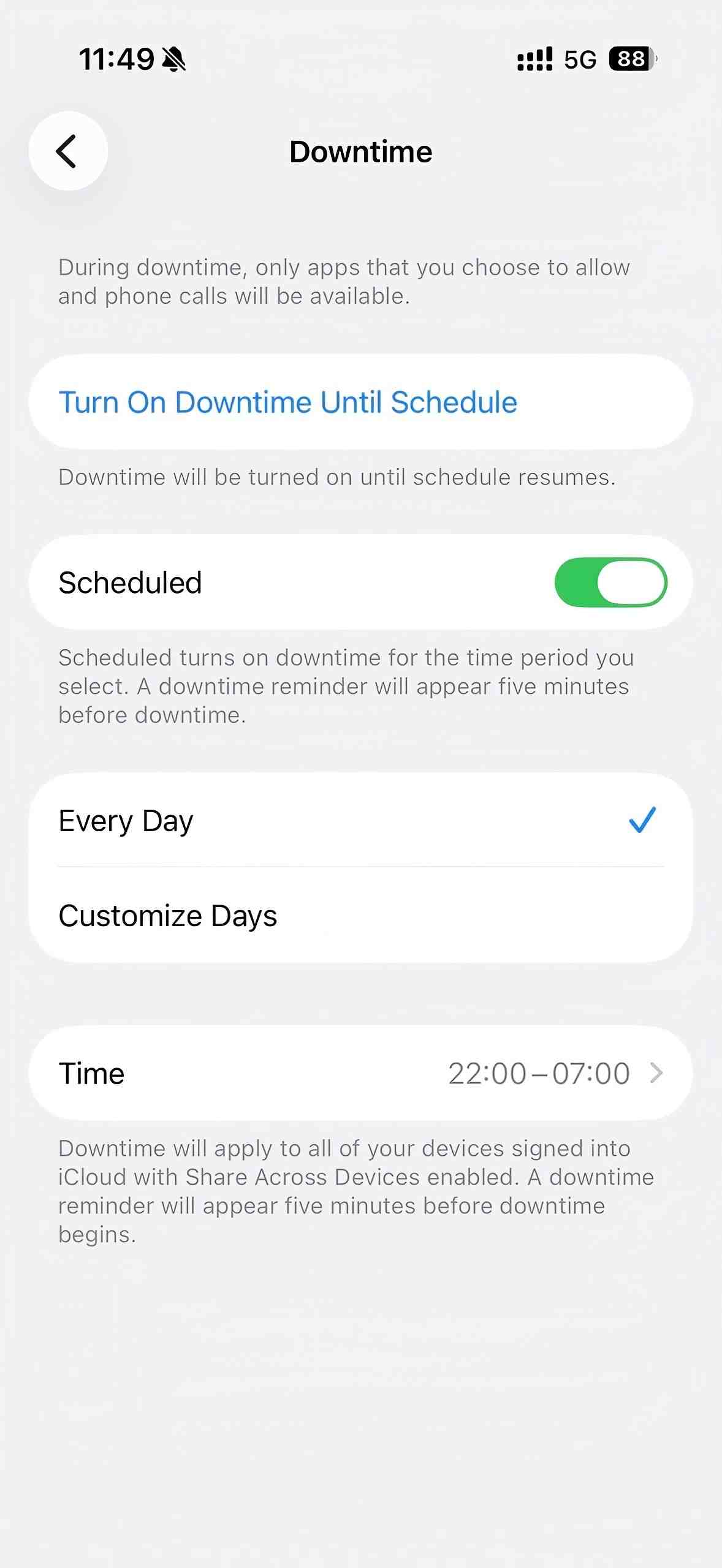
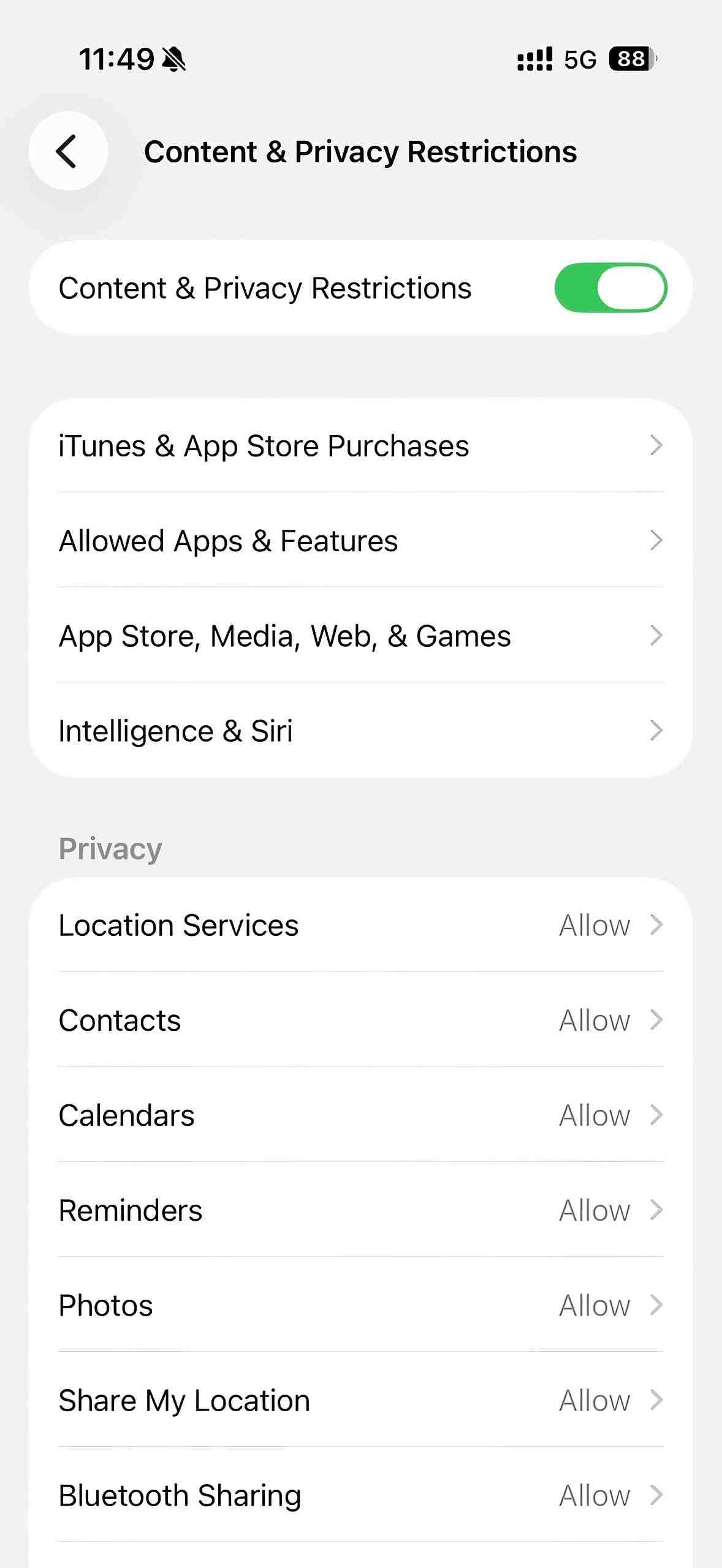
6. Return to the Screen Time menu. Click Content & Privacy Restrictions. Enable the feature.
7. Click App Store, Media, Web & Games > Web Content.
8. Choose Limit Adult Websites.
9. Under Never Allow, add the website you want to block.
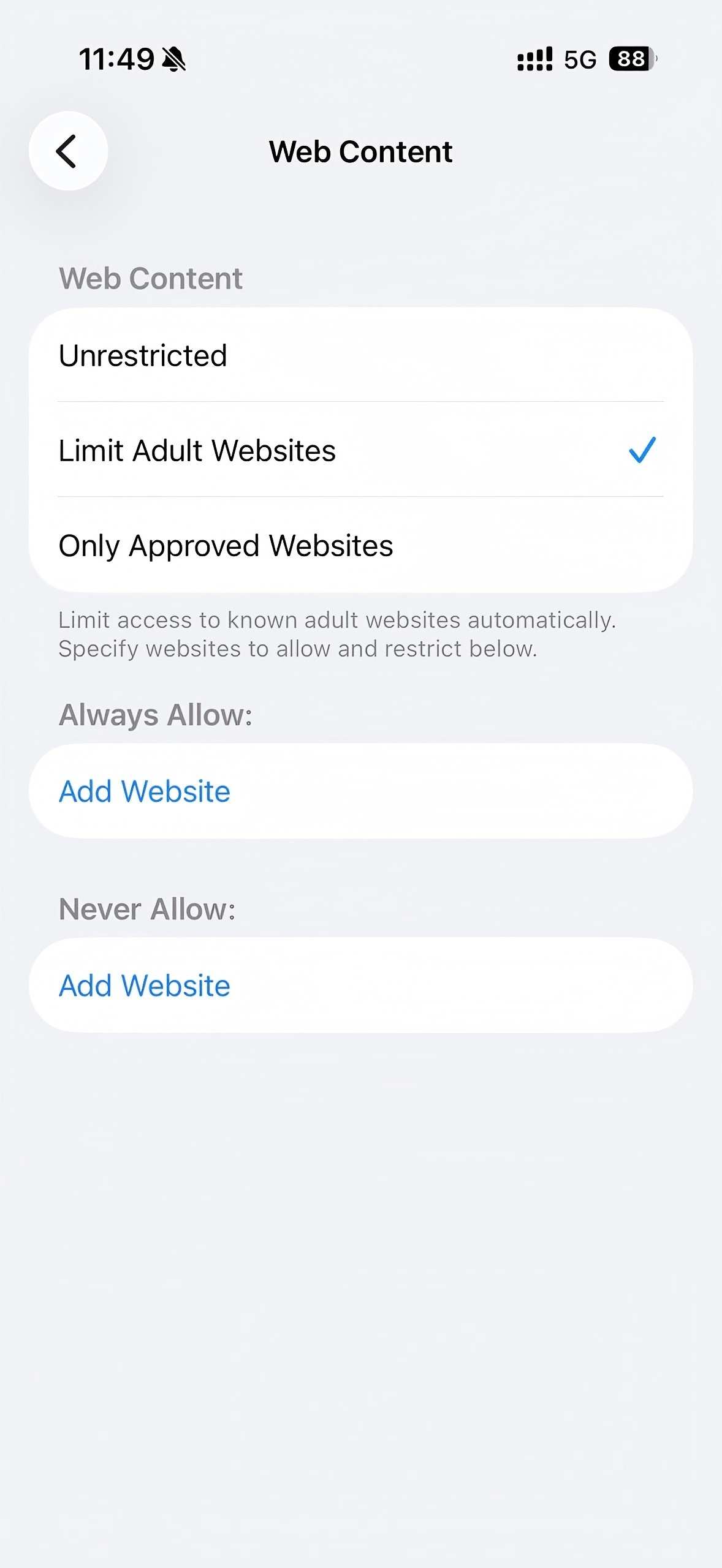
The selected websites will be accessible during the Downtime you set.
Pros:
- Built into iOS, iPadOS, and macOS.
- Free to use.
- No additional apps required.
- Useful for parental controls.
Cons:
- No advanced features.
- Can be bypassed easily.
- Only works on Apple devices.
Method 3: Use a Browser Extension
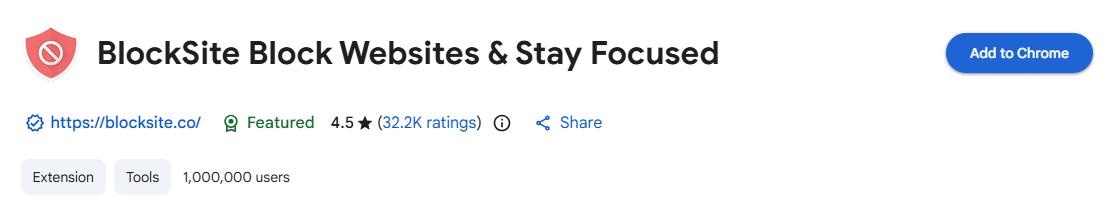
If you only need to block a website during certain hours in a specific browser, you can use a website blocker extension with scheduling. BlockSite is such an extension that allows you to block websites and create schedules. It’s available for Chrome, Firefox, and Edge browsers.
Steps to block a website during certain hours with BlockSite on Chrome:
1. Open the Chrome Web Store.
2. Search for BlockSite and install the extension.
3. Click the Extensions icon in the browser toolbar. Select BlockSite.
4. Sign in or create an account when prompted.
5. Click Block Sites > Add to Block List.
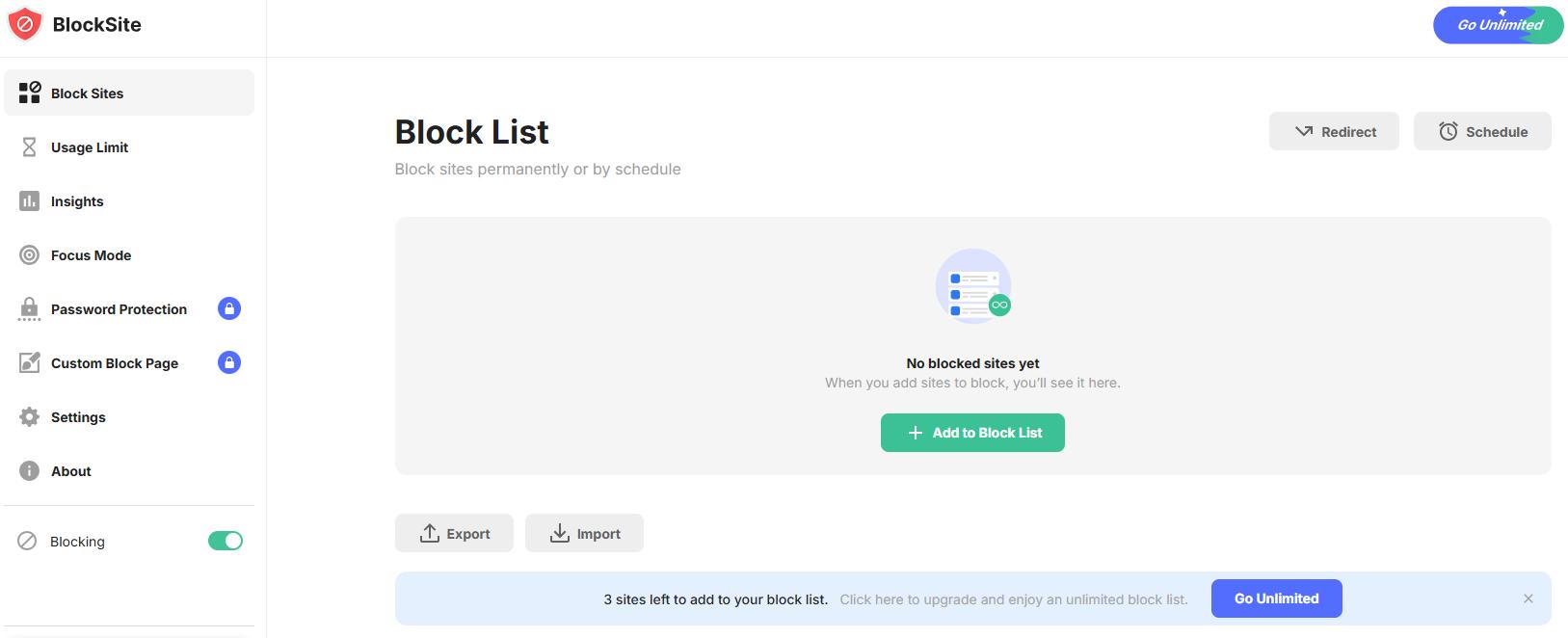
5. Click the Websites tab. Add the website you want to block.
6. Click Done.
7. Go back to the Block List. Click Schedule in the upper-right corner.
8. Set the days and hours when you want the website to be blocked.
9. Click Set Schedule to save your settings.
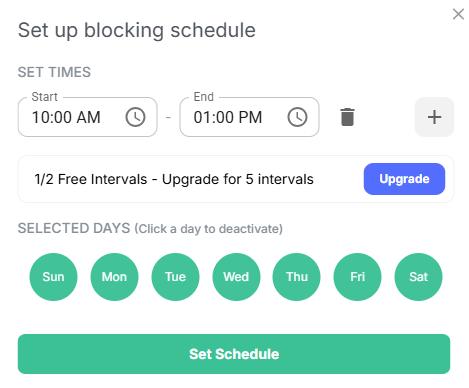
BlockSite will automatically restrict access to the selected website during the scheduled times.
Pros:
- Easy to install and use.
- Supports scheduled website blocking.
- Works with Chrome, Firefox, and Edge.
Cons:
- The free version allows only 3 blocked websites and 2 schedules.
- Only works in browsers where the extension is installed.
- Easy to bypass by disabling or uninstalling the extension.
- Advanced features require a premium subscription.
Method 4: Use Router Controls
If you want to block a website during certain hours for everyone on your network, router controls is a good option. Many routers allow you to restrict access to certain websites and and apply schedules to them.
Steps to block a website during certain hours with router controls:
1. Open a web browser. Log in to your router's administrator page.
2. Find the Parental Controls, Access Control, Website Filtering, or similar section.
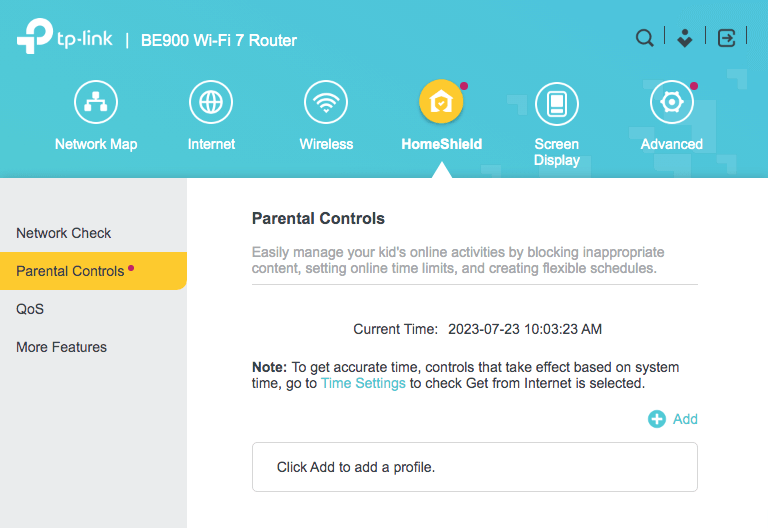
3. Add the website you want to block.
4. Find the Schedule section. Create a schedule and specify the days and hours when you want the website to be blocked.
5. Save the settings.
6. Restart the router.
The router will automatically block access to the specified websites during the scheduled times on all connected devices.
Pros:
- Works across all devices connected to the network.
- No need to set schedules on individual devices.
- Suitable for families and schools.
Cons:
- Setup steps vary by router model.
- Some routers don't support scheduled website blocking.
- The blocking only works when devices are connected to that network.
Which Method Is Best?
Not sure which method is best? The table below compares the four methods covered in this guide.
| Method | Schedule Flexibility | Works on | Easy to Setup | Hard to Bypass | Best For |
|---|---|---|---|---|---|
| Website Blocker with Scheduling | ⭐⭐⭐⭐⭐ | Windows, Mac, Android, iPhone, iPad | ⭐⭐⭐⭐⭐ | ⭐⭐⭐⭐⭐ | Flexible scheduling with password protection |
| Screen Time on Apple Devices | ⭐⭐⭐ | Mac, iPhone, iPad | ⭐⭐⭐⭐ | ⭐⭐⭐ | Apple users who want a built-in solution |
| Browser Extension | ⭐⭐⭐⭐ | Single browser only | ⭐⭐⭐⭐⭐ | ⭐⭐ | Users who only need browser-level blocking |
| Router Controls | ⭐⭐⭐ | All devices on the network | ⭐⭐⭐ | ⭐⭐⭐⭐ | Families and schools |
Conclusion
Blocking websites during certain hours can help you stay focused, reduce distractions, and manage screen time more effectively. This article introduced several ways to do it.
If you need the most flexibility, such as creating different schedules for different websites, block a category of websites during certain hours, and preventing unauthorized changes, a dedicated website blocker with scheduling - Cisdem AppCrypt is the best choice.

Norah Hayes likes to share her tips on how to improve focus and stay motivated at work. She believes it is essential to eliminate all online distractions during work hours.

Ethan Long joined Cisdem in 2015 as a developer and now serves as the editorial advisor for Cisdem AppCrypt. He actively tests and uses Cisdem AppCrypt and other screen-time management tools to ensure AppCrypt meets its promises in real-world scenarios.