


How to Find Duplicate RAW Images on Computer and Phone Quickly
 459
459
 0
0


Key Takeaway
You may have multiple copies of the same RAW photo. You may also have both RAW and JPEG versions of the same photo. A duplicate raw photo finder can help you easily remove unwanted photo copies and versions.
I am a photography enthusiast and sometimes use both RAW and JPEG formats to store photos. I import them to my computer to keep and also create backups on my external hard drive. However, duplicates accumulate over time, decluttering my photo library and taking up storage space. After removing unnecessary duplicates, I find it more efficient to browse and manage my library.
In this article, I will share the methods I explored and tested, including using a third-party duplicate finder and features built in to computers or phones.
 Cisdem Duplicate Finder
The Best Duplicate RAW Photo Finder
- Identify duplicate photos (along with all other duplicate files), with support for all formats, including RAW ones
- Detect similar images too, helping you find RAW and JPEG copies of the same photo
- Support Windows PC, Mac, phones, external storage devices, and cloud drives
- Find duplicates in folders, Mac's Photos, and more
- Display duplicates for you to preview side by side
- Delete all duplicates at once with automatic duplicate selections
- Bulk remove either RAW or JPEG copies of your photos with selection rules
- Easy to use and customize


Use a professional duplicate RAW image finder
Duplicate RAW images are exactly identical, regardless of their file names. If you have many duplicates on your device, I recommend using Cisdem Duplicate Finder, which is a professional and easy-to-use duplicate RAW photo finder for Windows, Mac, Android, and iOS devices.
Regarding handling duplicate RAW photos, Cisdem Duplicate Finder provides the following features and benefits:
- Has robust support for RAW image formats, such as CR2, CR3, NEF, ARW, RAF, and DNG
- Automatically finds duplicate RAW photos and selects duplicates for one-click deletion while keeping original files unselected
- Automatically finds RAW and JPEG versions of the same picture and helps you mass select unwanted versions for deletion
- Easy to use for everyone
- Provides enough customization options
Below I'll show you how to use this duplicate RAW image finder on computers and phones.
On Windows and Mac
1. Download and install Cisdem Duplicate Finder on your computer. Open this app.
 Free Download Windows 10 or later
  Free Download macOS 10.11 or later
2. Add one or more folders (or Photos libraries if you are a Mac user) to scan. You can also drag and drop folders or drives directly into the scan area.

Click the Settings button  in the top right corner, go to Similar images, then make sure Enable similar images function is turned on.
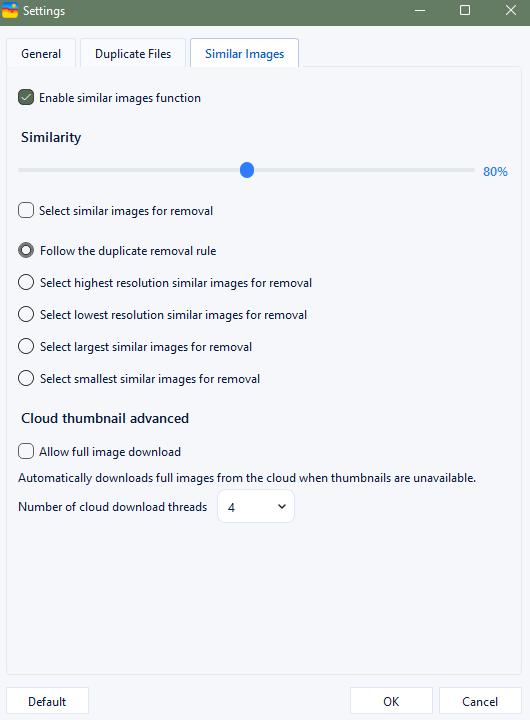
Click Scan Now.
3. Wait for it to complete the scan. View and compare the found duplicate RAW images in the result window.
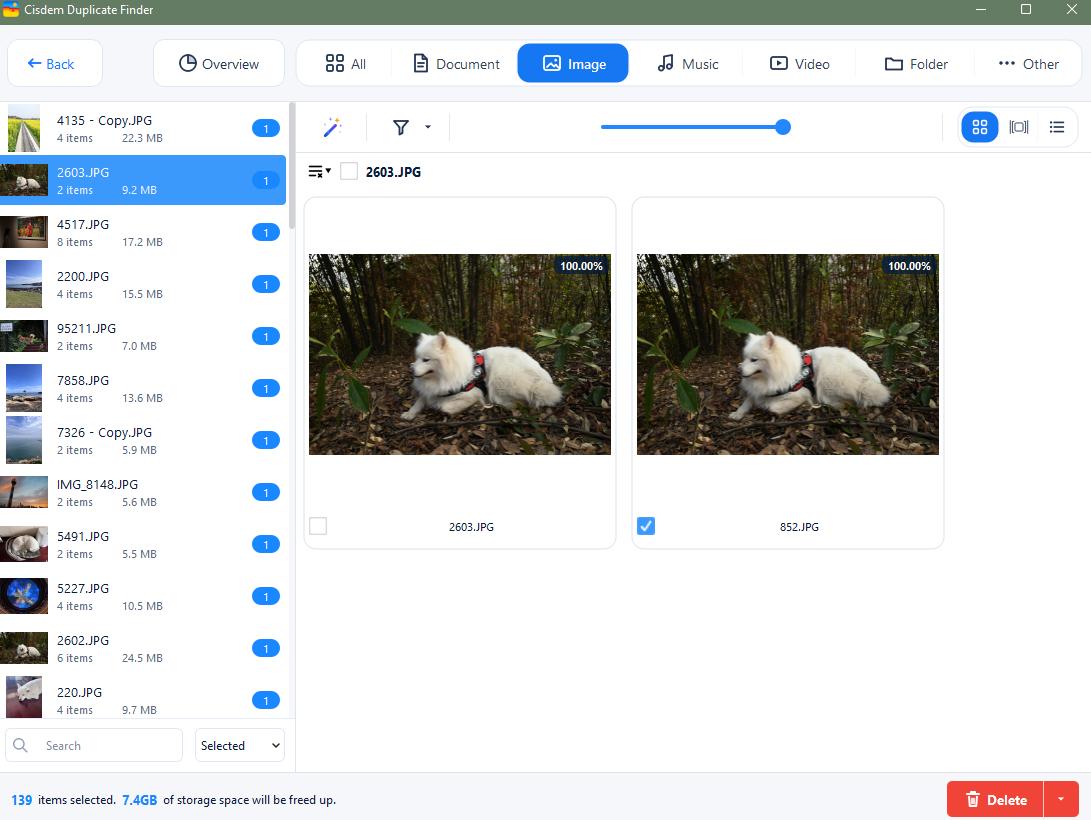
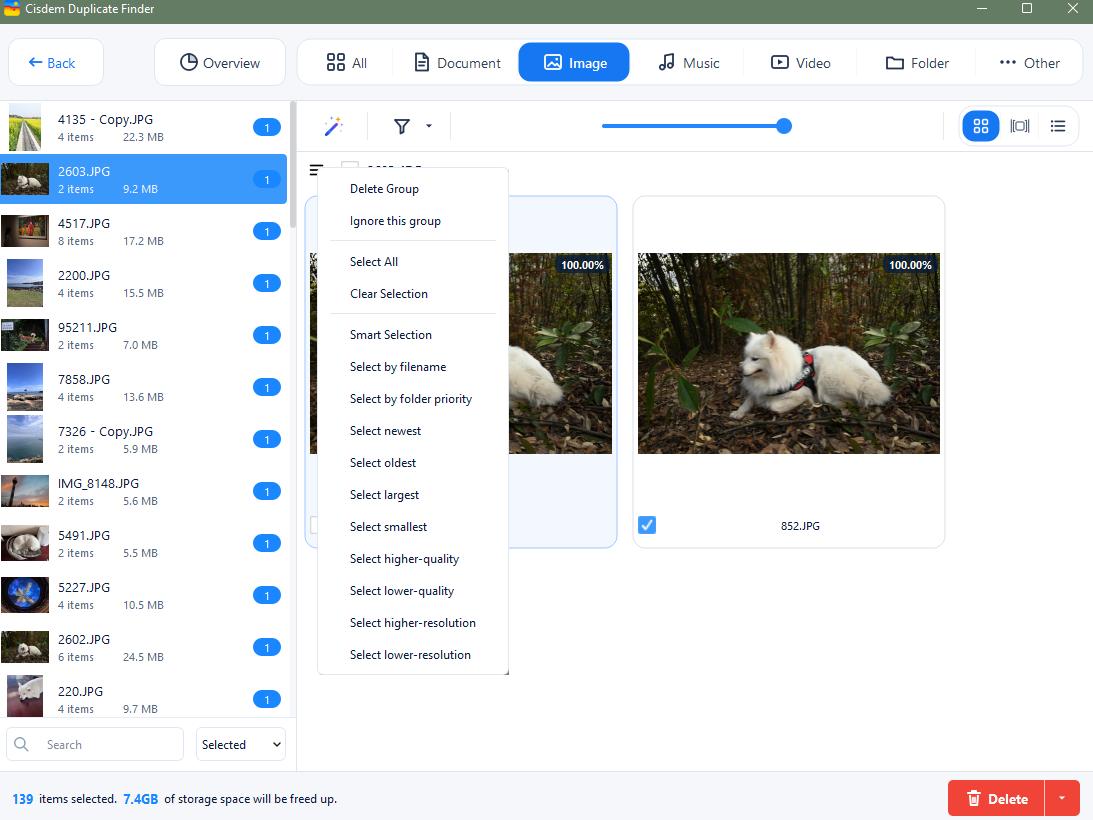
4. It has already selected duplicates for removal automatically. You can also use the selection rules. Or manually select unwanted images to delete one by one.
5. Click Delete.
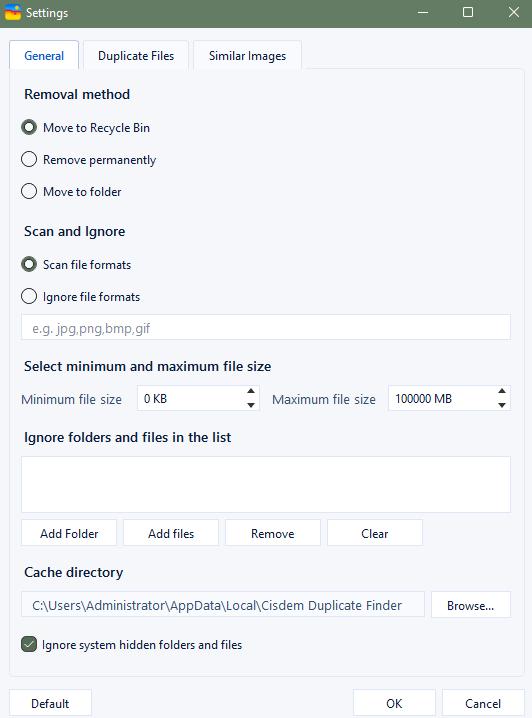
By default, the deleted RAW images will be moved to Recycle Bin on Windows/Trash on Mac. You can also go to Settings of this duplicate RAW image finder to set up other remove method: Remove permanently or Move to folder.
Tip 1
Now that you've deleted duplicate RAW photos, if you still see some photos in the result window, they are similar photos, including RAW and JPEG versions of the same photo (if any). In such a case, if needed, you can use the Select high-quality (or Select low-quality) rule to mass select RAW (or JPEG) versions for deletion.
Tip 2
What if you want to handle RAW photos only and ignore all other photos and files? You can set this duplicate finder to only find RAW image files in step 2. In Settings > General > Support or Ignore, select Scan only file formats, then enter RAW formats, such as cr2, cr3, nef, arw, and raf. Click OK.
For Android
On Android phone, this duplicate RAW photo finder can help you find duplicate RAW images and other types of duplicate images quickly. It also identifies duplicate videos, audios, documents, etc. on your phone.
1. Download and install Cisdem Duplicate Finder for free through the Google Play Store. Open it.

2. This step is optional: click the Gear icon in the upper right corner to open Settings. Click Scan file type. Select Image and deselect others. Let it scan only duplicate images.
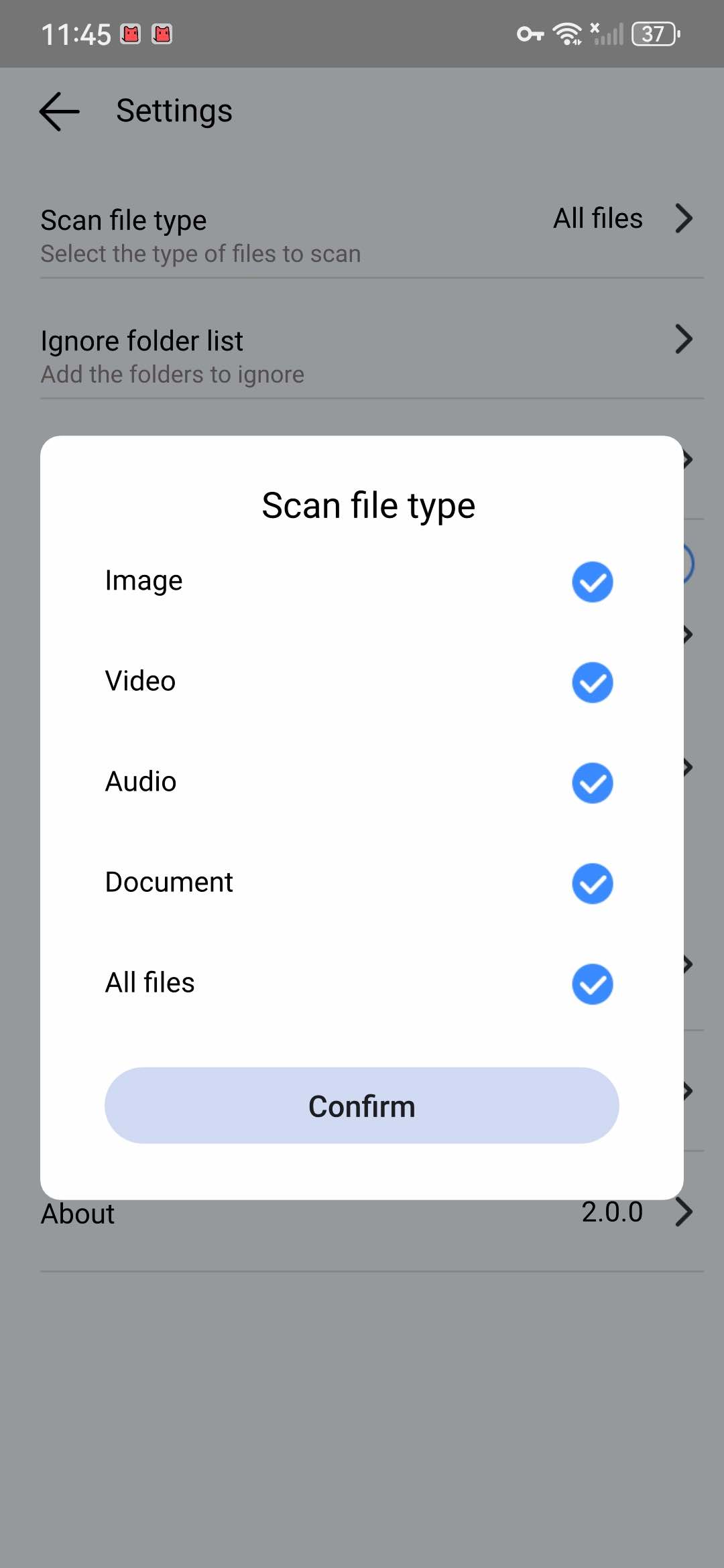
3. Click Start Scan. Then it will start looking for duplicate images on your phone.
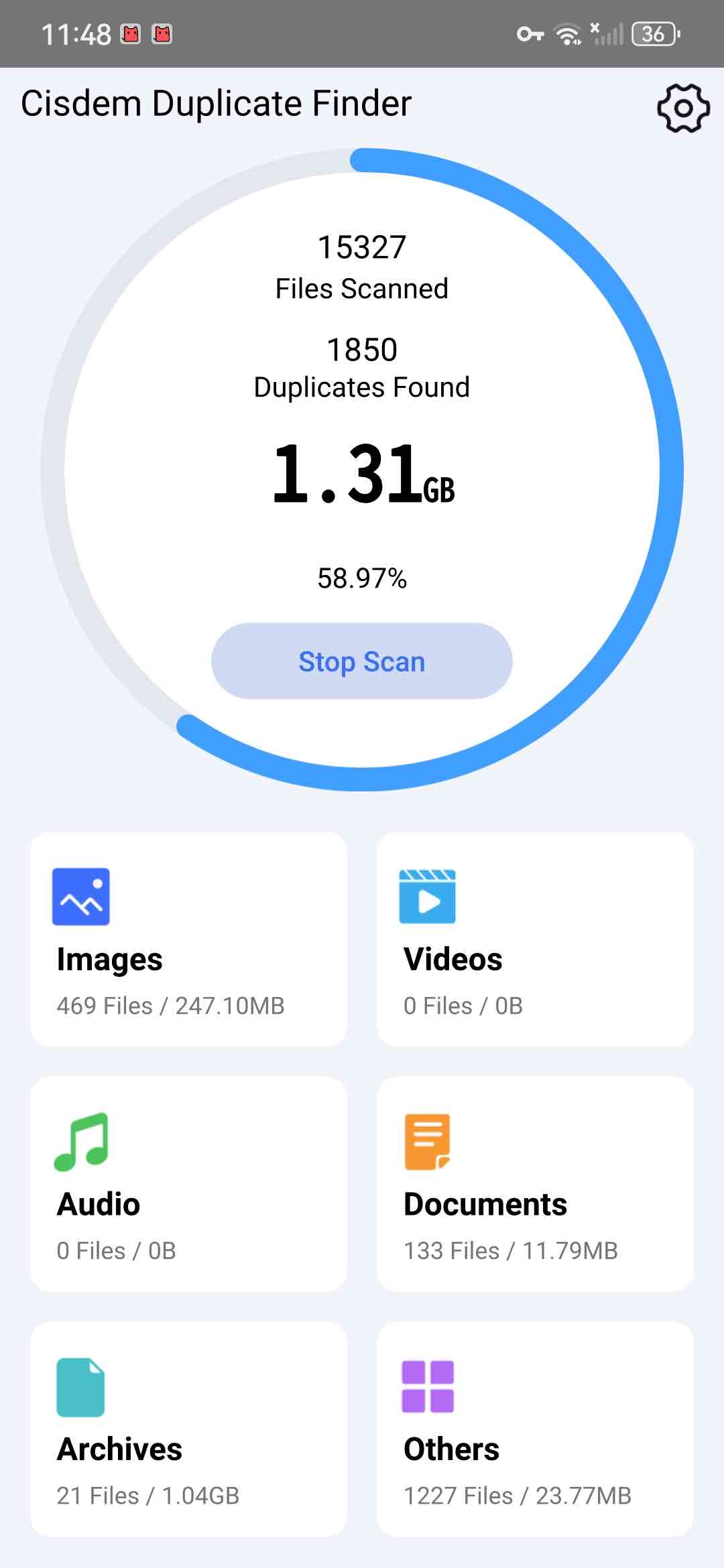
4. Wait for the scan to complete. Click Others to view the found RAW images.
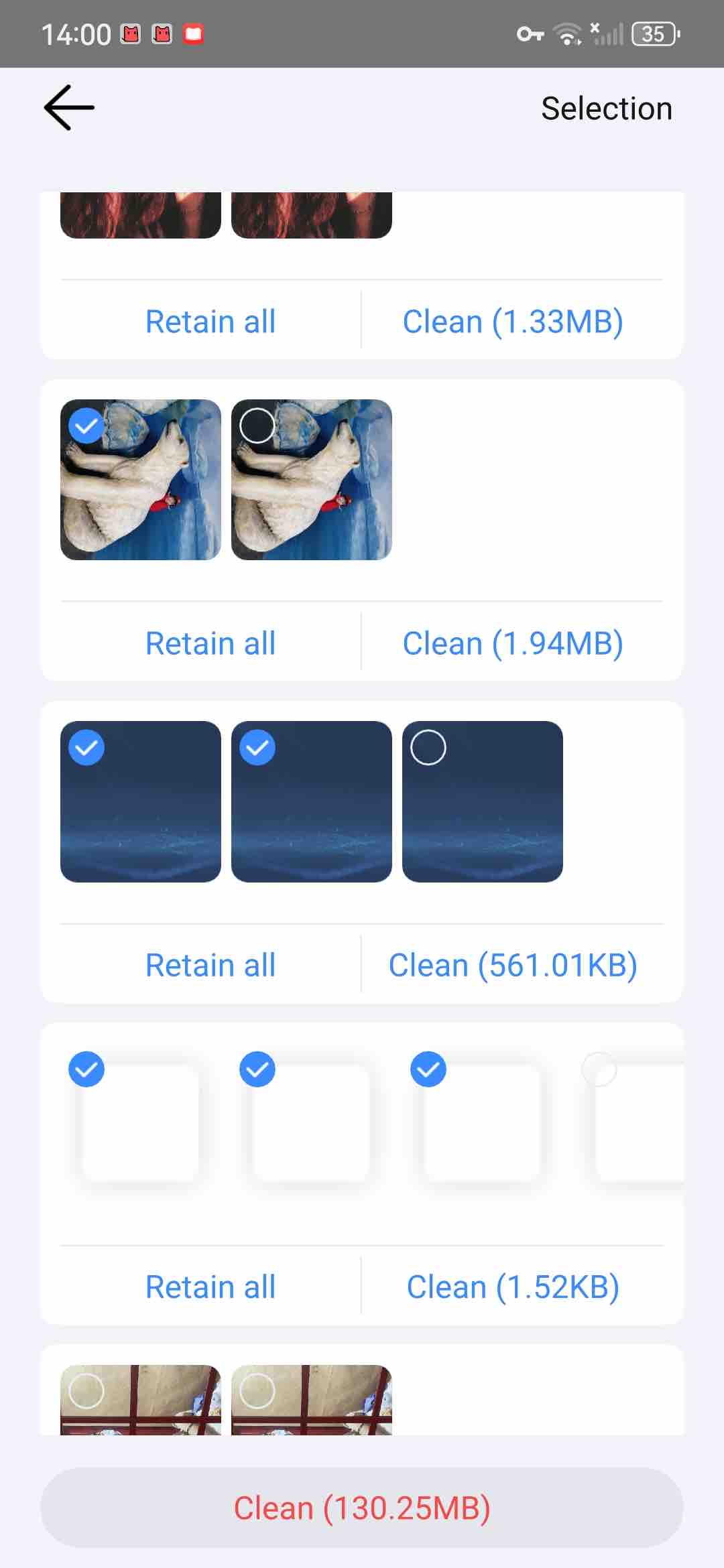
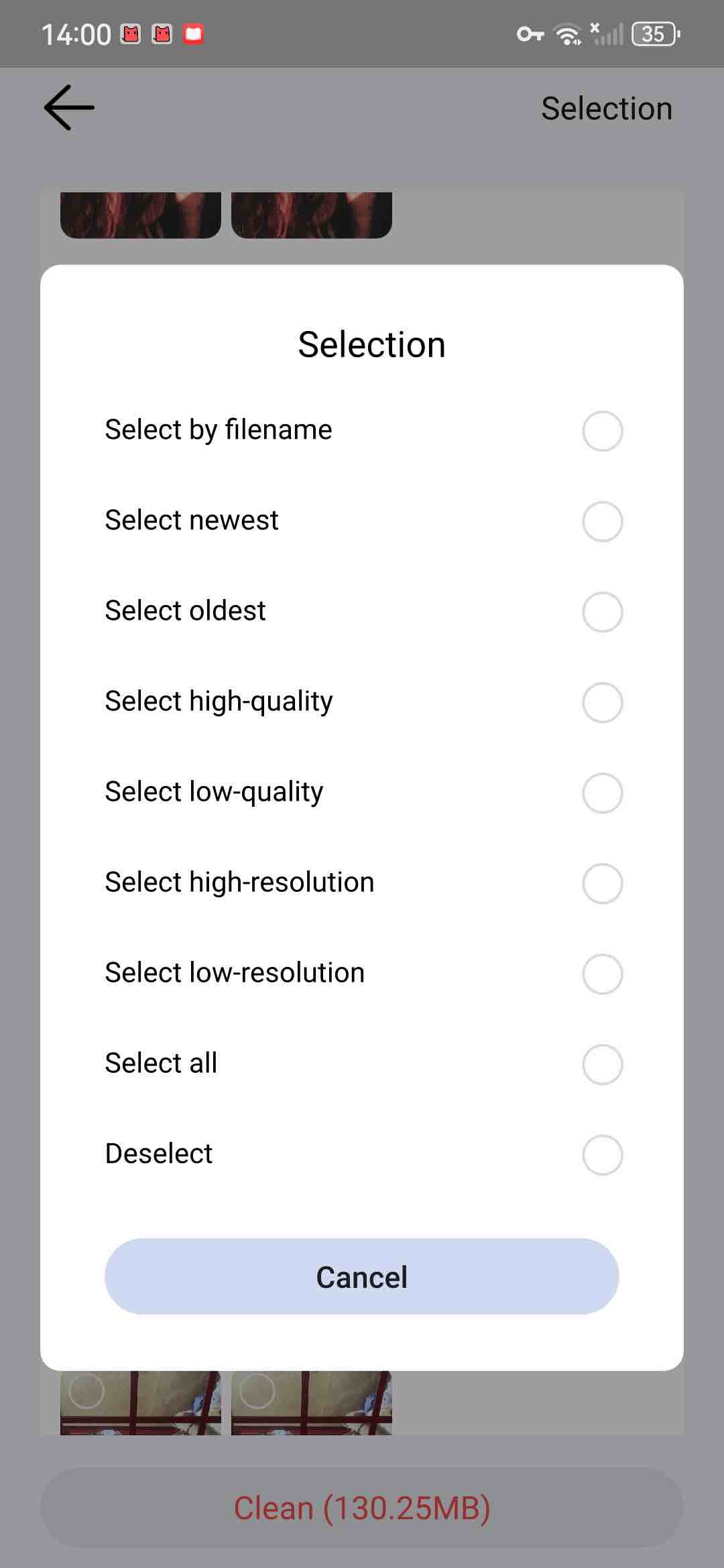
5. It has automatically marked duplicates for you to delete. Also, you can click Selection in the upper right corner, letting it help you mass select duplicate RAW images based on the rules.
6. Click Clean at the bottom to remove all duplicate RAW images from your Android phone.
For iPhone
Cisdem Duplicate Finder finds duplicate photos including RAW images in the Photos app on iPhone. It also identifies near-duplicate photos.
1. Download and install this duplicate RAW image finder from the App Store.
2. Open it. Click Start Scan.
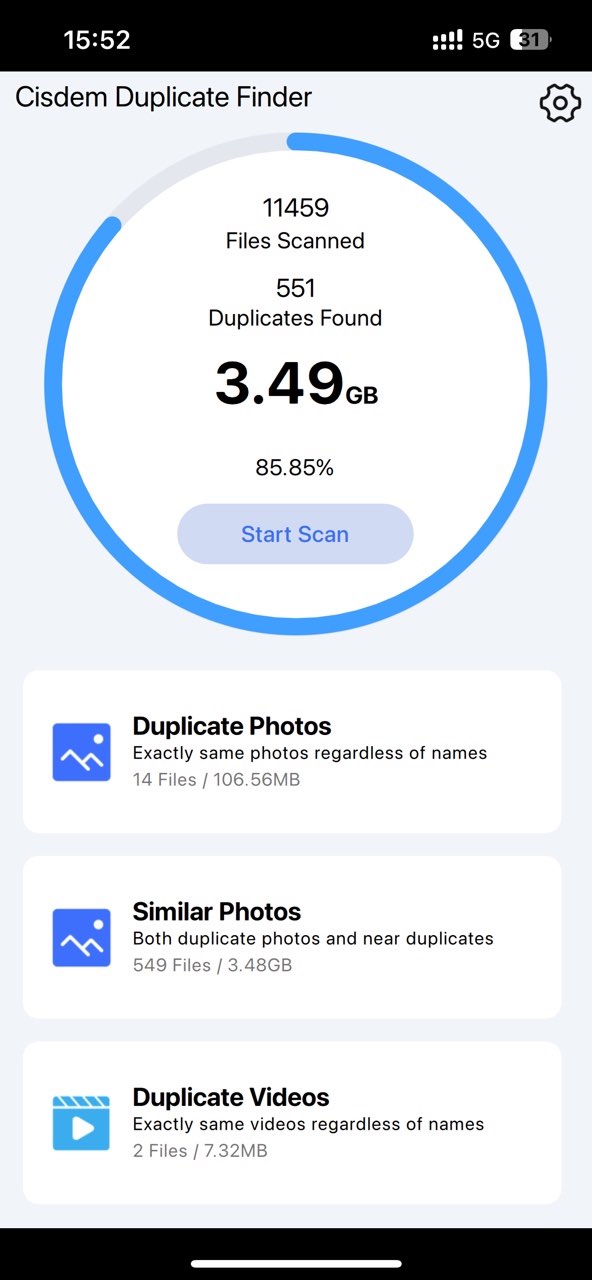
3. When the scan is complete, click Duplicate Photos to view the found duplicate RAW photos.
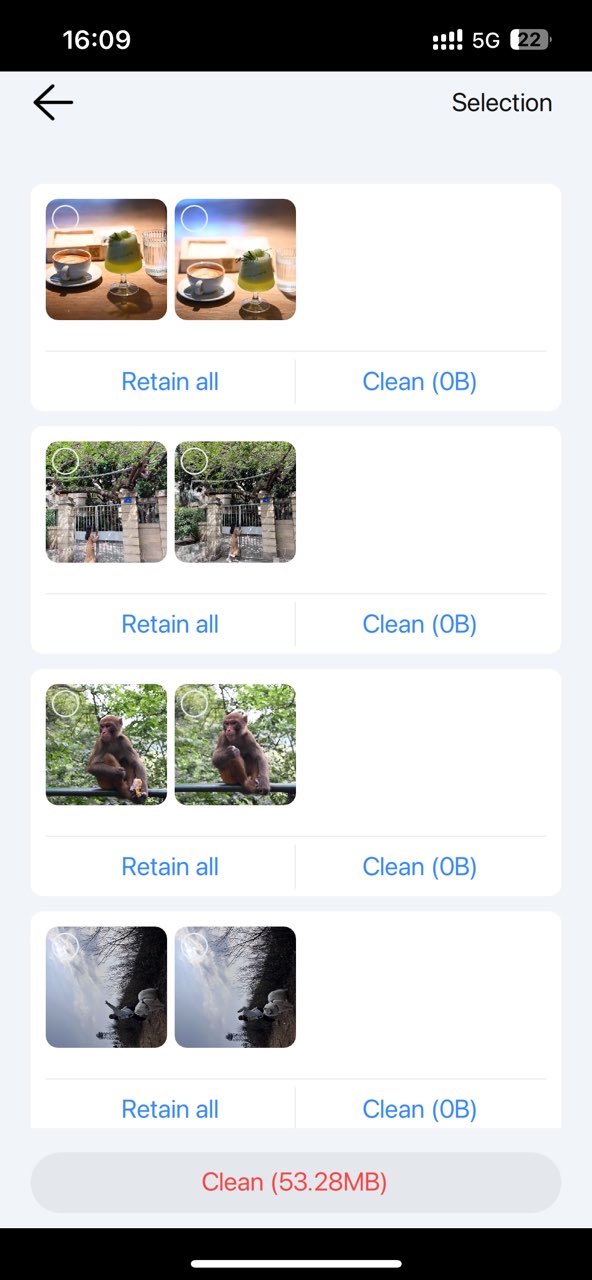
4. The same as on Windows, Mac, and Android, you can let this app automatically select all duplicates for you and delete them with one click. Or use the selection rules. Or select manually.
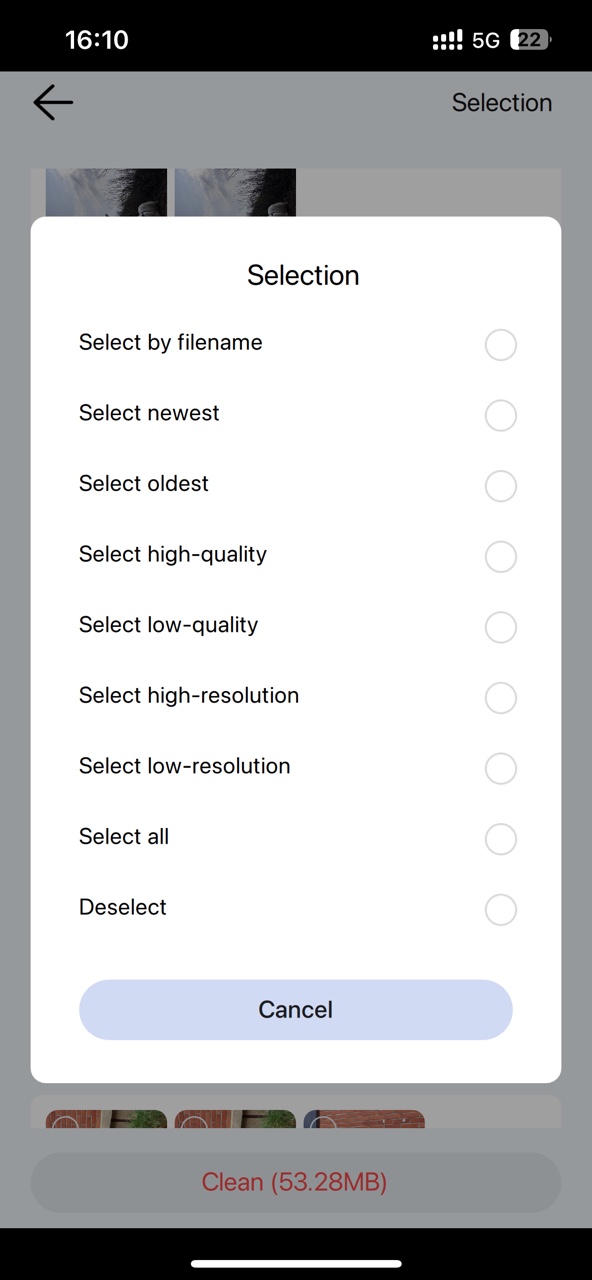
5. Check the selected duplicate RAW images. Click Delete.
Use built-in features of computers and phones to find duplicate raw images
In addition to using third-party duplicate RAW photo finders, our computers and mobile phones also provide some built-in features that helps find and delete duplicate RAW photos.
Windows File Explorer
File Explorer is a tool on Windows system for managing files. You can manually find duplicate RAW images on your computer through sorting all files by file name, file size, or date.
1. Open the folder in which you want to find duplicate RAW images.
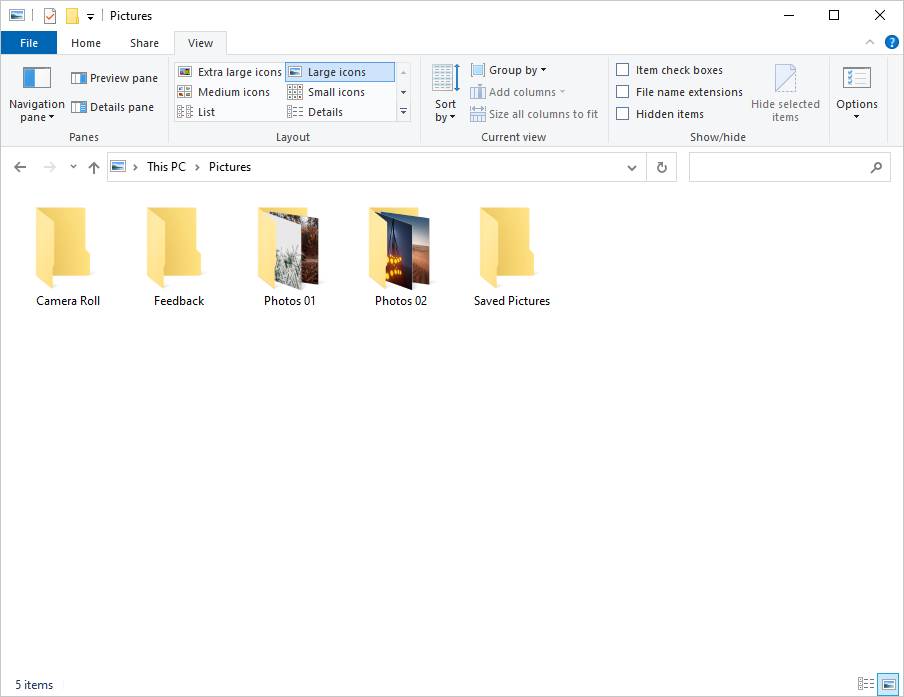
2. Click the View tab at the top of the window.
3. Select Details pane if you want to look information of the RAW images, for example, file name, size, and date.
4. Select Large icons.
5. In the top right corner, enter the file extension for RAW images (such as .cr2, .nef, etc.) in the search bar to display only RAW images.
6. Sort all RAW images by different sorting options, such as Name, Size or Date modified for easy comparison.
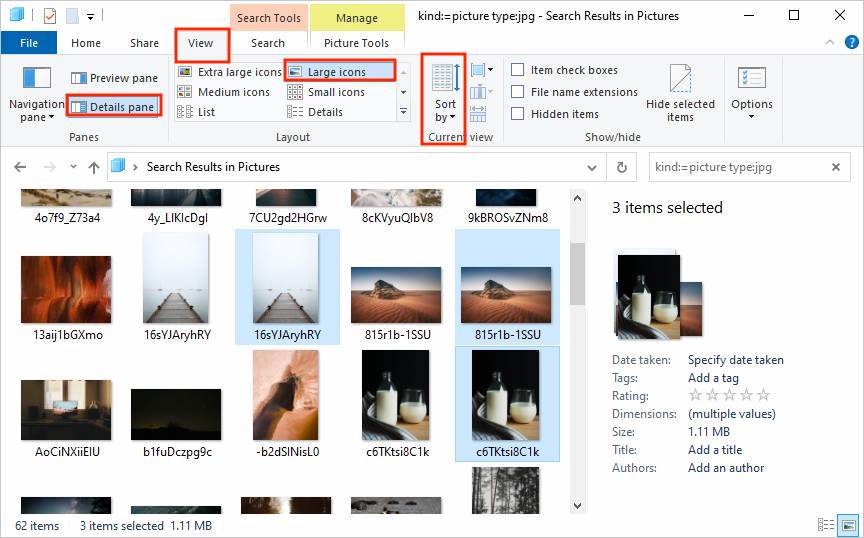
7. Go through the images and and identify duplicates by comparing their details.
8. Right-click the duplicate RAW image and select Delete.
The Duplicates album in Apple Photos app
For Mac and iOS users, the Apple Photos app comes with a smart Duplicates album that automatically identifies duplicate images, including those in RAW formats.
1. Open the Photos app.
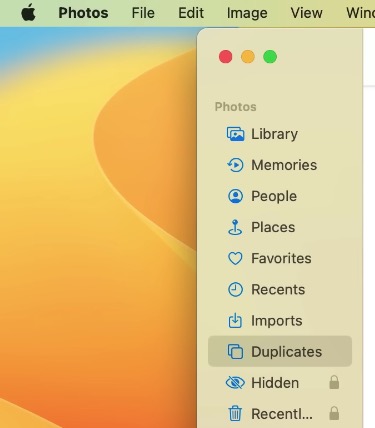
2. Find the Duplicates album and enter it. On Mac computer, the album is on the left sidebar.
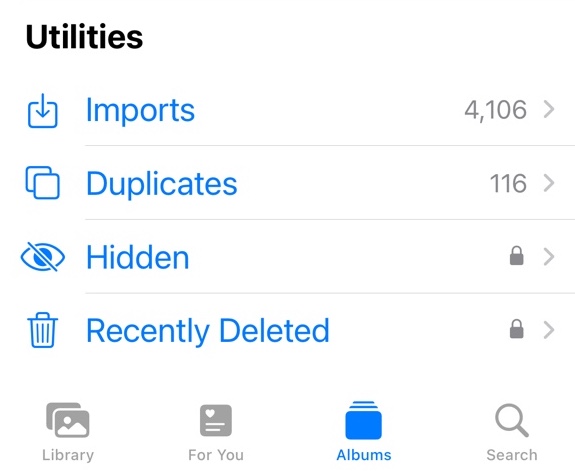
On iPhone, tap Albums and scroll down, you can find the Duplicates album under Utilities.
3. It automatically detects duplicate images based on the content and list them in groups. You can view them one by one.
4. Select the duplicate RAW image you want to delete. Click the Trash icon.
Or, click the Merge button next to each set of duplicate RAW images. Let the Photos app combine them into one.
Note
Although the Photos app automatically detect duplicate photos for you, there is a delay in its detection. Unlike a professional duplicate RAW image finder, the Photos app usually takes days or even months to find the duplicates.
My Files app on Android
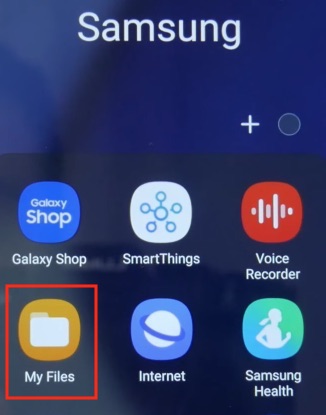
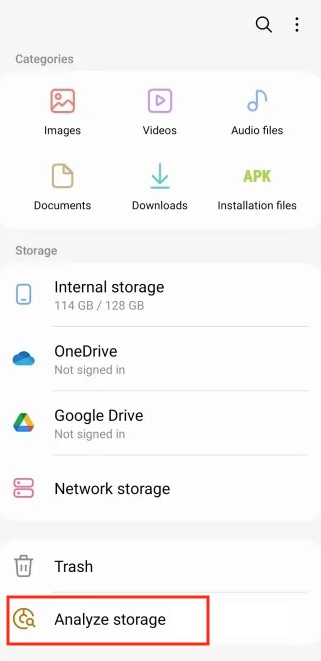
Most Android phones have a built-in file manager app for browsing and managing files. You can use it as a duplicate RAW image finder to help you find duplicate RAW photos stored on your phone. For example, on Samsung phones, this app is called My Files. You can find it in the Samsung folder.
1. Open the My Files app on your Android phone.
2. Click on Analyze storage at the bottom.
3. Scroll down. Find and select Duplicate files.
4. It will show you all the duplicate files on your phone. Browse and find the duplicate RAW images. Manually select the unwanted duplicates.
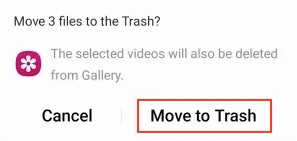
5. Click Delete.
6. Click Move to Trash.
Note
This method can not only help you find duplicate RAW images on your phone, but also find other types of duplicate files. The disadvantage is that you may need to spend quite some time to pick out those duplicate RAW images for deletion, and it does not provide selection rules to help you mass select.
FAQs
Should I delete duplicate RAW photos?
It depends on your situations and needs. If you have duplicate RAW copies of a photo, you can definitely delete one copy (unless you want to keep an extra copy for backup). For RAW and JPEG versions of the same photo, you can delete the RAW version if you prefer a smaller size and higher compatibility, or keep both versions if you need high quality for editing.
How do I prevent duplicates from being created?
There are a few things you can do to help avoid duplicates. For example, you can check your library before importing photos to avoid multiple imports. Another practice is to set your camera to store photos in JPEG only.
Conclusion
Through the above methods, you can effectively clean up duplicate RAW images on your computer or phone. If the number of images is large, it is more recommended to use the third-party duplicate RAW image finder I introduced in Part 1 of this article.

With a passion for tech and writing, Sarah joined Cisdem, where she focuses on creating articles about using utility tools to enhance file management and simplify contact management.

Adrian Li is Cisdem’s Chief Engineer and serves as the editorial advisor for Duplicate Finder and ContactsMate. His work and insights have been featured in leading tech publications such as Fossbytes, TUAW, Redmond Pie, SafetyDetectives, and BestForAndroid.