


How to Recover (Unsaved) Bluebeam Files, Even After Crash?
 6.2K
6.2K
 1
1




Data Recovery
Recover Unsaved/Deleted/Corrupted Bluebeam Files


Bluebeam is widely used by architects, engineers, contractors and others to create, edit, markup, measure or collaborate on a drawing. You may work on a design in Bluebeam, but it crashes in a sudden, leaving your Bluebeam file unsaved and lost. Or, you just delete the Bluebeam project by mistake.
But take it easy, here are ways to recover a Bluebeam file, also we will share you the basics and tips to recover Bluebeam under different situations.
Cisdem Data Recovery for Windows and Mac
Recover Unsaved, Deleted and Corrupted Bluebeam Files
- Recover lost Bluebeam PDF files under different scenarios: unsaved, deleted, damaged, disappeared, etc.
- Also recover other types of Bluebeam files in Word, Excel, PowerPoint, images, text, html, etc
- Recover Bluebeam files from both internal and external storage devices
- Support file recovery in 1000+ types: videos, photos, songs, emails, archives, bookmarks, documents, etc.
- Recover unsaved files in Word, Excel, PowerPoint, etc.
- Repair damaged videos, photos, documents
- Preview files before recovery
- Save recovered files to local drive or to cloud
- Additional features: NAS/Linux/crashed PC recovery, back up disk, create bootable installer, etc.
 Free Download Windows 11/10/8/7
 Free Download macOS 10.15 or later
How to Recover Unsaved Bluebeam File After Crash?
Sudden crash of Bluebeam Reve desktop is always the main reason why the changes are unsaved. It’s not hard to imagine how frustrating it could be when you leave a Bluebeam Revu document unsaved, on which you have taken much time and energy. But don’t worry, there are 5 reliable solutions for you.
Where Is Bluebeam Recovery File Location?
First of all, let’s figure out where is the Bluebeam recovery file location, i.e., the autosave location.
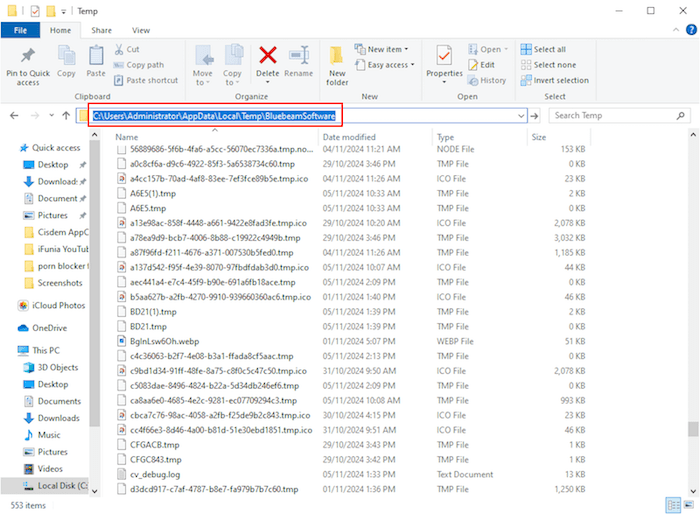
Actually, Bluebeam doesn’t have an autosave feature, but it still stores the unsaved files in its Document Recovery or in the following temporary file location: C:\Users\(your username)\AppData\Local\Temp\BluebeamSoftware.
Whenever your Bluebeam files are unsaved, you should open up this Document Recovery tool or search within the temporary folder to rescue as soon as possible.
#1 Recover with Bluebeam Document Recovery
Similar to AutoSave feature in Excel, Word and PowerPoint program, Bluebeam Revu also has a built-in recovery system giving opportunity to recover unsaved changes --- Document Recovery. Bear in mind that this requires the recovery system to have been enabled before any crash occurs.
How to recover unsaved Bluebeam changes from document recovery?
If you’ve enabled this document recovery feature, follow these steps to recover the unsaved changes in Bluebeam:
- Reopen Revu after crash.
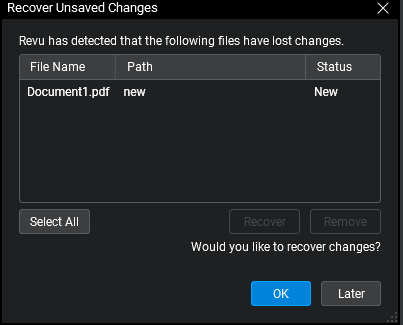
- The Recover Unsaved Changes dialog box will pop up to list any PDF files with unsaved changes.
- Select the exact document you want to restore, click Recover and OK to apply the selected actions.
![recover unsaved changes]()
#2 Clear Cache of Recovery Files
Recover Unsaved Changes dialog box won’t open up, or Bluebeam Revu freezes, or there is an error message pops up when you try to recover your file? This is often caused by a corrupted or problematic file in the recovery folder. Also, such an issue might stop Bluebeam auto save your files properly. Therefore, you need to clear this problematic file and resolve the trouble.
- Exit Bluebeam Revu and any associated apps.
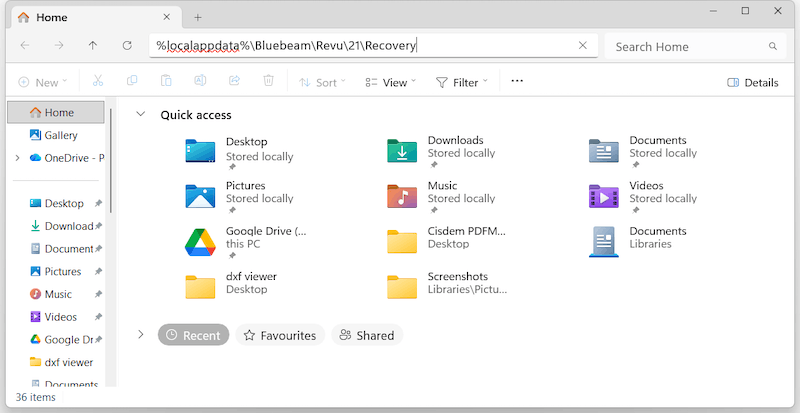
- Open Windows File Explorer, copy and paste the relative path: %localappdata%\Bluebeam\Revu\[Version]\Recovery. You need to replace the version number with yours, for example, if you are using Bluebeam Revu 21, the path should be %localappdata%\Bluebeam\Revu\21\Recovery.
![clear bluebeam cache]()
- Select all the files in the Recovery folder and delete them all.
- Relaunch Bluebeam Revu to check if the Recover Unsaved Changes box appears and allows you to recover an unsaved file.
#3 Check Temp Folder
In case the recovery system hasn’t been enabled in your Bluebeam or it didn’t recover your files, another attempt is searching for unsaved Bluebeam changes in Temp folder. When you are editing on a document, Bluebeam might create temporary files into a specific folder on Windows operating system, where it’s potential to get back the files not saved.
How to recover Bluebeam unsaved changes from Temp folder?
- Open Windows File Explorer.
- Navigate to the Bluebeam temp file location.
- Look through the folder to check if the temp file of your unsaved document is present. If yes, open it with Bluebeam Revu to recover it back.
![bb temp files]()
#4 Use Cisdem Data Recovery --- Best Bluebeam File Recovery Program 2026
None of above methods restore the unsaved changes, or you are looking for an efficient way to recover Bluebeam changes? Then you should try a piece of professional Bluebeam file recovery software. Today we will highly recommend Cisdem Data Recovery.
Honestly, recovery never comes with a 100% guarantee. But a remarkable thing is that Cisdem Data Recovery is tested to have the success rate of recovery high to 99.7%, no matter dealing with unsaved, deleted, lost, corrupted or formatted files. Users needs little technical knowledge to retrieve Bluebeam documents in Cisdem, it is very easy and straightforward to use.
Designed with modern and clear UI, quick scan speed, advanced recovery algorithm, Cisdem Data Recovery offers reliable solutions to rescue 1000+ file types from both internal and external storage media, including Bluebeam Revu PDF, Word, Excel, PowerPoint, Pages, Numbers, PSD, Notepad as well with minimum efforts.
Useful feature of Cisdem Data Recovery:
- Recover unsaved, deleted or missing files
- Get back lost documents from Windows, USB flash drive, SD card, HDD, SSD and any other devices
- Retrieve files saved in 1000+ formats: videos, images, documents, emails, archives, bookmarks
- Repair damaged photos, videos and documents
- Quickly locate a file with filter tool or search bar
- Preview recoverable items before the recovery process
- Support NAS, Linux recovery
- Restore data from crashed PC or lost partition
Steps to recover unsaved changes in Bluebeam with Cisdem:
- Download, install and launch Cisdem Data Recovery on your PC.
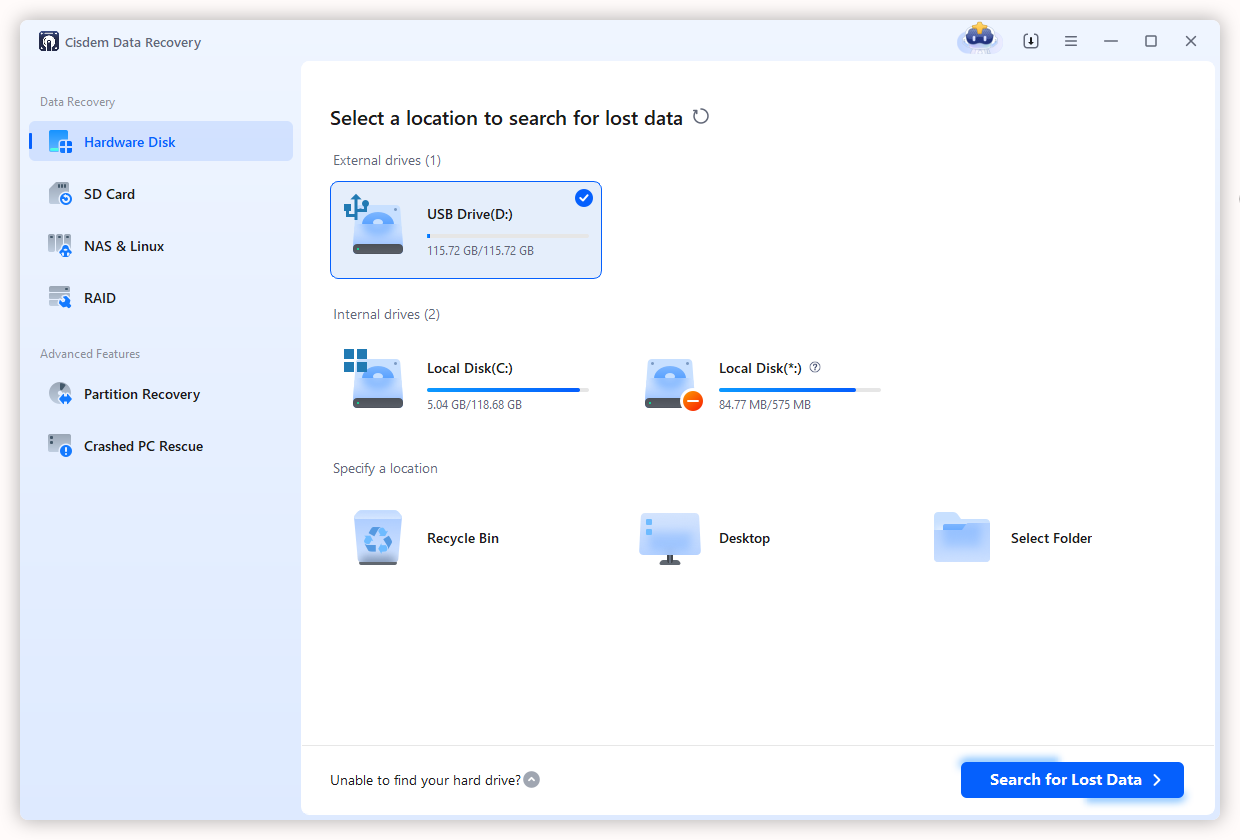
Free Download Windows 11/10/8/7 Free Download macOS 10.15 or later - Go to Hardware Disk, select the location where your Bluebeam files were lost, and click Search for Lost Data to start the scanning.
![recover bluebeam changes with cisdem 01]()
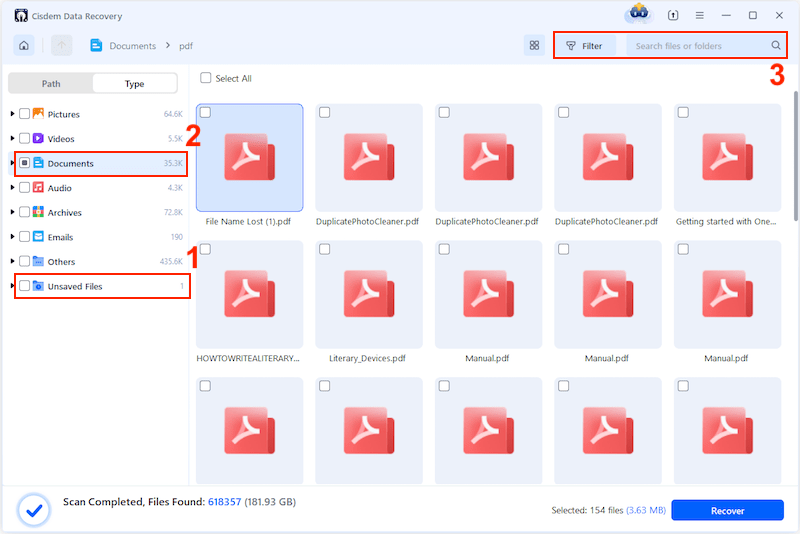
- Find the unsaved Bluebeam changes from your scan results.
There are 3 options to find the unsaved Bluebeam PDF documents: go to Type > Unsaved Files; go to Type > Documents > pdf; or use the file filter or search box for quick navigation.![recover bluebeam changes with cisdem 02]()
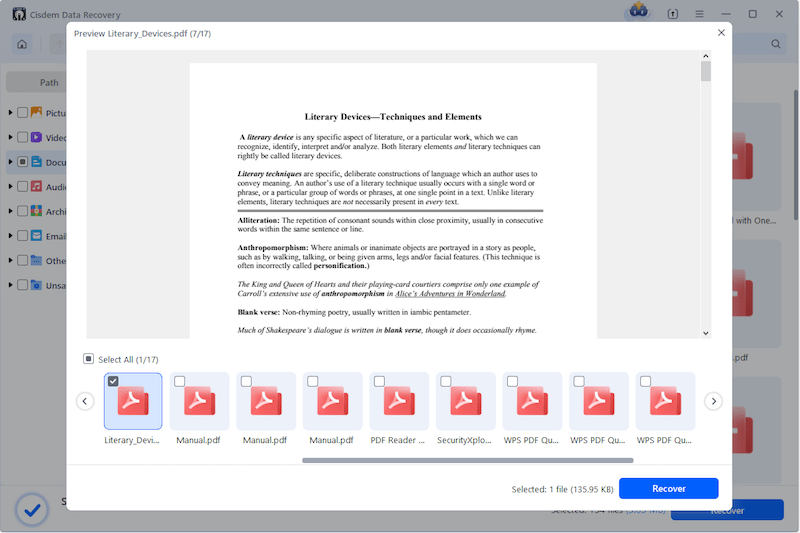
- Double click the PDF to have a preview, select the needed Bluebeam files and click Recover to get those unsaved changes back.
![recover bluebeam changes with cisdem 03]()
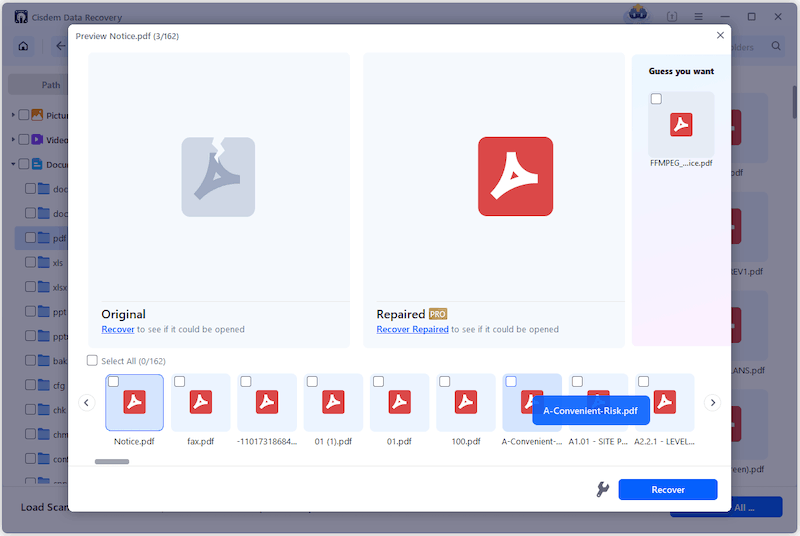
- (Optional) In the case that you cannot preview the Bluebeam file, it might get corrupted, you need to click on the File Repair tool to fix first.
![recover damaged bluebeam]()
Also, you can check the video from Cisdem Official:
How to Recover Deleted or Lost Bluebeam Files?
A Bluebeam file is lost for other unknown reasons or is deleted by mistake? If you've found yourself in a similar situation, then the recovery methods in this section are worth trying before giving up on your file.
Notes: Cisdem Data Recovery also supports recovering a Bluebeam file that is recently or permanently deleted, you can check back the steps in part 1 to restore deleted Bluebeam files if the following methods fail to recover.
#1 Restore from Recycle Bin
The moment you realize a Bluebeam is lost or deleted, you might assume the worst. But the situation might be much simpler than you thought. A quick check in the recycle bin on your PC is necessary.
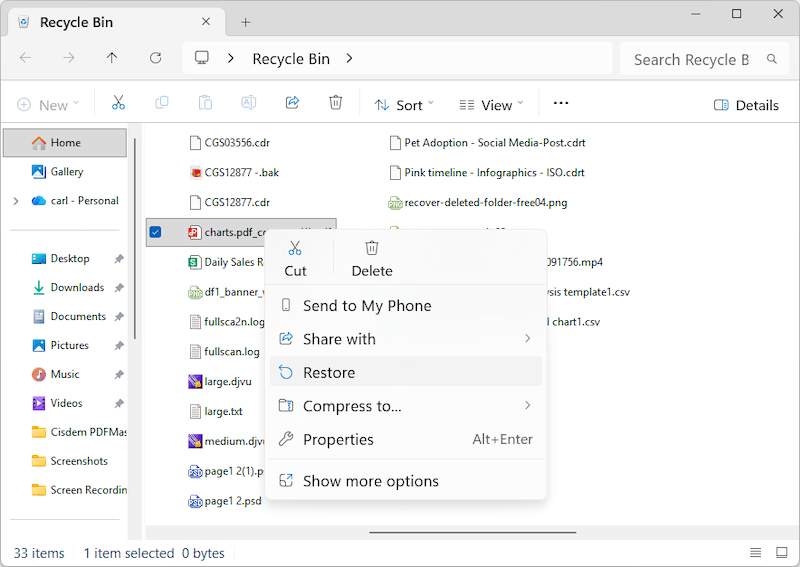
- Open Recycle bin on your PC.
- Select the deleted or lost Bluebeam files, right click Restore.
![restore recycle bin]()
- Check the recovered Bluebeam file in the original storage location.
#2 Restore via File History Backup
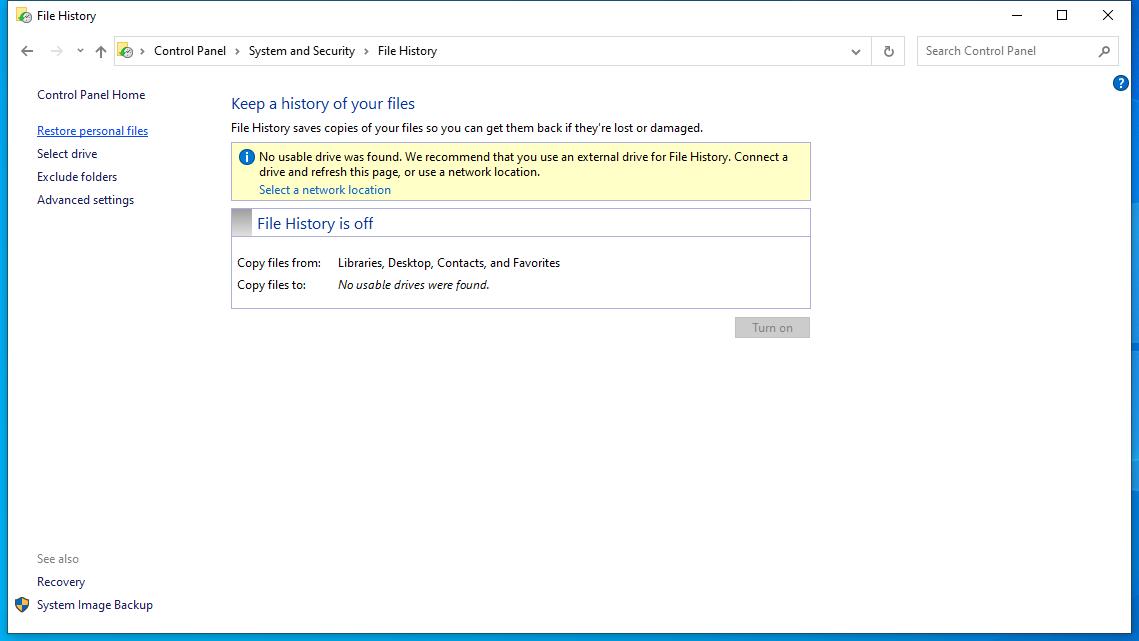
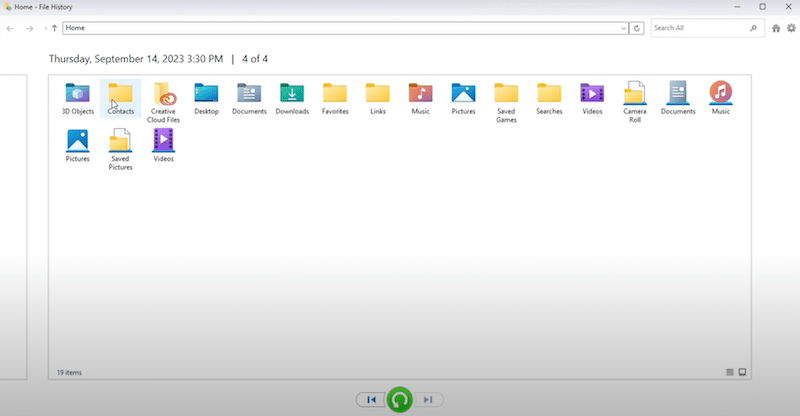
In Windows, File History is used to create backup copies or snapshots of computer files or volumes. It’s like a simple automated copy of your drive contents. Assuming you have set up File History on your PC, luckily, in the event of Bluebeam file loss, you can restore your files by reverting system to a previous backup. Let’s dive into the finer details.
- Connect the File History backup drive to your PC.
- Open Control Panel, go to System and Security > File History.
- Click on Restore personal files.
![restore bluebeam file history01]()
- Go to the directory where stores the backups of your lost Bluebeam files, browse and search the file, then select and click Restore file to recover.
![restore bluebeam file history 02]()
#3 Recover via Web Backups
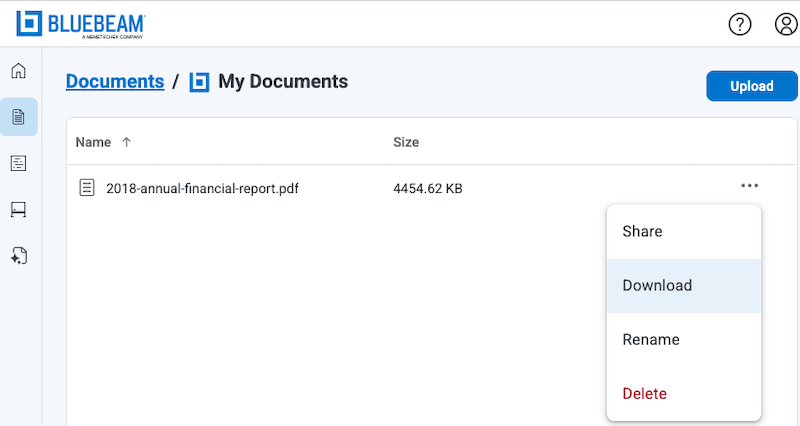
Bluebeam also has a web version to edit, collaborate and access projects remotely. If you’ve uploaded a copy of the lost Bluebeam file to the cloud, then you can re-download the file for recovery.
- Log into https://signin.bluebeam.com/.
![recover bluebeam web01]()
- Go to Documents > My Documents, choose the copy of the lost Bluebeam projects, click on the “...” icon and choose “Download".
![recover bluebeam web02]()
- Select a location to save the download Bluebeam files.

FAQs
1. Does Bluebeam auto save?
Bluebeam doesn’t have an auto save feature, but it has Document Recovery tool that can be enabled to recover unsaved changes when a crash happens. It works quite similar to auto save.
2. How to enable Bluebeam autosave?
- In Bluebeam Revu, go to Preferences or press Ctrl + K.
- Click General > Document tab.
- Tick the box before “Enable Document Recovery” > click OK to confirm.
3. Does Bluebeam save temp files?
Yes, Bluebeam saves temporary files.
A Bluebeam temp file is a file created by Bluebeam to hold data temporarily during running, especially when the file is large, a managed task is complex, etc. It helps to prevent data loss, improve overall performance.
4. Where are temporary Bluebeam files stored?
C:\Users\(your username)\AppData\Local\Temp\BluebeamSoftware
5. Why Recover Unsaved Changes in Bluebeam is grayed out?
When Recover Unsaved Changes in Bluebeam is grayed out, it means the file recovery is not available, this can be caused by:
- Document Recovery is not enabled, you need to enable it.
- There isn’t any recoverable files in the recovery folder.
- There is a corrupted file in the recovery folder to prevent Recover Unsaved Changes tool working properly, you need to clear the cache.
- It is under read-only mode without host permissions, you need to have full access to the program.
- You are opening anther file and checking the wrong place, you need to close the file.
- Bluebeam app runs into errors, you need to relaunch, or reinstall if necessary.
- Your PC is out of storage, you should free up space on your PC.
Summary
To recover unsaved changes in Bluebeam, there are totally 4 solutions for your information, including professional-grade tool like Cisdem Data Recovery, inbuilt free Revu document recovery tool. Hopefully you can regain your unsaved work after reading this article. Also, we have extra 3 feasible solutions to recover a deleted or lost Bluebeam file. And no matter you are a project manager, an engineer, or an architect, please keep alert, save Bluebeam changes regularly and take preventive measures to stay away from data loss in your workflow.

Zoey shows a great interest in what she does. Although not long with Cisdem, she has possessed a professional understanding of data recovery.

JK Tam is the lead developer at Cisdem, bringing over two decades of hands-on experience in cross-platform software development to the editorial team. He is now the lead technical approver for all articles related to Data Recovery and DVD Burner.
Beth H
Bluebeam crashed before I could save several hours of markup work. Following the steps in the guide, I checked the Document Recovery feature and was able to restore the unsaved file almost instantly. Really appreciate the clear instructions.