


How to Easily Block Access to News Sites in Various Browsers
 1.4K
1.4K
 0
0


Thanks to news websites, we can stay updated on what’s happening around us and across the world. However, news sites can be distracting and sometimes contain distressing or inappropriate content.
This article shows you how to block access to news sites using two methods. No matter you want to block those sites for productivity, digital wellness, or parental control, you will find this article helpful.
 Cisdem AppCrypt
The Best News Website Blocker
- Block websites in Chrome, Safari, and more with a password
- Block specific sites and pages, URLs with certain keywords, and categories (e.g., News Sites, Social Sites)
- Block all websites except the ones you allow
- Lock apps with a password
- Block websites and lock apps 24/7 or during scheduled times
- Easy to use
- Hard to bypass
- Help with productivity, parental control, and more


Common reasons for blocking news sites
There are sites covering general news (such as NBC News), sites dedicated to a certain topic or industry (such as ESPN), as well as news aggregator sites (such as Google News). Here are some common reasons why people would restrict access to them.
- Block distractions: When working or studying on a computer, one has easy access to news sites and can be tempted to waste time on them. Preventing access to these distractions can help increase productivity.
- Stop news addiction: If you can’t stop but constantly check the news, you are more likely to suffer from stress and anxiety. Making news sites inaccessible can avoid such a situation, helping with digital wellness and mental health.
- Keep children away from certain contents: There’s often negative news, which can be distressing or even inappropriate to children. If needed, parents can consider preventing children from visiting those news sites.
Method 1. Block news sites using a website blocker
This method uses a website blocker app called AppCrypt, and here’s why it’s a good method.
- Allow you to add all popular news sites to the block list with a single click
- Let you manually add specific sites and keywords to block
- Let you import your own list of news sites
- Block these sites permanently or during certain hours, based on your needs
- Apply blocking to Chrome, Safari, Edge, Firefox, and more browsers, including to normal browsing and incognito/private browsing
- Provide password protection to make it hard to bypass restrictions
Below is how to use this method.
Steps for Mac and Windows
1. Download and install AppCrypt.
 Free Download macOS 10.15 or later
  Free Download Windows 10 or later
2. Launch the app and set a password as prompted.
Tip
To effectively block your own access to news sites, you can consider asking someone else, such as a family member or friend, to set the password for you.
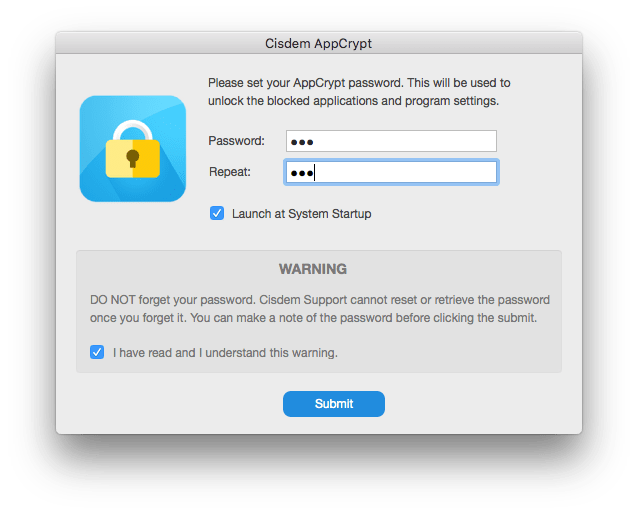
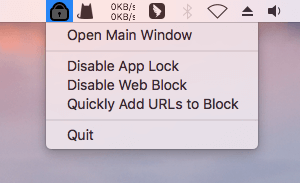
3. On a Mac, click the app’s icon in the menu bar and choose Open Main Window.
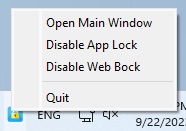
On a Windows PC, simply click the app’s icon in the taskbar. (Alternatively, right-click this icon and select Open Main Window.)
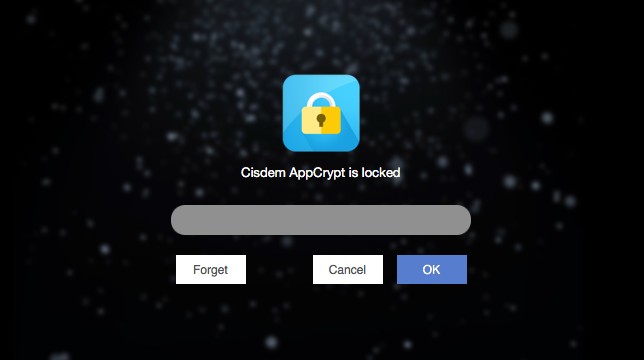
4. Enter the password (set in step 2) in order to access the AppCrypt main window.
5. In the Web Block tab of the main window, do any of the following based on your needs:
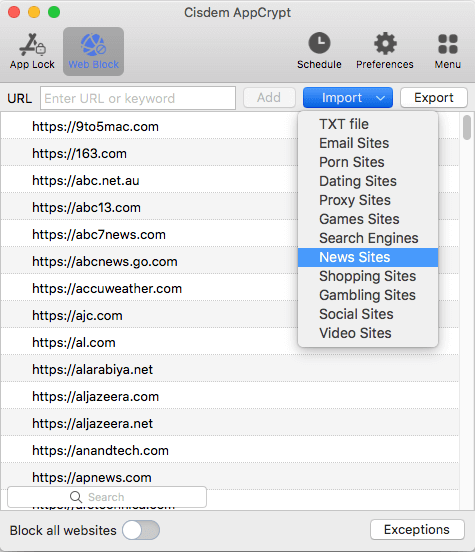
- Block the News Sites category: Click the Import dropdown menu and select the News Sites option, which will block 209 popular news sites, including general ones, dedicated ones, and news aggregators.
![the Web Block tab showing an Import dropdown menu and a list of blocked news websites]()
- Import your own list to block: If you want, select the TXT file option from the dropdown menu and import your own list of news sites to restrict. Here's a list of over 5,000 news sites for you to download.
- Add specific sites and keywords: Enter a news site URL (e.g., nbcnews.com) or a relevant keyword (e.g., news or sports) in the URL field, then click Add. This will block this specific site and any URLs containing the added keyword.
- Block all news sites: Turn on the Block all websites option at the bottom of the Web Block tab. Click Exceptions. Then, add the sites (e.g., work-related sites) that you need at the moment to the Always Allow list. Allowing access only to needed sites can block all news sites as well as other distracting sites.
Note
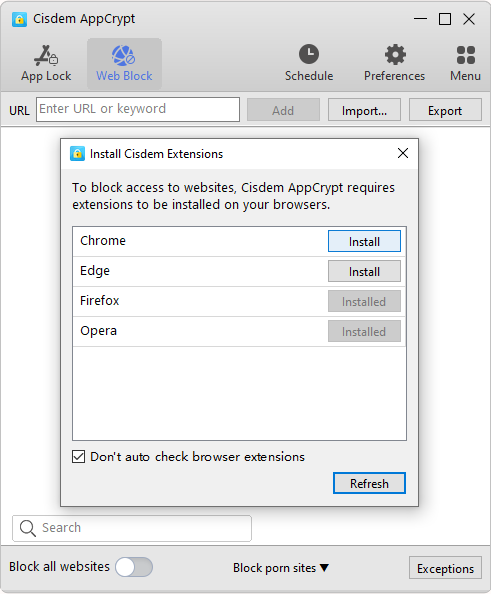
If you are a Windows user, when you click the Web Block tab for the first time, install the extension on the browser(s) of your choice as prompted. Mac users don’t need to do this.
Tip
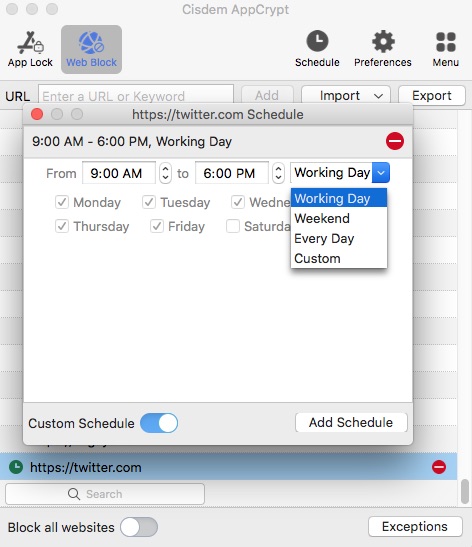
By default, these news sites will be blocked permanently. If you want to block them only during specific times (e.g., work hours), AppCrypt’s scheduling feature can help. Use its general schedule feature to apply the same schedule to all blocked sites, or use the custom schedule feature for individual sites.
What if you want to regain access to a blocked news site? You can unblock sites at any time! Here’s how. Use the password to access the AppCrypt main window, go to the Web Block tab, select the news site(s) you want to unblock, control-click (on Mac) or right-click (on Windows), then select Remove. Note that only people who know the password can do the unblocking.
On iPhone
1. Install AppCrypt from the App Store.

2. When you open the app for the first time, tap Start and then Continue.
3. In the Web Block tab, enter a specific news site that you want to restrict and tap Add. Repeat this step to add other unwanted sites.
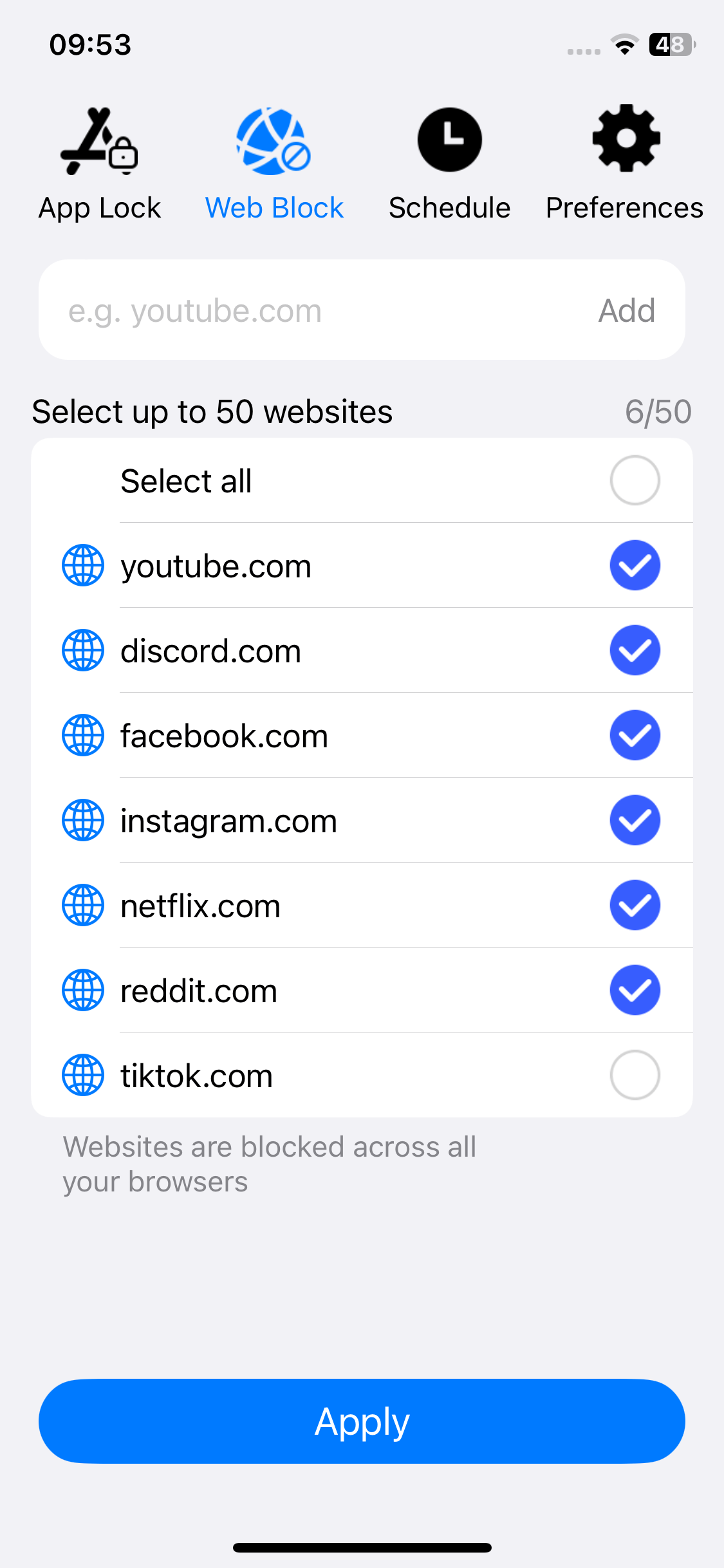
4. Tap Apply.
5. Optionally, use the scheduling feature to set the restriction to be on only during specific hours.
6. Tap Notifications in the Preferences tab. In the Notifications screen that appears, turn on Notification, tap Allow, and set a 4- or 6-digit password.
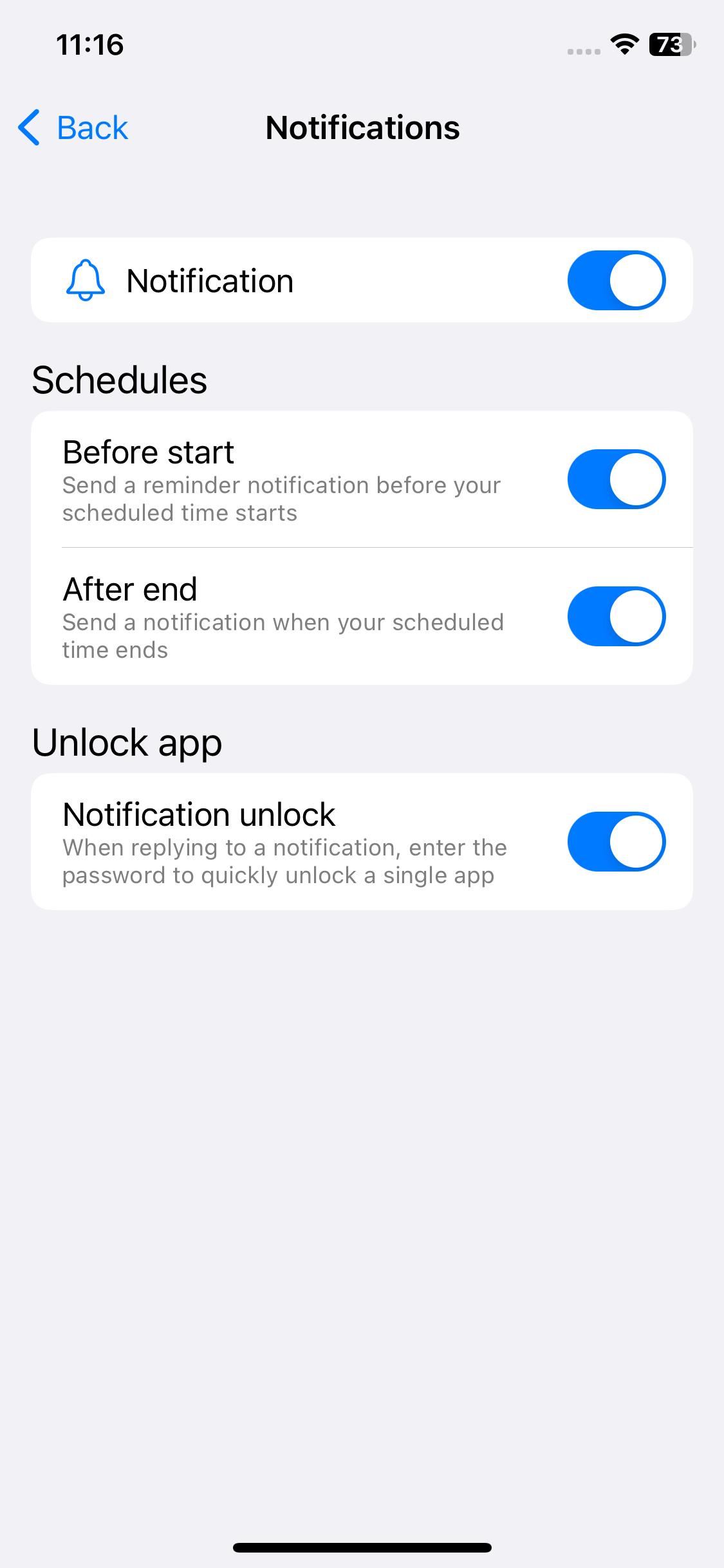
Now these news websites will be blocked on all browsers on your iPhone.
On Android
1. Install AppCrypt from the Play Store.

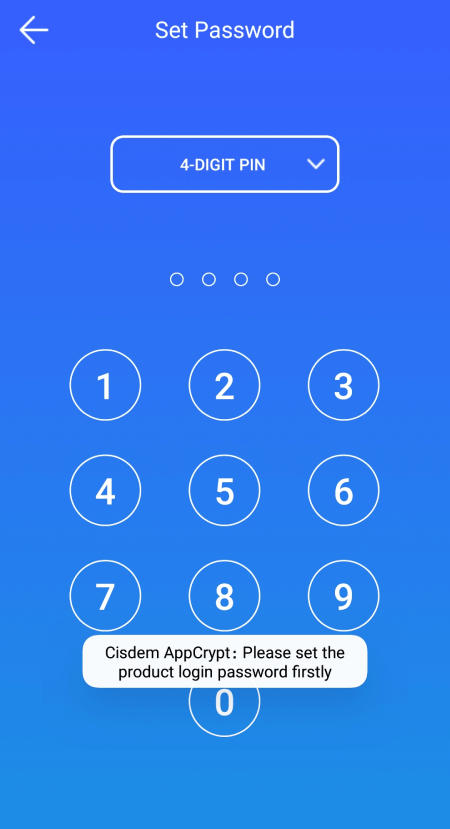
2. The first time you open the app, you will be prompted to set a 4- or 6-digit password or a pattern.
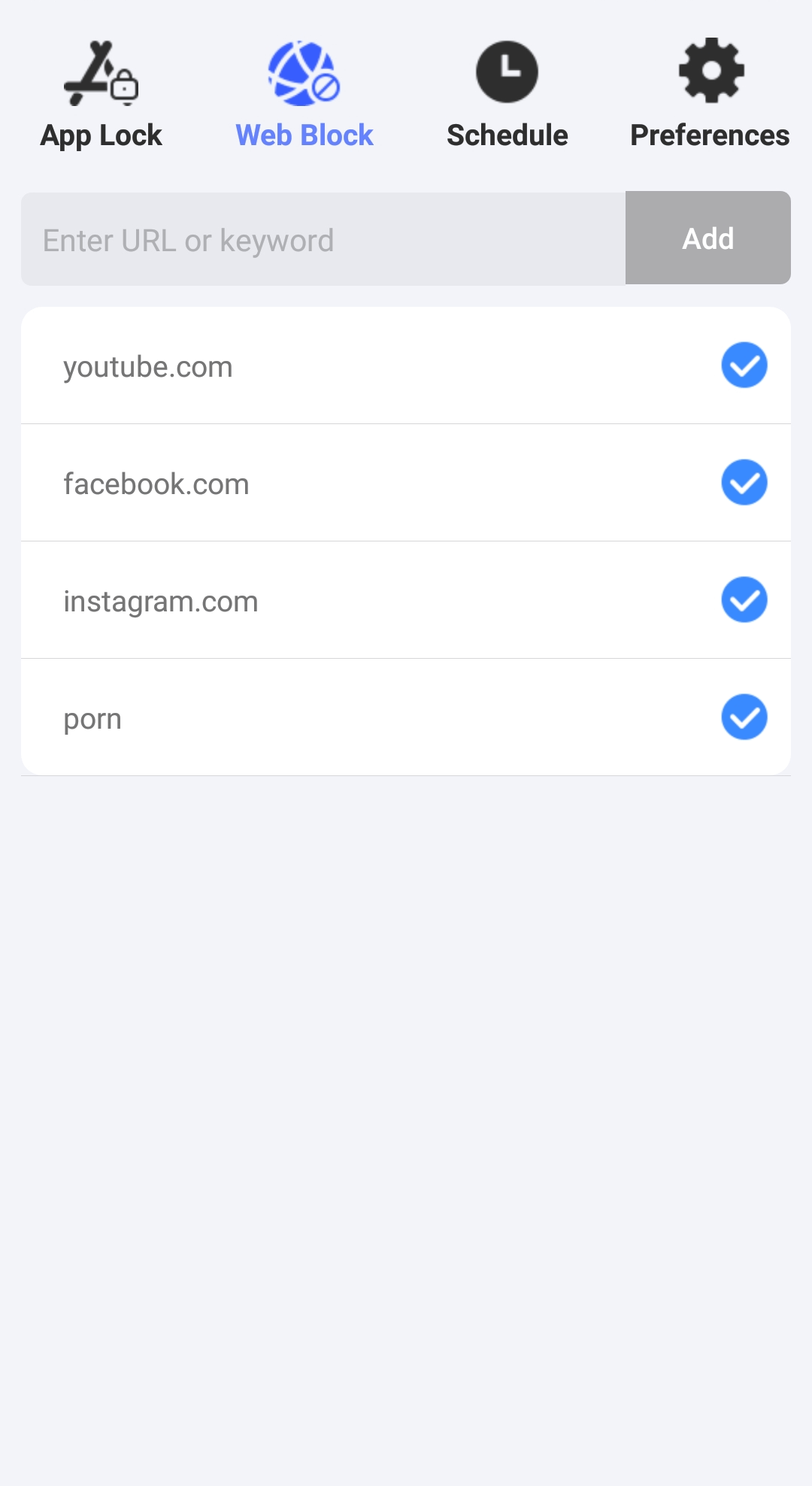
3. Tap Web Block at the top of the screen.
4. Enter an unwanted news site in the URL field and tap Add. Continue blocking other sites.
5. This step is optional. Tap Schedule at the top of the screen, tap Add, and specify the times and days during which your chosen news sites will be restricted.
From now on, these sites won’t be accessible in your phone’s browsers either permanently or for a specific period, depending on your settings.
Method 2. Block news sites using a browser extension
This method uses a browser extension called Block News Websites. Below is why it can be a decent choice.
- Automatically block over 5,000 news sites
- Allow you to manually add more websites to block
- Can be installed on Chrome and Firefox
- Can apply blocking to normal and incognito/private browsing
Compared to the first method, this method is easier to set up and comes with a much longer list of news sites for blocking. However, unlike the first method with which people can’t unblock sites if they don’t know the password, this method is less effective because bypassing is easy.
The steps below use Chrome as an example to show you how to use this method. Firefox users can find the steps helpful as well.
1. In a browser on your computer, visit the Chrome Web Store.
2. Find an extension called Block News Websites using the search box at the top, then click Add to Chrome to install the extension.
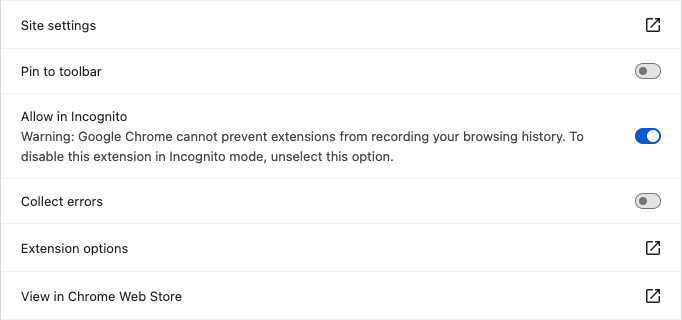
3. Enable this extension in incognito browsing by doing the following:
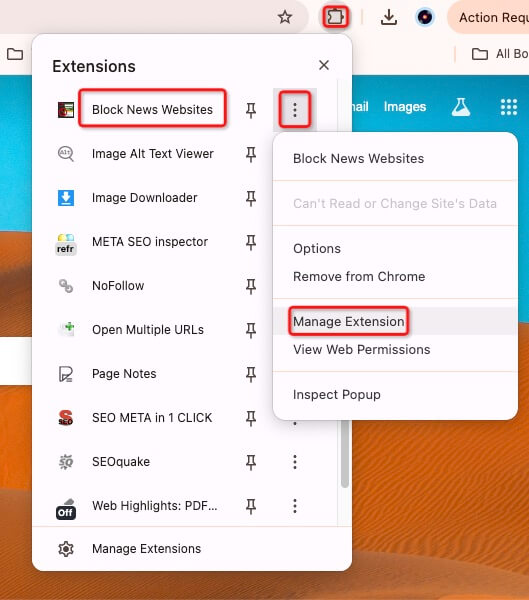
- Click the Extensions icon in the toolbar of your Chrome, click the More options icon next to Block News Websites, then select Manage Extension from the menu.
![More options menu for Block News Websites showing Manage Extension and several other options]()
- In the page that appears, scroll down to find and turn on the Allow in Incognito option.
![the switch next to the Allow in Incognito option is toggled to the on position]()
Tip
If a certain news site isn’t blocked by this extension, you can manually add it to the block list. Just select Options in the More options menu and then add that site to the Enter website box.

If you want to read news on a blocked site, just use a browser where Block News Websites is not installed. Or, you can temporarily turn off this extension on your Chrome (or Firefox), which will unblock all sites.
To wrap up
Both methods discussed in this article are easy to follow. If you really can not resist the urge to check the news or you want to effectively protect your children from certain news sites, the first method is your choice. If you just want to create a barrier between you and strict restrictions are unnecessary, the second method is enough.

Norah Hayes likes to share her tips on how to improve focus and stay motivated at work. She believes it is essential to eliminate all online distractions during work hours.

Ethan Long joined Cisdem in 2015 as a developer and now serves as the editorial advisor for Cisdem AppCrypt. He actively tests and uses Cisdem AppCrypt and other screen-time management tools to ensure AppCrypt meets its promises in real-world scenarios.