


4 Ways to Convert YouTube to MP4 on Windows (Free incl.)
 7.1K
7.1K
 1
1


Despite YouTube's endless offering of learning, lifestyle, entertainment, and news resources, you can’t download videos directly from YouTube. What if you want to access YouTube offline, back up your YouTube videos locally, or avoid buffering and slow streaming? Whatever the purpose, the YouTube to MP4 converter will work for you. This article shows you how to convert YouTube video to MP4 on Windows with high quality.
 Cisdem VideoPaw
The Best App to Convert YouTube Videos to MP4
- Support video downloading from 10000+ online websites
- Download 1080p, 4K or above YouTube videos
- Convert YouTube links to MP4, including Shorts, playlists, channels, and live videos
- Batch download multiple videos at once
- Convert YouTube to WebM, AVI, MOV, MP3, M4A, mobile presets, etc.
- Additional tools: edit, compress, merge, and record videos; support DVD and Blu-ray conversion
- Simple interface designed for beginners and advanced users
 Free Download Windows 10 or later
 Free Download macOS 10.15 or later
Key Takeaways
- You can convert YouTube videos to MP4 on Windows PC using desktop software, free tools, or command-line utilities.
- Desktop video downloaders are the most reliable and easiest option for most users.
- Free and online tools are convenient but may have limitations, while command-line tools require technical skills.
How to Batch Convert YouTube to MP4 on Windows Quickly
Based on the test, Cisdem VideoPaw (originally Cisdem Video Converter) should be the safest and best YouTube to MP4 converter for Windows. It can convert several YouTube videos simultaneously as well as keep high quality during the conversion. It's amazing! Any YouTube URL you put into the software is able to turn into MP4 format. Other than converting YouTube video to MP4 on Windows, it also supports 10000+ input websites and 300+ output formats.
- Download Cisdem VideoPaw.
If you are a Windows user, download its PC version below. Then install and open it.
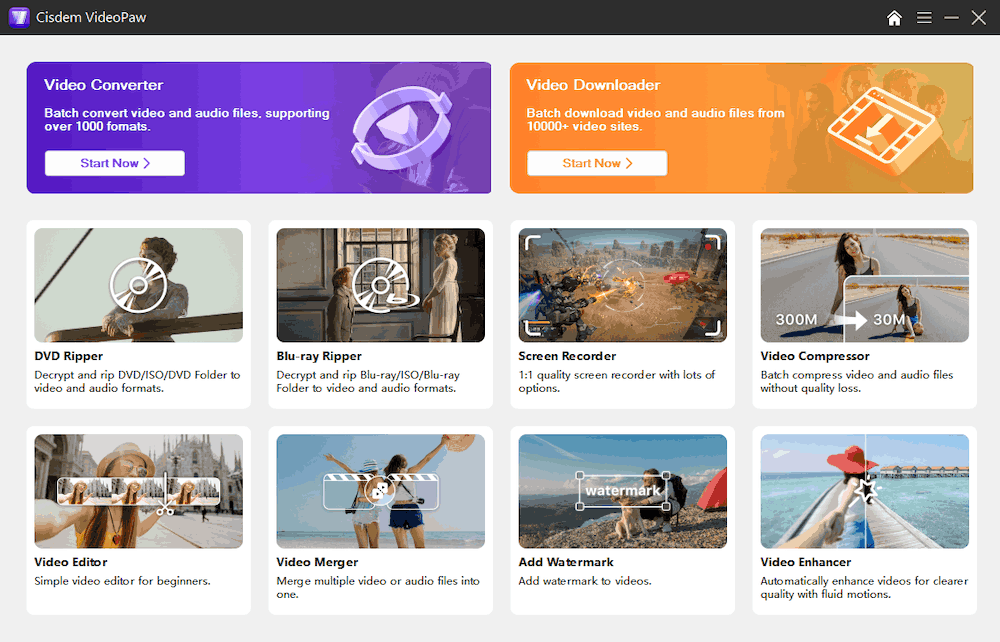
Free Download - Go to the Video Downloader module.
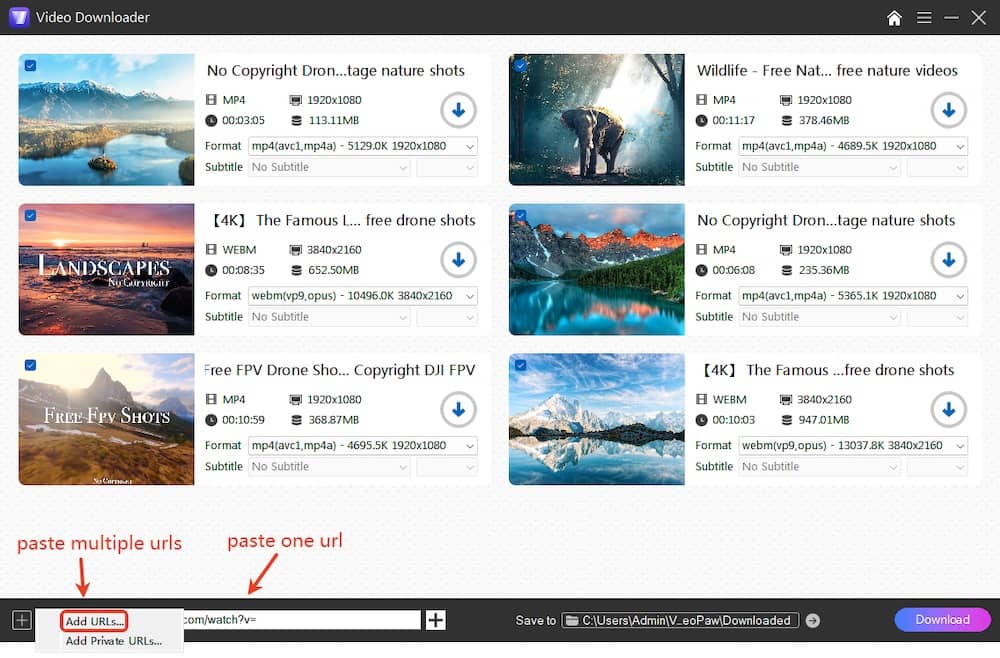
- Add YouTube videos that you expect to download.
Copy the URL of a YouTube, paste the URL into VideoPaw at the bottom, and then press Enter. If you want to add multiple YouTube videos, click the "+" button in the bottom-left corner > "Add URLs" to paste all links.![add youtube]()
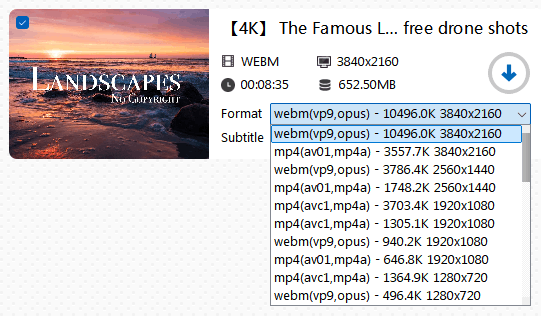
- Convert YouTube videos to MP4 on Windows in batches.
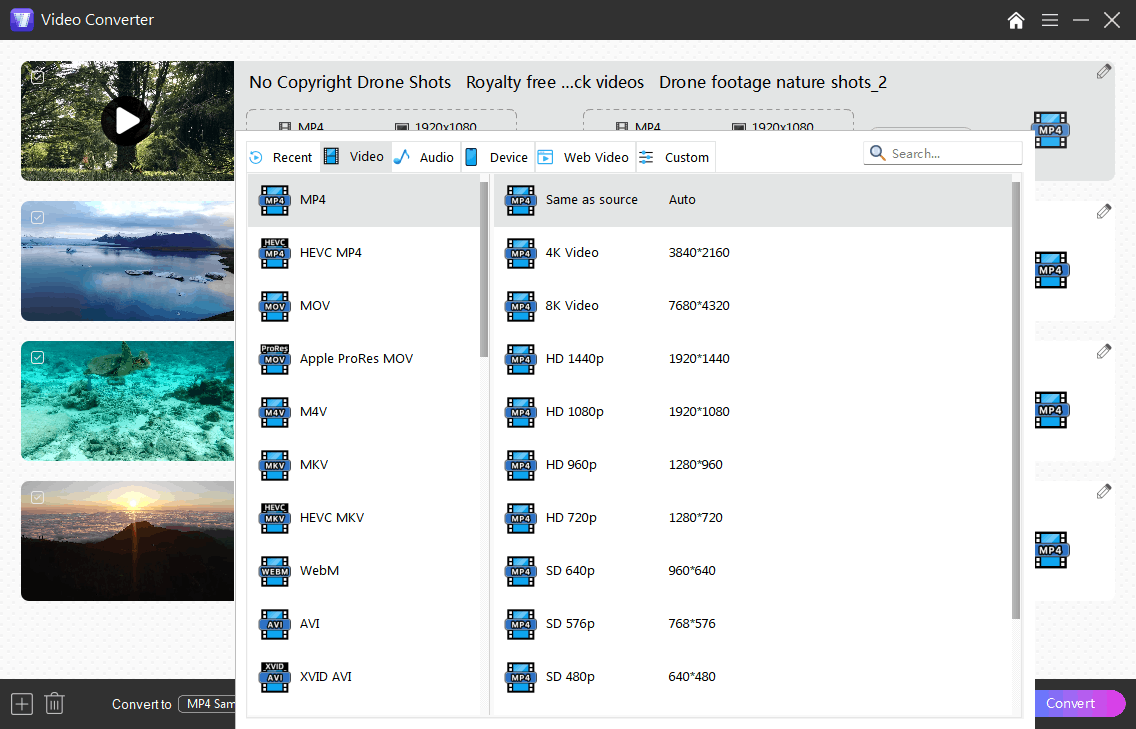
Select MP4 as the output format, and also select the resolution you want. Click the “Download” button to start saving YouTube to MP4.![convert youtube to mp4 windows cisdem]()
Tip: To alter MP4 parameters or convert YouTube to other digital formats, you can drag-n-drop YouTube downloads to the Video Converter module for further conversion and editing.
How to Convert YouTube Video to MP4 on Windows Free with Stacher
Stacher is a free yt-dlp based YouTube MP4 converter. It lets you download videos from YouTube and other websites through a simple interface, without using the command line.
- Install and open Stacher on your Windows PC. First launch will prompt one-click install/update for yt-dlp and FFmpeg.
- Get the link of your desired YouTube video. Paste the link into Stacher.
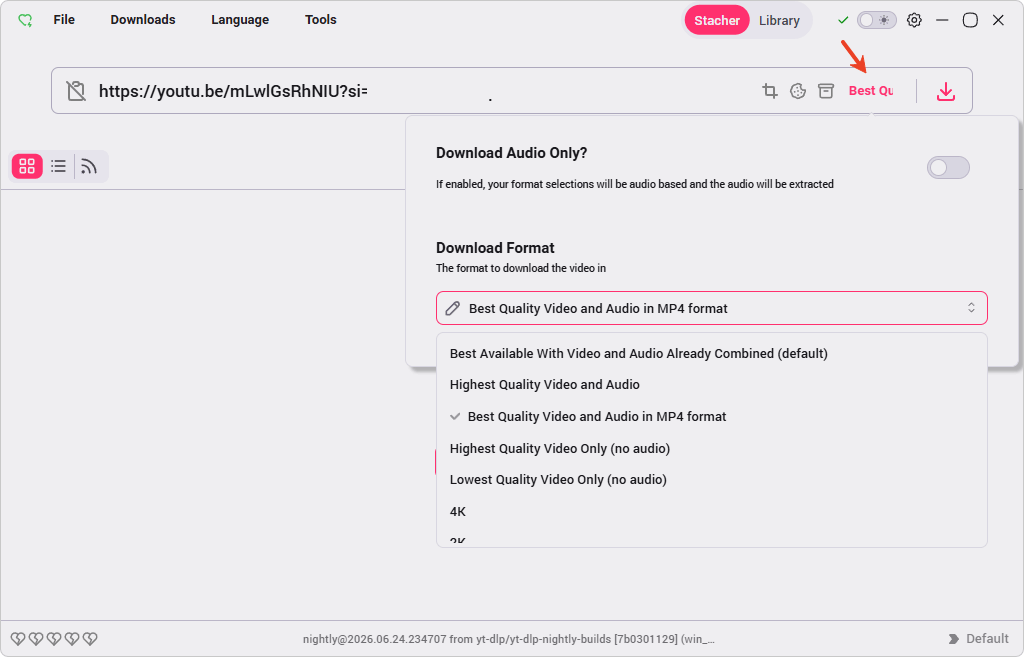
- Click the text next to the download icon.
- From the format list, select "Best Quality Video and Audio in MP4 format". Note: The option indicates the best available MP4 option, not the overall highest quality. Some videos may have higher-quality WebM formats.
![choose format in stacher]()
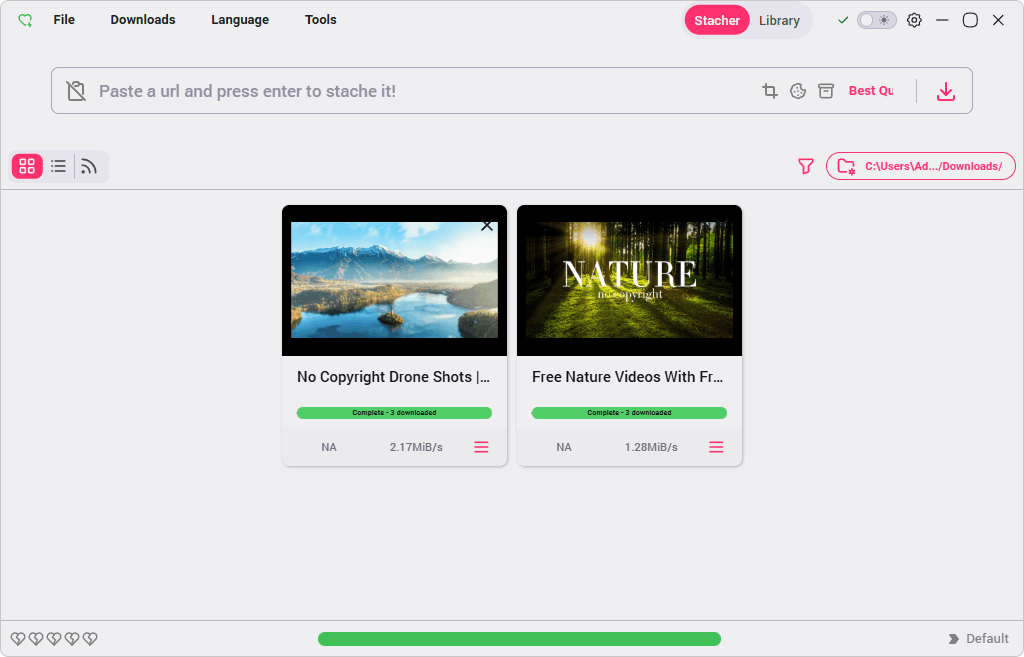
- Click download icon to start converting YouTube video to MP4 on Windows.
![download youtube to mp4 stacher]()
Note:
If a video takes too long to download, YouTube gets suspicious and cuts the connection right in the middle.
Also, huge 4K or super long videos can easily pass 4GB, which completely breaks the download if your hard drive or USB is using an old format.
How to Convert YouTube to MP4 on Windows via Online Tools
Online services will convert YouTube URL to MP4 for free without requiring software installation. The fly in the ointment is that most web-based converters can’t download YouTube videos in bulk and are not as safe as dedicated apps. If you need the free online YouTube to MP4 converter for Windows, below brings two for you.
Option 1. Using Y2mate
Although the original site has been blocked, mirror sites are available. One of the best is y2mate.lol. It offers an abundance of YouTube video resources, and you can discover your desired video to download through a keyword search. Additionally, Y2mate is one of the few websites that can download 4k YouTube videos in MP4, MP3, and WebM formats.
- Make a copy of the YouTube video link.
- Browse to https://v6.www-y2mate.com/.
- Put the copied link in the text box. Press the "Start" button.
- Analyze the input link by clicking on "Download video".
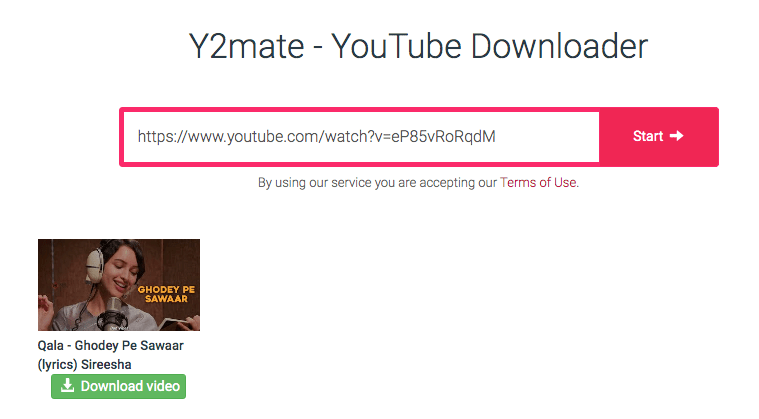
- Switch to MP4 format. Choose the quality and file size based on your preference.
- Under the Action section, click "DOWNLOAD".
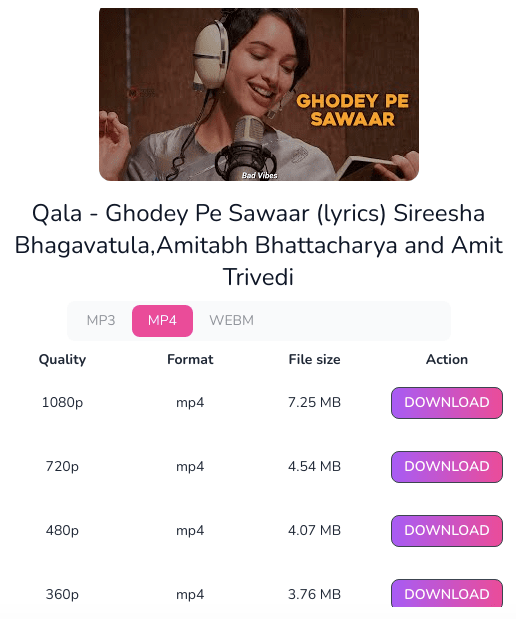
- In the pop-up dialog, hit “DOWNLOAD”.
Option 2. Using OnlineVideoConverter
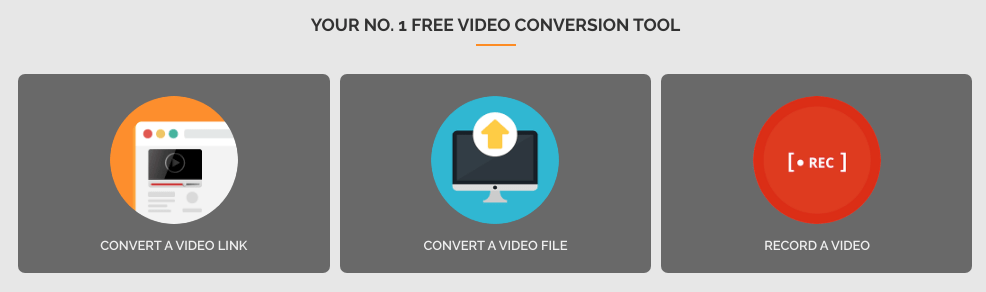
OnlineVideoConverter is an old website that can be used to convert YouTube video to MP4 on Windows. It supports over 100 different video sharing websites, in addition to YouTube, such as Facebook, Ted, VK, Funnyordie, Gametralers, and Godtube. Unfortunately, it is not able to download 4k videos. Among the output formats, there is one video format and six audio formats. Besides converting a video link, this online YouTube to MP4 converter allows you to convert a video file and record a video as well.
- Make sure that you have the YouTube video link that you wish to download.
- Access the website at https://onlinevideoconverter.com/.
- Simply click on "CONVERT A VIDEO LINK".
- Add your copied link to the blank field.
- Specify MP4 as the output video format. Click “START”.
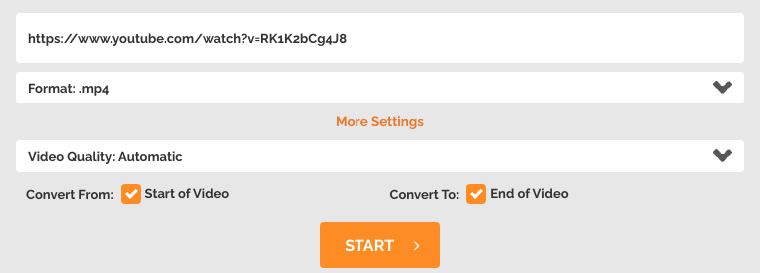
- Click “Download”. Note: Scan the QR code provided if you need to store the converted MP4 video on a smartphone or tablet.
How to Download from YouTube to MP4 on Windows Using Command Line Tools
The open-source tool - yt-dlp is required to convert YouTube video to MP4 on Windows through Command Prompt or PowerShell. It supports many websites beyond YouTube.
YouTube stores high-resolution video and audio separately. To get the best quality, you also install ffmpeg to merge them into one high-quality MP4.
In spite of its power, learning to use it can be a challenging process.
- Install yt-dlp and ffmpeg on your Windows computer.
- Press "Win + R", type "cmd", and press "Enter" to initiate Command Prompt (or PowerShell).
- Locate a YouTube video and copy its link.
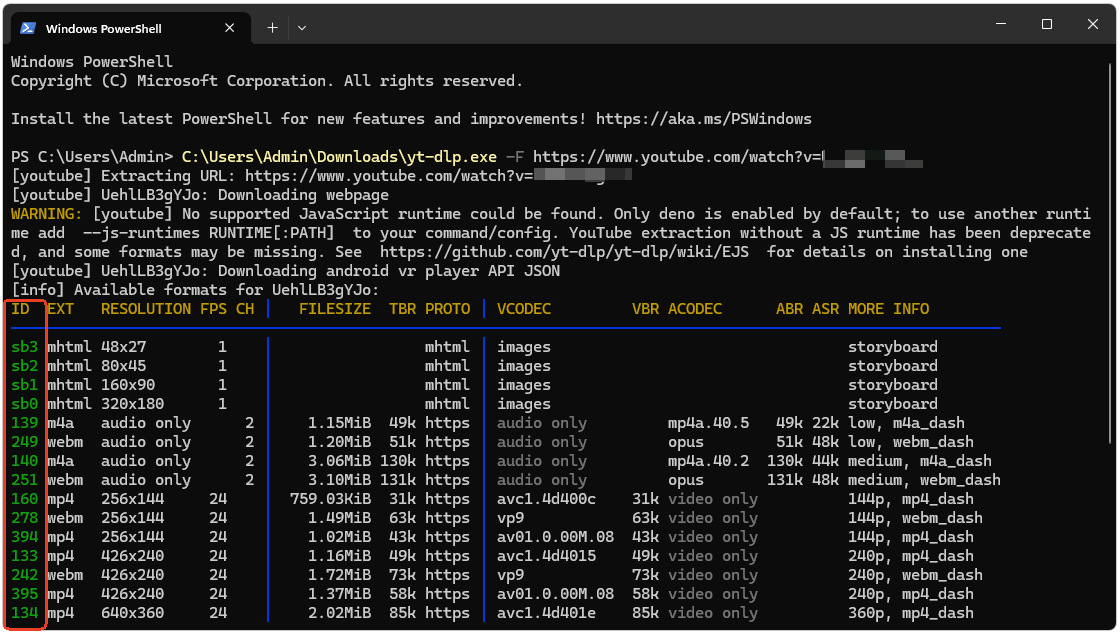
- Put the following command in the Command Prompt: yt-dlp -F [YouTube link].
Replace [YouTube link] with the actual YouTube URL, for example, yt-dlp -F https://www.youtube.com/watch?v=video_id. This will show available formats with ID, codec, resolution, and other details. -
To download a specific video and audio combination, add their format IDs together with a plus sign: yt-dlp -f video_ID+audio_ID [YouTube link].
- Begin the download and conversion by pressing "Enter".
![download youtube video to mp4 yt-dlp]()
FAQs
1. Can I download HD YouTube to MP4 via Chrome extension?
Quite difficult, it seems. I tested 5 popular video downloader Chrome extensions. One of the five can download YouTube, but not HD 720p or HD 1080p YouTube to MP4. The other four are unable to detect the video. The test results are as follows:
| Chrome extension | Powered by | Result |
|---|---|---|
| Video Downloader Plus | VideoLoader | Fail |
| Foxified | foxified.org | Support converting 360p or 480p YouTube video to MP4, MP3 |
| Viddex Video Downloader | Sasha Boradovko | Fail |
| Good Video Downloader | create4u | Fail |
| Video Downloader Unlimited | loader-unlim. | Fail |
2. What’s the best website to convert YouTube to MP4?
Even though they are crammed with advertisements and are unable to bulk download videos to MP4, Y2mate wins due to its ability to download 4k videos.
3. Can I record YouTube to MP4 on Windows?
Yes. The Camera app pre-installed on Windows computers can record YouTube videos to MP4. Also, you can use an online screen recorder or a third-party app like OBS Studio, Bandicam, and Camtasia.
4. Is possible to unblock and download age-restricted YouTube URL to MP4?
Cisdem VideoPaw is capable of bypassing age restrictions, but we do not recommend that you do so. YouTube uploader makes videos invisible to teenagers and children under the age of 18 to protect them, as videos may contain content that is inappropriate for this age group.
5. Is converting YouTube video songs to MP4 illegal?
While downloading and converting YouTube songs to MP4 does violate the YouTube user agreement, it is not a violation of copyright laws if the purpose is not for commercial gain.
Final Words
You've learned how to convert YouTube video to MP4 on Windows using four tools. Each method has its trade-offs - speed, cost, simplicity, or control.
Note:
- If your favorite online tool stops working, try searching for its mirror sites.
- Whichever tool you choose, keep it updated. YouTube changes frequently, and outdated software will stop working.
Copyright Disclaimer
The video/audio download methods provided in this article are for personal and educational use only. Sharing or commercial use is not allowed unless you get permission first. The website fully respects copyright laws and will act upon any valid removal request.

Emily is a girl who loves to review various multimedia software. She enjoys exploring cutting edge technology and writing how-to guides. Hopefully her articles will help you solve your audio, video, DVD and Blu-ray issues.

Ryan Li is a senior developer at Cisdem. Since joining the company in 2017, he has led the development of Cisdem VideoPaw and now serves as the editorial advisor for all articles related to Video Converter.
Conowitied
yt-dlp is great, took me forever to figure out how to use it.