


Where Are Edge Favorites Stored? 5 Recovery Ways if Deleted
 3.7K
3.7K
 1
1




Data Recovery
Retrieve Favorites in Microsoft Edge


Edge Favorites (Bookmarks) allows users to quickly access to their liked pages and manage them at any time. Maybe you are wondering where is the Edge favorites location, or looking for solutions to recover deleted even lost Edge Favorites, this article is for you.
Cisdem Data Recovery
Recover Deleted, Lost or Disappeared Edge Favorites
- Restore Edge bookmarks files lost under different cases: update, reinstallation, system crash, deletion, etc.
- Recover active and backup Edge Favorites
- Also restore bookmarks in Google Chrome, Safari, Firefox
- Recover 1000+ files: videos, audio, photos, documents, emails, archive, etc.
- Repair damaged videos, photos, and documents
- Recover unsaved Word, Excel, PowerPoint, PSD, WPS due to PC crash
- Support NAS, Linux, Partition and Crashed PC/Mac recovery
- Preview files before recovery
- Support Windows 11, 10 and earlier, macOS 10.15 and later
 Free Download Windows 11/10/8/7
  Free Download macOS 10.15 or later
Where's Edge Favorites Location?
As is known to all, though Microsoft Edge is the preinstalled web browser on all Windows 10 and 11 devices, it also works on other platforms, like macOS, Linux, iOS, and Android. Here we will focus on the Edge bookmark file locations for computer system, which can be easily accessed.
Where are Edge favorites stored on Windows 11 or 10?
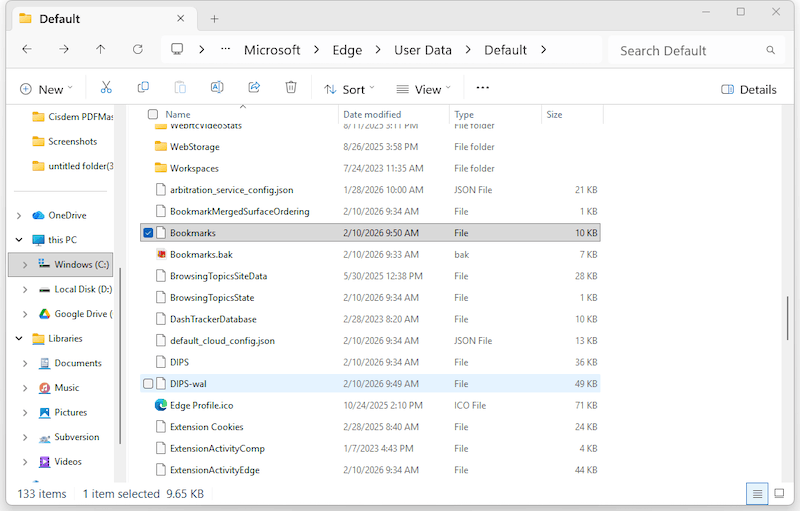
On both Windows 10 and 11, Edge favorites are stored in the same place. The location is C:\Users\(username)\AppData\Local\Microsoft\Edge\User Data\Default. The favorites can be found in a file named Bookmarks.
You may find there are 2 bookmarks files, one is with .bak extension, while the other is not. The file named as Bookmarks, is the active version of your Edge Favorites that contains data like URLS, folders, names, time, etc. Whenever you make changes to the Favorites list, this file will be updated. While the fie names as Bookmarks.bak, is an automatic backup file created by Microsoft Edge to save the latest version of Edge bookmarks.
Where are Edge favorites stored on macOS?
For macOS users, Edge favorites are located in the user library folder. We can usually access them at /Users/(username)/Library/Application Support/Microsoft Edge/Default. Likewise, favorites are available in the “Bookmarks” file.
Where are Edge favorites stored on Linux?
On Linux, Microsoft Edge saves favorite files in this directory: /home/(username)/.config/microsoft-edge/Default. The file named Bookmarks contains the saved Favorites data.
That said, if you are unable to locate your Edge bookmarks in the specific locations aforementioned, the favorites might be deleted, lost, missing, or just hidden out of some unknown reasons. Now it’s time to read on for accessing or finding your Edge favorites back.
How to Access Edge Favorites in The Defaulted Location?
If you want to view, access or back up your Edge favorites from the place where are stored, there are quick ways to access them without navigating by clicking through file manager. Here we will introduce the steps for both Windows and macOS users.
For Windows Users
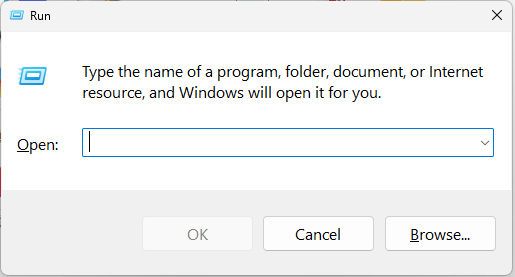
- Press Win + R on your Windows PC to open the Run dialogue.
![access edge win01]()
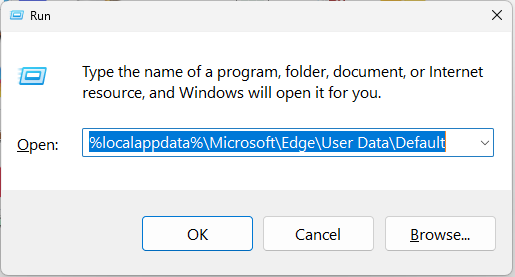
- Copy and paste the path %localappdata%\Microsoft\Edge\User Data\Default into the address bar and press Enter.
![access edge win02]()
- Then scroll download to find the bookmark files on your PC.
For macOS Users
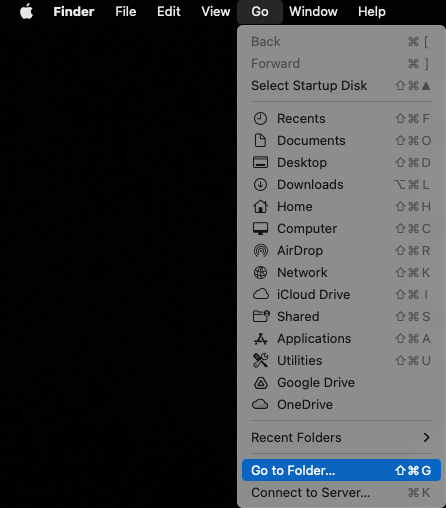
- Go to Apple menu bar, navigate to Go.
![access edge mac01]()
- Go to Go to folder, copy and paste the path ~/Library/Application Support/Microsoft Edge/Default/ into the window.
![access edge mac02]()
- Press Enter to open the folder that stores the Edge favorites, browse and find the bookmark file.

How to Restore Microsoft Edge Favorites if Deleted or Lost?
As per different reasons that potentially cause Microsoft Edge favorites missing issue, we have gathered 5 options to recover favorites from Edge browser efficiently and easily. Go to pick out the exact one that suits your case most.
#1 Search for Edge Favorites in File Explorer
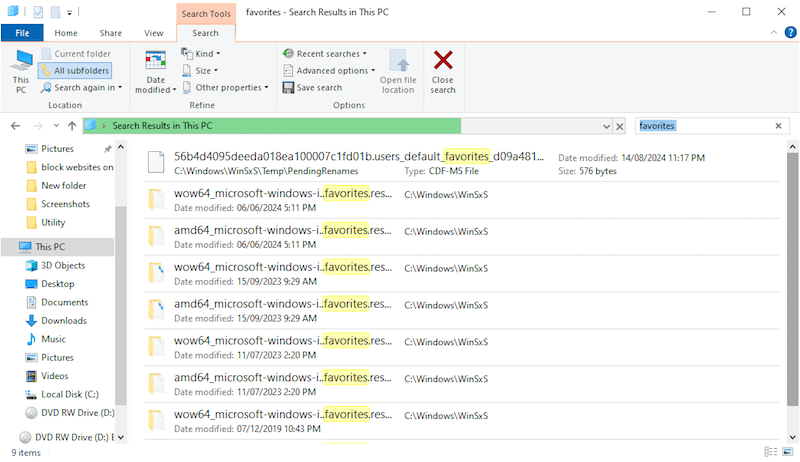
Cannot find Favorites in your Microsoft Edge, it might be misplaced or their locations are modified. Under this circumstance, to make clear where Edge favorites are stored, it’s suggested to search them with Search tool in File Explorer. The instructions are as below:
- Go to This PC.
- Input “favorites” in the search box > press Enter to initiate a search. You’re allowed to click Search > Kind > Document to filter the search results and locate missing Edge favorites quickly.
![search in file explorer]()
- Once you locate the Bookmarks file, you should move them to the correct path according to part 1. Then relaunch Edge to see if the Favorites are back to your PC.
tips: On Mac, you can press Command + F to search files quickly.
#2 Check if Edge Favorites Are Hidden
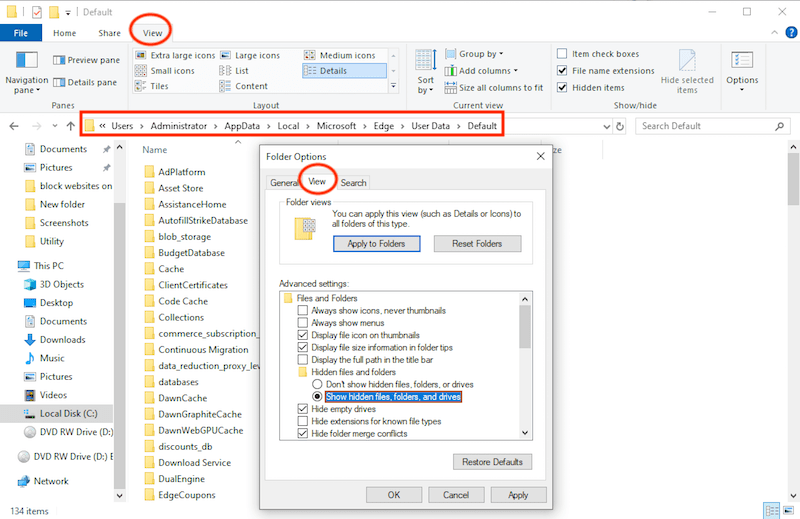
Alternatively, the disappeared bookmarks in Edge could be hidden due to virus or malware infection, system re-installation, app crash, human error, etc. What you need to do is unhide these files and get lost favorites back. Here’s the tutorial.
- Open This PC, navigate to C:\Users\(username)\AppData\Local\Microsoft\Edge\User Data\Default.
- Select View tab > Options > View, check if “Show hidden files, folders, and drives” has been chosen. If not, select it, click Apply and OK to show up your favorites in Edge.
![show hidden files]()
- Then check if the Bookmarks files are back or not. And relaunch your Microsoft Edge if the file shows up.
tips: On Mac, press Command + Shift + Period (⌘ + ⇧ + .) to show hidden files.
#3 Restore from History
If you cannot find the Bookmarks file on your PC, or there is no hidden file on your computer, have a try to restore the Favorites on your Edge according to the browsing history then, as you may have opened the favorite pages recently on your devices.
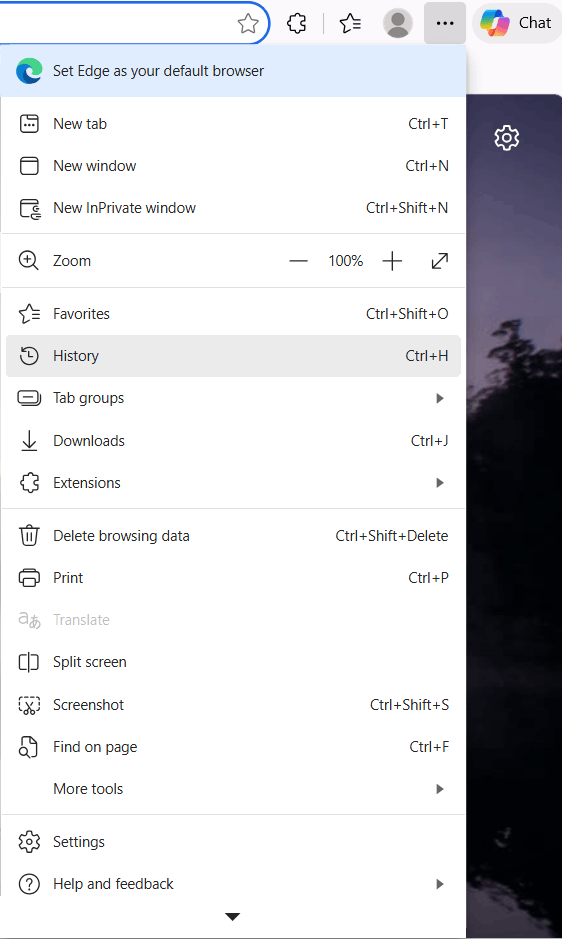
- Open Edge on your PC.
- Then click "..." icon from menu bar, go to History.
![edge history 01]()
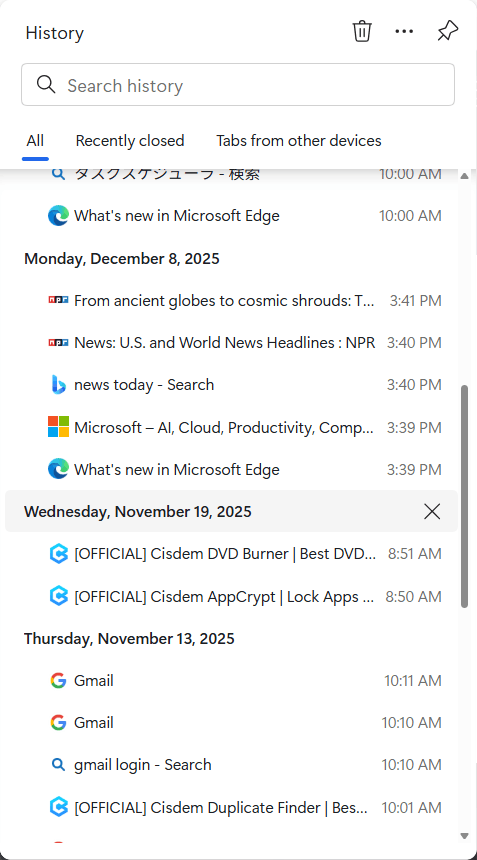
- You can browse a recent history, all history and history list from other devices to find out your favorites pages.
![edge history 02]()
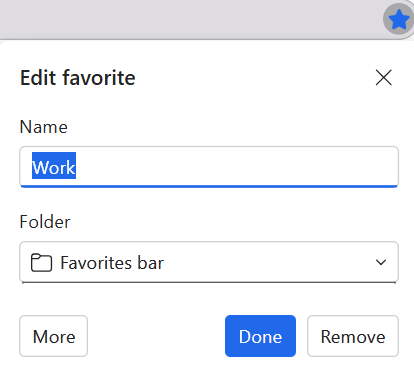
- Open the pages from history list, and click the star icon to add the pages to your Favorites again.
![edge history 03]()
#4 Recover Edge Bookmarks from Backup
As we mentioned in Part 1, there is a backup file (Bookmarks.bak) created by Microsoft Edge to save the latest version of Edge bookmarks. Also, like most web browsers allow their users to import or export bookmarks, Microsoft Edge allows too. If yours are lost, you can import Edge favorites from bookmarks in Chrome, Firefox, IE, also you can import from the HTML file that you exported via Edge/Chrome/Firefox before. It works just like a backup and can be used when needed.
And in this part, we will show you 2 ways to recover Edge bookmarks from a backup.
Option 1. Recover Edge Bookmarks from Bookmarks.bak file
- Go to the defaulted Edge favorites location (according to part 1) on your PC or Mac to locate the Bookmarks.bak file.
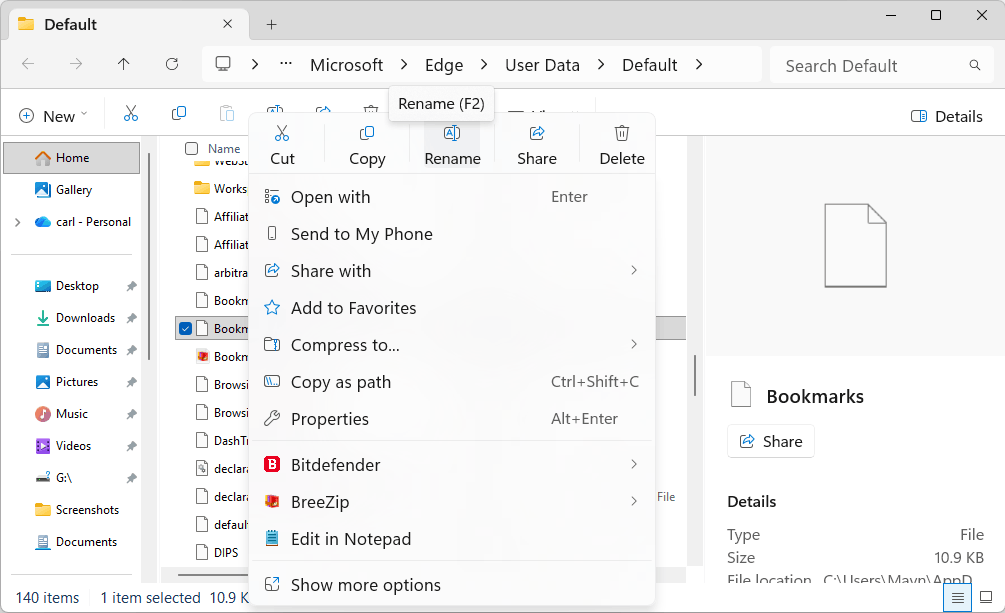
- Change the file name of Bookmarks, for example, Bookmarks old.
![change backup name]()
- Then change the file name of Bookmarks.bak to Bookmarks, to replace the Edge favorites with the backup file.
- Then relaunch Microsoft Edge and check if the favorites are restored.
Option 2. Recover Edge Bookmarks from Exported Backups
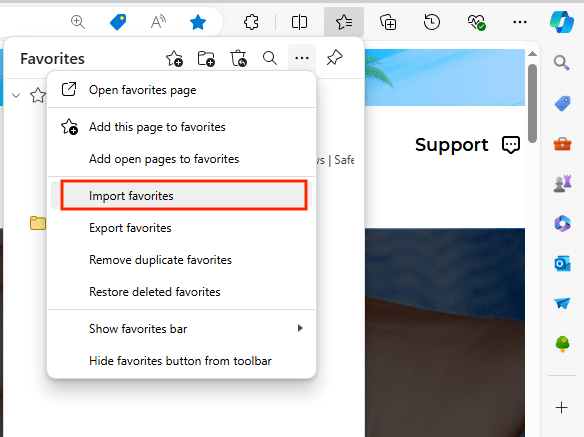
- Click on the Favorites icon, select 3 dots for more options, click Import favorites.
![import from backup 01]()
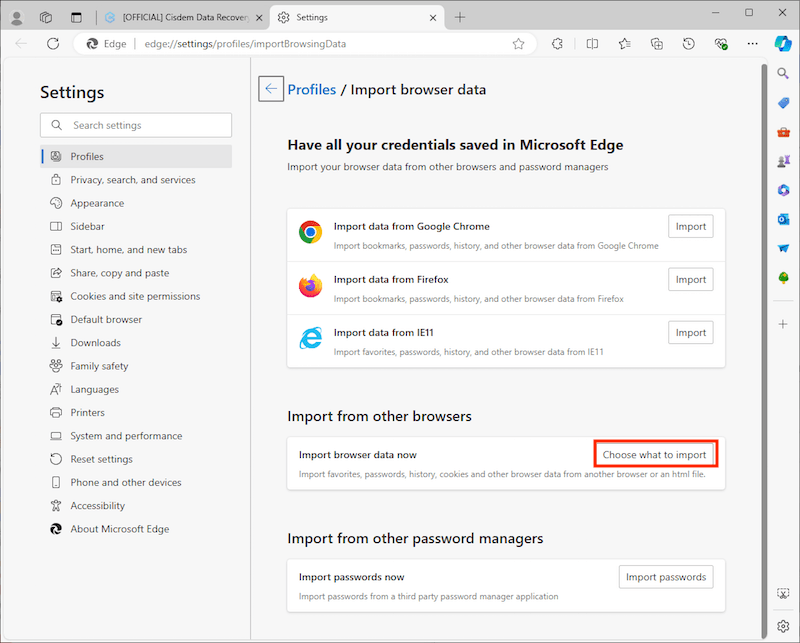
- Choose a method to import the favorites, from other browers or from a HTML file.
![import from backup 02]()
- Then click Import.
![import from backup 03]()
- Open Edge, the missing favorites in Edge will be restored properly.
#5 Recover Deleted/Lost Edge Favorites with Software
When we can’t find Edge favorites in Windows File Explorer or elsewhere they should be, one possible scenario to be considered is that the bookmark files have been removed somehow from computer. In this case, it would be better to take a third-party data recovery program, which is guaranteed to complete the recovery process with minimum efforts. One such program we would recommend is Cisdem Data Recovery.
Cisdem Data Recovery is dedicated to restore deleted and lost files from various storage media compatible with PC or Mac, such as HDD, SSD, USB drive, digital camera, SD card, video player, etc. Besides Microsoft Edge favorites and bookmarks on other web browsers like Google Chrome, Firefox, Safari, it can also recover other 1000+ types of files: documents, photos, videos, audio, archives, emails and so on. With Cisdem Data Recovery, users will need little professional knowledge to deal with any tricky data loss situations.
More reasons to consider Cisdem Data Recovery:
- Restore recently and permanently deleted files
- Recover data lost under different scenarios
- Retrieve files from internal and external storage devices without backup
- Recover 1000+ file types: videos, audio, photos, documents, emails, archives, etc.
- Support SD Card/NAS/Linux/RAID/Partition/Crashed PC recovery
- Repair corrupted documents, images and videos
- Recover unsaved Word, Excel, PowerPoint, etc.
- Preview files before recovery
- Save scanning process and load records to save time
Steps to recover deleted or lost Microsoft Edge Favorites:
- Free download and install Cisdem Data Recovery.
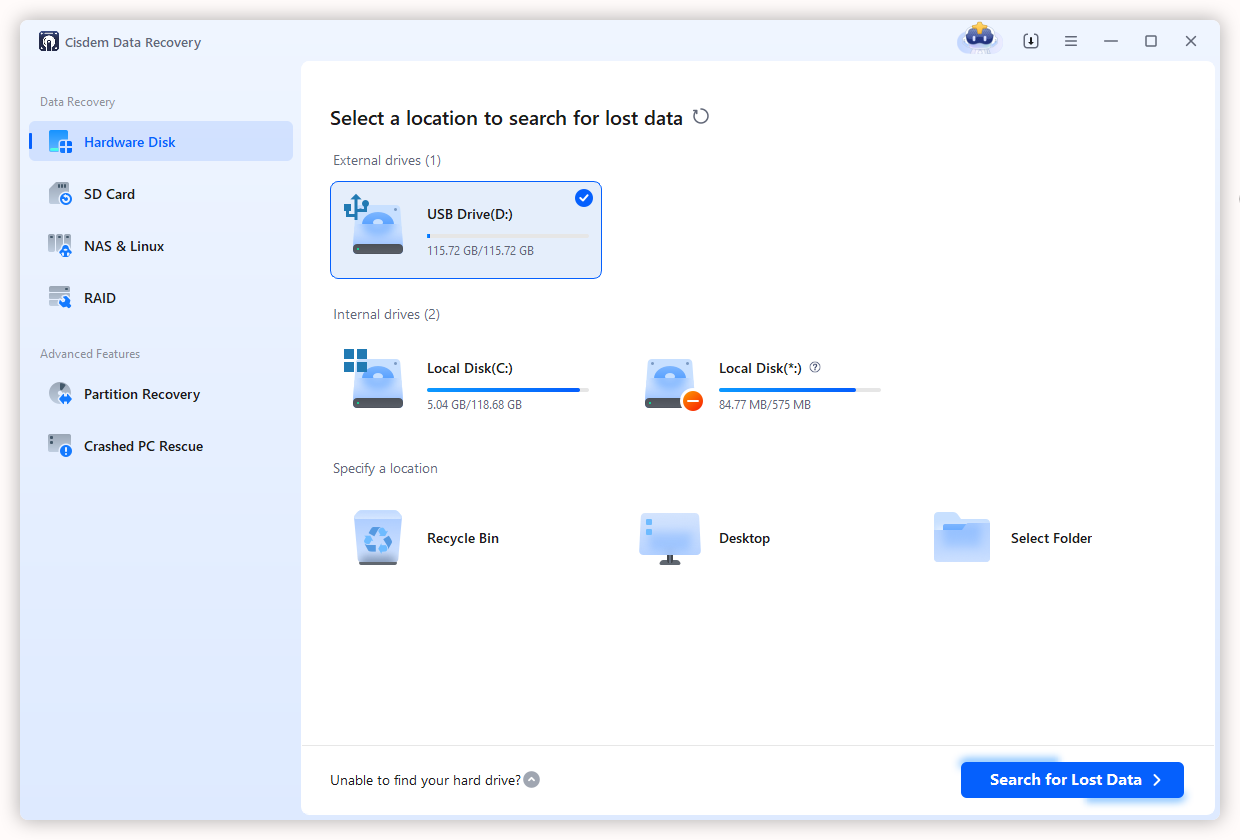
Free Download Windows 11/10/8/7 Free Download macOS 10.15 or later - Launch it on your computer. In Hardware Disk, select the drive or a specific folder where Edge favorites are stored, and click Search for Lost Data to start scanning.
![recover edge favorites cisdem 01]()
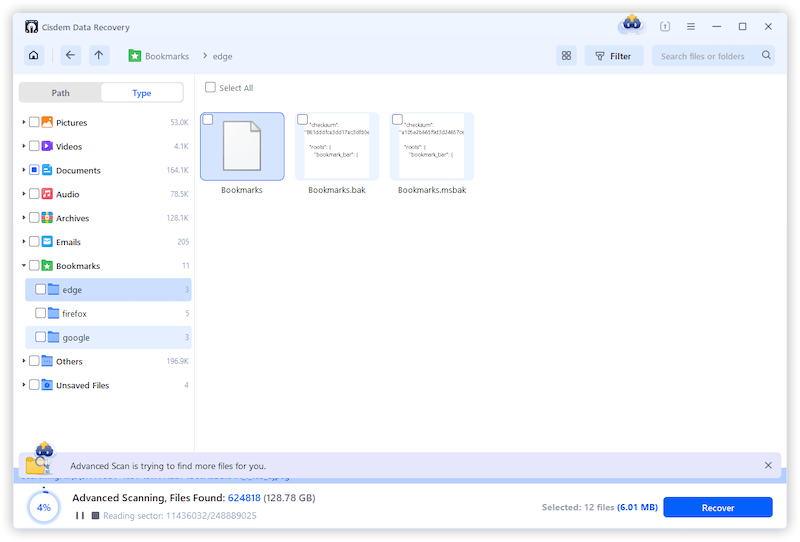
- Go to Type > Bookmarks > edge, Cisdem will list all recoverable Edge favorites in the folder.
![recover edge favorites cisdem 02]()
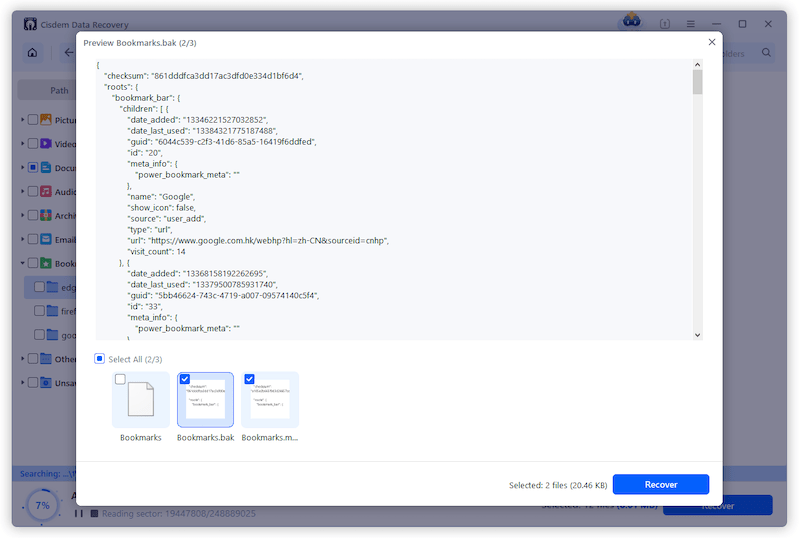
- Preview the Edge favorites file, select the one you need to recover, and click Recover to restore them back.
![recover edge favorites cisdem 03]()
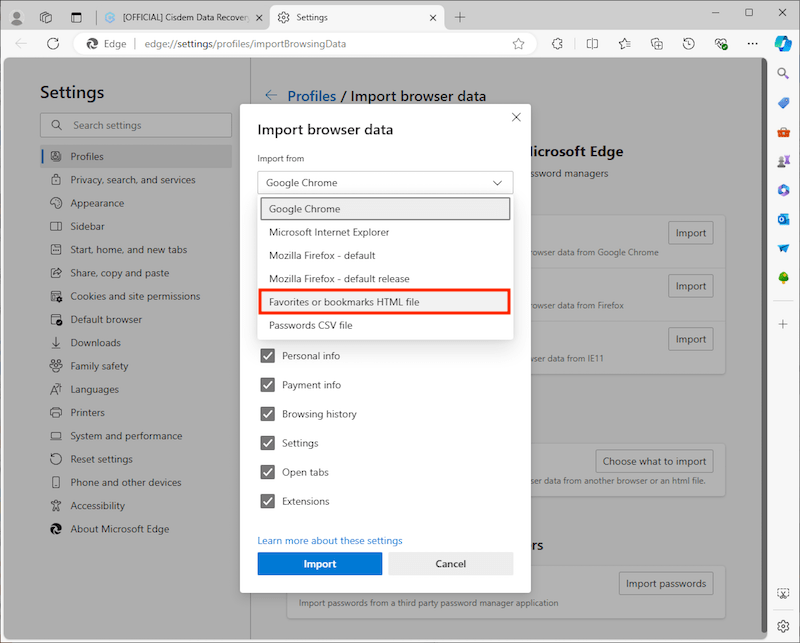
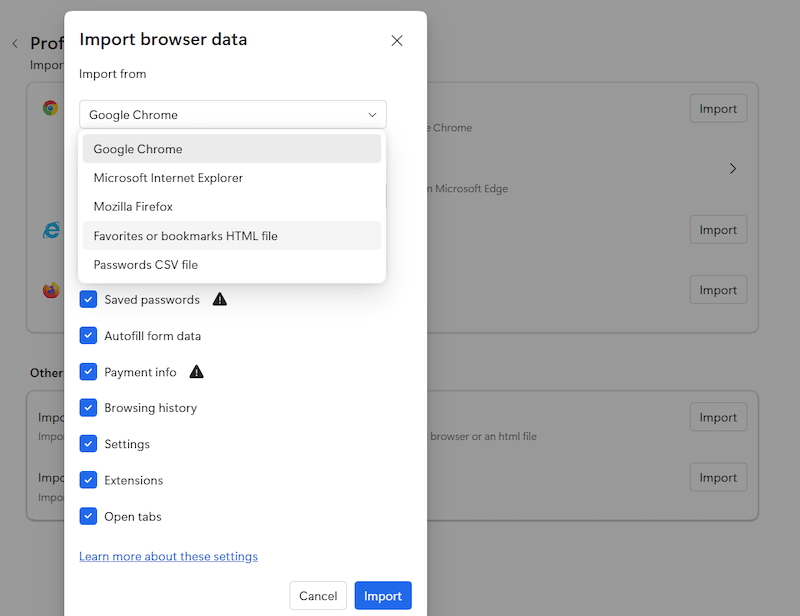
- Then open Edge, click ... > Favorites > ... > Import favorites > Import browser data now > Favorites or bookmarks HTML file and click Import to recover the deleted bookmarks into your Edge.
![edge bookmark import]()
FAQs
1. Where are Microsoft Edge Favorites stored on Windows 11?
Same as that on Windows 10.
C:\Users\(username)\AppData\Local\Microsoft\Edge\User Data\Default
2. Where are Microsoft Edge Favorites stored on Windows 10?
C:\Users\(username)\AppData\Local\Microsoft\Edge\User Data\Default
3. Why Edge Favorites disappeared?
This can be caused by various reasons, app glitches or human errors, but mainly focus on following factors:
- Sign into the wrong account when the PC is shared
- Sync issues like interruption due to internet connection (especially with VPN ON), or conflicts when too many changes are made
- Incorrect date and time settings
- Long titles or special characters in Bookmarks file/name
- Windows updates reset the app data and cause data loss
- Outdated Edge works improperly
- Insufficient storage on PC
- Conflicts from antivirus software or other 3rd party apps
- Accidentally delete the Favorites folder or Bookmarks file in defaulted directory
4. How to recover Favorites in Edge?
The best way to recover deleted Favorites in Edge is to save the backup file "Bookmarks.bak" in Microsoft Edge's Default folder to "Bookmarks" and replace the original one, then relaunch Edge to see if the bookmarks are back. Also, you can open Edge, click ... > Favorites > ... > Import favorites > Import browser data now > Favorites or bookmarks HTML file, and click Import to load a backup bookmark file from other browsers to restore.
5. Why Restore Deleted Favorites icon is missing?
It is not missing, it is just removed.
From Edge version 128.0.2739.42 on, the tool "Restore deleted favorites" which was designed to recover favorite pages in the last 28 days, is not available anymore.
Final Words
Can’t find the favorites in Microsoft Edge web browser? Back in the beginning of the article, we have explained the original locations where Edge favorites are stored for Windows 11, 10, even for macOS and Linux. If bookmarks are not found as expected, the Bookmarks.bak file and Cisdem Data Recovery would be a nice try to restore them back, no matter they are deleted, lost or merely hidden.

Zoey shows a great interest in what she does. Although not long with Cisdem, she has possessed a professional understanding of data recovery.

JK Tam is the lead developer at Cisdem, bringing over two decades of hands-on experience in cross-platform software development to the editorial team. He is now the lead technical approver for all articles related to Data Recovery and DVD Burner.
Nicholas
The tip about the Bookmarks.bak file is useful for me to restore favorites after accidentally deleting.