


Telegram App Lock for Windows, Mac, Android and iPhone (Setup Guide)
 4.2K
4.2K
 0
0


Although Telegram provides several security features, they cannot prevent someone from opening the app and viewing your chats when you are away from your unlocked device. This article shows you how to lock Telegram app on Windows, Mac, Android, and iPhone, including using built-in settings or third-party app locker. Protect your privacy and prevent snoopers from accessing your Telegram app without your permission.
 Cisdem AppCrypt
Password Lock Telegram App on Computer & Phone
- Lock individual apps, like Telegram, with password
- Offer an option to automatically relock apps after a period of inactivity
- Record failed attempts to open locked apps
- Block websites and pages on Chrome, Safari and other browsers
- Block specific sites, categories of sites, and URLs with certain keywords
- Let you lock apps and block sites permanently or at certain times
- Require password to enter/quit/uninstall AppCrypt
- Can be used for privacy protection, productivity, parental controls, etc.
- Easy to use and hard to bypass
- Available for Windows, Mac, Android, iPhone and iPad


How to Password Lock Telegram App on Computer
If you share your computer with family members or others, locking Telegram can prevent them from opening your private chats. Below are two ways to password protect Telegram on a Windows PC or Mac.
Method 1: Lock Telegram with Cisdem AppCrypt
Cisdem AppCrypt lets you lock Telegram and other private apps on your computer with password. It can automatically re-lock Telegram after you have been away from your computer or the Telegram app has remained inactive for a specified period. It also records failed attempts to open Telegram, and block access to Telegram Web.
Below are the steps for Windows and Mac.
1. Download and install Cisdem AppCrypt on your computer.
 Free Download Windows 10 or later
  Free Download macOS 10.12 or later
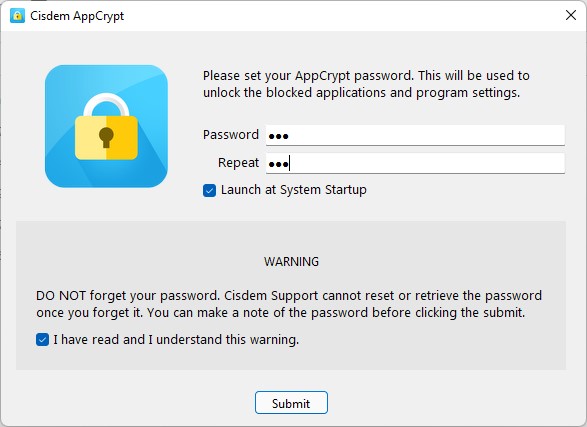
2. When you first launch this tool, it’ll ask you to set a password to lock Telegram (as well as other apps that you don’t want others access without your permission).
Enter the password. Click Submit.
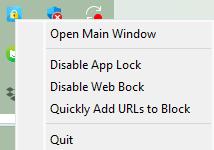
3. Click the AppCrypt icon on the desktop task bar or menu bar. Select Open main window.
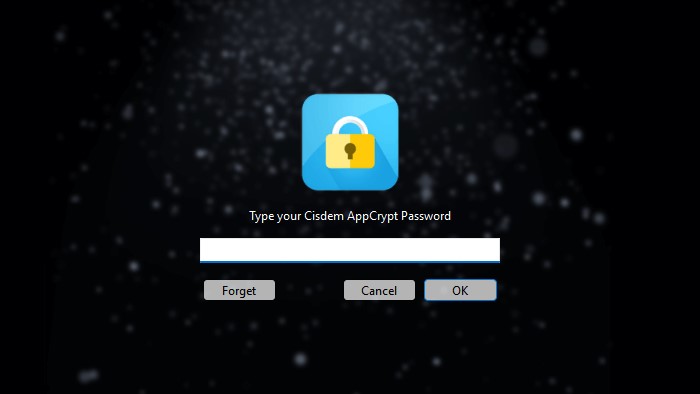
4. Enter the password to access AppCrypt.
5. In the App Lock tab, drag the Telegram desktop shortcut into the window.
Alternatively, click the plus icon. On Windows, find and select the Telegram.exe file in File Explorer. On Mac, select Telegram from the Applications folder. Then click Open.
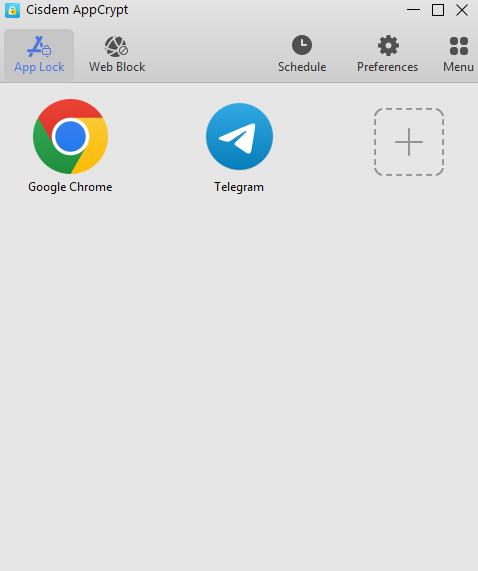
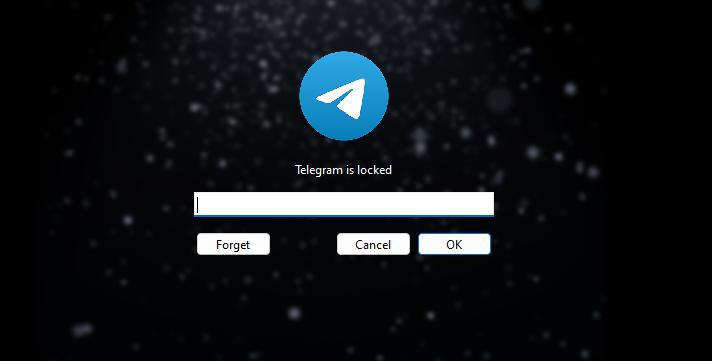
Now the Telegram app is locked with password on your computer. The password will be required every time you or other users try to access it.
Optional: Lock Telegram Web
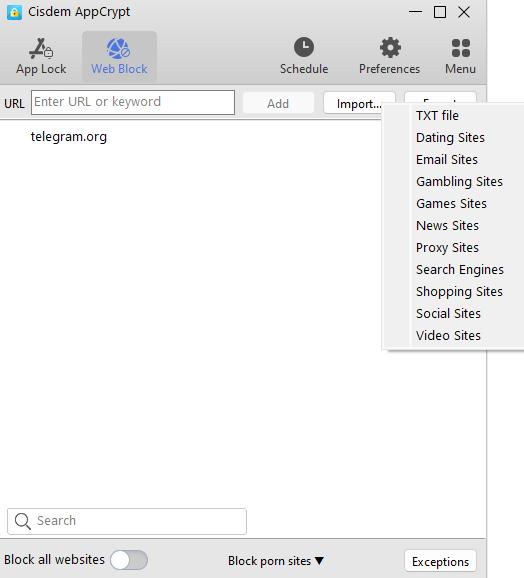
Users can use the Telegram web on desktop browser directly. AppCrypt also supports locking Telegram website with password. To do that, click the Web Block tab on the main window. Enter the domain name (telegram.org) into the box. Click Add. Now the Telegram web is locked. Every time you want to visit it, click AppCrypt’s icon on the desktop menu bar. Select Disable Web Block. Then enter the password to unlock it.
Optional: Lock Telegram only at certain times
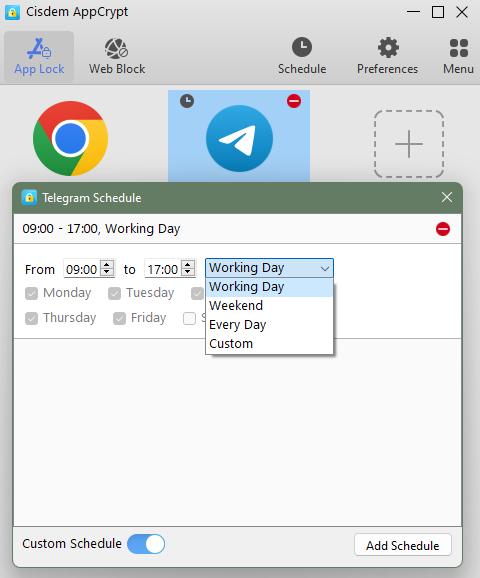
By default, AppCrypt keeps Telegram locked all the time. If you want to set time limit on this addictive social media app, you can use the Schedule feature. Click on Telegram from the block list. Click the clock icon that appears. Enable Custom Schedule. Now you can set the time you are allowed to use Telegram app on this computer.
Method 2: Lock Telegram with the Built-in Local Passcode
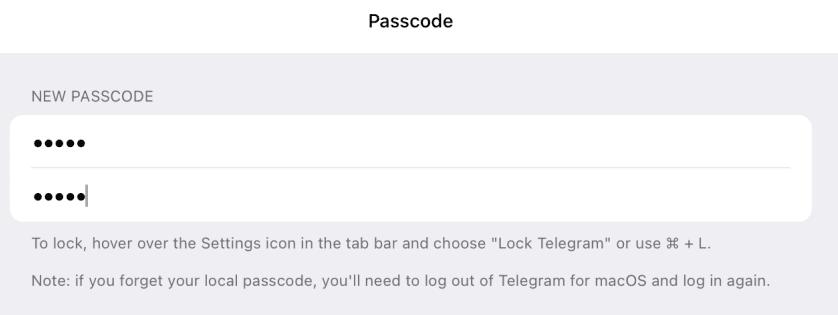
Telegram Desktop also provides a built-in Local passcode feature to lock your Telegram chats. This methods is suitable for users who need basic protection for Telegram and do not need other functions such as failed-attempt records, schedules, or Telegram web locking.
The steps are similar on Windows and Mac:
1. Open the Telegram app on your computer.
2. Go to Settings > Privacy and Security.
3. Select Local passcode on Windows or Passcode Lock on Mac.
4. Enter the passcode for locking Telegram.
5. Click Done.
How to Lock Telegram on Android
There are two ways to lock Telegram on Android.
Method 1: Use Telegram’s Built-in Passcode Lock
Below are how to turn on Telegram app lock on Android phones:
1. Open the Telegram app on your Android.
2. Click on the three-line icon on the top left corner.
3. Tap Privacy and Security > Passcode Lock.
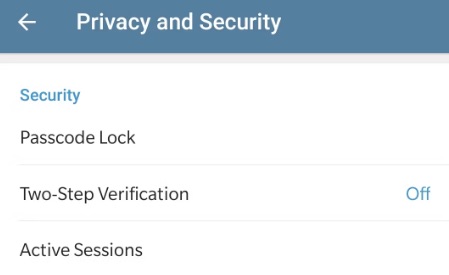
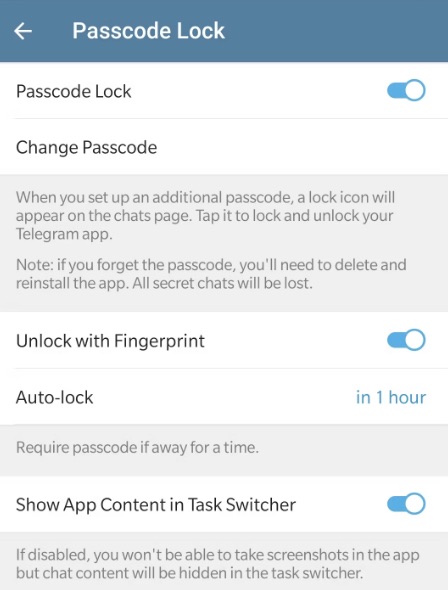
4. Click on Enable Passcode.
5. Create a 4 digits passcode. Re-enter the passcode.
When the password is set, a lock icon appears above your Telegram chats. And you can lock your Telegram app at any time by tapping it.
6. Click on Auto-lock. Set your desired auto lock time.
7. If you want to unlock the Telegram app only with your fingerprint, enable the Unlock with Fingerprint option.
Method 2: Lock Telegram with Cisdem AppCrypt
The above-mentioned Cisdem AppCrypt also has an Android version, which can be used to lock any apps installed on your device.
1. Install Cisdem AppCrypt.

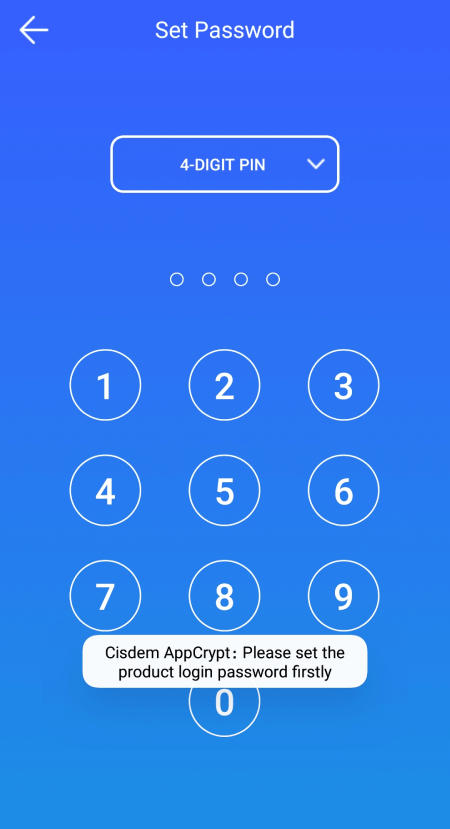
2. Set a PIN or pattern when you launch it for the first time.
3. In the App Lock tab, find the Telegram app. There's a search feature, allowing you to quickly find the app.
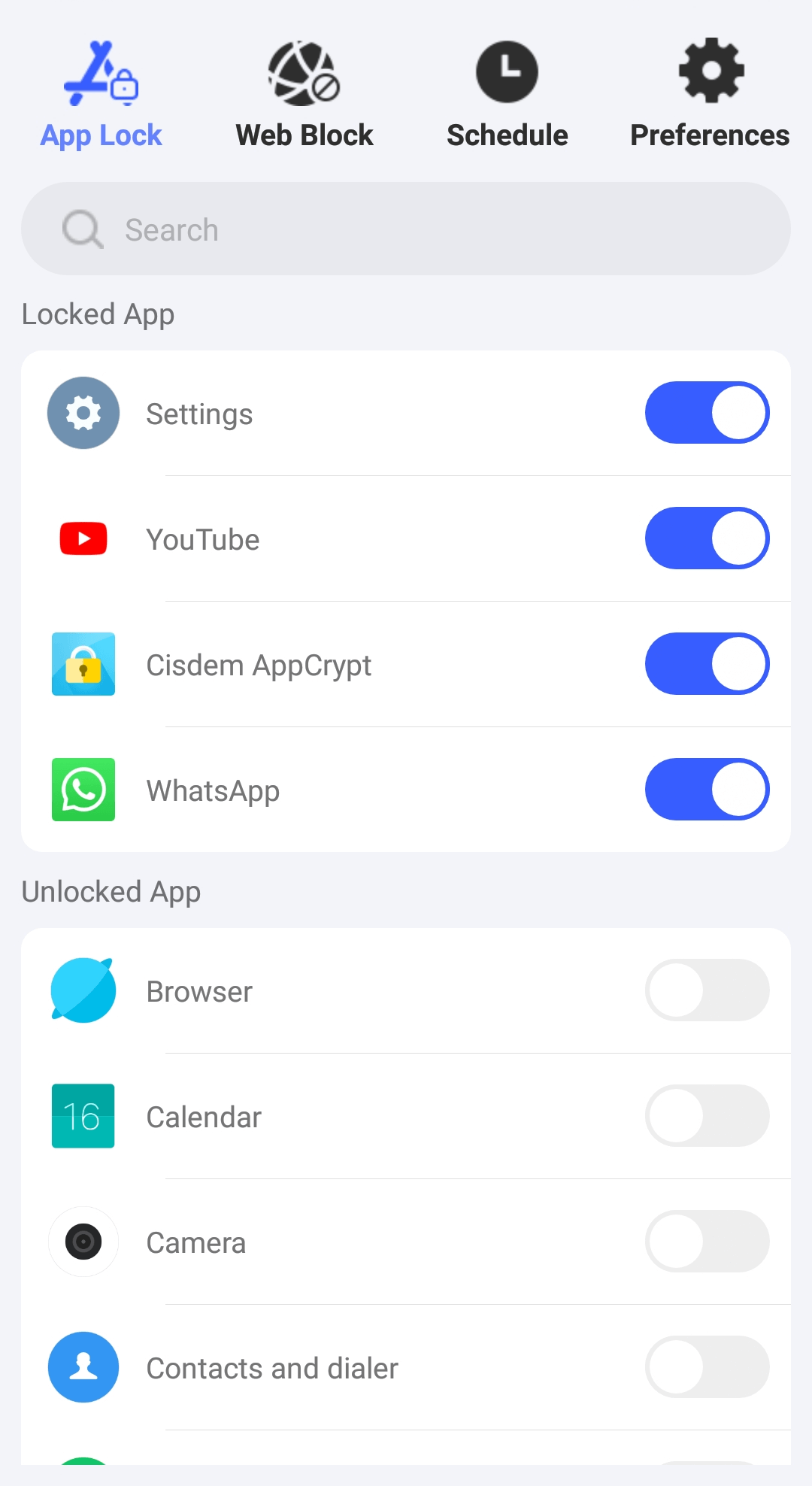
4. Toggle the switch next to Telegram to the on position.
Now Telegram is locked with the PIN or pattern you set.
How to Lock Telegram on an iPhone
On an iPhone, you can use Telegram’s built-in Passcode Lock, the iPhone’s Face ID lock, or Cisdem AppCrypt. The steps for enabling Telegram’s Passcode Lock are nearly the same on iPhone and Android. So below I will show you the other two methods.
Method 1: Use the iPhone’s Built-in Face ID Lock
This method requires you iPhone running iOS 18 or later.
1. Open your iPhone. Long-press on the Telegram icon.
2. Tap Require Face ID (or Touch ID) from the menu.
3. Tap Require Face ID (or Touch ID) again to confirm.
Now Telegram app is locked on your iPhone. It will require authentication whenever it is opened.
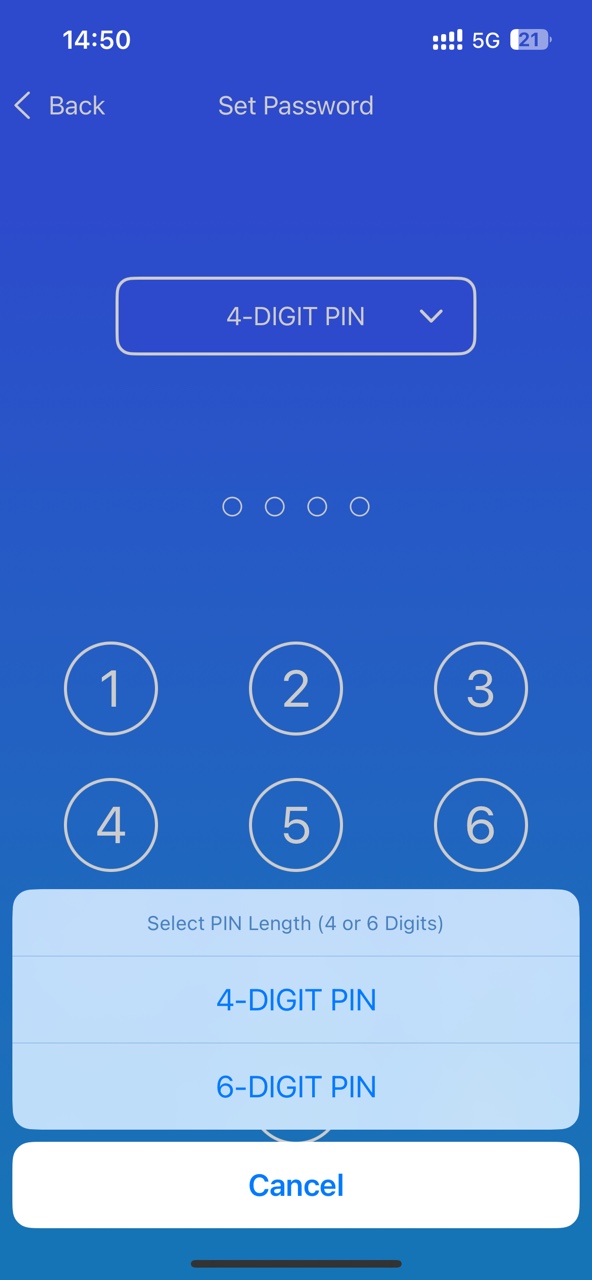
Method 2. Lock Telegram with Cisdem AppCrypt
1. Install AppCrypt on your iPhone.

2. Click App Lock. Click Add/Remove.

3. Search for Telegram app. Select it and click Done.
4. Click Preferences. Click Notifications.
5. Turn on the options of Notification and Notification unlock. Then follow the prompts to set a password.
Some Other Telegram Privacy Settings You Need to Know
In addition to Telegram lock, there’re still some other privacy settings you need to know:
Active Two-Factor Authentication on Telegram
Telegram's two-factor authentication can further keep your Telegram chat secure. Once enabling it, it will require you to enter 2 codes every time you log into your account from a new device.
1. Open the Telegram app. Go to Settings.
2. Tap Privacy and Security > Two-Step Verification.
3. Select Set Password at the bottom.
4. Enter the password and confirm it.
Enable Auto-Delete for Your Telegram Chats
By enabling the auto-delete feature, your sent and received messages will be automatically delete after a period of time, further protecting the privacy of your chat content.
1. Open the Telegram app. Go to the chat that you want to delete automatically.
2. At the top, click on the contact’s profile picture.
3. Click the 3-dot icon.
4. Tap Enable Auto-Delete.
5. In the pop-up window, select the time for automatic deletion.
Terminate All Active Sessions on Telegram
If you are concerned that your account may remain logged in on other devices, you can choose to terminate all active sessions to keep your account safe. To do that:
1. Open the Telegram app. Go to Settings.
2. Select Privacy and Security.
3. Scroll down to find the Security section. Tap Active Sessions.
4. Tap on Terminate All Other sessions.
FAQs
How do I keep my Telegram chats private?
To keep your Telegram chats private, the most effective way is to password-lock the Telegram app using Cisdem AppCrypt. It also lets you automatically lock Telegram after a period of inactivity. This tool is available on Mac, Windows, iPhone, iPad, and Android devices.
Can I put a password on a specific Telegram chat?
No. Telegram doesn’t offers a feature to password-protect a single chat. There are no third-party tools that can do this either. However, if you want to keep a specific chat private, you can use Telegram Secret Chat. To start one, open the chat with the contact. Click the profile icon. At the top, click the 3-dot menu. Then select Start Secret Chat.
Can I hide Telegram app on iPhone?
Yes. If you iPhone is running iOS 18 or later, you can easily hide the Telegram app using a built-in feature. Long-press on the Telegram app. Choose Hide and Require Face ID/Passcode. Then this app will be hidden. To use it, you can search for it in the App Library.
Conclusion
Telegram is a platform that provides users with instant messaging as well as video and audio calls. It’s crucial to take security measures to protect our privacy in this social media app. With Telegram app lock, you can prevent unauthorized visitors from accessing your chat history and other sensitive information. In this article, I introduced detailed steps on how to set up Telegram app lock on Mac, Windows, iPhone and Android devices. Hope it helps.

Norah Hayes likes to share her tips on how to improve focus and stay motivated at work. She believes it is essential to eliminate all online distractions during work hours.

Ethan Long joined Cisdem in 2015 as a developer and now serves as the editorial advisor for Cisdem AppCrypt. He actively tests and uses Cisdem AppCrypt and other screen-time management tools to ensure AppCrypt meets its promises in real-world scenarios.