


How to Recover Deleted GarageBand Projects (Files) on Mac or iPhone?
 1.6K
1.6K
 0
0


You’ve slaved away creating one or numerous GarageBand projects on your device, but accidentally deleted them by mistake? It is infuriating, surely.
I ran into this issue too, but could not find anything online to solve this problem back then. After some trial and error, I managed to recover my files the next day. Actually, you might be able to track the files down on your device if luckily, or use appropriate tools to recover deleted GarageBand files easily, on both Mac and iPhone.
 Cisdem Data Recovery for Mac
Recover Deleted GarageBand Projects/Songs on Mac
- Scan the device thoroughly to find and recover deleted GarageBand projects or songs
- Restore GarageBand files in AIFF, WAV, AAC or MP3 format
- Also recover other audio files in M4A. WMA, APE, MIDI, OGG, RealAudio, etc.
- Retrieve recently and permanently deleted GarageBand files
- Support GarageBand song recovery from iCloud
- Recover 200+ file types: video, audio, photo, document, email, bookmark, archive
- Restore lost files from both internal and external storage devices (SD Card, USB, Media Player, etc.)
- Preview files before recovery
- Save recovered files to local disk or cloud
 Free Download macOS 10.15 or later
How to Recover Deleted GarageBand Projects on Mac?
When you deleted a GarageBand project unintentionally or intentionally, and struggle to recover it when needed, you should look for a backup first. And you are also rest assured to get your GarageBand files back if there is no back, because we have professional program designed for such a task.
Here in this part, we will share 5 ways to recover deleted GarageBand projects or files on a Mac.
#1 Put back from Trash Bin
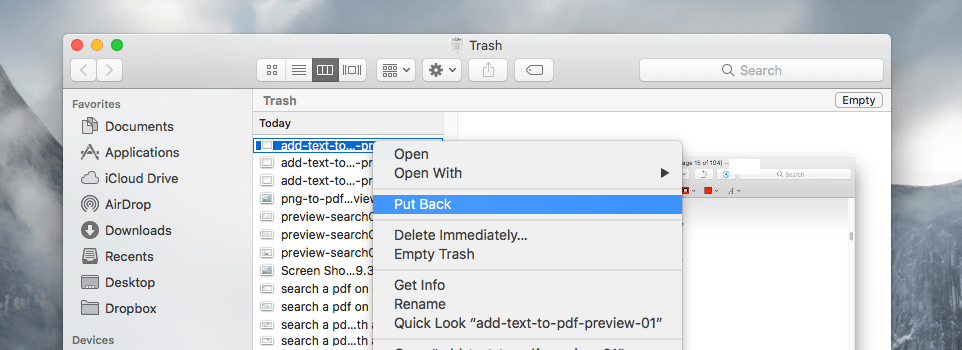
When we delete a GarageBand file, it will be moved to the trash Bin in the Dock. If the bin is not emptied, we can still get the deleted GarageBand projects back from the bin.
- Open Trash bin on your Mac.
- Browse the files, or search by file name to locate the deleted songs.
- Then right click on the file, click Put Back.
![recover garageband trash bin]()
#2 Restore from Time Machine Backup
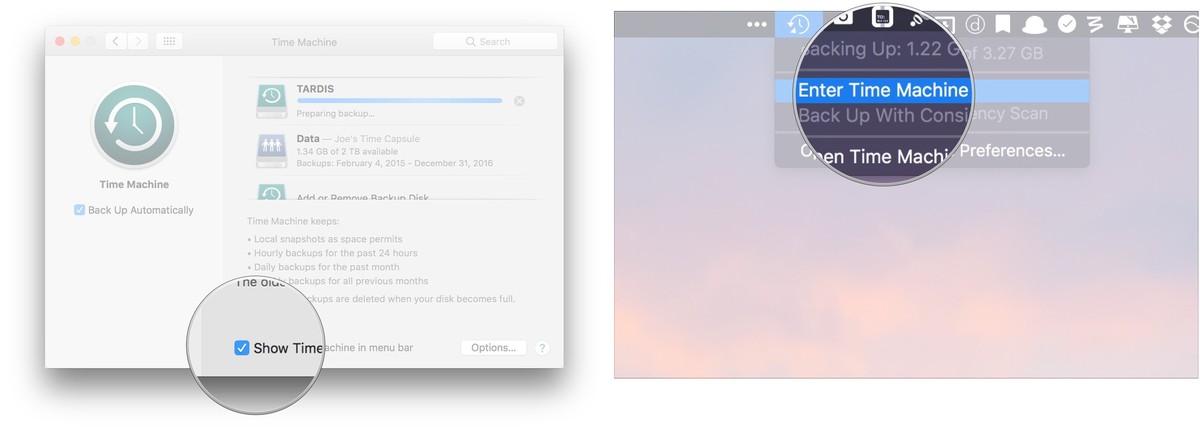
In the case that you have backed up your Mac via Time Machine regularly, recovering a deleted GarageBand project or file can be very easy.
- Connect the Time Machine backup drive to your Mac, enter Time Machine.
![recover garageband time machine 01]()
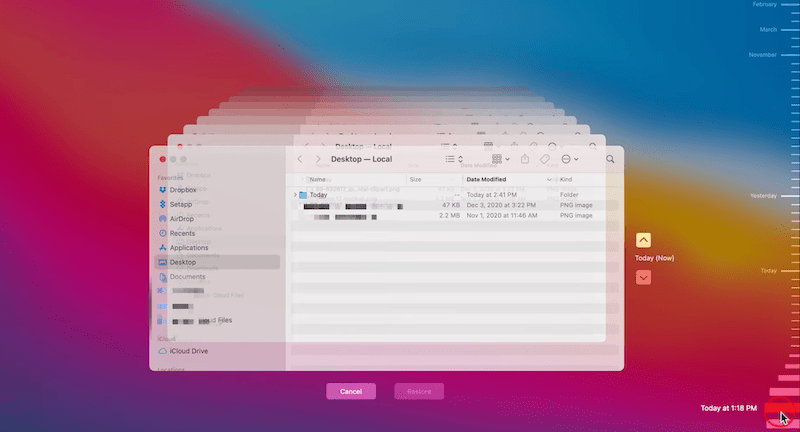
- Go to the place where you last saved the GarageBand file.
- Browse the backup versions from timeline. Then find the copy of the deleted GarageBand files.
![recover garageband time machine 02]()
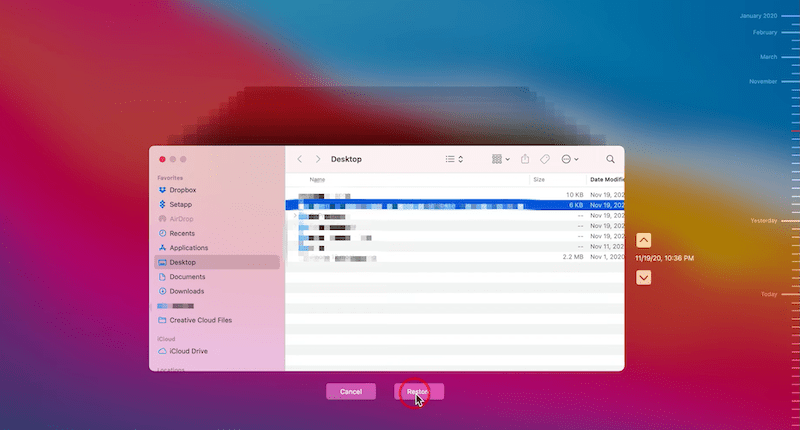
- Select a version of the GarageBand file, then click "Restore".
![recover garageband time machine 03]()
#3 Check iCloud Backup
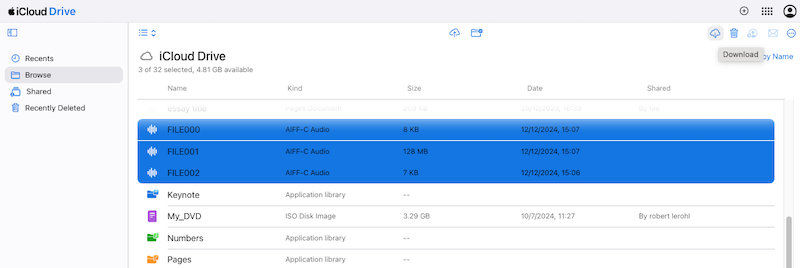
You may have backed up the GarageBand projects or individual files to your iCloud account. Then you should log into your iCloud account, check the backups, download or share the file as you need.
- Log into iCloud Drive.
- Go to Browse, select the copies for the GarageBand projects or media files that you've deleted on your Mac.
- Then click the Download button to recover the files to your Mac.
![recover garageband icloud]()
#4 Recover with Cisdem Data Recovery
Deleted GarageBand files are still missing? Then try this.
According to our experience and know-hows on file recovery, using a dedicated program is always the easiest and best way to recover a deleted GarageBand project. It scans every corner on your device, even the file is gone, the data recovery program can still restore.
Cisdem Data Recovery has a higher recovery rate on restoring 200+ file types, including GarageBand projects. It is designed to recover lost, deleted even corrupted files from Mac internal disk and external storage devices that are connected to a Mac. No matter how and when your GarageBand lost, Cisdem has the solution to get it back.
In addition, Cisdem Data Recovery has rich features:
- Recover 200+ types of files: video, audio, photo, document, email, bookmark, archive
- Recover unsaved Word, Excel, PowerPoint, Keynote, Pages, Numbers, etc
- Repair damaged videos, photos or documents
- Recover data from any drive: HDD, SSD, USB, SD Card, etc
- Also recover files from iCloud, even unbootable Mac
- Quickly search or filter files
- Preview files before recovery
- Create disk backup, create macOS installer, load and search scanning records
How to Recover Deleted GarageBand Projects or Files on Mac?
- Download and install Cisdem Data Recovery on your Mac.
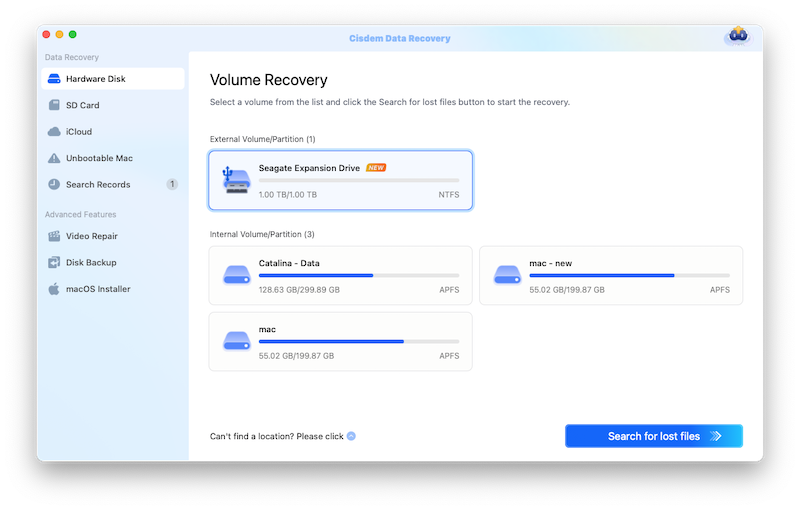
Free Download macOS 10.15 or later - Select the drive where the GarageBand projects were saved. Generally speaking, it should be on the internal bootup drive. Then click Search for lost data to start the scanning.
![recover garageband cisdem 01]()
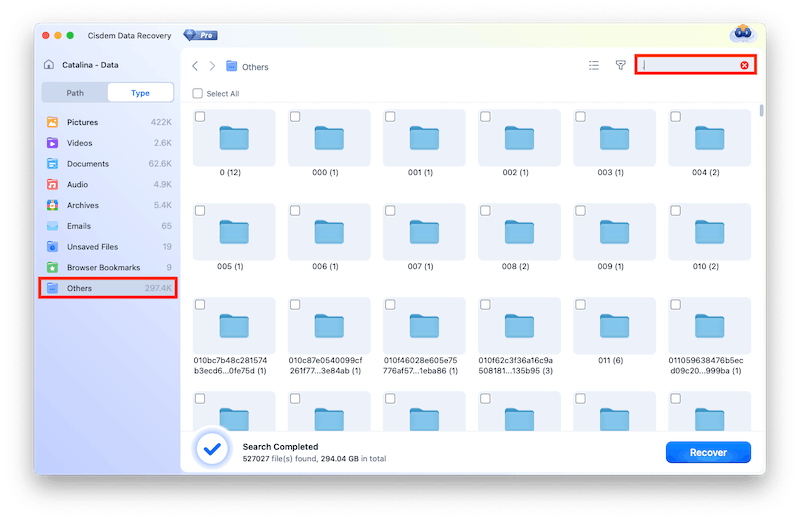
- Go to Type > Others, select the GarageBand projects, or files in the projects according to file types. Also, you can enter keywords of the file into the Search box to quickly locate a lost GarageBand file.
![recover garageband cisdem 02]()
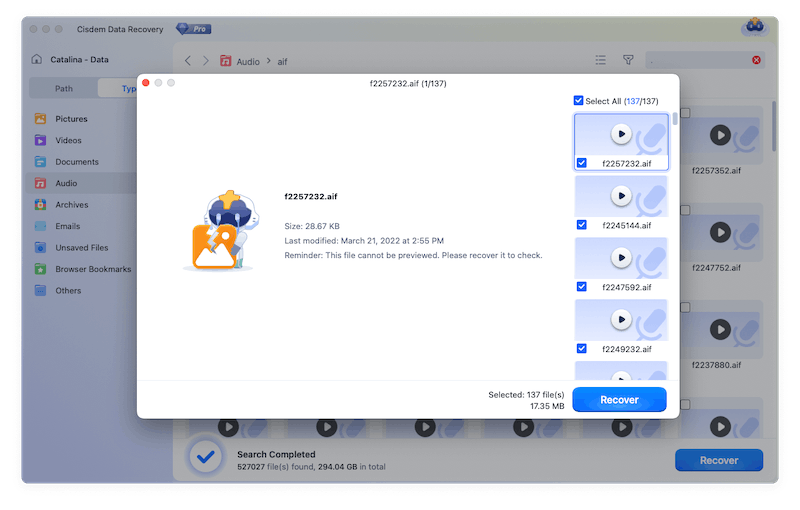
- Check the GarageBand project file information, select and click Recover to get the files back to your Mac.
![recover garageband cisdem 03]()
How to Recover Deleted Files from GarageBand on iPhone?
Deleted and lost the GarageBand files on your iPhone? Then the solutions will be quite different from those on a Mac. Here in this part, we will share you 3 ways to recover deleted files from GarageBand on an iPhone.
#1 Check Recently Deleted from Files App
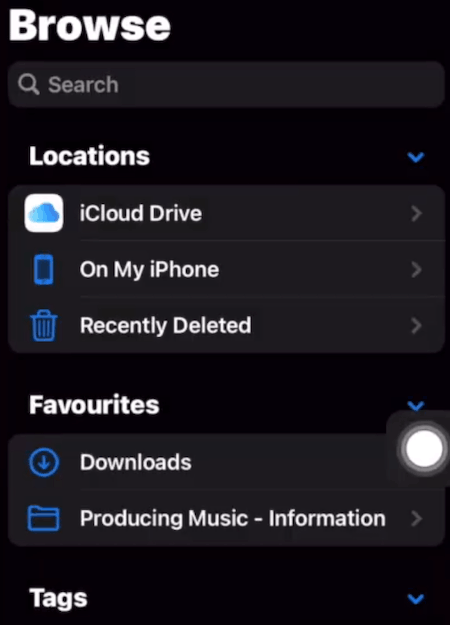
On your iPhone, the GarageBand projects files can be only opened in Files app, if you deleted such a file, it would be moved to the trash in Files app, i.e. the Recently Deleted folder. You should find this folder and restore your files to GarageBand app.
- Open Files app on your iPhone.
- Then go to Recently Deleted. Browse the files and locate the one that you want to recover.
![recover garageband iphone 01]()
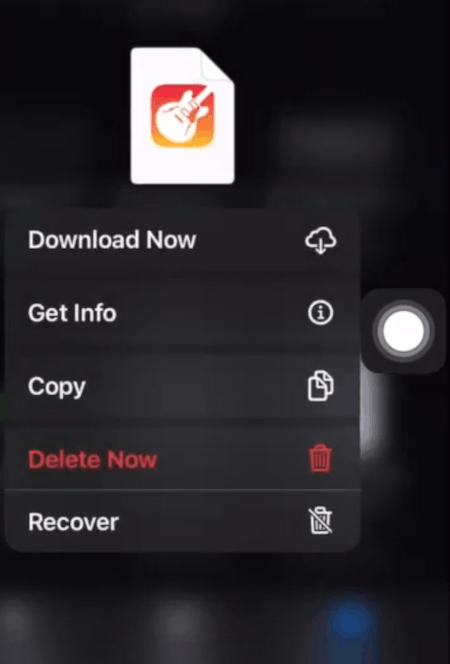
- Then tap on the file and hold, tap Restore.
![recover garageband iphone 02]()
- Open GarageBand app on your iPhone, and the deleted GarageBand files will be restored.
#2 Use iCloud Data Recovery
In the case that you've enabled iCloud sync on GarageBand, but deleted a GarageBand file on your iPhone, then you can use the data recovery tool in your iCloud account to restore the data.
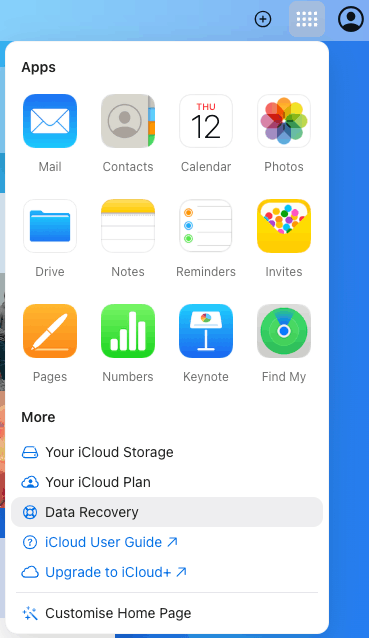
- Log into your iCloud account using the web browser on your iPhone, like Safari.
- Then tap on Data Recovery from the Quick Access menu.
![icloud data recovery 01]()
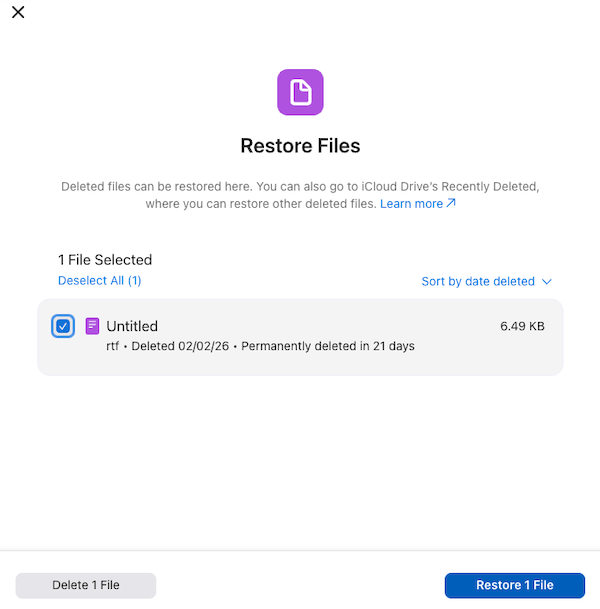
- Wait for the Data Recovery tool to load recoverable files.
![icloud data recovery 02]()
- Then tap on the file and choose Restore.
![icloud data recovery 03]()

#3 Use iPhone Data Recovery Program
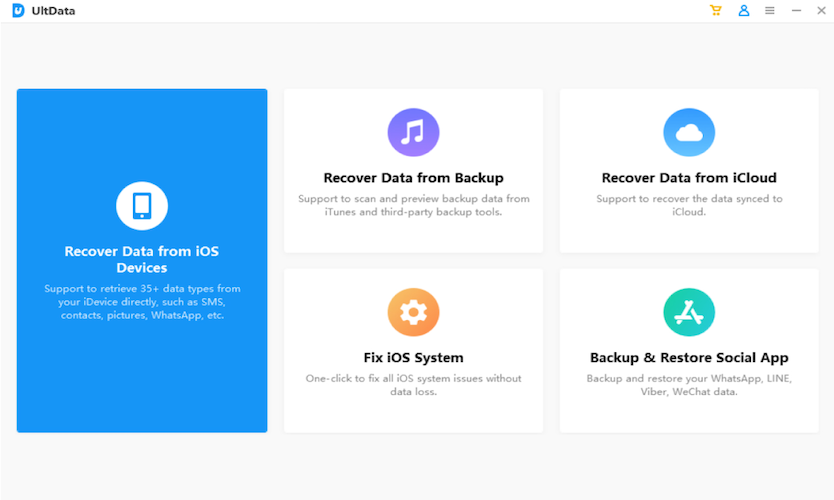
If you don’t have a backup, or permanently deleted all the GarageBand songs on your device, or you are just looking for an easy way of recover your songs, use a data recovery program! For iPhone users, UltData iPhone Data Recovery is trustworthy to recover 35+ data types from iPhone on Mac or Windows, including music, video, photo, message, contact, WhatApp, etc.
- Download and install UltData Recovery to your computer.
- Connect your iPhone to the computer, choose Recover Data from iOS Devices.
![recover garageband iphone 01]()
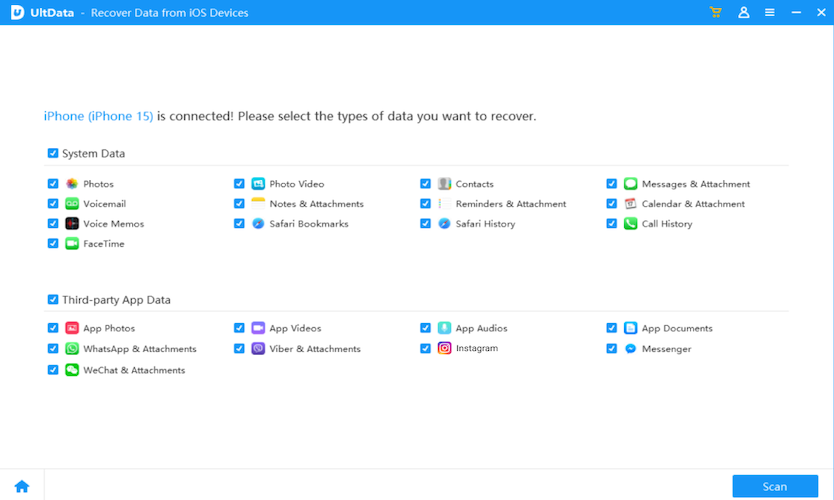
- Then select the data type and click Scan.
![recover garageband iphone 02]()
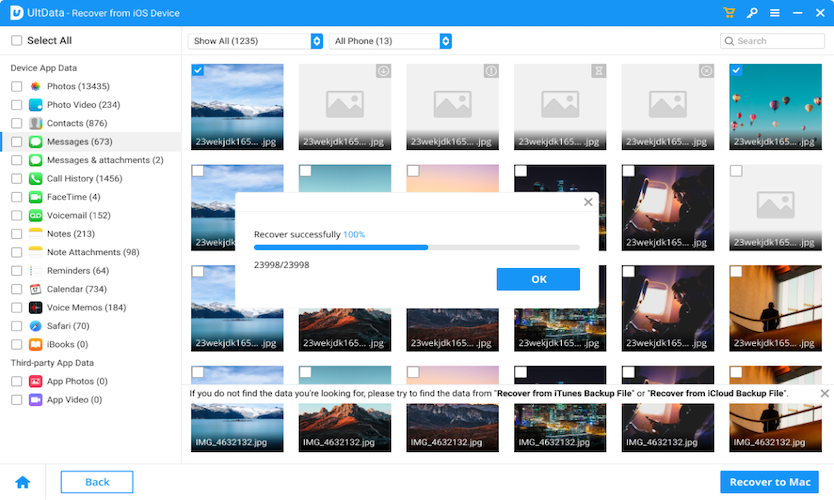
- Then check the recoverable audio files, preview the file, select and click Recover button.
![recover garageband iphone 03]()
FAQs
1. Why did my GarageBand songs disappeared?
There might be a plethora reasons behind this, but generally, the reasons are divided into following categories:
- File corruption: When one or multiple files from the GarageBand project is corrupted in the first place, it will lead to a corrupted save and the whole project will be gone.
- Relocated: If you moved the files to another location after importing them to GarageBand, the program won’t find the files, and the missing source will lead to a fatal error.
- Files are too large: Big files slow down your work and may stop you from saving the project successfully.
- Software Issues: If your GarageBand is outdated or your Mac is still running an earlier version, glitches in GarageBand might happen, and ultimately lead to missing files.
- Not enough space: Not having enough space on your device could also be a reason why a GarageBand project goes missing.
- Disk error: Faulty disk with bad sector, worn out component, physical damage or others may stops users from saving or accessing the data on it.
- Virus attack: Virus attack can also hide or delete files on your device without notice.
2. Does GarageBand have autosave?
Kind of. GarageBand itself doesn't have autosave tool, but macOS has.
macOS AutoSave feature can automatically save a file without clicking on Save button, in other words, for all the native tools in macOS, there build in the autosave and auto recover feature. Whenever the GarageBand crashes or quits unexpected, whenever you relaunch the app, it will auto open and recover the project. If it won’t, you can recover from the autosave location manually.
3. Is there an undo button on GarageBand?
Yes, there is.
The left-facing arrow from top control bar is the Undo tool, allows users to reverse actions. It is available on both macOS and iOS GarageBand.
4. Can I see past versions of a Song on GarageBand?
No, you cannot.
There isn't Version History in GarageBand, so you cannot browse all versions and go back to a selected one. The only method to see a past version of your GarageBand song is to undo.
Final Words
With any luck, we can use simple methods as above to recover the lost files in GarageBand, including projects, songs and other media files. There is no need to stress or worry if you will keep losing your files in GarageBand, as long as your device has enough space, is up to date, and you follow the app requirement to import/export/edit the file. However, you are always recommended to back up files to prevent unexpected data loss.

Connie Yu has been a columnist in the field of data recovery since 2011. She studied a lot of data loss situations and tested repeatedly to find a feasible solution tailored for each case. And her solutions are always updated to fix problems from the newest systems, devices and apps.

JK Tam is the lead developer at Cisdem, bringing over two decades of hands-on experience in cross-platform software development to the editorial team. He is now the lead technical approver for all articles related to Data Recovery and DVD Burner.