


How to Find Deleted Canva Projects from Trash or Other Places?
 646
646
 1
1


Finished a design and closed the tab in Canva, but only to realize the project was gone, and thought you’ve deleted the project by mistake. It might be still sitting somewhere.
The good news is that Canva keeps deleted projects for a while, if you’ve moved them to trash indeed. But sometimes, you cannot find them in the bin, and it becomes a little challenging to recover. In this guide, we’ll check out how to find deleted Canva projects, from Canva Trash, also from several other possible locations or using other solutions.
 Cisdem Data Recovery for Windows and Mac
Recover Deleted Canva Video, Photos and More
- Recover deleted, lost, missing Canva projects on PC or Mac
- Repair Canva videos or photos with ease
- Preview Canva projects before recovery
- Restore Capcut, Clipchamp, and other projects
- Also recover 1000+ file types: video, photo, document, email, bookmark, archive, etc.
- Recover unsaved files : Word, Excel, PowerPoint, Keynote, Pages, Numbers, WPS, Photoshop
- Applicable to different data loss situations
- Recover files to computer, external media and cloud
- Support advanced data recovery from NAS/Linux/RAID/Partition/SD Card/iCloud/Crashed PC(Mac)
 Free Download Windows 11/10/8/7
 Free Download macOS 10.15 or later
Does Canva Have a Trash?
Yes, Canva has a trash.
The first time I accidentally deleted a Canva design, I panicked and searched through the left toolbar for a few minutes before locating the Trash in Canva. It works like the recycle bin on our computer: won’t erase the projects right away, but hold them there temporarily for 30 days, unless you perform the action “Delete from Trash”. Trashed files will be listed with details like name, sharing status, project type, date of editing.
Canva Trash can be a lifesaver when a design is deleted due to quick deletion or accidental cleanup. And it is powerful, not only able to restore the unsaved or complete project, but also able to restore items only from a Canva project.
Where Is Canva Trash?
It is not easy to find the Canva Trash for a beginner, because it doesn’t show up from the Home page or besides your projects. But we have 2 ways to access Canva trashed files.
#1 Visit Trash Folder Link
By navigating to this link https://www.canva.com/folder/trash, you can get the easiest and most direct way to check Canva trashed files. But you need to sign in.
#2 Check Canva Trash from Apps
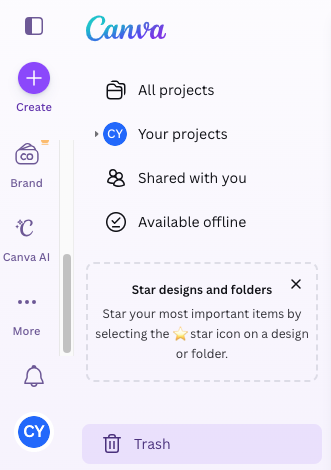
By going to More from left toolbar, then going to Apps, the Trash icon will appear at the bottom of the tabs to guide you to the trashed files.
How to Find Deleted Canva Projects from Trash?
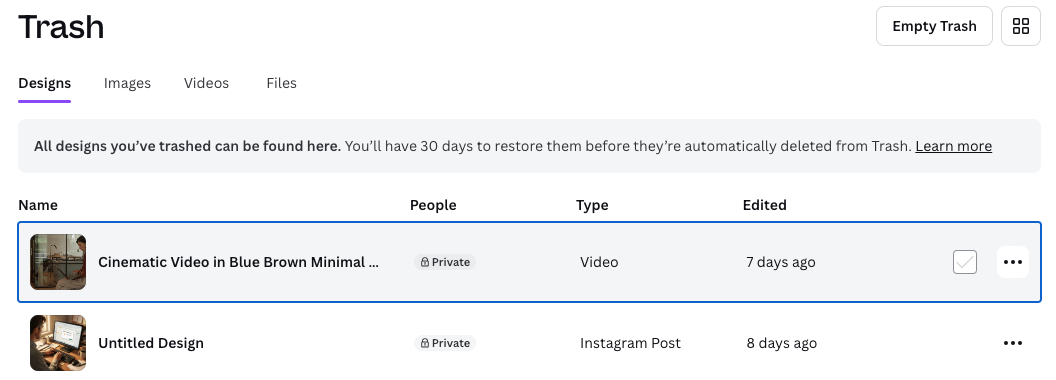
Now that we’ve known where is the Canva Trash, the next step to find a deleted Canva project is simply looking through the projects kept there. Canva lists all recently deleted projects together, you can scroll through and select the one you want to recover. You can find the project easily by previewing the thumbnail, title, or other related information.
- Log into your Canva account.
- Go to https://www.canva.com/folder/trash or More > Apps > Trash to enter Canva trash bin.
- Browse the recently deleted files list, select the one you want to recover by checking the box.
![restore canva trash 01]()
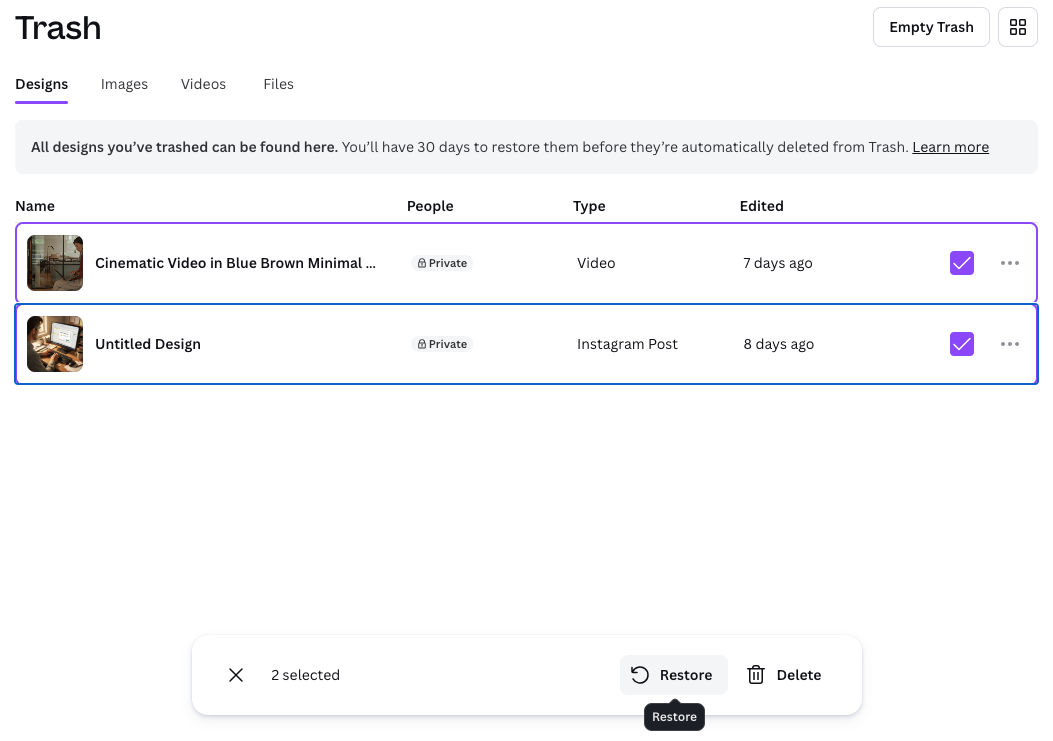
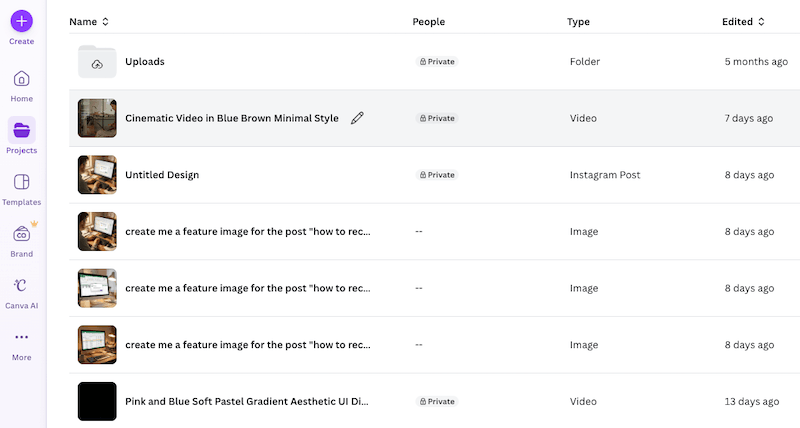
- Then click Restore, the recovered projects will be moved to your Projects folder again.
![restore canva trash 02]()
Projects Not in Canva Trash? 5 Ways to Recover!
Opened Canva’s trash and nothing? Even though you’ve refreshed the page for several times. Relax, sometimes a “deleted” Canva project is just hidden, left unsaved, but still accessible through a shared link, and recoverable from a previous version or via an exported copy. Here are 4 methods that can help you recover a Canva project when it isn’t in the Trash.
#1 Access via Links
A Canva project isn’t always deleted—sometimes it’s just a lost shortcut, because we suddenly closed the tab. Canva automatically creates a shareable link for each project or design, also automatically save your edits to cloud for sync. This link can bring you back to the project when you lost the page. And this is exactly the reason why i get used to copy the link and save it somewhere on my computer to later resume my editing, especially when a project takes too long to finish. Go checking the link that you’ve copied on your device, try opening it, you might regain access to the “deleted” Canva project immediately.
- Log into your Canva account.
- .Copy and paste the project link that starts with https://www.canva.com/design/, for example https://www.canva.com/design/DAHDD6174kY/pa7sxMWDiWlo18y8d-5dsw/edit, to your web browser and open it.
- Then continue editing the project or export it to your device.
#2 Unhide Canva Projects
Sometimes a “deleted” or “missing” Canva project is just a visibility issue. I ran into this when someone tried opening my video through the shared link sent by me, but could not view, therefore mistakenly thought the video didn’t exist anymore.

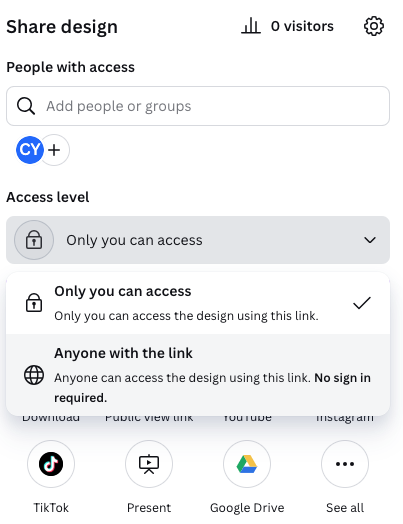
In fact, the file was still there, it was simply hidden due to preset access level. Canva can limit who sees a project via access level settings. As long as you remove the permission issue to unhide your videos, the projects will come back.
- Log into your Canva account.
- Open the project that others cannot open and view from Projects.
![open canva project]()
- Go to Share > Access level > Anyone with the link.
![change access level]()
#3 Recover from Previous Version
For users that use Canva Pro or Business account, “Open version history” can help to recover a previous version, if the latest edits in your project have been deleted by mistake. Canva online stores different versions of a project, by creating a timeline behind the scenes. With this feature, you can review earlier versions of the project and restore a needed version.
- Log into your Canva account.
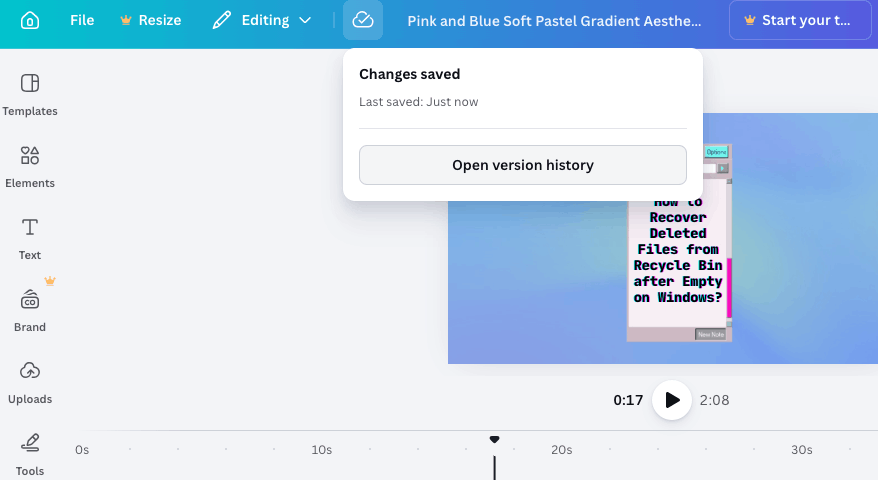
- Open the project that lost the latest edits, click on the Cloud backup icon and choose Open version history.
![open version history]()
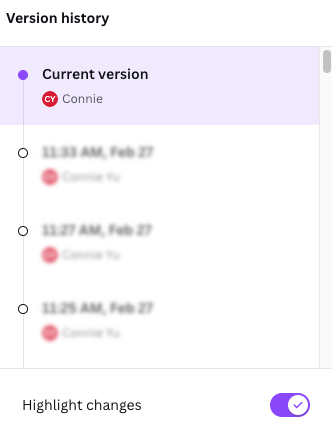
- Then choose a version from the history list, and open the file.
![choose canva version]()
- Continue editing the project, or export according to you need.
#4 Use Cisdem Data Recovery
In the case you’ve exported the Canva videos or designs, but later deleted them from your computer and want to recover, or if a Canva project has gone completely, recovering the original media files is the necessary step to recreate it, then Cisdem Data Recovery will come to help. It scans your storage for deleted Canva videos, photos, or original items uploaded from your device to Canva cloud, shows up the recoverable files and lets user recover them to a safe location, within just 3 steps.
Cisdem Data Recovery is always at the top of our data recovery solution list . It’s a long-established recovery program designed to recover lost data from both Windows and macOS, and from various external storage device. One of its strengths is multimedia recovery. Cisdem can restore virtually all types of videos, photos, and audio files, while maintain original quality. It does scanning quickly, but also supports deep scanning, allowing the program to rescue files that other tools might miss.
Another advantage is its video repair capability, which can fix damaged videos that are unplayable caused by different reasons. Actually, the repair feature does not limit to videos, it works on photos and documents as well.
How to recover deleted Canva project or items using Cisdem Data Recovery?
- Download and install Cisdem Data Recovery on your PC or Mac.
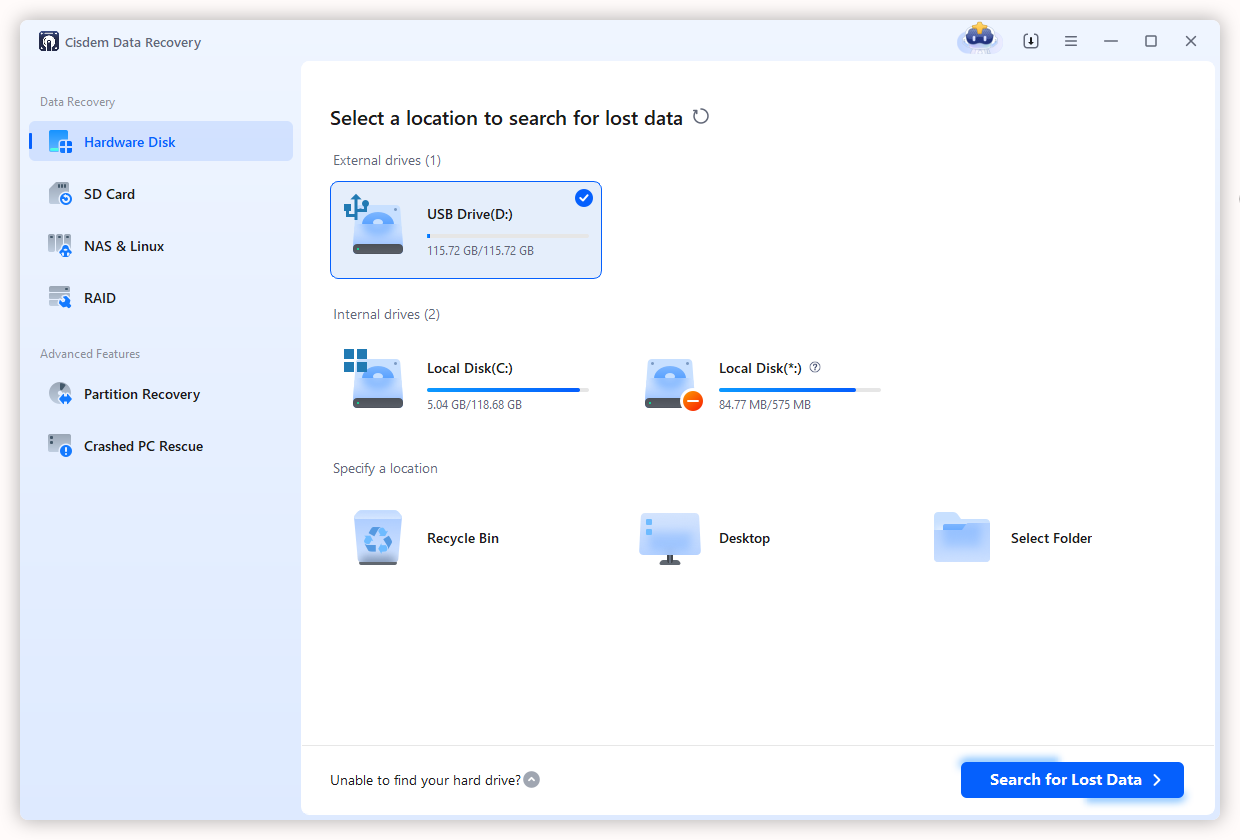
Free Download Windows 11/10/8/7 Free Download macOS 10.15 or later - Go to Data Recovery > Hardware Disk, select the location where your Canva projects were saved, click Search for Lost Data.
![recover canva project cisdem 01]()
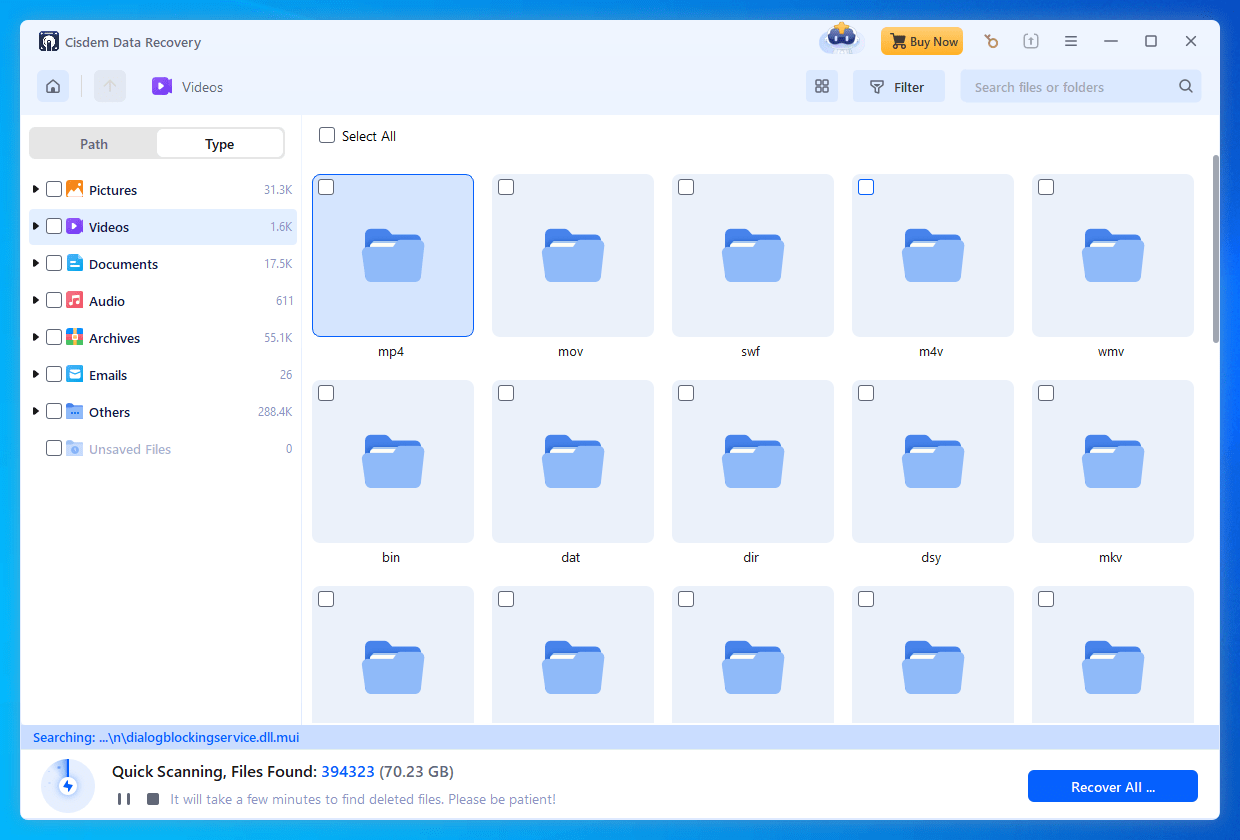
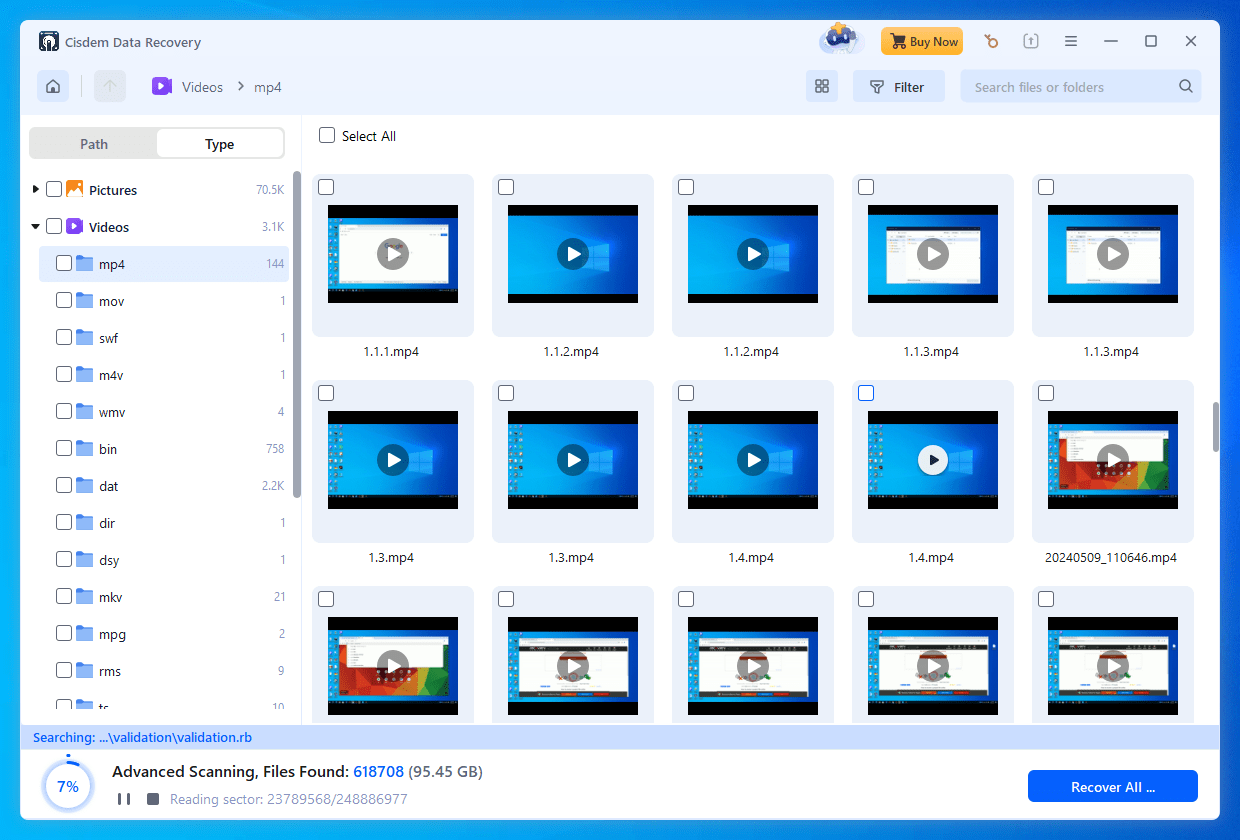
- During the scanning, you can go to Type > Videos or Pictures, check all the recoverable Canva files Cisdem has found for you. Also, you can use the filter or search tool to quickly locate your files.
![recover canva project cisdem 02]()
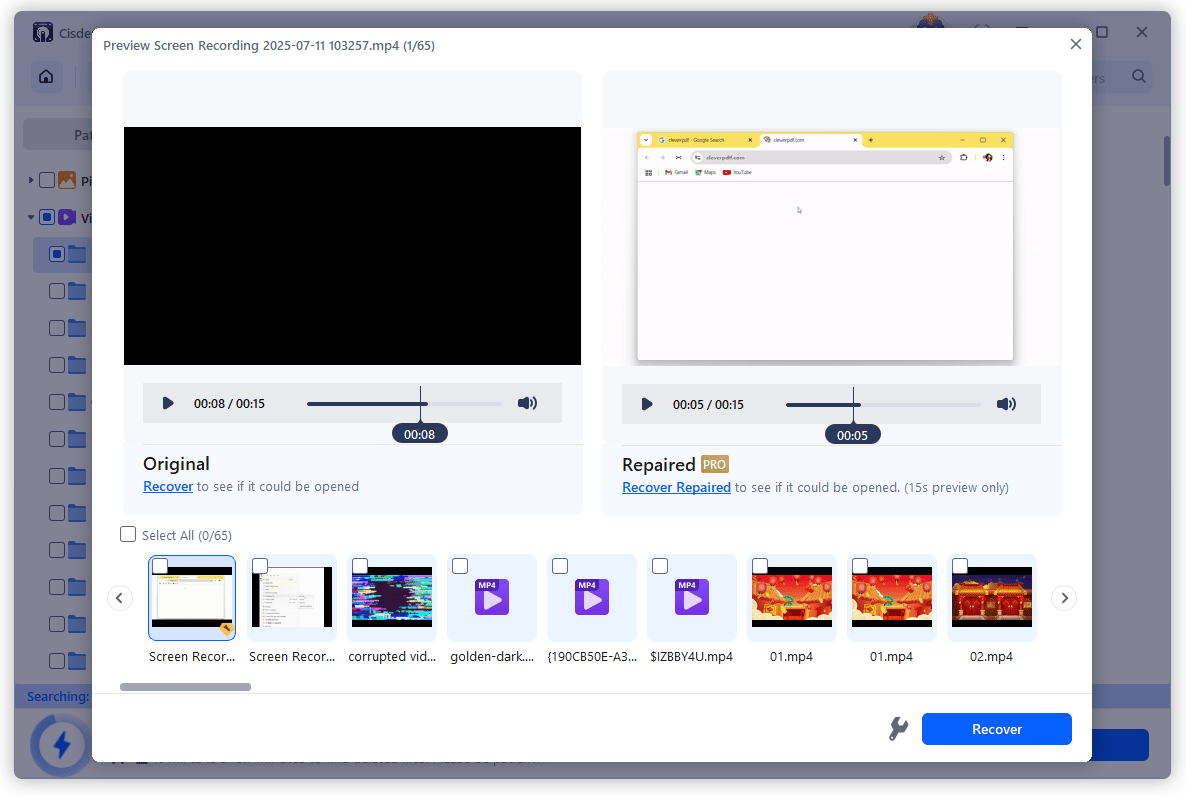
- Then click on the play button to preview the files, select them and click Recover button to get them back.
![recover canva project cisdem 03]()
- (Optional) If the Canva videos or photos get corrupted by showing as black screen, use the File Repair tool to fix and recover.
![recover canva project cisdem 04]()
#5 Contact Canva Support
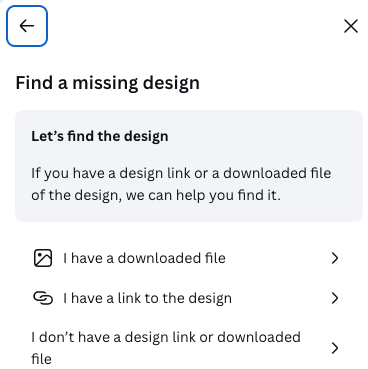
If none of the above recovery options work, reaching out to Canva Support is still worth a try. Canva’s Support page offers AI and human assistant to find missing designs, no matter you have a downloaded copy/link or not.
- Visit https://www.canva.com/help/contact-us/.
- Click on Find a missing design to open the chatting window.
- Follow the on-page instruction to submit your request or detailed information.
![canva support]()
Conclusion
As you can notice, it is much likely that your Canva project isn’t truly gone—it’s just sitting or hiding somewhere quietly. You might find it in Canva Trash, through a link, via access level change, or by reverting to a previous version. In situations where the project itself can’t be restored from your Canva account, recovering exported Canva project or original media files to recreate the project with tools like Cisdem Data Recovery is a reliable way to saves your projects.

Connie Yu has been a columnist in the field of data recovery since 2011. She studied a lot of data loss situations and tested repeatedly to find a feasible solution tailored for each case. And her solutions are always updated to fix problems from the newest systems, devices and apps.

JK Tam is the lead developer at Cisdem, bringing over two decades of hands-on experience in cross-platform software development to the editorial team. He is now the lead technical approver for all articles related to Data Recovery and DVD Burner.
Craig
I recently had a missing Canva design and had no idea where to look. Checking version history helped me restore the lost project. Great guide with practical recovery tips! Thanks very much.