


How to Merge Two Folders without Duplicates in Windows & Mac
 715
715
 0
0


Sometimes you need to merge folders to better manage your files. And if both folders contain some identical files, you can find and remove them if needed. But doing it manually can take a lot of time. Fortunately, there are many professional tools can help you. In this article, I will show you how to merge two folders without duplicates on Windows or Mac effectively.
 Cisdem Duplicate Finder
Easily Merge Folders without Duplicates
- Identify duplicate photos, audios, videos, documents and all other duplicate files
- Identify similar images with AI-powered similarity detection engine
- Find duplicates on computer, external hard drive, SD card, cloud drive, etc.
- Find duplicate files within and across folders
- Display the found duplicate files for you to view, sort and preview
- Automatically select all but one file for deletion in each set of duplicate files
- Let you select manually
- Also offer 10 preset rules (e.g. Select Newest) to help you mass select
- Easy and safe to use


Things you need to do before merging folders
Organize your files
To avoid confusion when merging folders, you need to organize the files in both folders first. It is recommended to name all files in a consistent way, and include some details as much as possible to help you easily identify the files after merging folders. Then, delete unnecessary files to avoid useless files appearing after the merge and taking up storage space on computer.
Back up the original folders
This step is optional. The methods of merging folders without duplicates in this article will not permanently delete the duplicate files. They will first go to Rycycle Bin/Trash on computer and be kept there for 30 days. It is easy to restore files if you find that some of them were deleted by mistake. You can also back up the original folders on your computer first. After merging folders and checking the files in the new folder, delete the backup folder.
How to merge two folders without duplicates
The process of merging 2 folders without duplicates can be divided into 2 steps: first, merge the folders, and then remove duplicate files from the newly merged folder.
Step 1: Merge two folders on computer
On Windows
On Windows PC, it is not complicated to merge 2 folders. You can use the built-in file manager of Windows - File Explorer. Here are the specific steps:
1. Press Win + E keys or click the folder icon on the taskbar to open File Explorer.
2. Find the 2 folders you want to merge.
3. Open one of the folders. Control-select all the files and click Cut or Copy.
4. Find another folder. Right-click on it and select Paste.
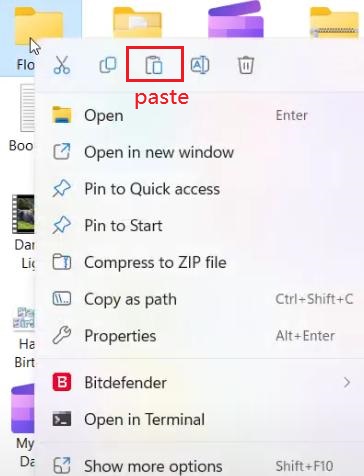
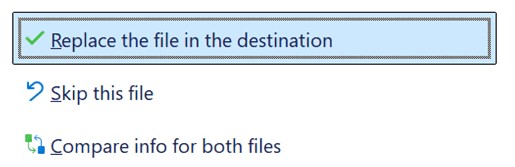
5. Now Windows will automatically start merging the contents of the two folders. If there are files with the same filename in both folders, Windows will pop up a dialog box asking whether to replace the file, skip this file, or compare info for both files. Here, you can select Replace the file or Skip this file to prevent creating duplicates.
On Mac
Finder is the default file manager of Mac OS, which can help users easily view and manage files. To merge two folders on Mac, follow the steps below:
1. Open the two folders you want to merge in Finder.
2. Control-select all files in one folder. Directly drag and drop them to the other folder.
3. If there are files with the same name in the 2 folders, Mac will pop up a dialog box asking whether to replace existing files or keep both files. Here you should choose Replace to avoid duplicates. And check the box next to Apply to All.
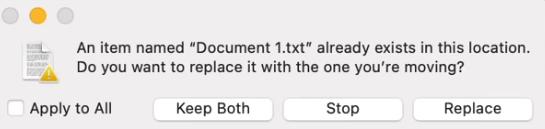
This is how to merge folders on Mac. How do I merge folders and remove duplicates? Continue to step 2.
Step 2. Remove duplicate files from the new folder
After merging folders on computer using the method above, files with the same filenames will be automatically removed from the newly merged folder. However, there may be still some duplicate files that have identical content but different filenames. They will not be detected by computer systems. If you want to find and delete duplicate files in merged folder more accurately and efficiently, you can use Cisdem Duplicate Finder. It can help you quickly scan folders, identify duplicate files that have identical content regardless of name, and delete them. To prevent you from mistakenly deleting important files from folder, it allows you to view and compare files details before removing, and offers 3 remover methods, including move to Recycle Bin/Trash, move to folder, or remove permanently.
Below are steps on how to remove duplicates from the newly merged folder using this tool:
1. Download and install Cisdem Duplicate Finder on your computer.
 Free Download Windows 10 or later
  Free Download macOS 10.11 or later
2. Open it. Drag and drop the merged folder into this program. Or, you can click the plus icon. Select the folder from Windows File Explorer or Mac Finder. Click Open.
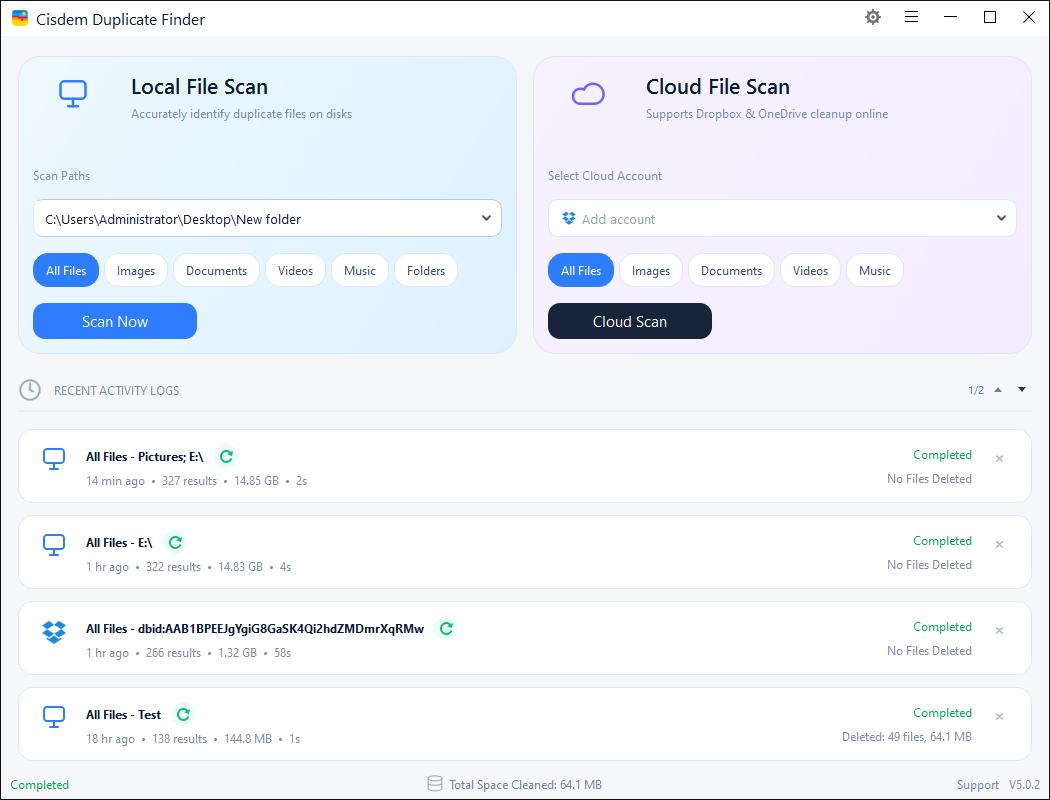
3. Click Scan. It’ll show you the scan results quickly.
You can view the duplicate files in the merged folder under the All tab. This tool also categorizes all duplicates by file type. For example, to view duplicate images, go to the Image tab.
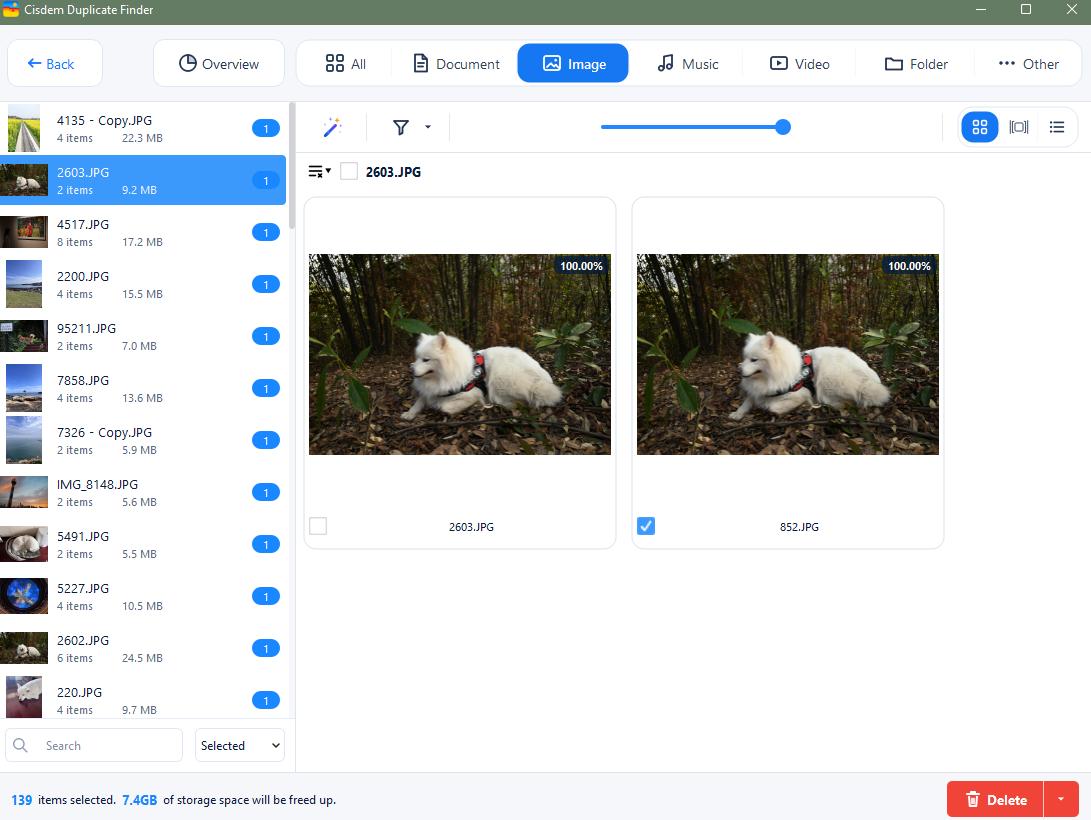
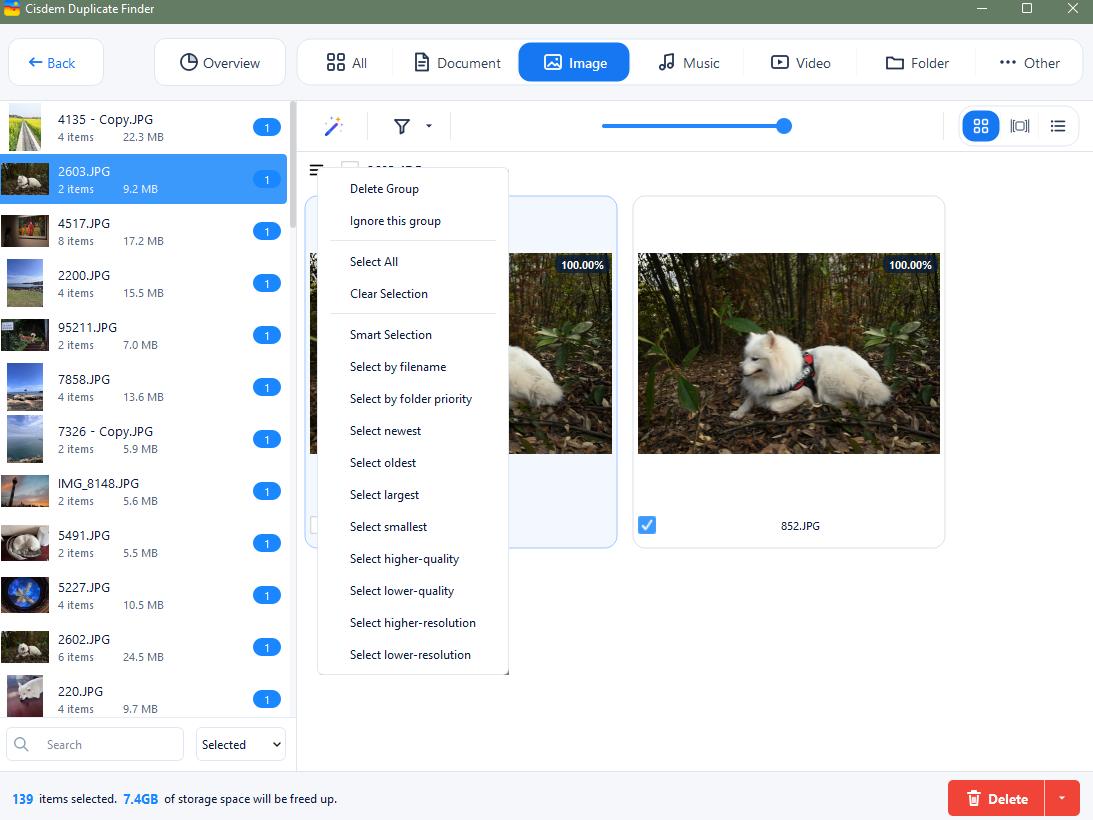
4. It will automatically select all but one file in each group of duplicates for deletion. You can also manually select files to delete after previewing and comparing them. Or use the selection rules, such as Select Oldest, Select low-quality.
5. Click the Delete button on the bottom right corner.
Now duplicate files are removed from the merged folder. By default, they’ll be moved to Recycle Bin on your Windows computer or Trash on your Mac. You can select other remove methods in the Settings of this tool.
Tip: How to find duplicate files across 2 folders?
The method above is about how to merge folders in Windows and Mac without duplicates by merging two folders and then deleting duplicate files in the new folder. With Cisdem Duplicate Finder, you can also find and delete duplicate files in the 2 original folders first, and then merge the 2 folders. Below are steps:
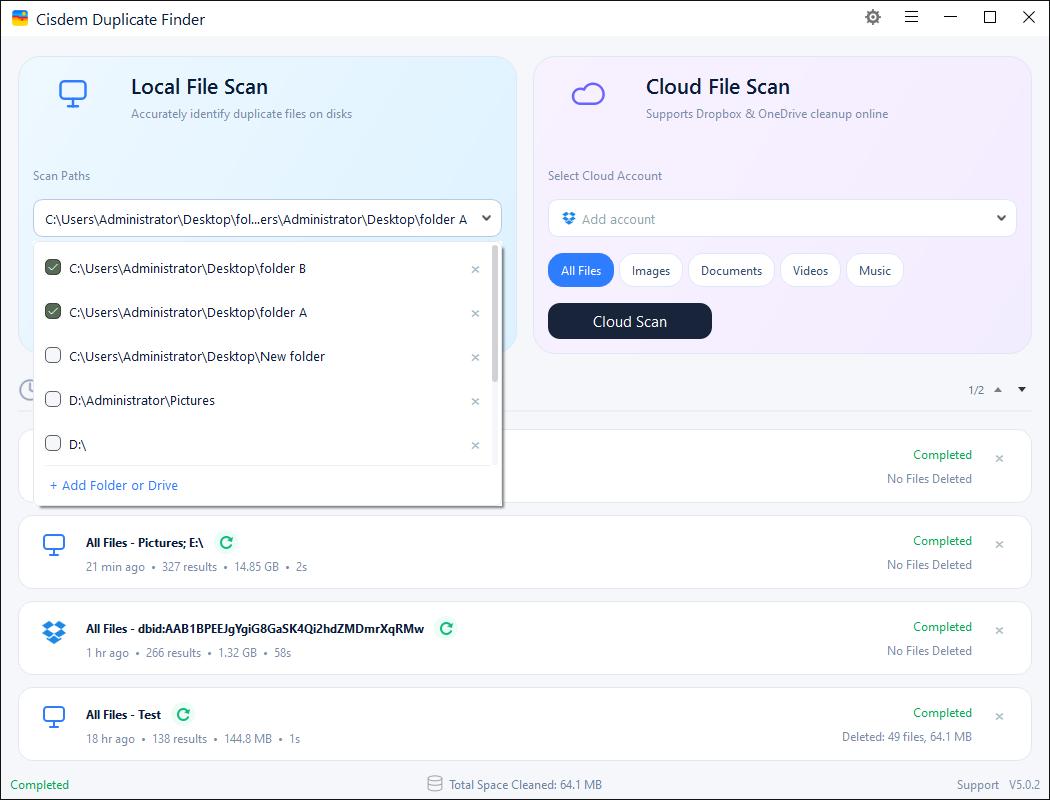
1. Open Cisdem Duplicate Finder. Drag and drop the 2 folders you want to merge into this tool. Click Scan.
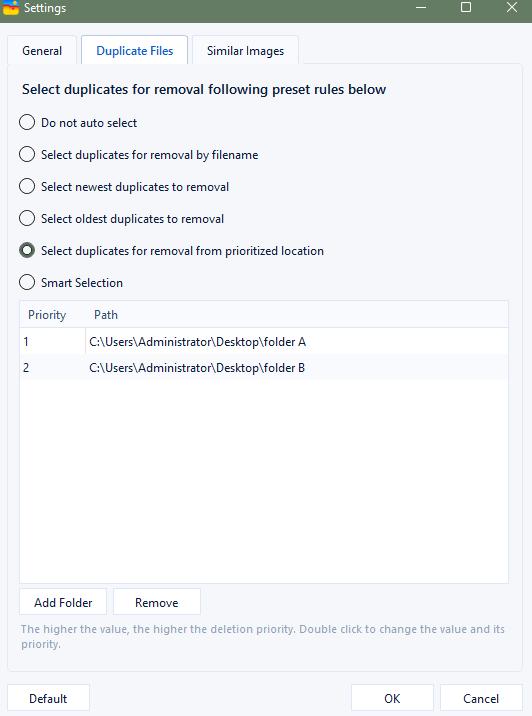
2. Wait for the scan to complete. Preview the scan results and the duplicate files it selected for you to remove. You can also use the selection rules to help you mass select. For example, choose “Select by folder priority”. Let it select duplicates for remover from the folder you set.
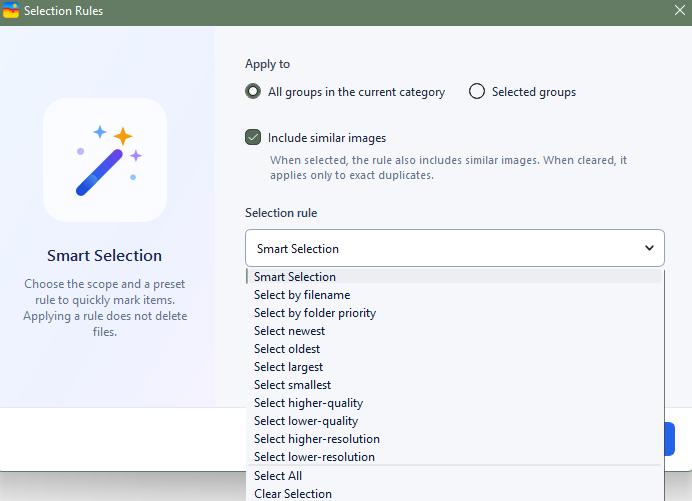
To set the prioritized location, go to Settings > Duplicate files. Click on “Select duplicates for remover from prioritized location”. Add the 2 folders you’d like to merge. Set their priority.
3. Click Delete.
Conclusion
In this article, I introduced how to merge two folders without duplicates on Windows PC and Mac. By using the computer's built-in file manager to merge folders, and then using Cisdem Duplicate Finder to clean up duplicate files, you can not only save storage space, but also avoid the trouble caused by redundant files.

With a passion for tech and writing, Sarah joined Cisdem, where she focuses on creating articles about using utility tools to enhance file management and simplify contact management.

Adrian Li is Cisdem’s Chief Engineer and serves as the editorial advisor for Duplicate Finder and ContactsMate. His work and insights have been featured in leading tech publications such as Fossbytes, TUAW, Redmond Pie, SafetyDetectives, and BestForAndroid.