


How to Lock Google Photos on Phones & Computers
 525
525
 0
0


Google Photos is a good option if you want to store your photos and videos online. It uses advanced encryption technology to help keep your data safe. However, this technical thing can't prevent a snooping coworker to view your photos if he or she has access to your device. To add an extra layer of protection, you can put a lock on your Google Photos.
In this article, I will share two methods to lock Google Photos on phones and computers to help you protect your photos from unauthorized accessing.
 Cisdem AppCrypt
Easily Prevent Access to Google Photos
- Lock individual apps with a password
- Block websites, pages, URLs, and categories (e.g., Social Sites, Adult Sites) with a password
- Lock apps and block websites 24/7 or during scheduled times
- Easy to use
- Hard to bypass
- Help you lock Google Photos app and website to prevent access
- Help with privacy protection, productivity, and parental control


A brief comparison of two methods
There are two ways to protect the photos and videos in your Google Photos.
- Method 1 protects the Google Photos app (on phones) and website (on computers), preventing unauthorized access to all items in it, including existing items and those that will be added in the future.
- Method 2 protects the photos and videos of your choice while keeping other items visible. Whenever you add new items to Google Photos, you will need to lock any sensitive ones manually. This method is available on both phones and computers.
One method isn’t necessarily better than the other. Both can safeguard your privacy. Method 1 provides overall protection, while method 2 offers selective locking. You can choose the method that best suits your needs or even use a combination of both.
Method 1. How to lock the Google Photos app or website
You can easily put a lock on your Google Photos with Cisdem AppCrypt. This tool is available on phones and computers. Once set up, it protects all photos and videos in your Google Photos. Below are the steps.
Steps for Android
1. Install Cisdem AppCrypt, which is completely free to use.

2. When you open it for the first time, set a 4- or 6-digit password or a pattern.

3. In the App Lock tab, use the search box to find Google Photos and toggle the switch next to it to the on position.
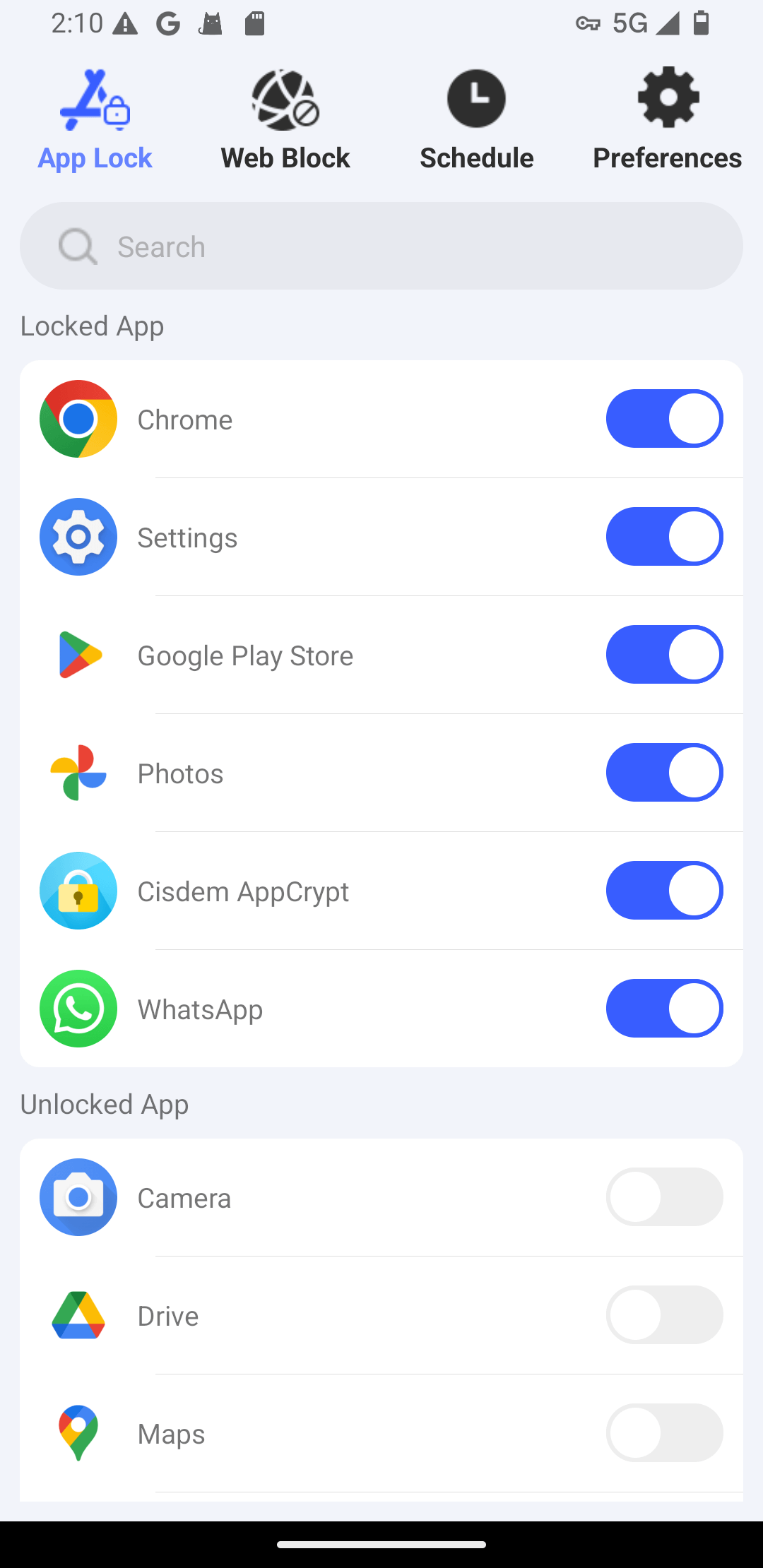
It’s that easy.
Now Google Photos is locked. When you or anyone else taps its icon to open it, it won’t launch, and a screen will appear instead. You can unlock Google Photos by entering your password or pattern on this screen.
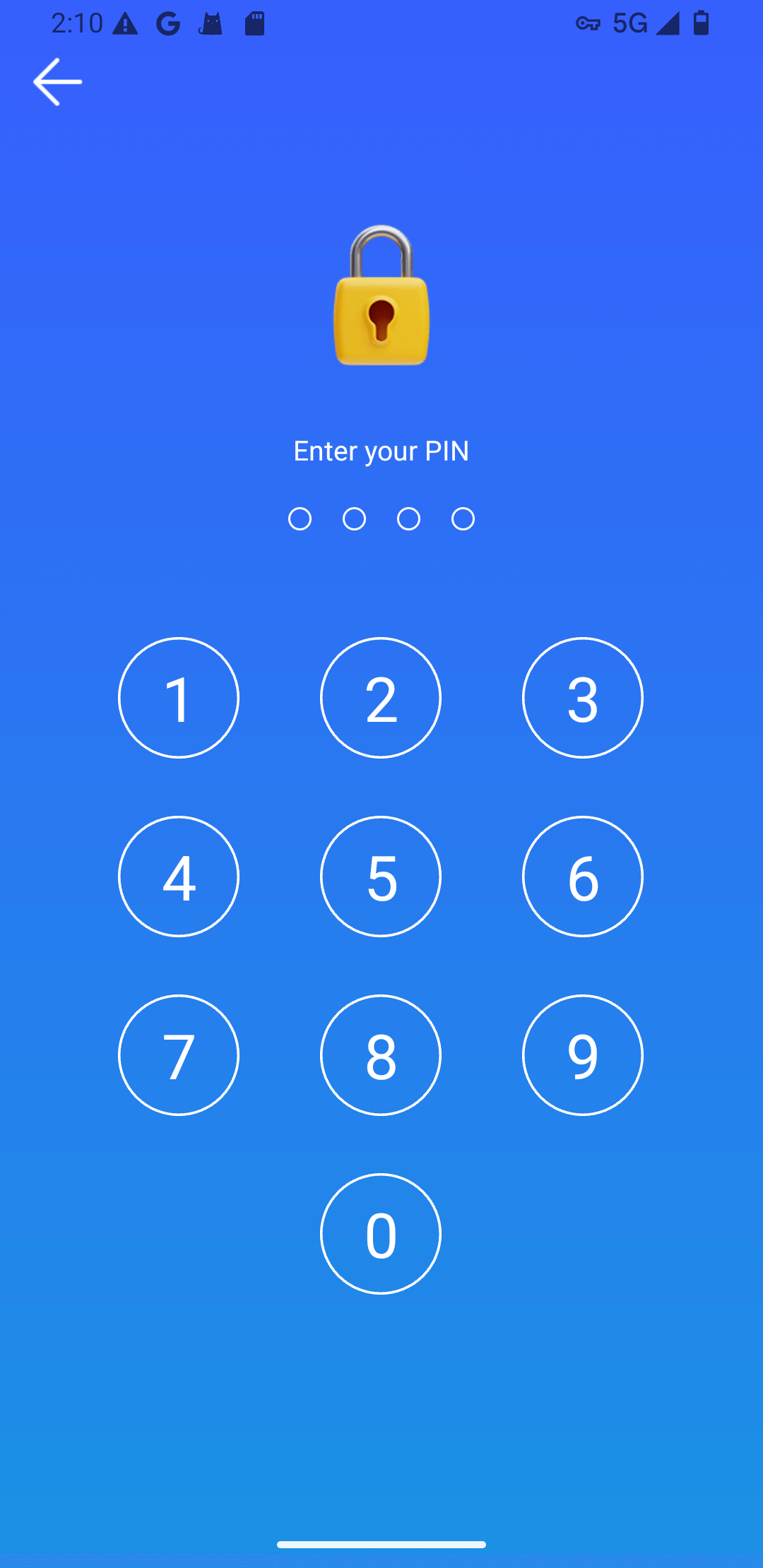
Google Photos will be automatically re-locked after it has been unlocked for a period selected by you, for example, 10 minutes.
In addition to this app, you can use AppCrypt to lock other apps on your device.
Steps for iPhone and iPad
1. Install AppCrypt, which is completely free to use.

2. In the App Lock tab, tap Add / Remove at the bottom of the screen.
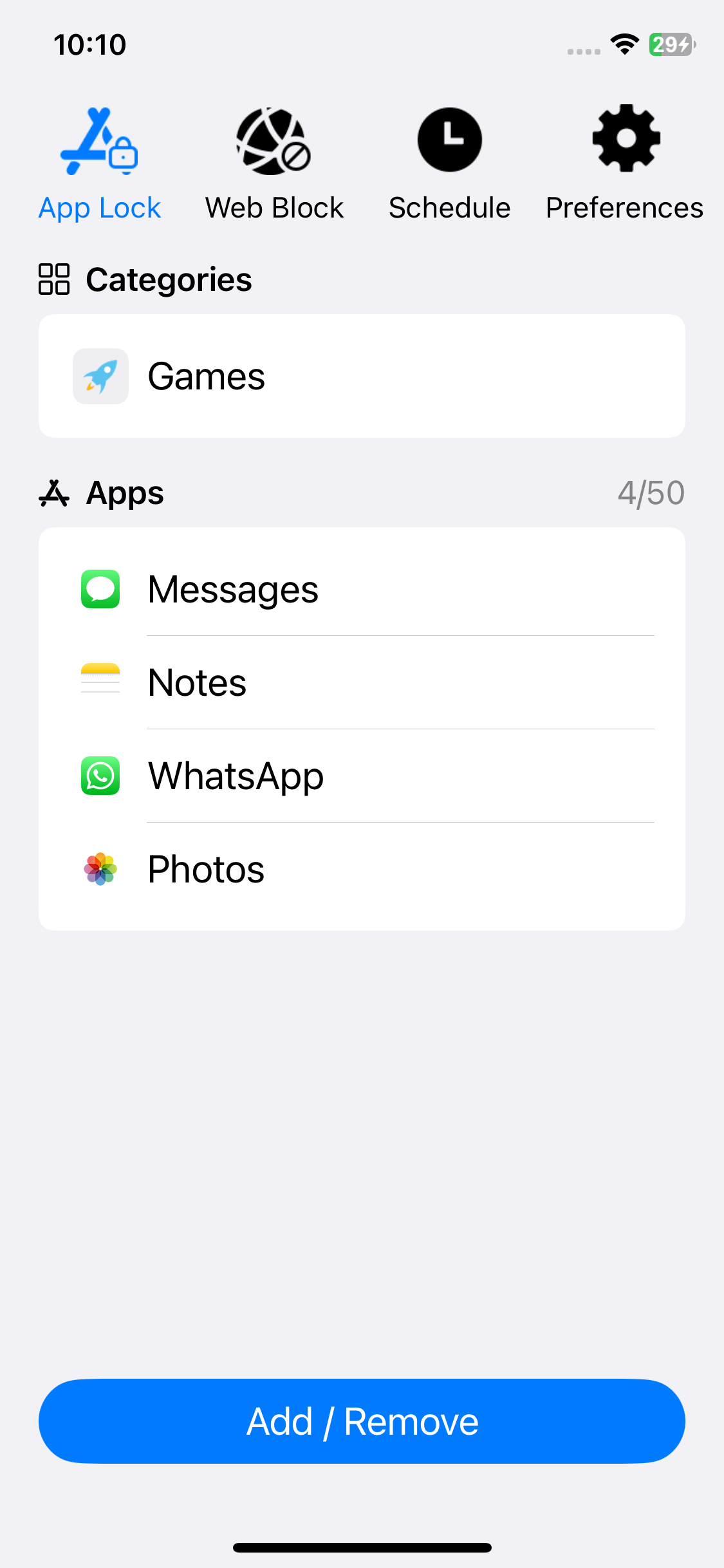
3. Search for Google Photos and then select it. Tap Done.
4. In the Preferences tab, tap Notifications. On the screen that appears, turn on Notification and then Notification unlock. Set a 4- or 6-digit password when prompted.
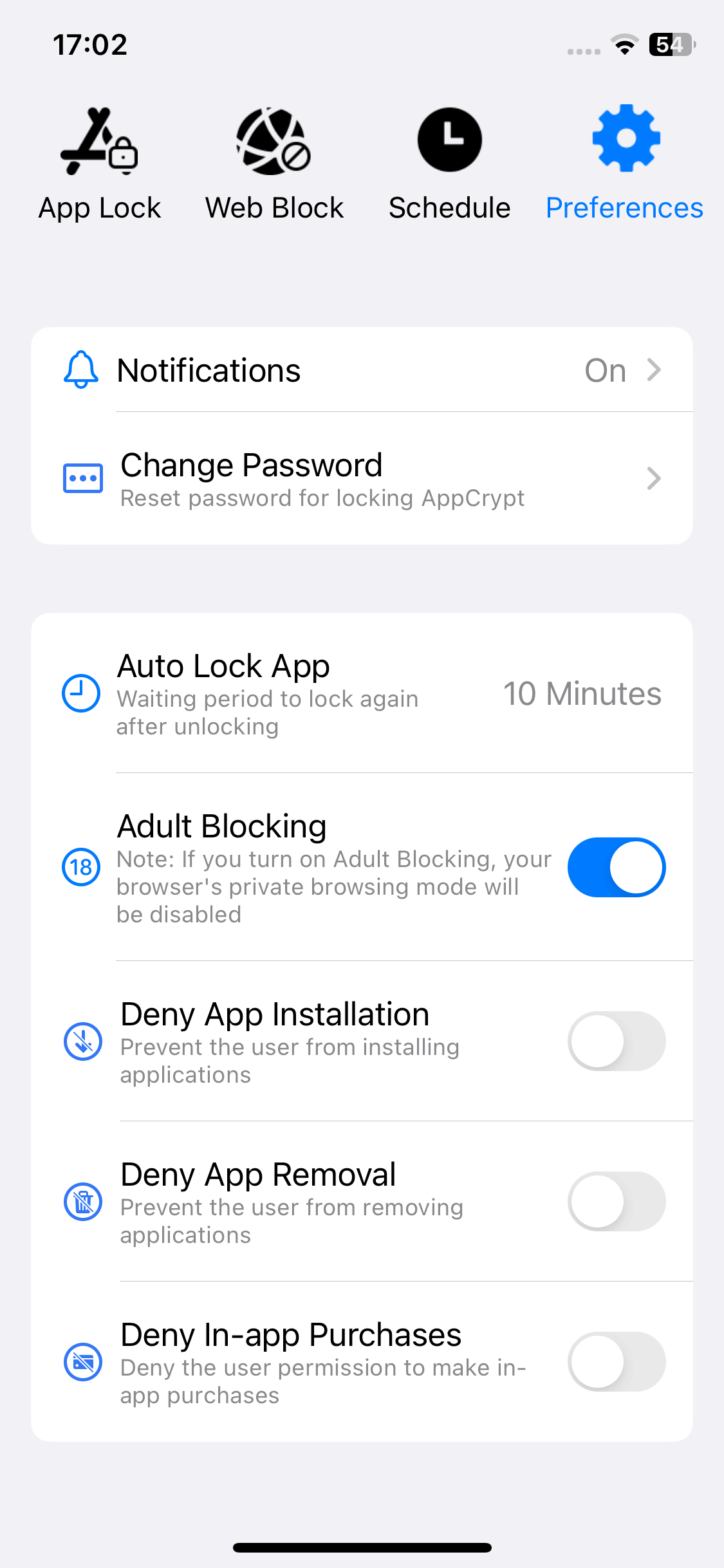
When you or someone else tries to open Google Photos, a message will appear indicating that the app is locked. Below this message, there is an Unlock button. Only those who know the password can do the unlocking.
After remaining unlocked for a user-selected period, Google Photos will be automatically locked again.
Steps for Windows and Mac
(Google Photos doesn't have a desktop app. Instead, it's available via photos.google.com. Therefore, the trick is to stop access to photos.google.com.)
1. Install Cisdem AppCrypt on your Windows PC or Mac.
 Free Download Windows 10 or later
  Free Download macOS 10.15 or later
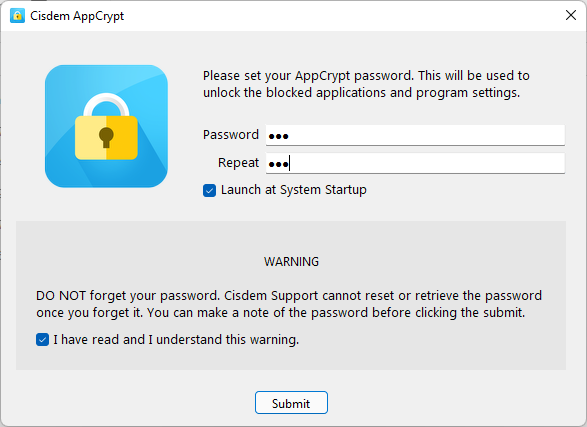
2. The first time you open the tool, set a password.
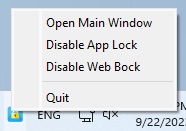
3. Right-click the tool's icon in the taskbar (Windows) or menu bar (Mac) and choose Open Main Window.
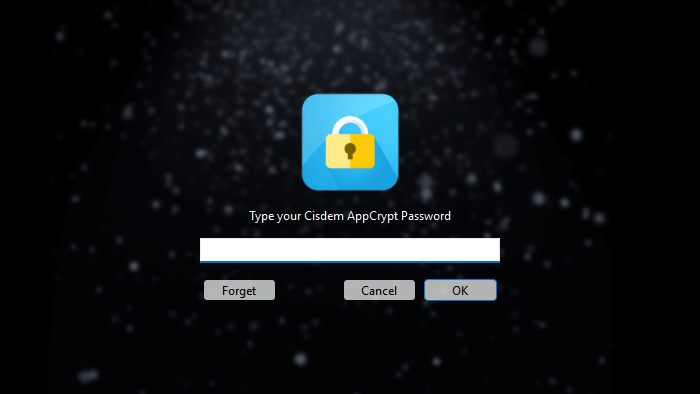
4. Enter the password to access the tool's main window.
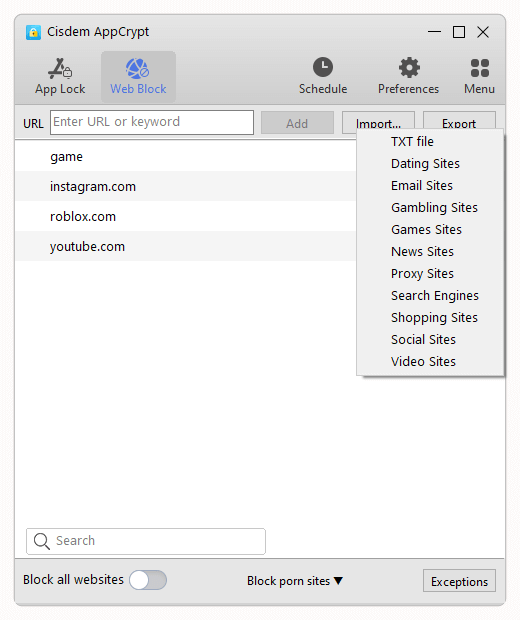
5. Choose the Web Block tab, enter photos.google.com in the URL field, then click Add.
Note for Windows users
The first time you choose the Web Block tab, install the extension on your browser(s) when prompted, which is essential. (Mac users don't need to do this.)
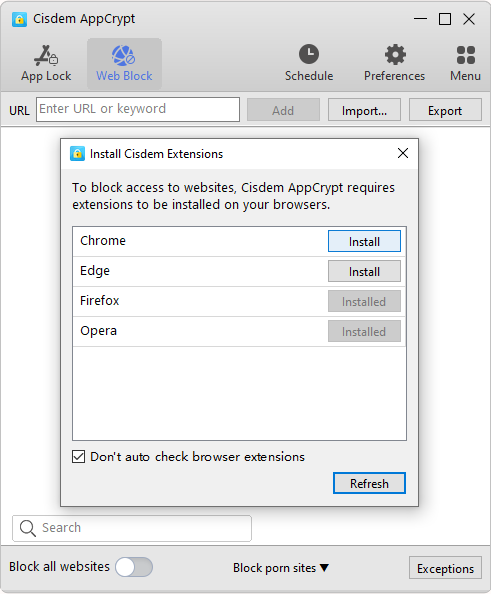
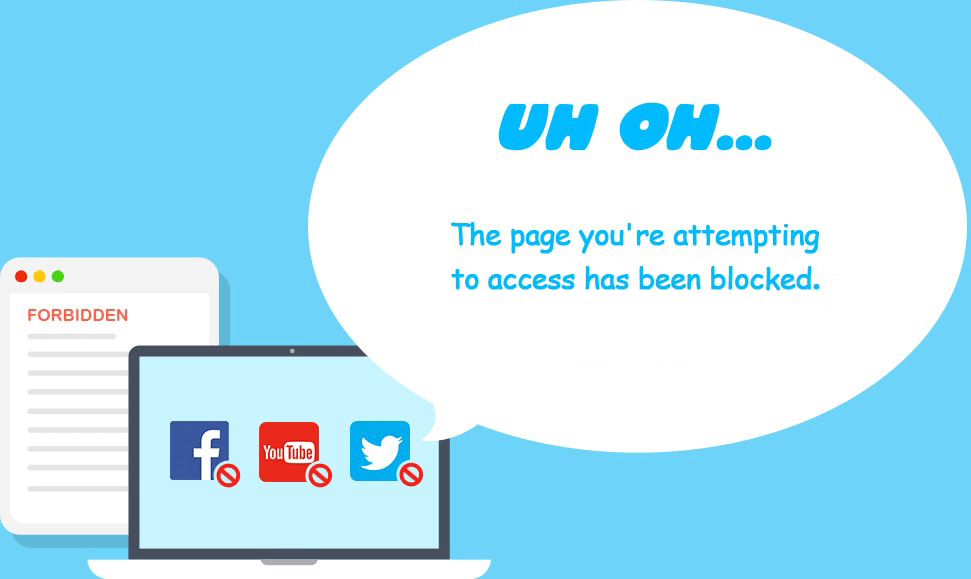
Now, when anyone tries to view photos.google.com on your computer, a message will appear, saying access is blocked. If you yourself want to access Google Photo, just right-click the AppCrypt icon in taskbar or menu bar, choose Disable Web Block, and enter the password.
Method 2. How to protect Google Photos using the built-in Locked Folder
Google Photos has a number of privacy and security features. Locked Folder is one of them, which is available for the mobile apps and the web app (photos.google.com). With it, you can lock the personal or sensitive pictures and videos in your Google Photos.
On Android, iPhone, and iPad
The Locked Folder feature works in almost the same way on Android, iOS, and iPadOS devices. The following steps use an Android phone as an example to show you how to set up and use this feature in the Google Photos app.
1. Open your Google Photos app.
2. In the Photos tab, select the photos and videos that you want to protect, and several options will appear at the bottom. Swipe right to find and tap the Move to Locked Folder option.
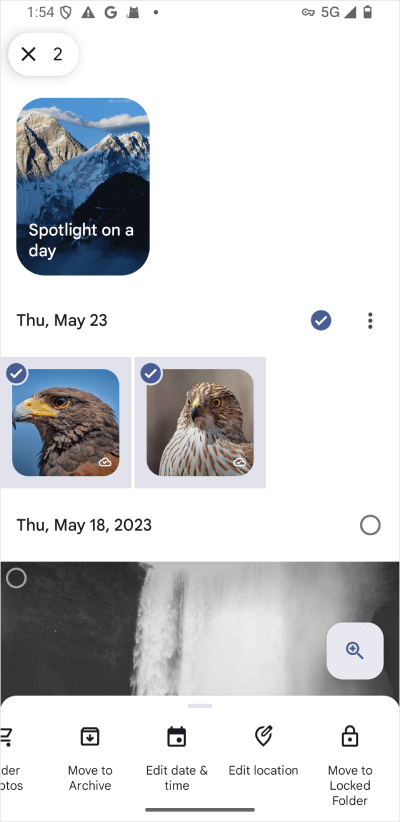
3. In the Move to Locked Folder message that appears, tap Move.
Now the items of your choice are locked and hidden in Locked Folder. They won’t appear in the Photos tab, search results, albums or memories.
Here’s how to access items in Locked Folder. Go to the Collections tab, scroll down to find and tap Locked. A message will appear, telling you that you can use your device’s screen lock option to unlock the folder. Just use your PIN, pattern, password or passcode, fingerprint or Touch ID, or face recognition or Face ID to do the unlocking. Once it’s unlocked, you can see the items within it.
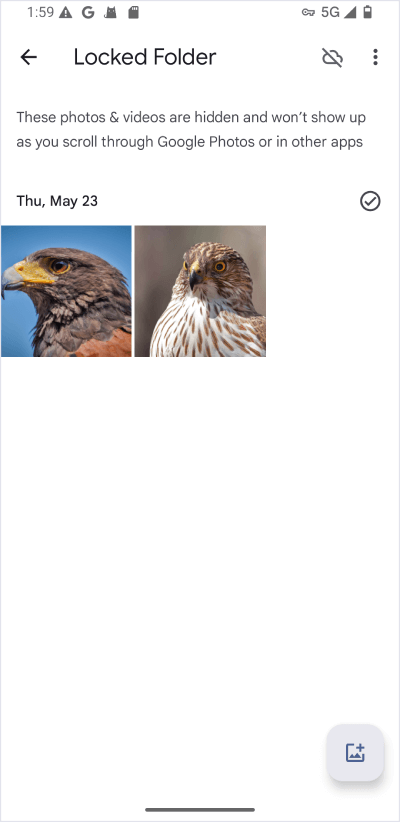
Note: The only way to unlock Locked Folder is to use your screen lock option.
In addition to selecting items for locking in the Photos tab, you can do it within the Locked Folder. Just tap the image icon in the bottom right corner.
If you don’t want to lock some photos and videos anymore, select them and then tap Move at the bottom of the screen. These items will be visible again.
In addition, you can choose to back up your Locked Folder or not. For more information, please see this article by Google.
On photos.google.com
When you use Google Photos by visiting photos.google.com in a browser on your computer or phone, the Locked Folder feature is also available.
1. On photos.google.com, click Photos on the left.
2. Select the items you’d like to protect.
3. Click the three dots in the top right corner of the screen and then choose Move to Locked Folder.
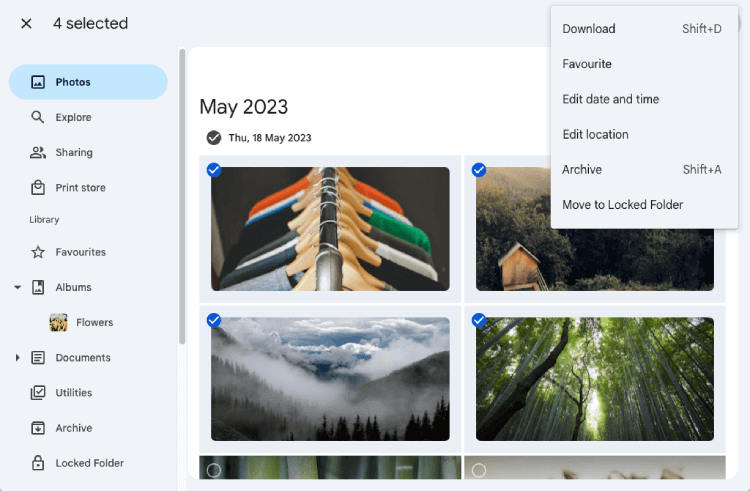
4. In the message that shows up, click Move.
To open Locked Folder, select it on the left, in the page that opens up, enter your Google account password, and click Next.
Note that if you have set up Locked Folder in the mobile app and added items to it but haven’t turned on backup for Locked Folder, you won’t able to see these items in the Locked Folder on photos.google.com. For more about how the Locked Folder feature works, I recommend reading the article mentioned above.
Conclusion
Google Photos wants to be a safe home for your photo files and video files. It uses good encryption technology to have security and also offered features like Locked Folder in its mobile and web apps. You can add a good layer of security by locking the app or website on your device. This article talks about how to lock Google Photos in detail, having both the built-in method and a third-party one. It has step-by-step instructions and helpful details, helping you easily get your digital memories protected.

Norah Hayes likes to share her tips on how to improve focus and stay motivated at work. She believes it is essential to eliminate all online distractions during work hours.

Ethan Long joined Cisdem in 2015 as a developer and now serves as the editorial advisor for Cisdem AppCrypt. He actively tests and uses Cisdem AppCrypt and other screen-time management tools to ensure AppCrypt meets its promises in real-world scenarios.