


How to Limit Facebook Time on Your Phone or Computer
 1.3K
1.3K
 0
0




AppCrypt
Limit time on Facebook


Facebook is a great place to stay connected with friends and family and meet new people. However, like other social media platforms, Facebook can be distracting and addictive, leading to lower productivity, excessive screen time, and even health issues. In this article, I will show you how to limit Facebook time in different ways.
 Cisdem AppCrypt
Easily Set Time Limit on Facebook
- Block websites by URL (e.g., facebook.com), keyword, and category (e.g., Social, Porn) with a password
- Lock apps with a password
- Allow you to block websites and apps permanently or at scheduled times
- Easy to use
- Hard to bypass
- Help you limit time spent on Facebook, other social media, and more
- Help with digital wellness, productivity, and parental control
Part 1. How to limit Facebook time using your phone’s built-in settings
Both iPhone and Android devices offer built-in screen time settings. It is free to use and can be used to set time limits on specific apps. If you want to limit Facebook time without installing any additional programs, check out the following 2 methods.
Use Screen Time (iPhone)
Applies to: iOS 12 or later
Screen Time on iOS is a great tool for limiting Facebook time. It not only shows you how much time you spend on the Facebook app each day, but also allows you to set a daily time limit. The limit can be applied on both the Facebook app and Facebook website.
Step 1. Open your iPhone. Go to Settings. Scroll down to find Screen Time.
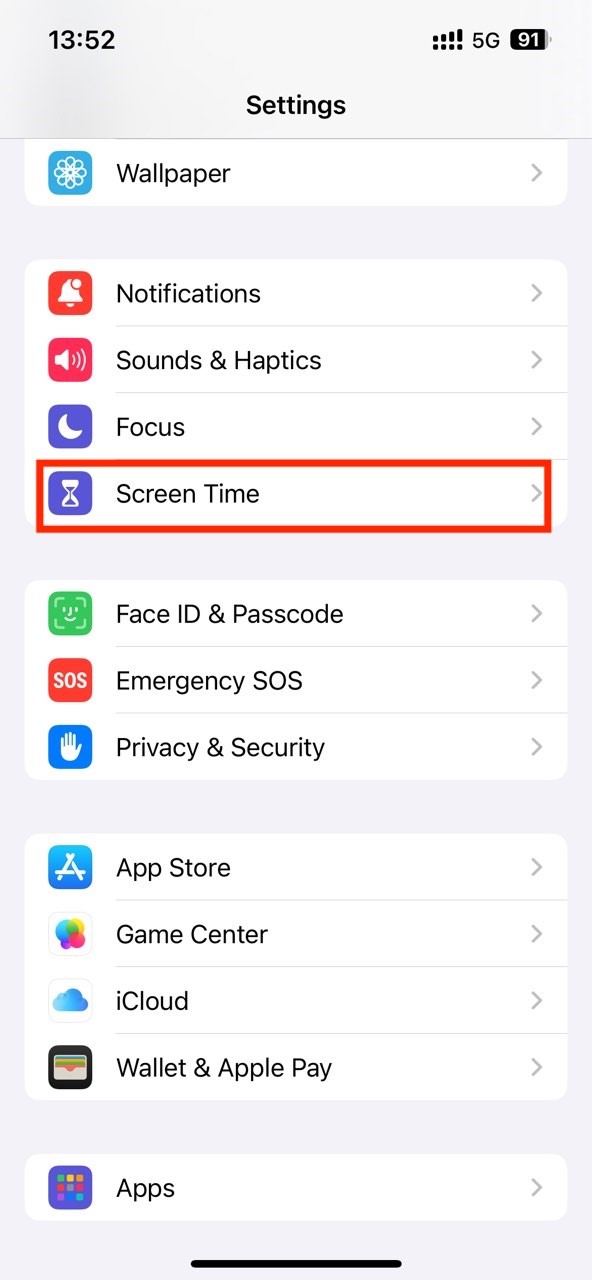
Step 2. Turn on Apps & Websites Activity if you haven’t already. Then it will start tracking your screen time every day.
Step 3. Click App Limits > Add Limit.
Step 4. In the Choose Apps screen, Search for the Facebook app. Select it and click Add. Click Next.
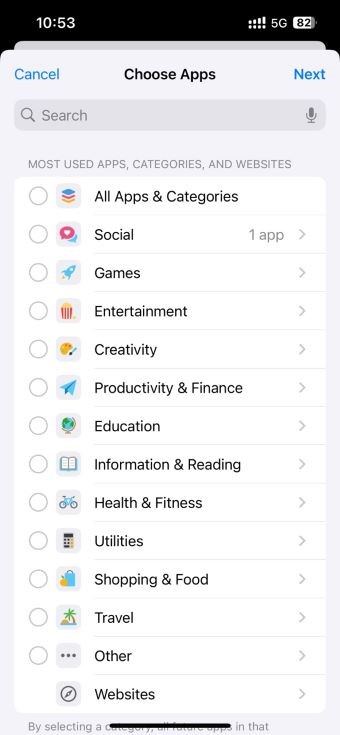
Step 5. On the next screen, set time limit on Facebook app, such as 1 hour. Click Add.
Step 6. If you use Facebook through the browsers, go back to the Choose App screen in step 4. Scroll down and select Websites.
Step 7. Click Add Website. Enter facebook.com in the box. Click Next.
Step 8. Set a desired time limit. Click Add.
Use Digital Wellbeing (Android)
Applies to: Android 9.0 or later
Your Android phone or tablet should come with Digital Wellbeing. If not, you can get it from the Google Play Store. This set of settings provide stats on how much time you've spent on specific apps and allow you to set time limits on them.
Step 1. Open the Settings app on your phone, scroll down, and click Digital Wellbeing & parental controls.
Step 2. Click App limits.
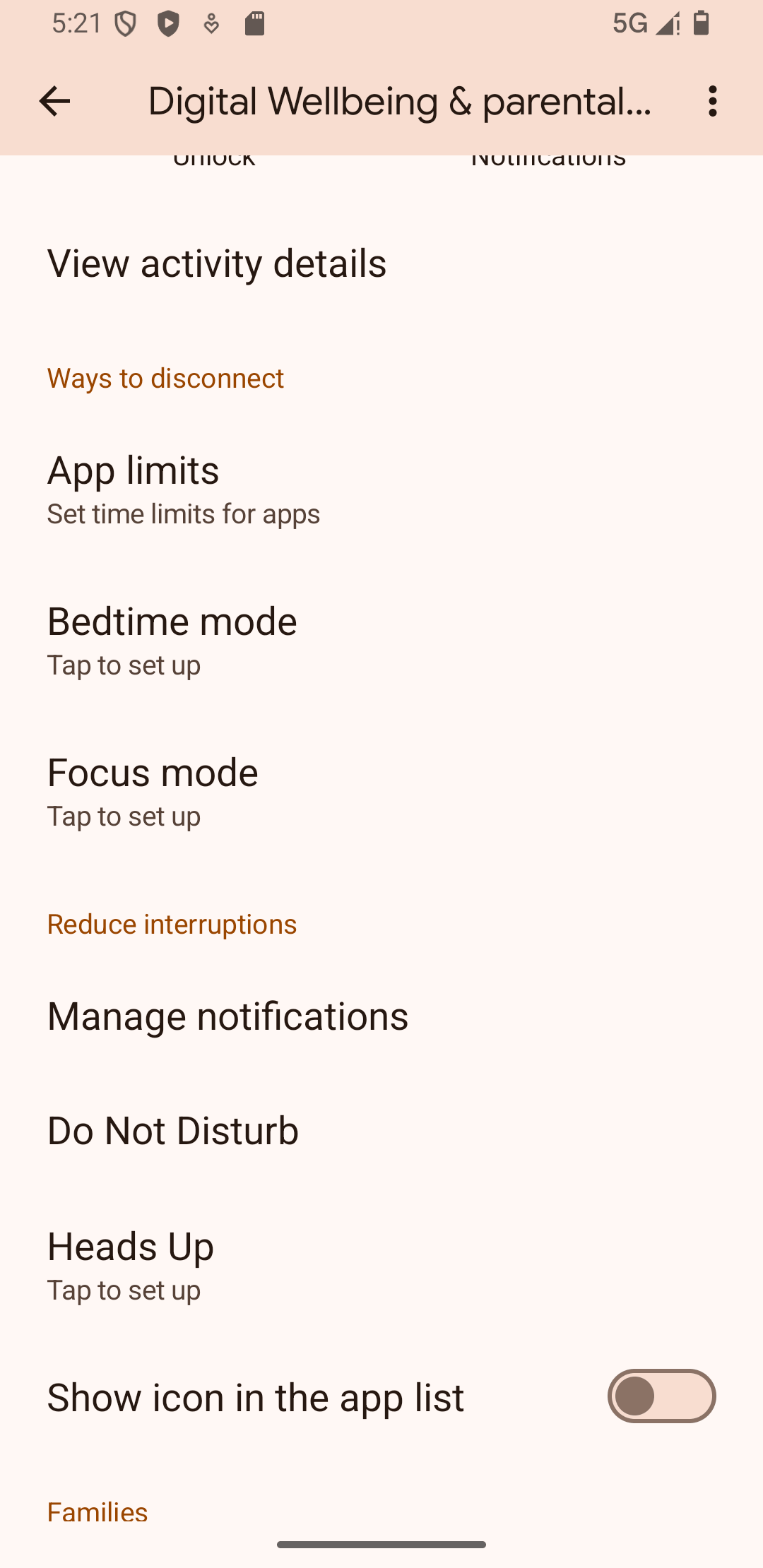
Step 3. The App limits screen that appears lists all apps installed on your phone. Find Facebook and click the hourglass icon next to it.
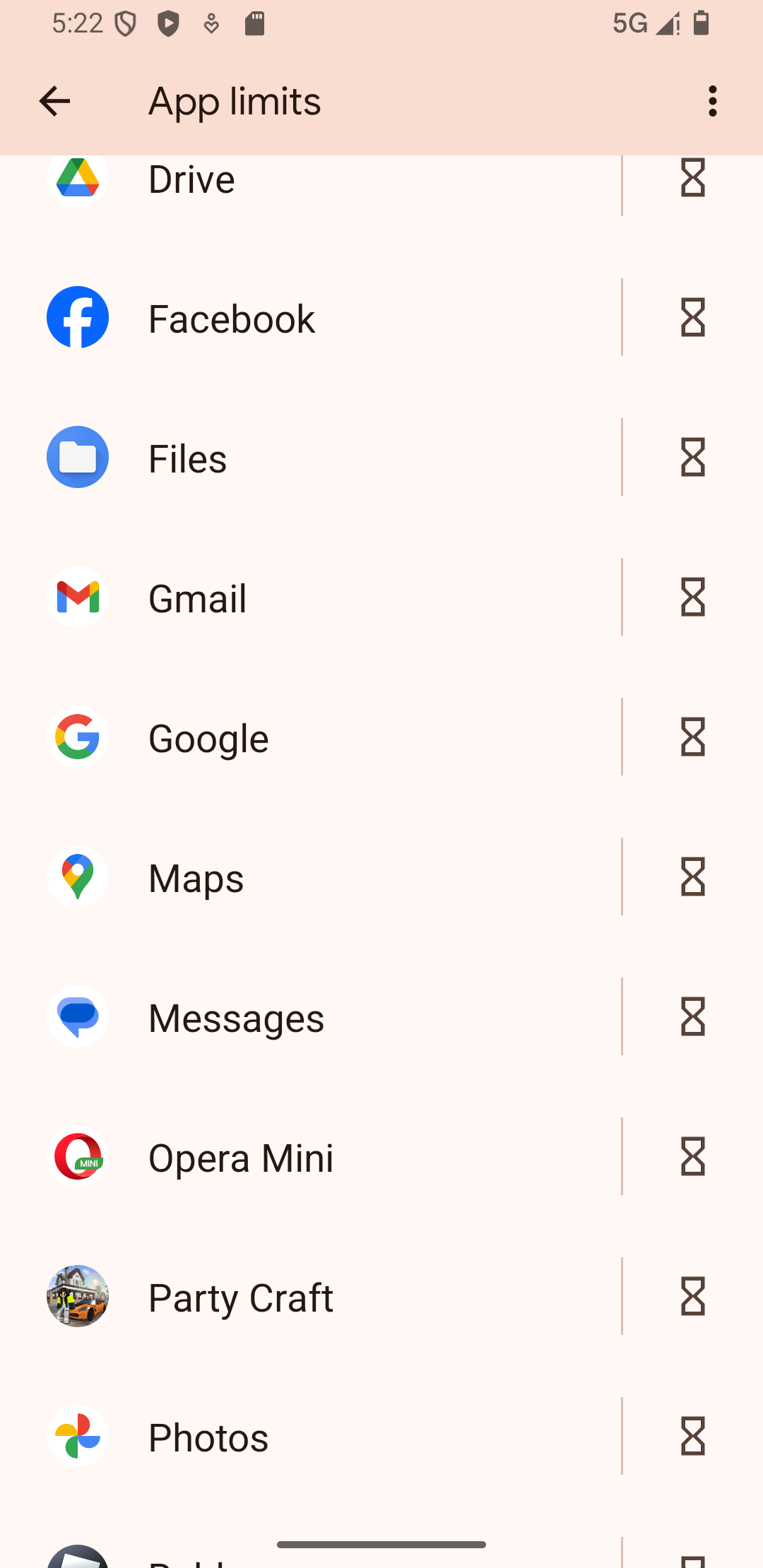
Step 4. In the Set app limit dialog, set a daily time limit, such as 30 minutes or 1 hour. Click OK.
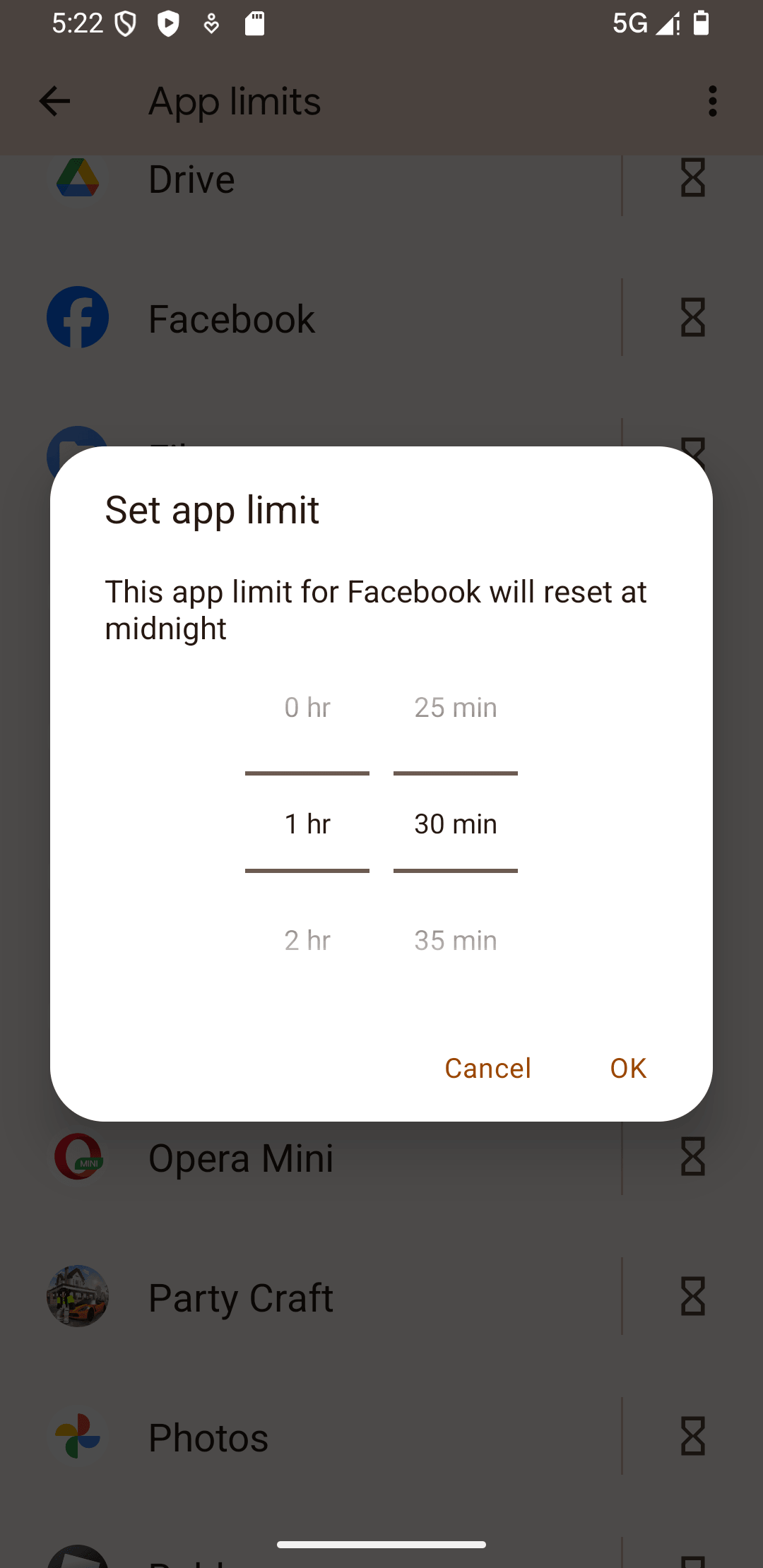
From now on, you can use Facebook for the allowed time amount only. Once the limit is reached, the Facebook icon on your desktop will appear grayed out. If you click it, the app won't open. If you want to prevent yourself from increasing Facebook usage time, you can ask someone else to set a PIN for you. (If you can't find the option for setting a PIN, try updating Digital Wellbeing in the Google Play Store.)
However, it doesn’t support limiting access to the Facebook website. If you need this feature, check out the third-party tool in Part 2.
Part 2. How to limit time on Facebook with a third-party tool
The built-in solution on iPhone or Android can be helpful. But what if you want to limit both the Facebook app and website, or limit Facebook access to certain time of the day, such as during launch breaks? In this case, you can use a tool called Cisdem AppCrypt, which offers advanced features and flexibility. The tool is available for both phones and computers.
Here're instructions on how to use the tool to set time limit on Facebook on your device.
Steps on iPhone
Designed for productivity, digital wellbeing, and parental controls, Cisdem AppCrypt offers a range of powerful features to help you limit Facebook time on iPhone:
- Lock Facebook app with password.
- Lock apps on iPhone by category, such as Social apps.
- Automatically re-lock apps after a period of inactivity.
- Block Facebook website on Safari, Chrome, and other popular browsers on iPhone.
- Let you block Facebook and other distracting apps, sites at certain times.
- Password protect Cisdem AppCrypt itself to prevent others from changing your settings.
- Let you disable app installation, app removal, and in-app purchases with 1-click.
Step 1. Download it from the App Store.

Step 2. Open it. Click Start. Allow it to access to Screen Time. Click Done.
Step 3. Click the Add/Remove button under the App Lock tab. Search for the Facebook app. Select it.

Step 4. Go to the Web Block tab. Enter facebook.com in the URL field. Click Add. Click Apply.
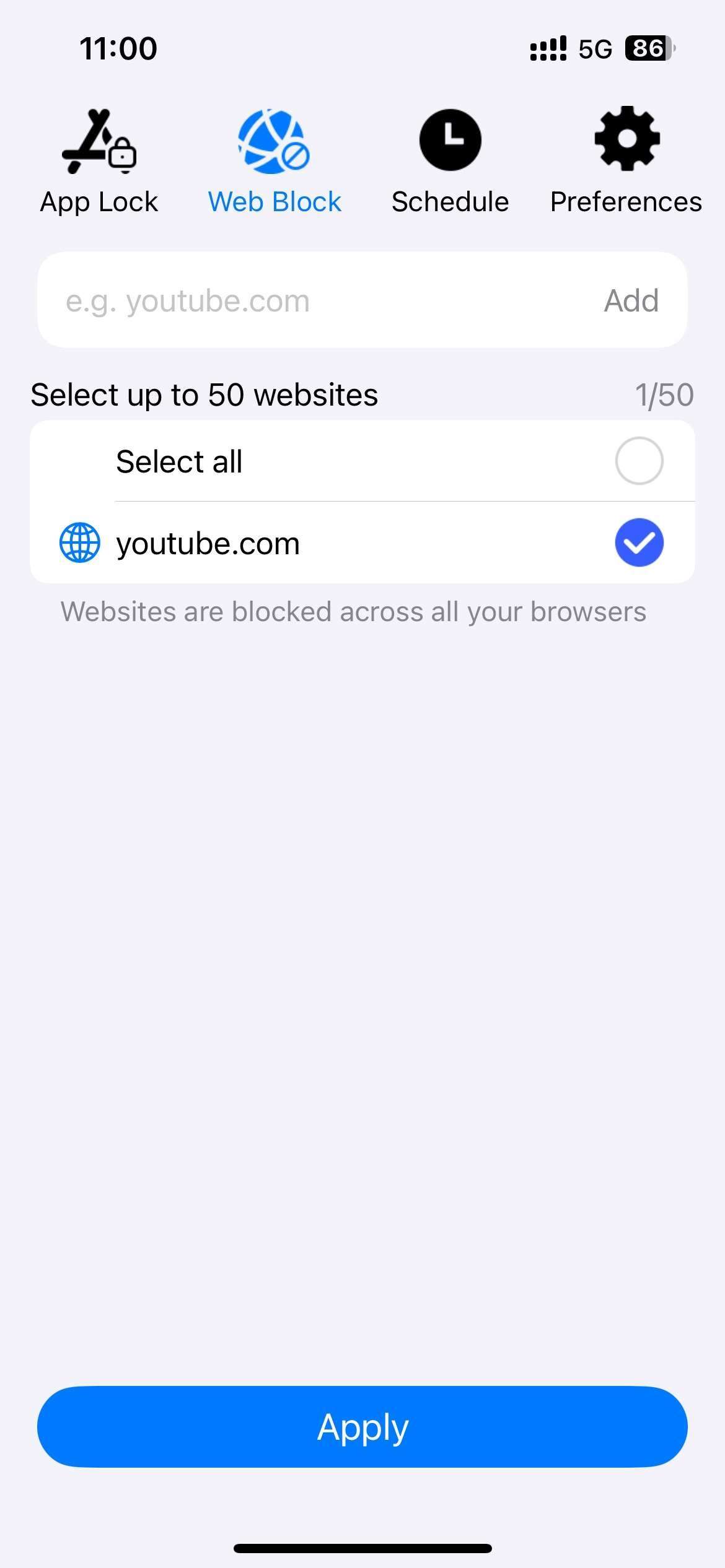
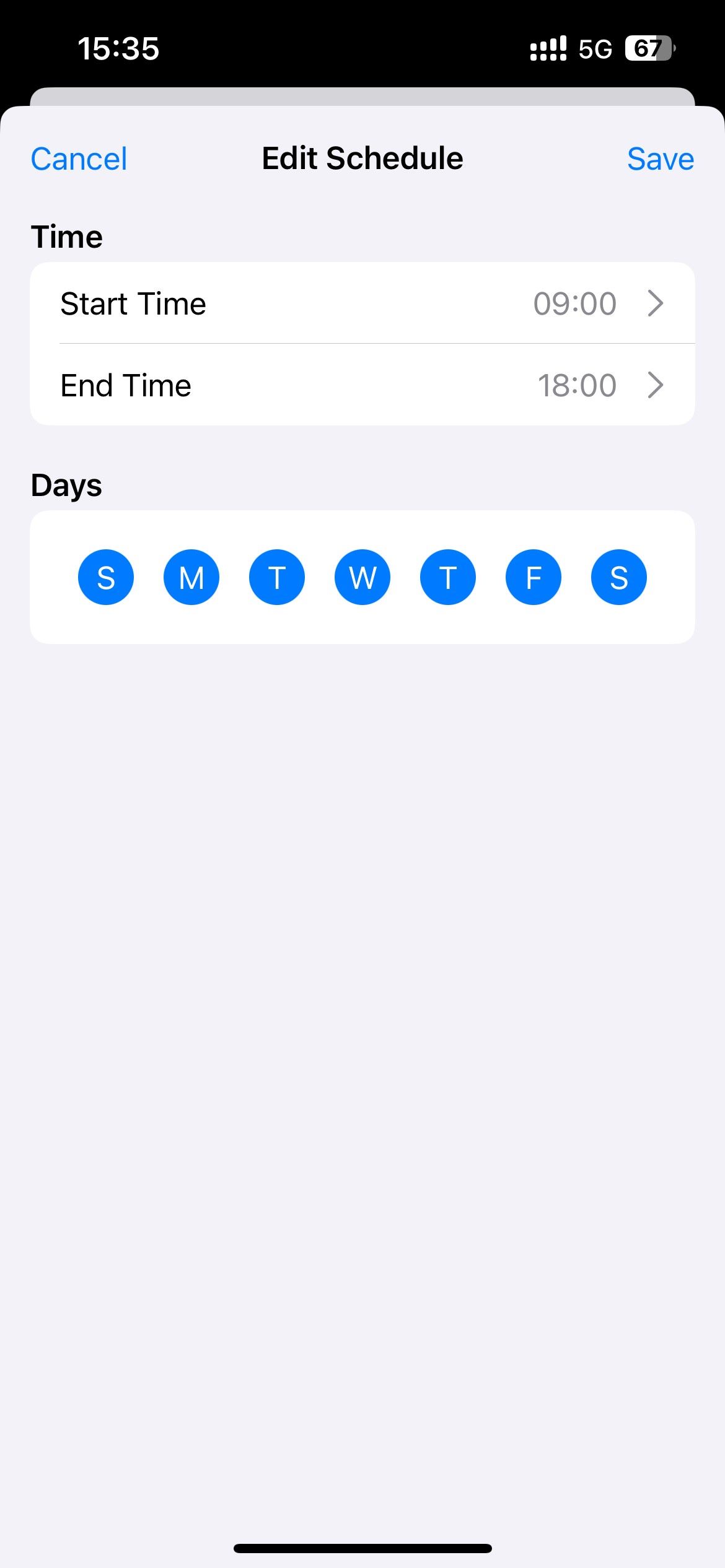
Step 5. To put a time limit on Facebook, click Schedule. Set a time you want to block access to Facebook on your iPhone. Click Save.
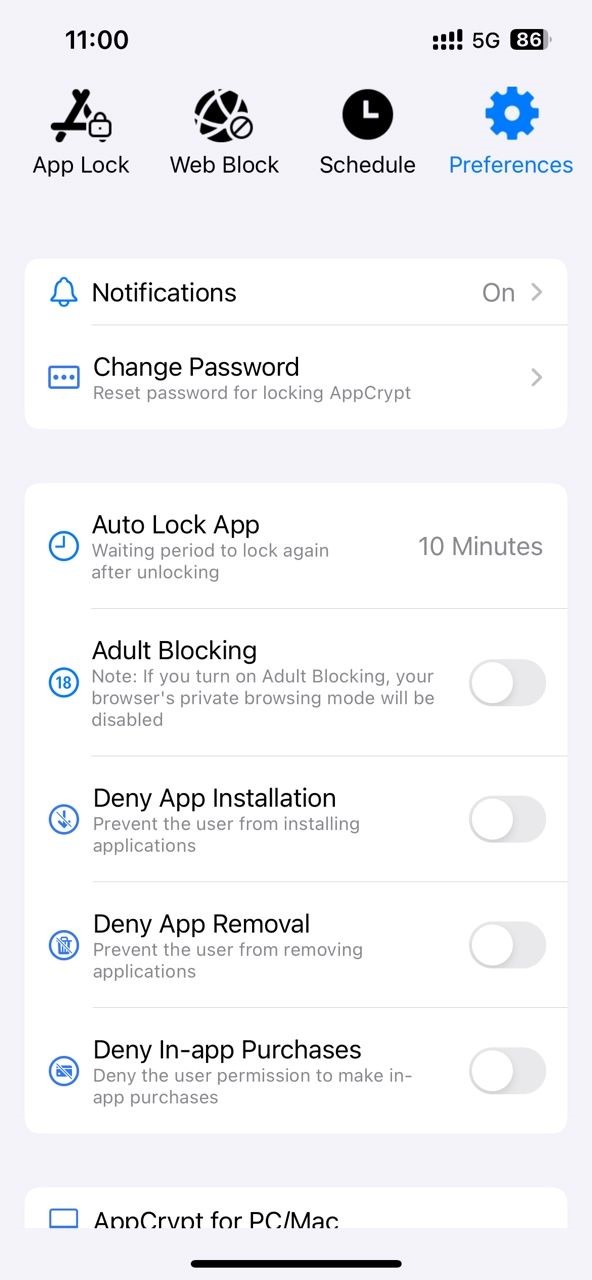
This step is optional and can lock Cisdem AppCrypt with password to prevent unauthorized access: go to the Preferences tab. Click Notifications. Turn on Notification. Then it’ll prompt you to set a password.
Steps on Android
Cisdem AppCrypt is also available for Android devices running Android 8.0 or later. The steps to limit Facebook time on Android differ slightly from the iPhone version.
Step 1. Download Cisdem AppCrypt from the Google Play Store.

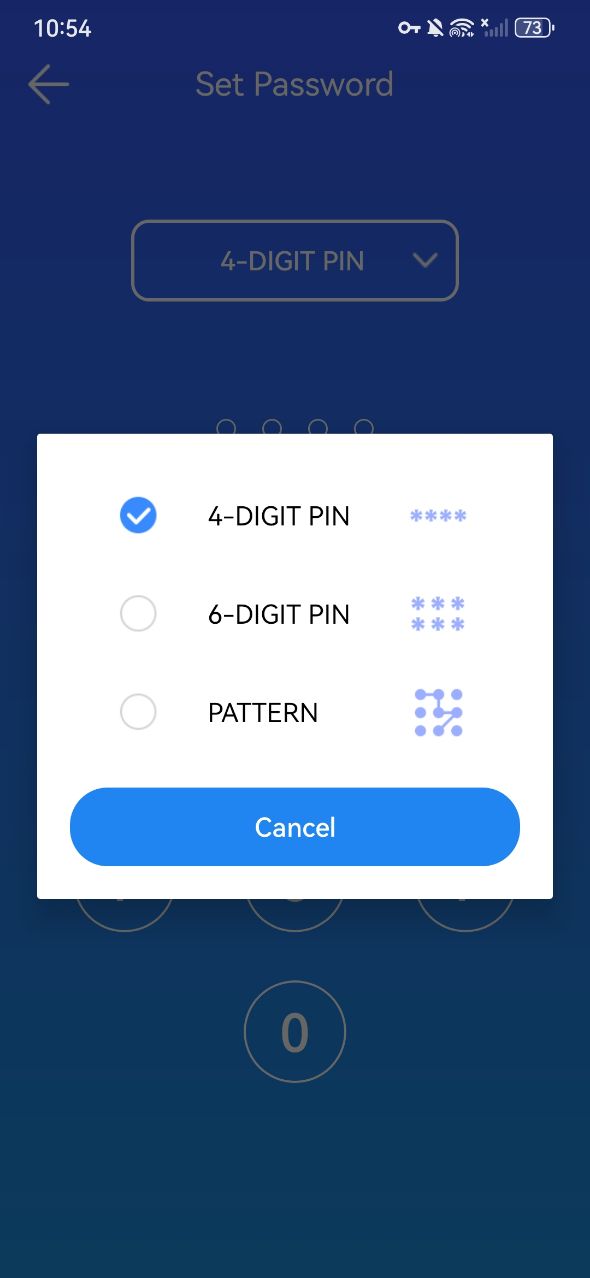
Step 2. Open it. Set a PIN or pattern.
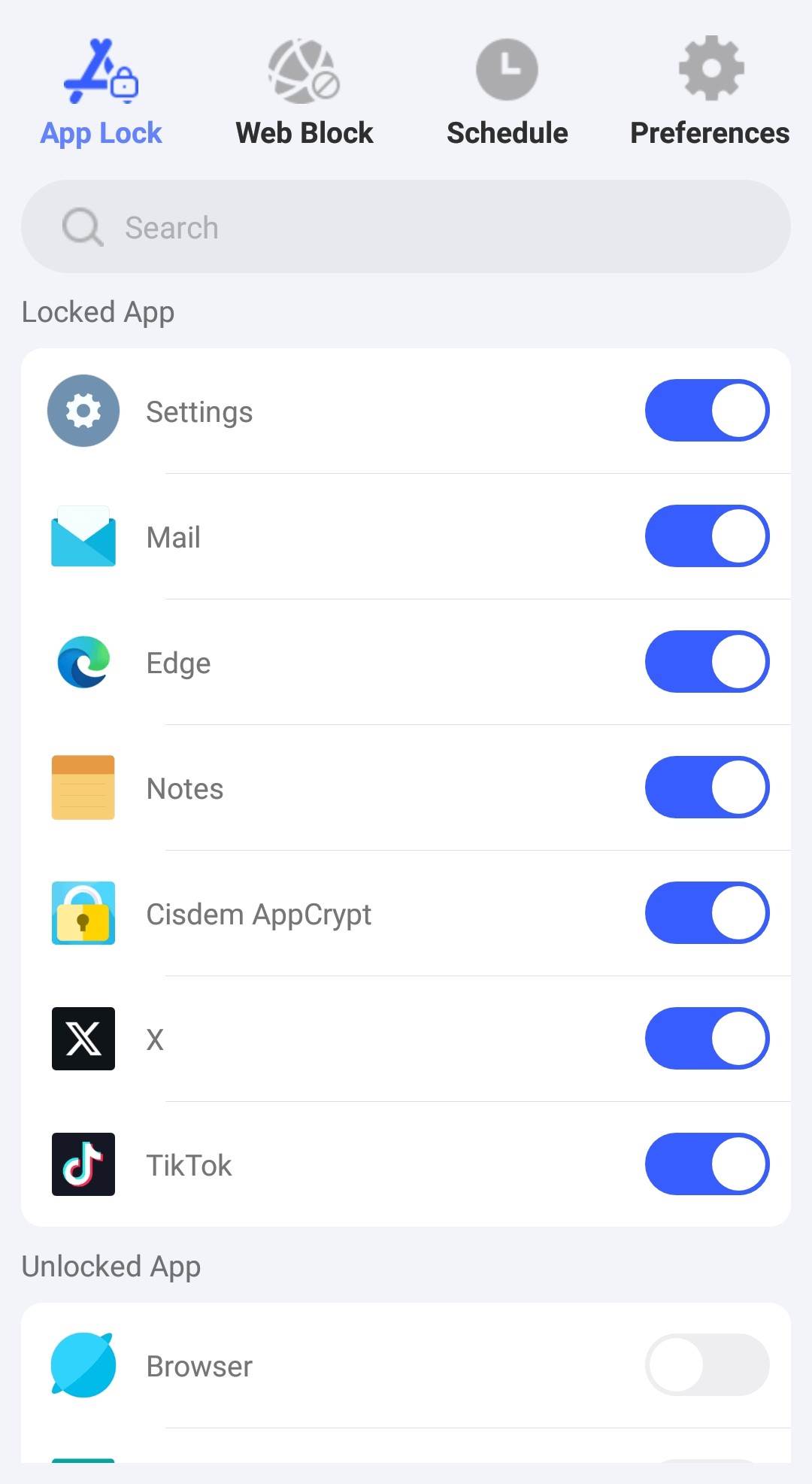
Step 3. Go to the App Lock tab. Under Unlocked App, find the Facebook app. Toggle the switch next to it to the on position.
Step 4. If you also use the web version of Facebook on your Android, click Web Block. Add facebook.com to the block list.

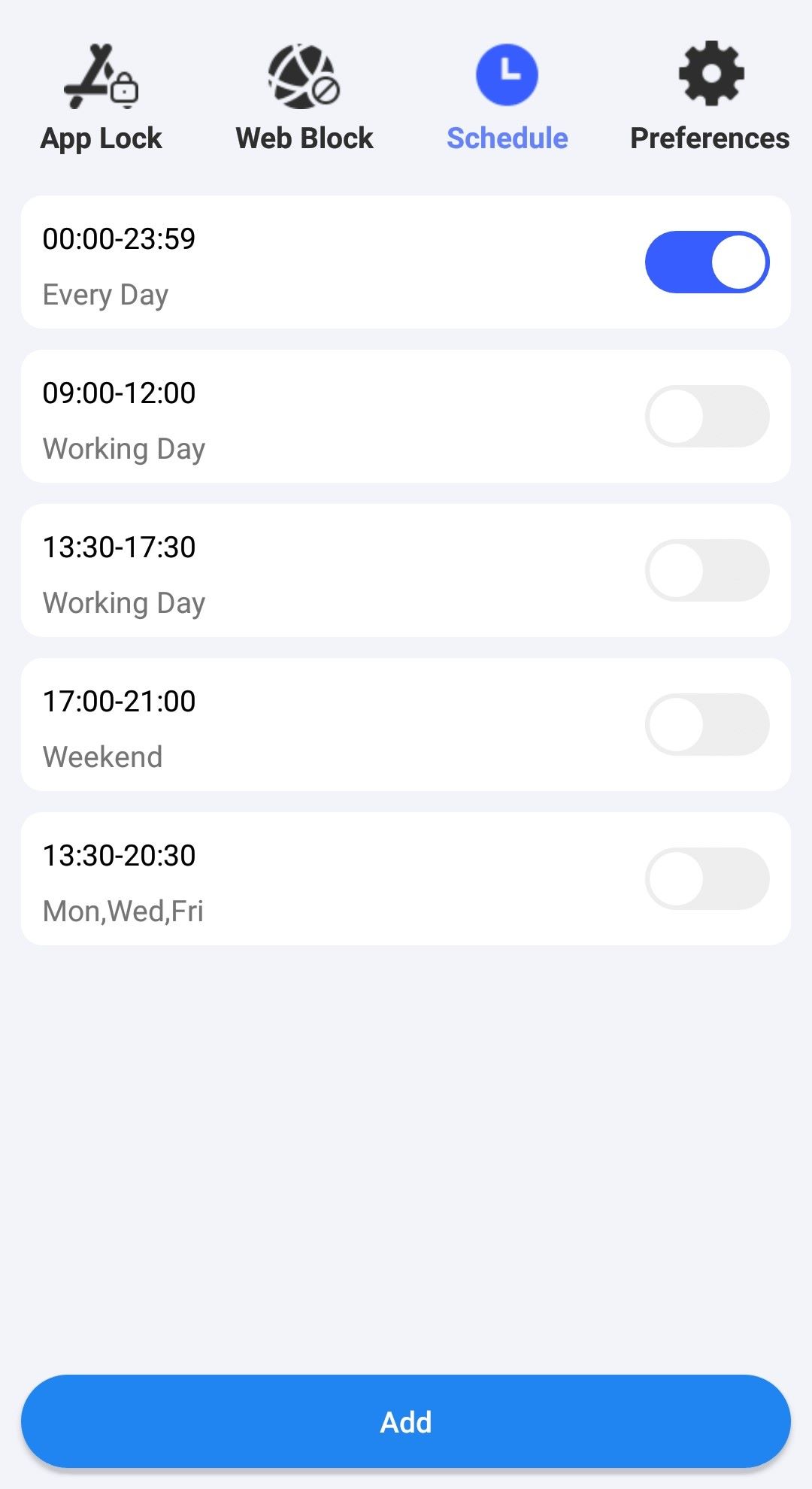
Step 5. To limit time on Facebook, click on Schedule. Set the desired schedules according to your needs.
Steps on Mac and Windows
When you use your computer for work or study, it's easy to get distracted. While spending some time on Facebook may help you feel refreshed, using it too much can reduce focus and productivity. In this case, setting a proper time limit can help.
The good news is that Cisdem AppCrypt is also compatible with for Mac and Windows PC, which can help you limit Facebook time on computer easily. Here’s what it can do:
- Permanently block Facebook, or block it during specific times.
- Block specific websites or webpages on Chrome, Safari, Opera, and other browsers.
- Block sites by category, such as social sites, games sites, porn sites, etc.
- Let you quickly add distracting sites to the block list.
- Lock individual apps with password.
- Set custom schedules for specific sites, apps.
- Also let you set a general schedule for all blocked sites, apps.
- Automatically run at system startup.
- Record failed attempts to access Facebook, or other locked apps.
Step 1. Download and install Cisdem AppCrypt on your computer.
 Free Download macOS 10.15 or later
  Free Download Windows 10 or later
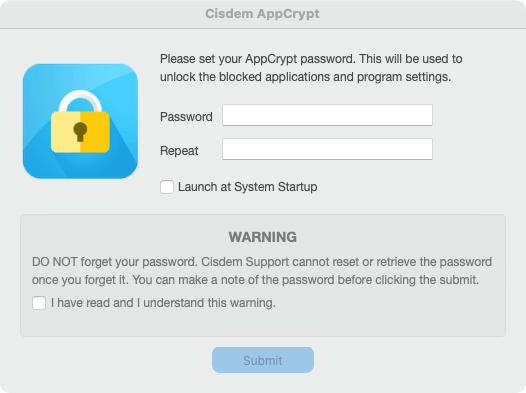
Step 2. Launch it. Set a password when prompted. Check the box next to Launch at System Startup so the Facebook time limit will automatically take effect every day, even after you restart your computer.
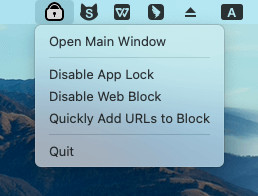
Step 3. Click the lock icon on the menu bar/taskbar. Click Open Main Window.
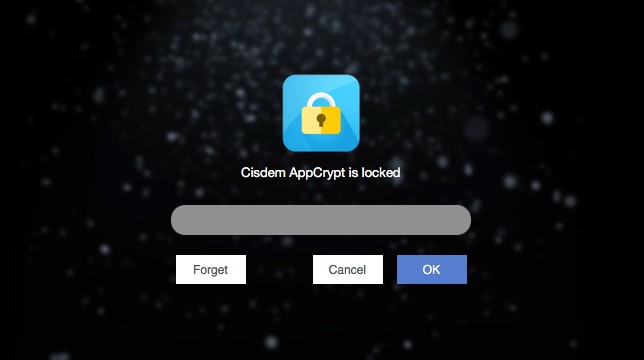
Step 4. Enter the password to access its main window.
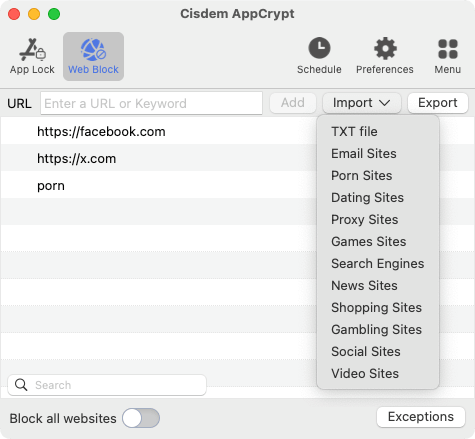
Step 5. Go to the Web Block tab. In the top URL field, enter facebook.com. Click Add.
(It also allows you to block websites by category. For example, to block app popular social media sites on the Internet, click the Import button. Select Social Sites.)
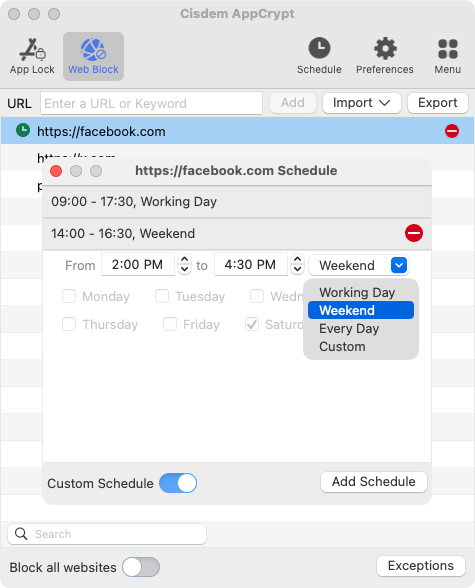
Step 6. Select Facebook in the Web Block tab, click the small clock icon that appears. In the Schedule dialog that pops up, turn on Custom Schedule and click Add Schedule to set time limit.
Part 3. How to limit time on Facebook by configuring your router settings
If you want to limit Facebook time across all devices in your home or office, this method is a great option. Most routers come with web filtering that allows you to block specific websites on all phones and computers connected to the network. But you should make sure that the devices stay connected to this router. Once a device disconnects from the network, the restriction will no longer work on it.
The steps to limit screen time on Facebook using router’s web filtering may vary depending on your router’s model.
Step 1. In a browser, visit your router's IP address. It's usually 192.168.1.1 or 192.168.0.1, and you can find it on the back of your router.
Step 2. Log in with your username or password. (You can find the default username and password on the back of your router.)
Step 3. Find a feature or section called Parental Controls, Web Filtering, Content Filter, or something similar.
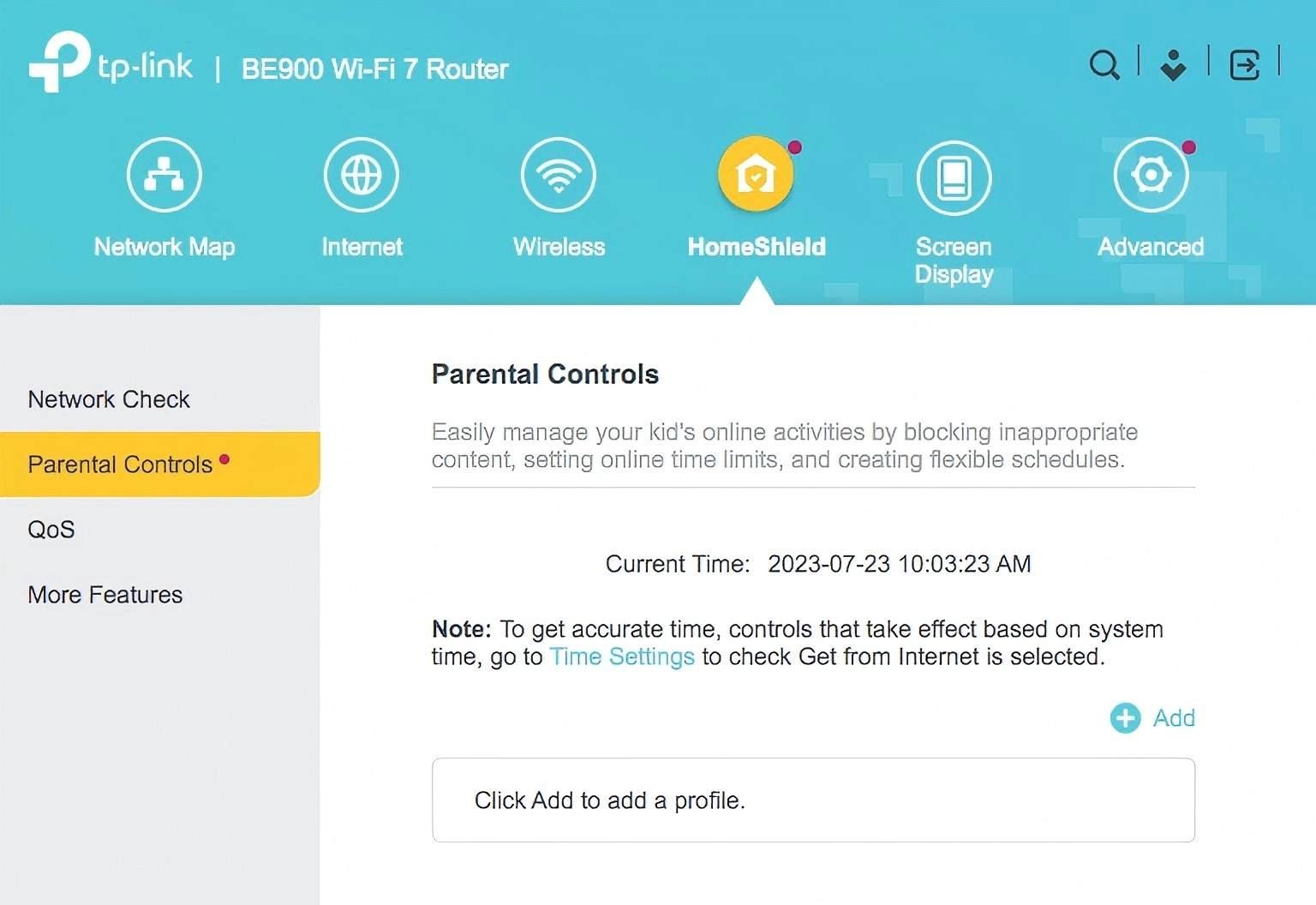
Step 4. Add facebook.com to the block list.
Step 5. Look for a feature called Schedule, Time Control, or something similar. Set a time limit for Facebook.
(Some routers don't have such a feature but allow you to set limit for entire internet access, which might help as well.)
Step 6. Save your settings and restart the router.
Part 4. Tips for healthy Facebook use
In addition to using tools to put a time limit on Facebook, here are practical useful tips that can help you develop healthier usage habits on Facebook:
1. Set daily time reminder on Facebook
Facebook app offers a daily time reminder, which can help users with good self-control to gently limit Facebook time. To set this up: open the Facebook app on your phone. Click Menu > Settings & privacy > Settings > Your time on Facebook. Click on the Manage your time option. Turn on Daily limit by choosing a time limit. It let you choose from 15 minutes to 2 hours. Once the time is reached, Facebook app will remind you, but it won't force the app to close.
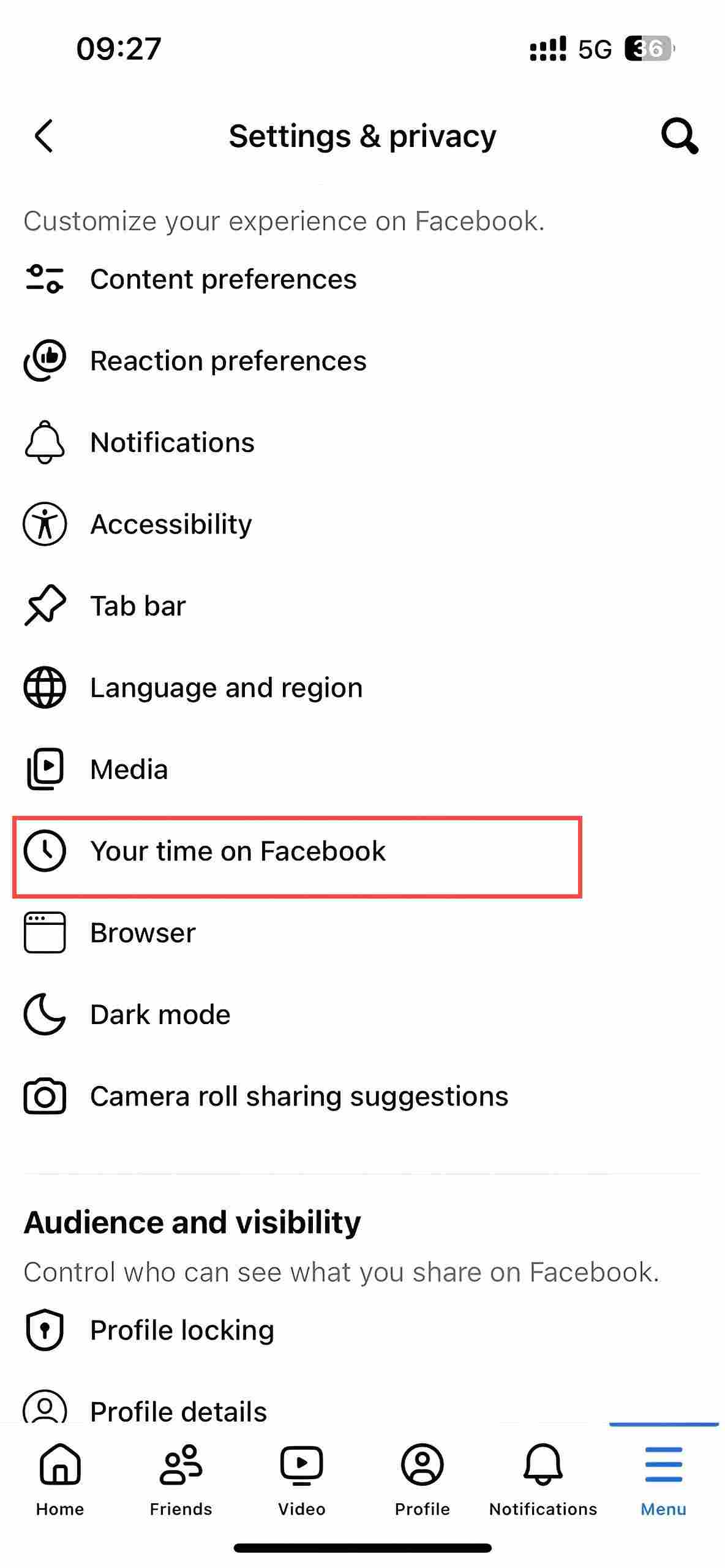
2. Turn off Facebook notifications
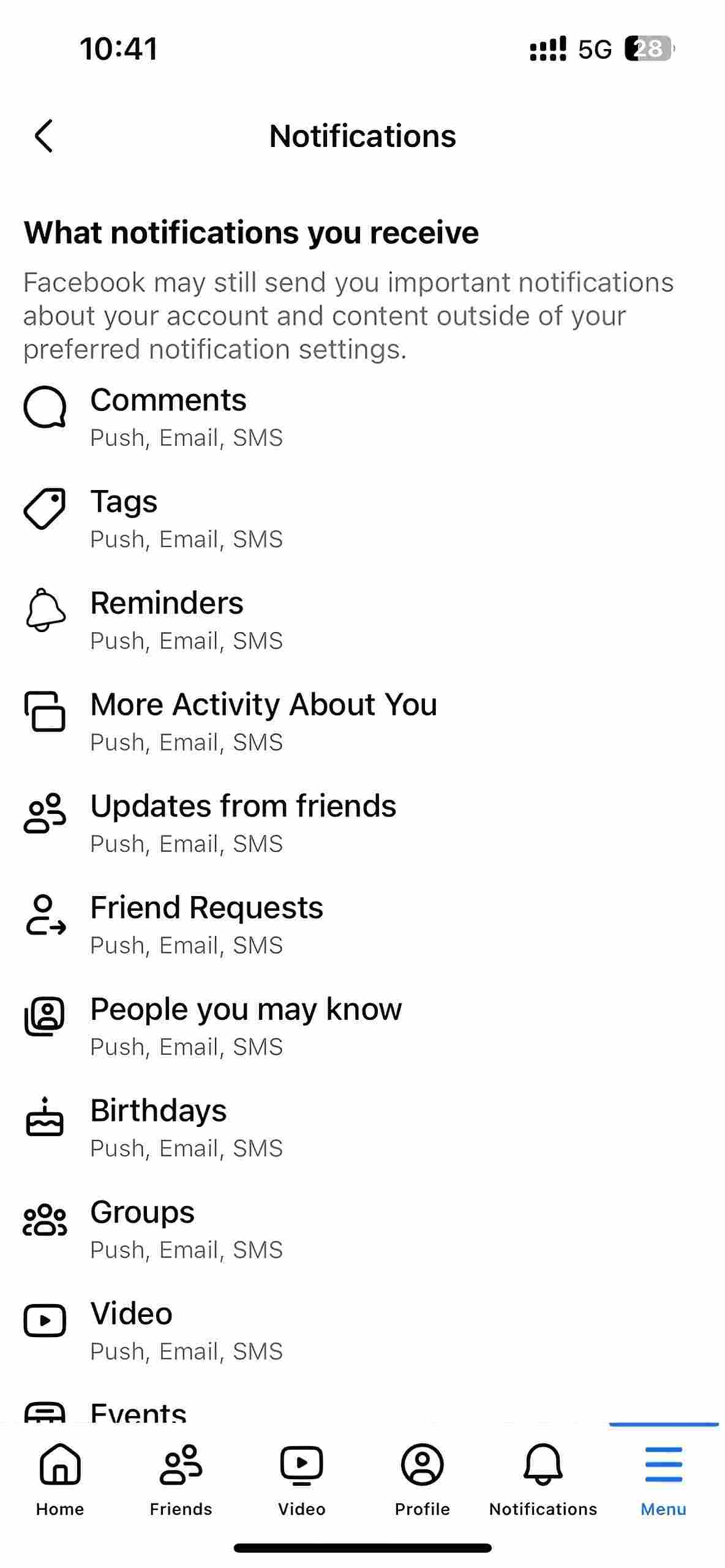
Turning off Facebook notifications can reduce the number of times per day you open your phone to check for new posts, comments, messages, and more on Facebook. Open the Facebook app. Click Menu at the bottom. Click Settings & Privacy > Settings >Notifications. Turn off all notifications.
3. Hide/remove the Facebook app from your Home screen
If you tend to open Facebook as soon as you unlocking your phone, or when you are feeling bored, you can hide or remove the Facebook app from your Home screen, which can also limit your Facebook time. For iPhone users: long-press the app icon of Facebook, choose Remove App > Remove from Home Screen. Then Facebook will only visible in the App Library. Most Android phones also offer built-in features to hide apps. Go to Settings. Click Home screen > Hide apps. Then find and select Facebook to hide.
Conclusion
Are you wasting an excessive amount of time on Facebook every day? Limiting screen time on Facebook can help you overcome Facebook addiction and gain control of your free time. This article introduced several effective ways on how to limit Facebook time on iPhone, Android, Mac and Windows PC. Hope it helps.

Norah Hayes likes to share her tips on how to improve focus and stay motivated at work. She believes it is essential to eliminate all online distractions during work hours.

Ethan Long joined Cisdem in 2015 as a developer and now serves as the editorial advisor for Cisdem AppCrypt. He actively tests and uses Cisdem AppCrypt and other screen-time management tools to ensure AppCrypt meets its promises in real-world scenarios.