


How to Block Steam on Computer with a Steam Blocker
 1.2K
1.2K
 0
0


Key takeaways:
Cisdem AppCrypt is an effective Steam blocker that lets you completely block the Steam app and website on your computer or restrict access during specific times. It also allows you to block specific Steam games.
Steam is one of the most popular gaming platforms, but many games on Steam can easily become a distraction and reduce productivity at work or study. Some users find it difficult to control access to Steam and are looking for ways to block it completely or set time limits.
In this article, we’ll show you how to block Steam, restrict specific Steam games, and even block Steam websites on your computer.
 Cisdem AppCrypt
The Best Steam Blocker for Windows & Mac
- Lock apps, like Steam, with password
- Block game websites on Chrome, Opera, Edge and more browsers
- Let you block specific sites/pages, and URLs containing certain keywords
- Let you block popular sites in certain categories, like gaming sites, with 1 click
- Also let you block all websites except specific ones
- Let you lock apps and block websites permanently or at scheduled times
- Easy to use and hard to bypass
- Help block Steam app, all Steam games, or a specific Steam game on computer
- Help with parental controls, productivity and privacy protection
- Available for Windows, Mac, Android and iPhone


Both Windows PC and Mac offer built-in tools that help block Steam, including Microsoft Family Safety and Screen Time. But I don't recommend them. They can be turned off/bypassed easily.
How to block Steam app on Windows PC and Mac
The tool I use is Cisdem AppCrypt - an easy to use app locker and website blocker for Windows and Mac.
It can be used for parental controls to lock the Steam app on child’s computer with a password, either permanently or during specific time periods. It also works as a productivity tool for users who want to limit or stop access to Steam and reduce distractions.
To block Steam app on computer with AppCrypt, just follow these steps:
Step 1. Download and install this Steam blocker on your PC or Mac.
 Free Download Windows 10 or later
  Free Download macOS 10.15 or later
Step 2. It’ll ask you to set a password when you first launch it.
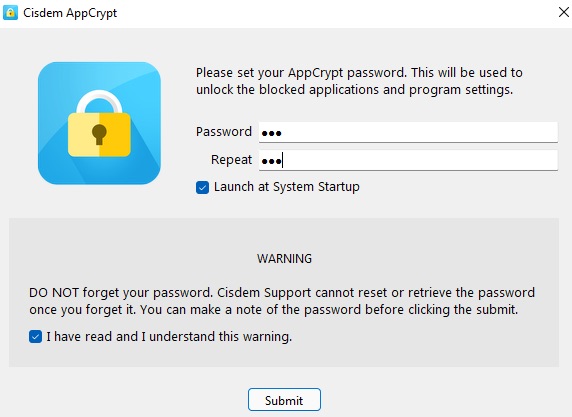
If you are blocking Steam for your child, make sure he/she can't guess the password. If you are blocking for yourself and have poor self-control, you can ask your friend to set the password for you.
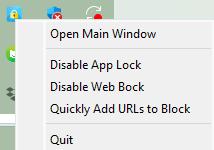
Step 3. After submitting the password, click the lock icon on your Windows taskbar/Mac menu bar. Choose Open Main Window.
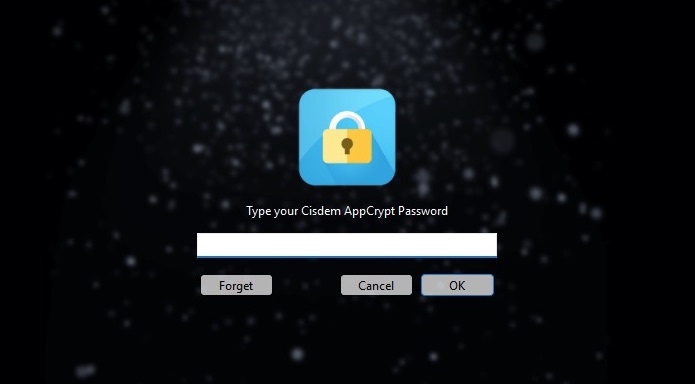
Step 4. The password is required again to access the tool.
Step 5. Now you are in the main window. Go to the App Lock tab.

To block Steam on Windows: drag the desktop shortcut of Steam app into the main window. Alternatively, you can click the plus icon, go to File Explorer to find Steam and then add it to block. Below is the location of the Steam app:
C:\Program Files (x86)\Steam\steam.exe
To block Steam on Mac: click the plus icon. Select Steam from the Applications folder. Click Open.
Now Steam is blocked. A password is required to access it. In addition to the Steam application, all games downloaded from Steam will also be blocked.

Tip. How to block Steam at specific times?
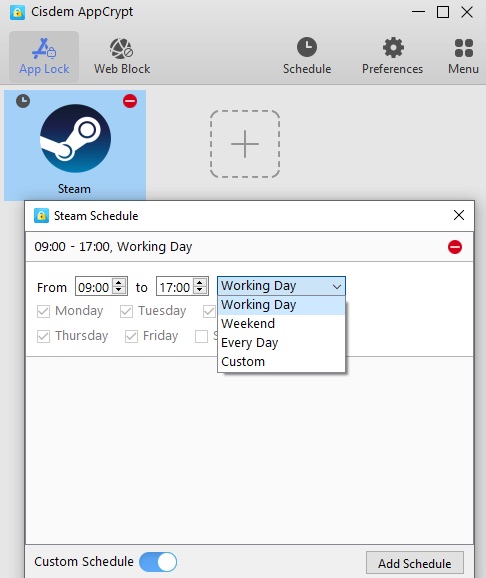
Steam can easily become a distraction during homework time, bedtime, or work hours. If you don’t want to block it permanently, you can simply block access to it during specific time periods.
With Cisdem AppCrypt, this is easy to set up. By default, apps are blocked permanently once added. But you can set a custom schedule for Steam. To do this, click Steam under the App Lock tab. Then click the clock icon that appears. Enable Custom Schedule. Add a schedule. Set the time you want Steam to be unavailable.
How to block specific Steam games on computer?
Most Steam games are kid-friendly, but not all. For example, Hatred is a twin-stick shooter on Steam, which is filled with violence and is not safe for kids. In addition, some Steam games are extremely addictive, especially some adventure games like Grim Fandango.
If you don’t want to block Steam and most of its games, but block certain inappropriate Steam games, Cisdem AppCrypt can also help you. Since the same Steam blocker is used, I skip the first 4 steps in part 1.
Step 1. Open Cisdem AppCrypt. Go to the App Lock tab. Remove Steam app from the block list by clicking on it and pressing the Delete key.
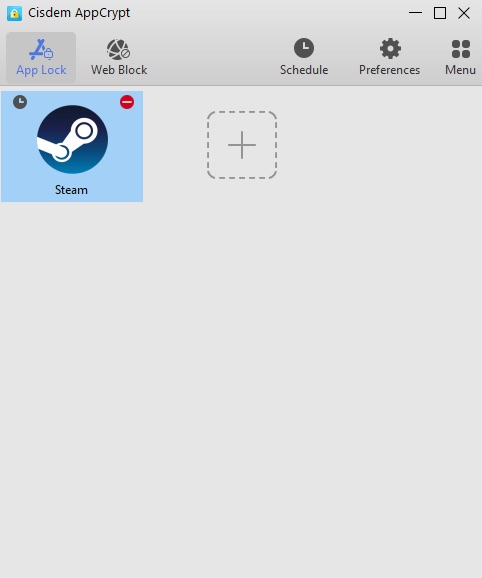
Step 2. Click the plus icon. Add specific Steam games to block.
On Windows PC, you need to find the .exe file that actually runs the game and block it. Usually, the game app that downloaded from Steam is located at the following path: C:\Program Files (x86)\Steam\steamapps\common. Then open the folder for the game. Drag the .exe file from it into AppCrypt.

On Mac computer, you can directly find the game app from the Applications folder and add it to the block list.
Now the game on Steam is blocked.

How to block Steam website on computer?
You need to purchase and download Steam games via the Steam application. While the Steam website can be used to access the Steam store and community. Steam users usually use the Steam community to share interests, communicate about games, and more. You may also waste a lot of time on this site or get distracted by it while working. Especially when you are very addicted to a specific Steam game, you will often visit the community to see if there are any new posts about this game. Cisdem AppCrypt lets you block Steam website on computer easily. It also helps block any other time-wasting game websites.
Step 1. Open this Steam blocker. Go to the Web Block tab.
(On Windows PC, you’ll need to install Cisdem extensions for browsers that you want to block the Steam website on. Mac users can skip this step.)
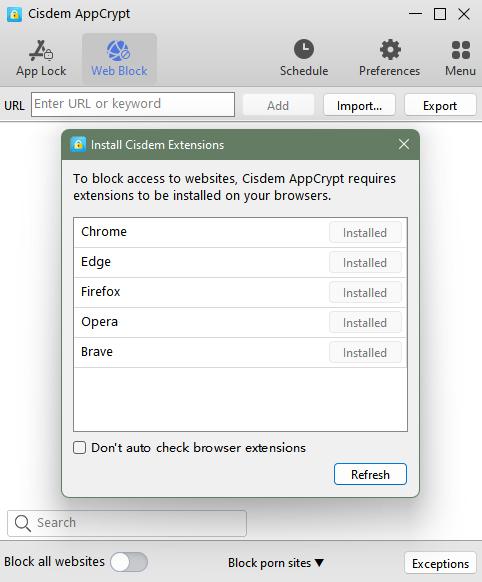
Step 2. To block Steam website, add steampowered.com into the top URL field. Click Add.
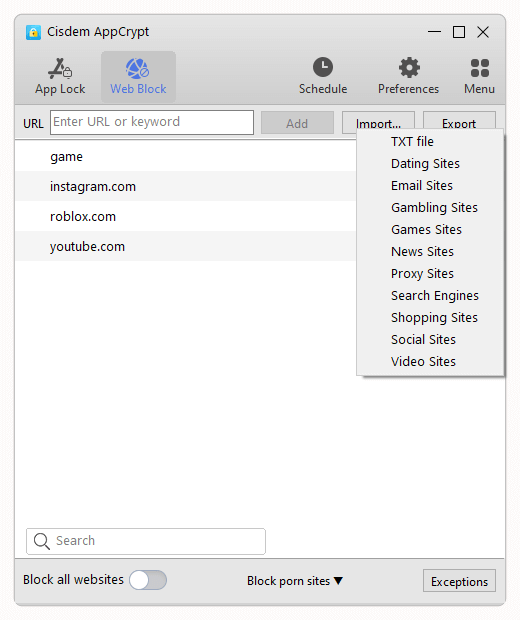
If you only want to block access to Steam community, add https://steamcommunity.com/.
Now Steam website is blocked.

Tip: How to block all popular games sites on computer?
Cisdem AppCrypt offers a useful feature to help users block all popular games sites at once. In step 3, click the Import button next to the Add button. Select Games Sites from the drop down list. Then, a large number of gaming websites including Steam will be blocked access immediately.
Conclusion
Now that you know how to block Steam on computer using Cisdem AppCrypt- the best Steam blocker I've tested. If you or your children are addicted to buying and playing games on Steam, use this Steam Blocker to completely block the Steam app. With it, you can also block specific games on Steam instead of all Steam games. In addition, it allows you to restrict access to the Steam website easily.

Norah Hayes likes to share her tips on how to improve focus and stay motivated at work. She believes it is essential to eliminate all online distractions during work hours.

Ethan Long joined Cisdem in 2015 as a developer and now serves as the editorial advisor for Cisdem AppCrypt. He actively tests and uses Cisdem AppCrypt and other screen-time management tools to ensure AppCrypt meets its promises in real-world scenarios.