


How to Block Minecraft on Mac, Windows, iOS and Android
 7.2K
7.2K
 0
0


How do I stop my kid from playing Minecraft?
Minecraft is a popular 3D sandbox game loved by children. Some children, and even adults, are addicted to it. To prevent Minecraft addiction, the best way is to block it, or set strict time limits on this game. In this article, we’ll show you how to block Minecraft on all devices.
 Cisdem AppCrypt
Easily Block Minecraft on All Devices
- Lock individual apps with password
- Block websites on Edge, Chrome, Safari and more with password
- Let you block specific sites/pages, and URLs with certain words
- Let you block popular sites in certain categories, like gaming and social, with 1 click
- Let you lock apps and block websites permanently or at scheduled times
- Block access to Minecraft
- Set time limits on Minecraft
- Help with privacy protection, parental controls and productivity
- Available for Mac, Windows, iPhone and iPad, Android


Can I put parental controls on Minecraft?
Yes. Minecraft offers built-in parental control features to help keep children safe while playing.
To play Minecraft, users should sign in with a Microsoft account. Children under 13 years old are not allowed to create an account without parent’s permission.
In addition, parents can manage child’s account settings to block multiplayer games, communicating function, and in-game purchases, etc.
If you feel that Minecraft’s built-in parental controls are not enough, you can also use use parental control tools available on your child’s device, such as Screen Time on Apple devices, Microsoft Family Safety on Windows PCs, or Family Link on Android devices.
How to block Minecraft on Mac
To block Minecraft on Macbook Pro, Macbook Air or iMac, you can use Cisdem AppCrypt - a powerful and easy-to-use tool to block distracting apps and websites. It also offers a schedule feature, which let you set time limits on games. Below is how to block Minecraft on Mac.
1. Download AppCrypt and install it.
 Free Download macOS 10.15 or later
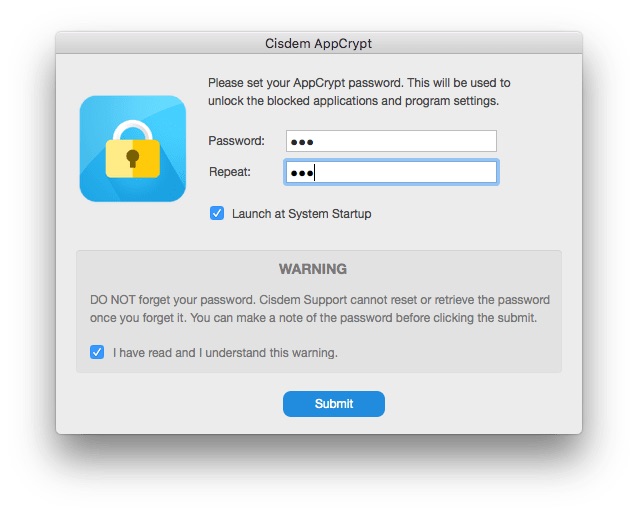
2. Set a password when you open it for the first time.
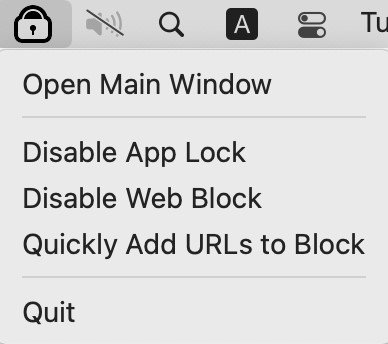
3. Click the icon in the menu bar then click Open Main Window. Enter the password to open it.
4. Now you are in the main window. Click the App Lock tab in the upper-left corner.
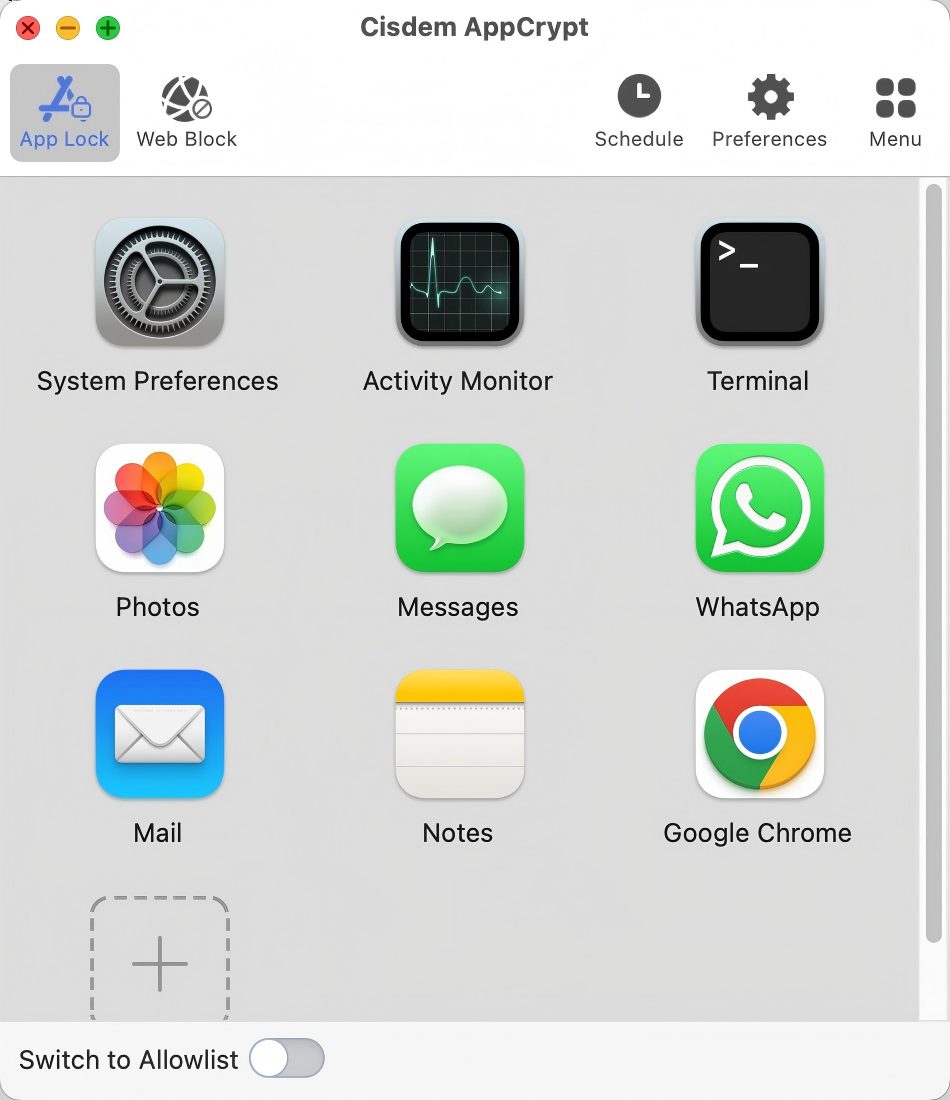
5. To block Minecraft on Mac, choose Minecraft from the list then click Open.
Now Minecraft is blocked permanently unless you enter the password to unblock it.
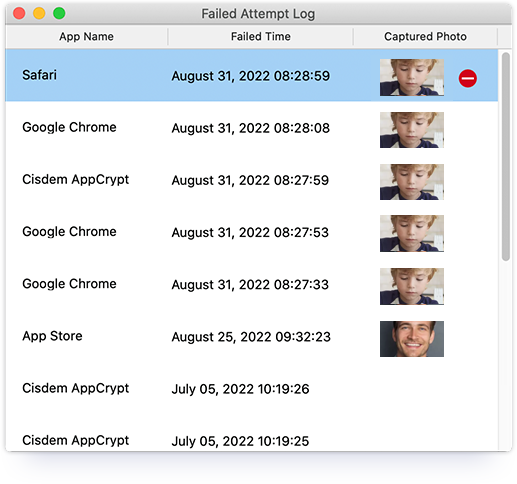
If someone tries to open it and enters the wrong password, AppCrypt will record the failed attempt.
Tip 1: Block Minecraft at certain times
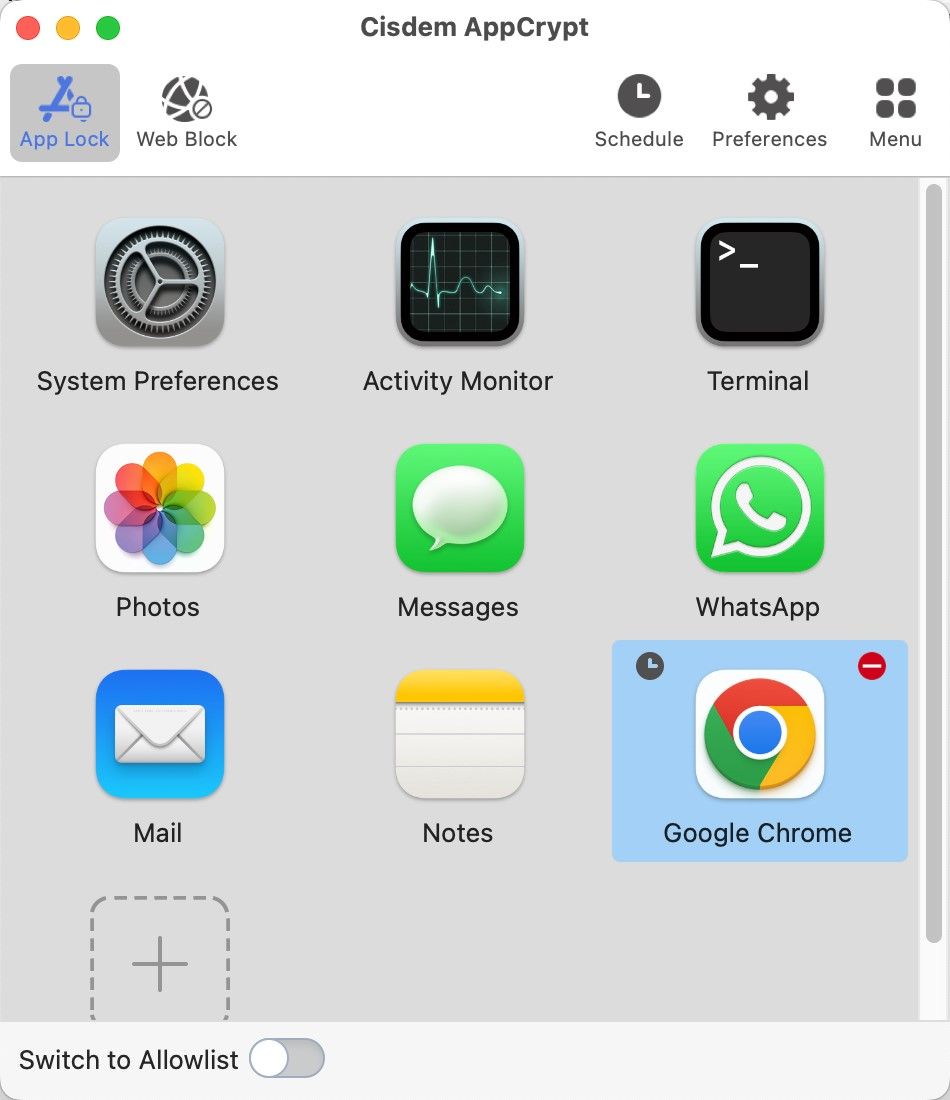
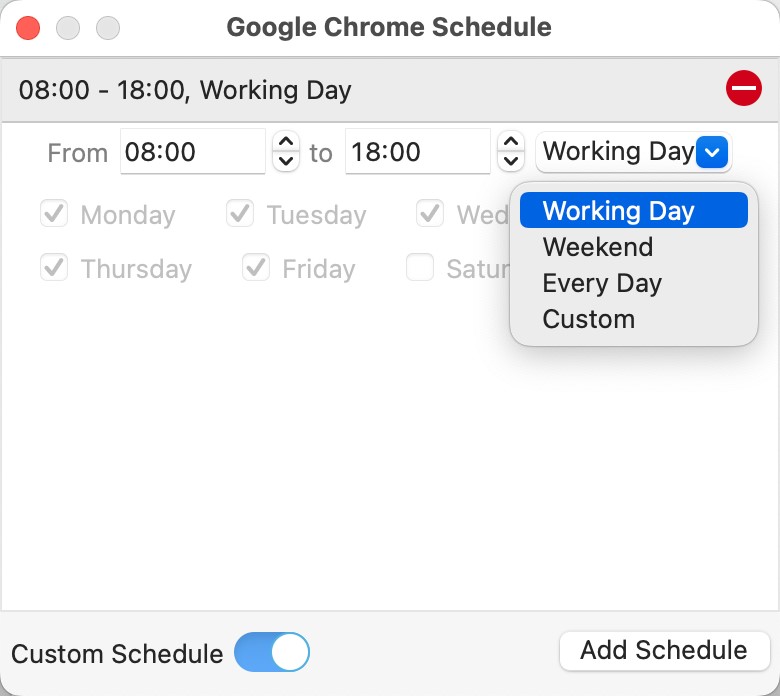
Once Minecraft is added to the block list, it’s blocked on computer permanently by default. If you want to block Minecraft only during certain hours of a day, or certain days of a week, use the Schedule feature. Select Minecraft. Click the clock icon that appears on the upper right corner. Enable Custom Schedule. Then click Add Schedule to set the time that you want to block Minecraft on your computer.
Tip 2: Block all gaming sites
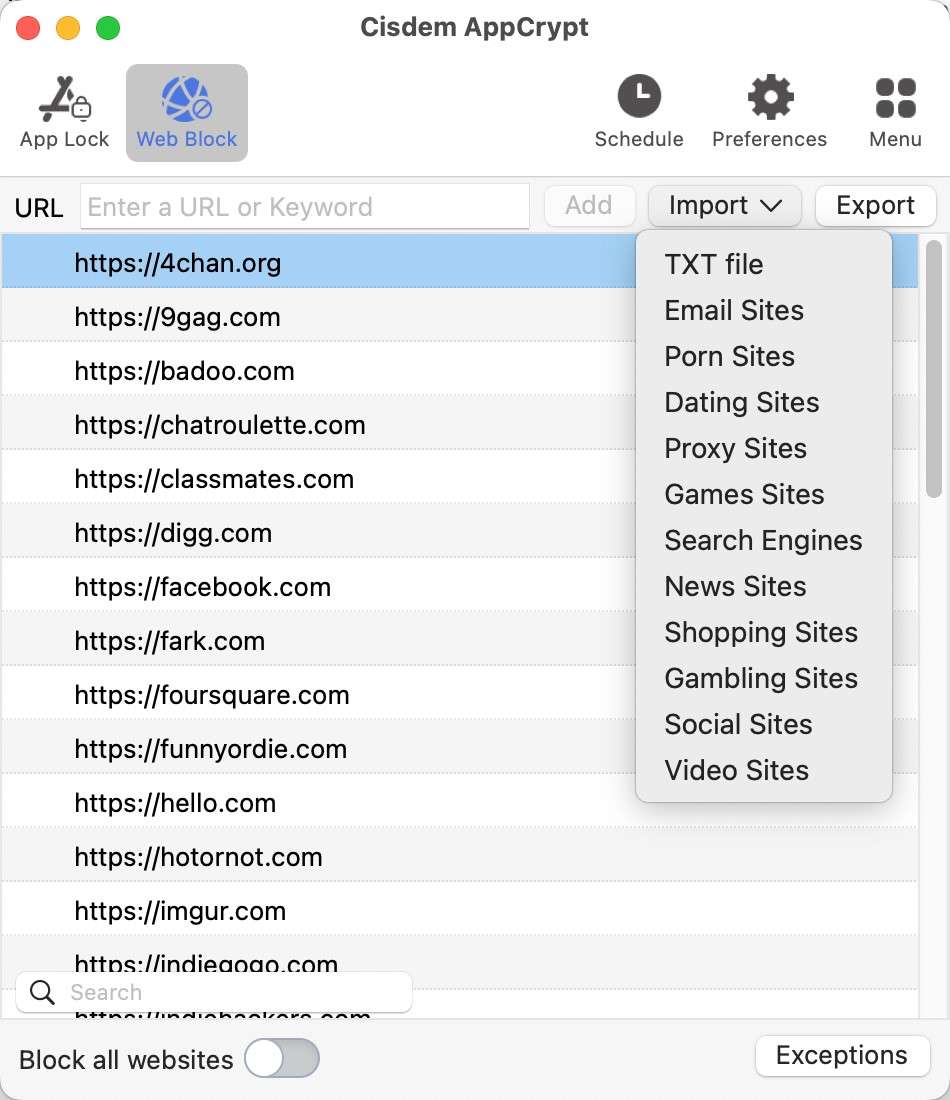
In fact, in addition to Minecraft, there are a variety of popular games on the Internet. If your child is playing a lot of games and also has an addiction, you can block all gaming sites with 1 click. Click the Web Block tab on the main window. Hit Import then Games Sites to import the present Gambling Sites list to block.
How to block Minecraft on Windows
Minecraft has several different versions. The Windows 10 edition is popular on Winodws 10 PCs. And you can also get other versions such as Bedrock Edition, Java Edition, and more on Windows computer. To block Minecraft on Windows, AppCrypt also helps.
- Lock Minecraft app on Windows with password.
- Block Minecraft and other popular games sites on Windows with 1-click.
- Lock Minecraft at certain hours of the day, or certain days of the week.
- Record failed attempt to access locked Minecraft, with the date and time.
- Reduce time you or your kids spend on Minecraft and other games.
Below are steps on how to block Minecraft on Windows computer:
1. Download and install Cisdem AppCrypt on your Windows PC.
 Free Download Windows 10 or later
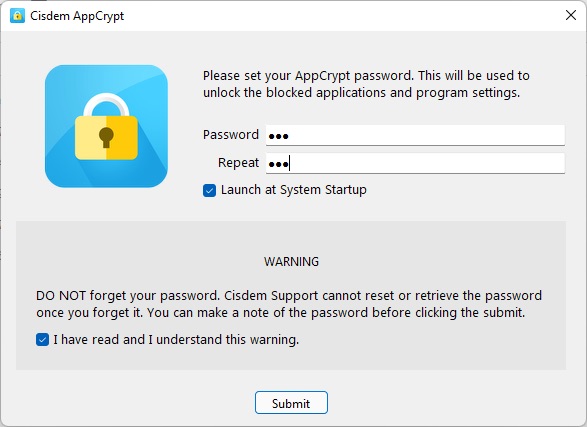
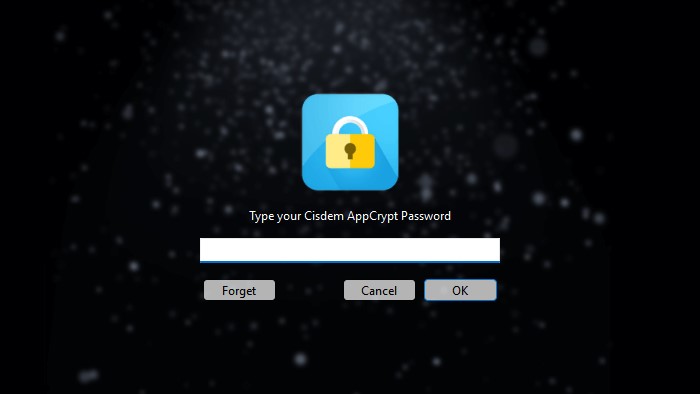
2. Open it. Set a password. Then the password will be required every time you or other users try to enter/quit/uninstall AppCrypt.
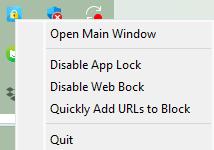
3. Right-click its icon on the taskbar. Select Open Main Window.
4. Enter the password to access this app locker tool.
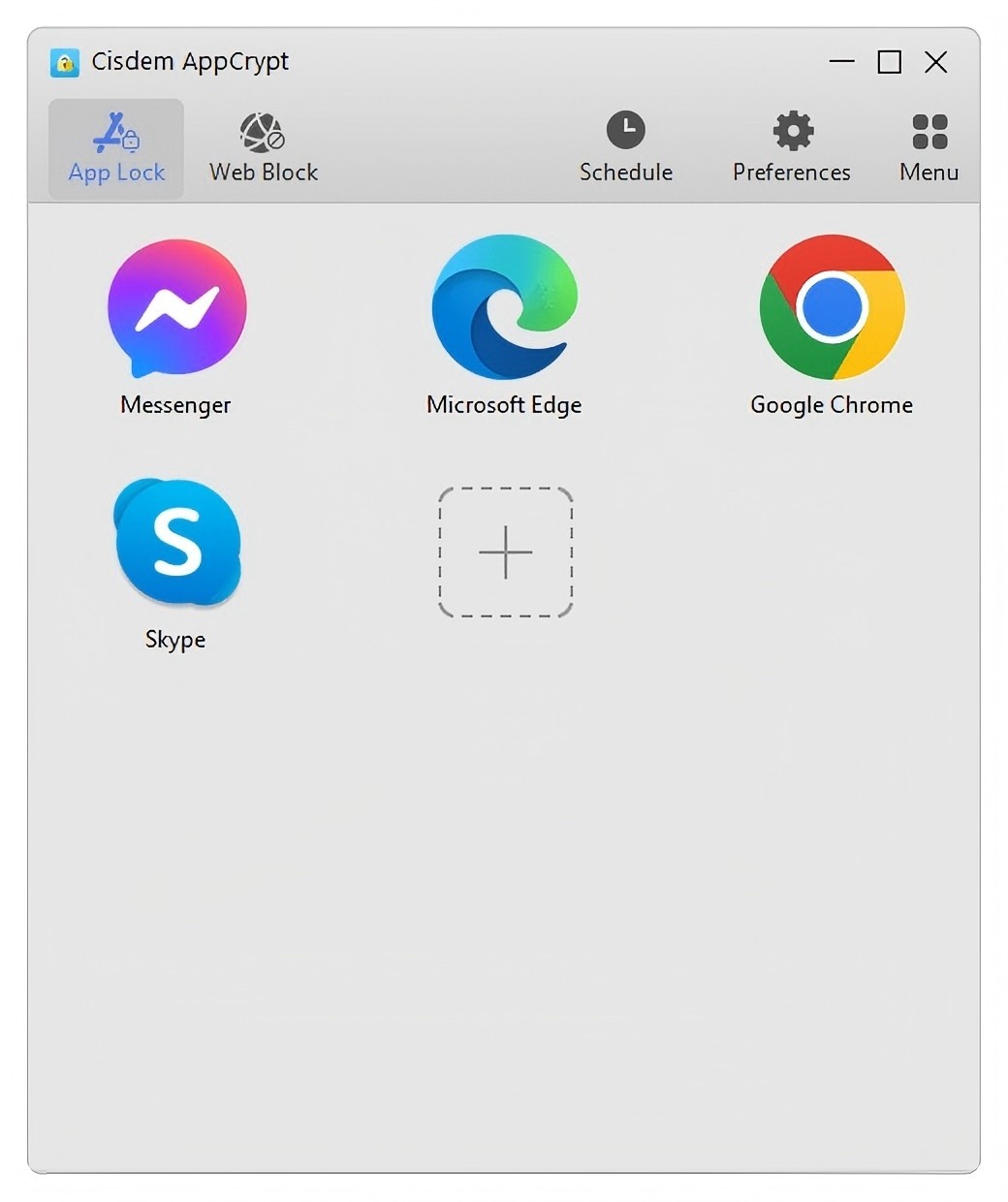
5. Drag the desktop shortcut of Minecraft into the main window. Or click the Plus icon on the main window. Select Minecraft to lock. Now this game is locked on computer permanently.
AppCrypt for Windows also supports blocking apps at certain times. You can use the Schedule feature to keep your child away from Minecraft during studying hours. During the blocking time, he cannot access this game without the password.
How to block Minecraft on iOS
Minecraft is also available for iPhone and iPad, making the access even easier. If you often get distracted by Minecraft while working and thus become less productive, you can limit access to it via AppCrypt. This tool also let you block all game apps by category.
Below is how to do the blocking.
1. Install AppCrypt.

2. In the App Lock tab, tap the Add / Remove button.
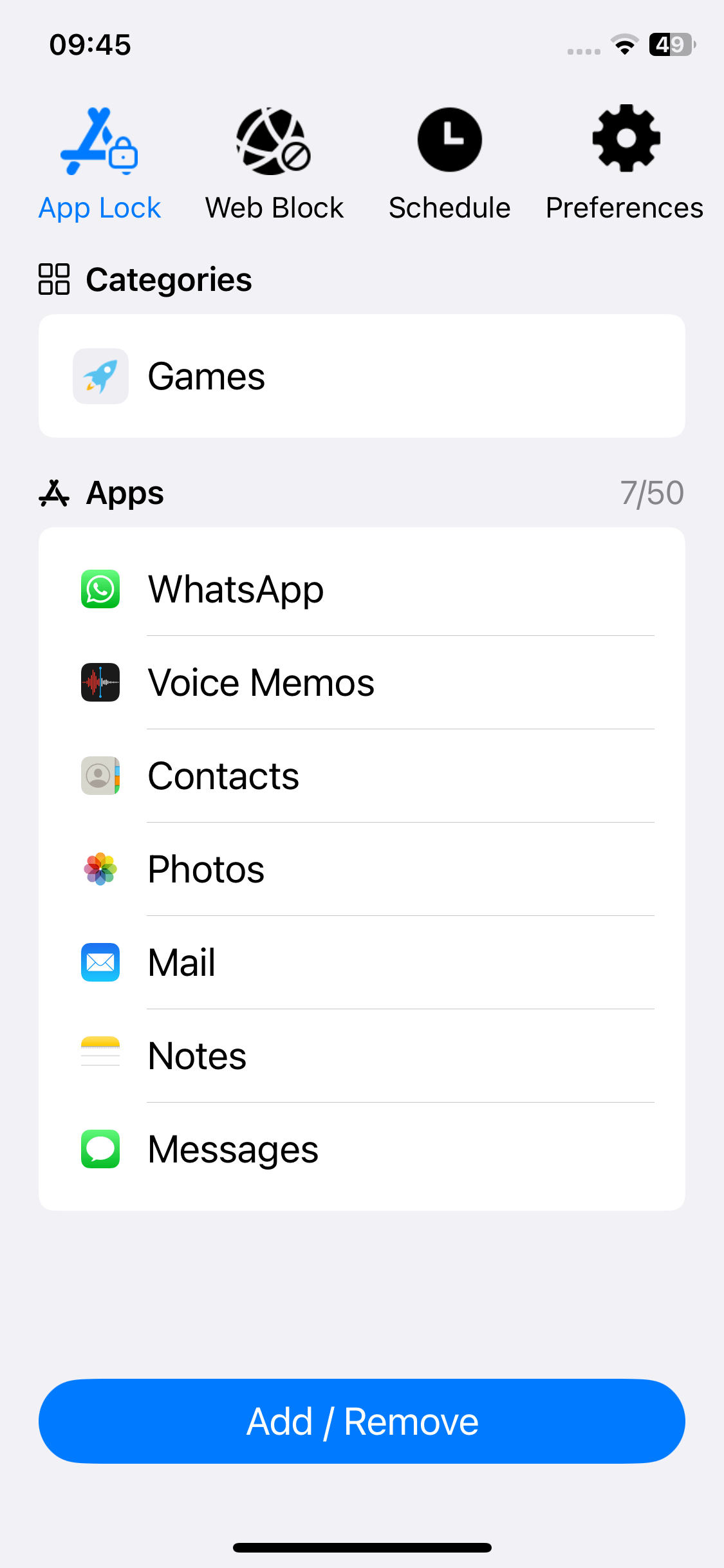
3. In the screen that shows up, search for Minecraft and then select it. Tap Done.
Now Minecraft is blocked.
4. In the Preferences tab, tap Notifications. Enable Notification and Notification unlock. Then you will be prompted to set a PIN.
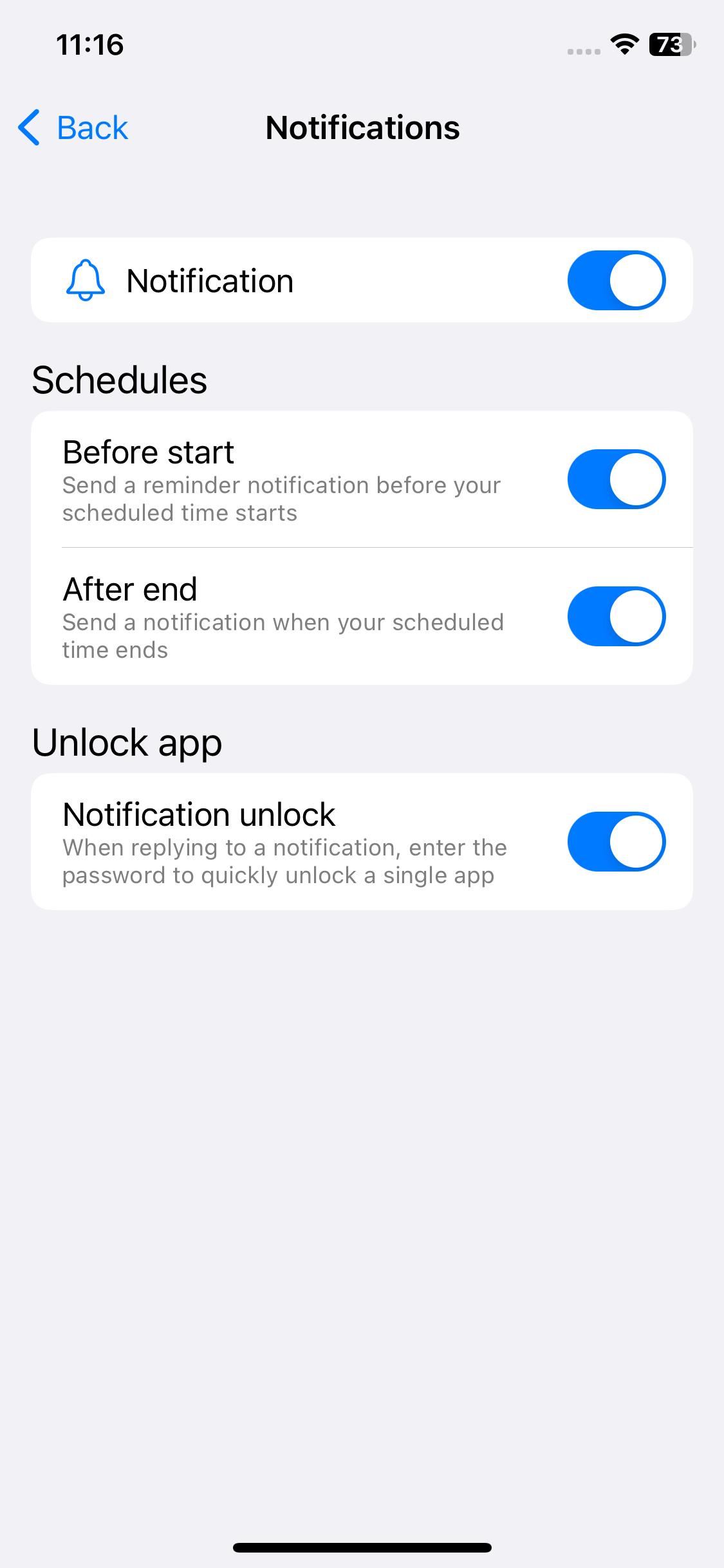
Once a PIN is set, AppCrypt will be PIN-protected.
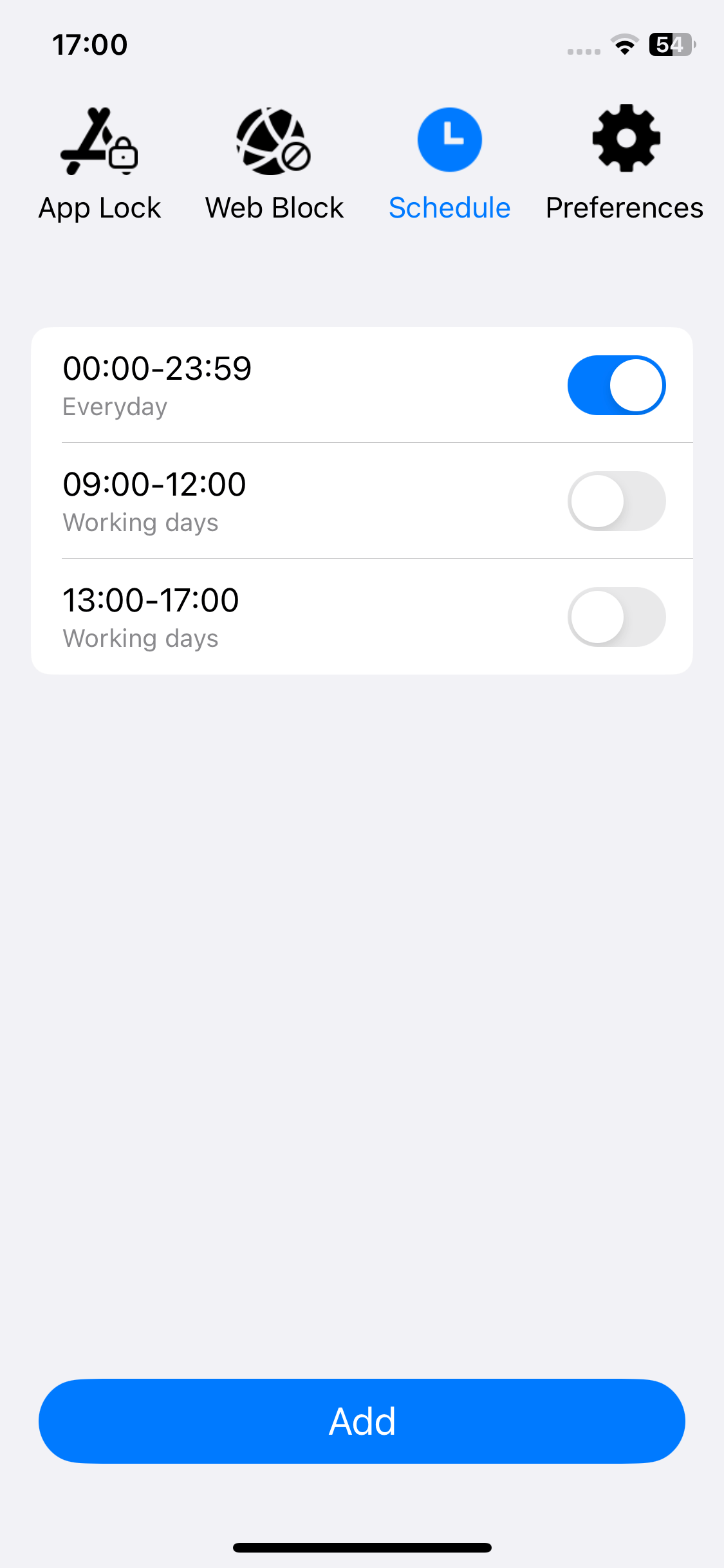
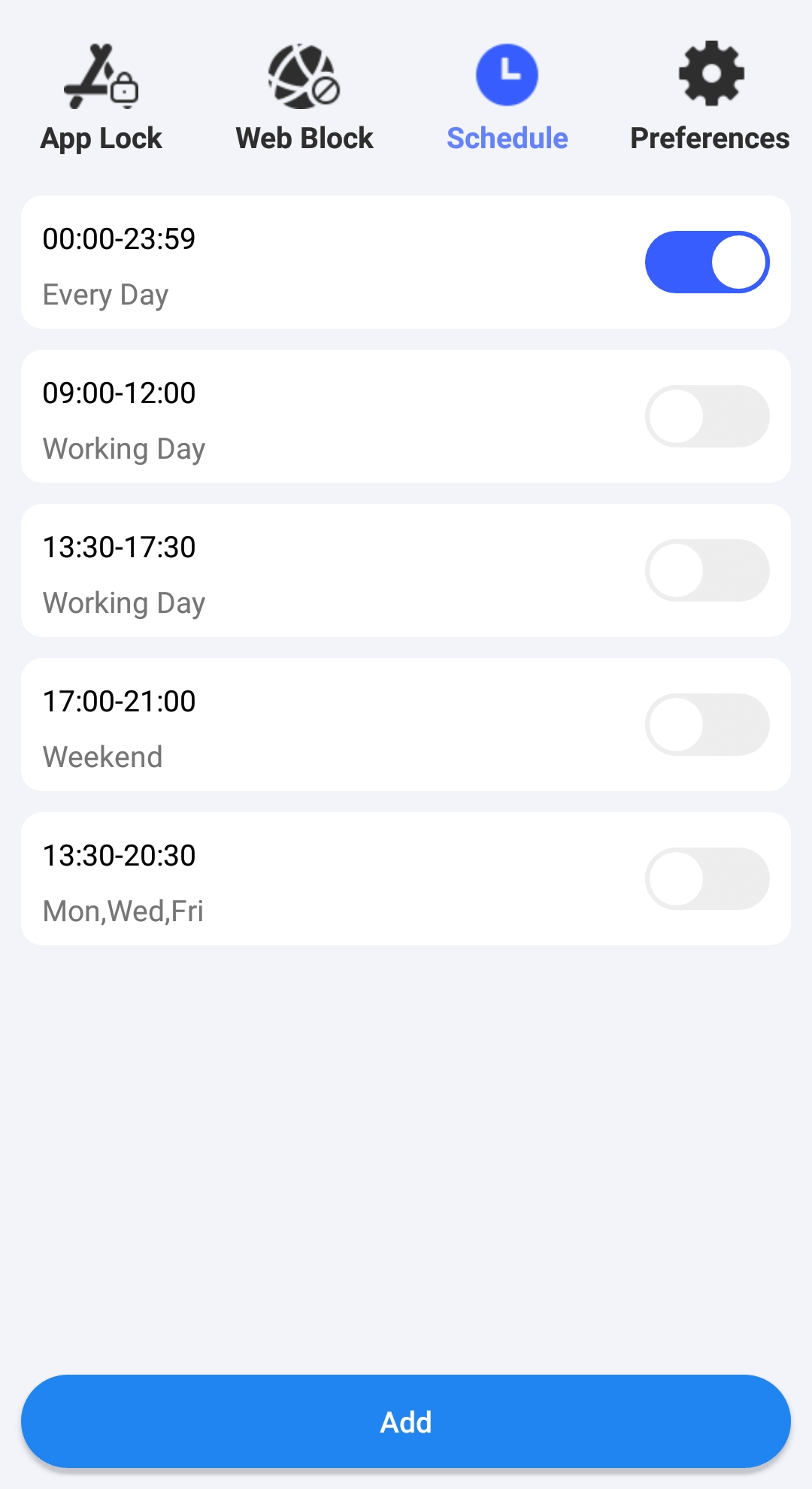
By default, Minecraft will be blocked permanently. To set the blocking of Minecraft to be active only during certain hours (such as working hours), you can go to the Schedule tab and edit or add a schedule.
How to block Minecraft on Android
If your kid uses his or her Android phone to play Minecraft for hours and you want to limit Minecraft access, you can use Cisdem AppCrypt. In addition to allowing you to block Minecraft all the time, it lets you schedule the blocking.
1. Install Cisdem AppCrypt on your child's device.

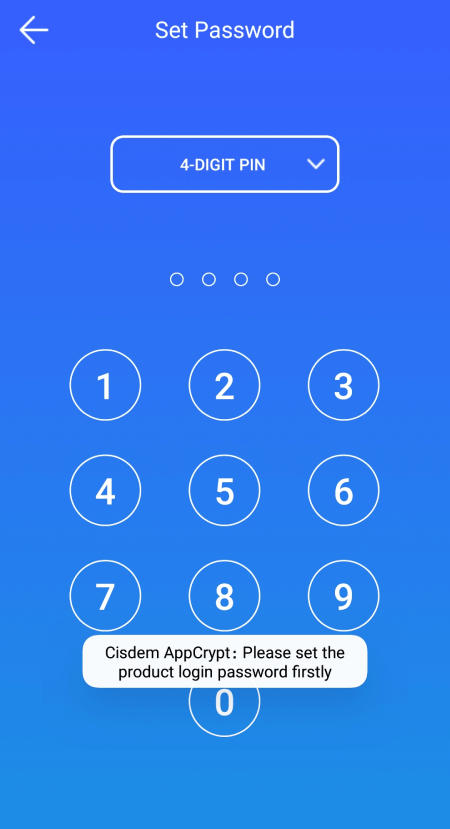
2. The first time you open it, set a PIN or pattern. Make sure that your child doesn't know it.
3. In the App Lock tab, use the search feature to search for Minecraft.
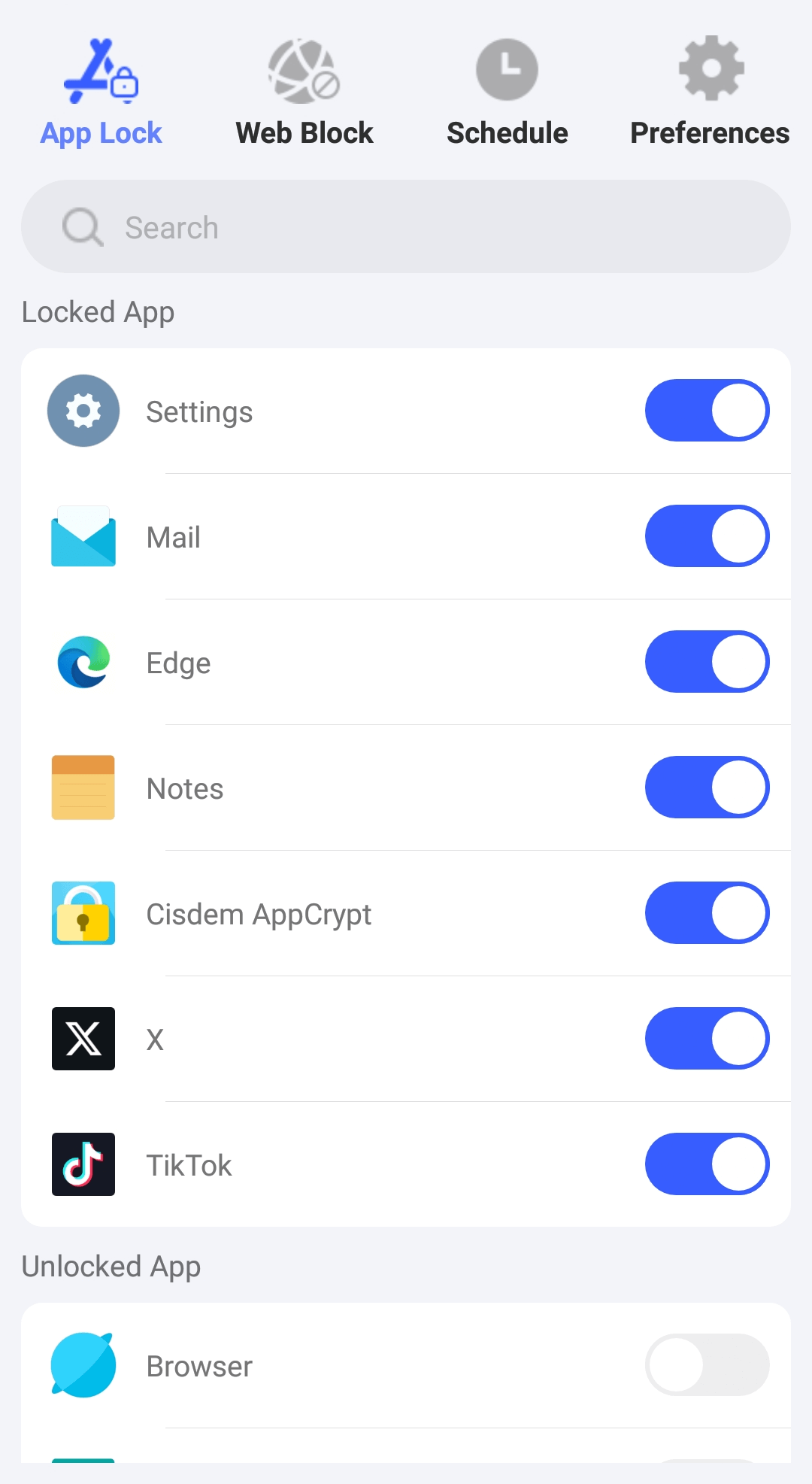
4. Tap the switch next to Minecraft to the on position.
Now access to Minecraft is blocked. Unblocking it or removing the blocking requires the PIN or pattern.
If you only want to block it during certain hours or on certain days, you can use the schedule feature.
Can I block Minecraft on router?
Yes. If you want to block Minecraft on all devices in your home, using the router is a good option.
Many routers come with a built-in firewall to block specific URLs or online games. However, it only works when the device is connected to your home Wi-Fi network. If your child switches to mobile data or another network, the block will no longer work.
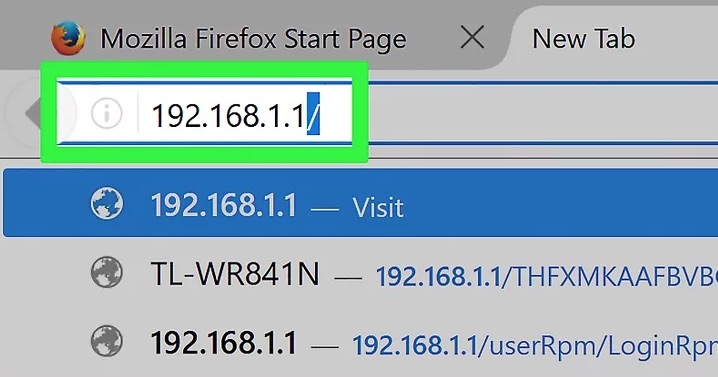
1. Enter your router’s IP address on your browser and log in.
2. Hit Internet then Parental Control.
3. Go to Advanced Settings then choose Firewall.
4. Hit URL Filter and enable it.
5. Go to Filter table type. Select Black list.
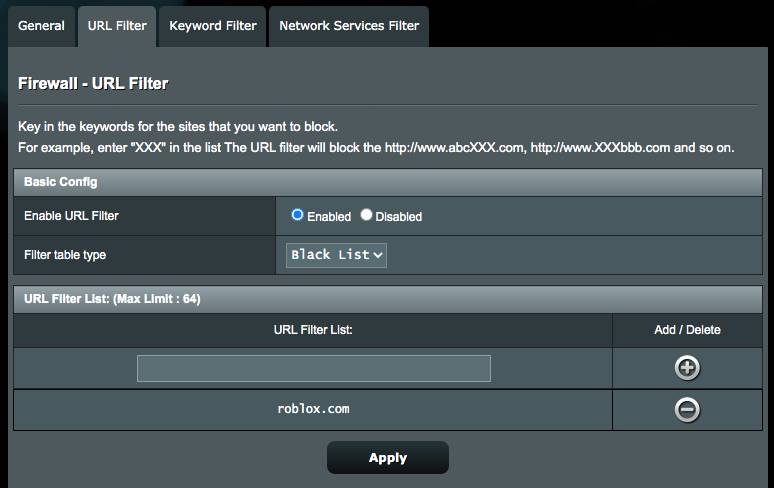
6. Add Microsoft’s URL to the URL Filter List. Then click Apply.
This is how to block Minecraft servers on router. Some routers may don’t have this function. And the steps may be a little different with different router.
Conclusion
Playing Minecraft is not a complete waste of time. It also improves children's intelligence. But if Minecraft is causing children to be unable to concentrate on study, the best way is to block it. Above are several methods on how to block Minecraft on computers, phones and even routers. Hope it helps.

Norah Hayes likes to share her tips on how to improve focus and stay motivated at work. She believes it is essential to eliminate all online distractions during work hours.

Ethan Long joined Cisdem in 2015 as a developer and now serves as the editorial advisor for Cisdem AppCrypt. He actively tests and uses Cisdem AppCrypt and other screen-time management tools to ensure AppCrypt meets its promises in real-world scenarios.