


How to Compare Two Drives for Duplicate Files on Windows & Mac
 1.4K
1.4K
 0
0




Duplicate Finder
Compare Drives for Duplicate Files


To find duplicate files across two drives, you can scan both drives with a duplicate file finder and set the prioritized removal location. Computer’s built-in file manager can also help if you only have a small number of files to compare, but this method is time-consuming and may overlook some duplicates.
This article explains the three methods in detail and helps you choose the right one for your needs.
Part 1. How to compare two drives for duplicate files with Cisdem Duplicate Finder?
The easiest way to compare two or more drives for duplicate files is to scan them together with Cisdem Duplicate Finder.
Cisdem Duplicate Finder is AI-powered duplicate file and photo finder. It can detect photos, audio files, videos, documents, and other files based on content, even if they have different names. It can also detect similar photos.
You can scan multiple internal drives, external hard drives, SD cards, folders, and cloud drives at once. If you want to keep files on one drive, you can set a prioritized removal location.
Below are three common scenarios:
Scenario 1. Compare a computer drive and an external hard drive
“I love photography. I store my daily photos on both my computer's D: drive and an external hard drive. Yesterday, I found a lot of duplicate photos. They exist on two drives. I want to free up some space on my computer. I’m looking for a way to compare drives for duplicate files and prioritize deleting duplicates from my D: drive. How can I do this?”
Step 1. Connect the external hard drive to your compute.
If successfully connected, the drive should appear in File Explorer on Windows or Finder on your Mac.
Step 2. Download and install Cisdem Duplicate Finder.
 Free Download Windows 10 or later
  Free Download macOS 10.11 or later
Step 3. Set the prioritized removal location.
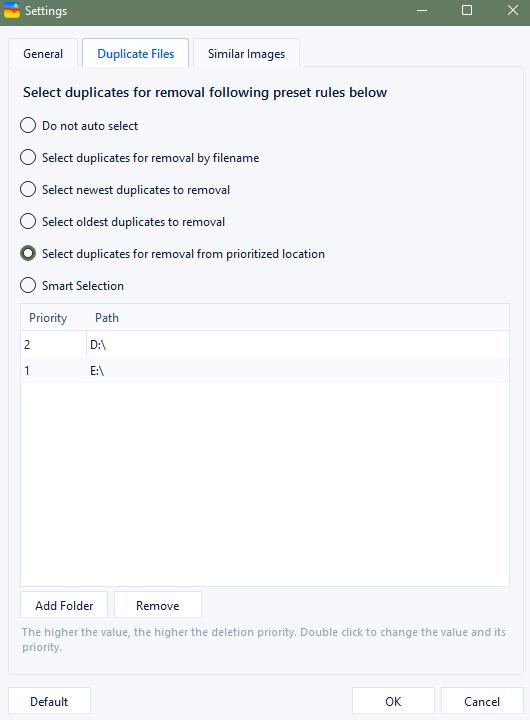
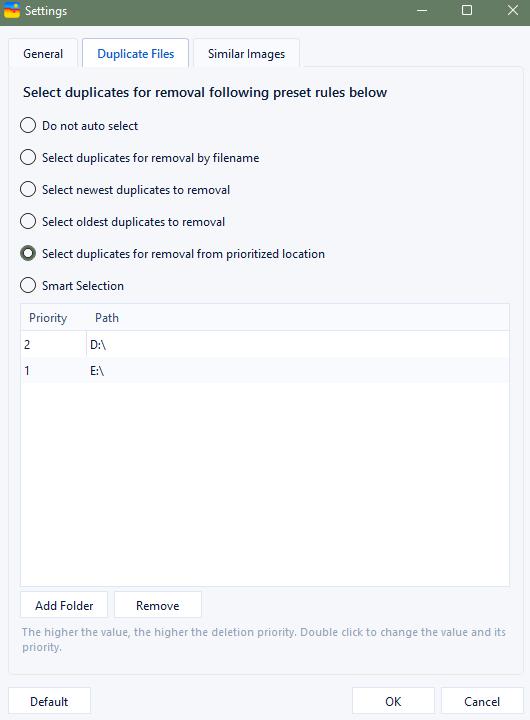
Open the app. Click Settings. Go to the Duplicate files tab.
Under Select duplicates for removal following preset rules below, choose the last option: Select duplicates for removal from prioritized location.
Click Add. Then add both the D: drive and your external hard drive.
Set priority values: since you want duplicates to be removed from the D: drive first, set D: drive to 2 and your external hard drive to 1 (lower than 2).
Click OK.
Step 4. Add the two drives.
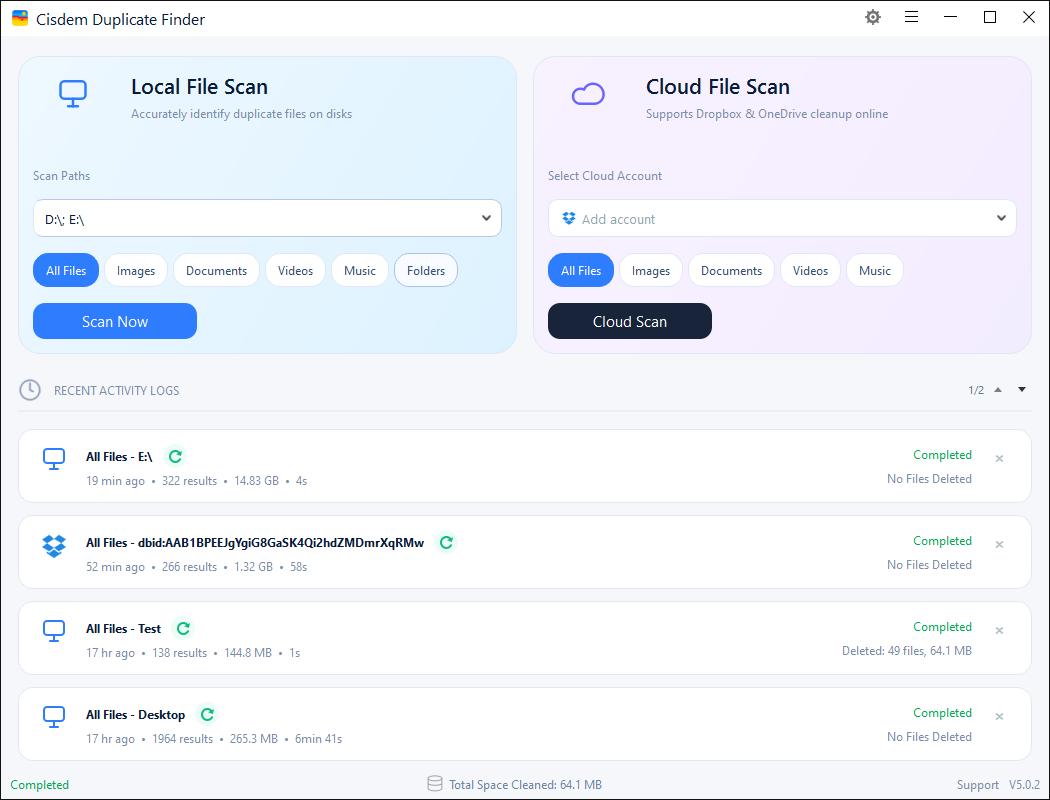
Return to the main window. Drag both the D: drive and the external hard drive to the scan area under Local File Scan. Click Scan Now.
Step 5. Preview the detected duplicates.
Wait for it to complete the scan. Now you can preview the detected duplicate files in the results window. To preview duplicate photos, go to the Image tab.
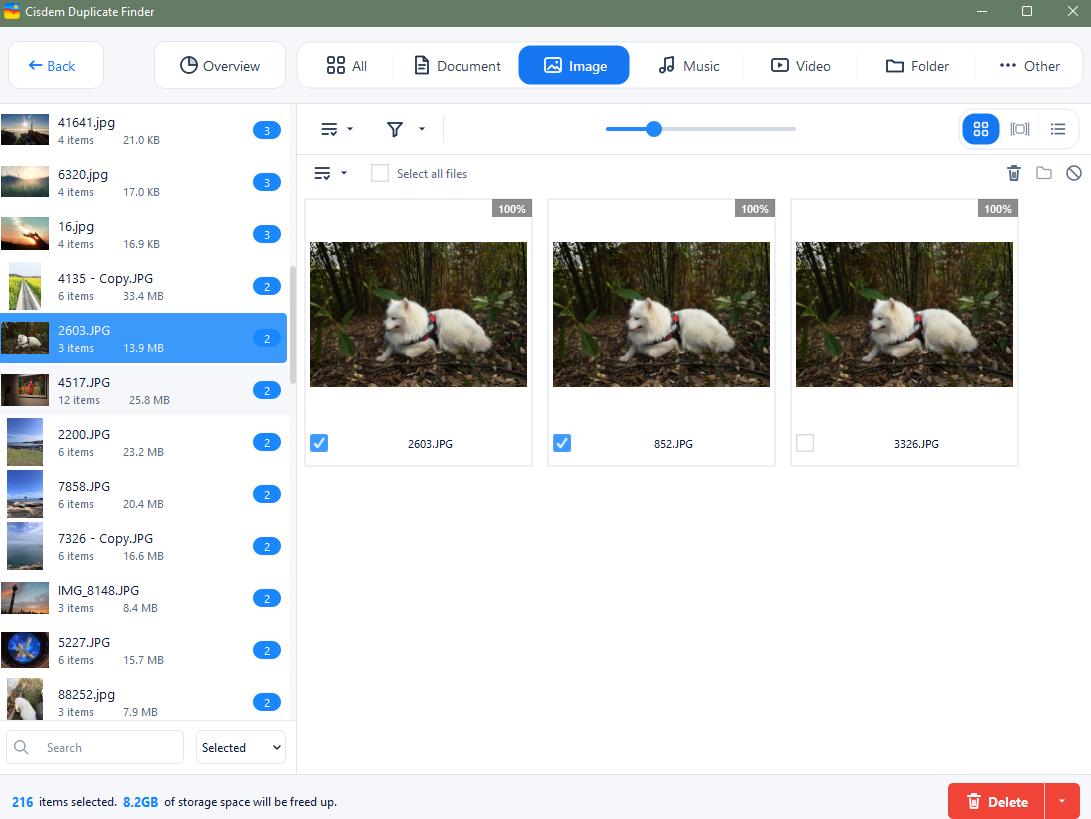
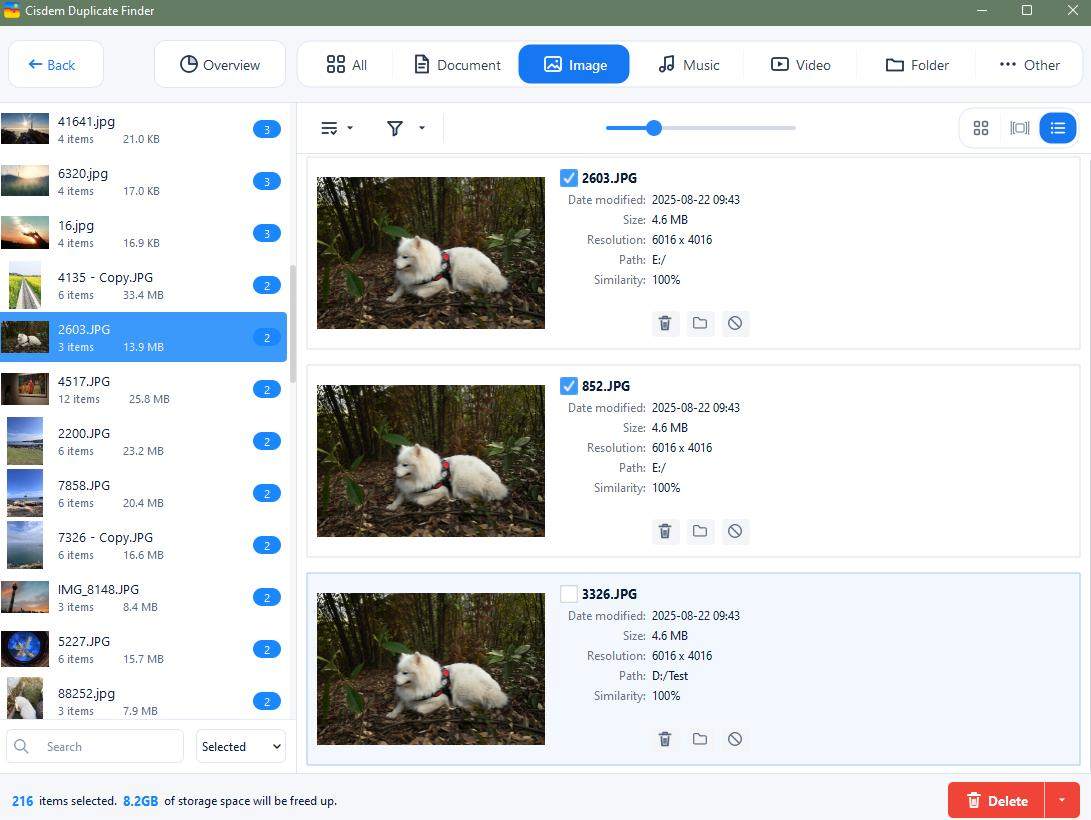
It offers three preview modes, letting you compare duplicate files side by side or view detailed information.
Step 6. Delete unwanted duplicates.
Cisdem Duplicate Finder will automatically select all but one file in each group of duplicates for removal. Based on your settings in step 3, it will prioritize selecting duplicates from the D: drive.
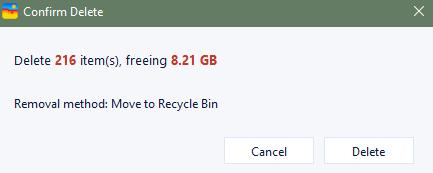
Click Delete to remove the duplicate files across your computer drive and external hard drive.
Click Yes to confirm the removal.
Scenario 2. Compare a computer drive and a cloud drive
"I use Dropbox to back up all important documents from my computer’s D: drive. Some files exist both on my computer and Dropbox. They’re taking up extra space. I want to compare two drives for duplicate files and remove the exact duplicate files. How to do this?"
Step 1. Sync your Dropbox files to the computer.
If you haven’t installed the Dropbox desktop app, go to dropbox.com/install. Download and install it on your computer.
Click Sign in with Dropbox. Log in to your account.
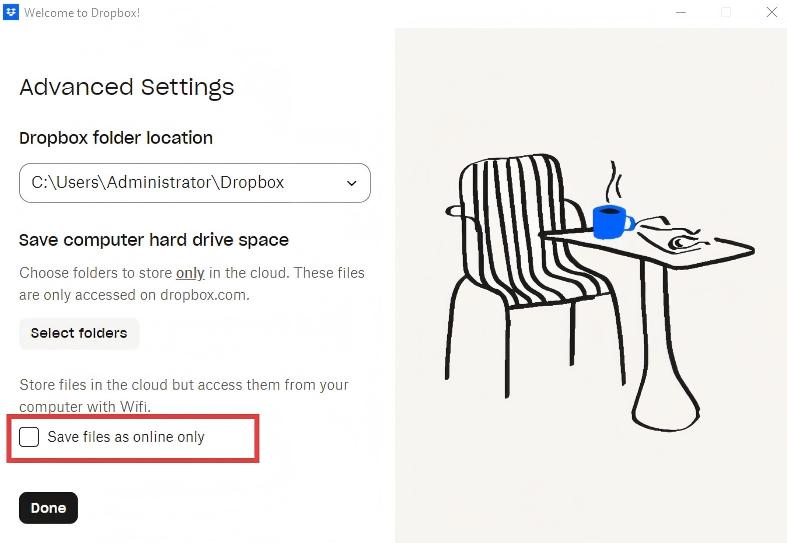
Click Advanced settings. Deselect Save files as online only. Click Done.
Wait for the sync to finish. Then you’ll see the “Your files are up to date” message. You are able to access Dropbox in File Explorer on Windows or in Finder on Mac.
Step 2. Install Cisdem Duplicate Finder.
Download and install the app on your Windows PC or Mac. Open it.
Step 3. Add the two locations.
Add both your computer’s D: Drive and Dropbox into the program. Click Scan Now.
Step 4. Preview and compare the duplicate files.
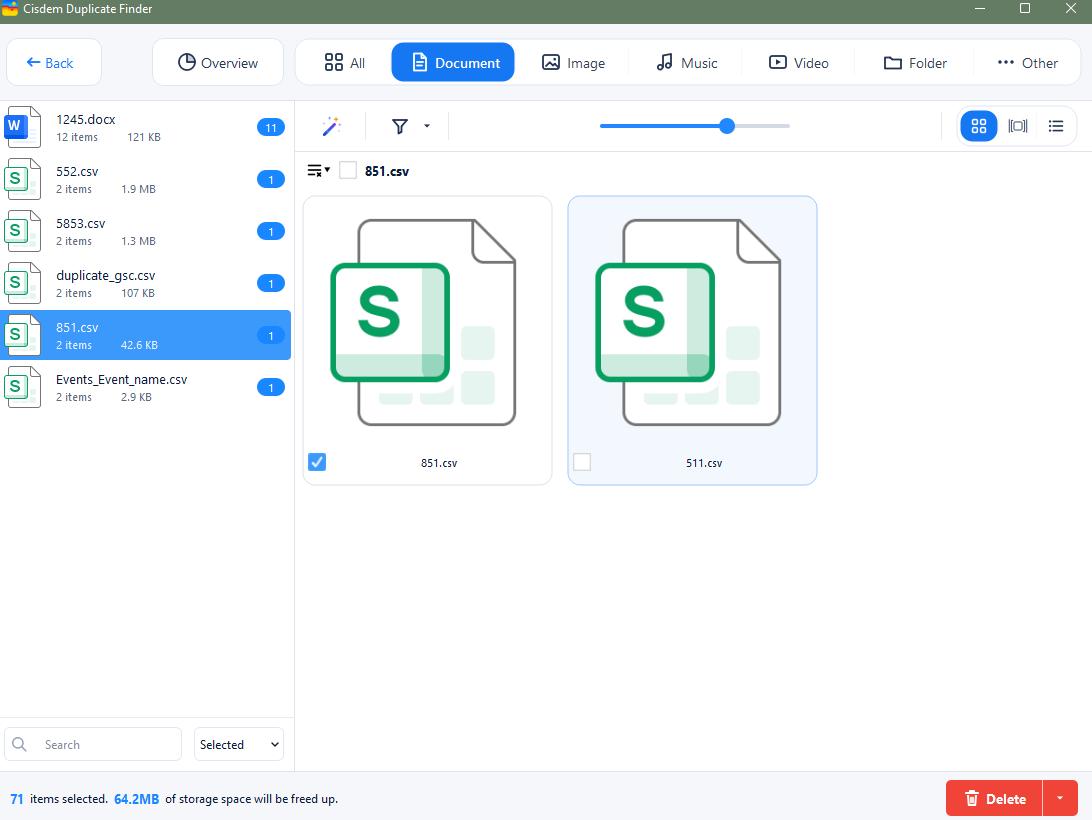
In the results window, go to the Document tab to preview all detected duplicate documents from your D: drive and Dropbox.
You can compare the file name, creation date, or path to select duplicates for removal. It also provides selection rules to help you mass select.
Step 5. Delete the unwanted copies.
Click Delete in the bottom right corner. Then confirm by clicking Yes.
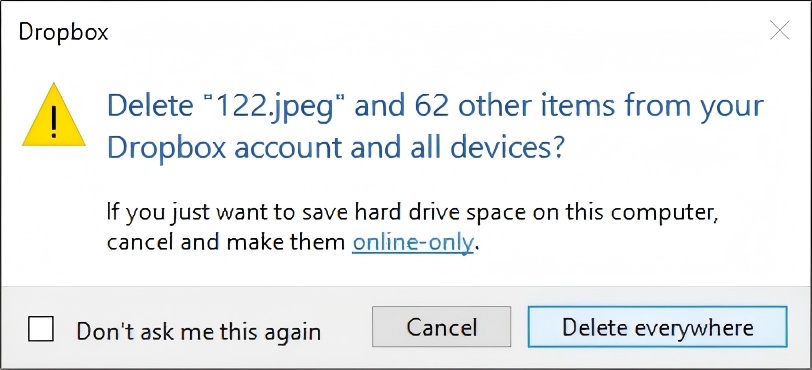
When deleting files from Dropbox, a window will pop up asking if you want to delete the items from your Dropbox account and all devices. Click Delete everywhere.
Tip: Cisdem Duplicate Finder also supports detecting duplicate files in Google Drive and OneDrive, as well as comparing duplicates between them.
Scenario 3. Compare two external hard drives
"I have two external hard drives to store my music collection. One is my main backup drive that I use regularly, and the other is an older drive that I used years ago. A few days ago, I noticed that some of the same audio files were stored in both drives. I want to compare the two drives for duplicates and remove files from the older drive. I tried doing this manually but it was too time-consuming. Is there a quicker way?"
Step 1. Connect the two external hard drives to your Windows PC or Mac.
Step 2. Download and install Cisdem Duplicate Finder.
Step 3. Open the program. Click the Settings icon in the upper right corner.
Click Duplicate files. Choose the option of Select duplicates for removal from prioritized location. Set a higher priority value for the older drive from which you want to delete duplicate files.
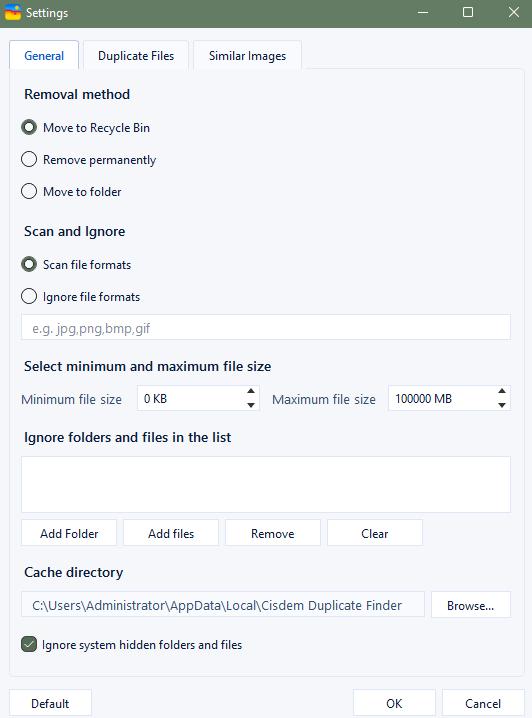
Click General. Here, you are allowed to set the minimum and maximum file sizes to scan. You can also exclude specific files, folders, or file formats from the scan.
Click OK.
Step 4. Click the plus icon on the main window. Add your two drives into the program. Click Scan.
Step 5. It scans fast. You can view the detected duplicate files in the pop-up results window.
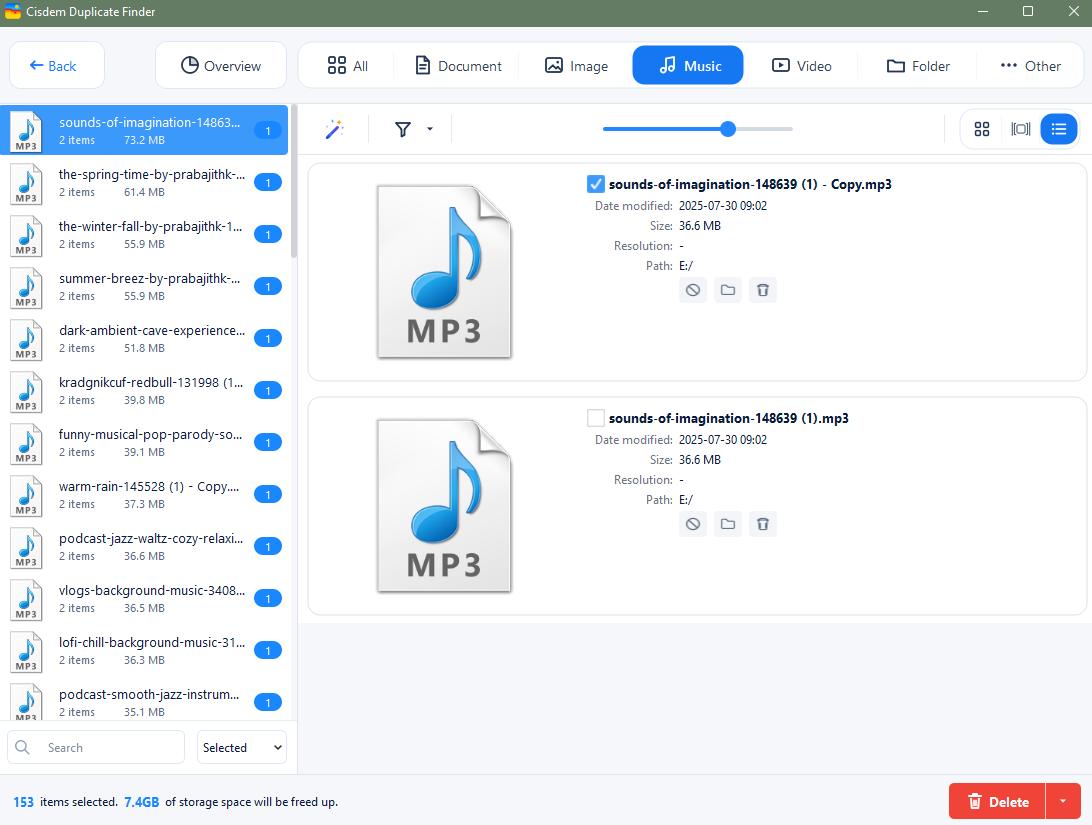
Step 6. Click Delete. Click Yes to remove all duplicate audio files from your older drive.
Part 2. How to compare two drives for duplicate files with File Explorer or Finder?
In this part, I’ll tell you how to compare two drives for duplicate files with computer’s built-in file manager. Below are step-by-step instructions for Windows and Mac.
Windows File Explorer
If you have exact duplicate files ( identical in both file name and file size) on two drives, Windows File Explorer can help you locate and remove many of them without installing extra software.
Step 1. If you want to compare external hard drives, first connect the drives to PC.
Step 2. Open two File Explorer windows.
Step 3. In the first window, open Drive A (e.g., D:). In the second window, open Drive B (e.g., E:).
Step 4. Click View > Details in both windows.
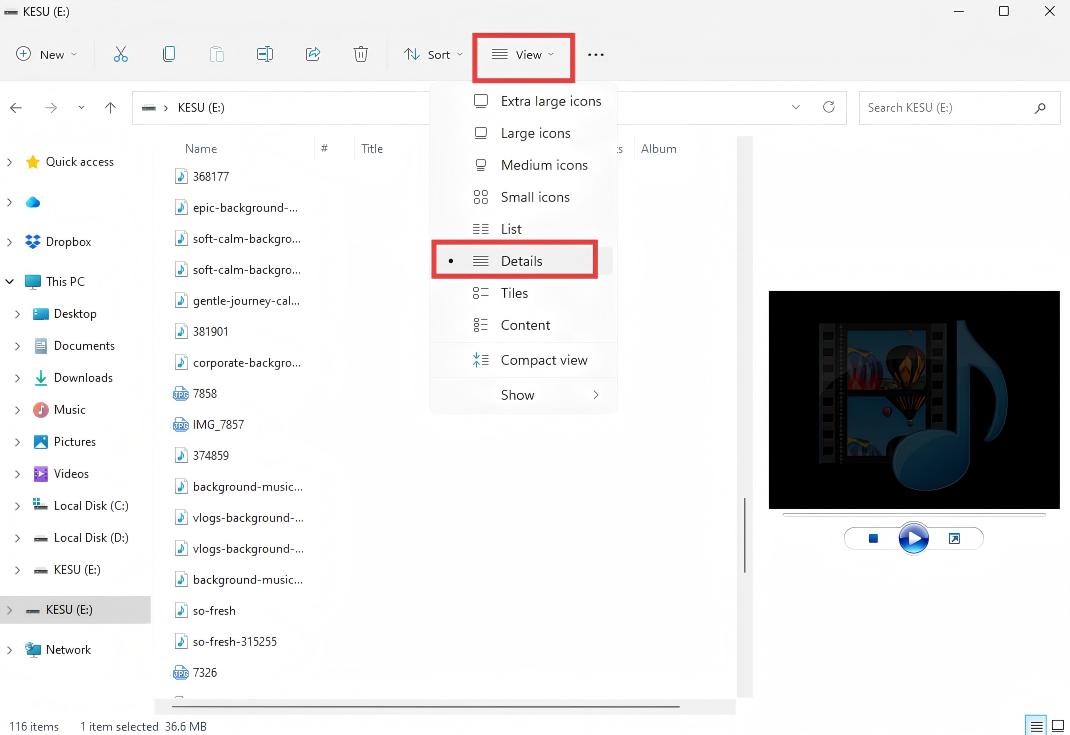
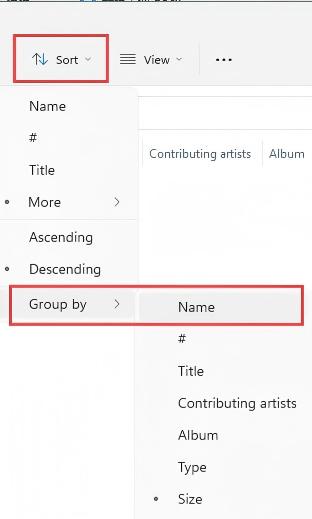
Step 5. Click Sort > Group by > Name or Size in both windows.
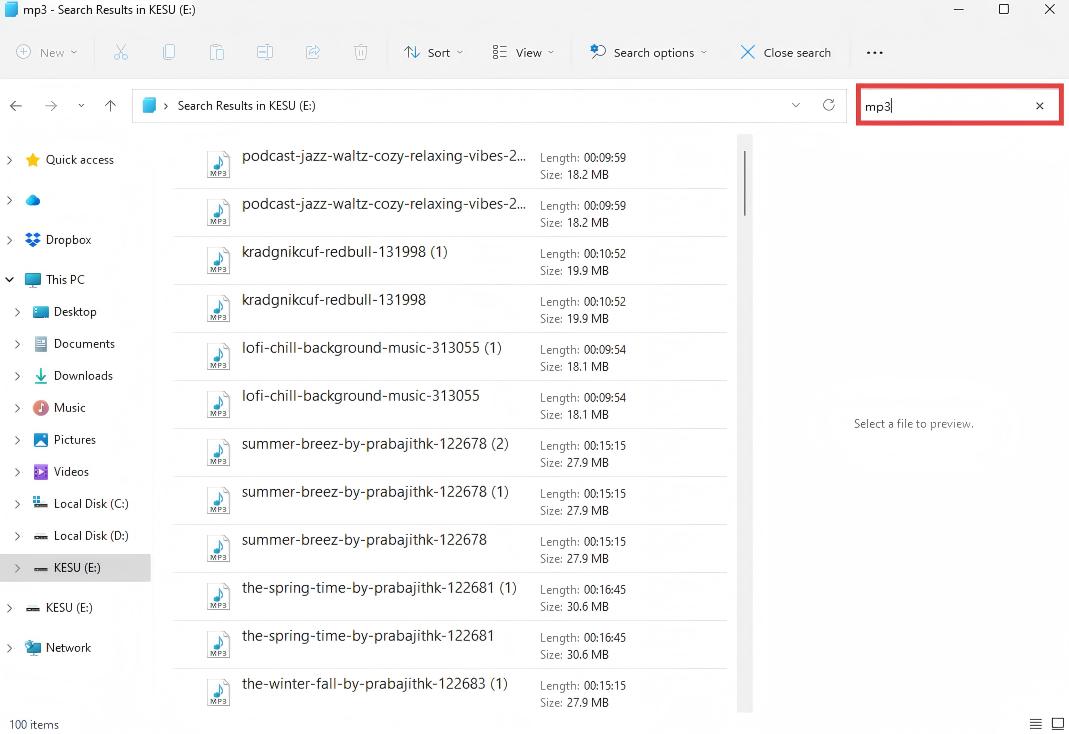
Step 6. In the search box, you can type kind:=picture, kind:=music, or kind:=document to filter files by type.
Or filter by extension, such as type jpg, mp3, or mp4.
Step 7. Preview and compare files in two windows. Manually select files with the same names and file sizes, which are most likely duplicates. Then right-click and tap the Trash icon to delete them.
Mac Finder
Finder is the default file manager on Mac. Mac users can use it to compare drives for duplicate files with the same filenames and file sizes.
Step 1. First connect the external hard drives to your Mac (if needed).
Step 2. Open two Finder windows.
Step 3. In the first window, open Drive A. In the second window, open Drive B.
Step 4. In each window, open the first drop down menu. Select Kind, and choose a file type such as Image, Document, or Music.

Step 5. Choose the sort order. Click Name or Size in both windows.
Step 6. Preview and compare the file names, file sizes and creation dates, etc. Choose duplicate files you want to delete.
Step 7. Drag them to Trash.
Part 3. Comparison of the two methods
When it comes to comparing two drives for duplicate files, both Cisdem Duplicate Finder and computer’s built-in file manager can get the job done, but they differ greatly in speed, accuracy, and convenience. Below is a comparison of the two methods.
| Feature | Cisdem Duplicate Finder | File Explorer or Finder |
|---|---|---|
| Finds duplicates by content | Yes | No |
| Finds duplicates by file names | Yes | Yes |
| Compares multiple drives at once | Yes | Requires manual comparison |
| Previews files side by side | Yes | You need to open files separately |
| Automatically selects duplicates for removal | Yes | No |
| Keeps files on your preferred drive | Yes | You need to select files manually |
| Best for | Compare drives with large numbers of files | Compare drives with a small number of files |
Conclusion
In this article, I’ve covered two ways to compare drives for duplicate files: using a dedicated duplicate file finder and using your computer’s built-in file manager. The first method enables you to compare computer drives, external hard drives, and even cloud drives for duplicates quickly and accurately. I've provided detailed steps for three different scenarios in part 1. If your situation differs from what I've listed, please share them in the comments.

With a passion for tech and writing, Sarah joined Cisdem, where she focuses on creating articles about using utility tools to enhance file management and simplify contact management.

Adrian Li is Cisdem’s Chief Engineer and serves as the editorial advisor for Duplicate Finder and ContactsMate. His work and insights have been featured in leading tech publications such as Fossbytes, TUAW, Redmond Pie, SafetyDetectives, and BestForAndroid.