


Cisdem Duplicate Finder for Mac Advanced Guide
 380
380
 0
0


01 How to fix deletion issues with log files
Cisdem Duplicate Finder for Mac is a tool that can help you remove duplicate files from Internal hard drive, photo library, SD Card, folders, etc.
In some cases, users may get error messages when trying to delete duplicate files. Below, we will guide to you how to troubleshoot it by reviewing the log files of Cisdem Duplicate Finder.
Error 1 Failed to delete due to non-system photo library
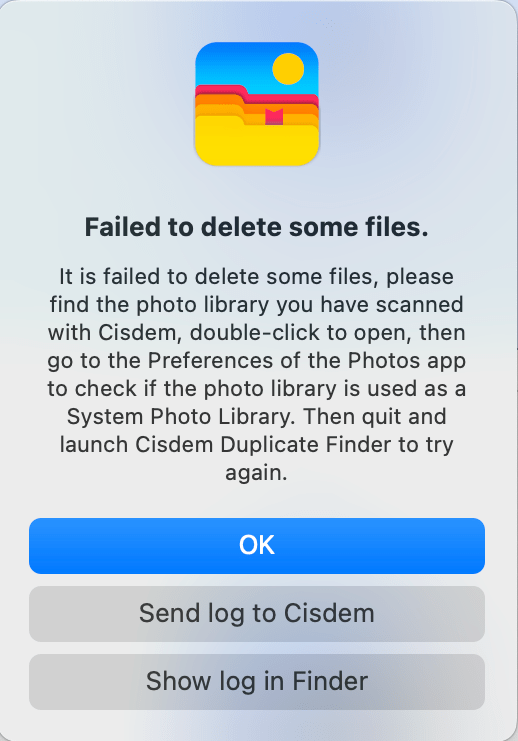
You can click “Show log in Finder” to locate the log file, open it and view the end of the log content.
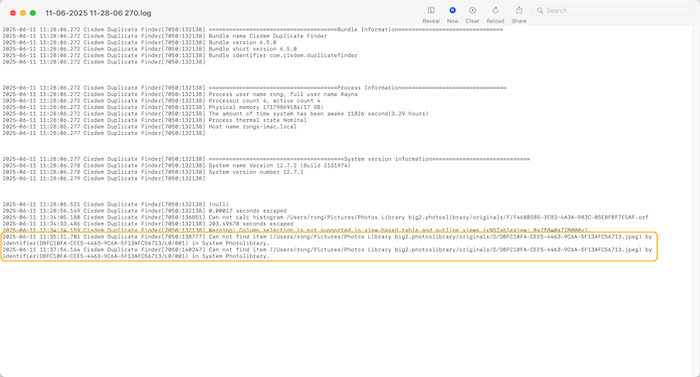
Cisdem Duplicate Finder can only delete images from a photo library, you can locate the photo library according to the path that the log file refers, double click to open it, go to the Preferences of the Photos app, click "Use as System Photo library" to turn the button gray, and then try to delete again.
Error 2 Failed to delete due to lack of permission
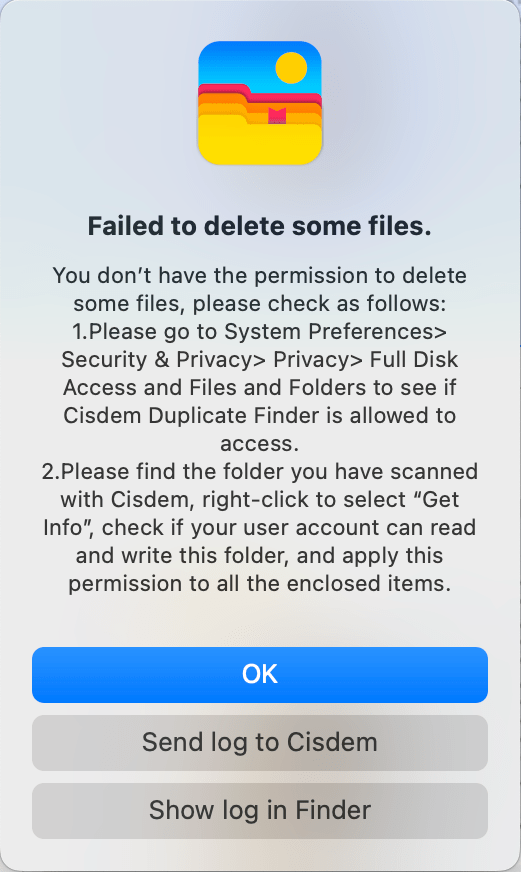
Please click “Show log in Finder” to locate the log file, open to view the end of the log content.
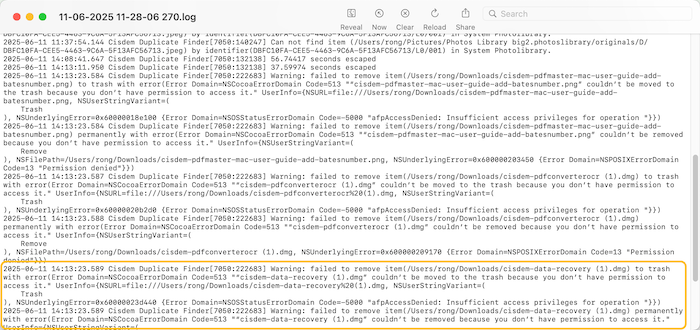
Find the Parent directory of this file, right click it and choose Get Info, make sure the user profile you are using has the read & write permissions to this directory and apply the permissions to all the enclosed items. After that, you can try to delete again.
Error 3 Failed to remove due to NTSC formatted drive or no directory or files found
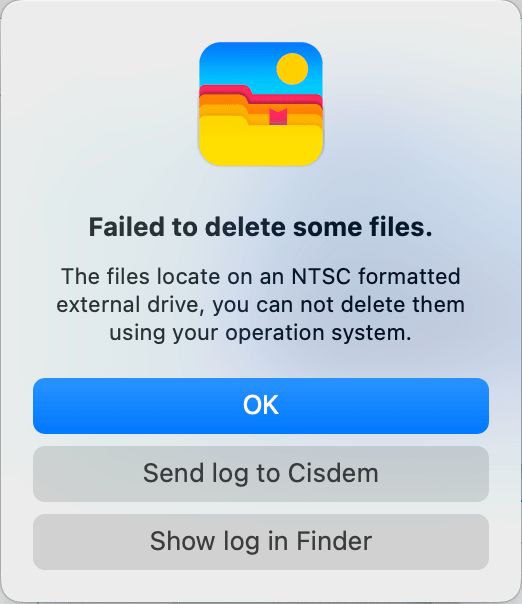
This error occurs under two situations:
1. You’ve scanned a NTFS formatted external drive
As we know, Mac cannot write to NTFS formatted drive by default. If you want to, you will have to use a paid third-party drive.
Good news for Seagate drive users!
Seagate offers a free version of Paragon NTFS for Mac exclusively for their drives. This software enables full read and write access to NTFS-formatted Seagate drives on macOS.
Download it here:
https://www.seagate.com/support/software/paragon/
2. The files you want to remove don’t exist any more
You can locate the log file and view the end of the log content and check some of those files in Finder to see if you can find those files, if not, you can just ignore this error message.
While log files are typically used by developers, they can be also useful for troubleshooting by users. If the above solutions cannot solve your issues, please feel free to contact our support team at support@cisdem.com to get a help.
02 Things to know about scaning duplicates from macOS Photos app
Cisdem Duplicate Finder offers full support for scanning and deleting duplicate files from your macOS Photos app. This guide will introduce to you how the app interacts with the photo library for safely and efficiently cleaning up duplicates.
1. What to scan
The original images and videos are saved in a photo library, that is, instead of importing the Photos app, you need to import a photo library into Cisdem Duplicate Finder for scanning.
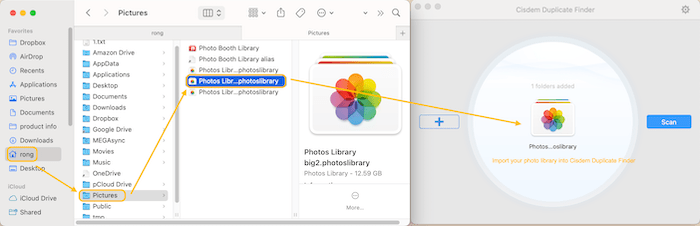
2. How to delete
The macOS Photos Library stores images in a complex, managed package, and directly deleting files from it may damage the library. Cisdem sends command to the Photos app and let it safely handle the deletion of detected duplicates. So during the deletion process, please confirm the Photos app is running.
3. What to set
Cisdem can only delete files from a system photo library, so before hitting the Delete button, please confirm your photo library is set up as a system photo library. You can just double click the target photo library to open it, click Photos> Preferences on the top menu bar, click "Use as System Photo Library" as the screenshot shown below, if the button is grey, which means the photo library is a system photo library already.
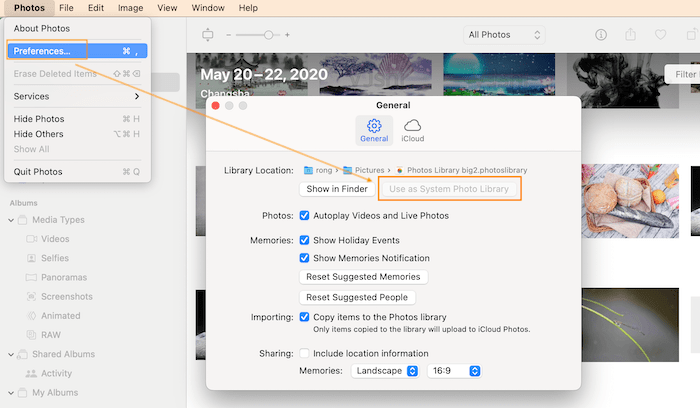
4. Where will the duplicates be removed?
Since the deletion is processed by the Photos app, the duplicates will be removed to the Recently Deleted folder.
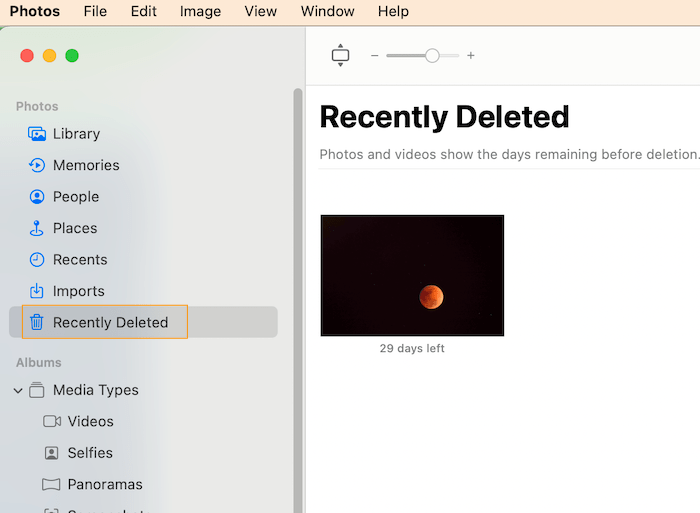
5. Why does Cisdem detect duplicates still after the deletion
As mentioned in Question 1, all the original files are saved in a photo library, including those in the Recently Deleted folder, so if you haven’t cleared those deleted duplicates from the Recently Deleted folder, they will be scanned out during the second scan.
Follow the steps below to scan and delete duplicates from the macOS Photos app.
Step 1 Import the Photo Library
Hit  or drag and drop the photo library into the program.
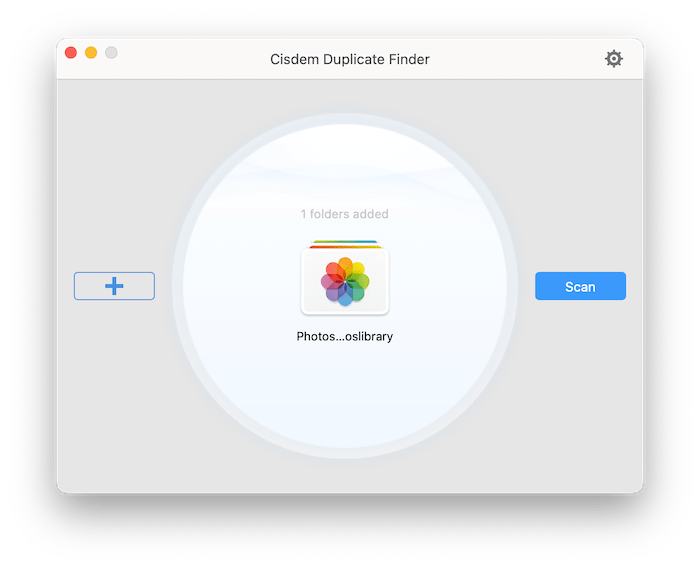
Step 2 Scan the Photo Library
Click  to start scanning duplicate files from the Photo Library, wait until the scan completes.
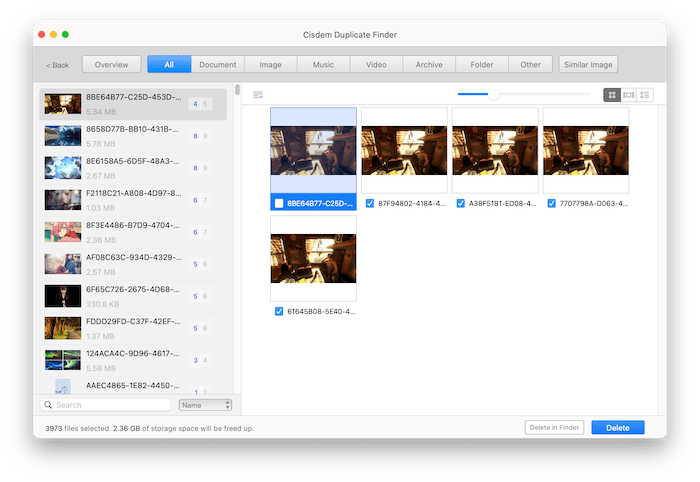
Step 3 Review the scan results and delete the duplicates
Cisdem auto selects all the duplicate files for deletion after the scan completes, you can directly click the Delete button to delete all the duplicates with one click after reviewing.
Conclusion
The macOS Photos Library stores images in a complex and managed package. Cisdem Duplicate Finder doesn’t just scan the surface files, it reads the actual structure of the photo library and handles the deletion without any risk of damaging the database or corrupting your photo library. Should you have any questions about deleting duplicates from macOS Photos app, feel free to contact our support team at support@cisdem.com
03 How Do I View Duplicates in Cisdem Duplicate Finder for Mac
You’ve just run a scan with Cisdem Duplicate Finder and all the duplicates are listing on the result page. So knowing how to properly view, sort, and inspect your duplicates is a crucial step in helping you remove duplicates properly. This article will show you exactly how to view your duplicates like a pro.
1. How to View File’s Path?
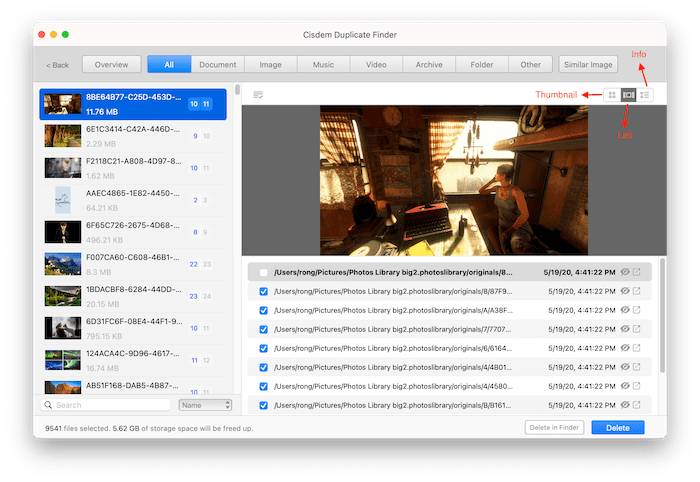
Cisdem Duplicate Finder has 3 modes for you to view files, the default view mode is Thumbnail. If you want to view the file’s path, you can switch to List or Info mode.
2. How to View All Files at Once?
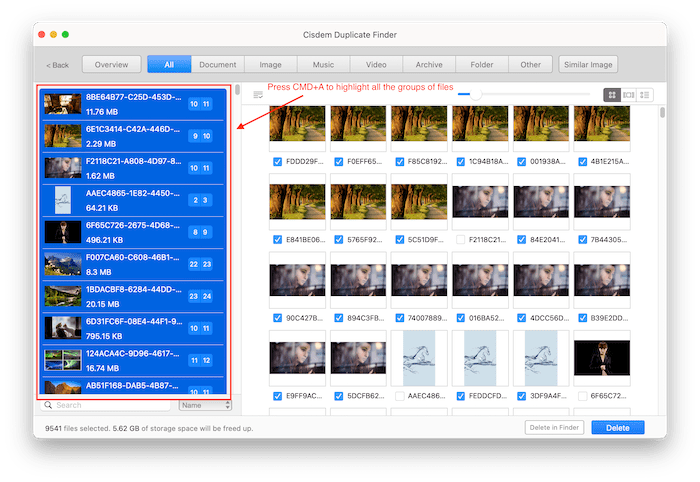
Cisdem list all the files by group, so that you can only view a group of files at once by default. However, you can also view all the files at once if you want to. Just press CMD+A to highlight all the groups of files, and then you can view all the files at once on the right side.
3. How to Sort Files?
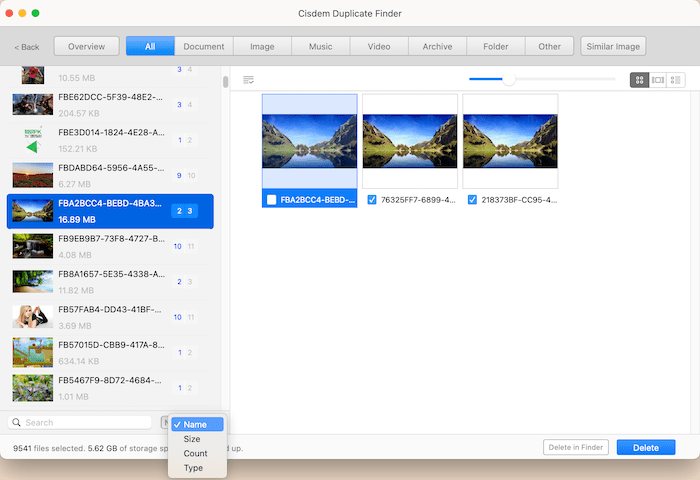
To easily view your files, you can also sort files by Name, Size, Count and Type
Name: Sorts the filenames alphabetically
Size: Sorts by file size. You may want to view the duplicates from the largest ones.
Count: Sorts by the number of duplicates it found out.
Type: Sorts by file formats
4. How to Search Files?
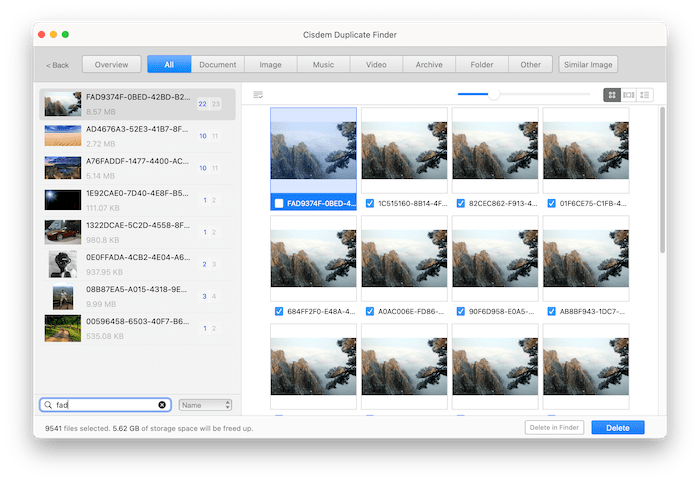
Somehow you may want to search for a specific file, you can enter the file’s name into the search box and filter the files with the entered key words.
Conclusion
The power of any duplicate finder isn't just in its detection, but in its review process. With the above knowledge, you can review the duplicates more easily and help you make a safer decision to remove duplicates.

Traci Gordon has worked as a tester in a software company for 8 years, she believes that the best software should be a tool that can help users accomplish what they need with the simplest steps.

Adrian Li is Cisdem’s Chief Engineer and serves as the editorial advisor for Duplicate Finder and ContactsMate. His work and insights have been featured in leading tech publications such as Fossbytes, TUAW, Redmond Pie, SafetyDetectives, and BestForAndroid.