


Unable to Import vCard to iCloud? 4 Easy Fixes That Work
 6.4K
6.4K
 0
0


A vCard can contain one or more contacts. It can happen that when you try to a vCard file to iCloud, but iCloud can't import all of the contacts contained in this vCard or some of the contacts. Don't be worried. This article talks about 4 easy ways to fix the unable to import vCard error.
 Cisdem ContactsMate
Successfully Import vCard to iCloud Without Error on Mac
- Support various contacts sources: Mac, iCloud, Google, Exchange, etc.
- Transfer contacts from one supported source to another with drag and drop
- Import contacts from vCard and CSV files
- Export/convert contacts to 8 formats: CSV, Excel, vCard, etc.
- Let you view, search, create, edit, group, tag, email, text, share and print contacts
- Find and delete/merge duplicate contacts
- Let you backup/restore contacts with a click
- Easy to use
- (ContactsMate has a Windows version with similar features)
 Free Download macOS 10.11 or later
Method 1. Fix the unable to import vCard error by checking iCloud Contacts limits
Apply to: Windows PC, Mac
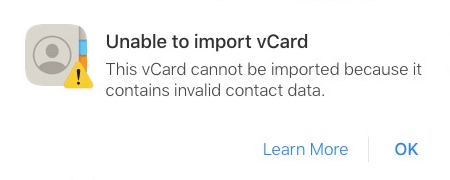
In addition to the unable to import vCard error, sometimes you may see the “Could Not Import Some Contacts: Contact(s) could not be imported because there was a problem reading the vCard” error message instead. In such a case, some contacts in a vCard will be imported, and some will not.
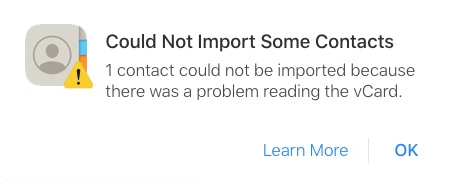
With both errors, you can check the limits for iCloud Contacts first.
1. In iCloud Contacts, in error message that appears, click Learn More.
2. The webpage that opens will present you with the list of limits for iCloud Contacts.
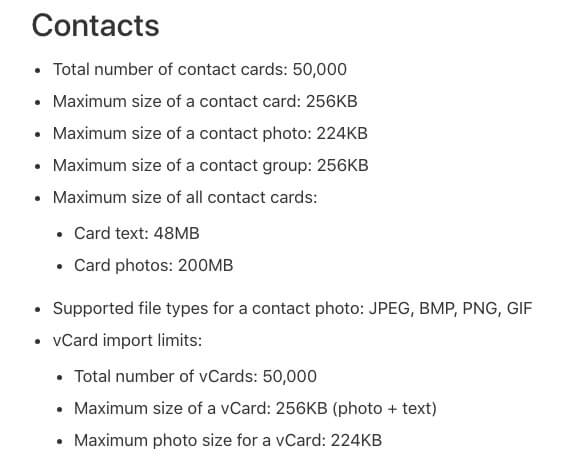
3. Check if your vCard complies with the limits.
4. If the vCard doesn’t comply with one or some of the limits, fix the vCard accordingly.
5. Import it to iCloud again.
Let’s take a closer look. When such an error occurs, it’s likely that:
- Your iCloud account has already stored 50,000 contacts.
- The vCard that you tried to import contains one or more contacts that are bigger than 256KB.
- The vCard contains one or more contacts that have a photo bigger than 224KB.
There can still be other situations.
If your vCard does comply with these limits, or fixing the vCard doesn’t help, or you want to get around some of the limits, you can check out Method 2.
Method 2. Effortlessly fix the unable to import vCard error without fixing vCard
Apply to: Mac
This method imports vCards to iCloud via Cisdem ContactsMate, a contact management app for Mac with support for various contacts sources such as iCloud. No fixing of the vCard is needed. In the tests, I used the method to successfully import the vCards and contacts that couldn’t be imported via iCloud.com, including some vCards and contacts that don’t comply with the limits.
1. Download and install ContactsMate.
Free Download macOS 10.11 or later
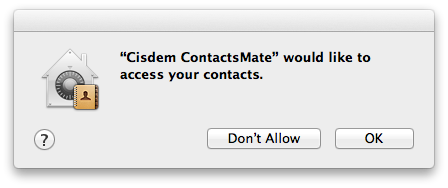
2. When you open it for the first time, click OK in the message that appears.
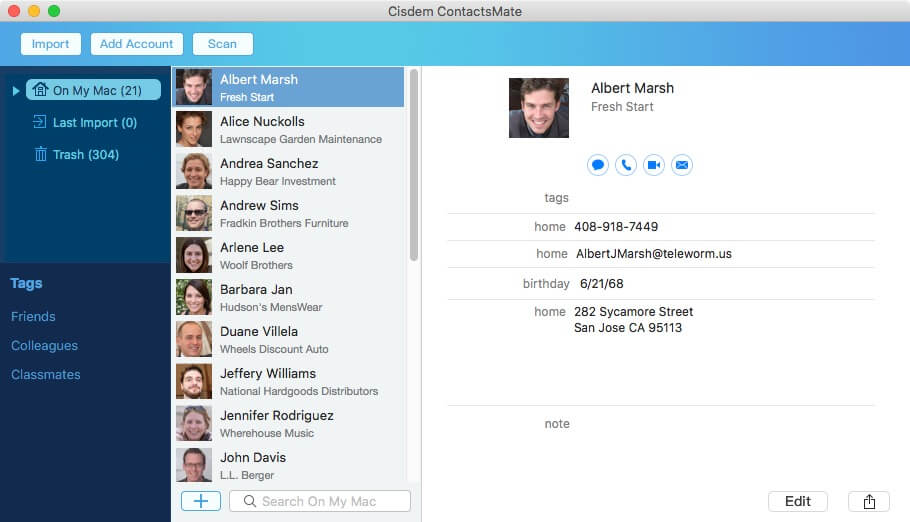
3. In the toolbar at the top of the ContactsMate window, click Add Account.
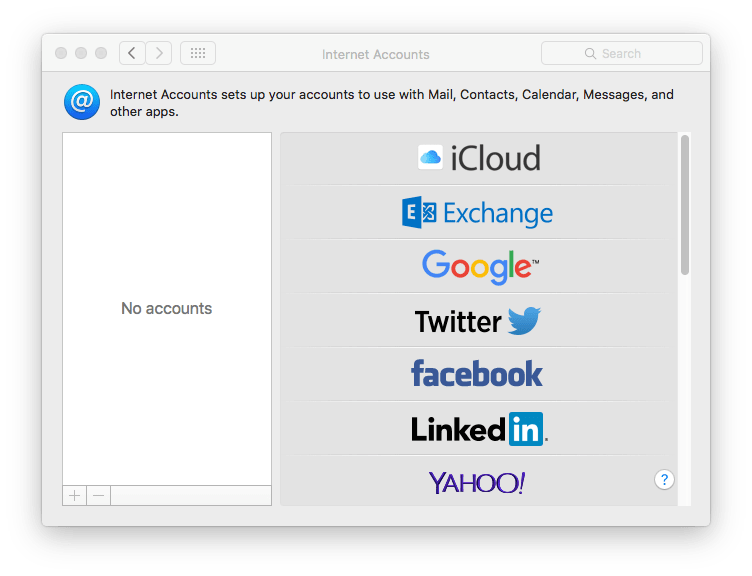
4. In the Internet Accounts window that appears, choose iCloud on the right. Sign in to it.
5. Select the Contacts checkbox.
.png)
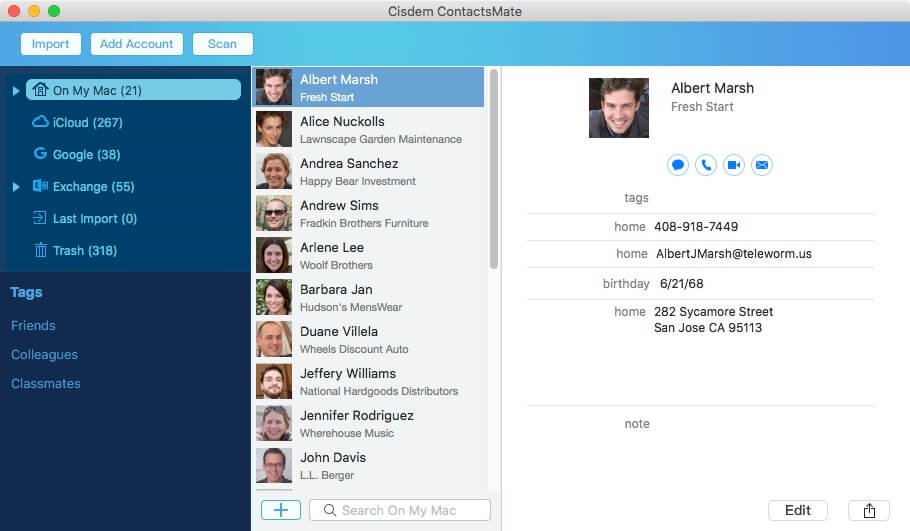
6. In the left sidebar, click the Refresh button  next to the Updated contacts detected message, and iCloud will appear in the sidebar.
7. Click Import in the toolbar, select one or multiple vCards, and click Open. Drag the imported contacts from Last Import to iCloud.
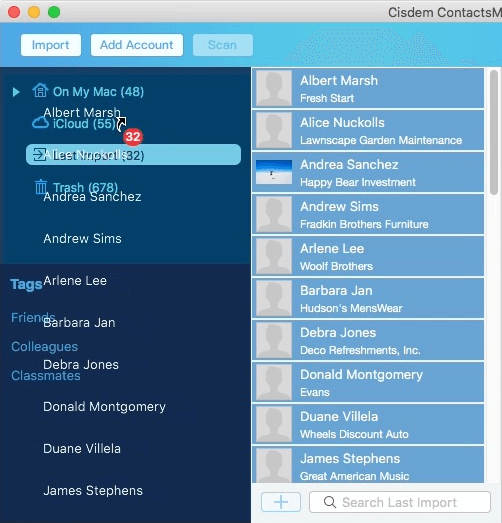
Now the vCard is successfully imported. You will see the imported contacts on iCloud.com.
Tip: If your purpose of the import is to add contacts to iCloud from certain sources (such as Gmail) or a CSV file, you can actually get the job done directly with ContactsMate. This way, you don’t need to export or convert contacts to vCard in the first place. ContactsMate allows you to effortlessly move contacts between the sources it supports and directly import contacts from CSV files.
Method 3. Fix the error by fixing your vCard with a text editor
Apply to: Windows PC, Mac
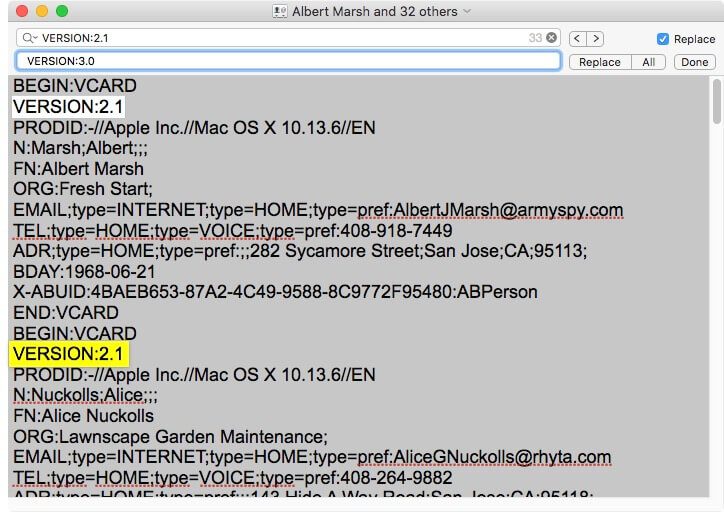
One of the common reasons that cause the import to fail is that the version of the vCard is old. There are 3 versions so far: 2.1, 3.0 and 4.0. iCloud only supports vCard version 3.0 or later. The good news is that you can easily fix the vCard using Notepad (on Windows PC) or TextEdit (on Mac). This method works whether the vCard contains one contact or multiple ones.
1. On your Windows PC or Mac, right-click the vCard.
2. Click Open with and choose Notepad or TextEdit.
3. Now the vCard is open, and you can edit it like you would a text file.
4. Replace all “VERSION:2.1” with “VERSION:3.0”.
5. Save the editing.
6. Import the fixed vCard to iCloud.
Now iCloud should be able to import the vCard.
Method 4. Fix the error by fixing your vCard with Google Contacts
Apply to: Windows PC, Mac
If you have a Google account, you can try fixing the unable to import vCard to iCloud error with Google Contacts. Google Contacts supports importing and exporting the vCard format. This method works in some cases and doesn’t in some other cases. It definitely won’t work if the problematic vCard file was exported from Google Contacts.
1. Sign in to Google.com. Go to Google Contacts.
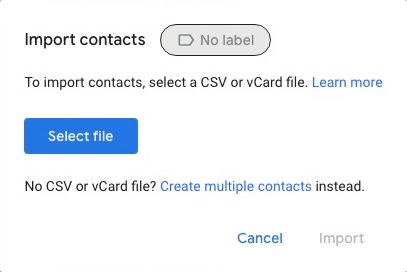
2. In the top right corner, click the Import icon  . Click Select file, select the vCard, click Open and then click Import.
3. In the top right corner, click the Export icon  .
.
4. In dialog that appears, click the down arrow to choose the contacts you have just imported and then select vCard (for iOS Contacts) in the Export as section.
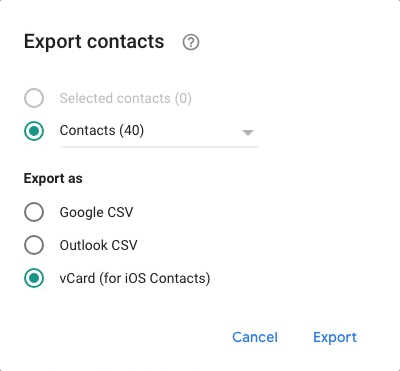
5. Click Export.
6. Import this vCard file to iCloud.
FAQs
Will my contact photos also be imported using ContactsMate?
Yes. ContactsMate imports all valid fields from your vCard file without losing any data. Contact photos will also be imported correctly and displayed in your iCloud contact list.
Can I import contacts to iCloud with a CSV file?
iCloud doesn't supports contacts from CSV file. You need to convert the CSV file to VCF format first. Or you can use Cisdem ContactsMate to import CSV contacts to iCloud directly without conversion.
Can I import multiple vCard to iCloud at once?
Yes, you can import multiple vCard files into iCloud at once with ContactsMate. After syncing your iCloud contacts with this app, select iCloud. Click the Import button. Hold down the Command key on your keyboard, then you can select multiple vCard files to import.
Conclusion
The only official way to import contacts to iCloud is to import a vCard file that contains these contacts, which is a very easy thing to do. However, there can be errors, with the unable to import vCard error being the most common one. This article talks about some of the common causes of this error and shows you how to easily fix the error in several ways. I hope it’s helpful.

With a passion for tech and writing, Sarah joined Cisdem, where she focuses on creating articles about using utility tools to enhance file management and simplify contact management.

Adrian Li is Cisdem’s Chief Engineer and serves as the editorial advisor for Duplicate Finder and ContactsMate. His work and insights have been featured in leading tech publications such as Fossbytes, TUAW, Redmond Pie, SafetyDetectives, and BestForAndroid.