


How to Search or Recover a Keep2share File? (Update in 2026)
 2.0K
2.0K
 0
0


File sharing service from Keep2share has been operational since 2012, it boasts secure and speedy file sharing for users to access at anytime and anywhere. And the premium version brings more bonus features to manage your files online.
But what if your Keep2share files are missing and you want to search, what if you delete a Keep2share file and want to recover? Where to search when Keep2share files are not available? Is it possible to recover a Keep2share file that was deleted a long time ago? Relax, we intend to discuss all of these in this article.
Key Takeaways
- When a Keep2share file is not available in your account, you should do a quick search, via file name, checking subfolders, searching within trash bin on your device, or directly searching across your device.
- When a Keep2share file is deleted, it is still possible to recover, though Keep2share doesn't have a Trash bin to hold deleted files. You are recommended to recover with Cisdem Data Recovery for best result, but you can also restore from a local or cloud backup if you have.
 Cisdem Data Recovery for Windows and Mac
Recover Missing/Deleted Keep2share Files Easily
- Recover missing or deleted Keep2share files with or without a backup
- Restore Keep2share files from internal or external backup on a PC or Mac
- Recover 1000+ Keep2share files: video, audio, photo, document, email, archive, bookmark, etc.
- Repair damaged videos, photos or documents from Keep2share
- Preview Keep2share files before recovery
- Save Keep2share files to local disk, or transfer to preferred locations
- Also recover files lost under various situations: delete, format, virus attack, system crash, system update/downgrade, partition loss, damaged drive, etc.
- Recover unsaved files
- Advanced data recovery modes: NAS/Linux/RAID/Crashed PC/iCloud/Partition recovery, etc.
- High recovery rate


Where to Search for Keep2share Files?
If you’re trying to locate Keep2Share files but aren’t sure where to start, in the following sections, we’ll introduce several common places where you can search for Keep2Share files more effectively. It is lucky that Keep2Share offers a file search feature, and there are additional 3 places within Keep2share or on your device to check around.
Take a moment right now to check these 4 places:
#1 Search for File Name
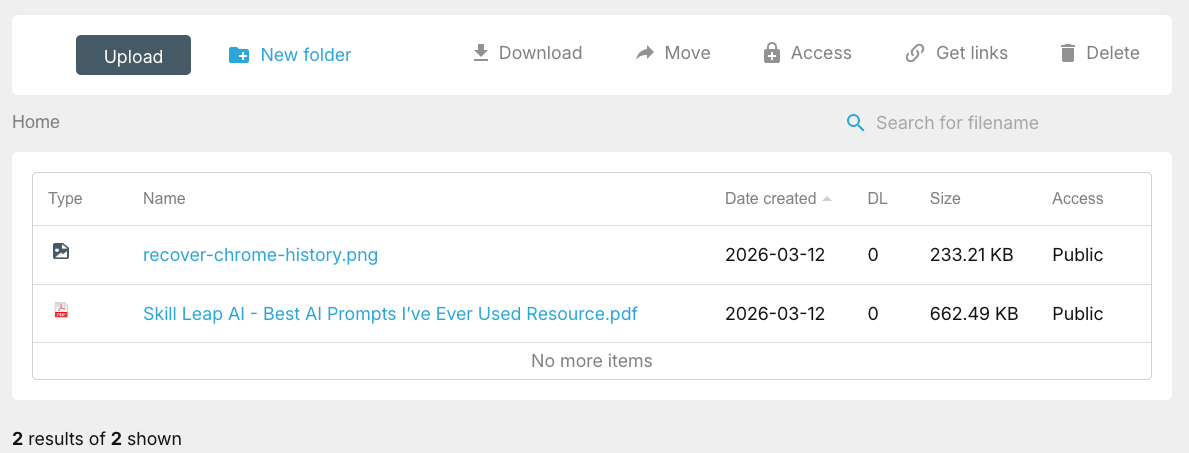
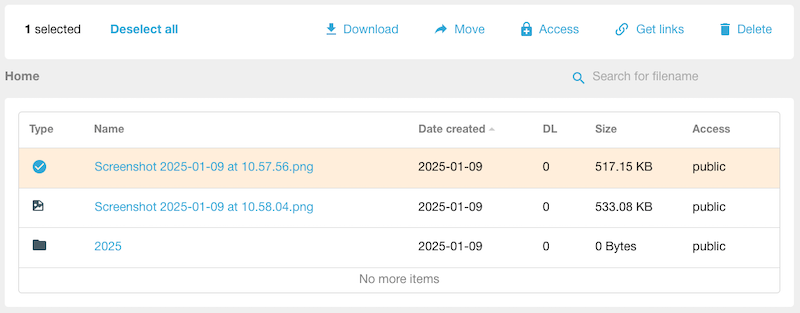
Too many files uploaded to your Keep2share account, then you need to search for a specific file when it seems not available in your Keep2share account. From Keep2share home page, there is a search tool available, allowing users to enter file name and search. But this search feature only works when you remember the exact file name or keywords in a file name.
- Log into your Keep2share account.
- Enter file name or keyword in the file name to search for your files in Keep2share.
![search keep2share]()
- Then select, download or move the files as needed.
#2 Check Subfolders in Keep2share Account
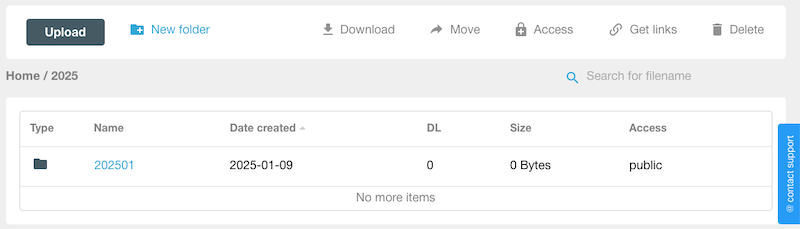
Keep2share allows users to move files to a folder or subfolder, you may have accidentally moved some files to other folders, and mistakenly believed that the files were deleted. So, check all the folders and subfolders in your Keep2share account to make sure the files are deleted or moved to another location.
#3 Search within Trash Bin
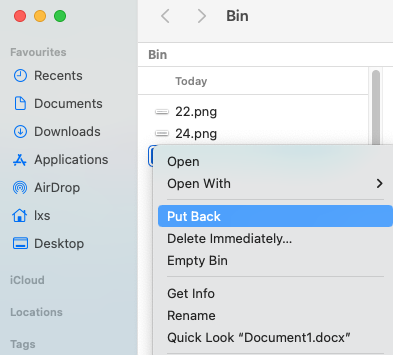
In the case that you don’t empty trash bin on your device regularly, you should check the bin to find if a copy of the deleted file was there. It’s much likely we will upload a file to Keep2share from our Windows or Mac computer, then move the original file to trash bin to free up space. Therefore, check the deleted files in trash bin and put it back if you find the copy.
#4 Search Files by Name or Data on Your Device
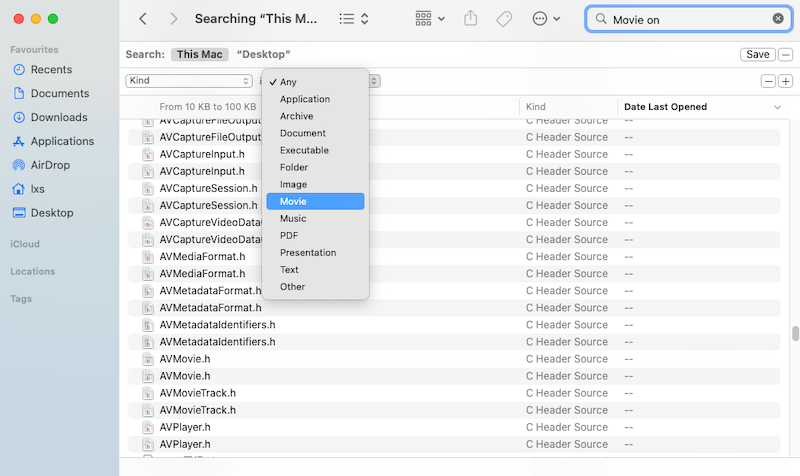
Have you ever downloaded the Keep2share files to your computer in the browser? If yes, you should check the downloads in your browser to find a copy. Also, if you remember the file name or created date of the deleted files, you should search them on your device.
For Mac users, open Finder app, press Command + F to search the files; for Windows users, enter the file name into Taskbar, File Explorer, or press Ctrl + F to search a Keep2share file.
Keep2share File No Longer Available? How to Recover?
We hope you can find a copy of the deleted files according to above, but the reason why you keep reading is just because you are now in the situation that you’ve deleted the Keep2share files permanently. So, if you are looking for solutions to recover the files instead of searching, we have you covered, there are 4 feasible ways for you.
Does Keep2share Have A Trash Bin?
You may be wondering if Keep2share has a trash bin or not, just as that Google Drive stores recently files in Trash folder for 30 days, so you can still recover a deleted file within 30 days. But unfortunately, Keep2share doesn’t have a bin. It allows users to delete a file, but the file will be permanently removed from your Keep2share account, you won’t be able to access a deleted file on Keep2share. However, this doesn’t mean a deleted Keep2share file is not recoverable.
Is It Possible to Recover Deleted Keep2share Files?
Yes, it is.
Though we cannot recover a deleted file from cloud, it is surely that we will upload files, especially large files, from a physical drive to our Keep2share account, it can be a local drive from our computer, from external HDD, SSD, or from an SD Card. Therefore, we can recover deleted these Keep2share files from the backups on a physical drive, even the backups were deleted, as long as they are not overwritten by new data on your device, it is still possible to recover.
Why? When we permanently remove copies of the deleted Keep2share files from our device, the system just deletes the portals to access those files and marks the space as available to add new files, the deleted copies are still there on the drive, until there is new data overwrites them and they will become unrecoverable.
#1 Use Cisdem Data Recovery
Chances are, you have heard of Cisdem Data Recovery, one of the reliable file recovering apps that has a multitude features. The reason why you can use Cisdem is because that, it allows users to recover files from virtually any drive, including internal and external storage devices. In other words, as long as you once backed up the Keep2share files to a drive, even if you’ve deleted them, Cisdem is capable of recovering the deleted files for you.
Cisdem Data Recovery is an app has plenty of features to fulfill your recovery requirements:
- It can recover deleted files from virtuall all storage devices: PC, Mac, HDD, SSD, USB, SD card, etc.
- It can recover files lost under different data loss situations: delete, format, system crash, app glitch, human errors, etc.
- It can recover 1000+ file types: video, photo, audio, document, email, bookmark, archive, etc.
- It can rescue unsaved files in Word, Excel, PowerPoint, Keynote, Pages, Numbers, WPS and so on
- It can repair damaged videos, photos, even documents
- It can quickly search and filter a lost file
- It can preview files before the recovery process
- It can save recovered files to local disk or a safe location
- It can save scanning results, support auto recovery
- It can offer advanced data recovery solutions: NAS/Linux/RAID/Parition/Crashed PC recovery
To recover deleted Keep2share files, you can:
- Download and install Cisdem Data Recovery on your computer.
 Free Download Windows 10 or later
  Free Download macOS 10.15 or later
 - (Optional) If you once saved the Keep2share files on an external storage drive, connect it to the computer.
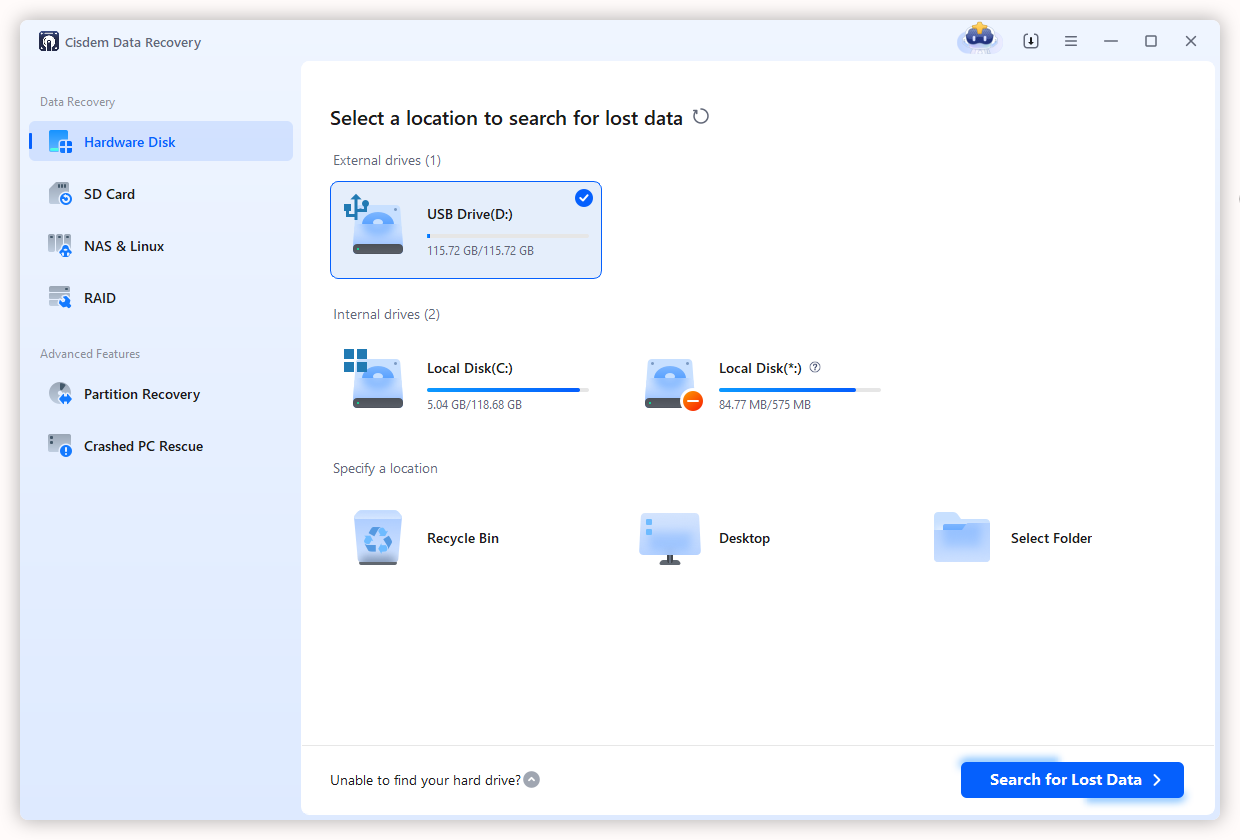
- Choose the drive where the Keep2share file copies were stored. Click Search for Lost Data to start the scanning.
![recover keep2share file 01]()
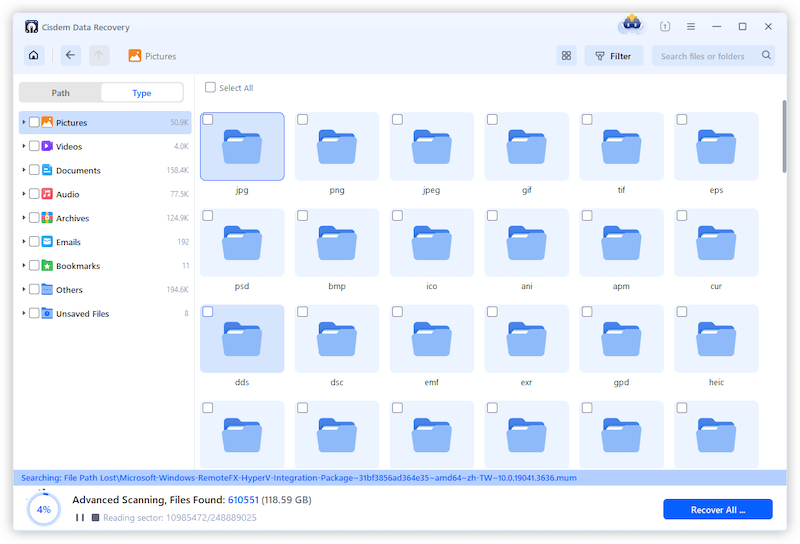
- Go to Type, check the files according to file type, you can browse a deleted Keep2share photo, video, document, archive or others.
![recover keep2share 02]()
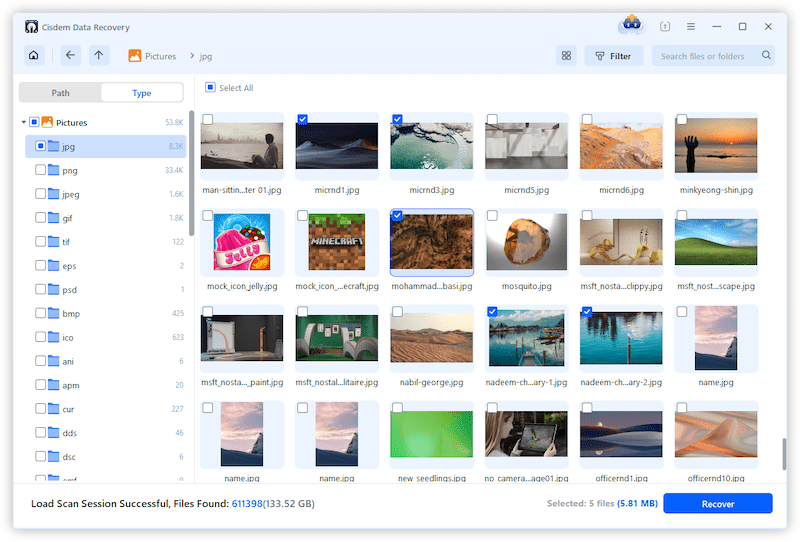
- Preview the file by double clicking on it, then select and click Recover to find back the deleted Keep2share files.
![recover keep2share file 03]()
- (Optional) Then you can sign into your Keep2share account and upload the recovered files to your account again.
#2 Recover from Local/Cloud Backup
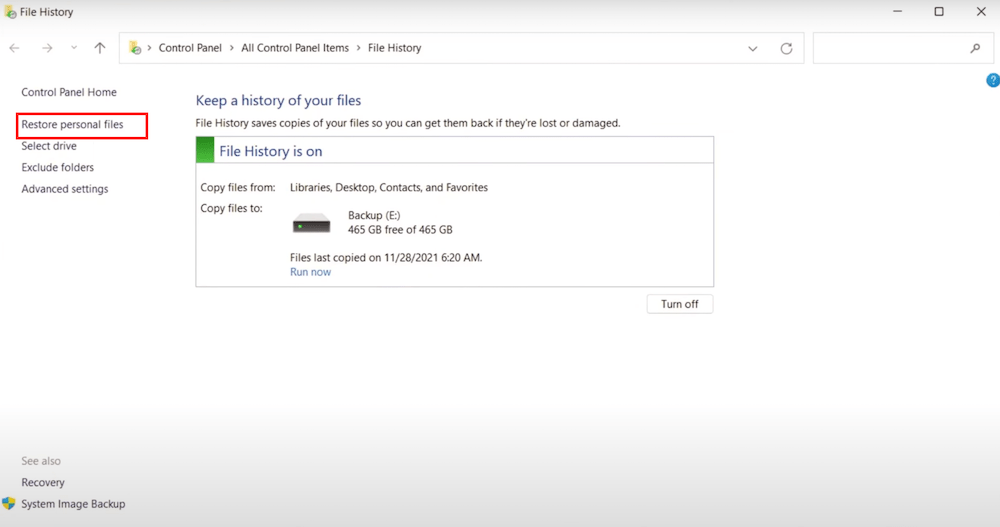
If you have a backup, be it local or cloud, recovering deleted Keep2share files is even easier. On my own part, I get used to backing up files to a physical external drive via File History on my PC, as follows:
- Connect the backup drive to your computer.
- Go to Control Panel, open File History.
- Then click on Restore personal files.
![recover keep2share files backup01]()
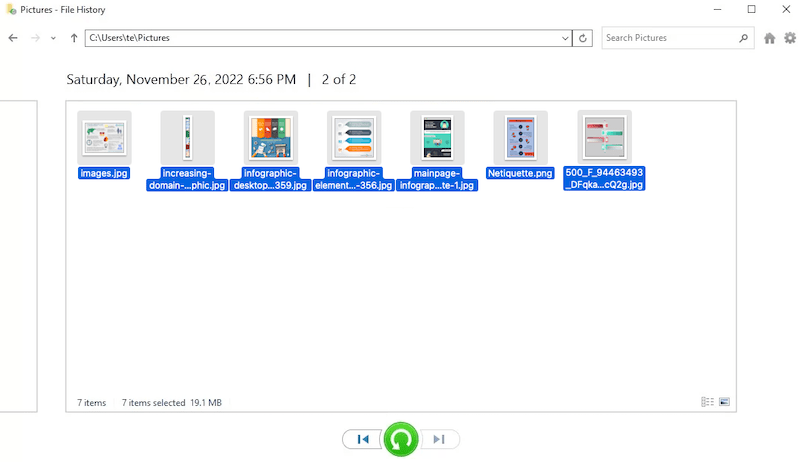
- Preview the backup files for Keep2share, select and click Restore.
![recover keep2share from backup 02]()
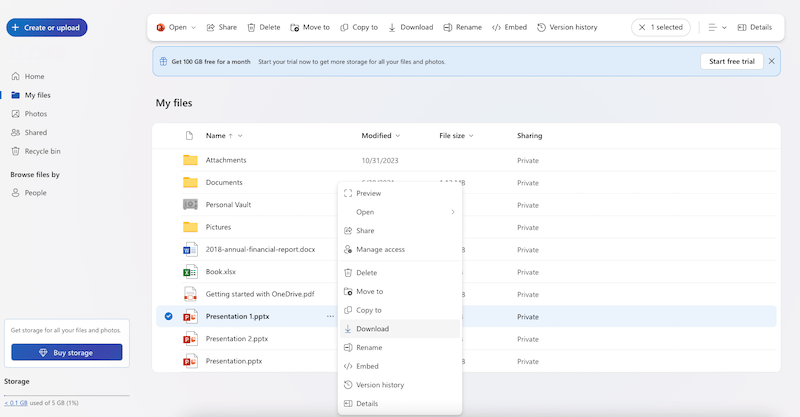
Sometimes, local backup is a thing, it cannot be easily accessible. So, we might use cloud backup, such as OneDrive, Google Drive, iCloud, Dropbox. If you have a cloud backup with the same Keep2share files on, just have a look at the cloud backup apps. There is no need to guide you through every cloud backup, because it is easy, simply log into your account, then browse and transfer the files to Keep2share again. If the files are missing from My files, don't forget to check Recycle bin and Restore.
#3 Recover via Shareable Link
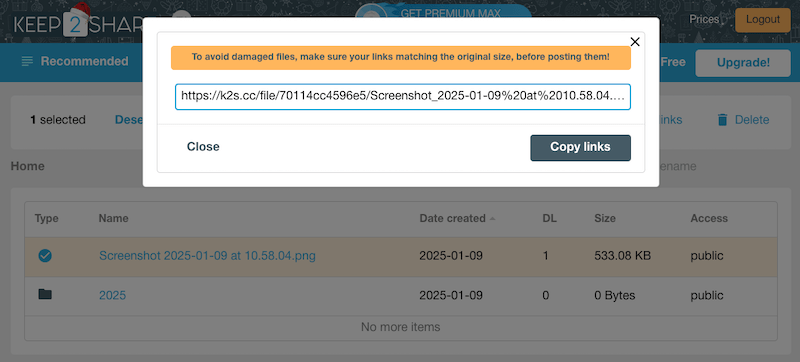
If you lost a Keep2share file but didn’t delete it from Keep2share account, you can trace back the file via a shareable link in the case that you once shared the file to someone else.
This shareable link starts with https://k2s.cc/file/ or https://k2s.cc/folder/, you can search inside apps on your device, such as email, web browser, message, etc.
#4 Contact Keep2share Support
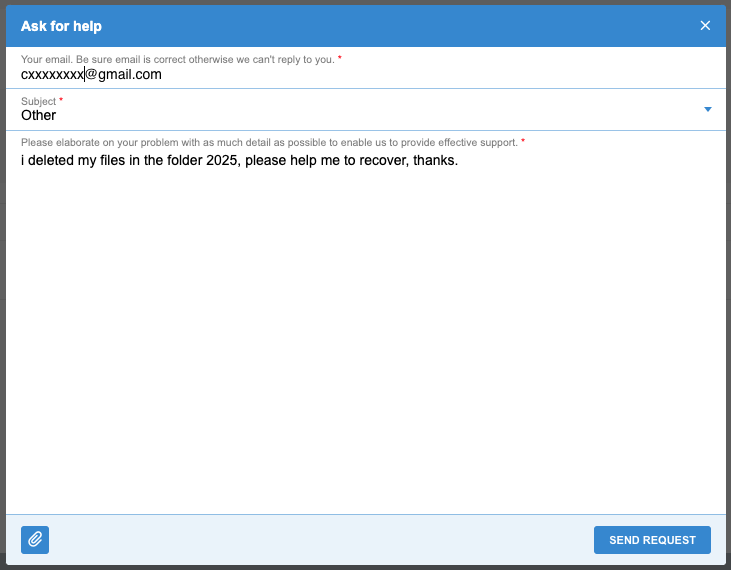
Keep2share may not have a speedy online chatting, nor extensive FAQ on its website, but it has professional customer support via email. Once you’ve logged into your Keep2share account and submitted a request, Keep2share will provide necessary and effective assistance for your issue.
Simply click on the floating Contact Support button on the right side from the website, then elaborate your problem and send the request.
Conclusion
File sharing on Keep2share is safe and convenient, but it doesn’t mean data loss is avoidable. To build up your last line of defense, we should always back up files, particularly those important files, to at least 2 safe places, including a physical drive. Whenever you delete and lose a Keep2share file, it is still possible to recover via a backup, or using Cisdem Data Recovery.

Zoey shows a great interest in what she does. Although not long with Cisdem, she has possessed a professional understanding of data recovery.

JK Tam is the lead developer at Cisdem, bringing over two decades of hands-on experience in cross-platform software development to the editorial team. He is now the lead technical approver for all articles related to Data Recovery and DVD Burner.