


8 Tips on How to Recover Minecraft Worlds (PS4, Xbox, Computer Covered)
 10.6K
10.6K
 0
0




Data Recovery
Recover Deleted Minecraft Worlds Data


Since its release in November 2011, Minecraft has been cited by players as one of the greatest video games ever. Avid players would spend days, months, even years to build a blocky, procedurally generated 3D world with virtually infinite terrain. It’s not difficult to imagine how disappointing it could be when losing the Minecraft World.
For various reasons, your advancements or trophies achieved in Minecraft might disappear unexpectedly. But take it easy, this blog will deliver several solutions to recover deleted/corrupted Minecraft worlds on gaming consoles like PS4 and Xbox, also on a computer.
Cisdem Data Recovery for Windows and Mac
Quickly Recover Deleted or Corrupted Minecraft Worlds
- Recover Minecraft Worlds files safely without overwriting previous progress
- Restore lost game files from PS4/5, Steam, Xbox, Switch, etc.
- Also retrieve game data from PC/Mac hard disks, USB drives, SD cards, digital cameras, etc.
- Support the recovery of 1000+ file types: game screenshots, game videos, songs, documents, emails, archives, bookmarks, etc.
- Repair corrupted game photos, videos and even documents
- Preview found Minecraft world files before recovery
- Support NAS recovery, Linux recovery and crashed PC recovery
- Recover unsaved files
- High recovery rate
 Free Download Windows 11/10/8/7
 Free Download macOS 10.15 or later
Part 1. How to Recover Minecraft Worlds on PS4 Console?
Speaking of how to recover deleted Minecraft worlds on PS4, we have a pretty effective option for PS Plus users. PS Plus console is equipped with an auto-save feature to store game data in online Cloud storage. As below are the steps to recover deleted Minecraft worlds from PS4 Cloud saves.
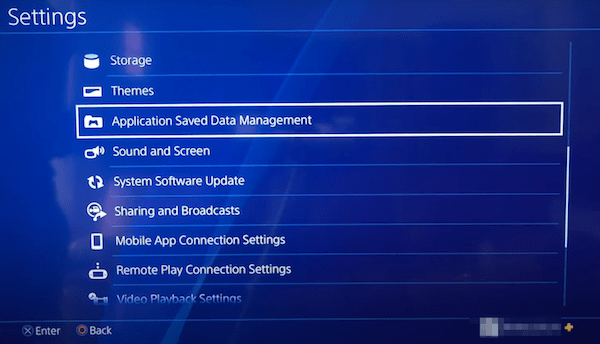
- Go to Settings on your PS4 home screen > scroll down to enter “Application Saved Data Management”.
![recover mc on ps4 01]()
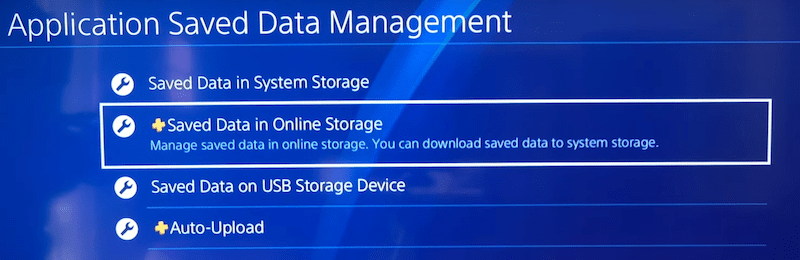
- Click on “Saved Data in Online Storage”.
![recover mc on ps4 02]()
- Choose “Download to System Storage”.
![recover mc on ps4 03]()
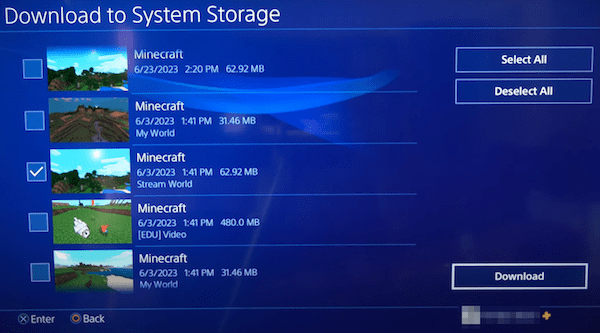
- Select the deleted Minecraft world you need to restore > hit Download.
![recover mc on ps4 04]()
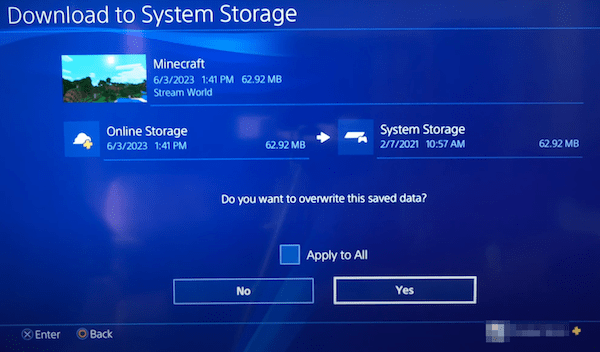
- Click Yes to start the downloading process. After that your Minecraft world will be back to PS4 system storage.
![recover mc on ps4 05]()

Part 2. How to Recover Minecraft Worlds on Xbox One?
Did your Minecraft World just disappear or get deleted? Disappeared Minecraft World from Bedrock Xbox is a big complaint from game players, if you are sure that the game is not deleted, you should check following reasons and solutions for disappeared Minecraft World.
Why Did My Minecraft World Disappeared from Bedrock Xbox?
Reason 1. Berock Xbox glitches
Solution: Press the Play button from main menu to load the game data and display.
Reason 2. Sync issues
Solution: Sign out and sign in again, or restart the game.
Reason 3. Corrupted game files
Solution: Revert to a previous version, or reset game settings and clear cached files.
Reason 4. Insufficient storage
Solution: Uninstall other games to free up enough space and let the game run smoothily.
Reason 5. Log into wrong account
Solution: Check which account you are logging into and switch to the correct one.
If you are sure the game data is deleted indeed, don't worry, we can get it back as well. According to some bloggers, there’s no way to recover it when we’ve deleted a Minecraft world on Xbox One. In fact, this is not entirely true. We’re still having a beacon of hope as the removed world from Minecraft might be available in the Xbox Cloud. Check out the instruction below to have a try.
- On Xbox One console, open Minecraft game > press Play menu.
- Go down to the bottom of the page, press “Sync Old Worlds”.
![recover mc on xbox]()
- You’ll see a list of worlds stored in Xbox Cloud. Look for your deleted one and choose it.
- Select Download option to download the world back to Xbox One.
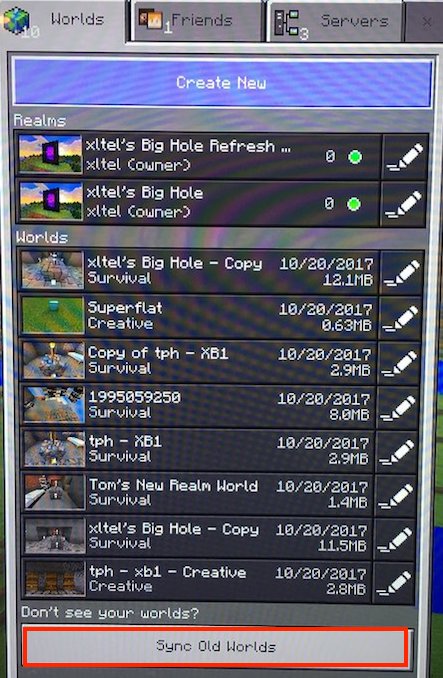
If your deleted world doesn’t show up in the Sync Old Worlds list, it could have been permanently deleted from the Cloud as well. In that situation, we may not be able to restore it.
Part 3. How to Recover Minecraft Worlds on Computer?
A part of game lovers choose to play Minecraft World on a PC or Mac as well. If you've mistakenly deleted your game data or, specific Minecraft worlds get missing out of game uninstallation or reinstallation, system crash, file corruption, virus infection, etc.? Here are the solutions helping you out.
1# Search with .mcworld Extension
There’s a chance that Minecraft world seems disappearing just because you are not locating them in the right place, rather than removed from your computer. Therefore, before spending efforts on recovering any deleted worlds in Minecraft, first search and locate the game files across your computer.
- Open the File Explorer on Windows.
- Input .mcworld file extension into the search box.
![search with file extension]()
- Check if your lost Minecraft worlds show up in the search results.
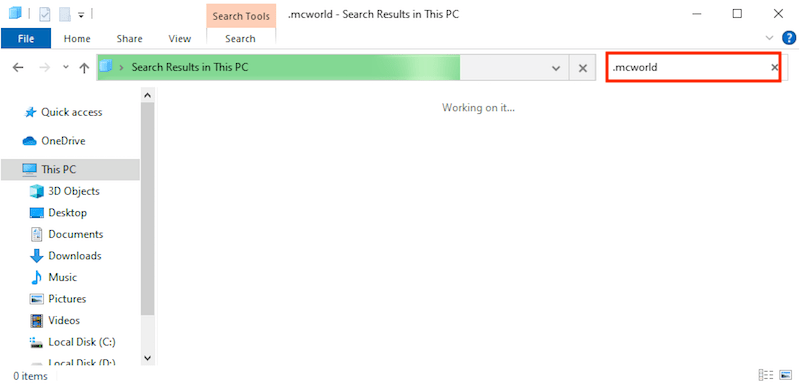
If you’re playing Minecraft macOS version, use Mac Spotlight search by pressing Command + F in Finder app.
2# Show Hidden Files
Or the game files are just hidden somewhere on your computer by yourself or others that share the same computer. You need to show the hidden files, and you can achieve this through the following steps.
- Open File Explorer, click View menu > Options.
![show hidden files 01]()
- Select View tab > hit on the radio button before “Show hidden files, folders, and drives”.
![show hidden files 02]()
- Choose Apply > OK.
- Now go to check if you can access the missing Minecraft worlds again on Windows.
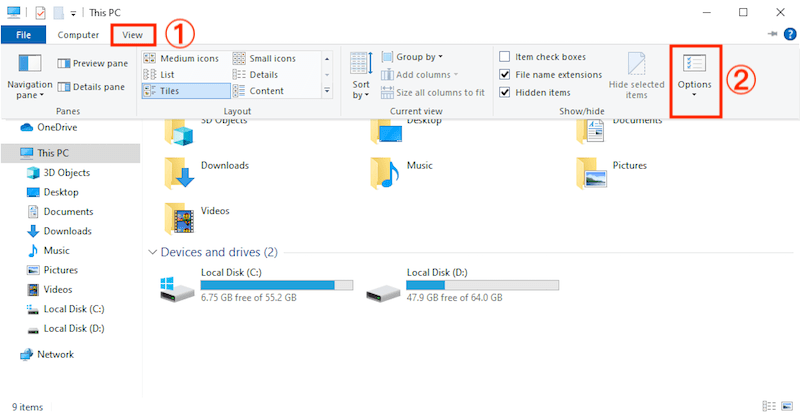
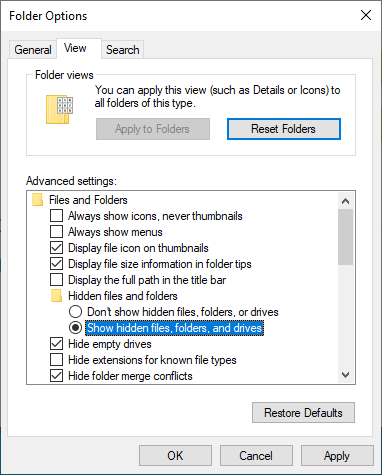
For macOS users, press Command + Shift + Period (.) to show up the hidden files.
3# Recover Deleted Minecraft Worlds from Backup
Providing you have initialed the Windows backup feature --- File History to make any backups of your Minecraft folder before deletion happens, this method is luckily for you. The recovery process is achieved by restoring a previous version of the Minecraft world, where you’ll still lose part of the progress, but it’s much better than losing a whole world.
This time we’ll offer a guide for Minecraft Java Edition players, while the workflow for Bedrock Edition is pretty much the same. You only have to change the storage path in Step 1, which has been clarified at the end of last section.
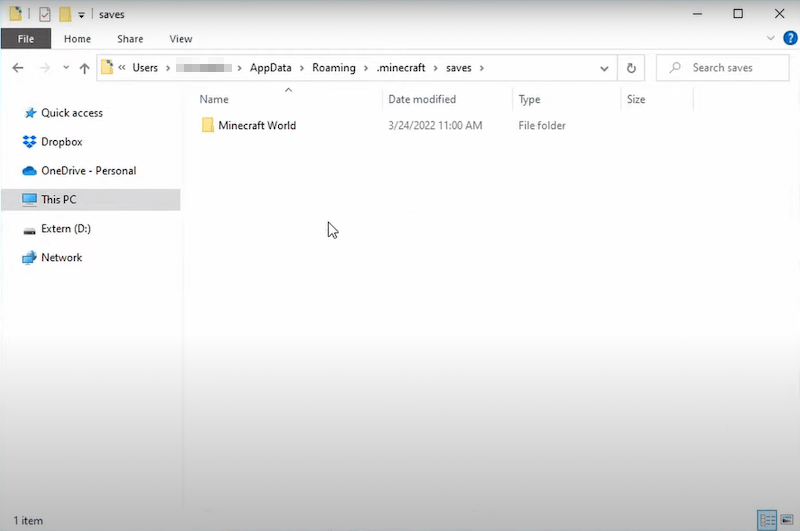
- Navigate to \Users\<username>\AppData\Roaming\.minecraft\saves.
![restore previous version 01]()
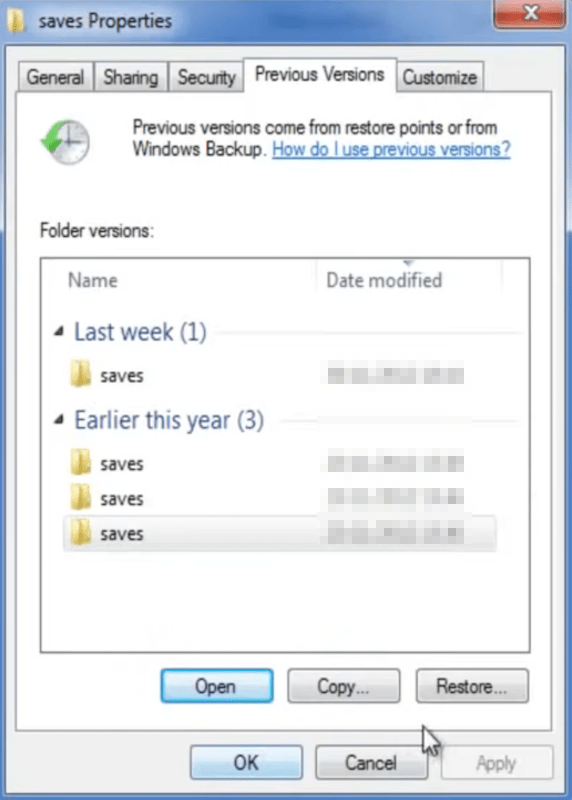
- Right-click on the empty area of saves folder > select Properties.
- Click Previous Versions tab > choose the exact folder containing your deleted MInecraft worlds > tap on Restore to complete.
![restore previous version 02]()
- Relaunch Minecraft on your PC to reaccess your world.
4# Restore Deleted Minecraft Worlds without Backup
In case no backup of deleted Minecraft worlds is available, the most suitable recovery method must be utilizing a piece of 3rd-party data recovery software. Since a Minecraft world will be temporarily stored in the local hard drive when we create it on PC/Mac, the world file has a big chance to be recovered by a data retrieval tool. Which one is worth a shot? You Minecraft players are suggested to choose Cisdem Data Recovery.
Cisdem can be such a powerful Minecraft world recovery program to restore deleted, lost or formatted world files from Minecraft easily. Even better, it’s also capable of handling game data deletion/loss on various game platforms such as PS4/5, Steam, Xbox One and others.
How to restore Minecraft worlds without backup?
- Download, install and run Cisdem on your computer.
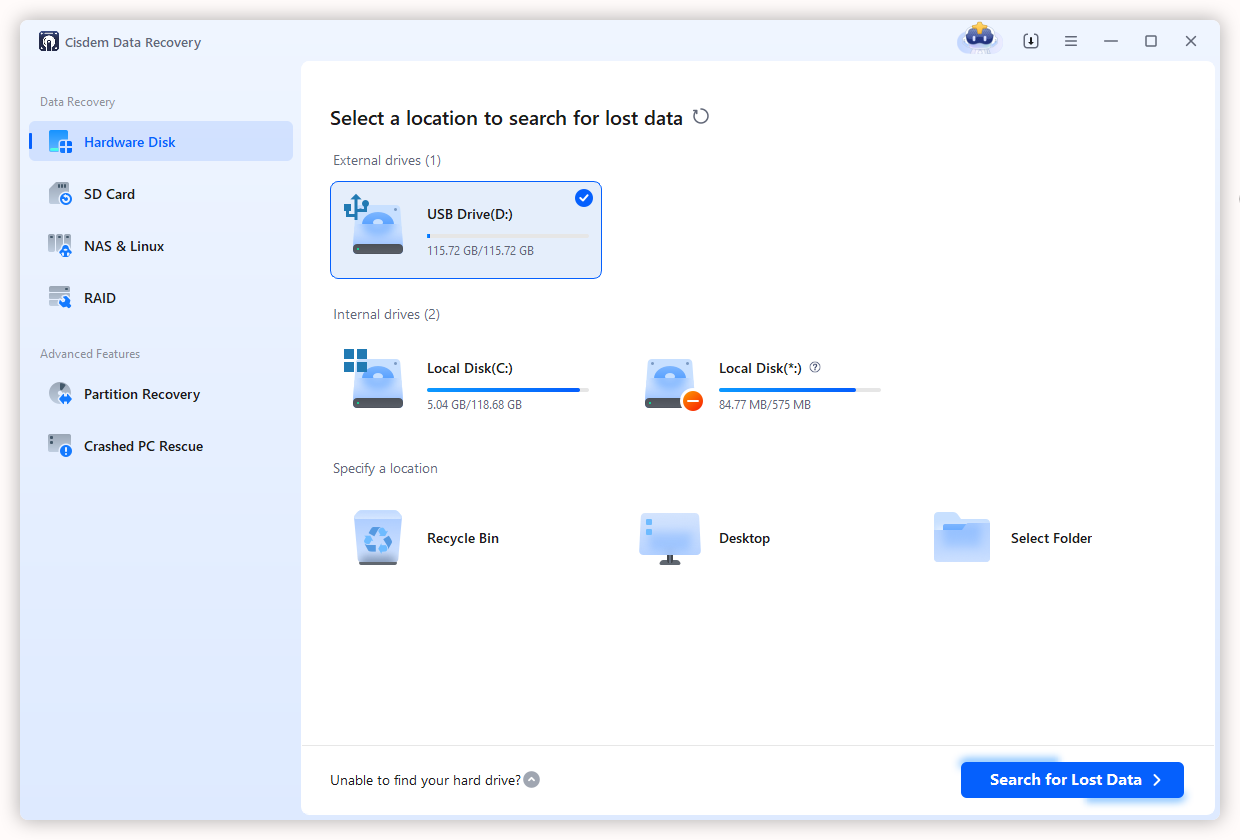
Free Download Windows 11/10/8/7 Free Download macOS 10.15 or later - Choose PC Recovery, select the storage location where you delete Minecraft worlds and click “Search for Lost Data”.
![recover minecraft with cisdem 01]()
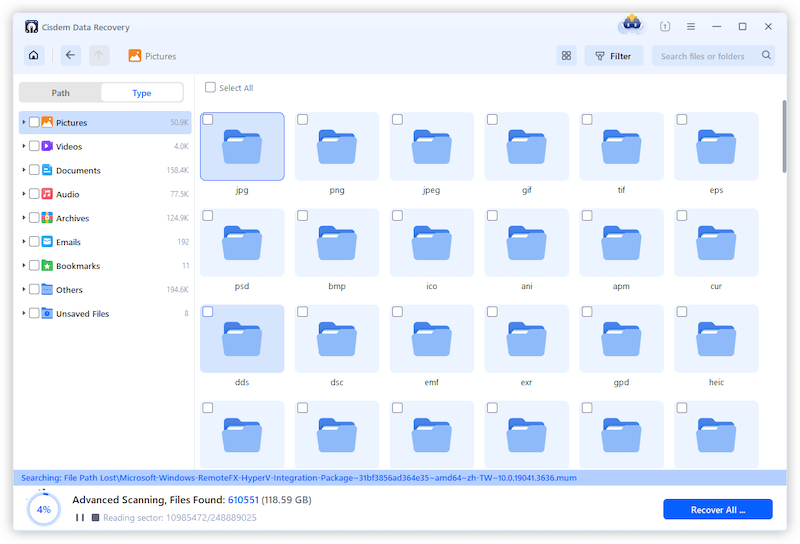
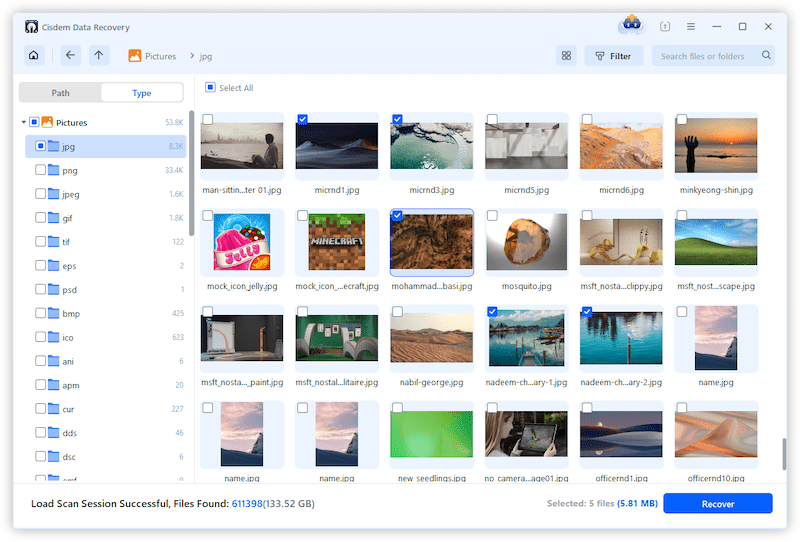
- The program will start to scan your selected drive via Quick scan and Advanced scan. After it finishes, go to Type > Others folder to locate your desired Minecraft world files. Alternatively, search .mcworld file extension directly.
![recover minecraft with cisdem 02]()
- Select the world files you want, click Recover and choose a proper destination folder to save them.
![recover minecraft with cisdem 03]()
-
Place the recovered file in
C:\Users\<username>\AppData\Roaming\.minecraft\saves if you’re playing Java Edition; or
C:\Users\<username>\AppData\Local\Packages\Microsoft.MinecraftUWP_8wekyb3d8bbwe
\LocalState\games\com.mojang\minecraftWorlds if you are playing Bedrock Edition.
5# Recover Corrupted Minecraft Worlds In Minecraft Java Edition
Another scenario leading to a disappeared Minecraft world would be the broken world file. That’s to say, your Minecraft worlds may not be actually gone but they are somehow corrupted. So let’s try to fix the corruption issue and recover lost Minecraft worlds.
- Open File Explorer, locate the missing world file by going through \Users\<username>\AppData\Roaming\.minecraft\saves, which has been mentioned in the previous method.
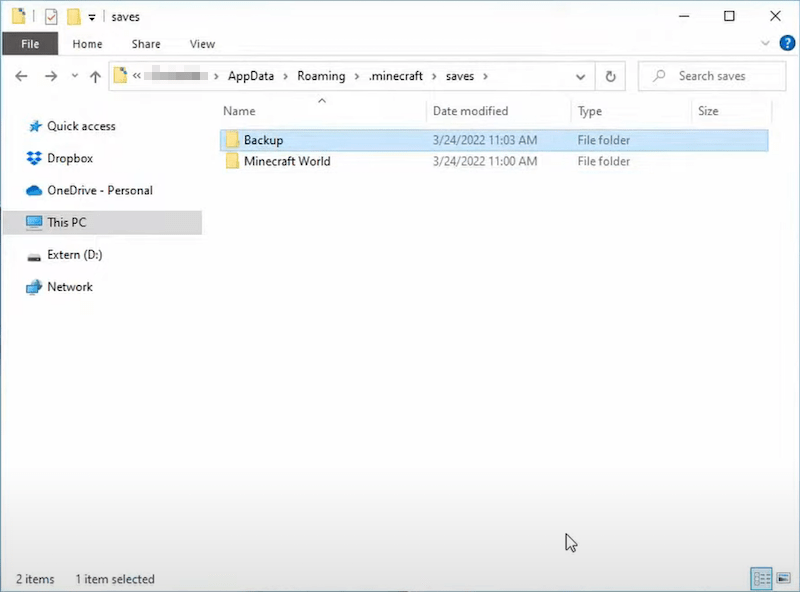
- To avoid messing something up, you’d better make a backup copy of the Minecraft folder. To do this, create a new folder called Backup, copy & paste the Minecraft World folder into the new Backup one.
![recover corrupted java minecraft 01]()
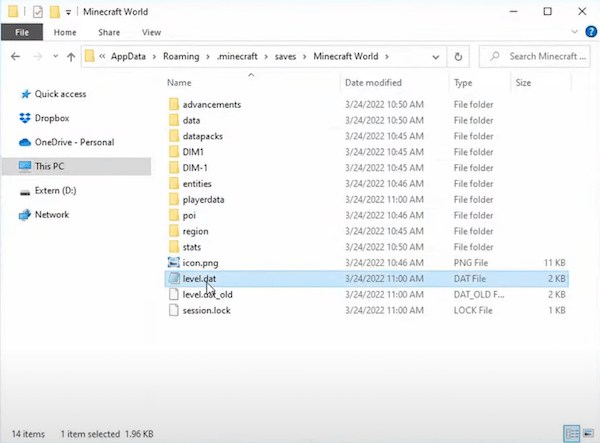
- Turn to the original Minecraft folder > find and delete a file named level.dat.
![recover corrupted java minecraft 02]()
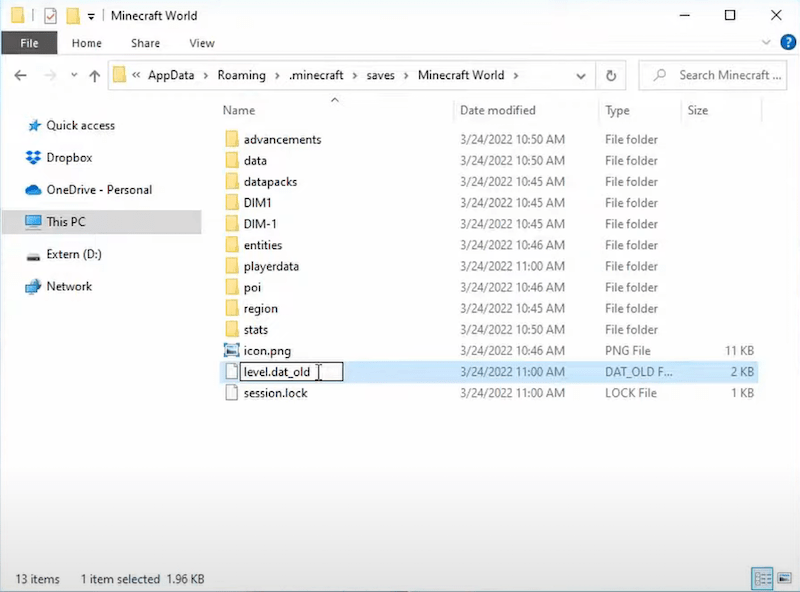
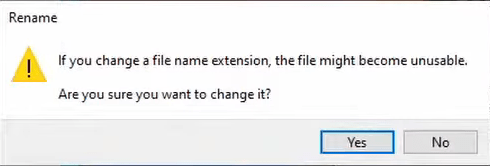
- Rename the file called level.dat_old to level.dat like the one we just deleted. level.dat_old is basically a backup of level.dat.
![recover corrupted java minecraft 03]()
- In the pop-up window, click Yes to confirm the renaming.
![recover corrupted java minecraft 04]()
- Jump back to Minecraft to see if the missing world is present.
6# Recover Corrupted Minecraft Worlds In Minecraft Bedrock Edition
In the case that you are playing Minecraft Bedrock, check out these steps to fix damaged Minecraft World.
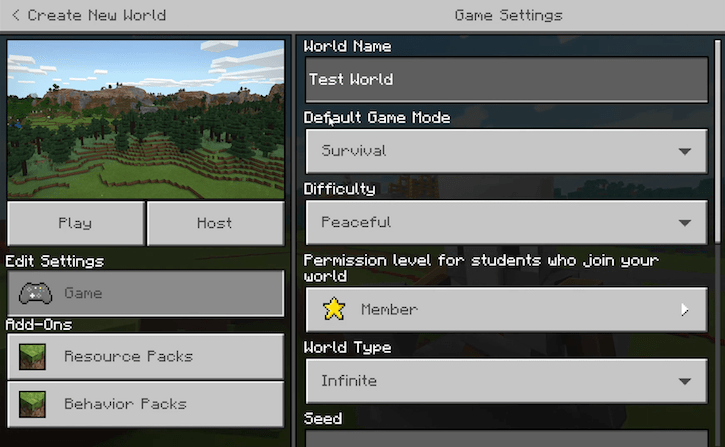
- Relaunch Minecraft > create a new world with the same settings as your lost one > save it and exit Minecraft.
![recover corrupted bedrock minecraft 01]()
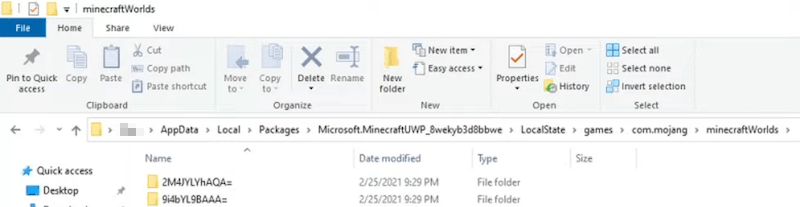
- In File Explorer on your Windows PC, navigate to: C:\Users\<username>\AppData\Local\Packages\Microsoft.MinecraftUWP_8wekyb3d8bbwe\LocalState\games\com.mojang\minecraftWorlds.
![recover corrupted bedrock minecraft 02]()
- Open the new world you created > find db folder > delete everything inside this folder except itself.
- Go to your lost world folder > open its db folder > copy everything in it.
- Paste the contents into the new db folder.
- Open Minecraft again > open the world newly created to resume play.
Closing Words
Worlds deletion, loss or corruption means losing game progress, which is absolutely not a pleasant thing for Minecraft players. This blog comes to the rescue by providing an ultimate tutorial on how to recover Minecraft worlds on computer, PS4 and Xbox One. More importantly, it’s always a good idea to make regular backups of your game data to prevent permanent loss of your Minecraft trophies.

Zoey shows a great interest in what she does. Although not long with Cisdem, she has possessed a professional understanding of data recovery.

JK Tam is the lead developer at Cisdem, bringing over two decades of hands-on experience in cross-platform software development to the editorial team. He is now the lead technical approver for all articles related to Data Recovery and DVD Burner.